
Review of the Superior Forex Desk trading panel
 Many traders still prefer manual trading, guided by simple convenience or having a trading tactic in hand that is difficult to automate. And indeed, trading manually provides more control over the situation and greater involvement in the market. In this case, the convenience of the trading terminal comes to the forefront, where MetaTrader 4 has held first place among similar platforms for many years already.
However, convenience alone is not enough; maximum functionality is needed no less. This task is exactly what Superior Forex Desk from InstaForex takes on, representing an advanced trading panel created by traders for traders.
Installation
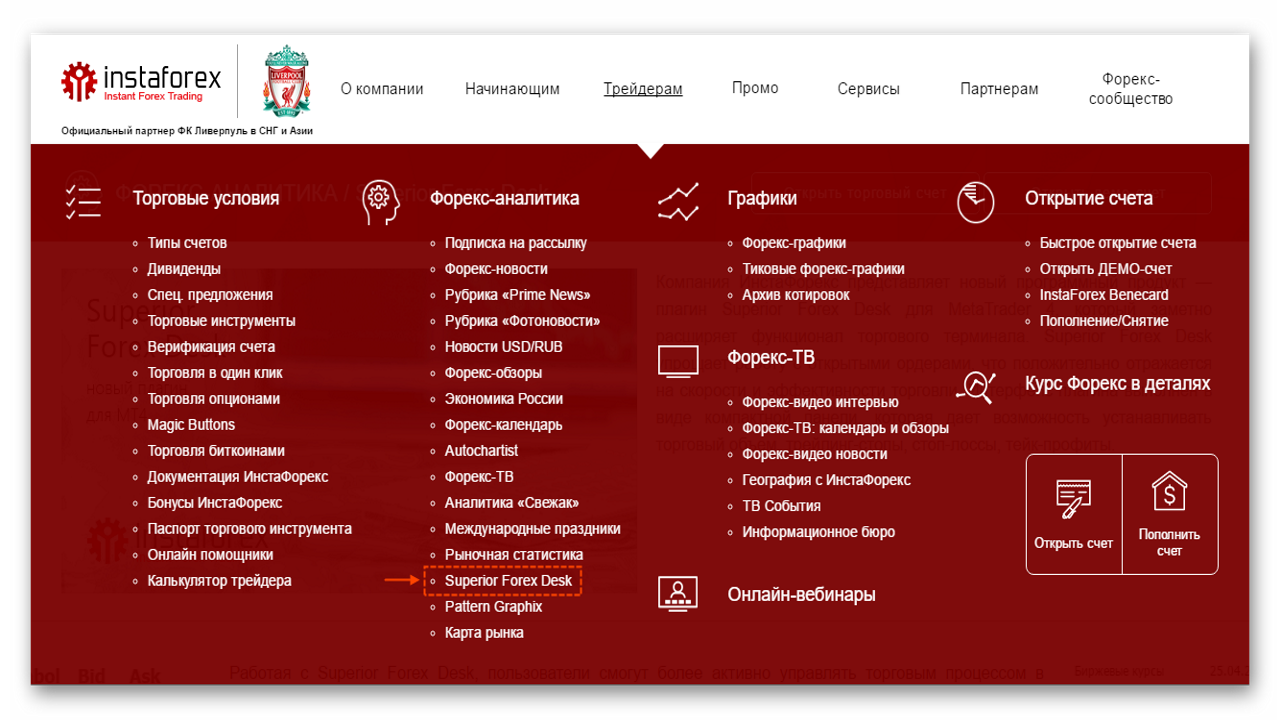
First, you need to download the program installation file from the InstaForex broker website, in the "For Traders" - "Forex Analytics" - "Superior Forex Desk" section.
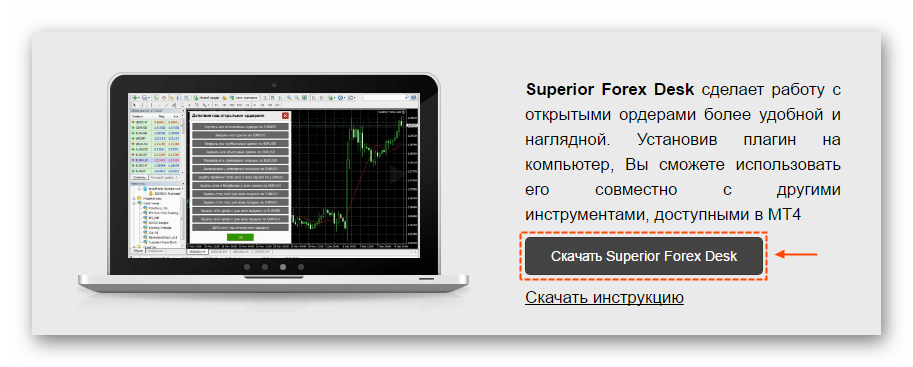
 A link to download the program is located a little lower on the page.
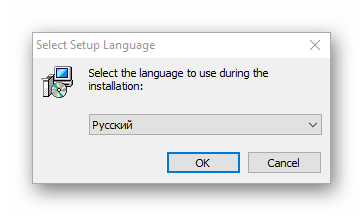
 After downloading, run the installation file and select the language.
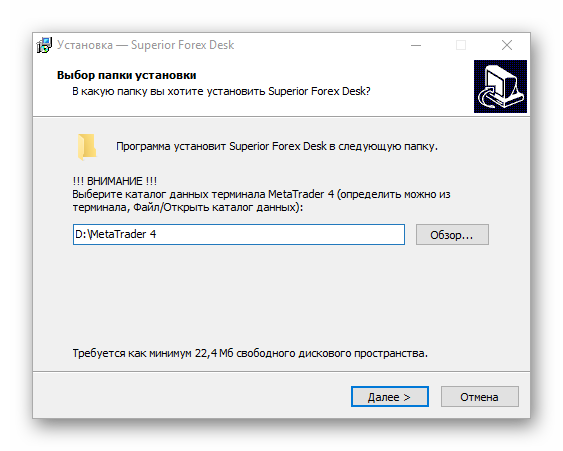
 Next, specify the terminal data directory where the panel needs to be installed.
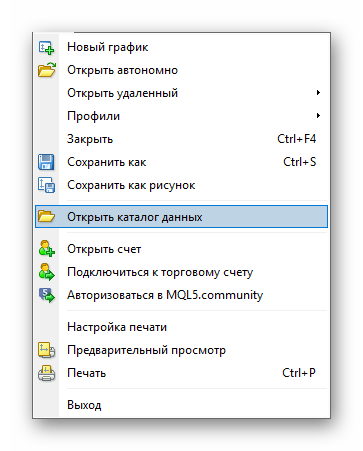
 You can find the directory address directly in the terminal via "File" - "Open Data Folder".
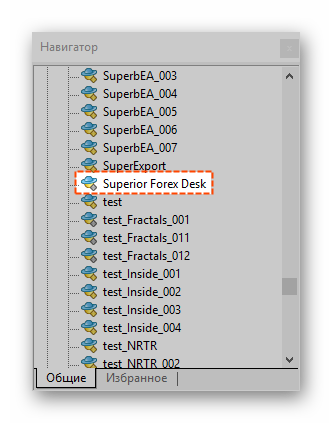
 After installation, restart the terminal. Drag the auxiliary expert advisor "Superior Forex Desk" from the Navigator window onto the chart.
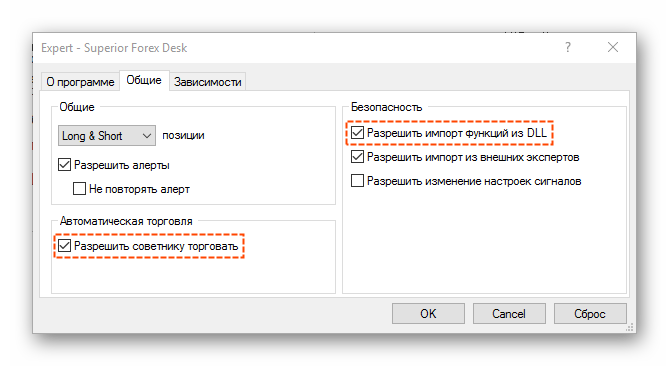
 Do not forget to allow automated trading and DLL library imports.
 If everything is done correctly, a panel of this kind will appear on the chart.
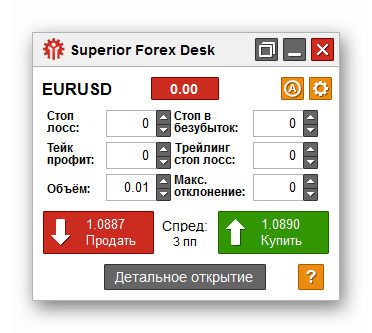 Keep in mind, the program works only on InstaForex accounts. For testing, it is enough to register a demo account on the Instaforex-Demo server.
Interface description
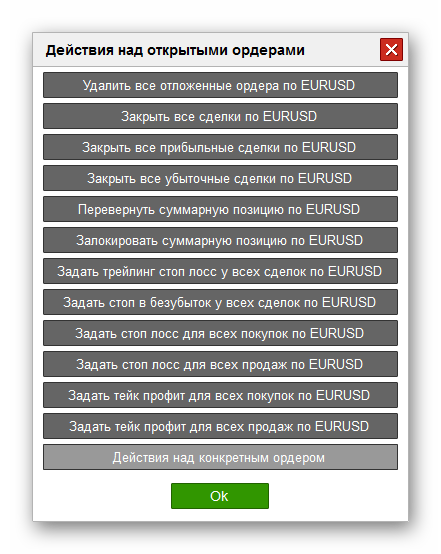
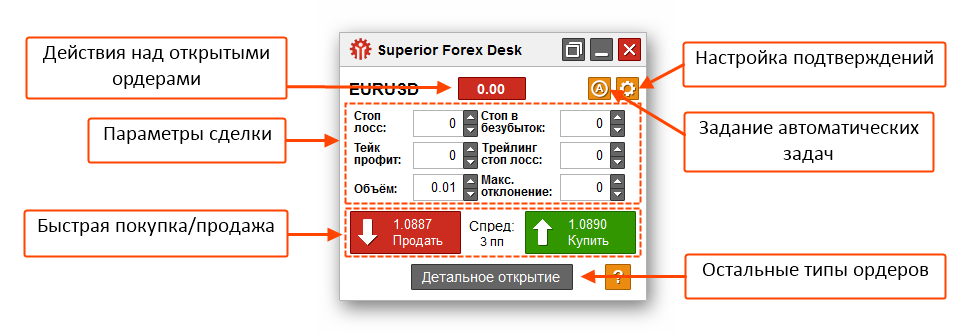 Actions on open orders
This is where the list of "quick" functions for working with orders is located. The label on the button is the volume delta for the instrument (the difference between buys and sells).
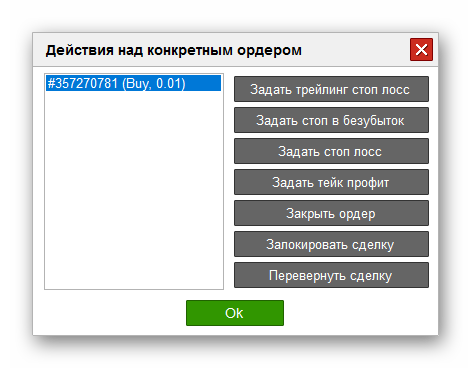
 At the very bottom is the "Actions on specific orders" button, clicking it opens a new window with a list of open orders. Here you can work with each order separately, in particular set a trailing stop, a breakeven level, stop loss/take profit, lock an order, or change its direction.
 Trade parameters
When opening a new order, you can immediately specify the stop/profit size, the breakeven level, the trailing stop, and the maximum slippage.
- Fast buy/sell
Similar to the standard MetaTrader functionality, you can quickly buy or sell an instrument with preset trade parameters.
- Setting automatic tasks
All current automatic tasks are located here, that is, breakeven, trailing stop, and so on. The tasks are labeled with the corresponding abbreviations:
- NL - breakeven management;
- TSL - trailing stop;
- OCO - OCO order;
- OCO_S - mutually cancelling Stop orders;
- OCO_L - mutually cancelling Limit orders.
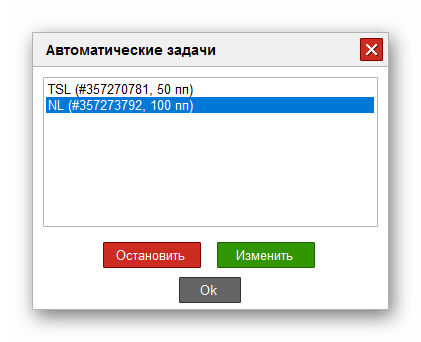 The functionality includes two main functions: stopping a task and changing parameters.
- Confirmation settings
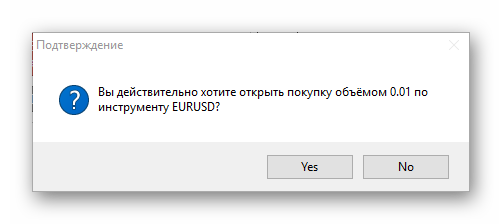
You can configure additional confirmation for opening and closing orders.
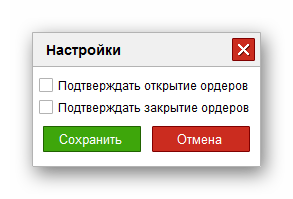 Thus, each action will be confirmed by a separate dialog.
 Other order types
In addition to the standard order types available in MetaTrader 4, Superior Forex Desk provides 3 more order types:
- OCO orders (mutually canceling stop and limit orders);
- Mutually canceling Limit orders;
- Mutually canceling Stop orders.
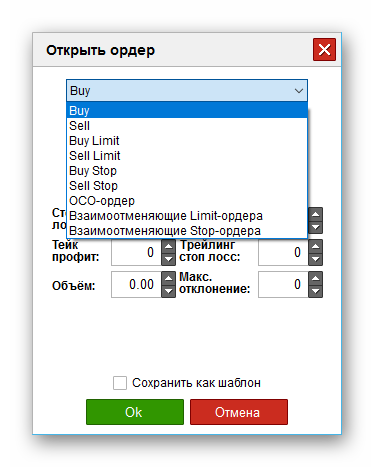 Mutually canceling orders are filled together. When one of the orders is executed, the second is deleted.
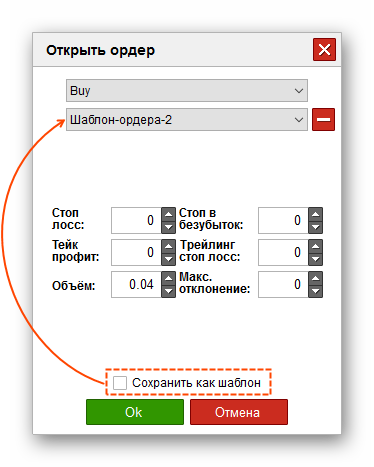
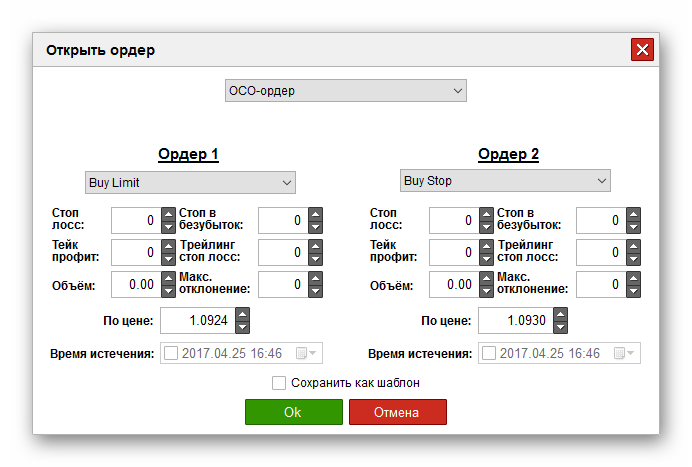 You can also save order templates. To do this, tick the "Save as template" box, click "Ok," and specify the template name.
 The panel itself can be "detached" from the chart. The panel will be displayed on top of all windows, which allows trades to be made outside the terminal.
Conclusion

In essence, the Superior Forex Desk trading panel makes it possible to get rid of a pile of scripts for each frequently used function, such as trailing stop, breakeven, and so on, which almost every trader has in their arsenal. In return, we get a convenient panel and centralized control over all automatic scripts. At the moment, this is one of the best solutions for manual trading.
Best regards, Alexey Vergunov TradeLikeaPro.ru
