
MetaTrader 4 Secrets
 Greetings to all beginner (and not only) traders!
Did you know that the average user uses less than 20% of the capabilities of the Metatrader 4 program? Some people do not need anything besides the Buy and Sell buttons at all :) . Today we will talk about little-known terminal functions and settings that will make work in Forex easier, more convenient, and faster. Are you ready to learn all the secrets of MT4?
Market Watch

This window displays a list of currency pairs and other instruments available for trading. If you use a multi-currency expert advisor in your trading that takes data from a large number of pairs, then such an expert will not be able to trade a pair that is not in the market watch.
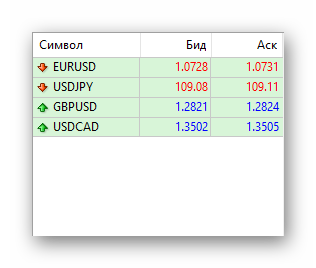 As an option, you can display a list of all symbols available from the broker. To do this, open the market watch context menu by right-clicking and select “Show all symbols”.
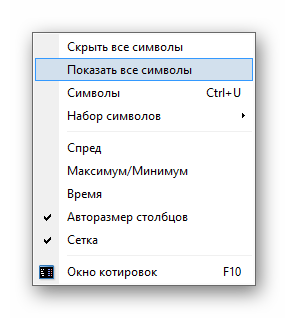 Conversely, if you choose “Hide all symbols”, only those symbols for which you have charts open will remain in the list.
Also, you can add specific symbols one by one. To do this, go to the “Symbols” menu and select the required instruments by double-clicking them with the mouse (or simply highlight them and click “Show”).
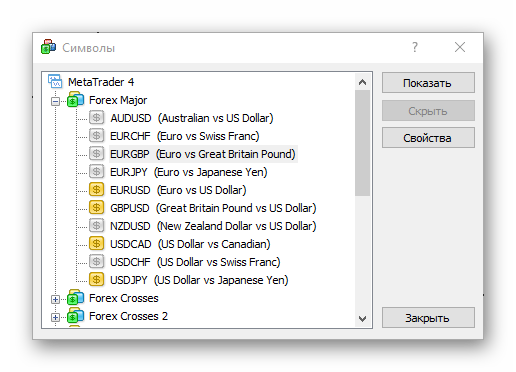
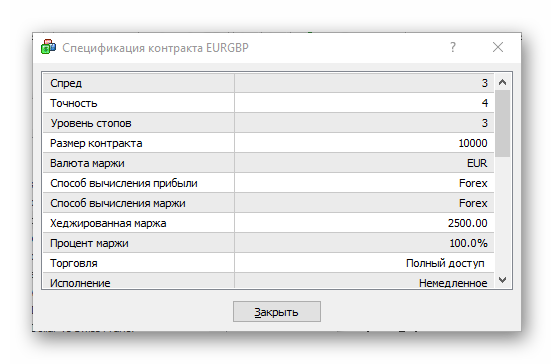
Here you can also view the specifications for symbols. To do this, select an instrument and click properties.
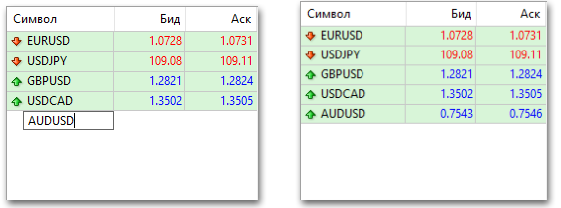
There is another, faster way to add symbols directly from the market watch window. To do this, double-click in the empty area below the list of symbols already added. After that, a small field for entering the symbol name will appear. Enter the symbol name and press Enter to add it to the list.
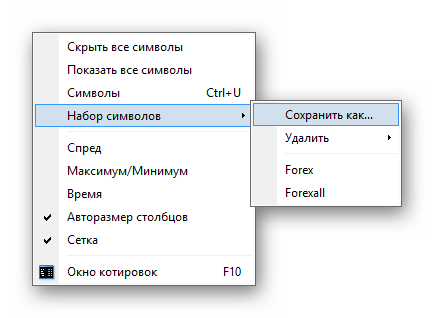
 Also, you can save symbol sets. To do this, call up the context menu and select “Symbol set” - “Save as...”. Later you can apply the saved template on another terminal so you do not have to add the required pairs manually every time. By default, the terminal already has two preset sets: Forex and Forexall.
 Another interesting function of market watch is the Quotes window. You can call up this window using the context menu or by pressing the F10 key.
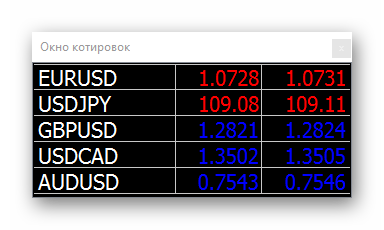 The quotes window has its own settings menu, which you can open by right-clicking. By default, the window is displayed on top of all others, so you can do other things in parallel without losing focus on what is happening in the market.
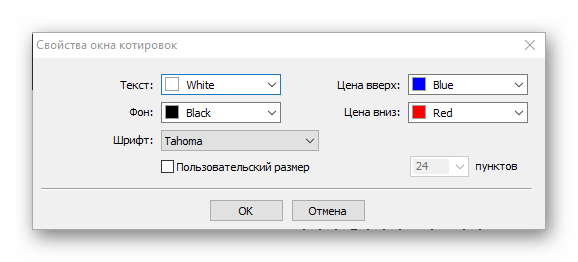
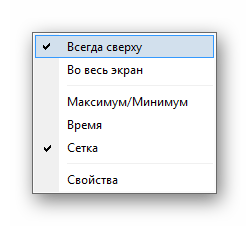 In the window properties, you can configure the size and type of the font, the color of the text, the background, and the quotes stream.
Terminal

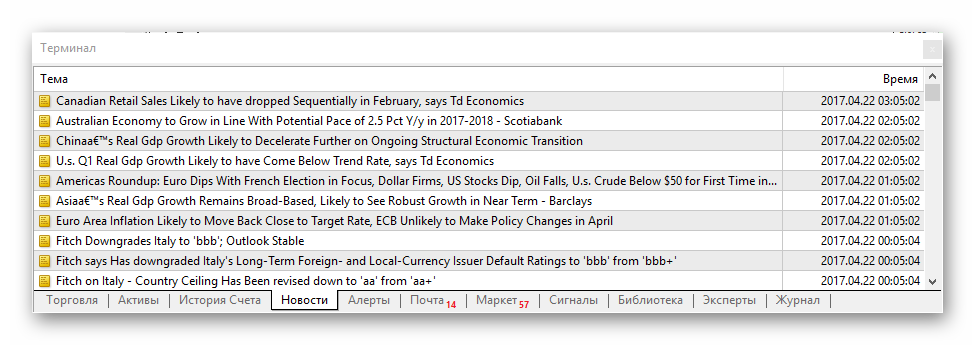
The terminal window has a “News” tab.
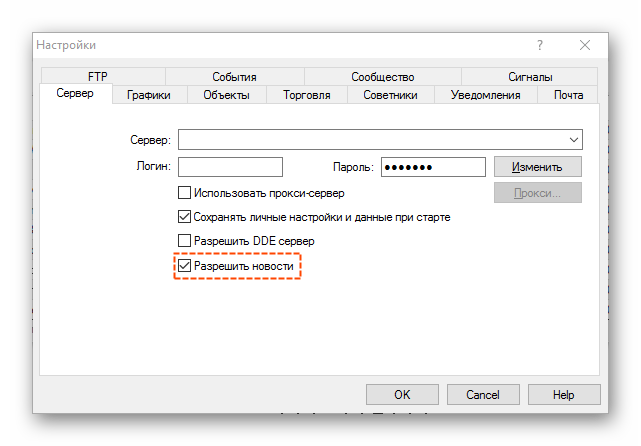
If you do not use fundamental analysis in trading, then news will most likely only get in the way. To disable the display of news, go to the “Tools” - “Options” menu - the “Server” tab, and uncheck “Enable news”.
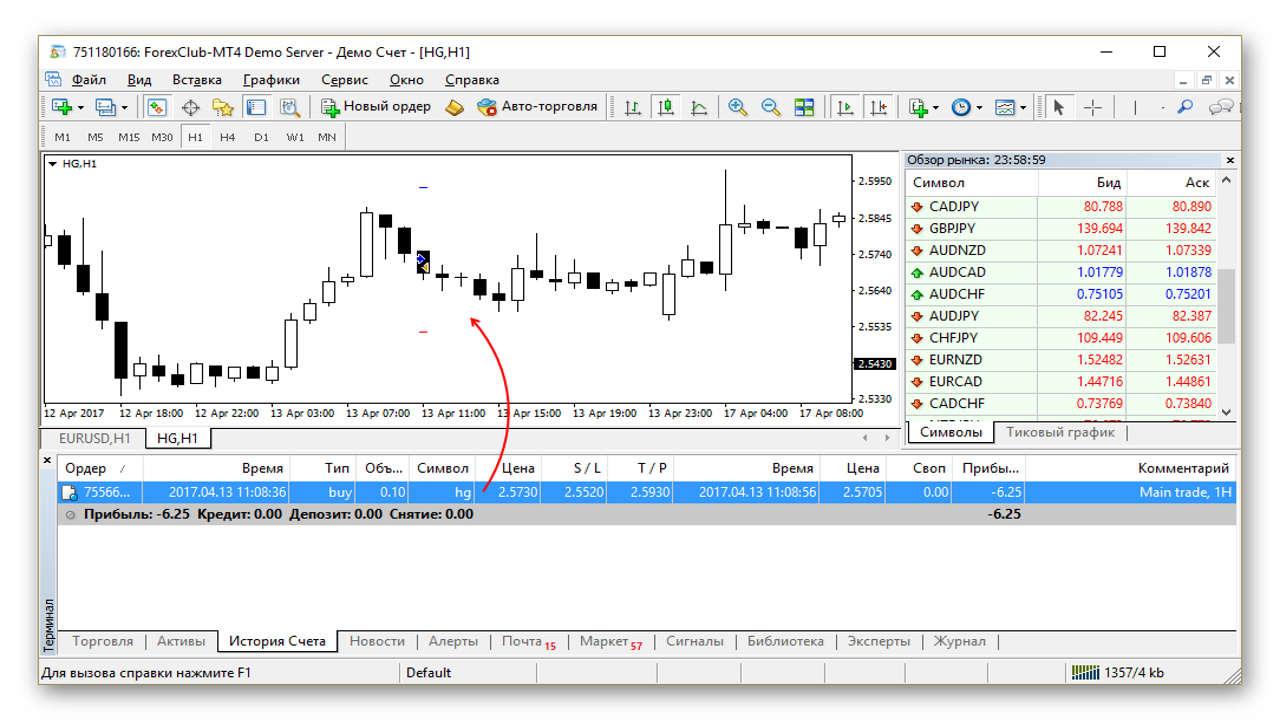
 Moving on to the “Account History” tab. Trades from the history can be displayed on the chart by simply dragging a trade onto the instrument window. If you drag a trade while holding Shift first, all trades for that instrument will be displayed on the chart.
Some strategies use partial position closing. For example, once a certain number of profit points is reached, we close half of the position and move the second half to breakeven. So, just as with a normal close, you click on the open order, but in the “Volume” field you enter the trade volume that needs to be closed.
Navigator

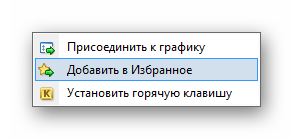
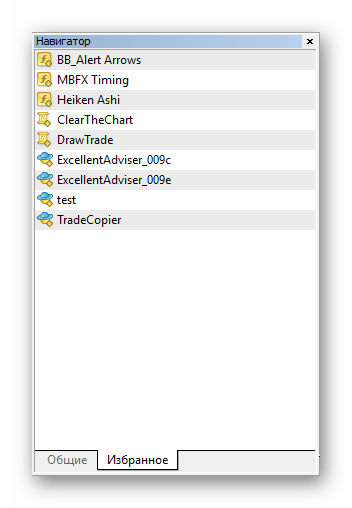
In the navigator window, on the “Common” tab, there is a list of trading accounts, indicators, expert advisors, and scripts. Next to it is the “Favorites” tab, where you can add expert advisors, scripts, or indicators that you use often. To do this, right-click the required indicator (expert advisor, script) and click “Add to Favorites”.
 This is approximately what the quick access window will look like after adding several indicators and expert advisors:
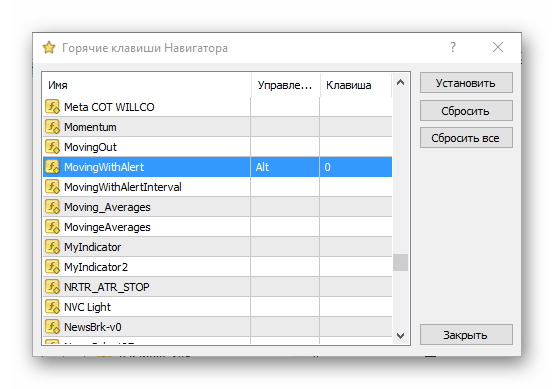
 Also, you can assign a hotkey to individual applications. This way, to attach the same indicator to a chart, it will be enough to hold down the set key combination.
Chart

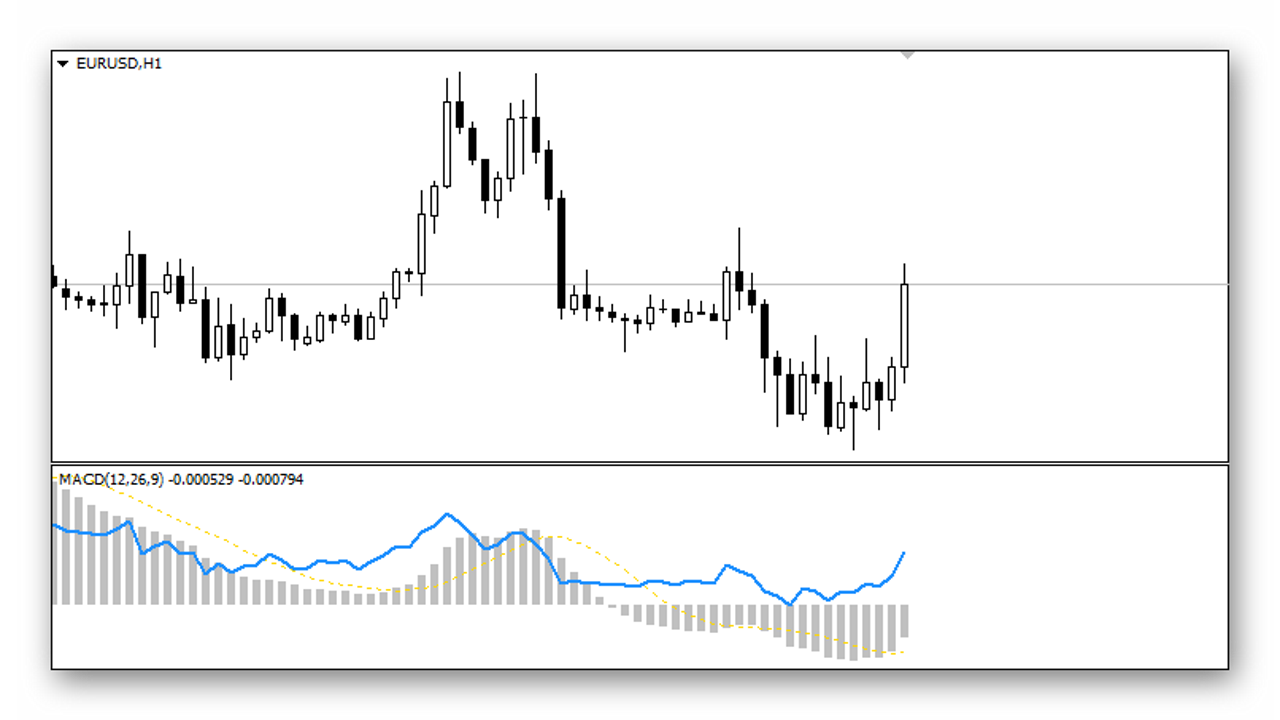
It happens that a system requires a large number of indicators, and these indicators are installed not on the main window but in new windows. As a result, the chart area narrows sharply and you have to find a compromise: either watch the indicators or the chart.
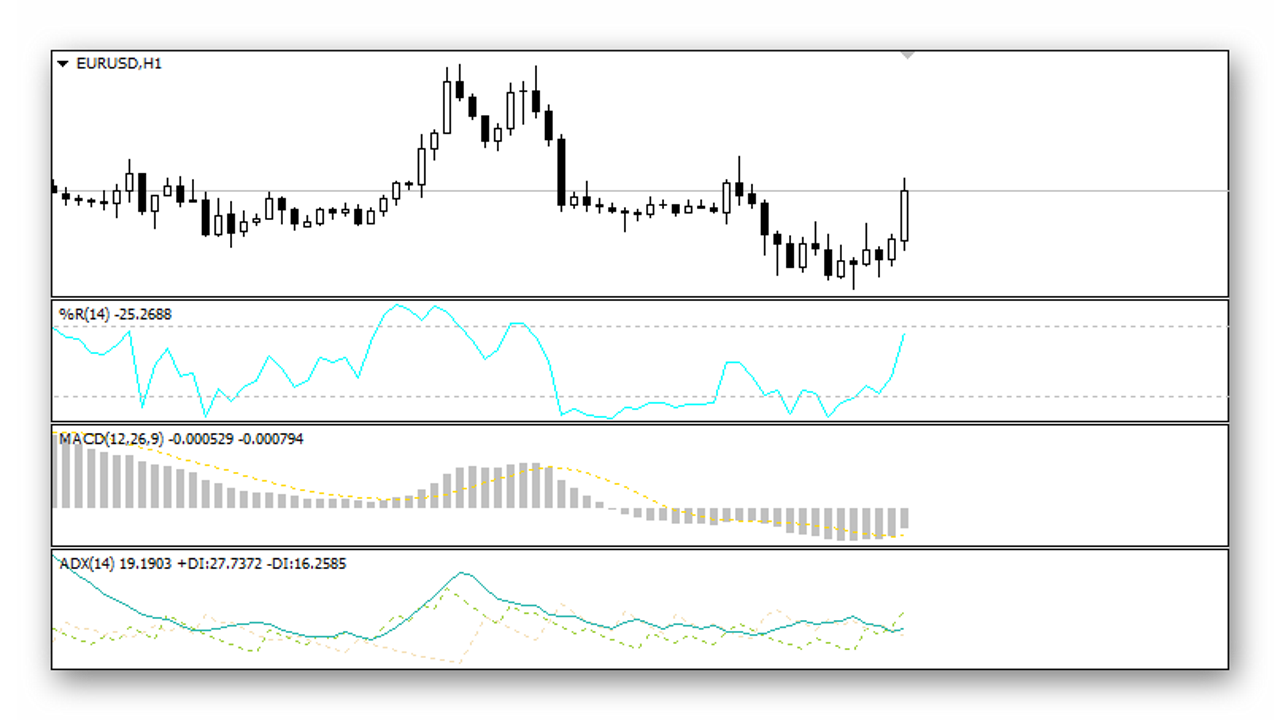
So, the trick is to add several indicators to one window. To do this, first add one indicator to the chart. But drag the next indicator not onto the main chart, but into the window of the first added indicator.
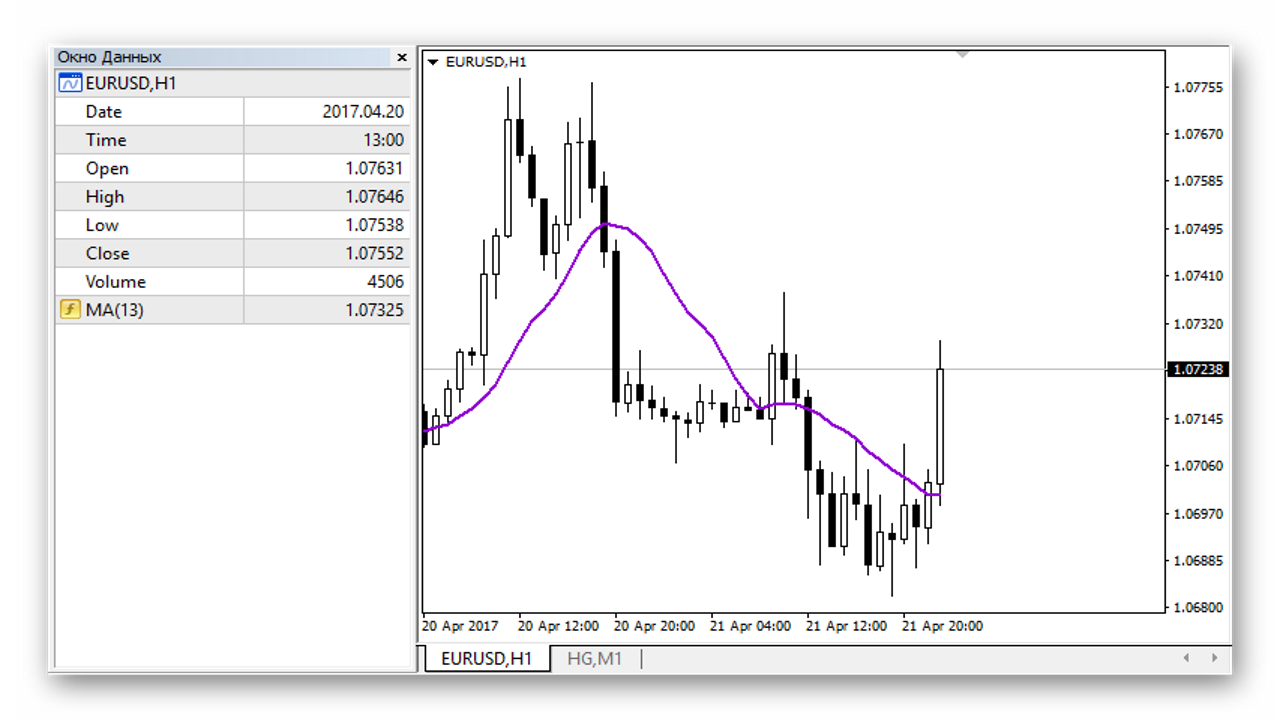
Also, sometimes it is difficult to see the exact indicator values on the chart, especially when there are many of them. When a strategy requires precise entries, it is necessary to know the exact indicator readings relative to a particular candle. This function is handled by the “Data Window”, which can be opened through the “View” - “Data Window” menu or with the “Ctrl + D” keyboard shortcut. The window displays the date and time of the candle, OHLC prices, tick volume, and indicator readings.
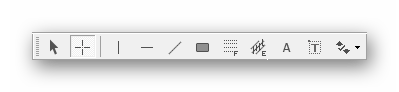
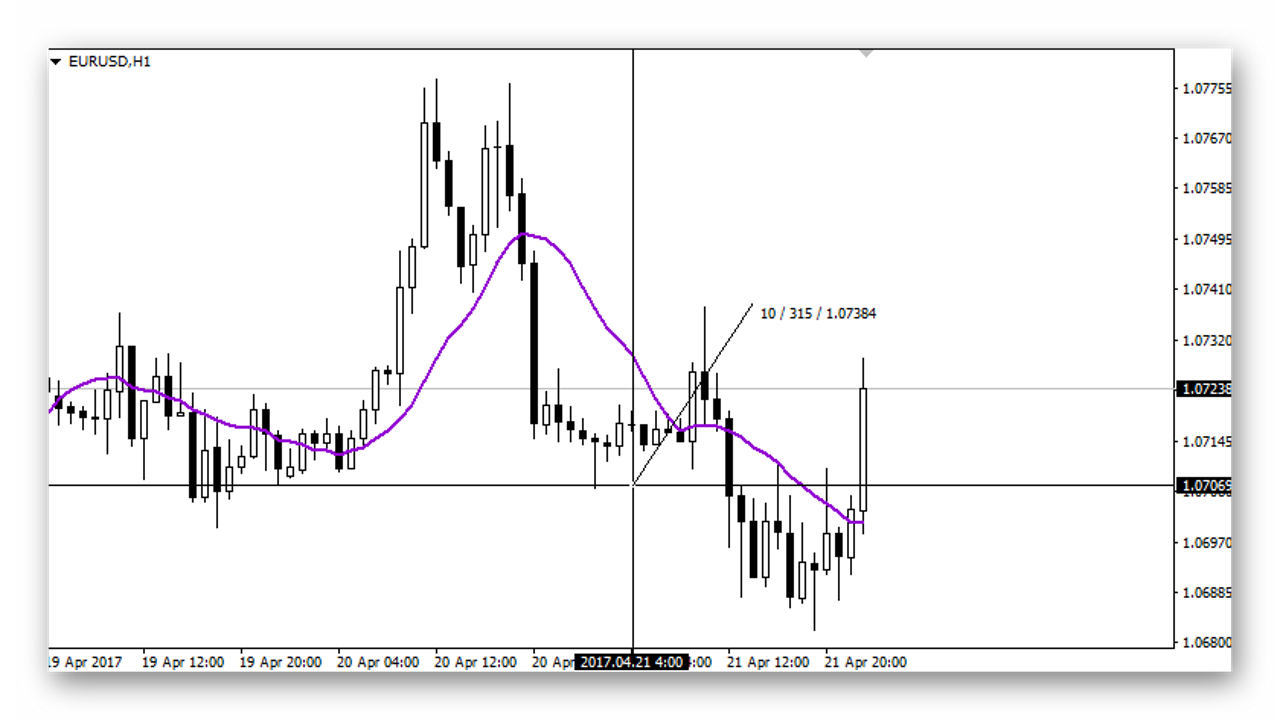
Another useful function is the "Crosshair." It can be called directly from the toolbar or with a middle mouse click (pressing the scroll wheel).
 This makes it very convenient to take measurements. The first number shows the distance in bars, the second the distance in points, and the third the price relative to the cursor position.
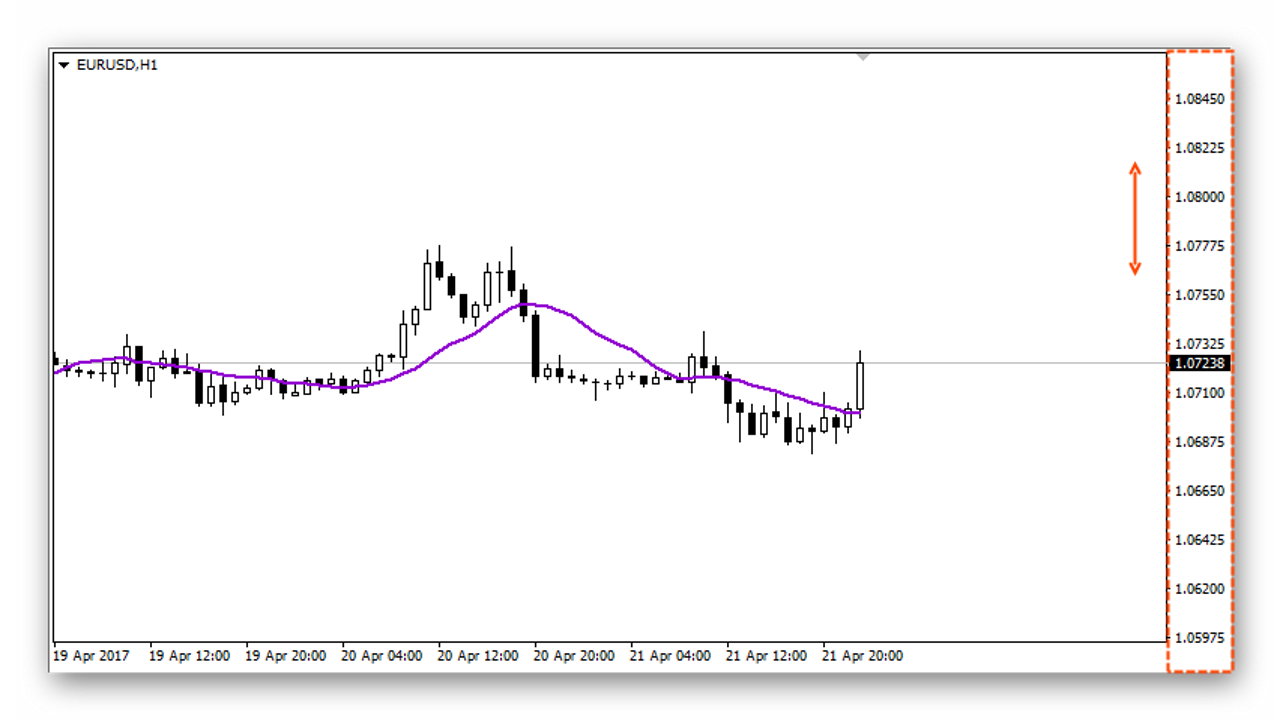
Sometimes you need to mark a certain level above or below the chart. To gain access to the area above or below the price chart, it is enough to change the vertical scale. To do this, hold down the left mouse button on the price scale and move it up or down to change the vertical scale.
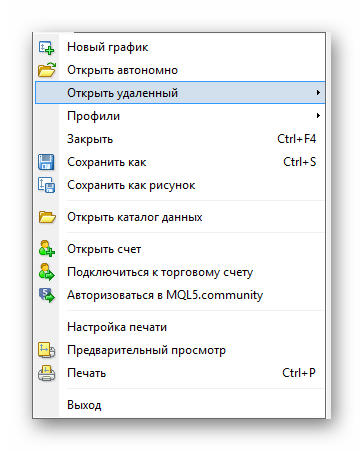
Another useful terminal function is restoring deleted charts. If you accidentally deleted a chart with many settings, you can restore it through the "File" menu - "Open Deleted," selecting the needed chart from the list.
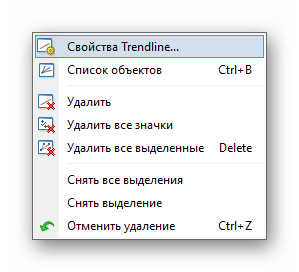
By default, a trendline in the terminal is drawn as an infinite straight line. If you only need a segment, you can change the way the line is displayed through the object properties. To do this, select the line on the chart, right-click it, and choose "Trendline Properties...".
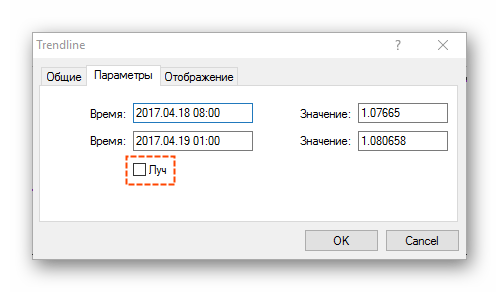
 Go to the "Parameters" tab and uncheck the "Ray" item.
You can also duplicate objects on the chart. To do this, select the object you would like to copy and drag it to another place while holding down "Ctrl." In this way, you can create an unlimited number of duplicates.
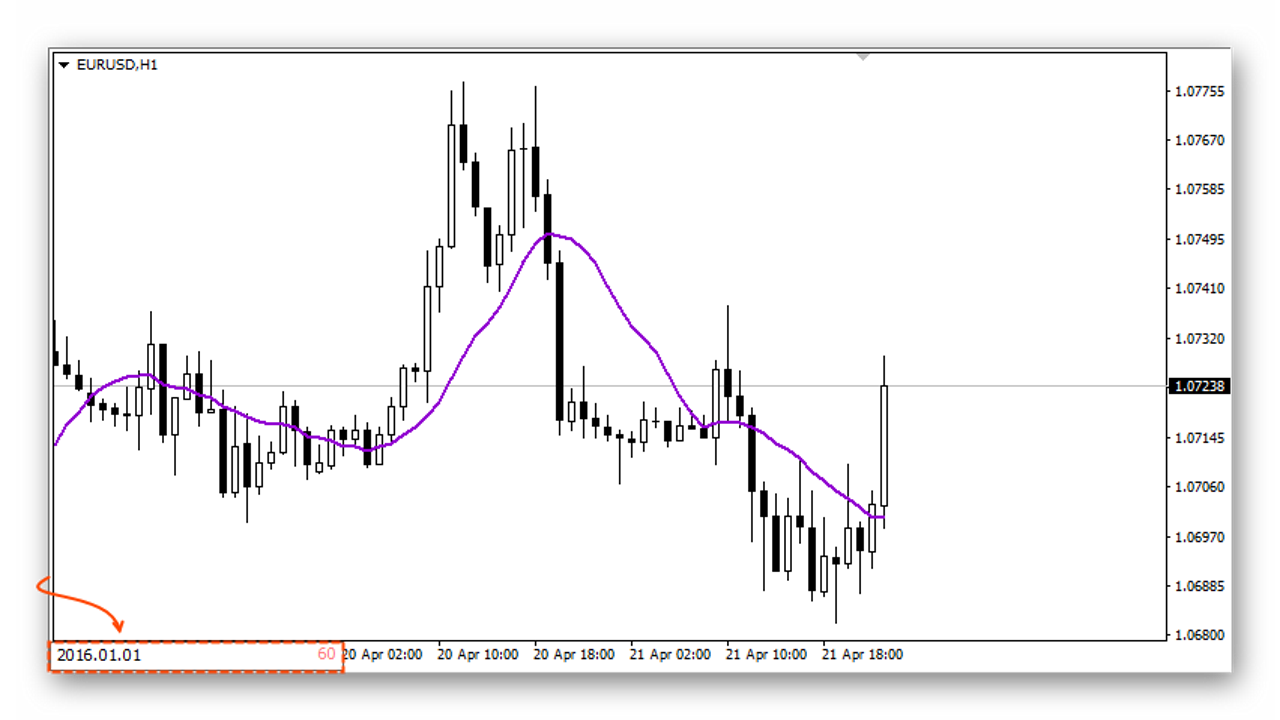
When you press the spacebar, a small input field will appear in the lower left corner of the chart. Here you can enter the symbol or period name. After pressing Enter, the chart symbol or period will change. You can also use this field to quickly jump to a specific date in history.
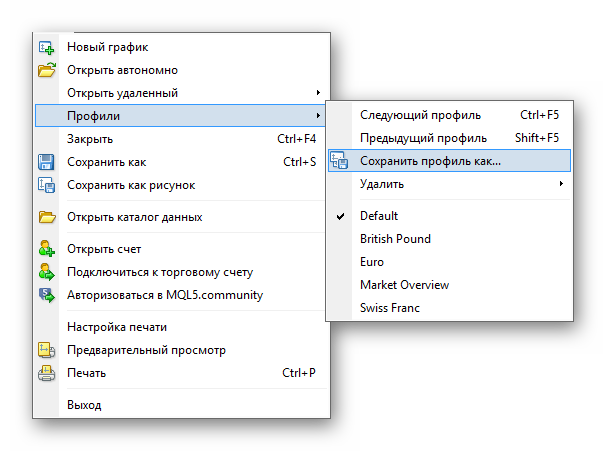
Another very useful function, especially when you need to transfer the entire terminal state to another computer, is creating a profile. To do this, go to "File" - "Profiles" - "Save Profile As...".
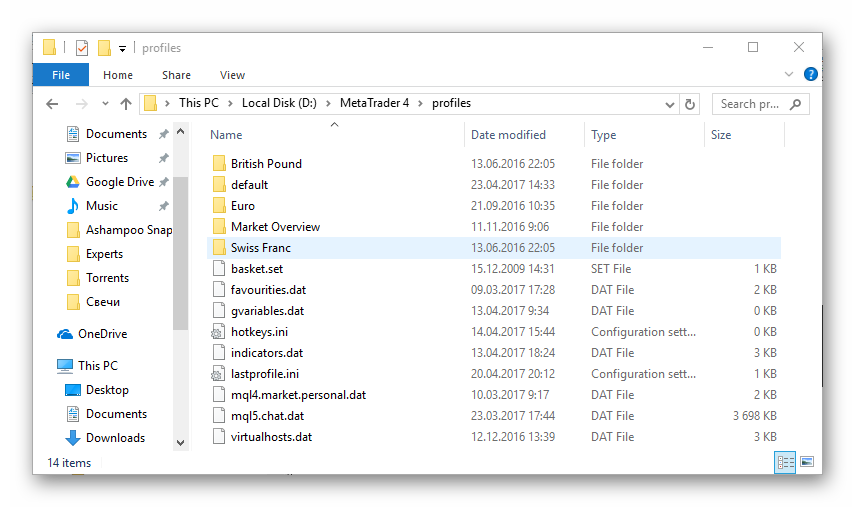
 All saved profiles are located in the terminal data directory, in the "profiles" folder. You can move the profile folder to another computer while preserving the entire trading environment.
Many people are not satisfied that any chart opens by default in this form, namely green bars on a black background:
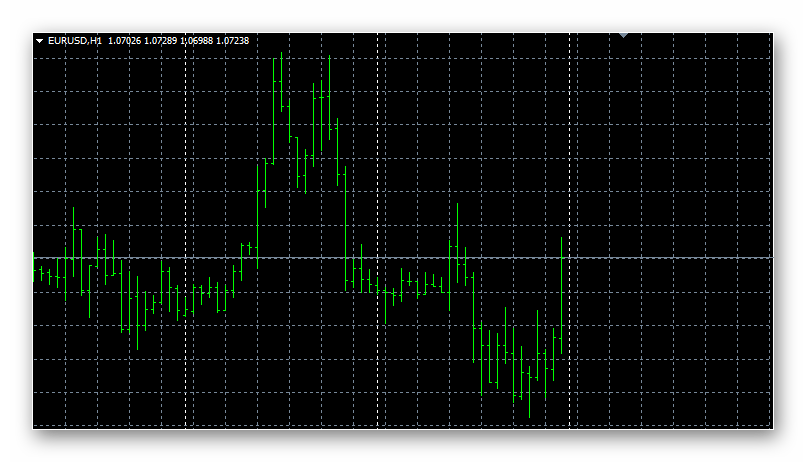
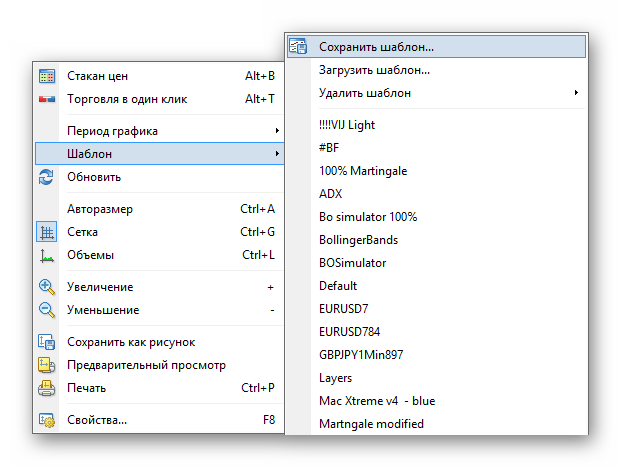
This behavior can be changed by saving your own template with the preferred color palette and attached indicators. To do this, right-click on the chart and choose "Template" - "Save Template...". As the template name, specify "default.tpl" - this is important. After that, all new charts will open with the preset template.
Finally, a useful function for strategy testing on history is "Step by Step." If you press "F12," the chart moves forward by exactly one bar. This way, you can precisely control the chart scrolling speed. At the same time, if you hold down "Shift + F12," the chart will move in the opposite direction.
Conclusion

Naturally, these are far from all the possibilities of MetaTrader 4, but these are truly useful and little-known functions that, once you know them, will allow you to work more effectively with the trading terminal. In some cases, you will be able to expand the range of trading possibilities, thereby improving your trading tactics.
P.S. Do you know any other interesting hidden features of MT4? Then share them on our forum.
Best regards, Pavel Vlasov
TradeLikeaPro.ru