
How to Install an Indicator in MetaTrader 5

Hello, ladies, gentlemen, and fellow Forex traders! Today we will talk about how to install additional indicators in the MetaTrader 5 terminal.
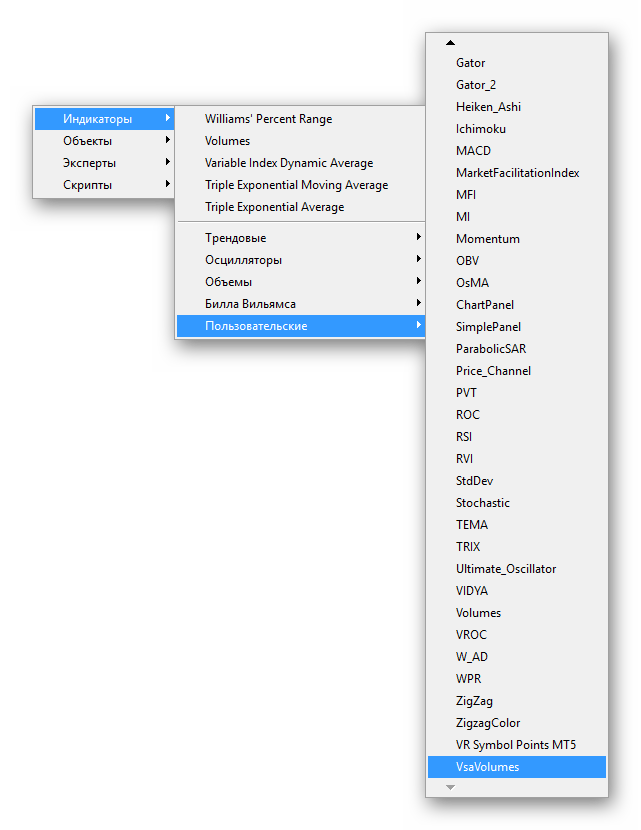
The MT5 terminal already has many classic Forex indicators by default. To add these indicators to the chart, go to the Insert -> Indicators menu inside the terminal. In the "Custom" section there will be the indicators that you install into the terminal yourself.
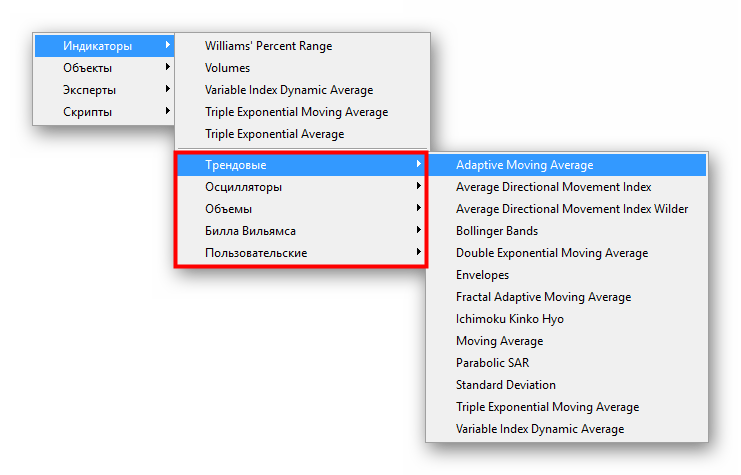
Additional indicators can be installed in 2 ways: from the Market (the online store inside the terminal), or manually by downloading indicator files from the internet, for example, from our website.
Installing Indicators from the Market
First, let us figure out how to install indicators that are available in the product Market.
- To do this, in the Tools window go to the Market tab, and then select the Indicators section.
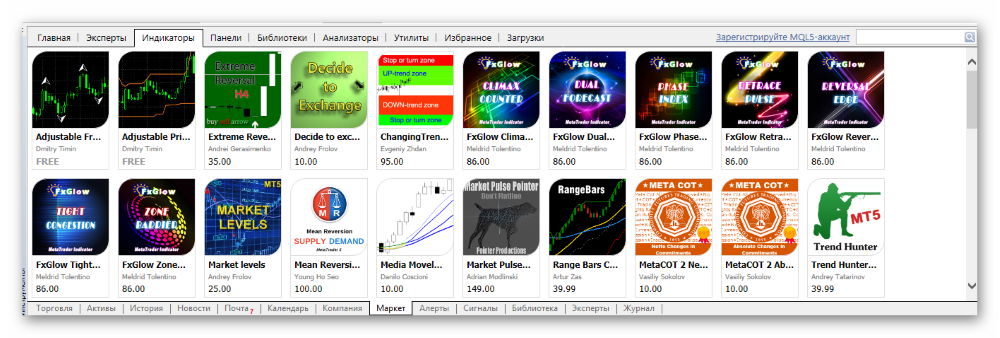
As you can see, the Market is full of paid indicators, but I do not advise you to buy any of them, especially if your trading experience is small - this may only be needed in the rarest cases.
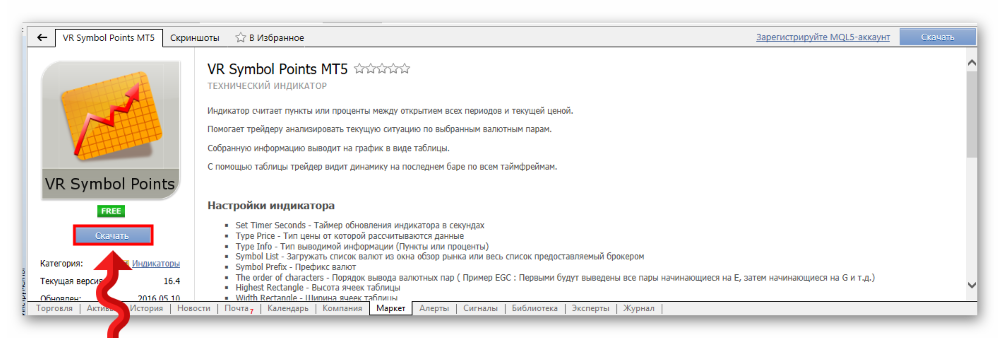
2. To install a product from the Market, click on the indicator you like, after which a page with its full description will open. Next, click the Download button, after which the indicator will be loaded into the terminal. That is basically all, you can now install the indicator on the chart.
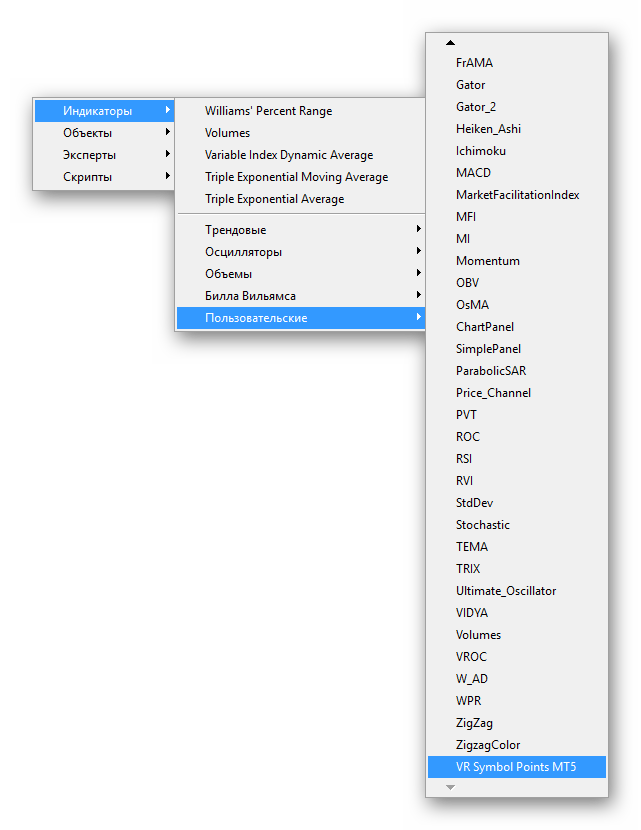
3. Go to the Insert - Indicators - Custom menu, and at the end of the list select our indicator.
Installing an Indicator from the Internet

- If you downloaded the indicator in an archive, first of all it needs to be unpacked. Any available archiver will do for this, such as WinRar, or the free alternative - 7Zip. After unpacking, go to the folder with the indicator.
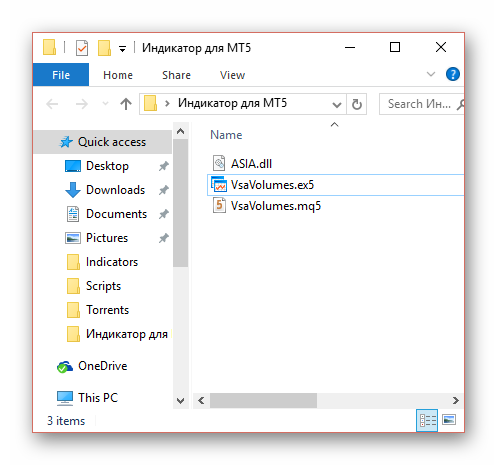
- The most important file is the executable indicator file with the ex5 extension. It will need to be copied to the MetaTrader 5 data directory. There may also be an indicator source code file with the mq5 extension, but the indicator can work without it as well (the source code is needed to make changes to the indicator). If both files are present, copy both. So, right-click on our files and select Copy.
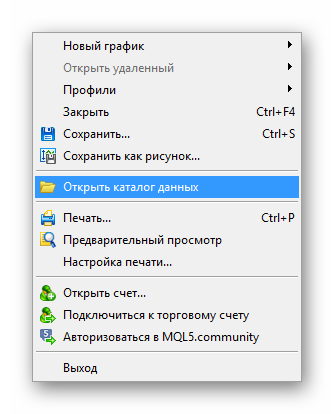
3. After copying the indicator files to the clipboard, the next step is to open the MT5 terminal data directory.
To do this, inside the terminal go to the File - Open Data Folder menu.
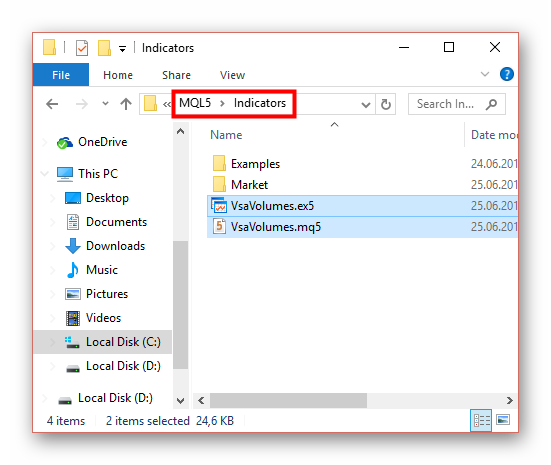
Next go to the MQL5 - Indicators folder and paste the indicator files. Right-click -> Paste.
4. Sometimes a library file with the dll extension comes together with the indicator. If such a file is present, copy it and paste it into the MQL5 - Libraries folder in the same terminal data directory.
5. In the case where the indicator uses libraries, you need to specify permission to use libraries in the terminal settings. To do this, go to Tools - Settings.
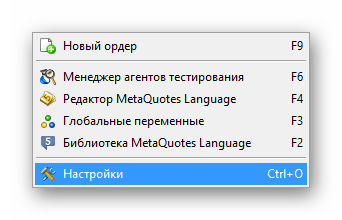
Next, go to the "Expert Advisors" tab and tick the boxes according to the screenshot below:
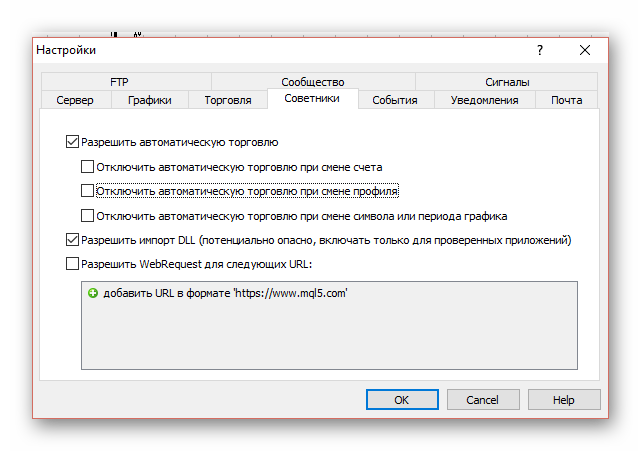
6. For the changes to take effect, restart the terminal. After that, the installed indicator can be found in the terminal's main menu.
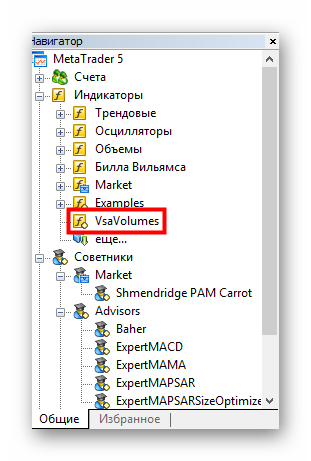
And also in the Navigator window.
To launch the indicator, drag it from the Navigator window onto the chart, or attach it through the Insert menu. This will open a window for setting the input parameters. If you want to leave the default parameters, just click OK and the indicator will be displayed on the chart.
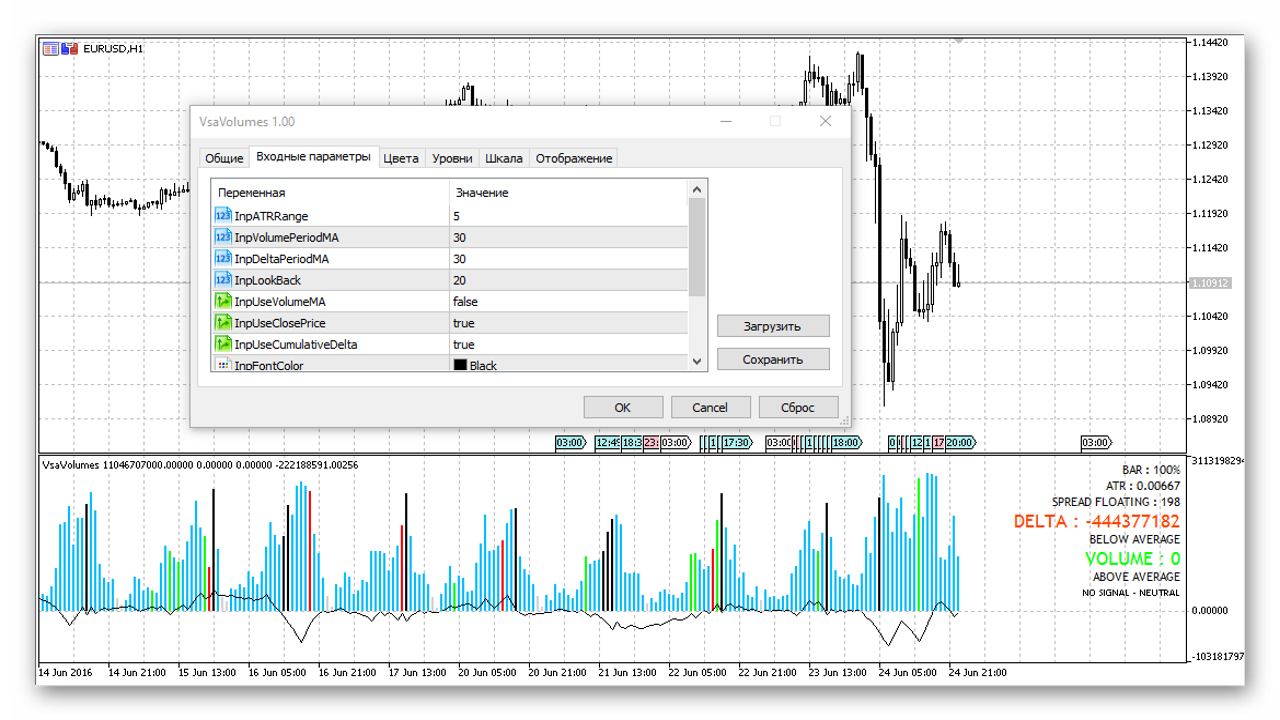
Changing Indicator Settings
Now let us discuss the situation where you have already installed the indicator on the chart, but need to change its settings. To do this, call up the context menu by right-clicking on the chart area, and select the "Indicator List" item.
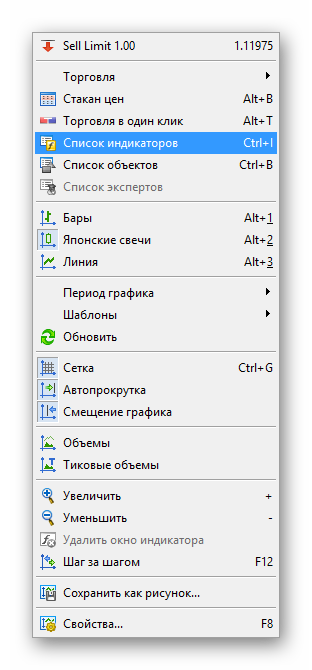
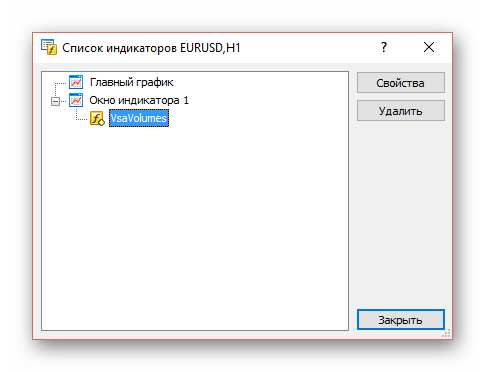
A window will open with a list of indicators on the current chart. You can open the settings window by double-clicking on the indicator's name. The same can be done by selecting the indicator and clicking the Properties button. Here you can also remove the indicator from the chart by clicking the Delete button.
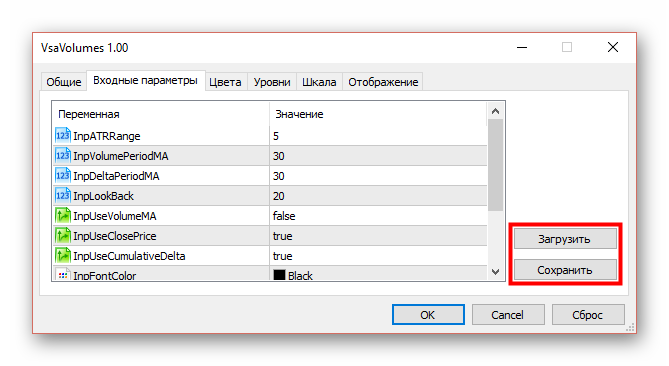
You can also save indicator setting templates. After specifying the necessary settings, click the Save button and enter the name of the template being saved. To load previously saved settings, click Load and select the required template.
Conclusion
Installing additional technical indicators significantly expands the functionality of the MetaTrader 5 trading platform. Of course, the trader faces the responsible task of choosing a suitable tool, so we never advise buying any products from shady operators; as a rule, all indicators can be found online for free.
Sincerely, Pavel Vlasov TradeLikeaPro.ru