
How to Install an Indicator in Metatrader 4
Pavel

Instructions for beginner forex traders on installing custom indicators.
Let us consider the example of FX5 Macd Divergence.
- You must have the Metatrader 4 program installed
- Download the archive with the indicator, unpack it, and get an ex4 and/or mql file. These files need to be copied to the MQL4 / Indicators folder in the data directory of your terminal.
- To get to the data directory, in the terminal click File -> Open Data Folder
- A folder will open, and in it we go to the MQL4 section, to the Indicators directory. Copy the files of our indicators there. Close the folder and restart MT4.
- Next, go to our Metatrader 4 terminal, click on the program's top panel Tools -> Options and on the Expert Advisors tab check the boxes as in the screenshot below. Then click OK.
- Restart MT4, open the currency chart on which we want to install the indicator.
- At the top of the terminal click Insert->Indicators->Custom and select the name of the installed indicator, in our case FX5 Macd Divergence.
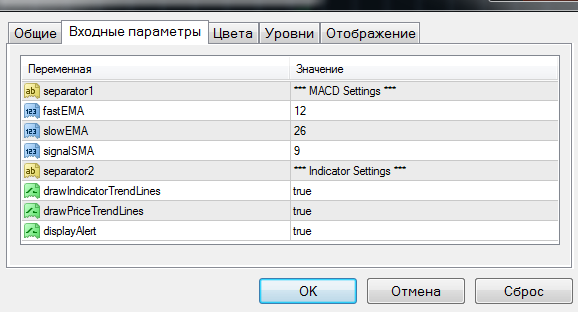
- A window will appear where you can change the indicator parameters (they are different for each indicator), display colors, add levels for clarity, and also configure whether the indicator will be displayed on all timeframes or only on the selected ones. If desired, make changes and click OK.
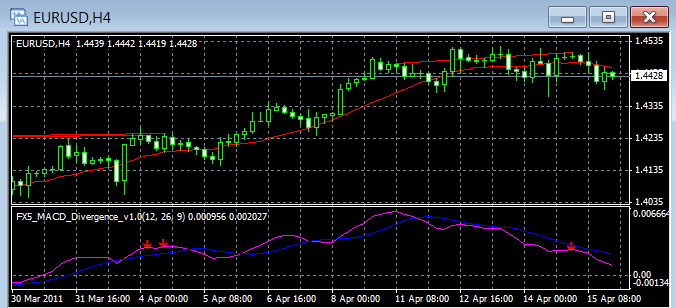
After clicking OK, we see the chart with the added indicator
If you want to remove the indicator from the chart or make changes to the settings, click on the chart with the mouse and press Ctrl+I on the keyboard. A window called Indicator List will appear.
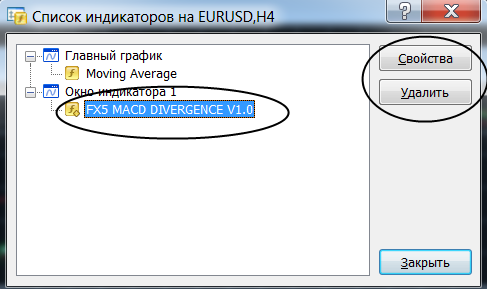 Click with the mouse on our indicator, now we can use the buttons on the right to remove it or change the settings (the Properties button).
That is all.
Sincerely, Pavel TradeLikeaPro.ru
#indicators#forex#metatrader-4