
How to Get 99% Modeling Quality in the Metatrader 4 Strategy Tester
 Hello, ladies and gentlemen forex traders!
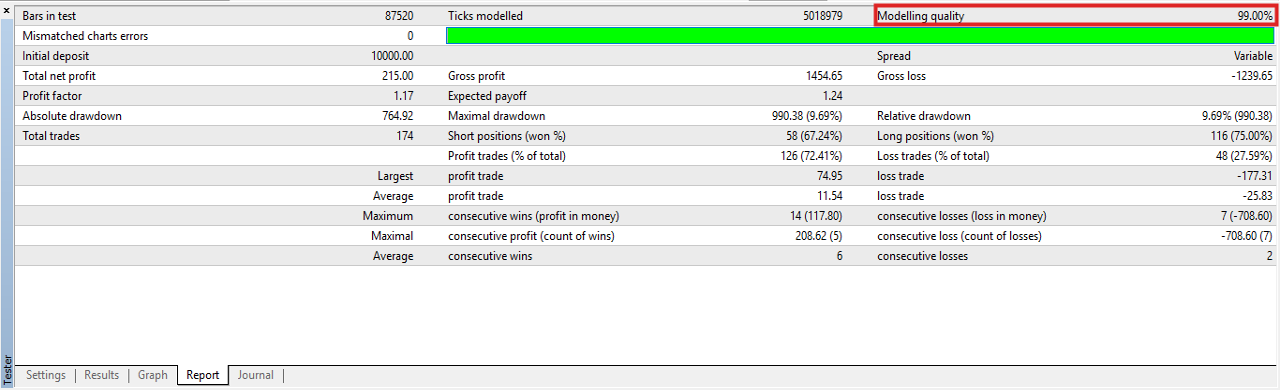
Anyone who has ever backtested expert advisors in MT4 has noticed that the modeling quality does not rise above 90%. The reason is that by default the terminal uses minute bars instead of tick data. And if the advisor scalps (take profit 3-15 points) or uses a small trailing stop, the difference in modeling quality can change the test result very significantly. In today's material we will learn how to get 99% Modeling Quality in the MetaTrader 4 strategy tester.
Example:
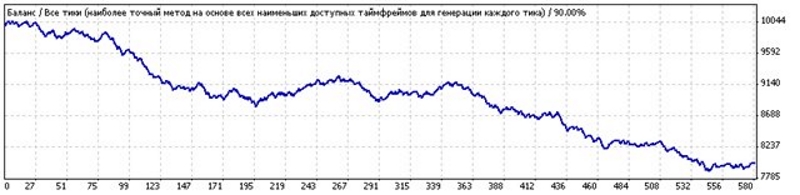
Backtest of the same expert advisor with the same settings over a year
1. Modeling Quality 90%:
 2. Modeling Quality 99%:
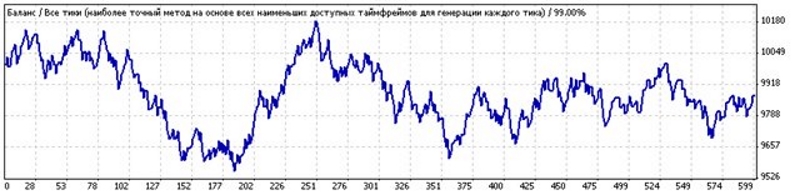 The difference of 2000 points is obvious.
To get such a result you can use 3 methods:
- The one described below, which implies using the Tick Data Suite program (trial version for a week, then the program asks for money)
- Use an alternative option with the Tickstory Lite program. Unfortunately, the program has also recently become paid
- Or apply one more method (using StrategyQuant Tick Data Downloader), where all programs used are currently free.
The methods are different, the final goal is the same.
Installing and Configuring Tick Data Suite

To get a trial version of the program, go and register via the link. You can use the temporary email service 10minutemail so as not to receive spam on your main mailbox later. A registration key will be sent to your email, which will need to be specified during the program installation process.
Here we download the latest version of the program and install it on the computer. The free trial period is 2 weeks, which is quite enough to test the program's capabilities. During installation there is no need to specify the directory of a specific terminal, the program finds the terminals installed on the computer automatically.
After launching Tick Data Manager, you will see approximately such a window. At the very top there is a button for selecting the quote source - Dukascopy or TrueFX (in future releases the list will be expanded). Dukascopy provides high-quality tick history from 2003 to the present day and, by the way, is a liquidity provider for Alpari ECN accounts. TrueFX only has history from 2009.
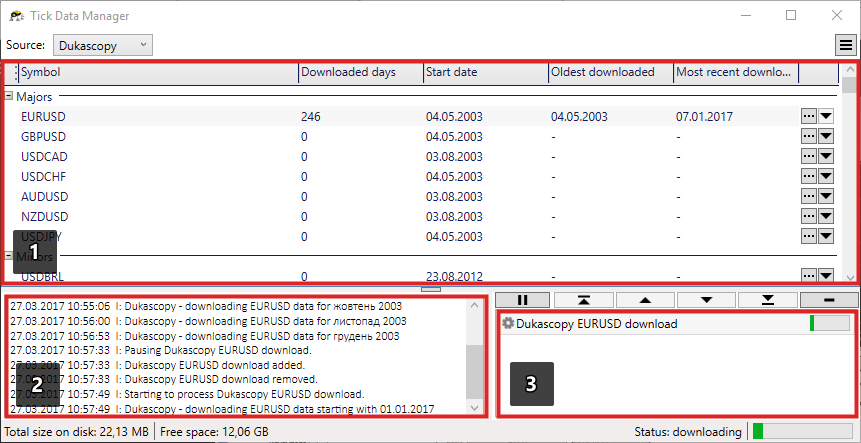 The workspace is divided into three parts:
- List of available instruments and data on already downloaded history;
- Operations log;
- Download manager. When downloading history, a new task is created. You can freely manage task priority using the up/down buttons. Also, you can pause task execution by pressing pause, and delete a task by pressing "-".
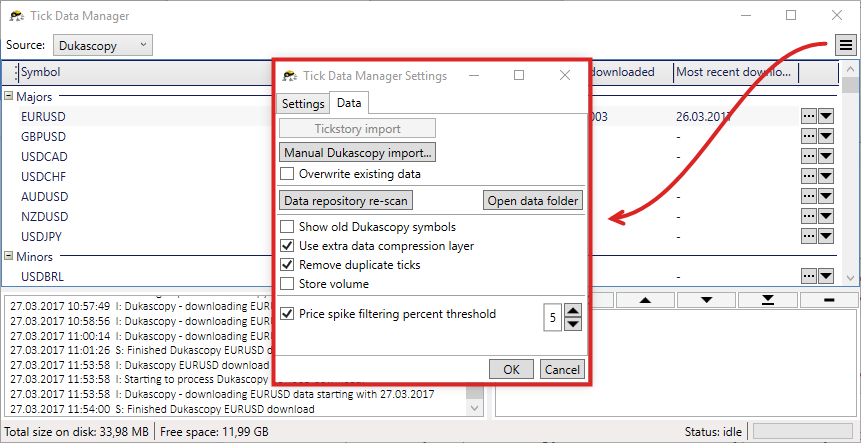
 In the main program settings, you can specify additional parameters for preliminary data preparation.
- "Manual Dukascopy import..." (Manual Dukascopy import) - import history manually. To overwrite existing data, check the box "Overwrite existing data";
- "Data repository re-scan" (Re-scan repository) - rescan the entire database in case of corruption or errors. It will be useful in case of manual editing of history;
- The "Open data folder" button opens the directory where the history data is stored;
- An important function is an additional compression level. Data from the Dukascopy server is downloaded already compressed, while the program allows you to reduce the file size by another 50%. Useful in case of limited free disk space;
- At the very bottom there is a function responsible for filtering non-market quotes or price spikes as a percentage of price. You can uncheck the box to use the data "as is."
 Backtesting
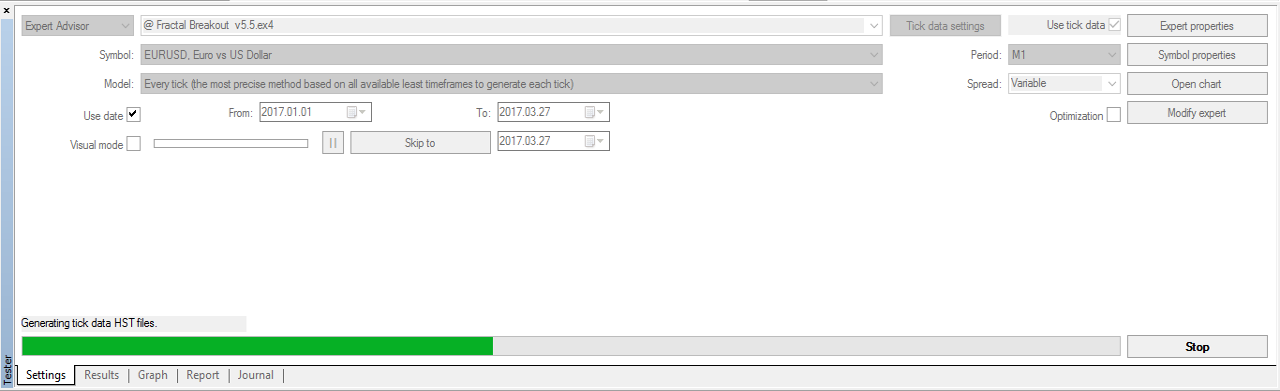
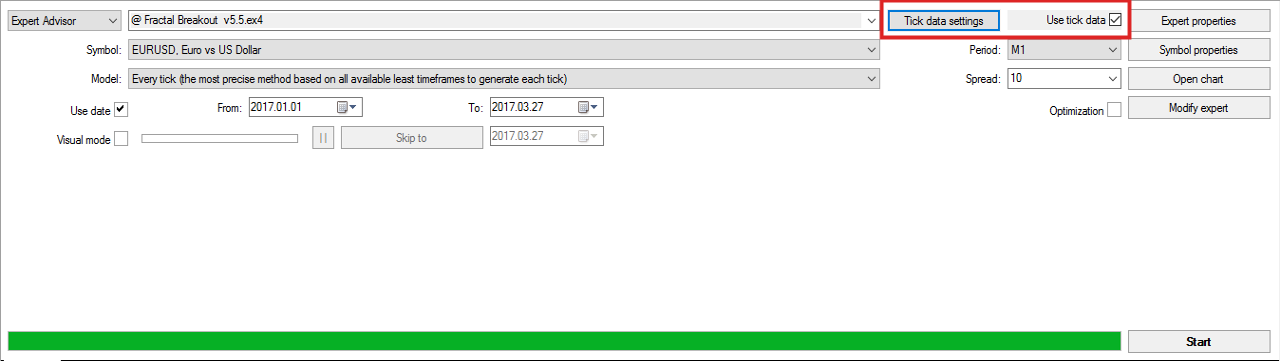 The program is built directly into the strategy tester interface, so it is extremely easy to control its operation. To activate tick history, specify the tick testing mode and check the box next to "Use tick data". If the tick history has been downloaded, you can start testing!
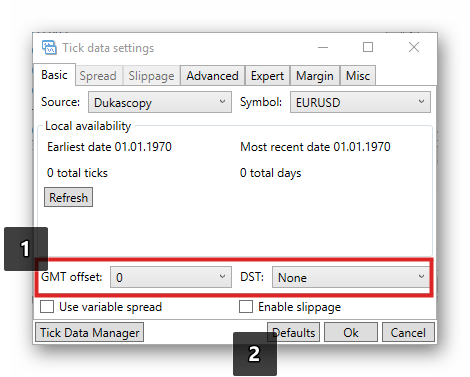
Clicking the "Tick data settings" button opens the advanced test settings window. Here you can adjust the time zone of the quotes and the daylight saving time switching method (1), new history files will be generated from the existing tick data. Slightly below are the checkboxes responsible for enabling floating spread ("Use variable spread" - Use floating spread) and enabling random slippage ("Enable slippage" - Enable slippage). The "Defaults" button (Default values) allows you to adopt the parameters of the current account (2).
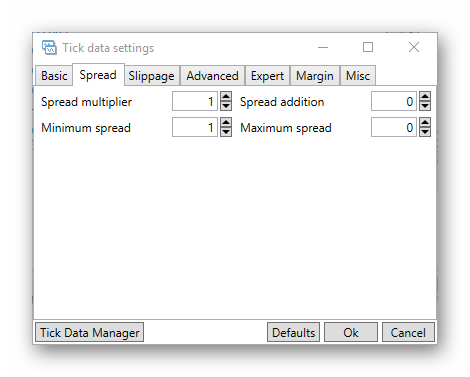
Here you can specify the maximum and minimum floating spread parameters.
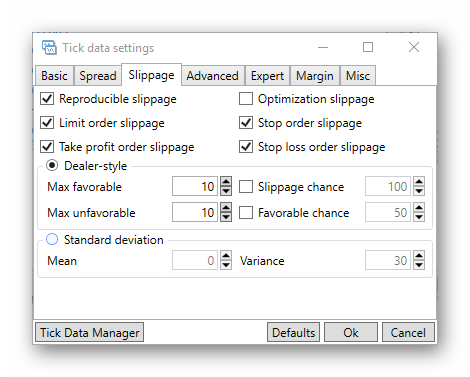
Dynamic slippage can be enabled/disabled for certain types of orders, such as limit/stop orders, take profits and stop losses. Also, you can specify both fixed slippage and dynamic slippage, indicating a probability bias.
On the "Advanced" tab, you can override the basic account settings, such as leverage, lot size and step, as well as the commission size charged on trades.
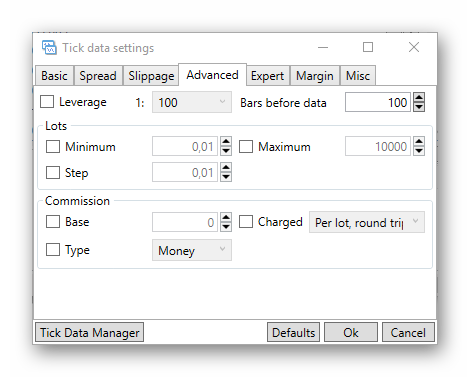
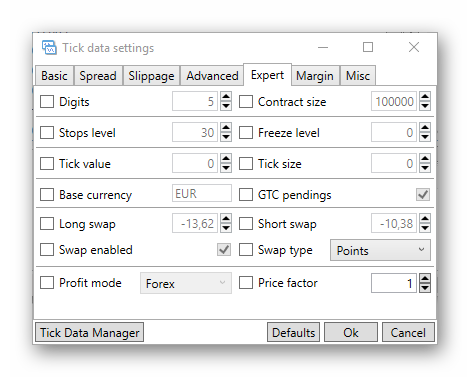
The "Expert" tab contains settings directly related to trading and opening trades. To override any of the parameters, simply check the box and enter the desired value in the adjacent field.
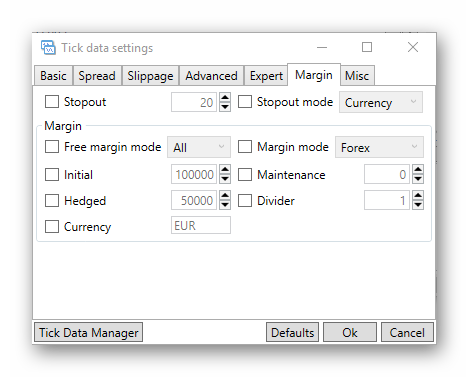
Settings for the method of accounting for margin. In most cases, nothing needs to be changed here.
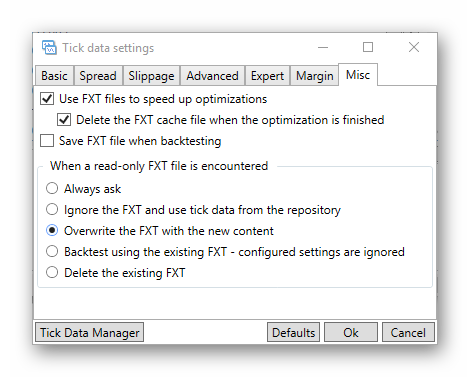
Basic program settings. The first checkbox enables the use of FXT files to speed up the optimization process. In general, you can leave the default settings.
After launch, the tester generates HST files if the test parameters were changed after the previous run. After generation, the advisor testing itself begins. In general, the process is similar to how the tester downloads missing history.
 Modeling quality 99%.
 P.S. I want to note that even a 99% backtest may produce a result different from what happened in reality, so it is not worth relying entirely and completely on the strategy tester. Nothing can replace a real-time test on a real account.
Respectfully, Pavel Vlasov
TradeLikeaPro.ru