
Built-in VPS in MT4 and MT5

If you use an automated advisor in trading, then you know that for uninterrupted operation the advisor requires the computer to be constantly turned on. The same applies to the signal service: trades are copied only when the terminal is running. Keeping a computer constantly turned on is not always convenient, so many traders find a solution in renting a dedicated Windows server (VPS) specifically for running the terminal. When using a VPS, the terminal will work 24/7, even when your computer is turned off. The problem is that setting up your own server is not the simplest task, especially for those who have never dealt with virtual hosting.
MetaQuotes (the developer of the Metatrader terminal) took care of this as well. Now you can order virtual hosting directly from MT4/MT5. Virtual servers from MetaQuotes were primarily created for the needs of traders, so they have a simplified process of installation, configuration, and support. In just a few minutes, you will be able to set up your own VPS server directly from the trading platform for uninterrupted operation of your advisors, indicators, and signals.
Preliminary setup

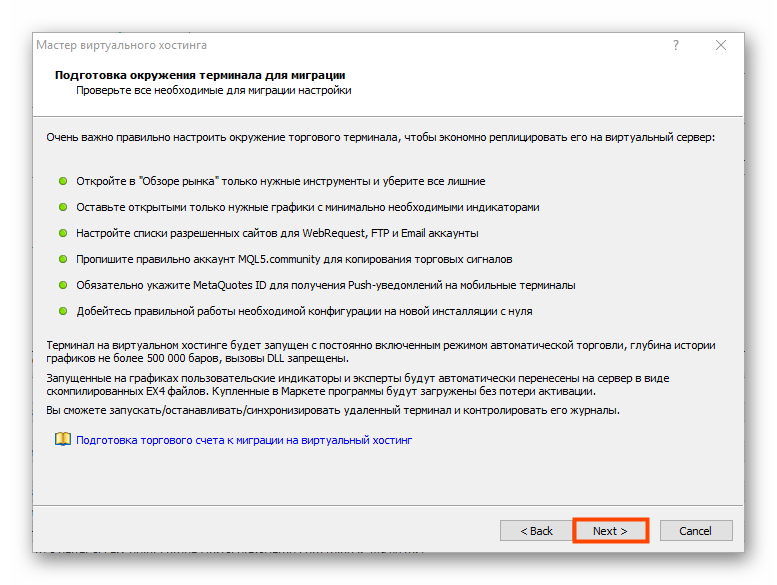
Before creating a virtual server, it is necessary to properly configure the trading terminal. Keep in mind that if resources are overused, the hosting service may be suspended. Therefore, before migrating to a virtual server, it is important to complete several steps:
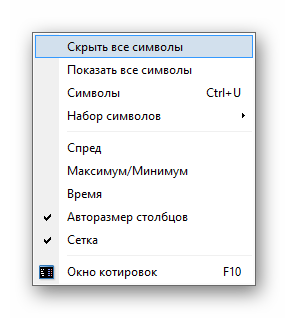
- Remove all unused symbols from Market Watch. Leave only the necessary charts on the screen and in the Market Watch context menu select "Hide all symbols".
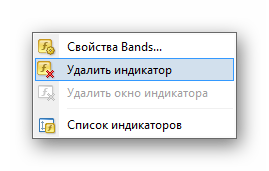
- Remove unnecessary indicators from the charts. What is the point of leaving indicators on the server if you will not be able to check their result? To save resources, all indicators should be removed except those that can send alerts to a phone or email, they can be left.
- Remove unused advisors from the charts. All experts sent to the server automatically receive permission to trade, even if you did not check the corresponding box in the terminal. Also, any expert that uses DLL libraries will not work on the server and will be automatically stopped on the first attempt to access one, so we remove them as well. Programs purchased in the MQL5 Market will not lose the number of available activations when uploaded to the server.
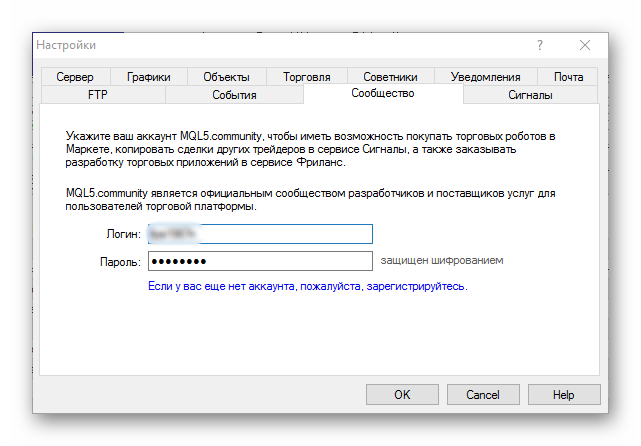
In the terminal settings, specify your login and password for your account on the MQL5.com website.
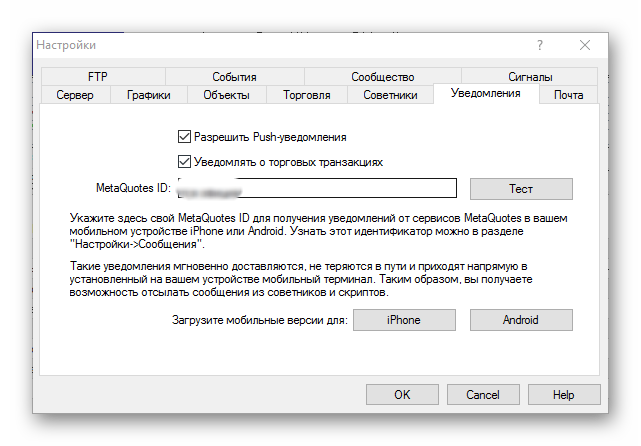
Here you should also specify your MetaQuotes ID for sending push notifications to your smartphone. You can get your own ID by installing the terminal's mobile application on a smartphone or tablet. To do this, go to the "Messages" section and click "My ID".
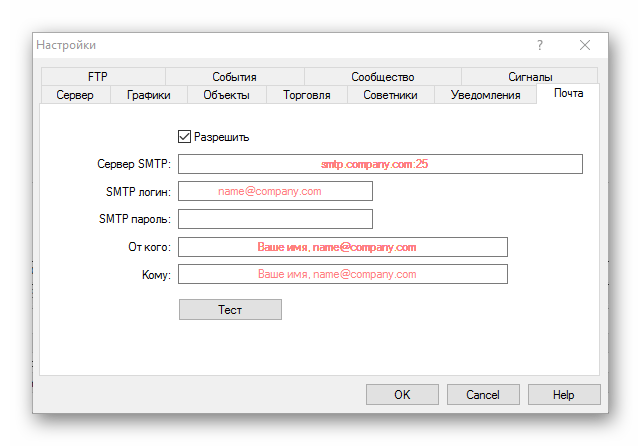
And specify the mail server data for sending alerts to email.
Installing the server

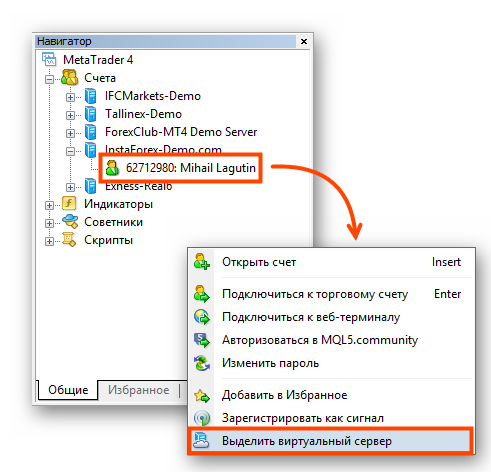
To install a virtual server, go to Navigator and call up the context menu by right-clicking on your account. To launch the wizard, select "Rent a Virtual Server" from the menu.
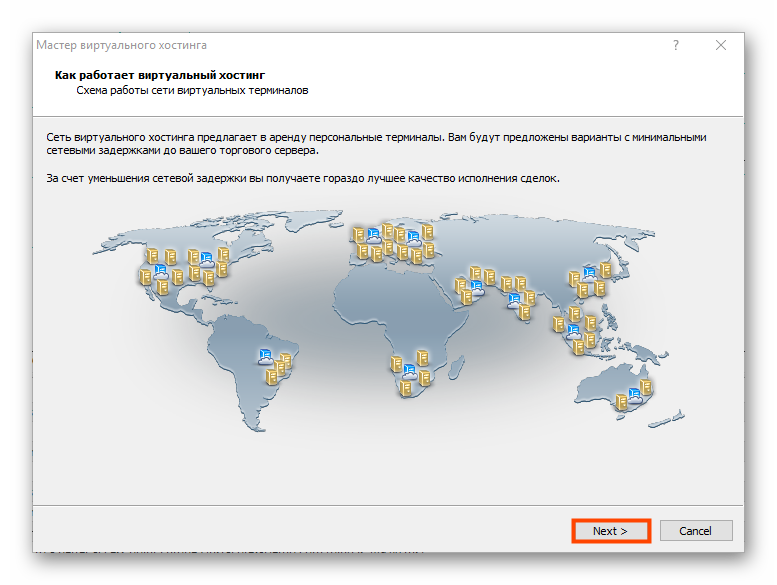
Click "Next".
Review the provided tips for account migration and click "Next".
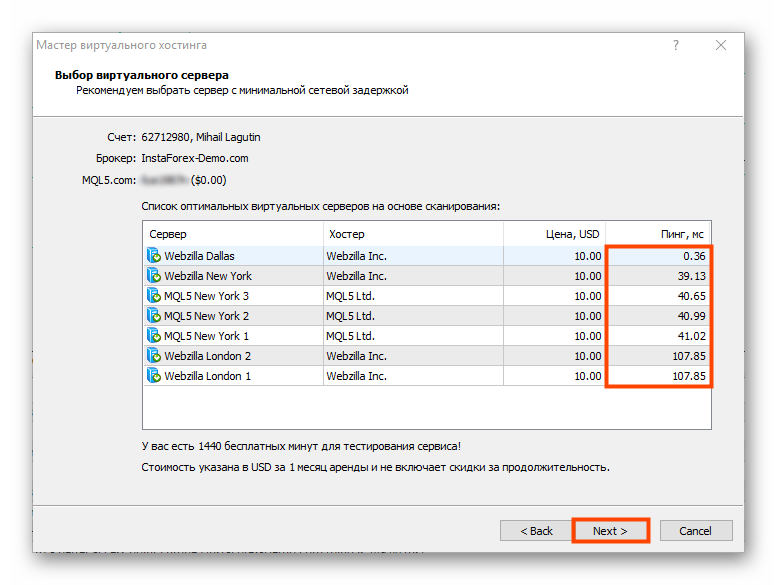
Select a virtual hosting server. Preference should be given to servers with the lowest ping to the broker (the top ones in the list).
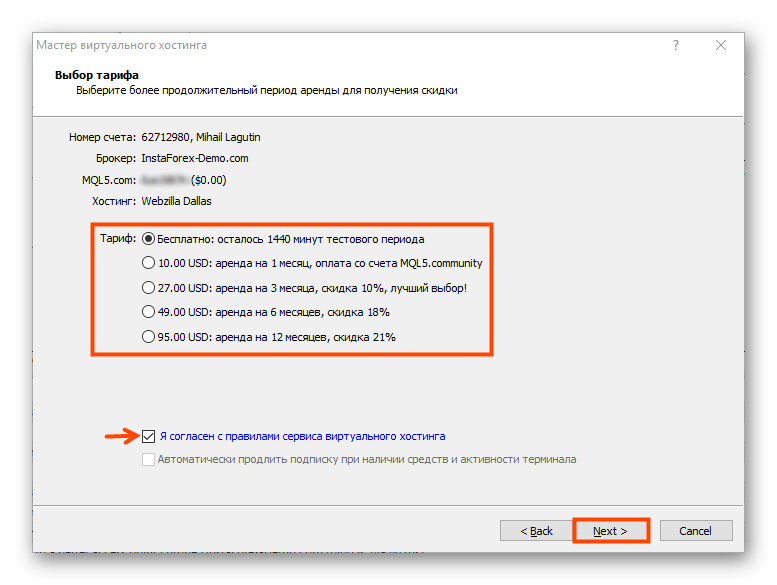
Choose a pricing plan. At first launch, you will have the option of renting a server for one day free of charge, which should be quite enough for testing and checking how it works. The minimum rental period is 1 month. The longer the rental period, the bigger the discount. Payment is made from the MQL5 Community account, which can be topped up using a card or WebMoney.
Additionally, you can tick the checkbox next to automatic rental renewal. In this case, if the terminal is active and there are sufficient funds in the account, the subscription will be renewed automatically. Click "Next" to proceed to the server migration procedure.
Migration to a virtual server

You can choose one of three options:
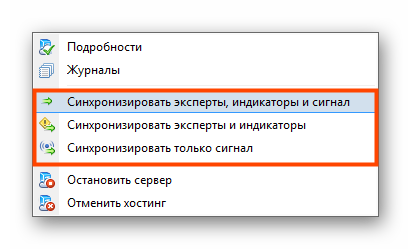
- Transfer everything: account, charts, indicators, experts, terminal settings, and MQL5 Signals subscriptions to the virtual server.
- Transfer everything except signals.
- Or transfer only signals, the account, and settings.
Select the appropriate option and click "Finish".
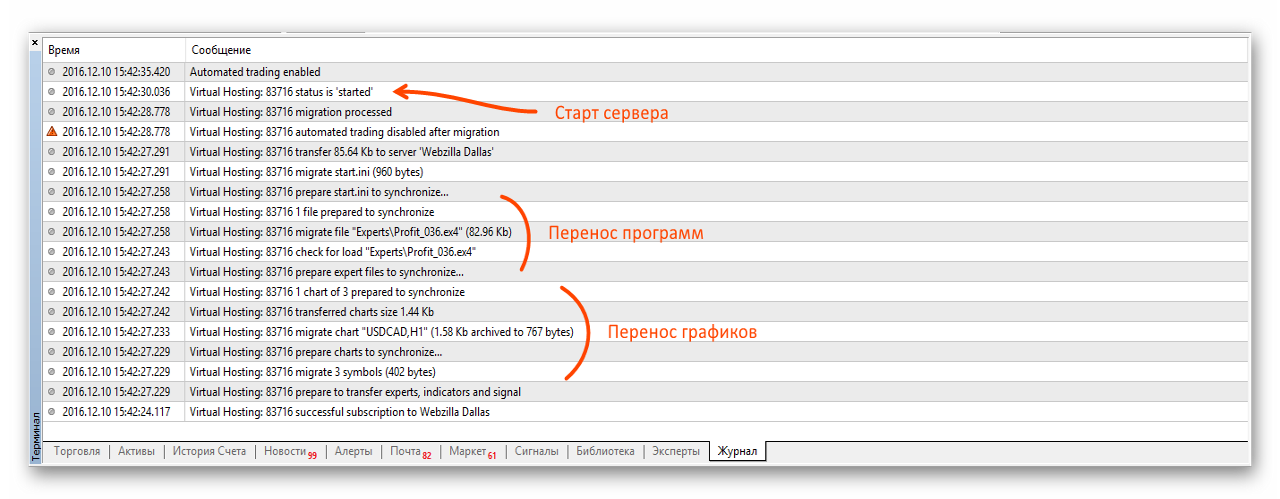
After the migration is completed, messages about the transfer of charts, programs, and signals will appear in the log. Also pay attention to the message about the successful start of the virtual server.
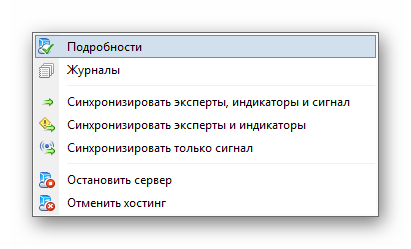
The server will now be displayed in the Navigator. When adding experts, charts, or signals, you need to synchronize the account again. To do this, call the context menu and select "Synchronize".
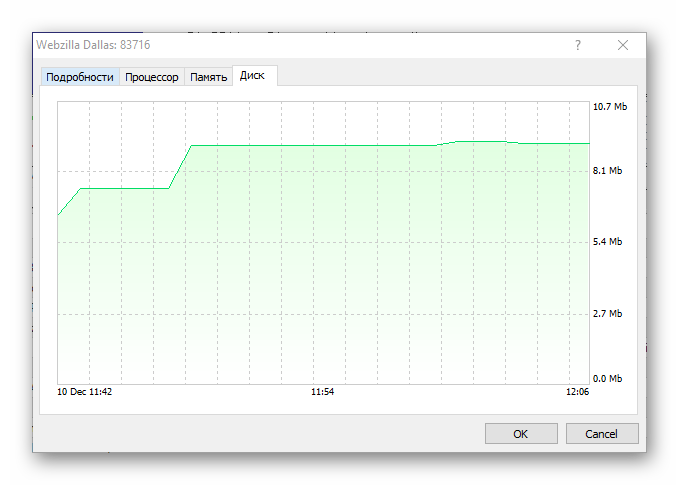
The resource monitoring window is opened through this same menu.
Try to keep an eye on the usage of processor power, memory, and disk. In case of an excessively high load, the server may be automatically disabled.
Conclusions

Despite all the advantages, the MetaQuotes Service is definitely not suitable for everyone. Renting a server is expensive, while you only have the option to install a single terminal. The ban on using DLLs immediately eliminates a huge number of expert advisors. The solution is suitable for those who are not short of funds and do not want to deal with a full-fledged VPS, while at the same time using only the simplest expert advisors in trading.
Respectfully, Alexey Vergunov
TradeLikeaPro.ru