
Working with Advisor Presets
 "Are there any sets?", "Give us profitable presets!", "I need more sets!" - such comments can often be found in discussions of forex advisors on forums. So what are presets? Is there really some kind of magic hidden in them and the key to the profitability of any Forex robot? In this short lesson, we will talk about what presets for forex advisors are, what they are needed for, how to create, load, and edit them, and whether the solution to the mysteries of the universe is really hidden in them.
So what are presets?
Presets are settings files for an advisor. That is, you can place an advisor on a chart, load a preset, and the settings that were specified in that file will be loaded automatically. You will not need to manually configure the advisor again each time from scratch. It is enough to load the saved settings, and they will all appear in it.
Preset files have the .set extension
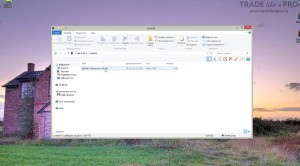
And as a rule they are stored in the presets folder:
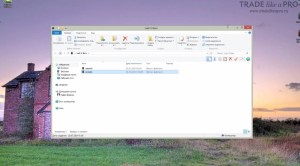
Installing preset files into the terminal
For an example, we will look at the Last X Bars advisor. You can download it on our forum if you become interested. One more point. In order for preset files to launch, edit, and save correctly, without any errors, you should run the terminal as an administrator. How is that done?
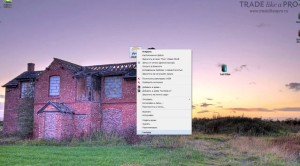
On the terminal shortcut, select the properties item:
The compatibility tab:

And check the box in the field run this program as an administrator:

Click apply. Now the program will be launched as an administrator. And you will not have problems saving data.
In the terminal, go to file -> open data folder -> MQL4 -> Experts.
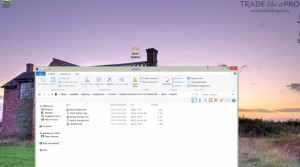
We move the files of our advisor into this folder.
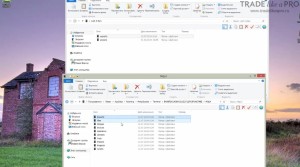
And then we copy the preset files themselves. To do this, find the Presets folder:
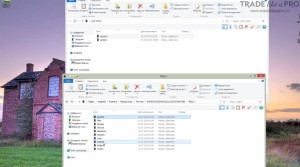
By default, it may not be present in the terminal. Therefore, if it is not there, then in the MQL4 catalog you must create it yourself.
We copy our preset files. In this case there is only one. From the installation folder with the advisor, copy it into the terminal:
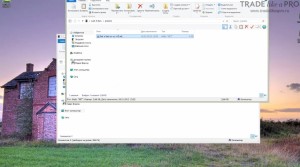
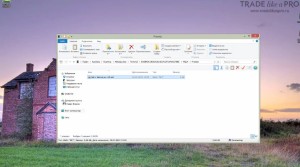
The preset file has been copied. Done. Now launch the terminal. Our expert advisor works on the EURUSD pair. The timeframe is M5.
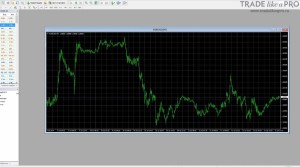
Switch the corresponding values on the chart. And install the expert advisor. It should appear in the tab with expert advisors.
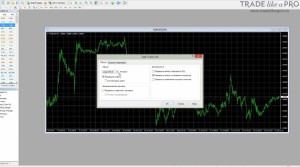
So, here we move to the input parameters tab:
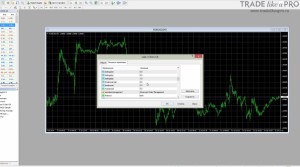
We could spend a long time configuring the parameters manually. But we have a preset, so we can simply load it.
Click the "Load" button:
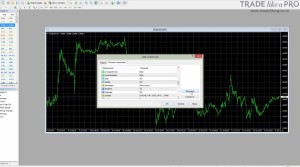
Select our preset:
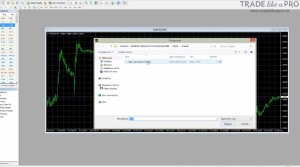
And all settings change to the way they were specified in the preset file. After that, click "OK" and the expert advisor is ready to work. With the settings that were in the preset.
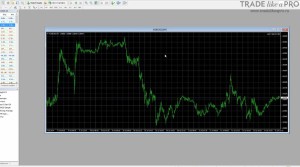
If there is one expert advisor, and it is intended to work on many currency pairs, say 10, then instead of configuring the expert advisor 10 different times so that it suits a particular currency pair, you can load ready-made presets. And that's it, you can work.
Saving Settings to a Preset
Let us consider a situation where you have an expert advisor and you want to save your own settings. So that next time, when you install this expert advisor, you do not waste extra time and effort. To save a preset, go into the settings, edit the parameters, and click the "Save" button:
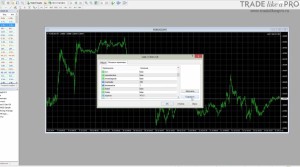
Here you enter the preset name and click "Save" again:
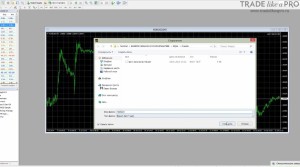
The next time you install this expert advisor on some other terminal, you will simply copy the preset files, click load, and select your preset.
How to Edit a Preset?
Suppose you found a settings file for an expert advisor somewhere, and everything suits you except for one or two parameters. You changed them and want to save these parameters.
To do this, select the "Save" tab:
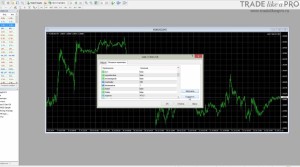
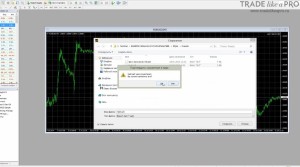
And you simply replace the already existing settings file. And all the changes in it will be written in:
But this can also be done differently. Not many people know this, but the advisor settings file can be changed with simple Notepad.
To do this, find this file in your folder or in the folder already installed in the MQL4 terminal:
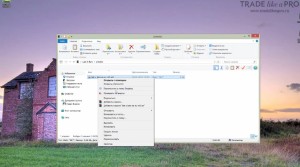
And right-click to open it with Notepad:
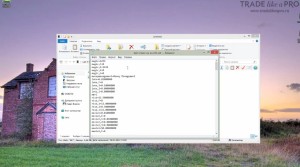
Notepad is a standard application. It is present in any Windows by default. Open this file in Notepad, or in another text editor.
And change the parameters that you need to change. Let us, for example, change the magic number:
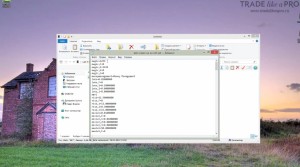
It was 1234. We will replace it with 12345 in this way:
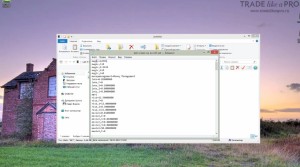
As you have probably already guessed, first comes the setting name, and then its value.
Setting name = its value
For parameters whose values change not numerically, like lots for example, but as yes/no; true/false. For such parameters, either 0 or 1 is set.
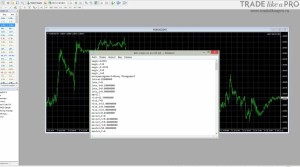
Where a 0 is specified in the parameter, it means that it is disabled. Where a one is specified, it means that it is enabled.
1 = true (yes)
0 = false (no)
Here we have mm=1:
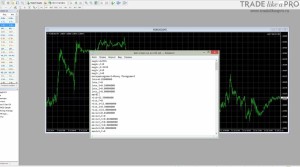
This means that money management is enabled for this advisor. If we set zero, then this will be equivalent to false and money management will become inactive.
After you have made all the necessary changes in the settings file, click Save:
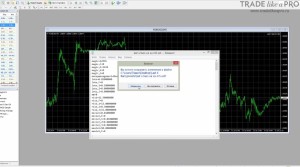
And that is all. Our file has changed. After it ends up in the terminal, we will load it on the advisor chart, and it will be applied to the advisor settings with the changes that we made.
Myths About Presets and Expert Advisors

Very often in discussions of some expert advisor on our forum, you can encounter such a popular question: "Are there any sets? Post profitable sets." And the like. That is, people ask for presets with ready-made magic settings. The reality is that normal, adequate settings are usually already set in the expert advisor by default. But it does happen that presets come bundled together with the expert advisor. For different purposes, for different pairs, for different risk levels.
For example, sometimes the package includes sets with an aggressive level of risk, a moderate one, and a conservative one. When an expert advisor is posted online, people ask for some magic profitable sets. This dates back to the time when optimization was in fashion. That was several years ago. Now the fashion for optimizing expert advisors has faded away. But people still ask for sets.
There is a belief that almost any expert advisor can be made profitable if you select some profitable sets using optimization. Overall, this is more than 80% a myth. And if sets do not come with the expert advisor, there is nothing wrong with that. In the end, you can create and save them yourself. And the most adequate settings, which are also the most profitable ones, are included by default right away. And you should not deviate from them too much. Because the authors of the expert advisor in any case know its working strategy, its pros and cons better. Therefore, the default settings are usually the most balanced.
Respectfully, Pavel
TradeLikeaPro.ru
