
Taking Chart Screenshots Automatically

Hello, fellow Forex traders! We all know how important it is to keep a Trader's Diary. Even grandpa Elder wrote about this, about how necessary it is to keep a journal where there will be a screenshot of the trade and your comments: why the order was opened, what analysis was conducted, as well as your moral state.
The diary can be paper or electronic, but one thing it definitely cannot do without is screenshots. Of course, you can take screenshots manually, but why not entrust this task to automation? So as not to be distracted from trading itself, and simply not to forget about this routine task.
Today we will look at an indicator that takes screenshots of Forex trades automatically: when a trade is opened/closed, every N minutes, or on every candle. Whatever is more convenient for you)
Installation and settings

The indicator is installed according to the standard instructions.
After attaching the indicator to the chart, a settings window appears, here are the meanings of its values:
--> Settings Screenshot time - Operating time settings.
Start Time (hh:mm) - Sets the time when the indicator starts working.
End Time (hh:mm) - Sets the time when the indicator stops working.
If both parameters are equal to "0" or the lines are left empty, it will work around the clock.
--> Auto Screenshot Settings - Automatic mode settings
Screenshot New Bar - When set to True, the indicator will take screenshots at the opening of each new candle.
Screenshot Interval (minutes) - If the value is not 0, then after the specified interval in minutes from Start Time the indicator will save images.
--> Open/Close Orders Screenshot Settings - Screenshot settings for opening/closing orders
Orders Type - 3 selection options in which screenshots are saved during the opening/closing of trades: during manual trading, during trading by expert advisors, or both.
Screenshot Open Orders - Allow taking screenshots when a trading order is opened.
Screenshot Close Orders - Allow taking screenshots when a trading order is closed.
Send Open/Close Mail - Send an email when orders are opened/closed by an advisor (if the server is activated through the terminal settings).
--> Comments/Button settings - Comment and button settings
Show Comments - Show comments in the log, on the chart, and on screenshots.
Comments Position - Select the corner of the screen for the location of comments.
Notification Language - Select the language of comments: Russian or clumsy English.
Screenshot Button - Enable display of the "Screenshot" button (in three color schemes) for manual saving of screenshots.
Button Position - Select the corner of the screen for the location of the "Screenshot" button.
Button Distance X - X distance of the "Screenshot" button from the corner of the screen.
Button Distance Y - Y distance of the "Screenshot" button from the corner of the screen.
--> ScreenShot Size - Screenshot size settings
Width (X pixels) - Size of the saved image in pixels along X.
Height (Y pixels) - Size of the saved image in pixels along Y.
--> Other settings - Other settings
Set Picture Name - Choose one of five options for the saved image name in the following sequence: Symbol Name, Timeframe, Screenshot Type, Date and Time (for convenient sorting).
Create Symbol Folder - Create an additional folder in the files directory named after the currency pair for storing images.
Create TimeFrame Folder - Create an additional folder in the files directory (or in the symbol name folder if Create Symbol Folder = true) named after the timeframe for storing images.
Usage
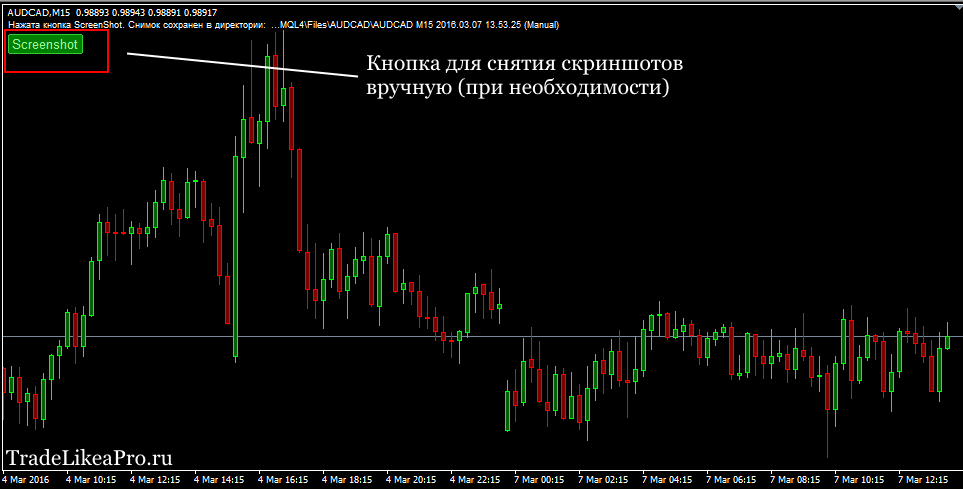
In addition to automatic screenshot capture (set through the settings), the indicator also allows you to take chart snapshots manually by pressing a single button (see screenshot above). If desired, this button can be removed so that it does not take up space on the chart.
Where are the screenshots saved?
During visualization and testing, screenshots are saved to the tester folder (example: C:Program Files (x86)Alpari Limited MT4testerfiles).
Otherwise, to the MQL4 folder (example: C:Program Files (x86)Alpari Limited MT4MQL4Files).
Nuances:
- The indicator takes screenshots only for orders of the pair on whose chart it is installed. Update: after updating the indicator version, the ScreenshotSymbol setting appeared; if you select All Symbols in it, then the indicator can be placed on one pair and it will take screenshots for all pairs.
- You should not change timeframes, as this can lead to malfunctions in the indicator's operation
- Pending orders are also taken into account; a screenshot is taken when a pending order is activated.
Download the Truly Screenshot Indicator

Sincerely, Pavel Vlasov
TradeLikeaPro.ru