
Review of the MyFxBook App for Smartphones
Hello, Forex trader friends! In the 21st century, almost everyone always has a mobile phone with them. And in recent years, a smartphone. The convenience of technology is hard to overestimate, so many sites and services make mobile apps (our portal has one too).
The popular service Myfxbook.com was no exception, known above all for the ability to create monitoring of your trading account for analysis and publication. What capabilities does the Myfxbook App for smartphones have (iOS and Android are supported)? Is it worth installing on your device? You will find out from our review.
Today we will look at an app that was created on the basis of the MyfxBook service.
You are probably familiar with this site. It is known for providing the ability to monitor your account, track account activity, statistics, and so on.
In this article, I will tell you about the functions of this app and how it can be useful in your trading and in managing your account.
We will look at the app using the iPhone as an example. For the Android platform, it is practically no different.
This app is installed from the App Store for iPhone and from Google Play for Android:
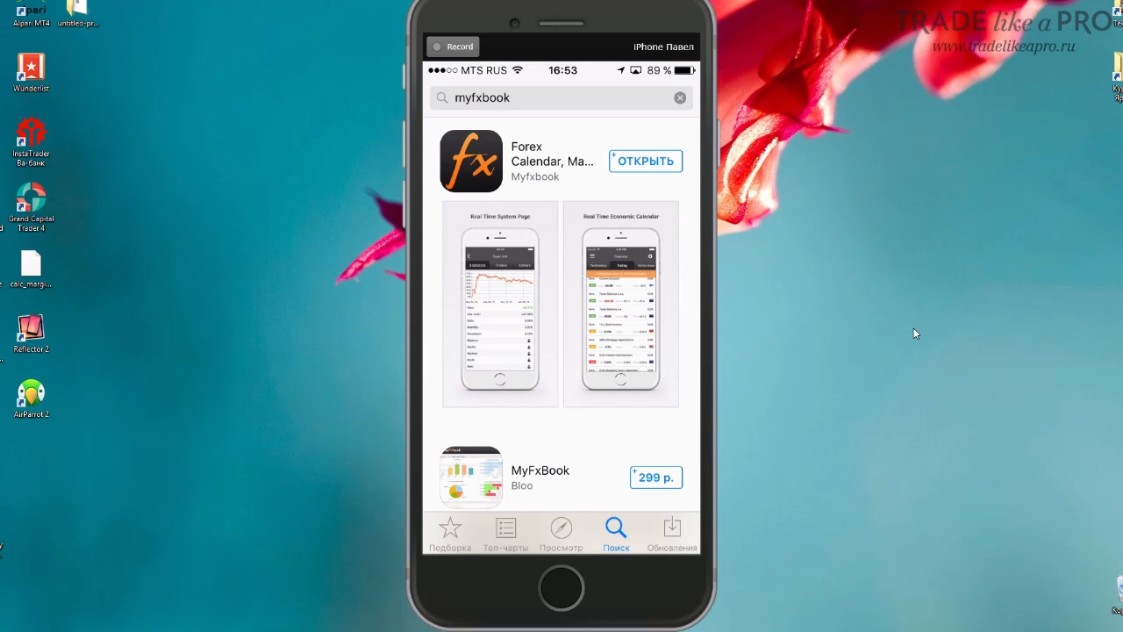
Please note that when you enter the app name in search, several options appear to choose from.
If the App Store shows the official app first, then Google Play currently shows an unofficial app with a similar name.
Make sure the publisher is called MyfxBook:
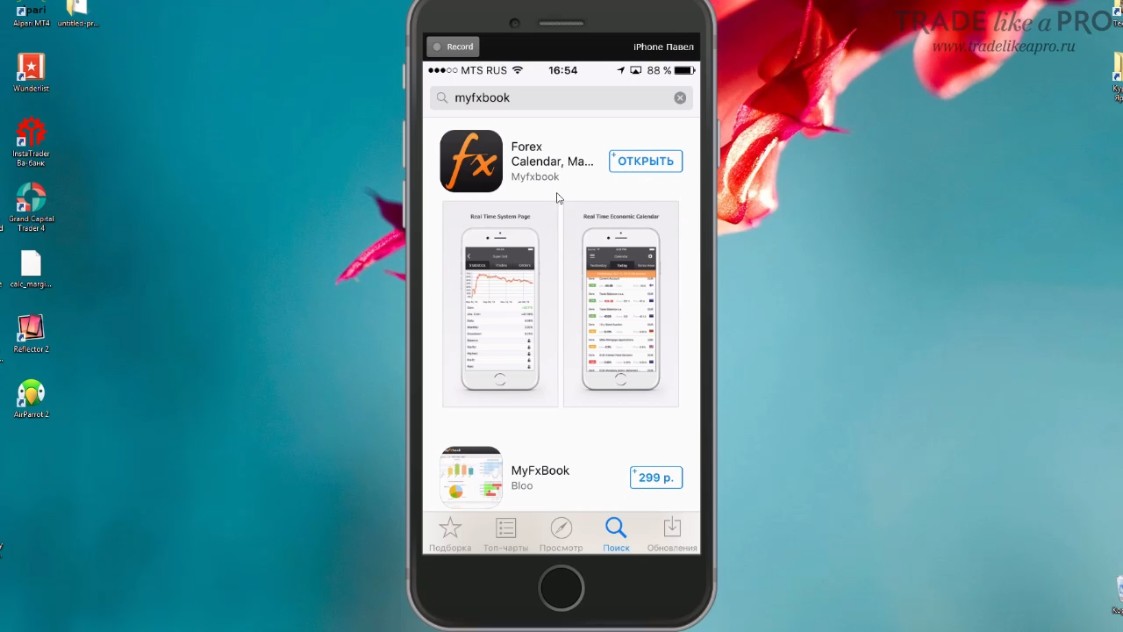
There are third-party apps from independent developers that may be paid. Do not pay attention to them, because we are interested in the official app. That is the one you need to install on your phone.
After installation, the app will appear on the screen and will be called "MyfxBook".
When you open the app for the first time, it will ask you to log in with your username and password, or register:
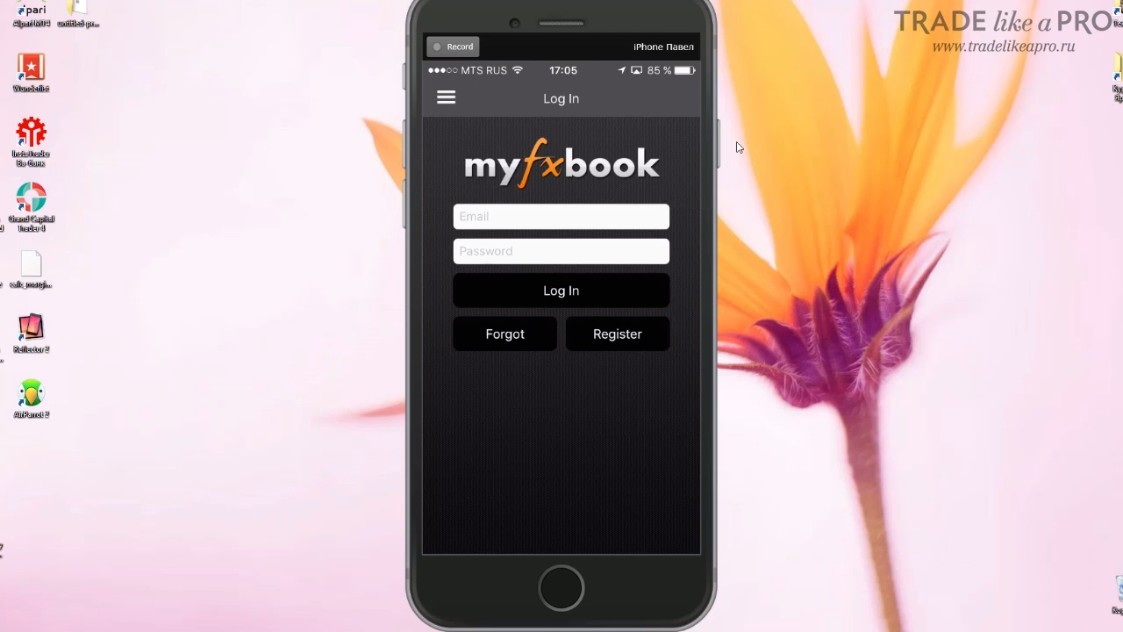
Enter the required data and then your portfolio will open before you:
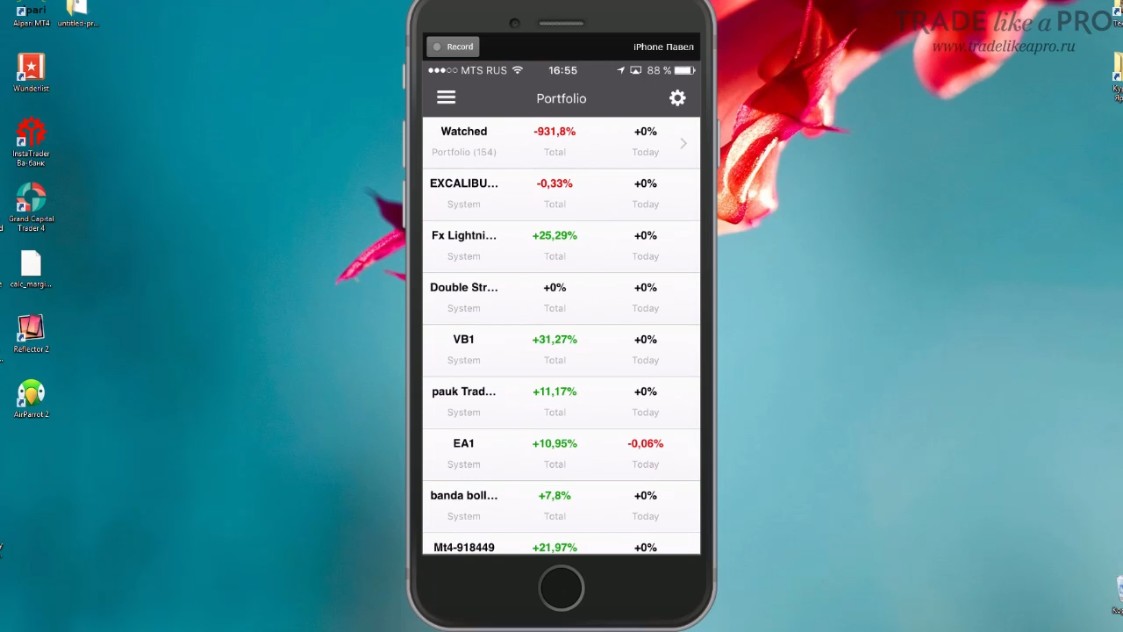
Under the heading "Watched" are the accounts that we added to the watched ones:
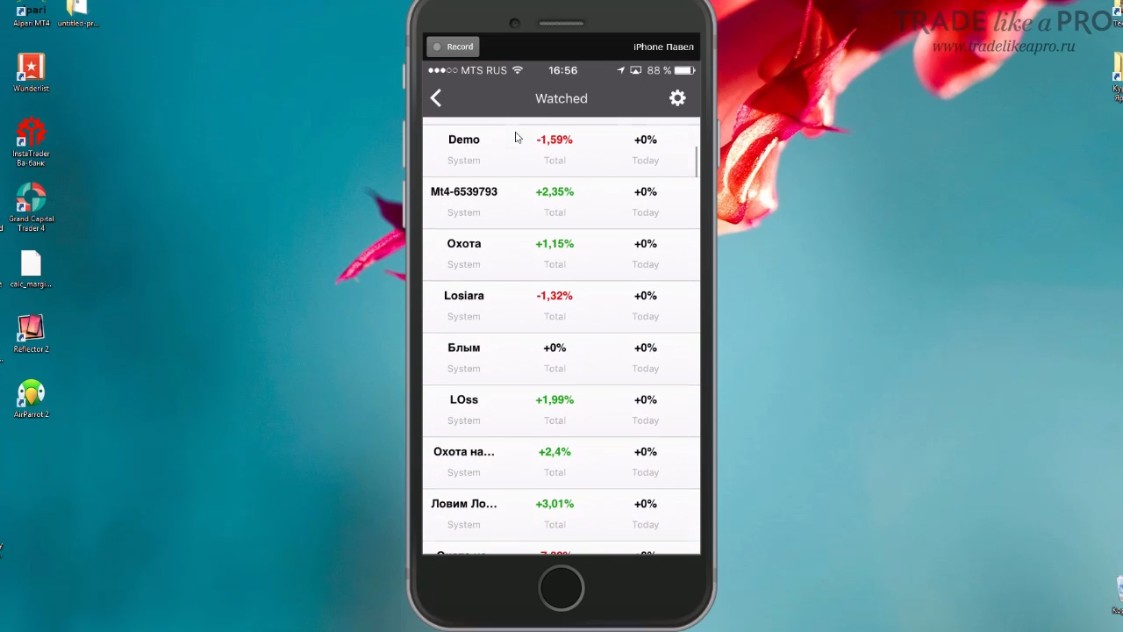
You will be able to add any monitorings and watch them.
Below is a list of your accounts. If you click on one of them, a window will open where you can observe the growth curve of profitability and statistical data:
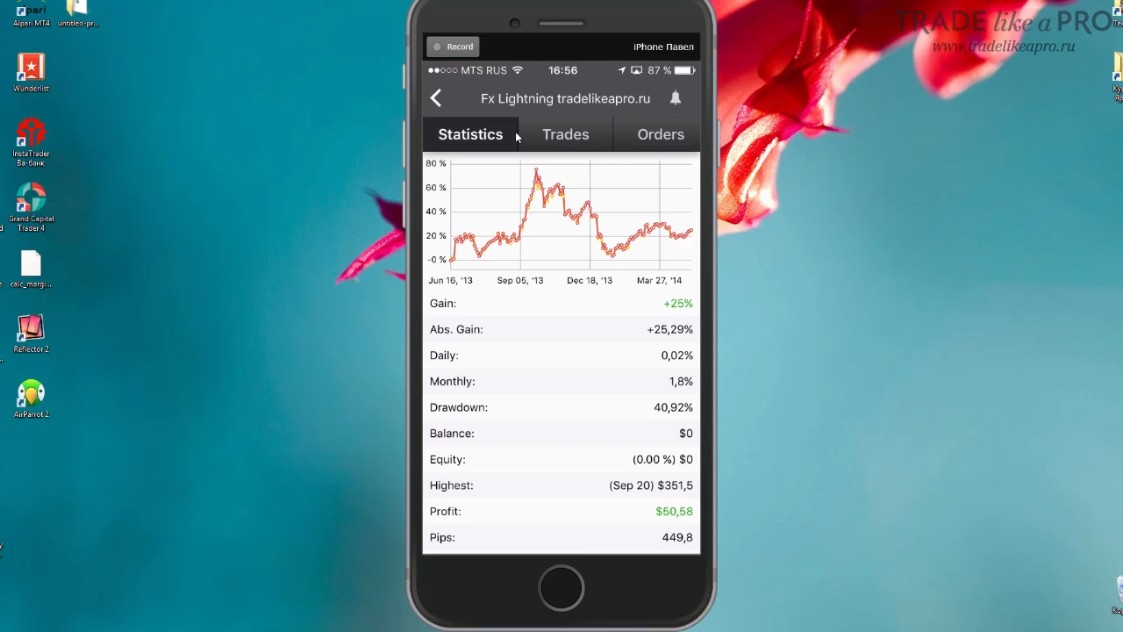
You can view the data on the chart if you click on it in the place that interests you:
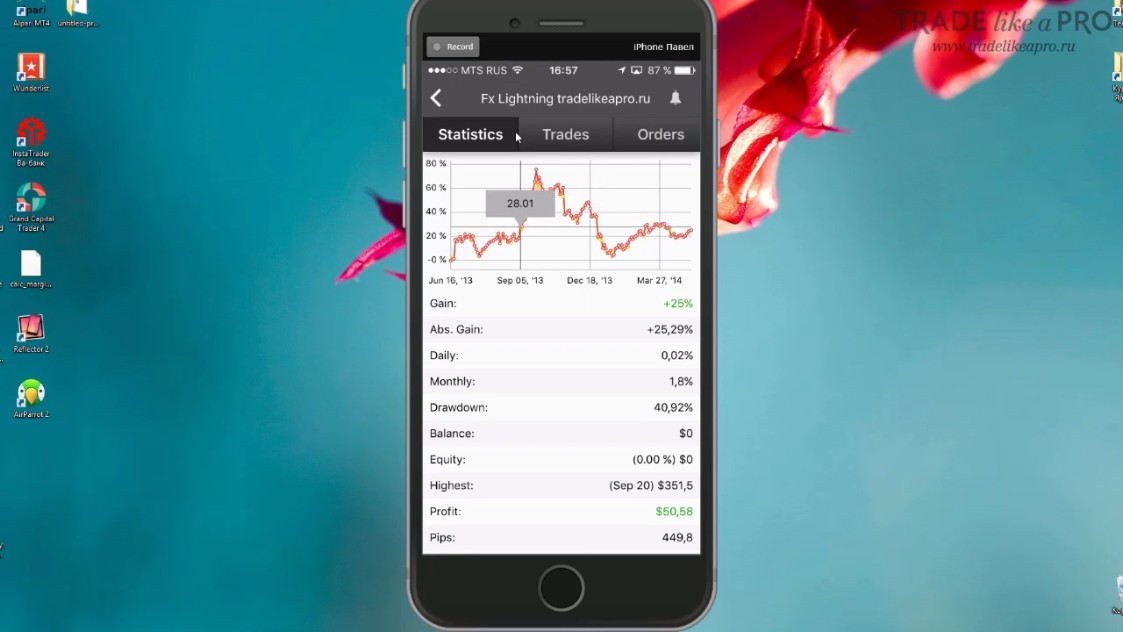
If you pull the screen down, the monitoring data will start updating:
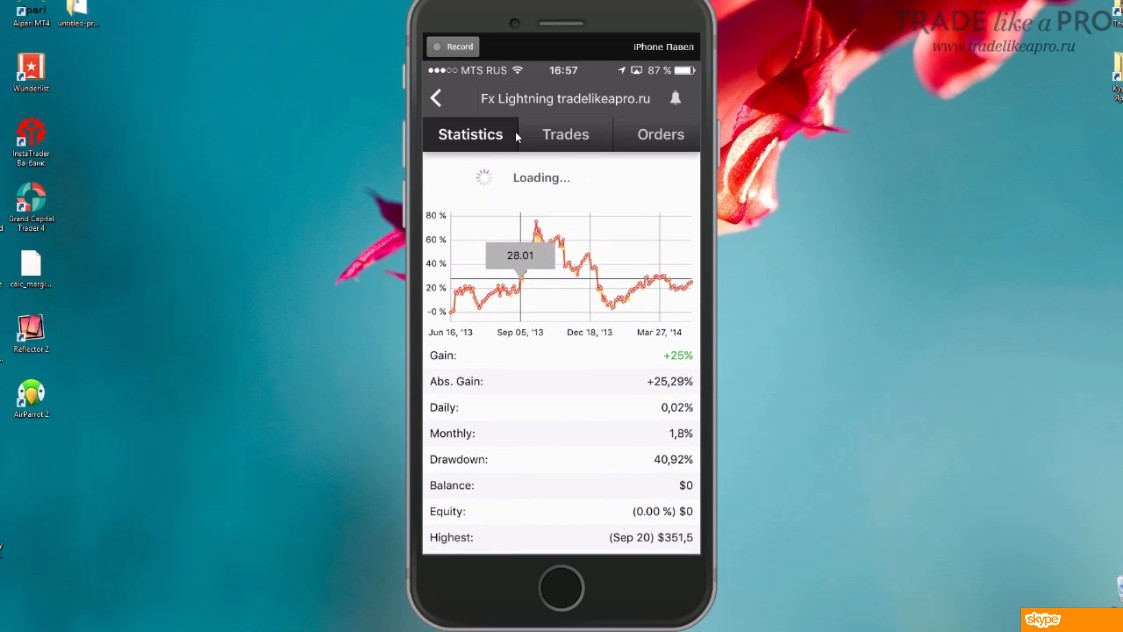
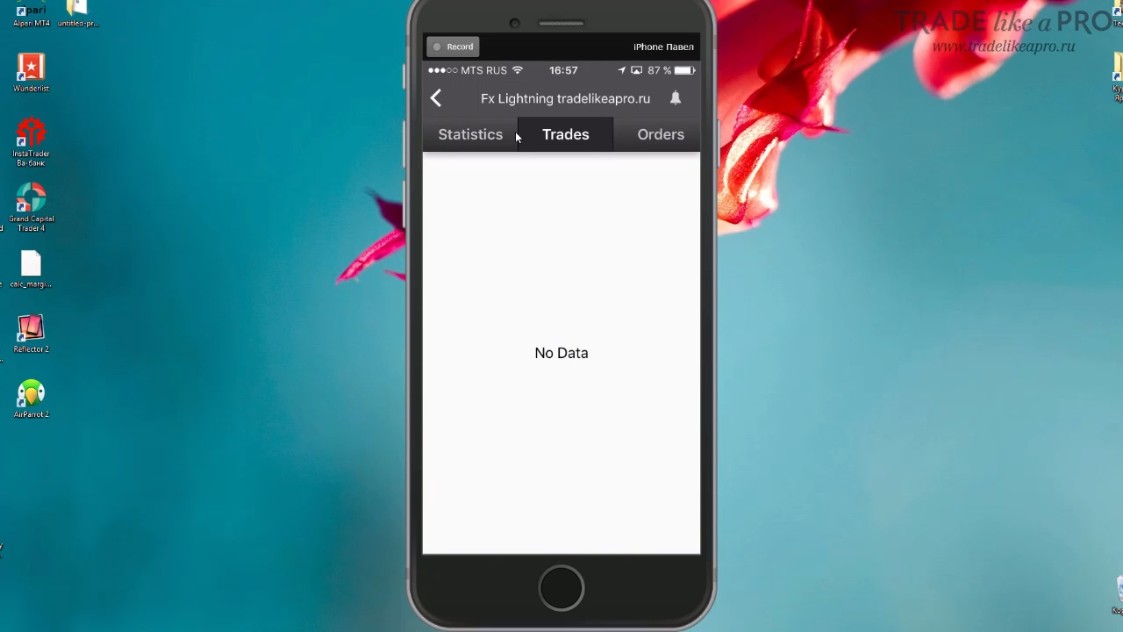
The "Trades" tab displays open positions:
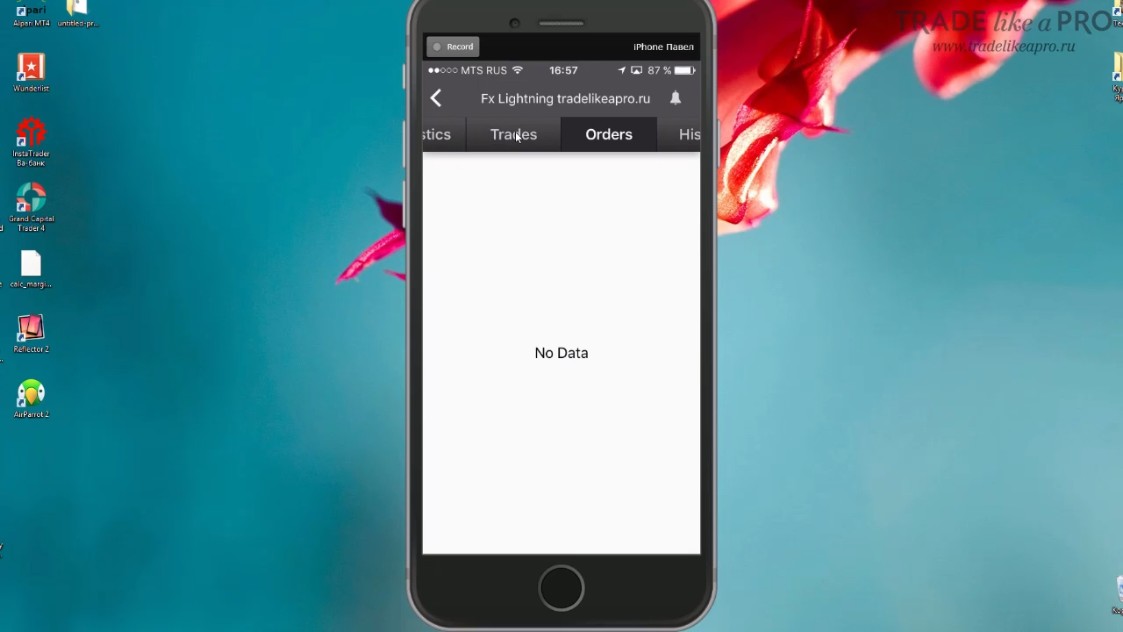
The "Orders" tab shows open orders:
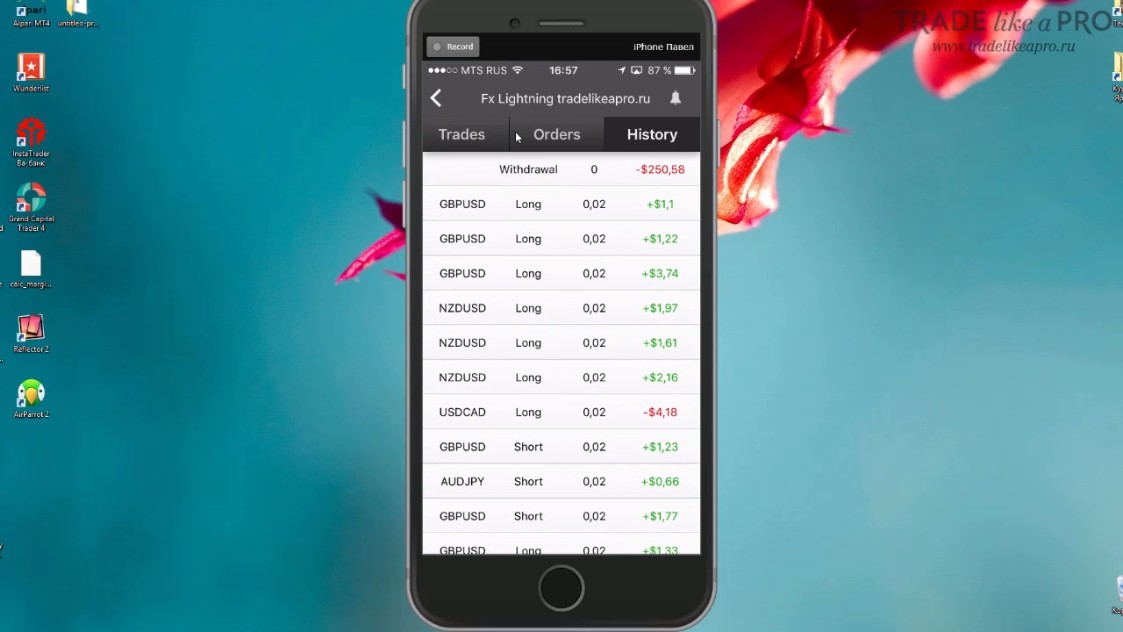
The "History" tab shows us the monitoring history:
If you click the bell in the upper right corner, you can add notifications:
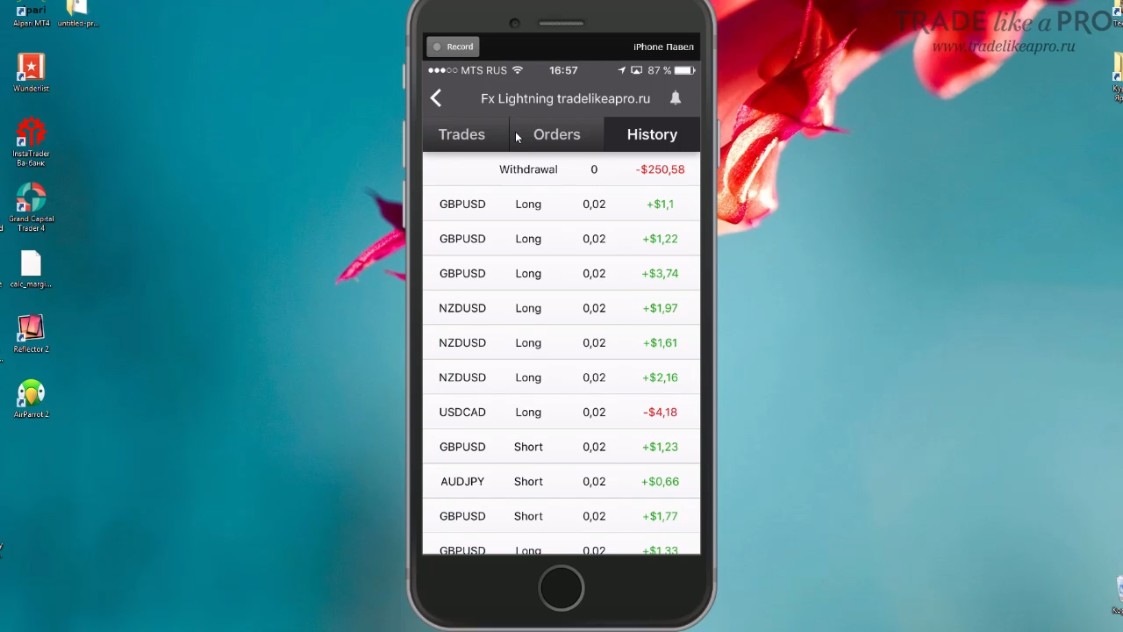
Notifications are used primarily so that when one of the statistical parameters reaches a specified value, the phone informs you about it.
For example, if a drawdown has appeared on your account that has reached a certain level, then a notification in this case will not hurt.
In order to set a notification, you need to select the parameter you are interested in from the menu:
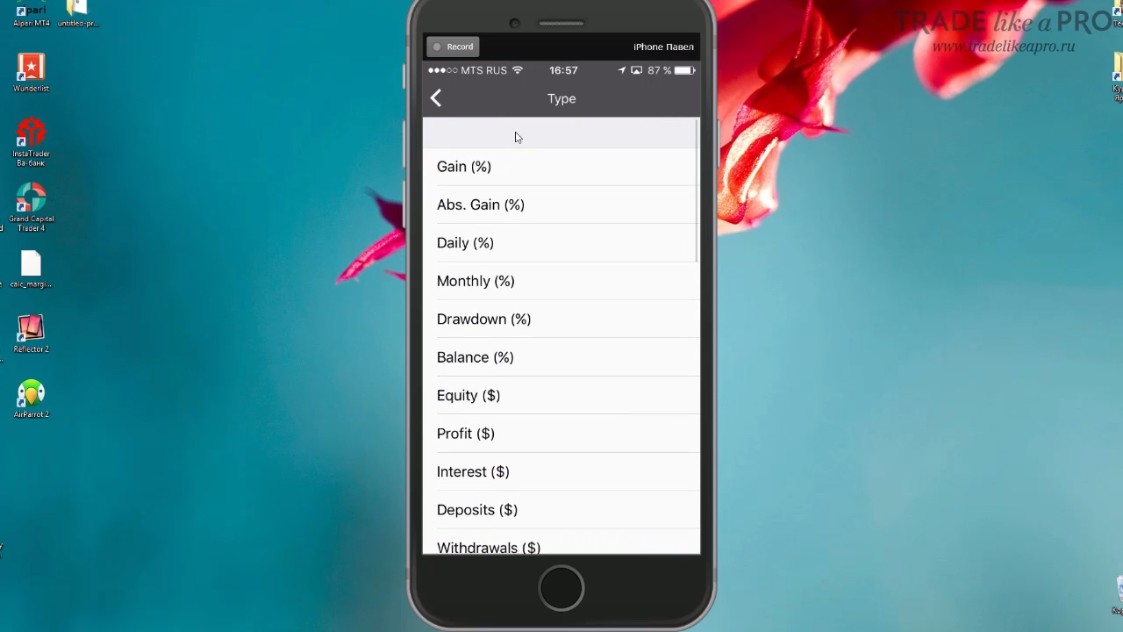
Now you can set the exact value:
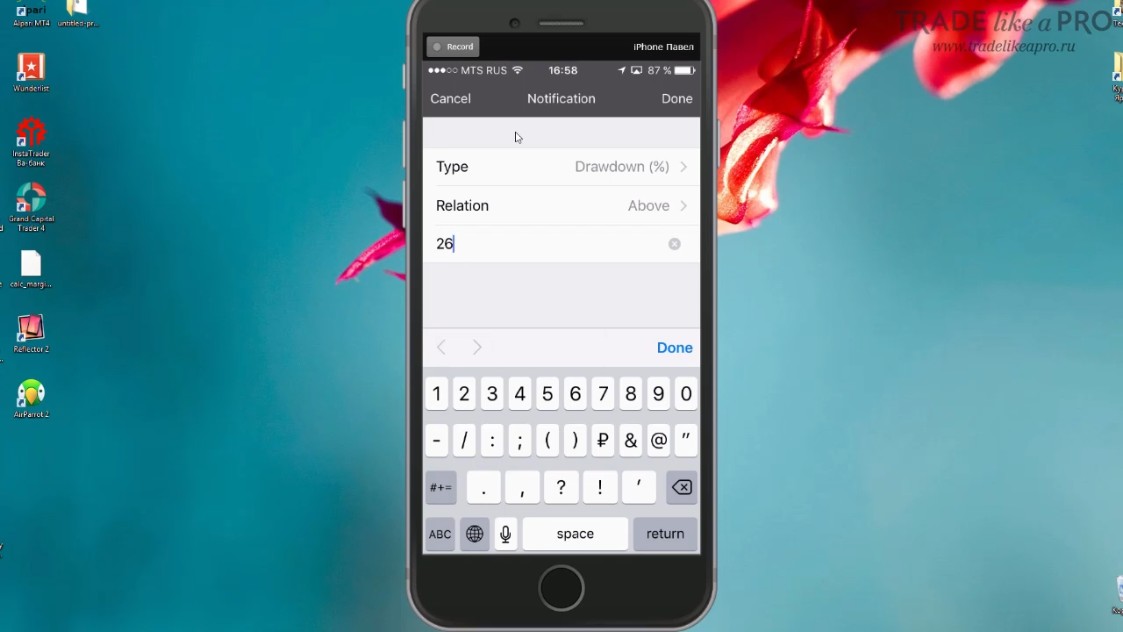
Let us set the Drawdown parameter Above 26%.
After the changes, you need to click the "Done" button, which is located in the upper right corner. Then all changes will be saved. And if the drawdown on this account exceeds 26%, we will receive a notification.
If you have notifications from this application enabled, then the phone will inform you when the drawdown reaches the specified level. We will talk about how to check whether notifications are enabled on your phone at the end of the article.
You can do the same with any other parameter.
This application is valued precisely because of the notifications that you can receive.
By default, notifications about news are enabled, but they can be disabled. And after that, use the application only for your personal purposes.
So, if you move the screen to the right, a menu with items will appear:
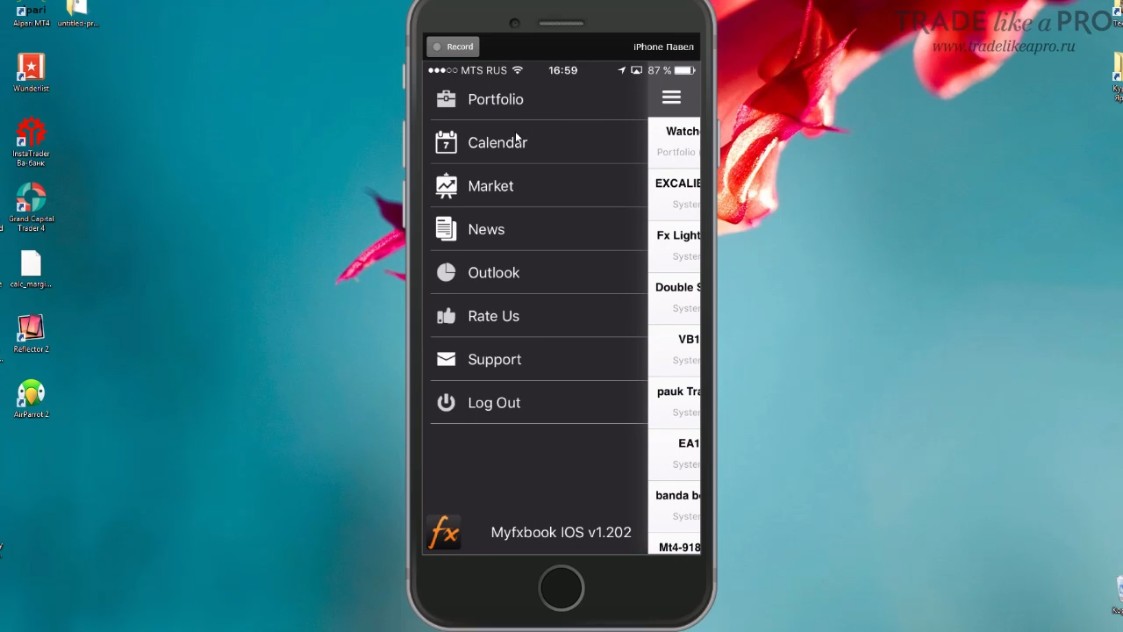
We have already looked at the first item in this "Portfolio" menu above.
The next item, "Calendar," is an economic calendar:
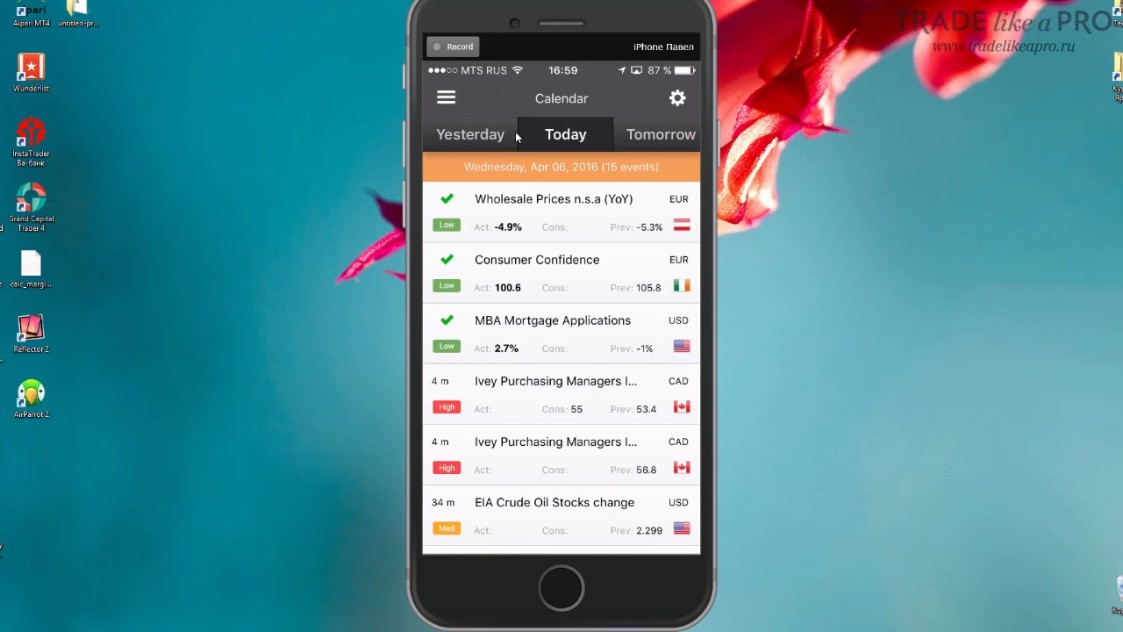
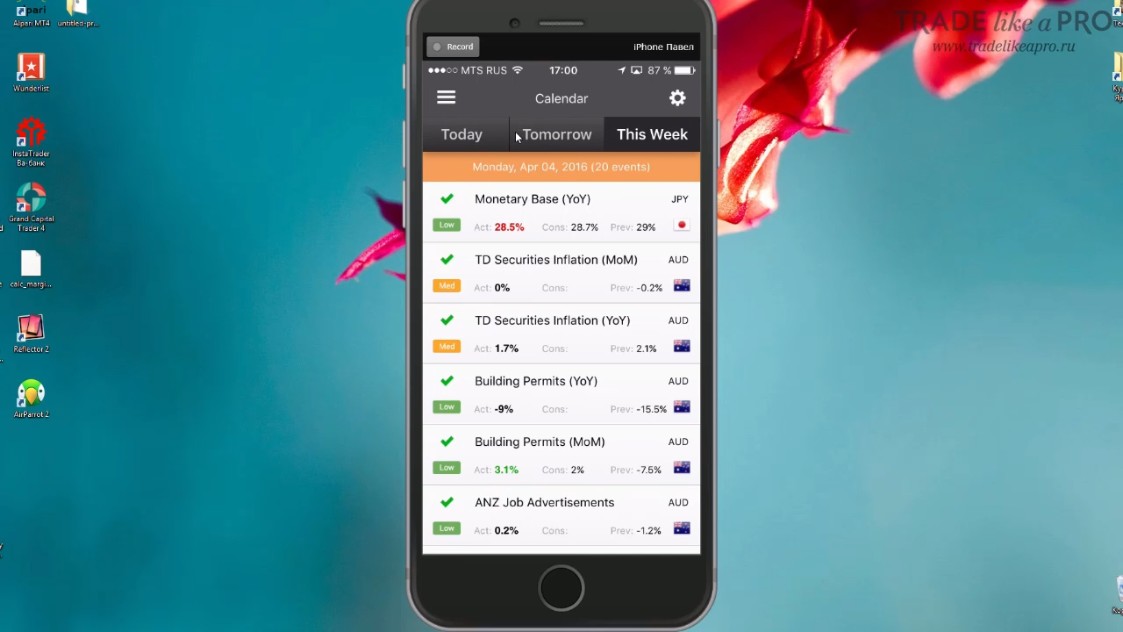
At the top, you can select yesterday, tomorrow, and information from the current week:
If you click on any event or news item, its brief description will appear:
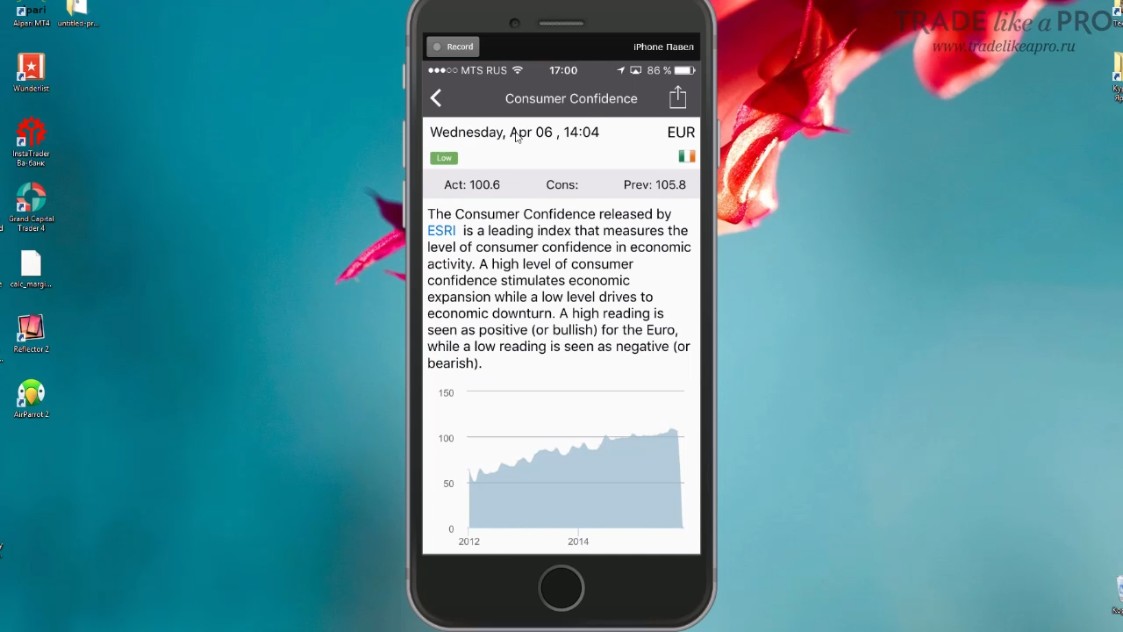
Essentially, the same information is posted there as on the website.
If you click on the next item in the "Market" menu, the current quotes for various currency pairs will appear:
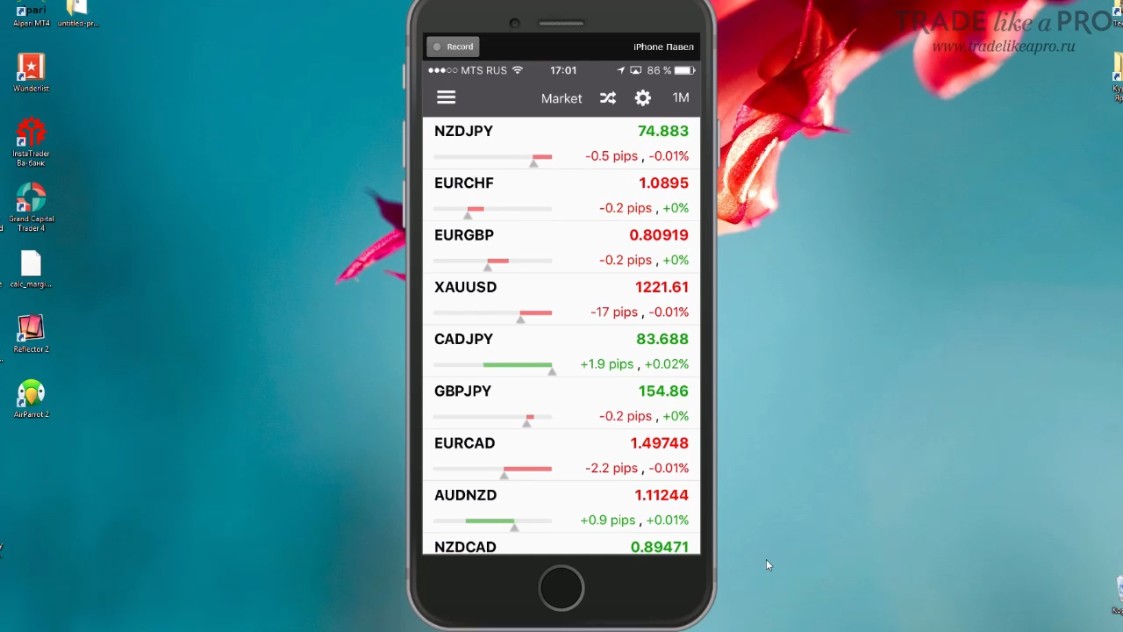
You can choose a timeframe, and then a value in points will appear showing how much the candle on that timeframe has risen, or conversely fallen, compared to the previous one.
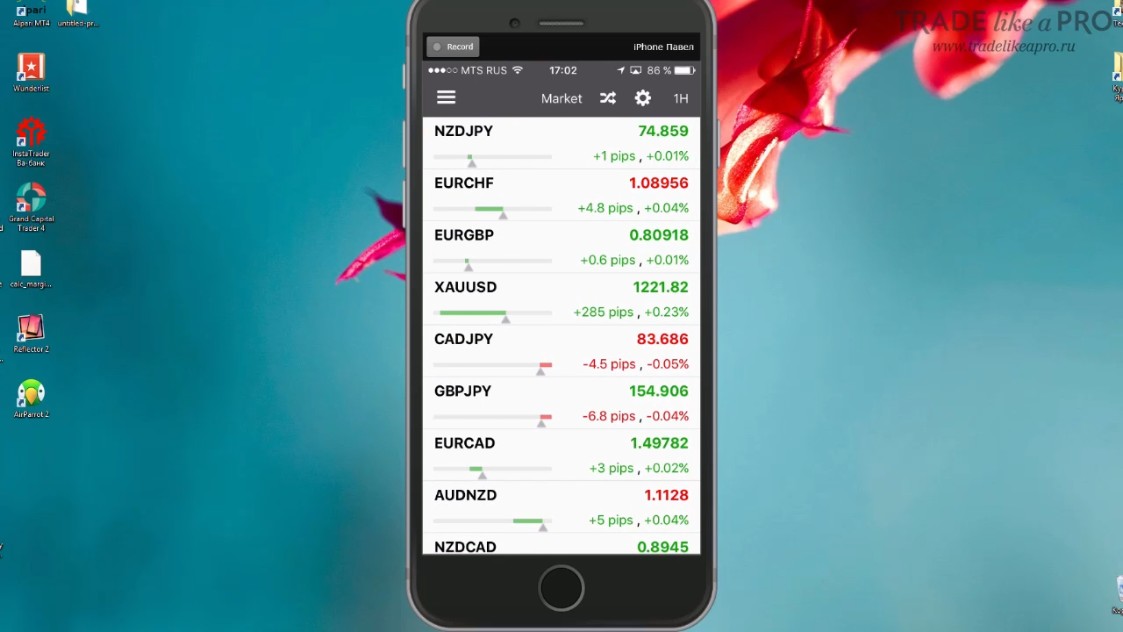
There are no charts, but there is a kind of imbalance shown on the current candle.
With this, you can track certain quotes. If you click the gear at the top, you can then remove or add symbols.
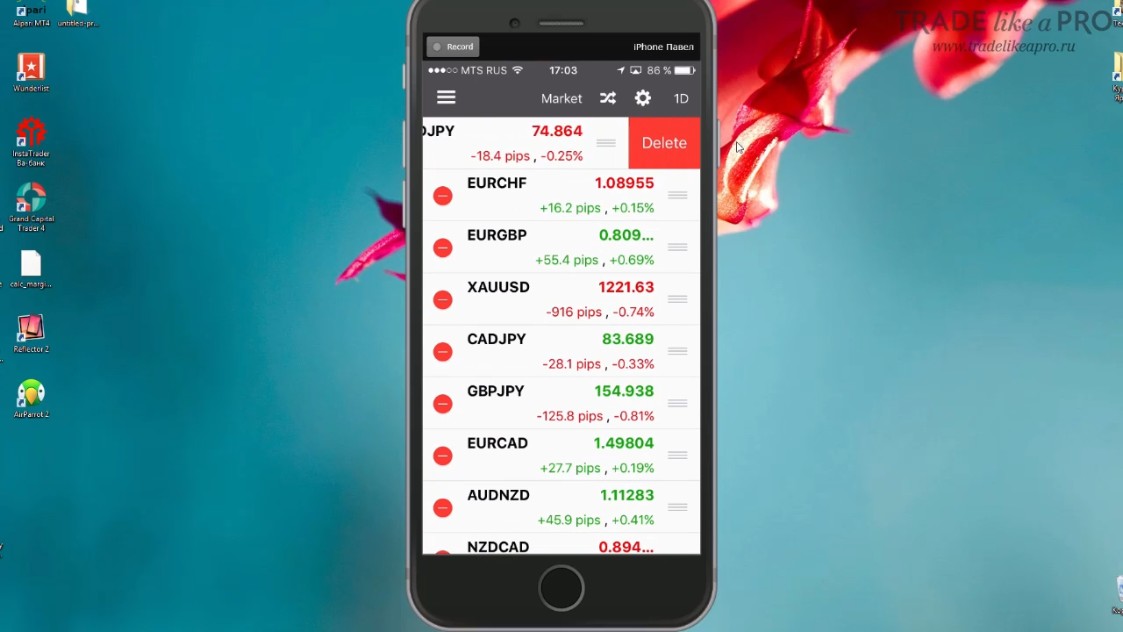
In addition, there is an option to remove unnecessary instruments by clicking the icon located to the left of the gear:
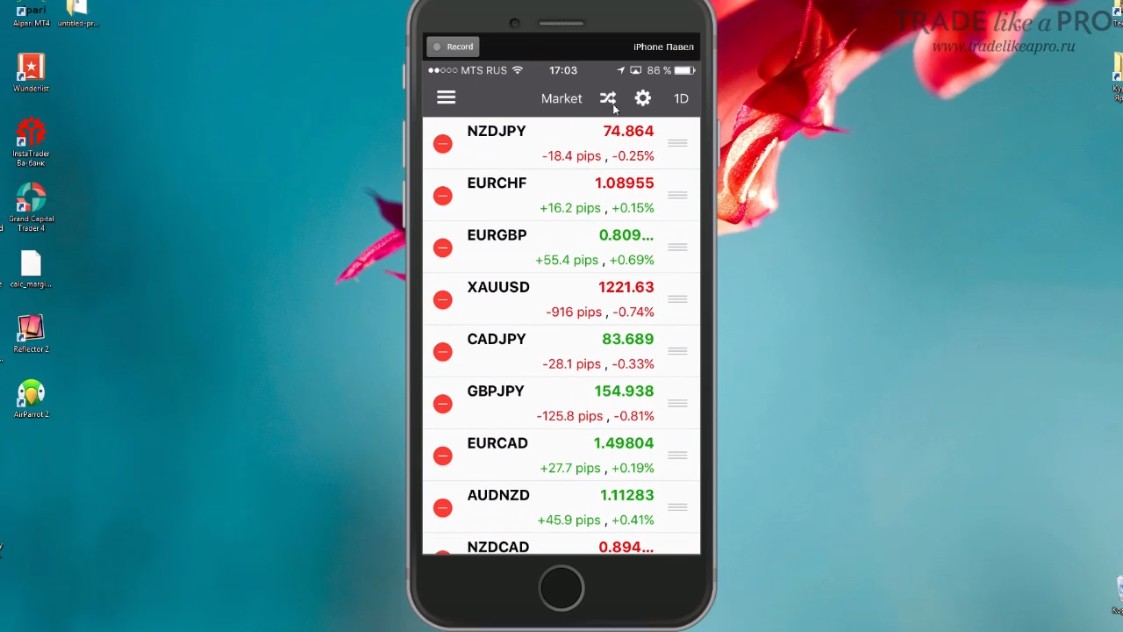
Then an option will appear to remove the currency pair directly from this window:
The next item is "News":
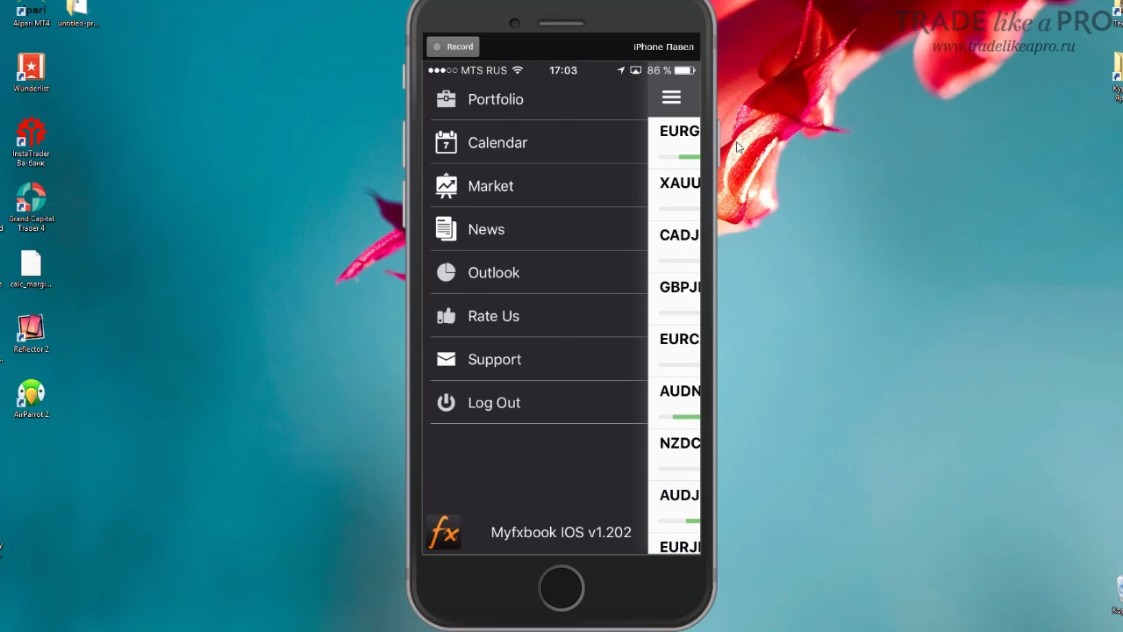
As you might guess, news is published there. It is written mostly in English, so in principle it is not especially interesting to us.
Next comes the "Outbook" tab:
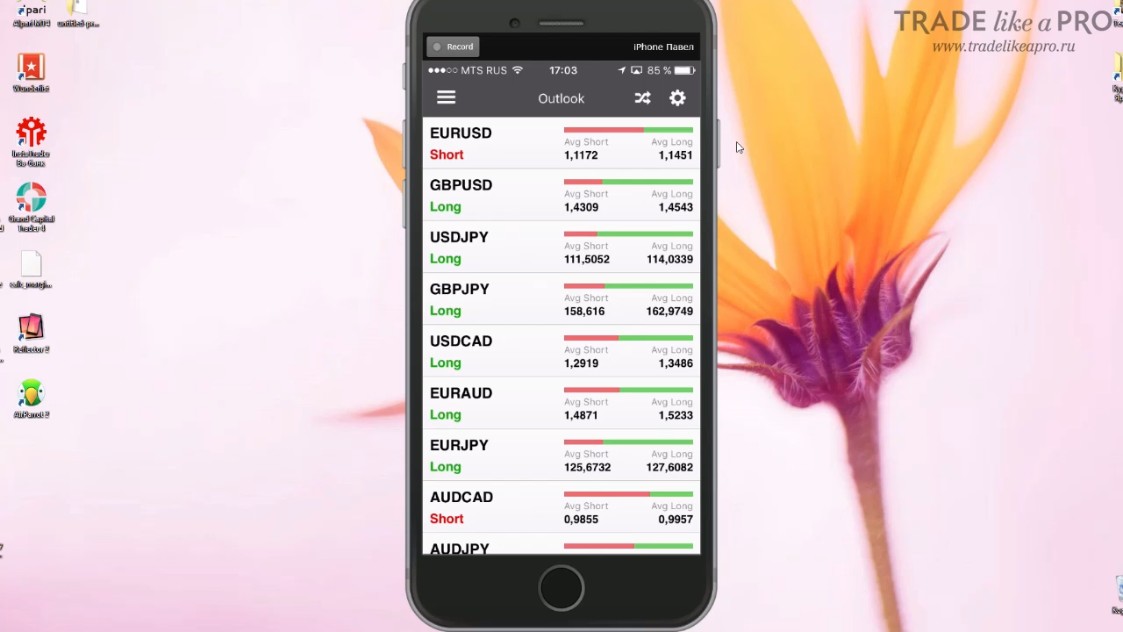
Here we are shown the current ratio of bullish and bearish positions for various instruments.
The data is collected as an average from all the monitorings available in the service.
We remember that as a rule the crowd goes against the market. And the market goes against the crowd.
Therefore, if you see a very large predominance of buys in this window, as is now happening with USDJPY, then it is worth looking for opportunities to sell. It is worth noting that the predominance should be substantial. Around 70-80 percent for one of the sides. Only then can you go against it. This market feature is explained in more detail in the Supremacy strategy.
The "Rate Us" tab from the menu will offer you to rate the app.
"Support" is the tab where you can write an email to the support service.
"Log out" is the button to sign out of your account.
Now let us return a little to the notification settings for apps.
In order to enable notifications on your phone, you will need to go to the phone settings:
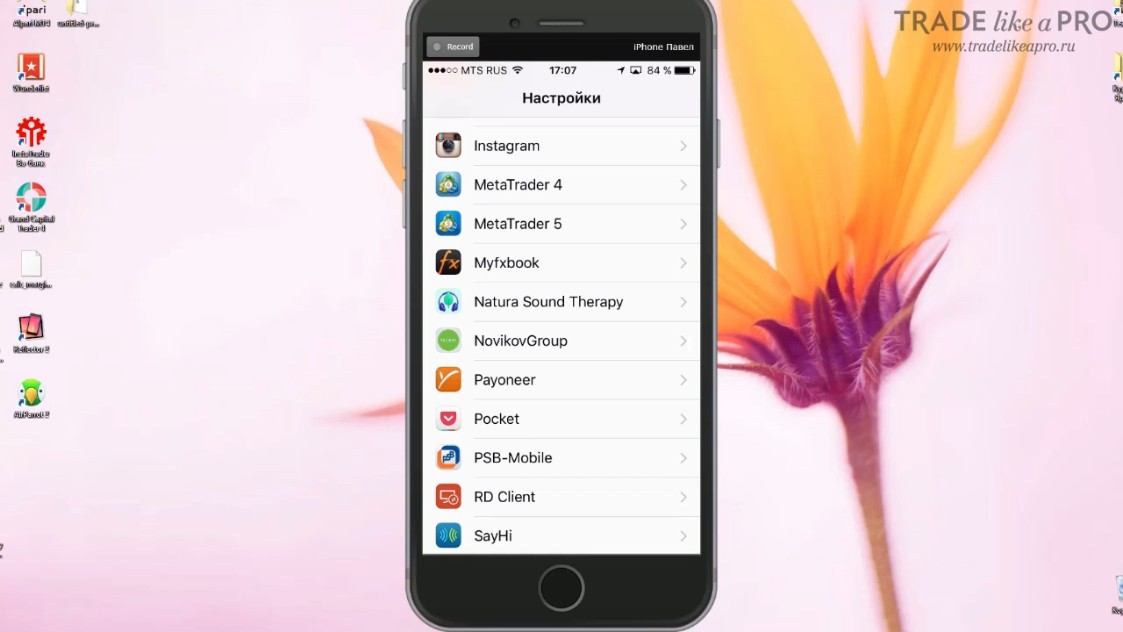
And then open the app we are interested in:
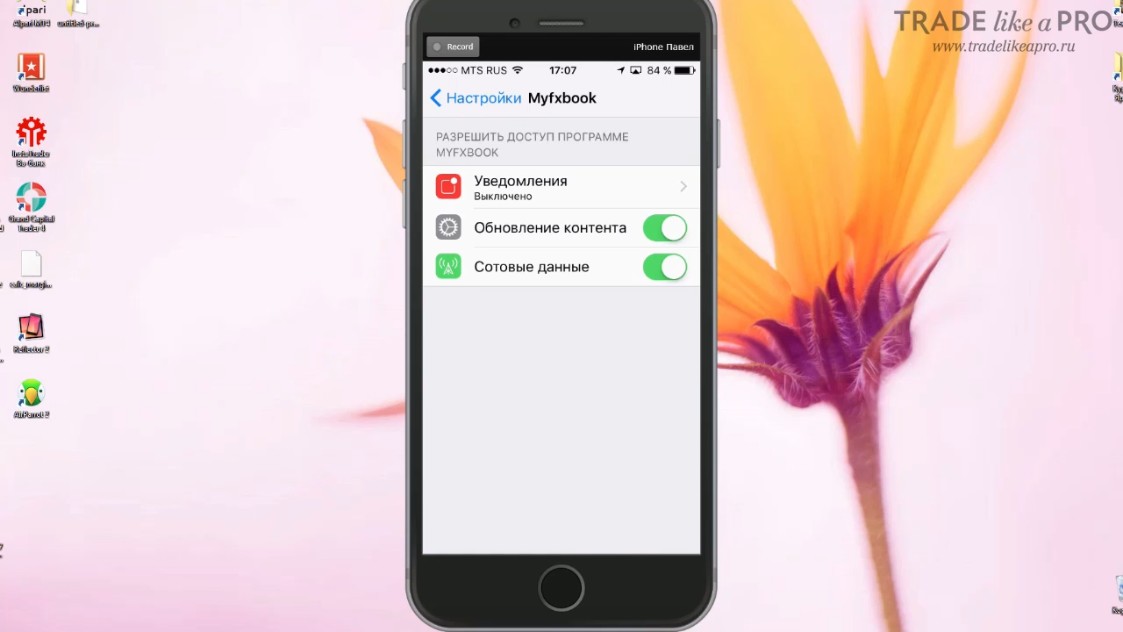
In addition, these settings have a function for enabling and disabling automatic updating and internet use via the SIM card or only via Wi-Fi.
What can this app be used for?

It can be used to see what is happening in your account when you are far from the computer. At the same time, you will not need to open the mobile terminal.
Because sometimes opening it can end in unnecessary interference in a trade.
You can see what is happening with the account on which expert advisors are installed, simply by taking your phone and seeing all the information.
Also very useful will be the function of notifications about the current drawdown. This is very relevant for dangerous expert advisors that use various grids and martingale. When the drawdown reaches a critical level, the app will notify you about it and you will be able to intervene in time.
And of course, for those who trade the news, it will be relevant to receive information about news bulletins.
Download the App for iPhone
Sincerely, Pavel Vlasov TradeLikeaPro.ru