
MQL4: Merging Tick Files
 Hello, fellow forex programmers!
In this material, we will continue working with the tick data that we obtained as a result of the previous lessons.
For those who have just joined us, here are the previous stages of working with the data:
- Collecting tick data automatically
- Converting tick data
The tick history that we obtain using the Ticks Collector indicator we wrote is fragmented into several files. This was done for the convenience of further manipulation and storage. At the same time, for traders to use this history, they need the data presented in a single file. Let us consider what steps need to be taken to obtain a proper file containing information about tick history for the longest possible period of time from several archives of tick data files.
Writing the Script

I described the detailed process of writing the script in the video lesson. Here I will tell you how to use it, since not everyone will be interested in programming this tool and, perhaps, some are looking specifically for a ready-made product.
Preparing the Data

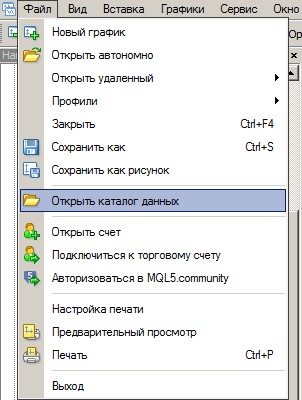
All the data with which work will be carried out further must be located in one specific terminal folder. To find it, you need to open the "File" menu item in the terminal, and in it select the "Open Data Folder" submenu:
After opening this folder, you should move to the MQL4/Files subfolder:
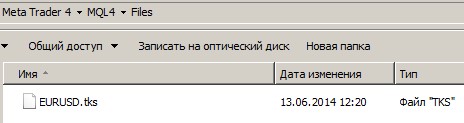
It is in this folder that you will need to place all the files discussed below.
I recommend preparing the data before the merging process as follows. First, you need to download the archive with the earliest data. In my case, the files are stored on a server, and that is exactly where I retrieve them from. Next, rename all files as follows: the name of the currency pair and an index from one to the last file in the order of file seniority. That is, the oldest file will be, for example, USDCHF1.tks, then USDCHF2.tks, and so on.
Merging the Data, Conclusion

To merge our scattered data, you need to open the chart of the corresponding currency pair in the terminal and drop the newly written script onto it. After the merge is completed, the script will display a message in a separate window about the result of the merge. If everything went well, you will find a new file with the name of the merged currency pair in the folder. Then you can convert the file to the .csv format using the script we wrote in the previous lesson and do whatever you want with the data.
Download the Script for Merging Tick Data

The following lessons from the «Working with Quotes» series:
- MQL4: Analysis of accumulated tick history
- MQL4: Testing on real history
Sincerely, Dmitry aka Silentspec
TradeLikeaPro.ru