
MetaTrader 4 for iPad Review

Hello everyone! What everyone had been waiting for for so long has finally happened - the MetaTrader 4 mobile terminal for the Apple iPad has been released. For those who are not aware - previously there was only a version for smartphones, and using it on a tablet was extremely inconvenient. So what opportunities for portable forex trading in the iOS system does this new terminal give us? Watch our video review.
Review of the MetaTrader 4 forex app for iPad
To download this application, let us go to the Apple Store. To find the program we need, it is worth using the search bar.
When the application has been downloaded, launch it by tapping the terminal icon. After opening the program, you will see a window like this:
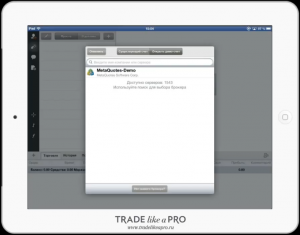
We are offered the option to open a demo account or log into an existing account.
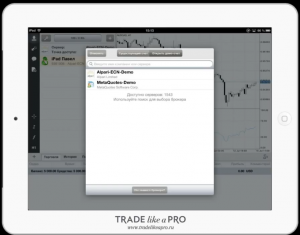
If you decide to create a demo account, you need to choose the MetaQutes-Demo service. Also, in the search window you can enter the name of the broker you need. As you enter information about it, the available options will be displayed in the search line:
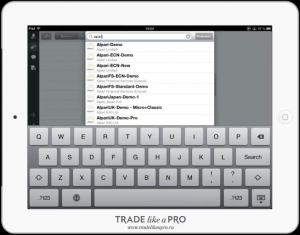
After choosing a broker, you should enter your profile details. Everything happens exactly the same way as in the version for a personal computer:
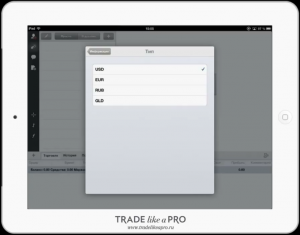
To open an existing account, you need to enter your account details in the initial window. For this example, we are creating a new demo account.
As soon as the parameters are entered, tap Done and wait for the data to load. The loading speed depends on your internet connection.
As a result, you should see a window like this:
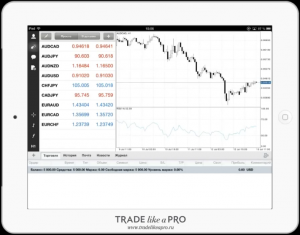
By default, the hourly AUDCAD chart is open. The RSI indicator is also added right away.
Let us begin studying this application with the bottom panel, which is called "Terminal":
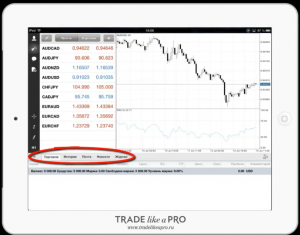
In this window, we have the following tabs: "Trade", "History", "Mailbox", "News", and "Journal". They perform the same functions as in the PC version.
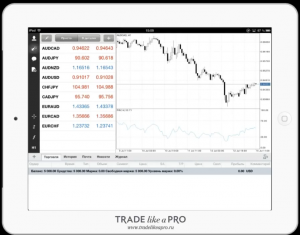
In the "Trade" tab, we can see our balance, open positions, price, stop loss, take profit, profit, and comments:
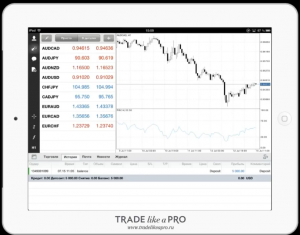
In the "History" tab, we can see deposits to and withdrawals from the account, closed positions, profit, and loss.
On the "Mailbox" tab, you can view various notifications that the broker sends us:
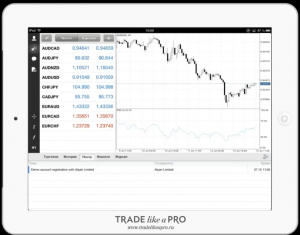
On the "News" tab, various news briefings arrive:
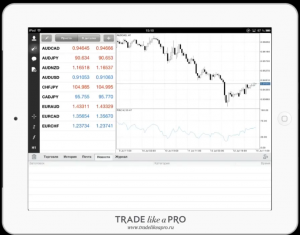
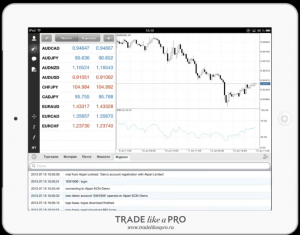
The "Journal" tab shows local events on our terminal:
Also, besides the tabs on this panel, we can see a small button with a plus sign:
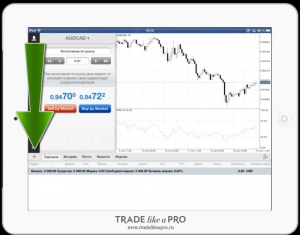
If you press it, the order placement window will open. We will return to it a little later.
Now let us move on to the vertical icons. First we see the icon with the silhouette of a person:
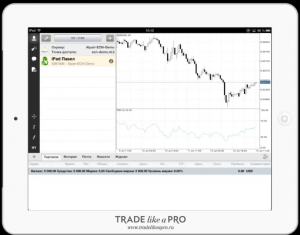
This tab shows the current account, the account on which it is registered, and the amount of data transferred.
If you click the key icon, the password management window will appear:
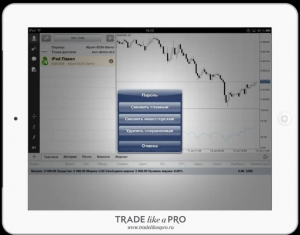
If you click the plus sign in this tab, you will be able to create another demo or log in to an account already available to you.
The next icon opens the market overview window for us:
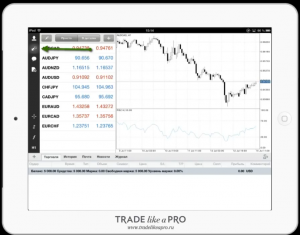
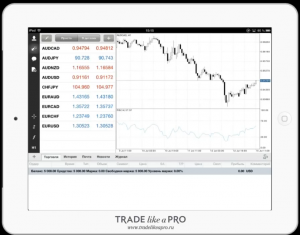
Inside, we have a list of currency pairs. Not all are shown by default, but you can easily add other currencies as well.
If you click the pencil icon, you will be able to remove a currency pair you do not need:
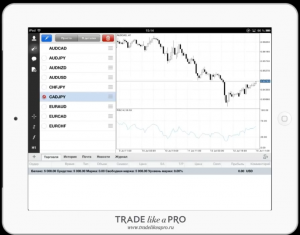
To add a currency pair, you will need to press the plus sign. A menu similar to the one for selecting symbols in the PC version will open:
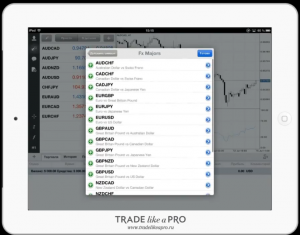
Let us add EURUSD. To do this, click the green plus sign. Add the currency and press done. As a result, the EURUSD currency pair will appear at the bottom:
In addition, you can view information about currencies by clicking the "Details" tab. The price change values for the recent period will appear:
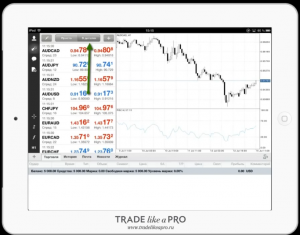
You will be able to view Bid and Ask prices and the current spread. Overall, more detailed information about the price and the currency pair as a whole is presented here.
The next item in the vertical menu is marked with a chat window:
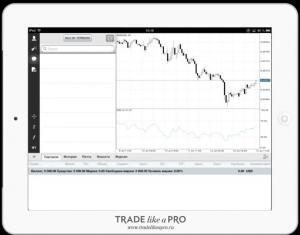
This is the ability to exchange messages if you are registered on the MQL5.com portal. I do not use this function because I do not consider it useful in my trading. But the option to communicate in this application is present. Perhaps in the future this chat can be used somehow, but right now this function exists just for show.
And the last tab is the New Order window:
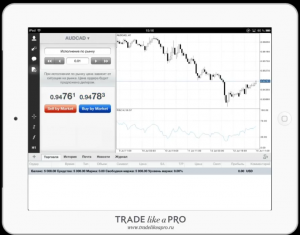
We have already seen this window at the very beginning.
First you need to choose the volume you want to place. Next we choose the currency pair and set up market execution or place a limit order. Everything happens exactly the same way as in the PC version.
After entering the data, you will be notified that the order has been accepted:
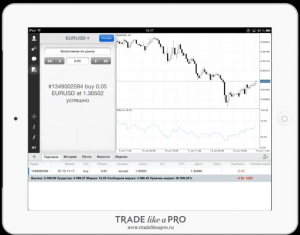
And after a few seconds the order will open and be displayed on the chart:
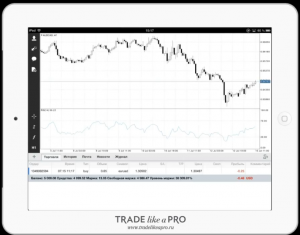
Now in the "Trade" tab we can see the order that has just been opened.
As you may have noticed, after opening an order the creation window closes. On the one hand this is convenient, but if you want to open several orders at once, you will have to open the panel again.
The next icons located in the vertical menu relate to chart settings.
If you click on the crosshair icon, a crosshair identical to the one in the PC version will appear on the chart:
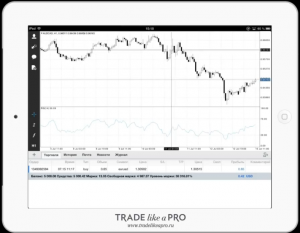
It will help you view the current data, the opening time of a given candle, and learn the prices at a given point on the chart.
If you try to spread two fingers apart on the chart, the chart scale will increase; if you bring your fingers together, the scale will decrease. Everything happens exactly the same way as when controlling pictures on your device.
If you hold a press for a long time at one point on the chart, little crosses like these will appear opposite the indicator window and opposite the chart window:
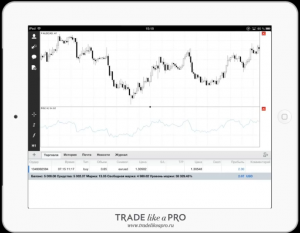
If you click on the cross, the indicator window will close:
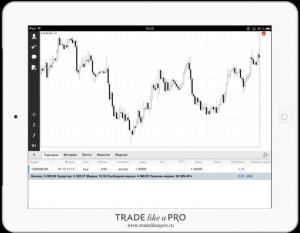
If you click on the cross on the chart window, the chart itself will be deleted:
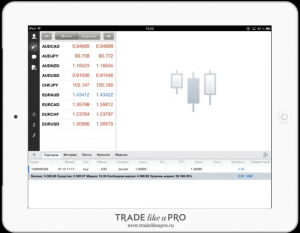
To open a chart for a particular currency pair, you need to go to the "Market Watch" window.
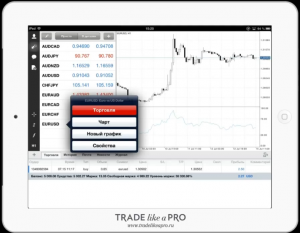
Then click on the desired currency pair:
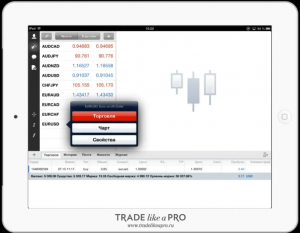
And in the window that appears, select "Chart". This is how the chart of the currency you are interested in will open:
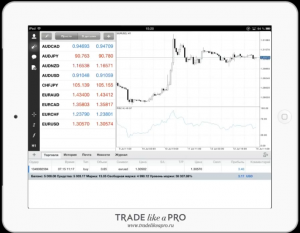
I should note that all charts open with the same indicator installed as on the previous chart. Our previous chart was opened with the RSI indicator, and this chart opened with it as well.
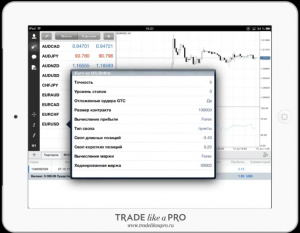
If you click on our currency pair again, you can select the Properties tab:
The spread, contract size, swap type, and other indicators are shown here:
If you want to open 2 different charts at once, you can use the "New Chart" button.
You will not be able to see the second chart immediately. For it to appear on your tablet screen, you need to go to the settings by pressing this button:
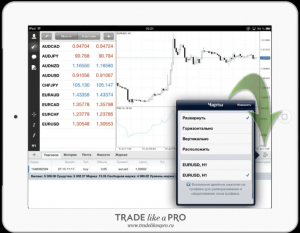
In the window that opens, you can choose how the second chart will be displayed relative to the first:
I have currently selected the vertical display:
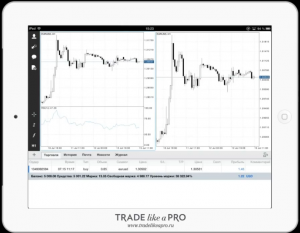
Thus, you can monitor two charts at once.
Please note that the way to select the desired chart is the same as in the PC version, namely, you should click on it.
The chart will be highlighted with a blue frame:
The next tab on the vertical panel is responsible for the chart display settings:
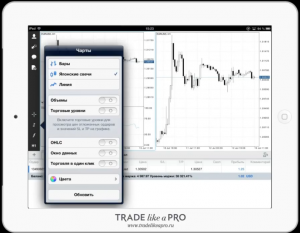
Japanese candlesticks are set by default. You can configure the chart in whatever way is more convenient for you.
For example, I switched the first chart to lines:
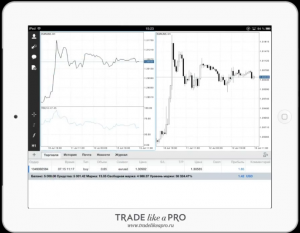
You can turn the display of volumes and trading levels on and off.
If you enable the OHLC setting, then the data of the current candle will be displayed in the upper left corner of the chart:
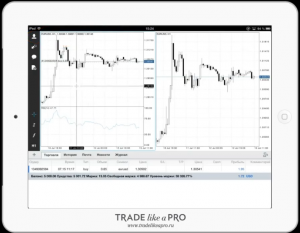
And if you select the crosshair, then the data of the candle corresponding to its center will be shown:
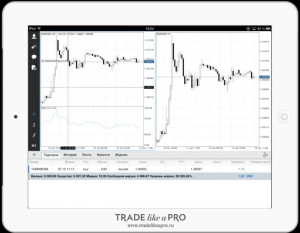
The next available function is the "Data Window." In this application it is not the same as in the PC version. In our case, it is implemented in the form of a small window:
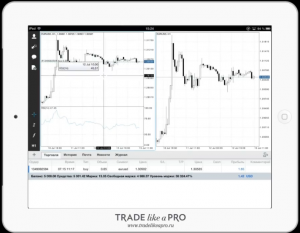
When you move the crosshair, the date and the indicator value are displayed in the window.
The next icon with the letter "f" is responsible for adding indicators:
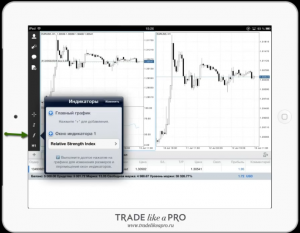
There are not so many indicators in this application, but the classic ones are present.
You cannot add any of your own indicators and expert advisors to the mobile terminal. And, unfortunately, there will be no such possibility in the future. Therefore, you should not build false illusions. You can use only those indicators that are installed by default in this application.
And the last icon on the vertical panel is for changing the timeframe:
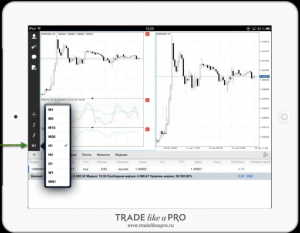
Everything is simple here. By default, H1 is set. You can choose any time frame that you need.
This concludes the review of this application for Apple iPad. Of course, I would like to say that at the moment there are many shortcomings. Many functions are categorically lacking in this application.
Let us hope that in the future the developers will add new functions and improve the stability of the application. That is all from me. Good luck to you in your trading.
Sincerely, Pavel Vlasov
TradeLikeaPro.ru