
Lessons on Working with Forex Tester 4
 Hello, fellow traders!
This spring, Forex Tester Software released a new, fourth version of a convenient platform for testing manual trading strategies in the Forex market. Forex Tester 3 proved itself excellently in the trading community, and Forex Tester 4 is a deep reworking of the previous version.
The new version of Forex Tester reflects today's realities: cryptocurrencies, CFD contracts, and a number of other instruments that have appeared at Forex brokers were added, 118 types in total, along with the ability to see news on the chart and, what everyone had been waiting for, the ability to apply MT4 indicators.
By releasing the "fourth version," the Forex Tester Software developers sought to provide the fullest test realism and maximum convenience of work by including support for flexible spread settings for various currency pairs, the ability to use trading history from 11 different brokers, and most importantly, keeping a trading journal. The maximum length of the historical period in Forex Tester 4 is 16 years in minute candles and 6 years in tick trades.
Now in the trade journal, the user of the new tester has access to comments and attaching screenshots. By these left marks, the trader will quickly find the mistake by "rewinding back" the records from the moment the trading system drained the deposit. Notes can also help with editing, supporting, and comparing several strategy variants.
At the request of fundamental traders, an economic calendar was tied to the charts, displaying the release time of news, details of which are shown on a special additional tab.
Let us consider in more detail how to work in the Forex Tester 4 test environment, noting the differences from the third version.
Distribution terms and getting a discount on the Forex Tester 4 license
 The testing platform has a paid license, but a demo version of Forex Tester 4 is available to traders, in which the full functional set of tools is supported. The developer introduced restrictions only on the depth of historical quotes, the test duration (no more than an hour per project), and closed the ability to save test results.
Questions about purchasing a license and downloading the distribution package, as well as options for using the tester simultaneously on several computers, can be resolved on the program manufacturer's website forextester.ru by contacting the online support service. There, in the "Download" section, you can install the distribution package and try the demo version of the program.
 A discount on purchasing a license for the Forex Tester 4 program can be obtained in a special section of our website! The purchased license for Forex Tester 4 gives the right to free installation and technical support for previous versions of the program.
Users who already have a Forex Tester 3 license are entitled to a free upgrade to the latest version.
The program is not installed on MacOS! MacBook owners will have to emulate Windows OS to work with the new version of Forex Tester, and older versions that are still available in the "Download" section.
Installation, registration, and launch of the Forex Tester 4 tester
Before purchasing a license, a trader can evaluate the operation and convenience of using the Forex Tester 4 (FT4) tester and the main differences from the previous version: the program works in demo mode. In FT3, many were dissatisfied with the lack of the ability to export trading systems and the difference in results due to differences in the history of quotes. FT4 solves these issues.
If the user is satisfied with the new options and testing, they can purchase a key through the "Store" menu option, and the program can also be registered there.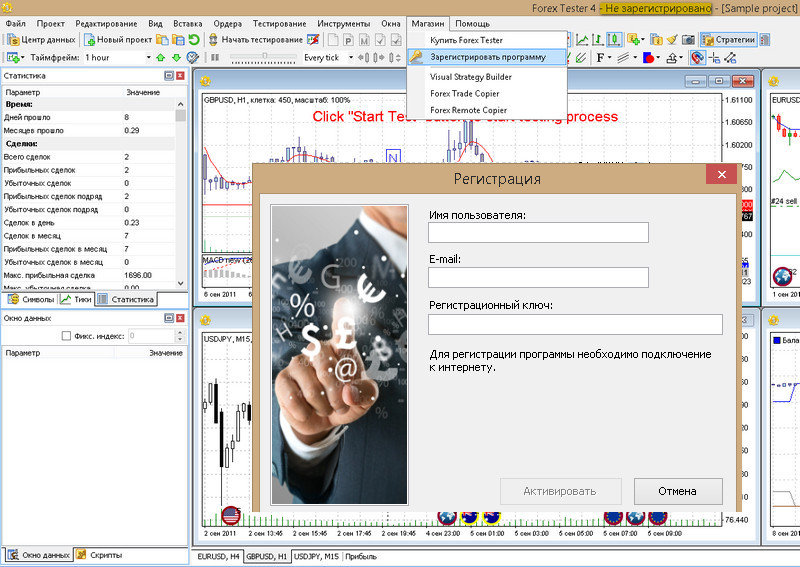 The key can be purchased with a favorable discount through the TradeLikeaPro website, after which you should enter the received code, choosing and remembering any username and email address. The computer must be connected to the internet, activation will take place automatically, after which the program will need to be restarted.
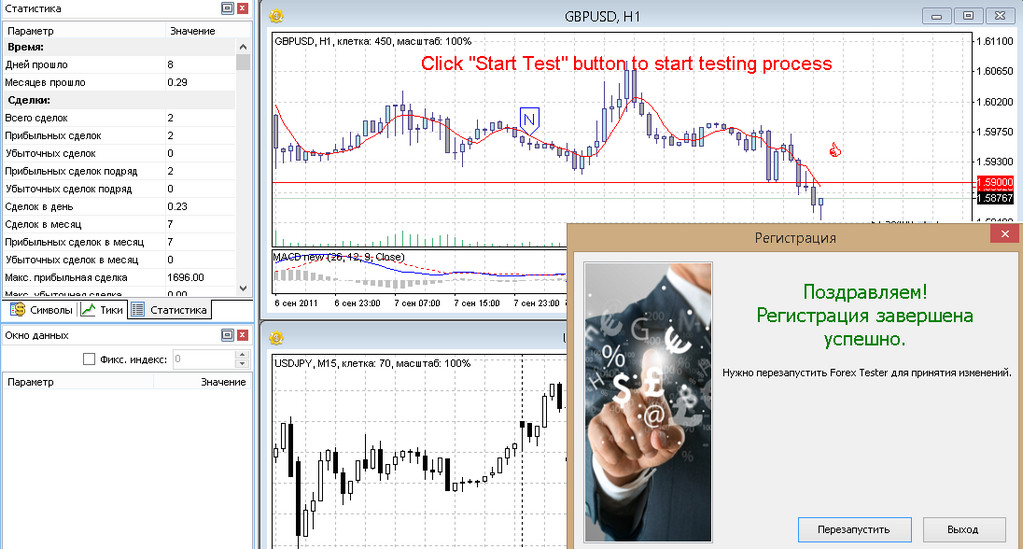 After restarting, make sure that the program has been successfully registered: the word "Unregistered" should disappear in the field at the top.
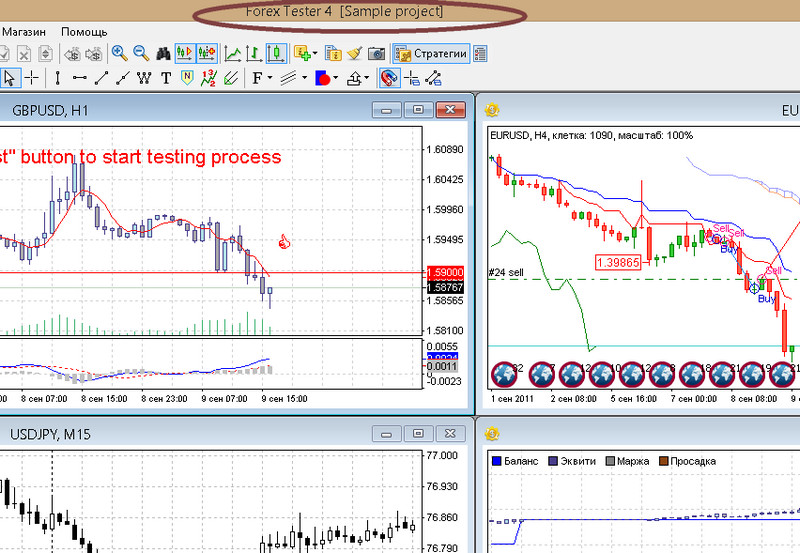 The developers kept the workflow in Forex Tester established in FT3. A trader starts with the "New Project" option to begin strategy testing.
Getting started with Forex Tester 4

To understand how the tester works and launch the first project, five steps described in the short animated "quick start" presentation are enough. The window provides brief instructions for working with the "Data Center," shows the principle of launching a project, and lists the main keys for controlling orders and navigating through the test.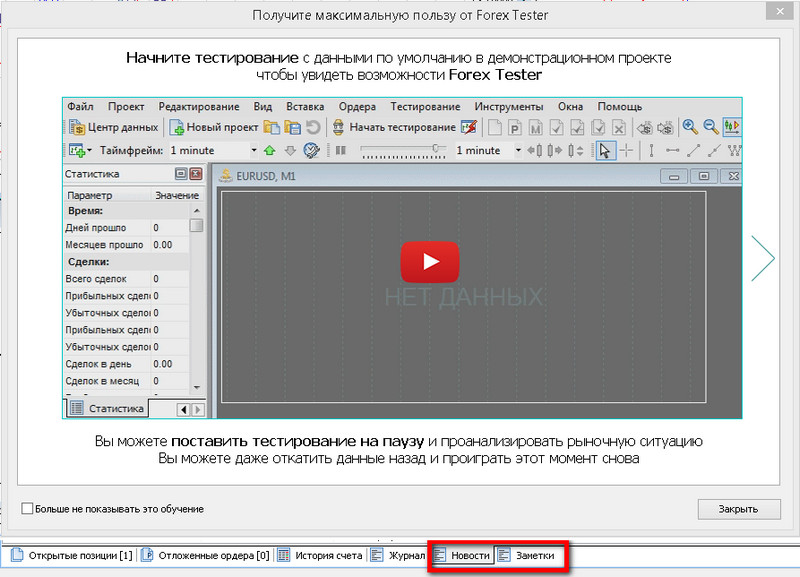 The Forex Tester 4 developers tried to simplify testing for traders as much as possible by making the program in many ways similar to the Metatrader platform. Many settings and options are implemented in an architecture similar to this trading platform.
The testing process begins with loading data: selecting instruments and a historical segment.
Features of setting up and obtaining historical data

The Forex Tester Software archive contains the history of all trades for 6 years and minute quotes for 16 years, keep this feature in mind and do not set the year of the first human flight into space in the settings.
In the basic free version, historical data is provided only for one broker and only in minute candles on four-digit quotes via an additional subscription. Five-digit quotes of currency pairs from the archives of 12 brokers are available under the paid "Standard" subscription, tick trades can only be obtained in the VIP version.
The subscription for access to additional extended historical data from various brokers in the FT4 program through the Forex Tester Software servers is purchased separately! When buying a license, the trader gets access to the "Basic" package.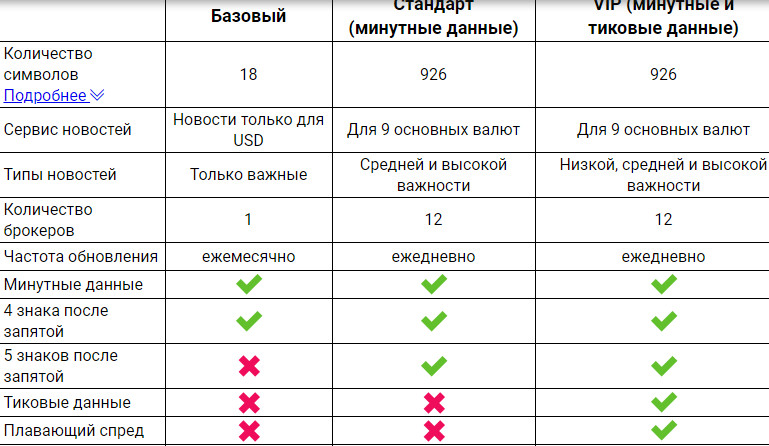 The conditions for receiving and paying for the databases are described in detail in the site section of forextester.ru. The trader does not have to pay for access to Forex instrument quotes, they can independently download and use their own historical data obtained through Metatrader or from any other source.
Step 1: Working with the Forex Tester 4 Data Center

Launch the FT4 program and click the "Data Center" option located in the upper left corner, bringing up the quotes archive management window, where the server access mode (1) will be displayed, determining the list of available instruments (2) and broker quotes (3).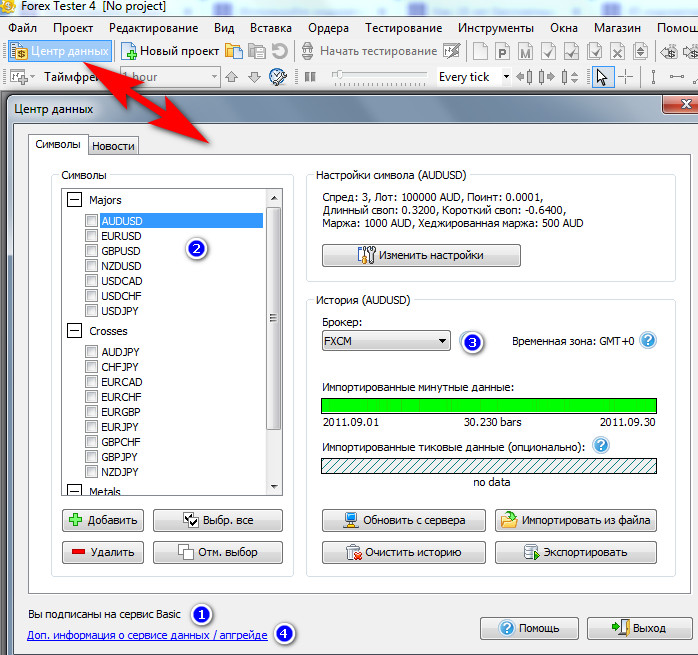 By default, the basic mode (Basic) is set; to start testing, the user must choose one of three options:
- You can purchase a paid subscription by following the link in window (4), return and download the data by performing the steps described below;
- Use the quotes database offered in the basic version of the program;
- Upload your own data archive.
If the Basic option is selected, the trader receives a quotes archive containing two formats: all trades, tick data and/or minute candles. Just as in the Metatrader tester, larger timeframes are formed from them: M5, M15, M30, H1, H4, W1, MN. The presence or absence, as well as the quality and quantity of quotes, is determined by the green color of the indicator.
For example, for the pair AUDUSD there is no archive of all trades, so the lower indicator shows "no data"; the situation is different for GBPUSD, two green bars indicate the presence of minute candles and ticks, and warn about "broken" sections of history.
The silver quotes of XAGUSD from broker FXCM should be trusted with great caution, and it is better to use another broker, there are too many red "failure" bars.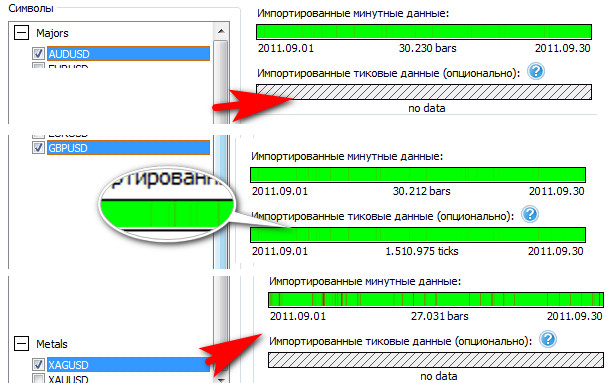 The list of brokers whose quotes are present in the archive can be checked in the drop-down list (1).
There, by substituting company names, the trader must verify the conditions (2) for a reliable test (they concern the spread, swap and specification parameters) or configure their own if they do not match the conditions in effect for their type of account.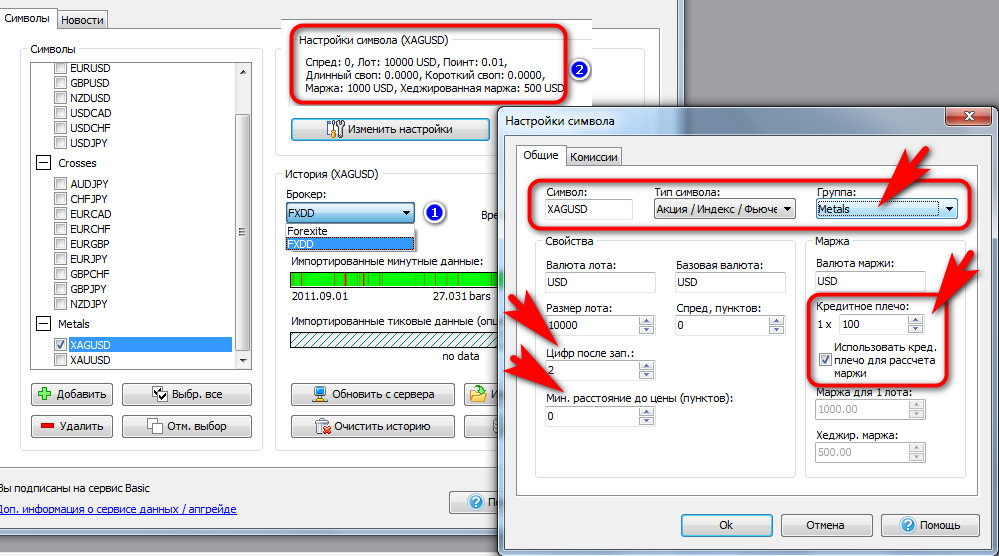 Loaded broker quotes automatically take the value of the spread into account, including its "floating" variant.
If the trader wants to emulate the broker's real conditions, they must pay attention to the size of the leverage, since FT4 uses this data to automatically set the parameters of risk management and the spread, as well as the number of digits in the quote after the decimal point.
In the case of a "zero" floating spread, the trader must specify on the "Commissions" tab the amount of fees that the broker charges on the turnover indicated in lots. There you also need to specify the amount of the swap, if the account is not swap-free.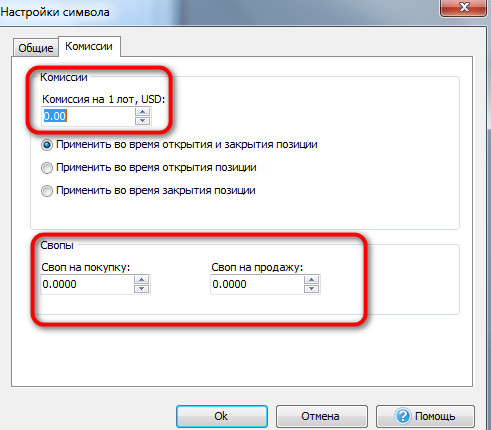 Before starting the test in the open window after clicking the "Data Center" option:
- Select the currency pairs from the list on which the strategy will be tested;
- On the right, a description of the broker's conditions will appear in the table, check and change them at your discretion (the number of configurable options is limited in the basic version);
- Click "Apply settings", wait for the report about the successful loading of the selected data;
- Proceed to the second step of creating the project.
Importing a quotes archive file from external sources

The Forex Tester 4 Data Center works with any quote files in csv and hst format, the latter belongs to the files of Metatrader 4, which are located in the history folder, where they are downloaded through the "Quotes Archive" of the platform. To get a quality test, use files with tick or minute quotes. Forex Tester 4 will automatically assemble the remaining timeframes.
To load a quote file:
- Click the "Data Center" menu and open the window with the list of instruments (1);
- Select the "Import from file" option (2) and open the upload menu, having previously downloaded the file with the quotes archive or moved it from Metatrader 4;
- Select the currency pair symbol (3), find and add this file to the upload window (5).
Please note that for the hst format you will need to change the settings of the file display folder (4).
The program can add history to an already existing archive if the user does not select the "Delete" option (6).
If the user uses several databases from different sources, they can "align" time shifts if they are present in the files being loaded.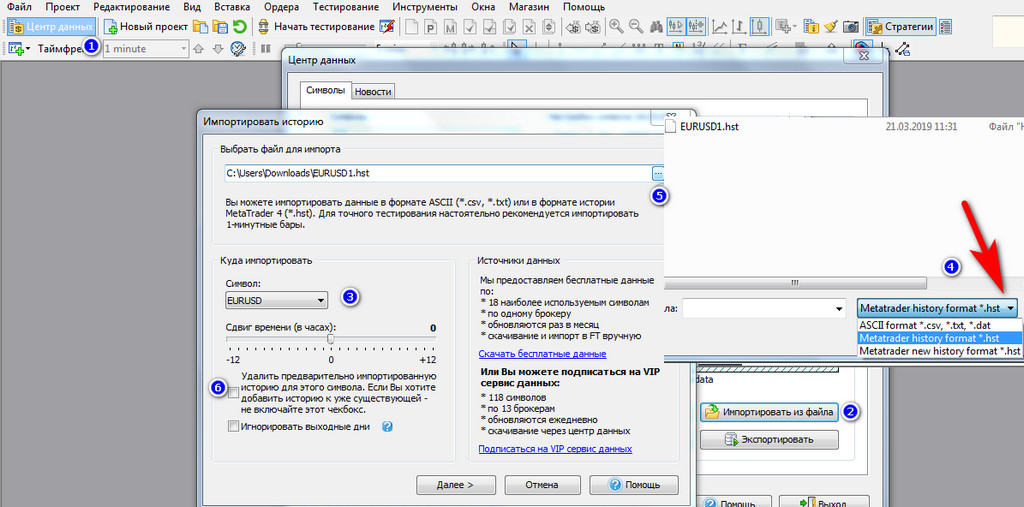 Clicking the "Next" option will start compiling the data table and bring up a dialog box where the history period will be specified.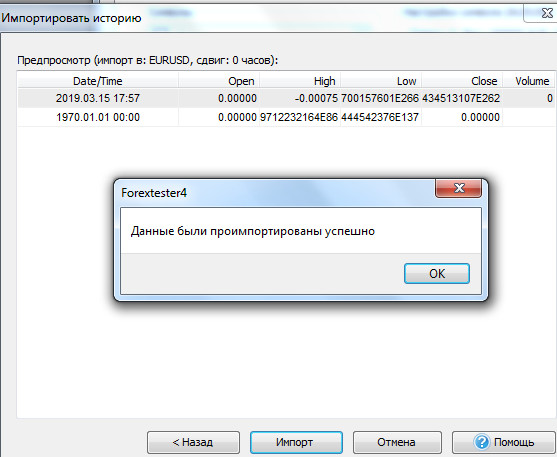
To add quotes, click "Import", and after waiting for information about the successful loading, proceed to the steps specified in the "Before starting the test" section.
NEW: News tab in Forex Tester 4

The "News" tab is a history of indicators in the format of an economic calendar, where preliminary and actual data are reflected, as well as a three-level mark of the significance of events. By comparing the time of news releases with movements in the market, the trader will be able to better understand the reasons for a sharp rise or fall in the rate at a certain point in time.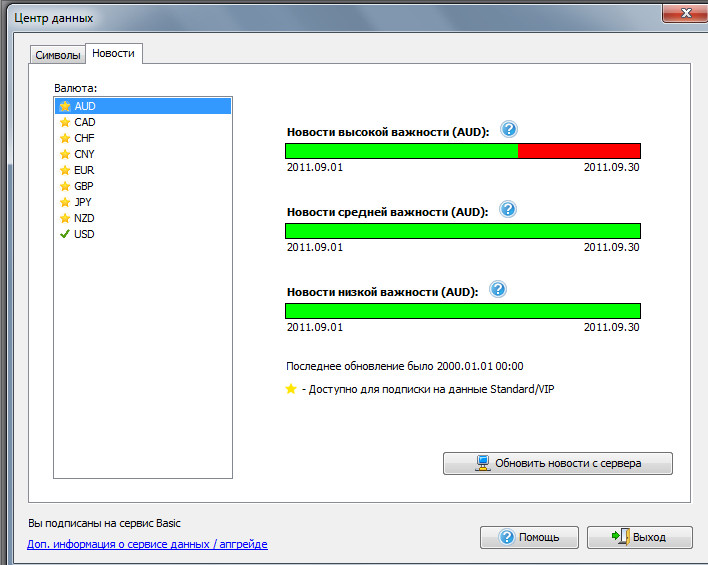 The availability of news is determined solely by the type of subscription to the Forex Tester Software server data, these events cannot be imported from other sources.
Checking before the test for the availability of accessible currency pairs and instruments is necessary for trouble-free changing of conditions or charts during the test, for which a special environment is created using the "Project" option.
Users of the previous, third version had to start testing again if a history segment was not found or changed, and also when it became necessary to add a pair. In the new Forex Tester 4 version, the trader can "download additionally" any data during the test, which can be stopped, started from any date, or moved back.
Step 2: creating a new project

Creating a new project is the process of setting the starting conditions for launching the emulation of trading sessions on the historical segment selected by the user. It is similar to the old version Forex Tester 3: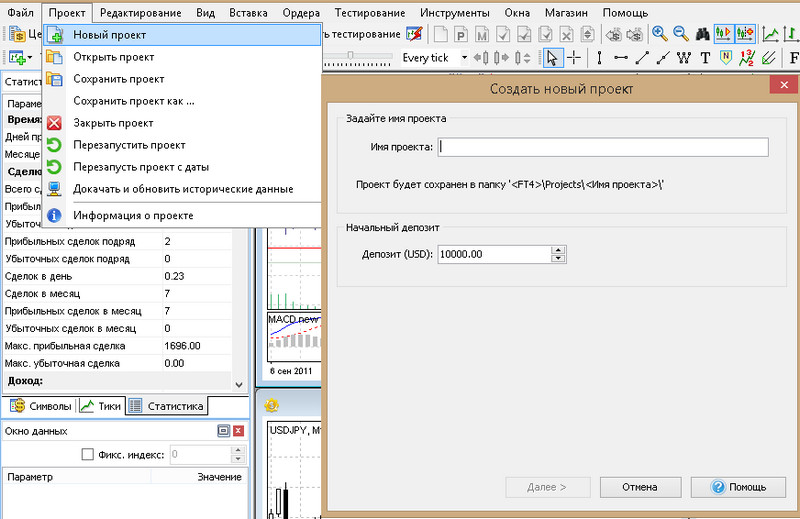 The trader can create many projects in order to evaluate various strategies separately, so each of them is assigned a unique name and a deposit size selection.
At the next stage, the trader needs to choose currency pairs for the test and the candle emulation accuracy. The list of available instruments and the format of historical data are determined by the "Data Center" archive. If the required currency pair or CFD is missing, the trader must first add its quote history.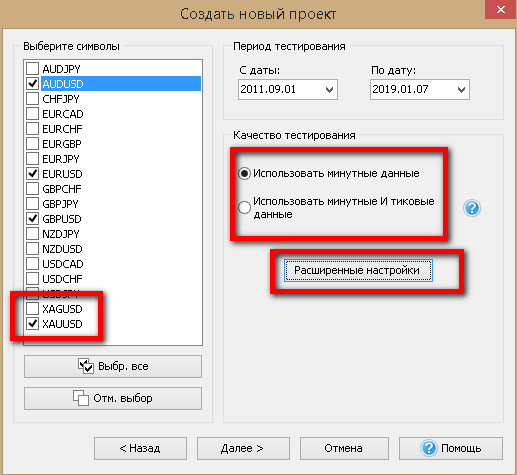
By default, the emulation accuracy is set to minute candles; to increase it, select "Use minute and tick data".
The "Advanced settings" option allows the trader not to load every tick inside the minute candle, but to speed up its formation by representing the minute candle as 4 ticks based on the maximum price, minimum price, first trade, and last trade. In the second "Volume distribution" variant, a certain number of trades at different price levels inside the minute candle will be added to the first 4 ticks.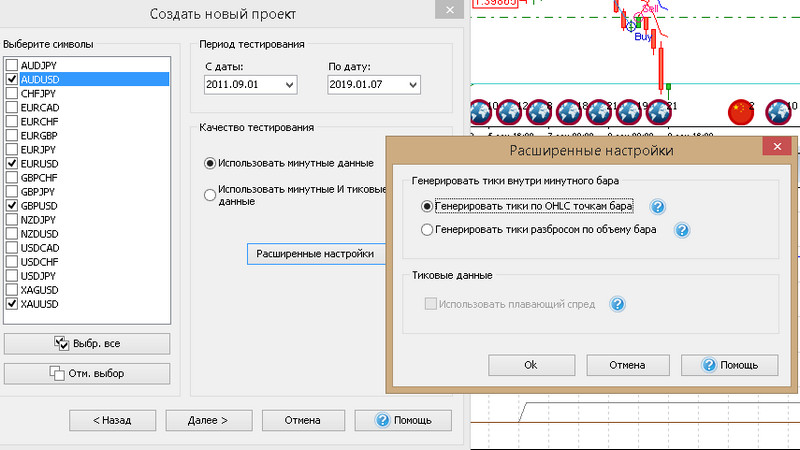 The choice of the historical period cannot be larger than the quote archive of the "Data Center"; if this segment is selected incorrectly, the program will inform the user about it.
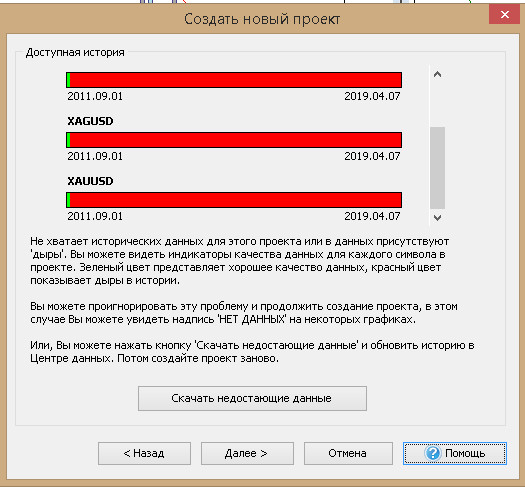 The "Download missing quotes" option contacts the company's server, where the maximum archive is 16 years. If the trader's test goes beyond this database, it will be necessary to cancel the project and return to the "Data Center" to import your own archive.
In the next window, the tester asks to:
- Take into account the shift of the so-called "terminal time," which the broker sets on the Metatrader 4 trading platform;
- Choose the start/end time of the trading session (if the "Custom" option is set, then the session will start according to the "terminal" time);
- Take into account or not take into account the switch to daylight saving / standard time; some brokers do not apply it.
The time settings described above appeared only in the new, fourth version of Forex Tester, as did the implementation of four different testing conditions:
- Launch the project from the first date of the history;
- Choose an arbitrary test start point on the loaded historical segment;
- Start testing immediately after closing the current window;
- Disallow backtests. If the last function is initialized, the trader will not be able to go back to make any corrections.
After setting the conditions in this window, pressing the "Create" key will launch the trading session emulation from the moment specified by the trader, opening the windows: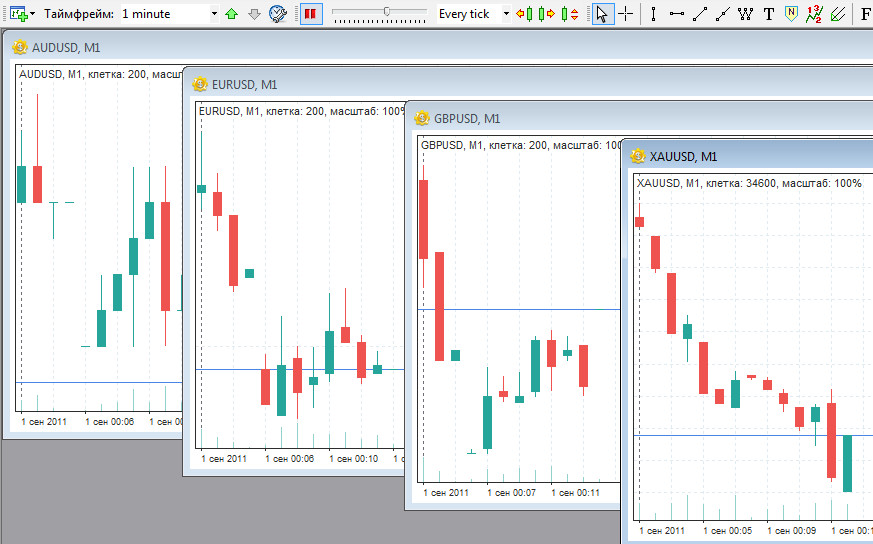
Step 3: launching trading system testing in Forex Tester 4
As in the third version, the trader can independently regulate the chart playback speed, stop the test, and restart it.
The speed of building minute candles on the chart is determined by:
- The slider position (1);
- The size of the data packet taken at one time (2).
By default, the "Every tick" mode is set, in which one minute candle is added to the chart. If the trader selects "30 min," each update will add 30 minute candles at a time.
Pause is pressed in two places: in front of the slider (3) or above, by clicking the "Stop" option. It will change to "Start testing" when the charts are stopped.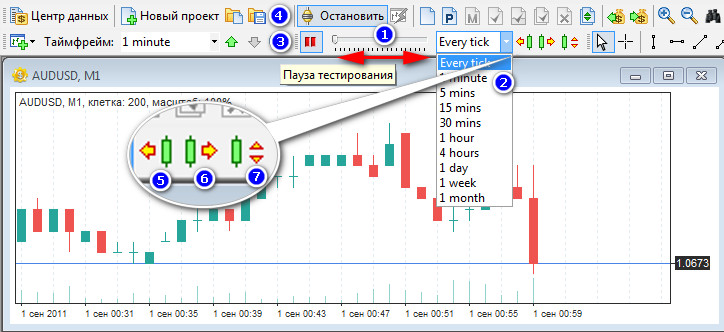
Managing charts in pause mode

In pause mode, three functions are available to the user:
- Return back by one step (5);
- Move forward by one step (6);
- Move forward (7) by the number of minute candles set in window (2) (if 5 minutes is set there, then by pressing once the M1 chart will move by five candles).
A step back cancels trades made "in the past." The step size forward and backward is determined by the selected chart timeframe in window (1) or by using the menu called up with a right mouse click.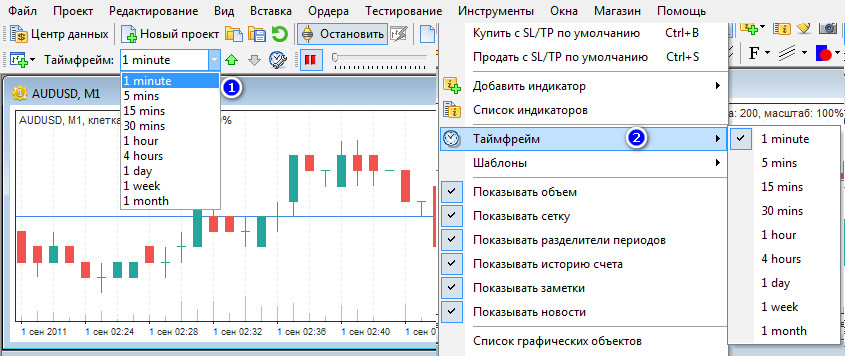 Also in pause mode, the trader can place any types of orders, either pending or "market," which are activated immediately after the testing process is started.
Working with orders in Forex Tester 4

The order management functionality in Forex Trader 4 has undergone few changes compared to the FT3 version; the only difference is that the FT4 order window contains an additional algorithm for automatically increasing/decreasing the lot size.
A trader can place and delete orders at any time: during operation, while the tester is paused, returning one step back, and placing pending orders in advance so they trigger automatically when the FT4 user selects the step mode for a specified number of ticks. This option is used to carry positions overnight if a manual trading strategy is being tested.
Order management is available via:
- The "Orders" menu (1);
- The right mouse button; when you click an order on the chart, the price level is filled in automatically;
- Shortcut keys on the FT4 panel, and each of them is labeled in a tooltip.
The order form, apart from the risk management settings and the trailing stop, will not cause problems for a trader familiar with the principles of trading and who has mastered any trading platform. In the FT4 tester, it is enough for the trader to set the trade risk size as a percentage of the deposit (a value of 0.01 corresponds to 1%), then the lot size will change depending on the stop-loss level.
For example, for the EURUSD pair, with a stop-loss of 100 points and a 2% risk level for a $1000 deposit, the tester will automatically open a trade of 0.2 lots.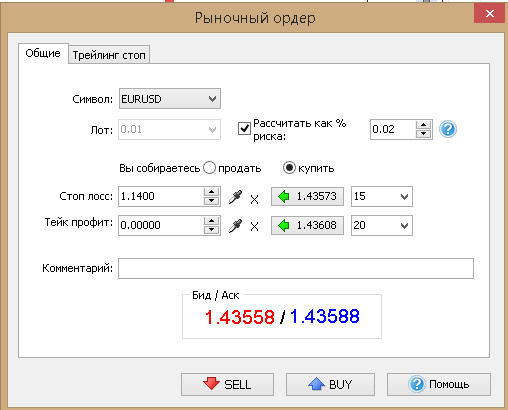 The trailing stop (TS) is not implemented in the basic version of Metatrader 4, but it is present in various expert advisors. The FT4 tester uses general features of automatically moving the stop-loss after the growth of current profit in order to lock in part of it during a correction of the "caught" trend.
By default, orders do not have a trailing stop; it is enabled on the corresponding order tab. The user can set the following conditions:
- Immediate activation of TS after the trade;
- After the first profit has accumulated (specified in four-digit quote points);
- The stop-loss size (must match the accumulated profit specified above);
- The trailing step following the profit.
Technical Analysis in Forex Tester 4

Forex Tester gives the trader all the capabilities of graphical analysis comparable to the Metatrader trading platform. The list of available tools is located in the "Insert" menu and duplicated by quick access option icons.
NEW: automatic copying of graphical analysis tools
FT4 supports the function of automatically repeating graphical drawings on any timeframes for one Forex instrument. The figure below shows two EURUSD charts from hourly and minute candles. If the trader first presses option (1), which shows a channel with a cascade of windows, then any drawings on one of the charts will later be displayed automatically on the other EURUSD timeframe.
Additional FT4 auxiliary functions:
- Magnet mode (1), in which the cursor pointer "sticks" to the opening, closing, high, and low prices of the candle;
- Elliott wave markup (2);
- Notes (3).
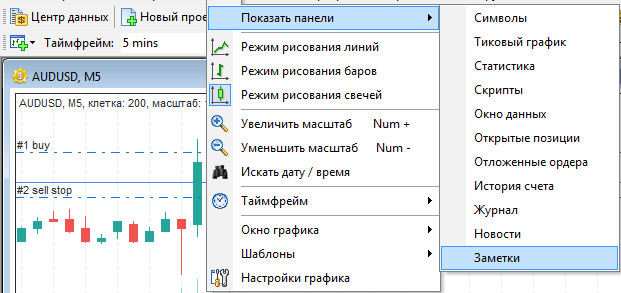
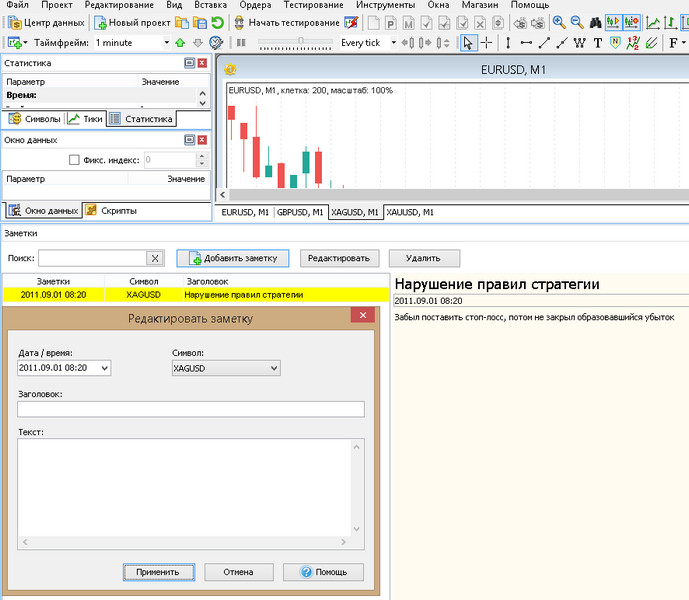
Notes are a new FT4 option that serves as a prototype of a trade journal. The trader can mark any event or strategy mistake during testing by selecting option (1) with the Latin letter "N" on the top panel and attaching it to a specific chart candle (2). After a left mouse click, the program will open a window for writing a comment.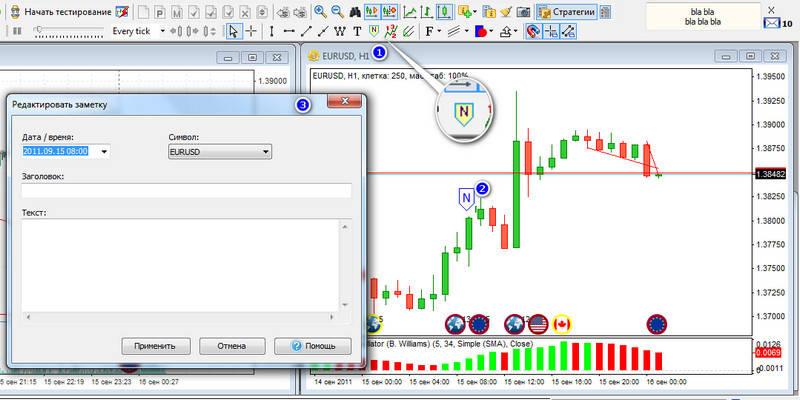 The notes log is available through the "View" menu:
 The trader can add or edit an entry by selecting a specific date and instrument. The contextual search system makes it possible to navigate records quickly.
 The most important updates in Forex Tester 4 affected technical indicators and the block for working with Forex expert advisors. Unlike FT3, where indicators were located in one window, in the new FT4 version they are distributed across different tabs according to the strategy type, identically to their arrangement in Metatrader. The indicator parameter settings window also will not cause traders any difficulties.
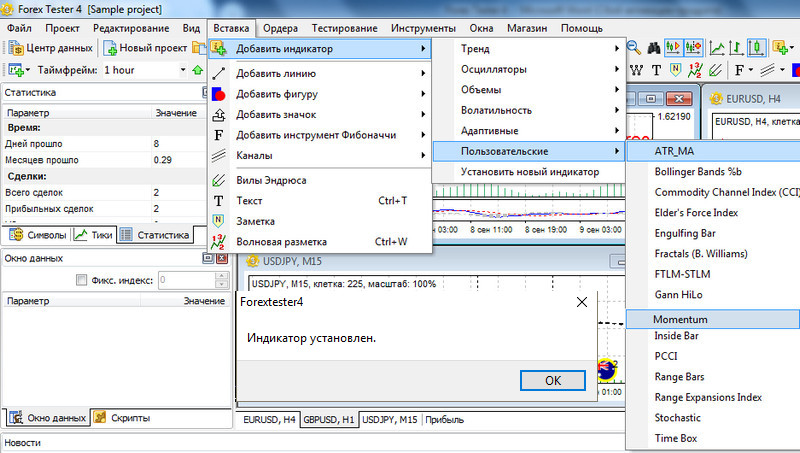 Forex Tester 4 offers 45 types of indicators, but the trader does not have to limit himself to this number. Another important FT4 update was the ability to import and convert custom indicators written in the mql language.
They are sent for conversion through the "File" menu, using the "Install" option. The trader must choose the appropriate loading option so that FT4 converts the file to the "correct" place: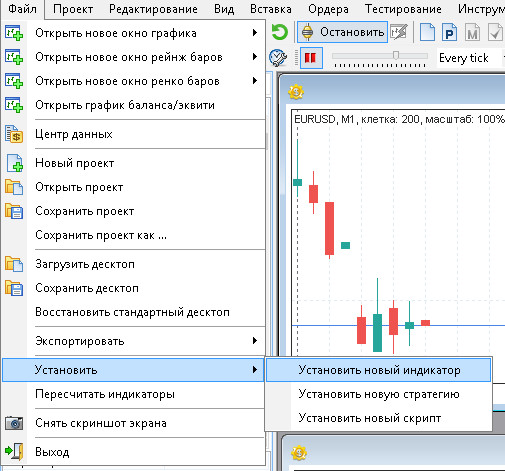 When loading a custom indicator that is not on the FT4 list, use its copy on your own computer in mql4 format. Place the file into the conversion window and click "Install".
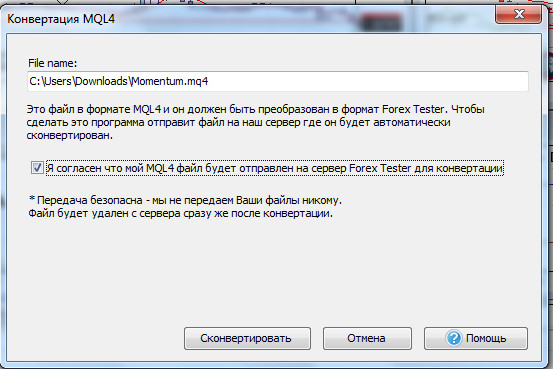
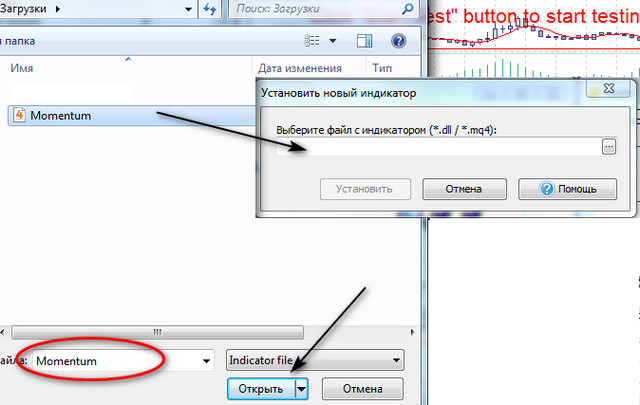 The indicator will be converted to dll format on the Forex Tester server, and so that no question of copyright violation arises, the user must approve this operation.
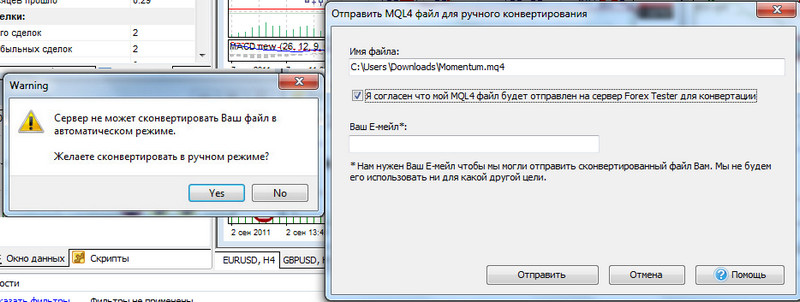
 If the Forex Tester converter fails to translate the file into library format automatically, it will offer the user the option to send the code for manual refinement to the Forex Tester Software programmers. To prevent the email from landing in spam, you must specify in advance the email address from which it will be sent.
 Successful conversion will end with a corresponding message, after which the indicator will be placed analogously to its location in Metatrader, under the "Insert - Add Indicator - Custom" menu.The export mode also applies to automated trading or auxiliary systems: scripts and expert advisors. The file is uploaded through the "Install Strategy" option according to the principle described above. The only difference will be the path where you need to look for the uploaded expert advisor. It will appear in the "Testing - Strategy List" menu.
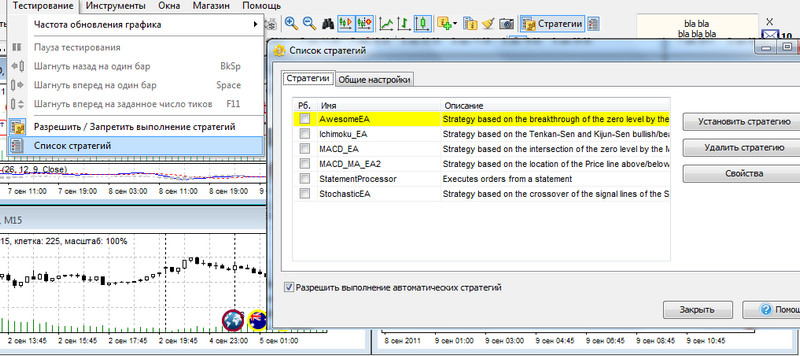 Installing an expert advisor on a chart differs somewhat from what is familiar: to attach the robot to the chart, you need to choose a specific strategy from the list, double-click it with the mouse, and configure the parameters by selecting a specific currency pair and timeframe.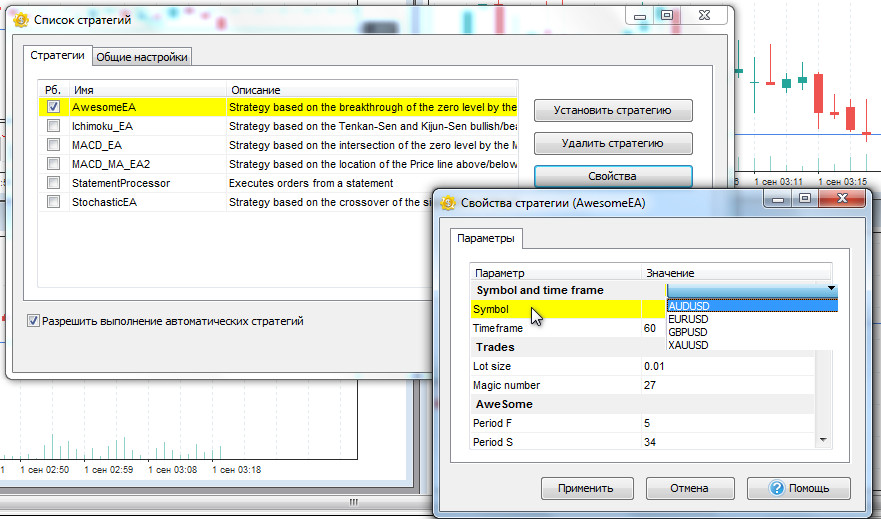
Fundamental Analysis in Forex Tester 4

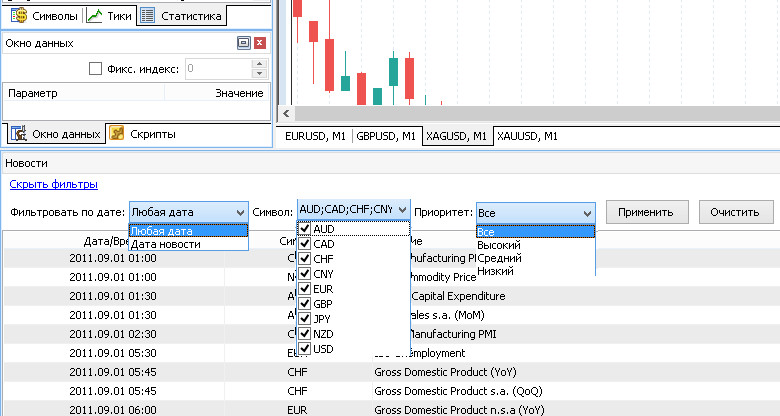
The "News" tab is a history of indicators in the format of an economic calendar, which reflects preliminary and actual data, as well as a three-level mark of event significance. By comparing the time of news releases with market movements, the trader will be able to better understand the reasons for a sharp rise or fall in the rate at a certain moment.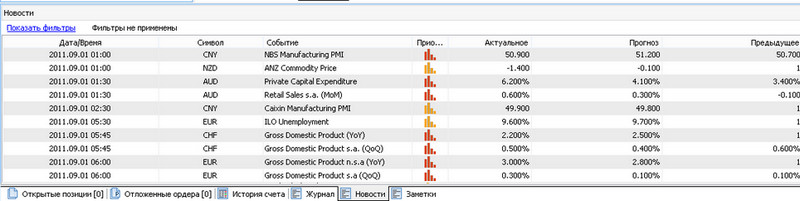 Economic indicators and events can be sorted using filters by dates, countries (you need to choose the national currency symbol), or news significance (high, medium, and low). Each table column of the calendar can be configured in descending or ascending order of parameters.
 News is displayed on the chart of any currency pair at the time of release if the option for displaying it is selected in the settings.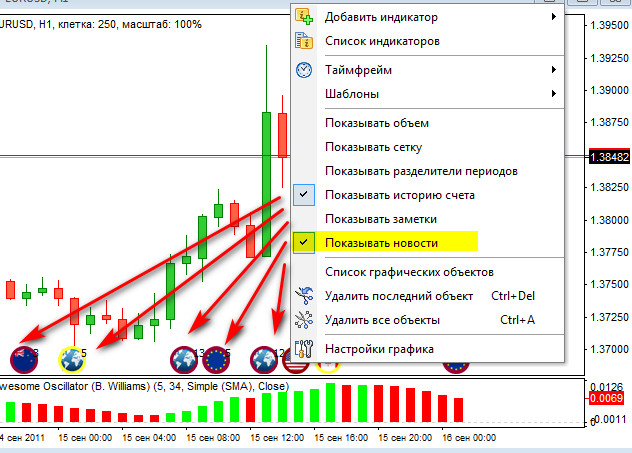
Setting up the workspace (desktop) of Forex Tester 4

The Forex Tester Software developers significantly simplified learning the program by making many settings and the arrangement of windows identical to Metatrader. The only difference from MT is the ability in FT to save and load the desktop configuration.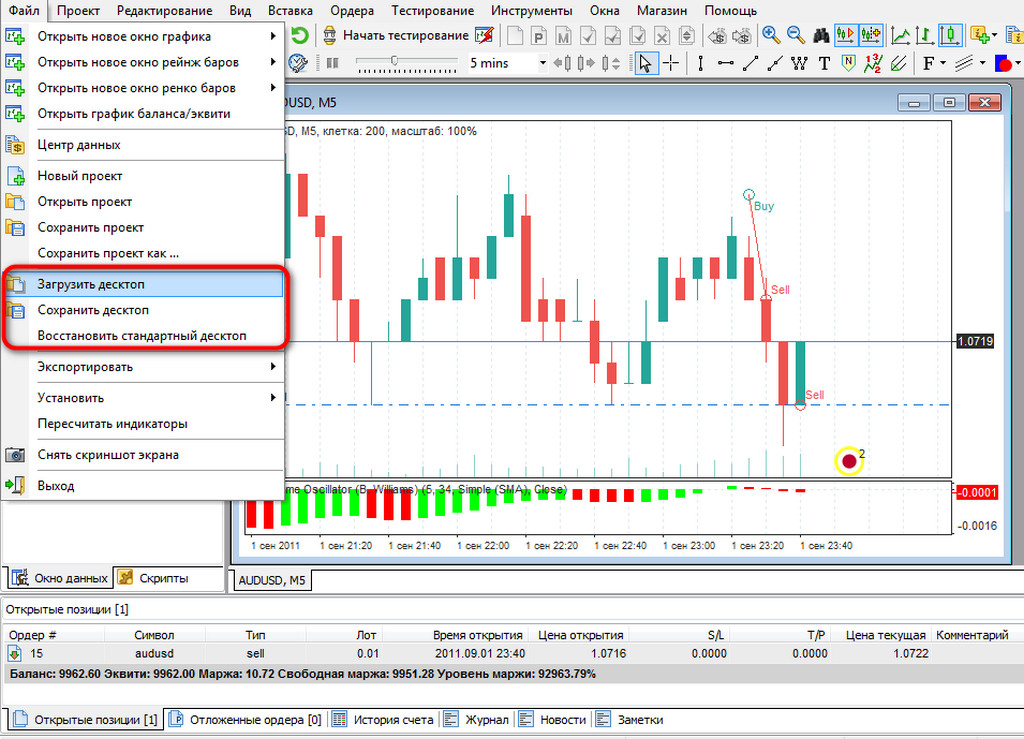 If the user wants to return to the standard window settings, they can use the "Restore desktop" option.
Statistics and analysis of testing results

Unlike the Metatrader tester, in Forex Tester statistics are displayed during the testing process:
- In the "Statistics" window located on the left;
- By the profit/loss curves: balance and equity.
The statistics window is set by default in the settings of the "View" menu, the "Show panels" option. It contains data familiar to the trader from the statement analysis of the MetaTrader trade report. It shows the results of the completed part of the test and changes as the strategy or backtests are tested (returns backward and new runs).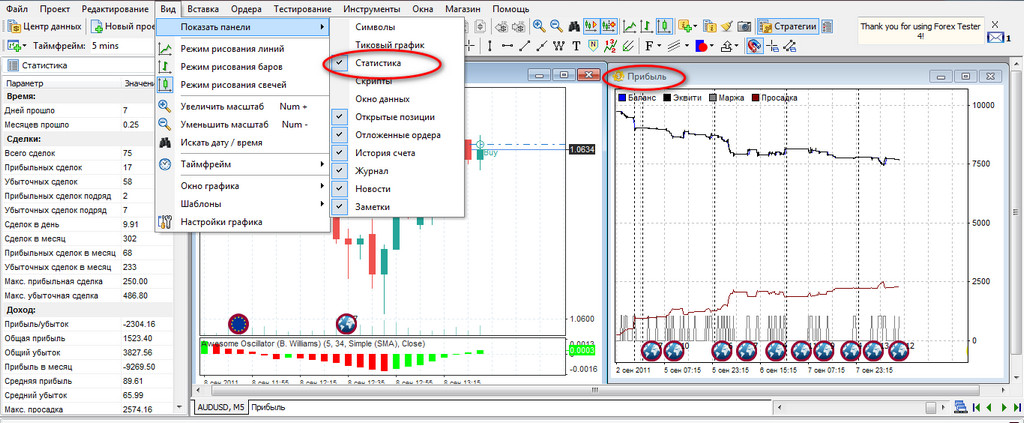 The profit window can be opened through the "File" menu, the "Balance and Equity Chart" option. The curves are connected with changes in results, just like the statistics window.
Orders are distributed across three tabs:
- Open positions;
- Pending orders;
- Closed trades go to "Account History".
This trade log in the fourth version received an add-on in the form of filters that sort history by four criteria. By default, the filters are disabled; the user must display the panel manually by clicking "Show filters".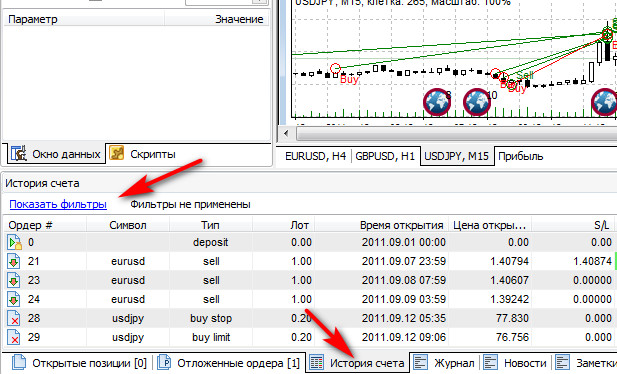 Closed trades can be sorted:
- By date (closing, order opening, or in two combinations of these parameters), the trader can additionally choose a specific historical segment within the calendar period of the test;
- By each tested symbol (in the example under consideration, three pairs are being tested);
- Display separately or in combination: buys, sells, account deposits, or withdrawals (the tester allows emulation of the last two processes "for realism");
- Divide the table into losing or profitable orders.
After clicking the "Apply" option, the selected filters will automatically sort closed orders during the progress or after the end of the test, hiding some of them in the table. To see the full picture of trades, just click the "Clear" option.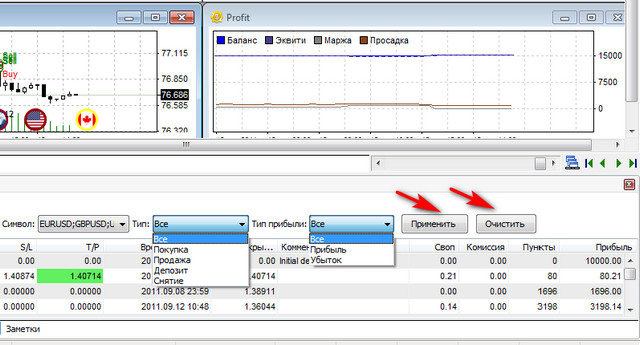
NEW: analysis and export of trades to Excel

In the new Forex Tester 4 version, the user gained the ability to export trade history to Excel. The operation is performed with two mouse clicks: the first time with the right button on any line of the log, the second with the left button on the option with the corresponding name in the drop-down menu.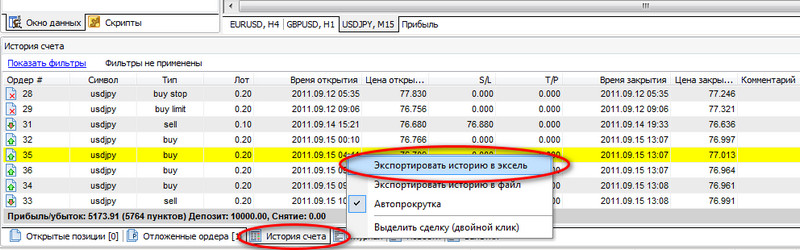 I would especially like to note the developers' care for users of the Russian-language version. Unlike Metatrader reports, they solved the problem of converting data from a decimal point to a comma. The exported data columns do not require additional work on regional settings, as happens with Metatrader 4 tester reports.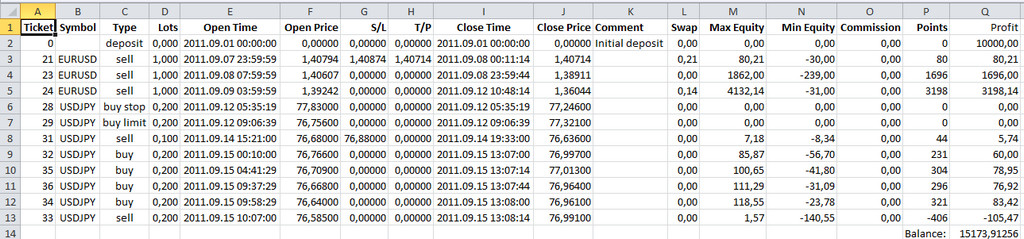
Saving, editing, and restarting a project in Forex Tester 4

According to the developers' idea, a project is the idea of a trader's trading system; there may be several of them, or strategies can be tested on different instruments, and a separate file can be created for each.
Just as in the third version, management of saving, loading, and editing projects in FT4 is located in the "Project" menu, which received additional options:
- Add and update historical data;
The trader can "go back" and choose a broker or expand the range of historical data by downloading it from the Forex Tester server or importing their own databases.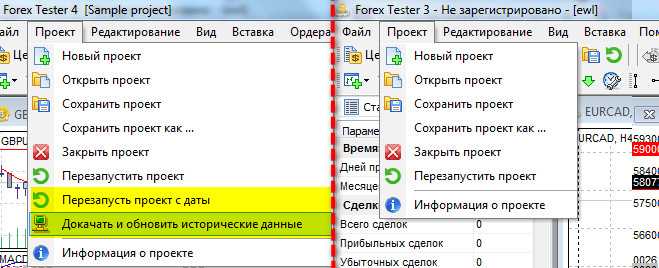
- Restart the project from a specific date.
The trader can "start" from any place, skipping part of the project's history, or go back to revisit certain sections of historical quotes.
The function of interlinked scrolling and synchronization of chart instruments in Forex Tester 4

Forex Tester 4 has a new option for simultaneous, synchronized scrolling of open chart windows by timeframes. It is located in the lower-right corner of the row with the tabs of open currency pairs, a button with the image of a cascade of windows.
When it is pressed, moving the slider next to it can shift all windows at the same time, regardless of the instrument, but at different speeds determined by the timeframe. In the picture below, three windows are open, among which GBPUSD with H4 candles will scroll at the lowest speed, while the M15 chart of USDJPY in the lower-left corner will change 16 times faster, and EURUSD located above it will change 4 times more slowly relative to dollar-yen quotes.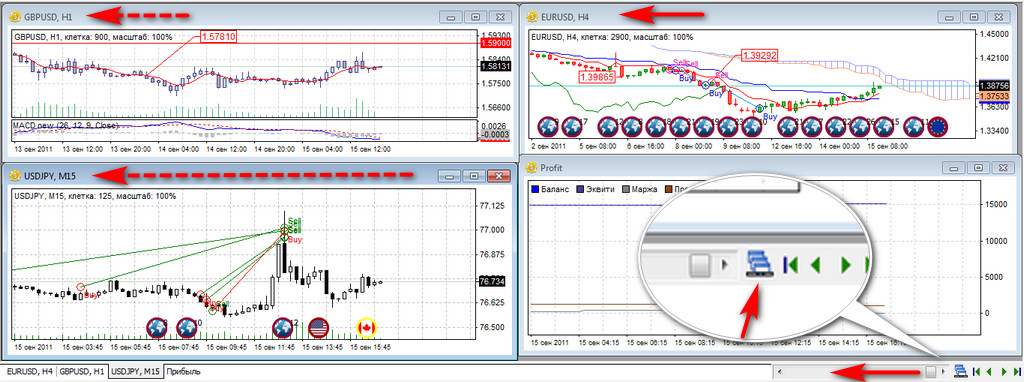 The cursor in the form of cross lines also synchronously repeats movement in all chart windows at the same time while respecting the timeframe scale. Pay attention to the figure below: for the crosshair to shift by one hourly candle on the upper EURUSD and GBPUSD charts, it is necessary to move four M15 candles on the USDJPY chart located below.
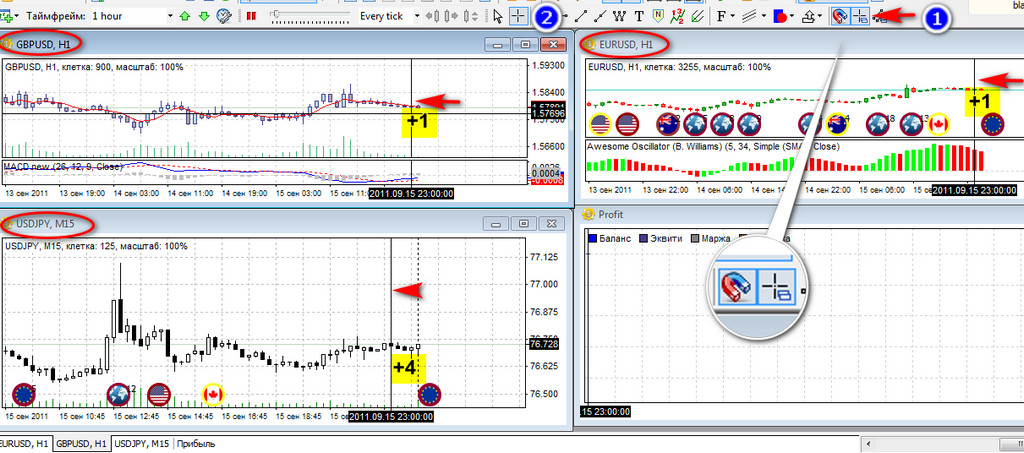 To enable the "Crosshair" synchronization function, click the option with the image of a cross and a cascade of windows near the "Magnet" sign (1), and then replace the "Arrow" cursor (2), as is usually done in Metatrader or similar trading platforms.
Conclusion

Forex Tester 4 allows you to test manual strategies; it is an ideal simulator for fans of indicator-free trading, with which you can learn to recognize Price Action signals. The "live" movement of quotes will help recreate the emotional atmosphere of trading for the trader.
The functions for accounting for spread, commission, deposits and withdrawals, and built-in risk management will allow you to better understand how important it is to develop a financial tactic for increasing/decreasing the lot size, and how this affects performance for those who do not want to read Ralph Vince.
We advise algo traders to pay attention to Forex Tester 4 as well, since the ability to export strategies opens the way to quality tests. The emulation of historical data in Metatrader in ticks still leaves much to be desired, and testing a strategy on "someone else's quotes" is not entirely correct.
Buy Forex Tester 4 at a Discount
P.S. For those who know programming, the lesson How to Write an Indicator for Forex Tester
Respectfully, Alexey Vergunov
Tlap.io