
Ledger Nano S hardware wallet - perhaps the most reliable place to store cryptocurrency
It is no secret that most of our readers have a million or two invested in cryptocurrencies. With the growth of exchange rates and the number of news stories about hacker attacks, the need arises for reliable and convenient storage of currency. I also became concerned with this question and, after studying the market, purchased the Ledger Nano S hardware wallet.
And, at the request of subscribers, I made a small review of it.
What are the advantages of the Ledger Nano S?
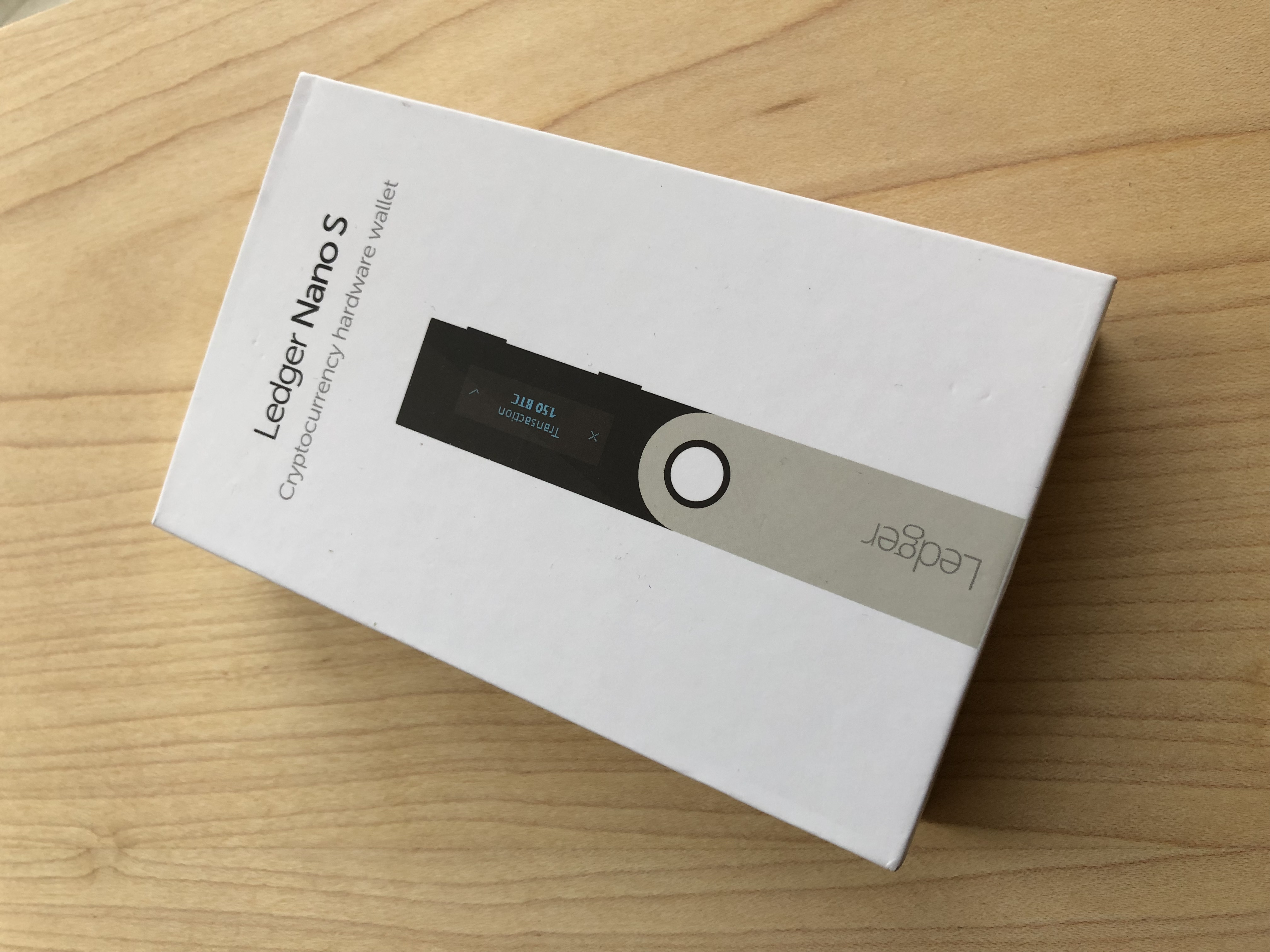
The main advantage is security.
First of all, it is a hardware wallet. The auxiliary applications on the PC that are needed to work with the Ledger wallet store no data; they only serve as an interface.
1. The device data is erased if you enter the wrong PIN code three times in a row. But the possibility of recovery remains with the help of a special phrase of 24 words in a certain order (in most software wallets, it is a phrase of 12 words).
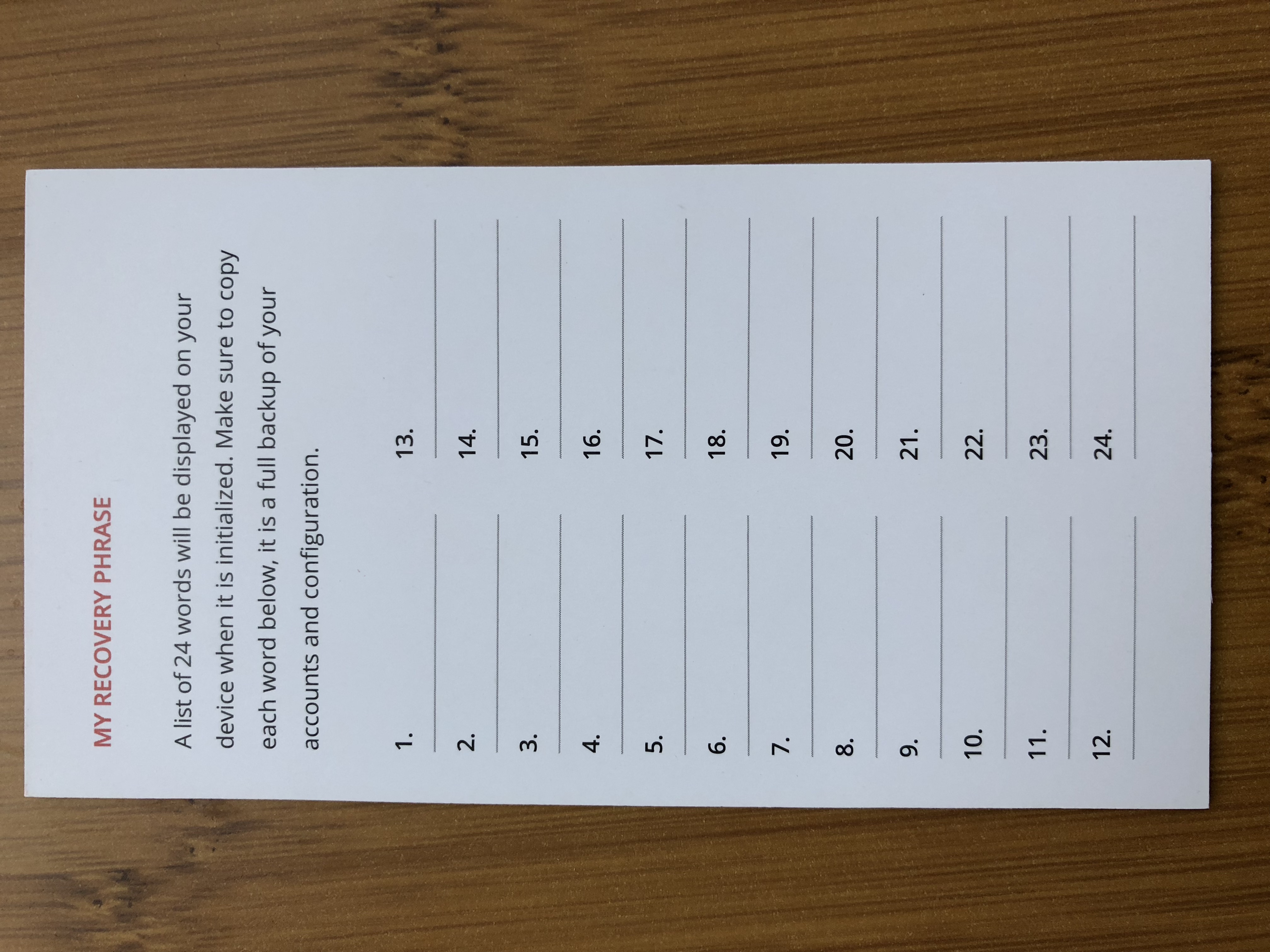
2. The mnemonic recovery phrase is 24 words in the correct order. The phrase is generated directly on the device, displayed on the device, and must be written down in a secluded place or on the card included in the package:
The data inside the wallet is stored on a secure element that, upon an attempt at hardware interference, will erase the data.
If you lose the wallet, it gets crushed by a BelAZ, or some gopniks snatch it, you will be able to recover all your funds by buying a new device and entering the 24-word phrase. The main thing is not to give it to the gopniks.
Also pleasing is the support for a large list of currencies; the list is periodically expanded with the release of new firmware, and you will find the current one at the link:
Support for Ripple, recently popular among investors, also draws attention.
How to buy
The optimal option is to buy from the official website.
However, due to high demand, only pre-order is possible now.
Personally, I bought it in Moscow from resellers with a small markup.
How to use the Ledger Nano S
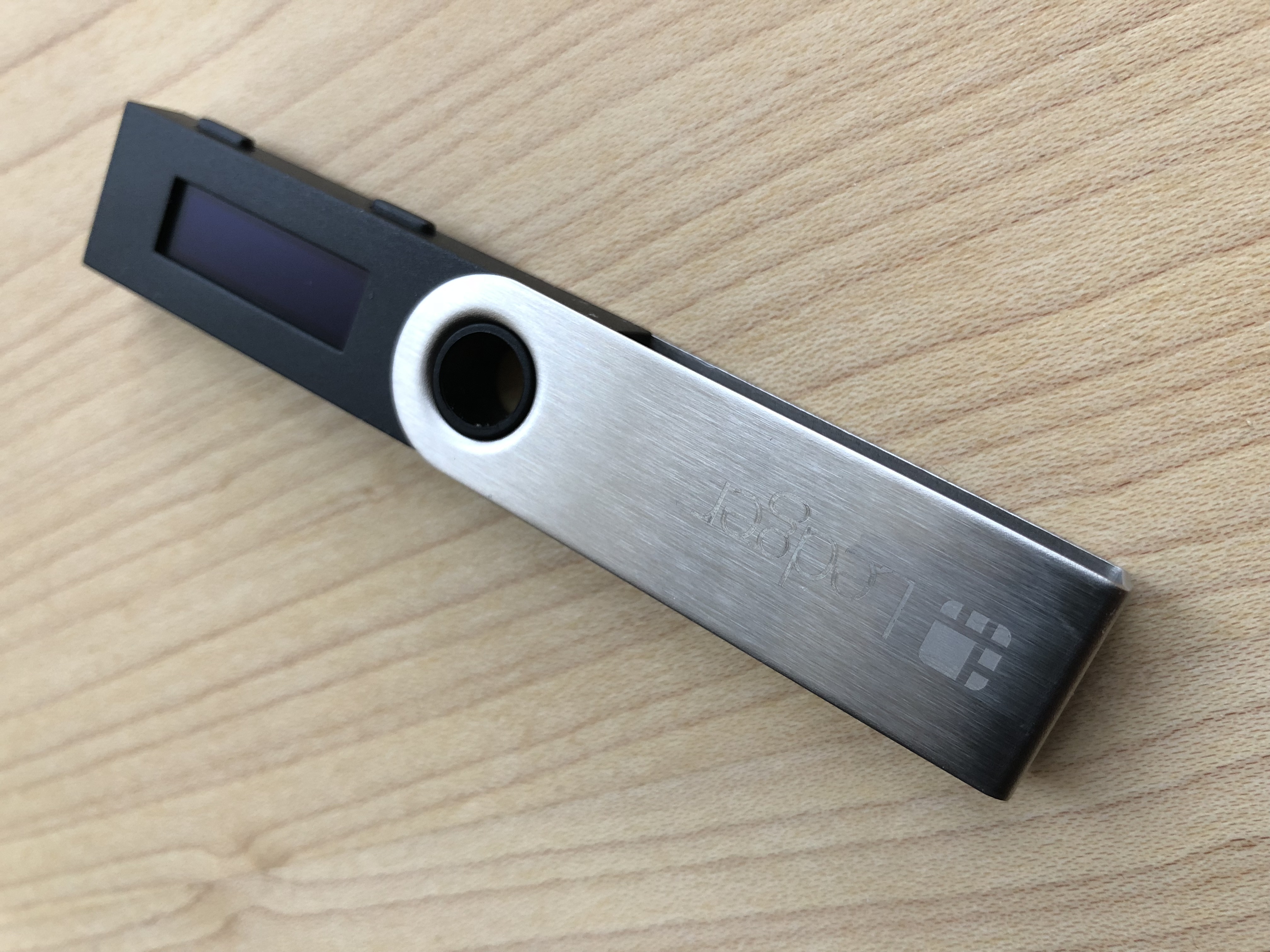
Package contents
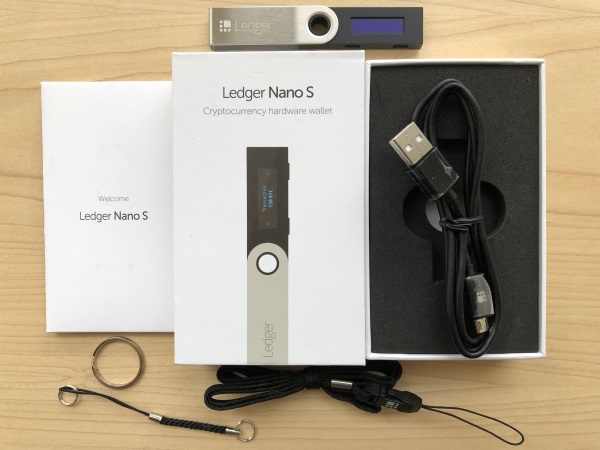
The full package contents are shown in the cover photo. In addition to the device itself, in the box you will find a cable for connecting to a PC (the connector is standard; if lost, any cable for Android smartphones will do), a long cord, a shorter cord, a ring for use as a keychain, and a set of papers with a link to the instructions and for writing down the SEED phrase (read above).
Navigation, setting the PIN code, and writing down the SEED phrase
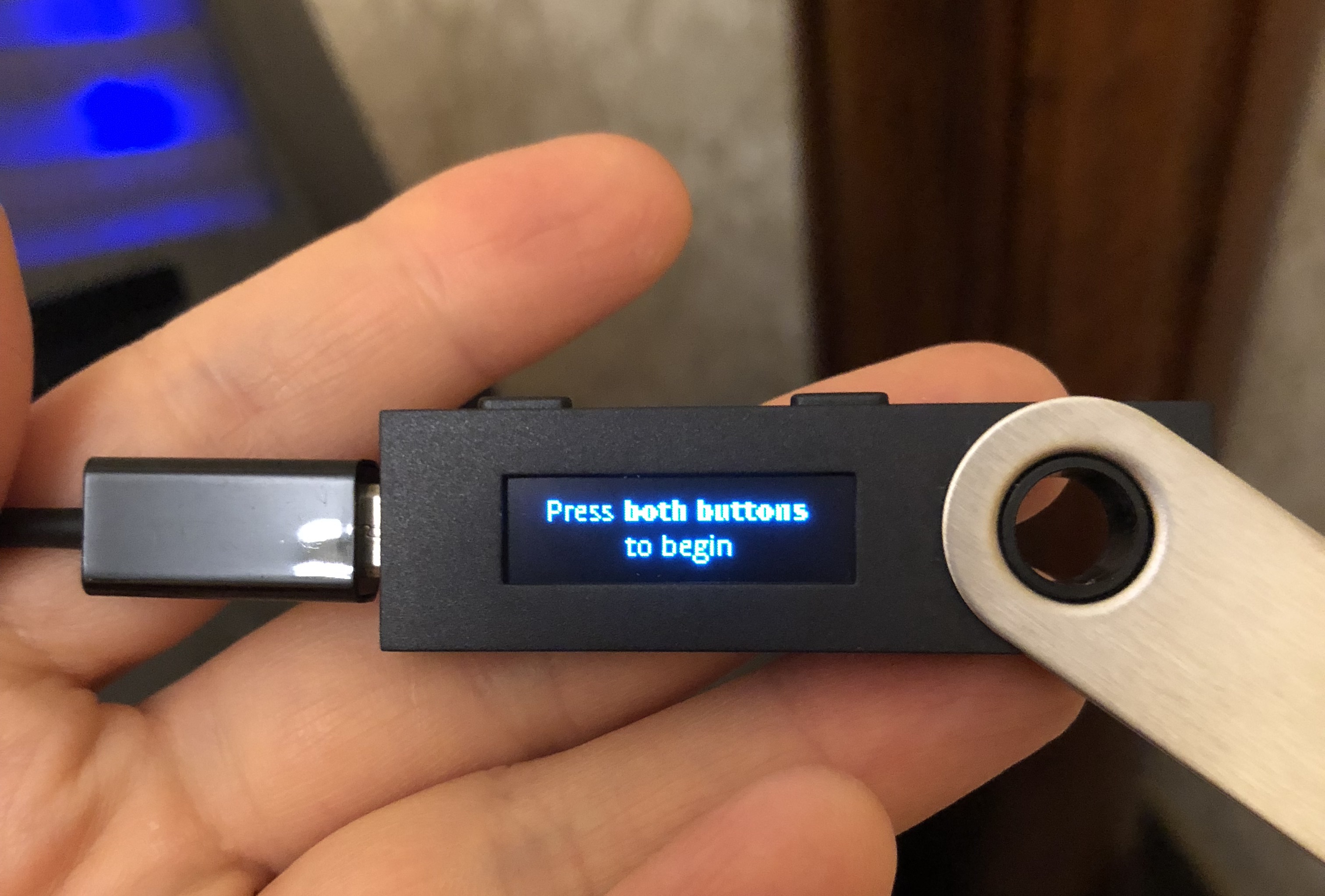
When first connected, the device will ask you to press 2 buttons (both are located on the side) at the same time. Here we get acquainted with navigation on the device: pressing the left or right button switches menu items, pressing the two buttons simultaneously means selection, confirmation.
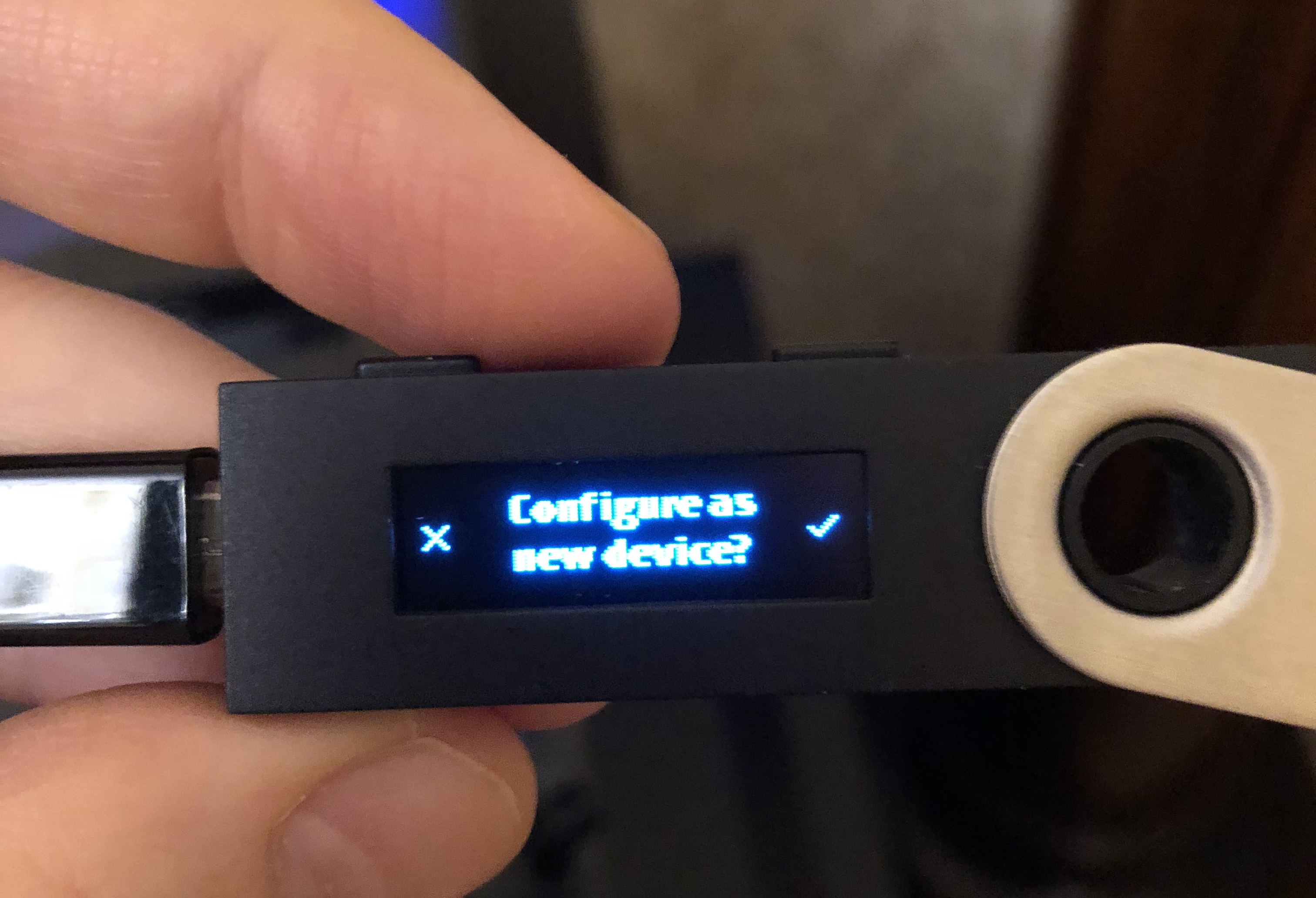
In some cases, for example when confirming the sending of a transaction or as in the photo above, where we are asked whether to set up the device as a new device, the left button means NO, the right means YES.
Press Yes, set up as a new device.
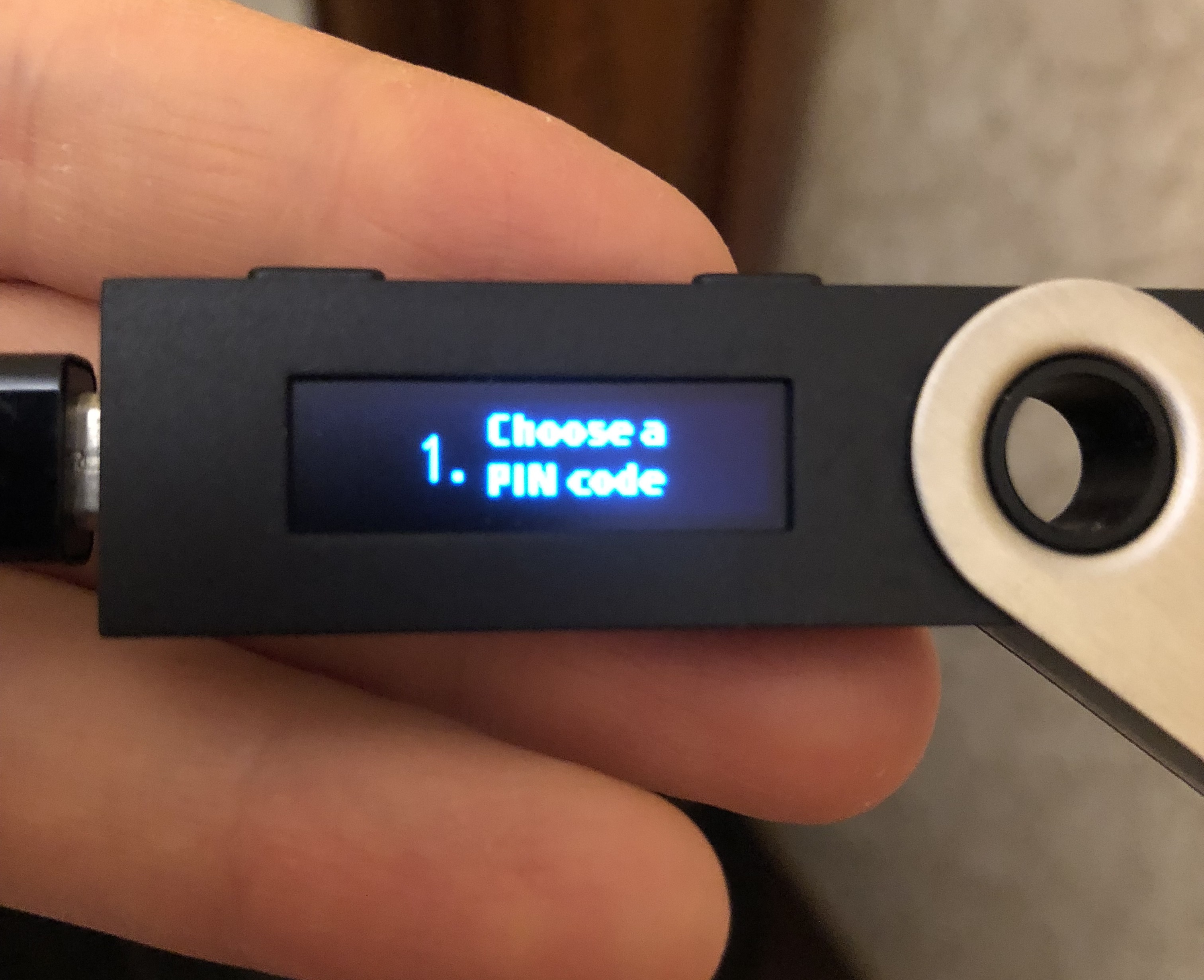
Next you will need to set a PIN code of 4 to 6 digits, and then write down the issued phrase of 24 words. After that, to check whether you wrote the phrase down correctly, the device will offer to select words from it. For example, indicate the 5th and 20th word.
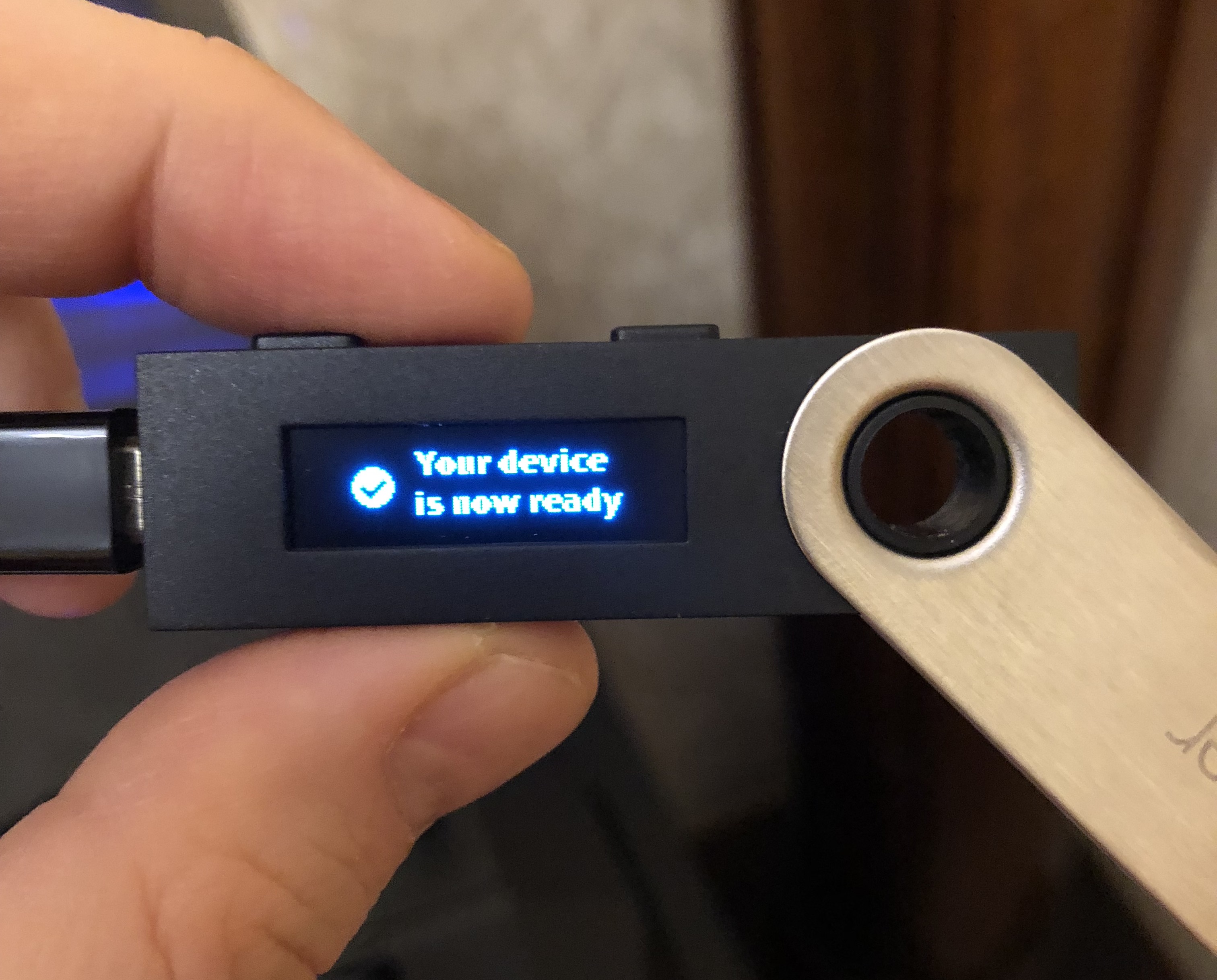
At the end of the security setup procedures, an inscription will appear saying that everything is OK, the device is configured:
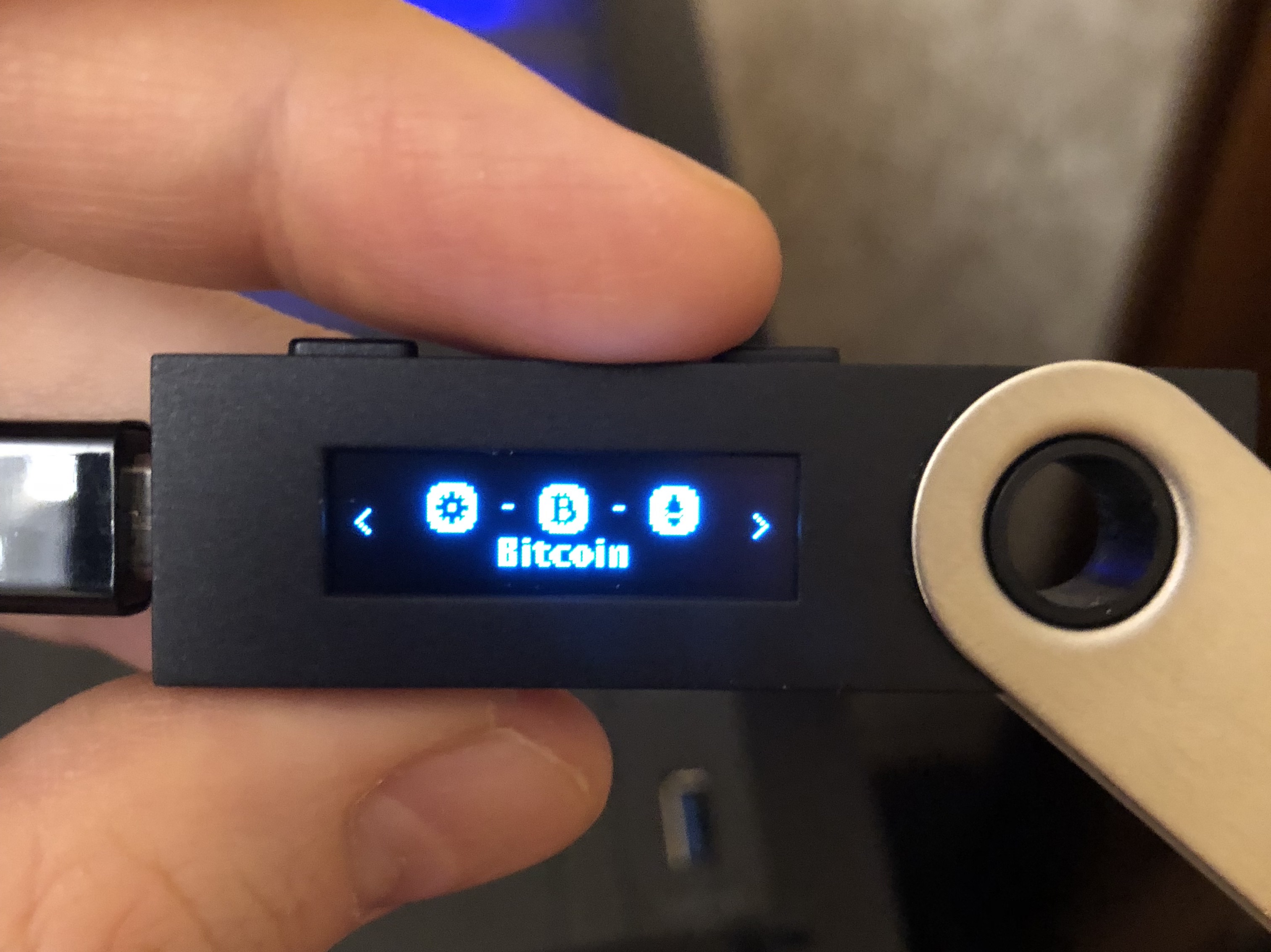
And this is what the device menu looks like when it is working:
Installing applications on the wallet and on the PC
To use the wallet, you need to install the program Ledger Live on your computer. At the moment, 64-bit versions for Mac, Windows, and Linux are supported. In addition to the computer program, it is now possible to use the app for mobile devices. This option is available for owners of devices with IOS or Android.
To install the wallet, you will need a computer based on a 64-bit system (the minimum software version is specified; the application can be used if the system version is higher):
- MacOS 10.9;
- Windows 8;
- Linux Ubuntu 16.10.
Make sure the computer is connected to the internet and has an available USB port. To connect to a USB Type-C port, use a special adapter. There is nothing remarkable about installing the program on a computer; the steps are similar to installing any other program.
Then you need to install applications for the currencies you need. The list of all available applications is at this link. After updating to version 1.5, the wallets in the form of Chrome browser extensions were discontinued; now all information will be displayed in Ledger Live.
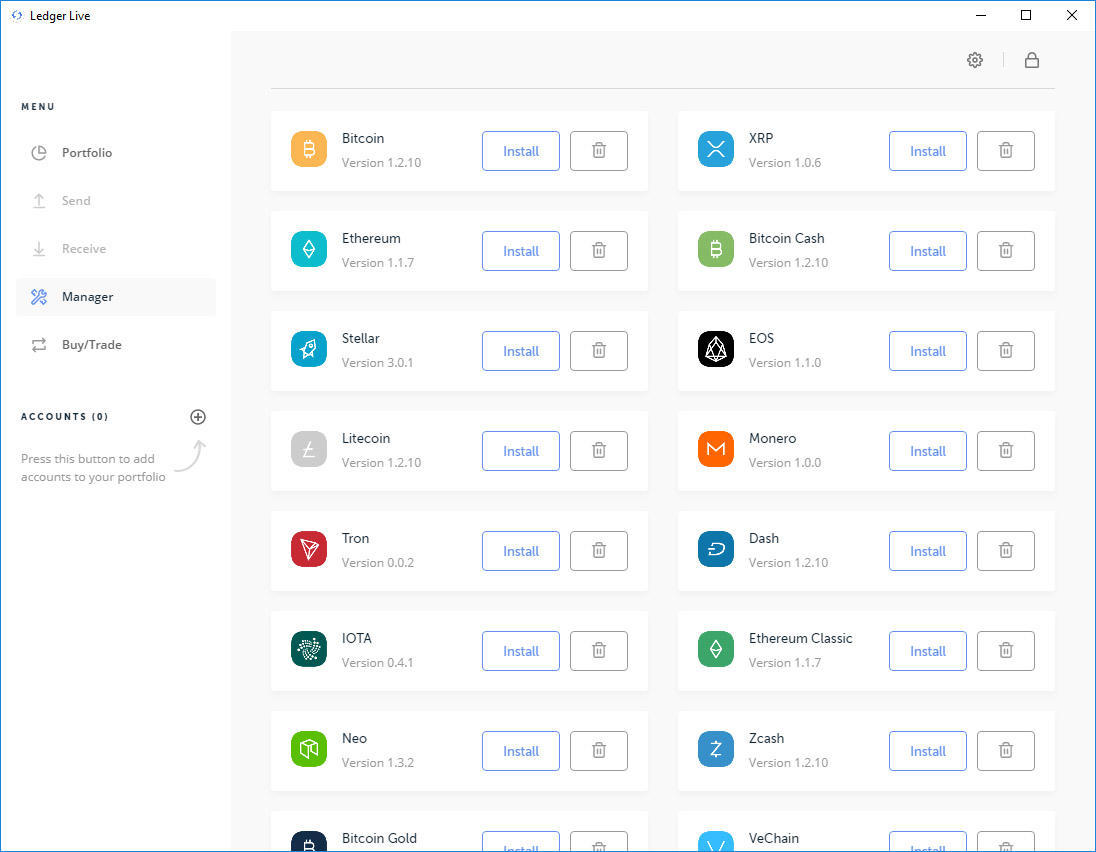
Let us consider the application installation process using the Bitcoin wallet as an example:
- Make sure that the Ledger Live program is installed on your computer, and that the wallet software version is updated to the latest one.
- Open the Manager menu in Ledger Live.
- Connect the device and unlock it.
- Find Bitcoin in the list of applications.
- Click Install.
An installation window will appear, and the device screen will say Processing. After confirming the installation, the wallet can be used.
The next step is to add to the Ledger Live portfolio the accounts of the currencies that will be stored in the wallet. The accounts will be displayed in the list in the Accounts menu.
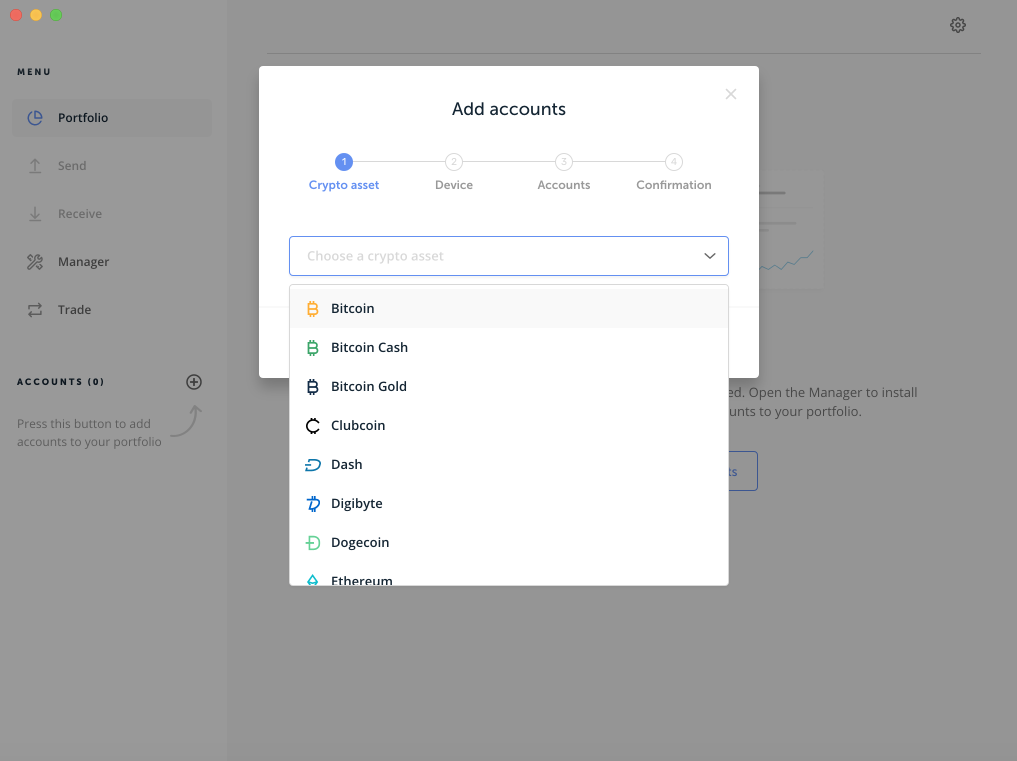
To add an account, you need to:
- Click on the plus icon in the left panel.
- Enter or select the required asset type and click Continue.
- Connect and unlock the device, open the application for the required currency.
- Click Continue so that Ledger Live starts searching for accounts on the blockchain.
- The next step is to select an account. Three options may be available here: choose an existing account, add a new account, added accounts.
- The "existing account" option shows those accounts that already have transactions on the blockchain. In the "add a new account" option, you can add a new account by checking the box next to it. You will not be able to do this if no transactions have been received in the last account of that particular currency that you created.
- Click Continue and the accounts will be added to the portfolio.
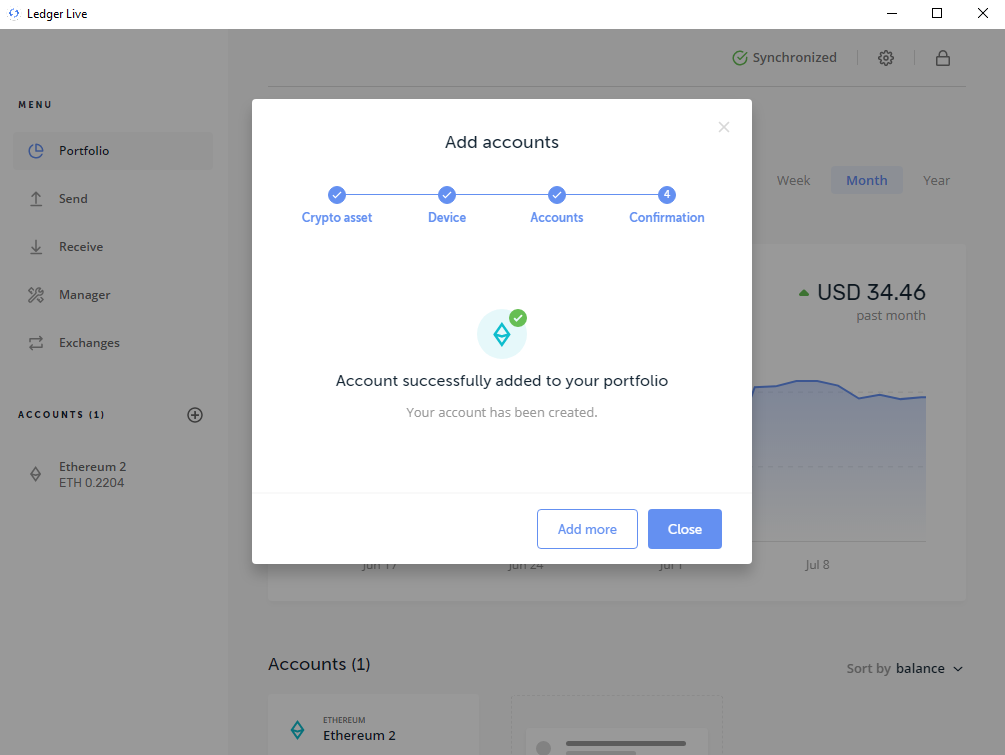
After that, the wallet will be completely ready to use.
Sending and receiving transactions
In general, it differs little from standard wallets.
- Connect the device to the PC;
- Enter the PIN code on the device;
- Open the application for the corresponding currency on the PC;
- Select the corresponding application in the device menu, for example Dash (to work with Dash, launch the Bitcoin application on the PC);
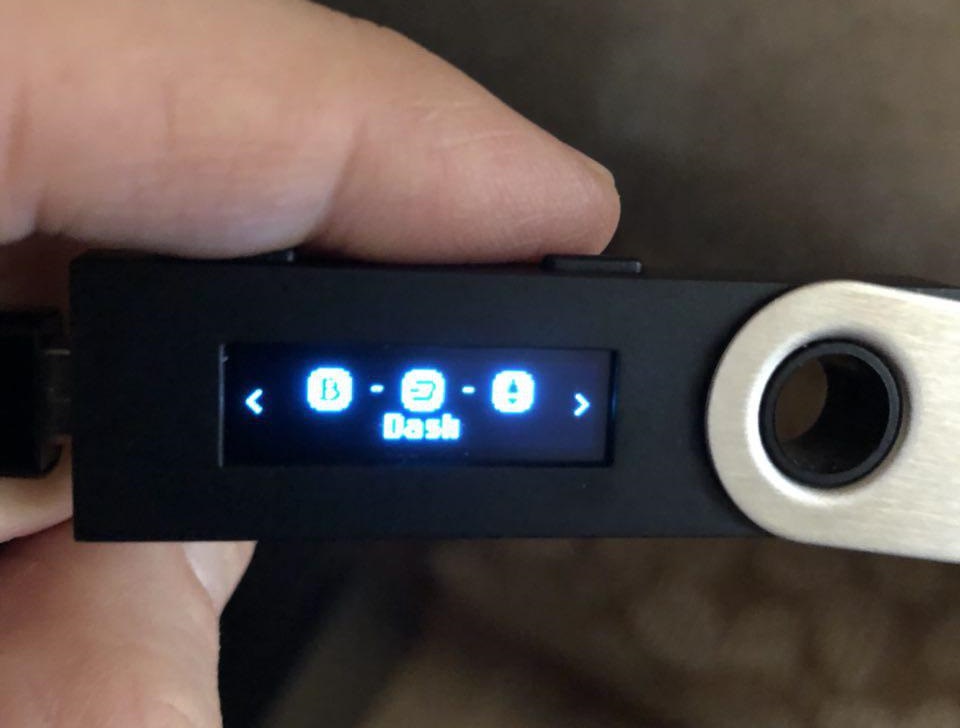
5. The wallet interface for sending and receiving funds will appear in the application on the PC
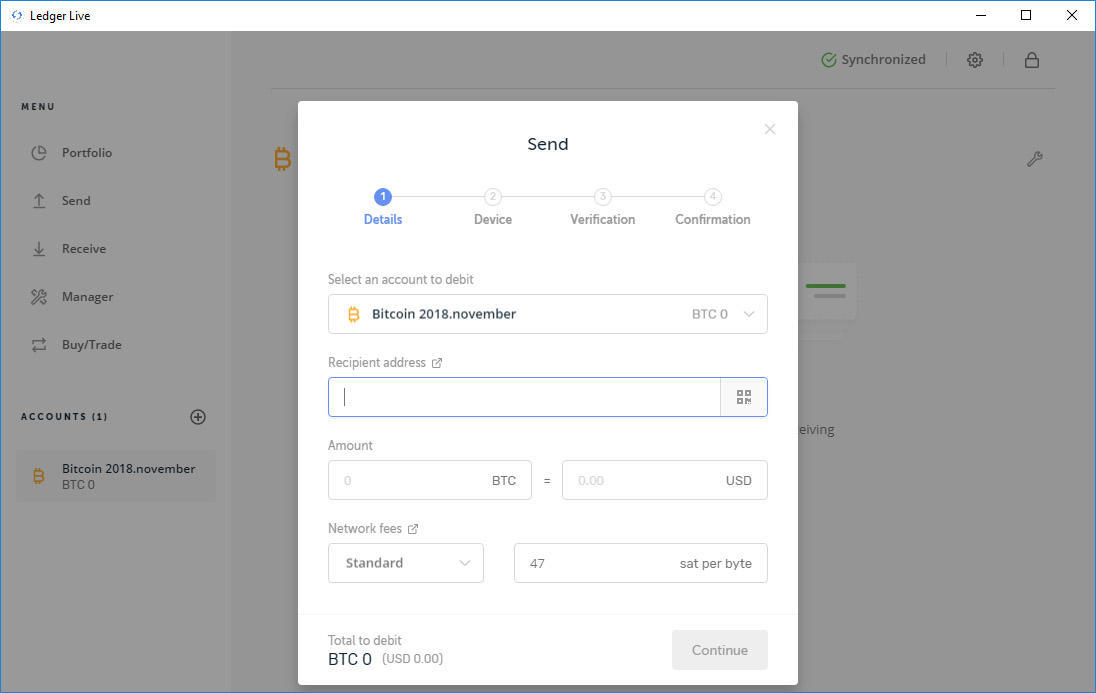
When you click on "Receive" you will see your wallet address, and when you click on "Send" a window for entering the recipient's address will appear. After filling in all the data, you will need to confirm the transaction on the device itself by pressing the right button:
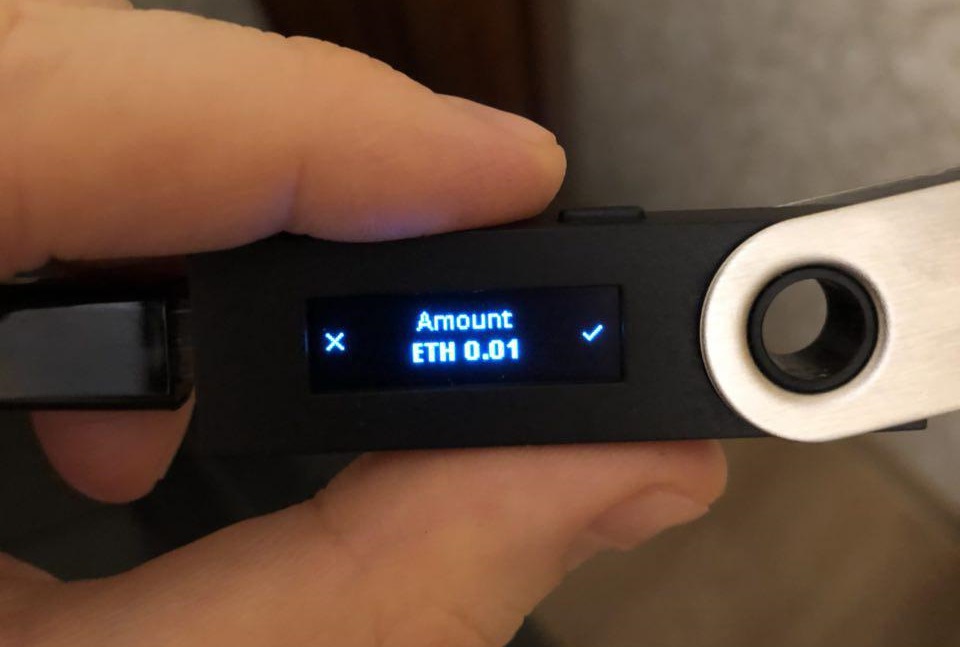
Likewise, for other currencies.
Conclusion

Of course, if you have 100 dollars in cryptocurrency, there is no point at all in buying a Ledger Nano S. But with larger amounts, it is worth thinking about. Personally, I am satisfied with the purchase and transfer to Ledger those currencies that I am confident in for long-term storage. Something like a pocket safe. Another advantage is that the wallet can be used from any other person's computer without fear that the passwords will be stolen.
Best regards, Pavel Vlasov
TradeLikeaPro.ru