
How to Test Expert Advisors with 99% Quality - Easily, Free of Charge, Legally
 Hello, dear fellow forex traders!
As is well known, for testing forex expert advisors (especially scalpers, pipsers, and sensitive indicator robots), it has now become a mark of good form to run tests with 99% quality, that is, using tick data from third-party sources. We have previously written about the excellent (but, unfortunately, paid) program Tick Data Suite and its counterpart Tickstory. However, given the capabilities of the new builds of Metatrader4 and changes in Tickstory's licensing policy, we recommend a simpler and more effective way to test with 99% quality. All you need is a terminal and straight hands.
What Happened to Tickstory Lite?

Trouble came from where we did not expect it: Tickstory Lite became a commercial product. At https://tickstory.com/download-tickstory/ we see the following:
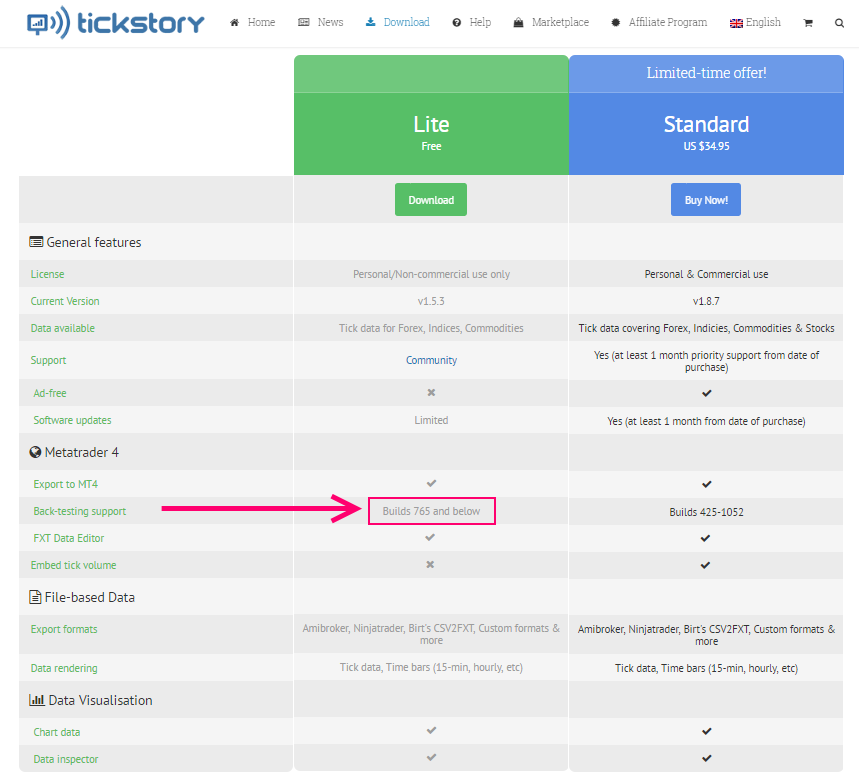 That is, you can use the program for free only up to MT4 build 765, whereas modern build numbers have long since gone past one thousand.
So what should we do? Search the internet for old versions of MetaTrader4? Use the services of hackers and other masters of the dark arts? No, that is no longer necessary: the new builds of MetaTrader and a couple of free little programs can fully replace Tickstory Lite for us.
What Are the New MT4 Builds Good and Bad For?

Bad news: MT4 still does not have tick quote history.
Good news: we can download third-party tick quotes, convert them into the appropriate format, and feed them to the tester.
Why didn't we do this before? Because in earlier builds, the MetaTrader tester did not allow you to simply take and use "foreign" files: it tried to overwrite them with broker quotes downloaded online and emulate tick values again, rewriting the file with tester quotes, which forced people to patch MT4 files, which is exactly what Tick Data Suite and Tickstory Lite did. But in the new builds MetaTrader has stopped damaging the files, which allows us to save money on paid programs.
What You Will Need: Our Gentleman's Set
- Metatrader4 itself, which you need to download from your broker's website and install.
- A program for downloading ticks from Dukascopy, StrategyQuant Tick Data Downloader, available at: http://www.strategyquant.com/tickdownloader/ (hint: look for the green button, then enter your name and email address, where they will send the link to download the program). Personally, I recommend using the 32-bit version as the most stable one in operation.
- The CSV2FXT script https://eareview.net/download/csv2fxt_v0.50.zip .
Getting Started

- Install Metatrader4 as usual, register a demo account, and place the CSV2FXT script files into the MQL4 directory in the Metatrader4 program. Close Metatrader4.
- Install the StrategyQuant Tick Data Downloader program.
Setting General Parameters
The StrategyQuant Tick Data Downloader program is free, and it has some settings items that for our purposes are either unnecessary or excessive, so we will focus only on the actions that are needed.
First, let us set up the general parameters of the program.
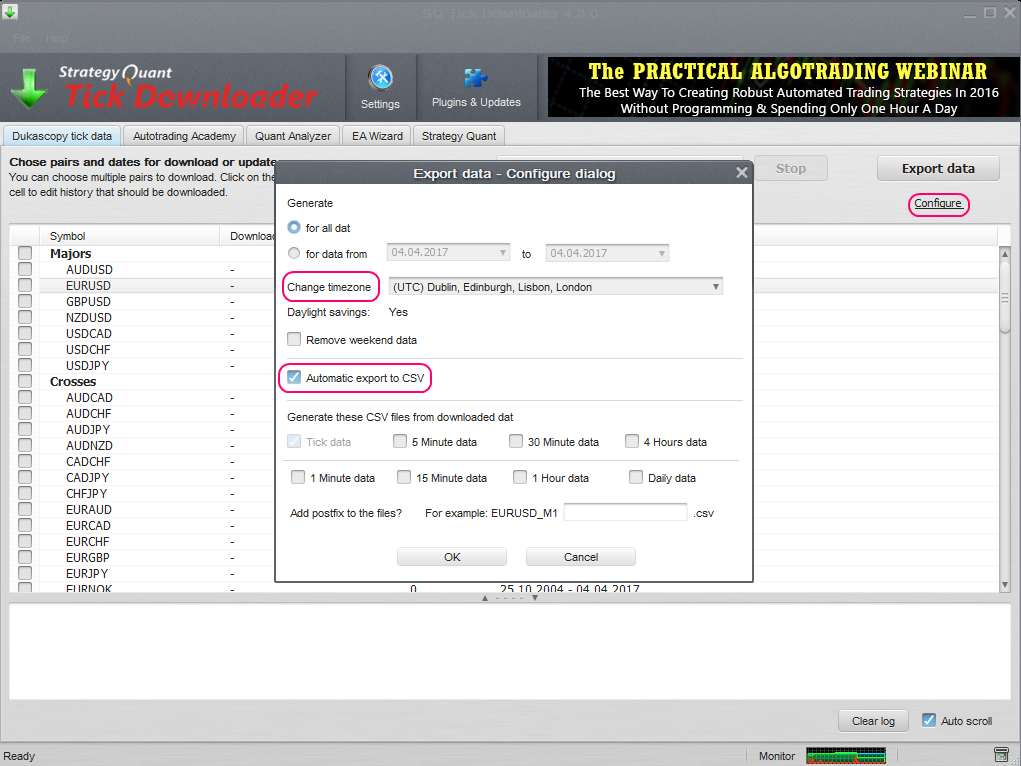 Click the Configure button and check the box next to Automatic export to CSV. Also, in the Change timezone menu item you can set the time zone of the quotes you receive. The current version of the program creates two output CSV quote files: one without a time shift, and another with the shift we specified in the settings. It is most convenient to use the file without a time shift.
Downloading Tick Quotes
Set the pairs and date ranges for downloading.
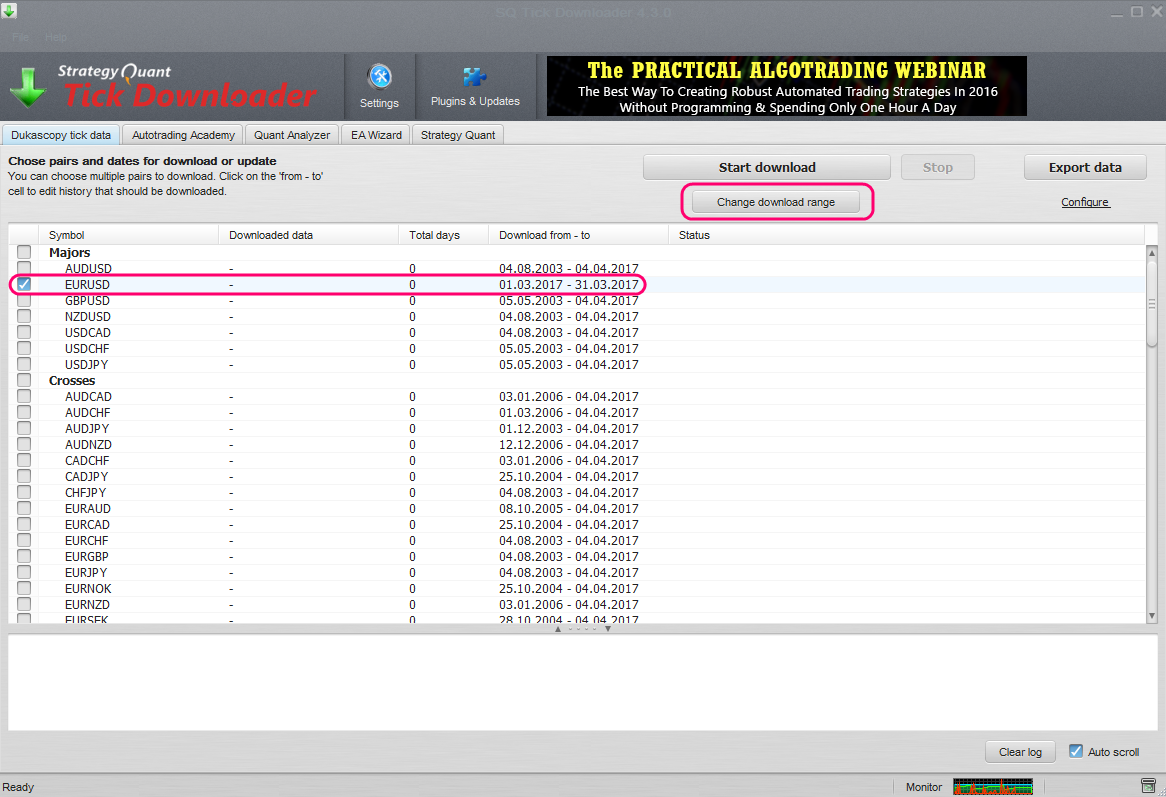 For the example, the EURUSD pair and a period of 1 month were taken.
Next, choose the path for saving the CSV files.
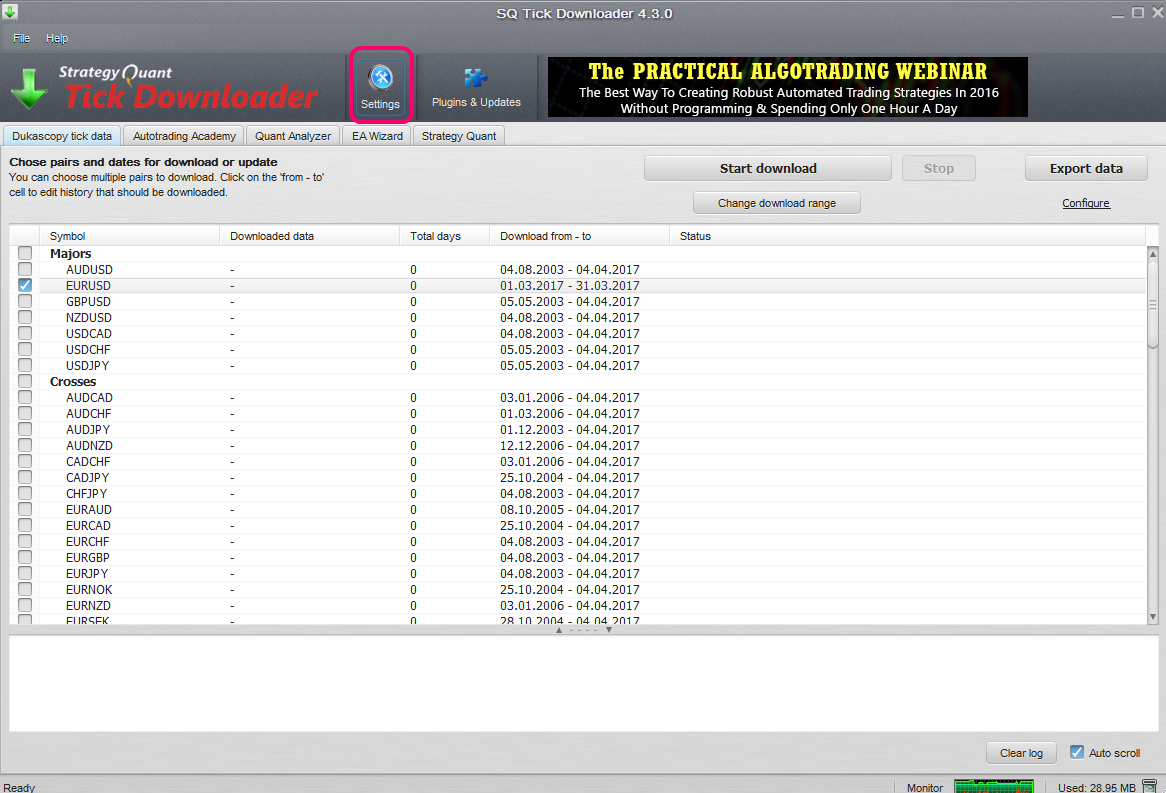
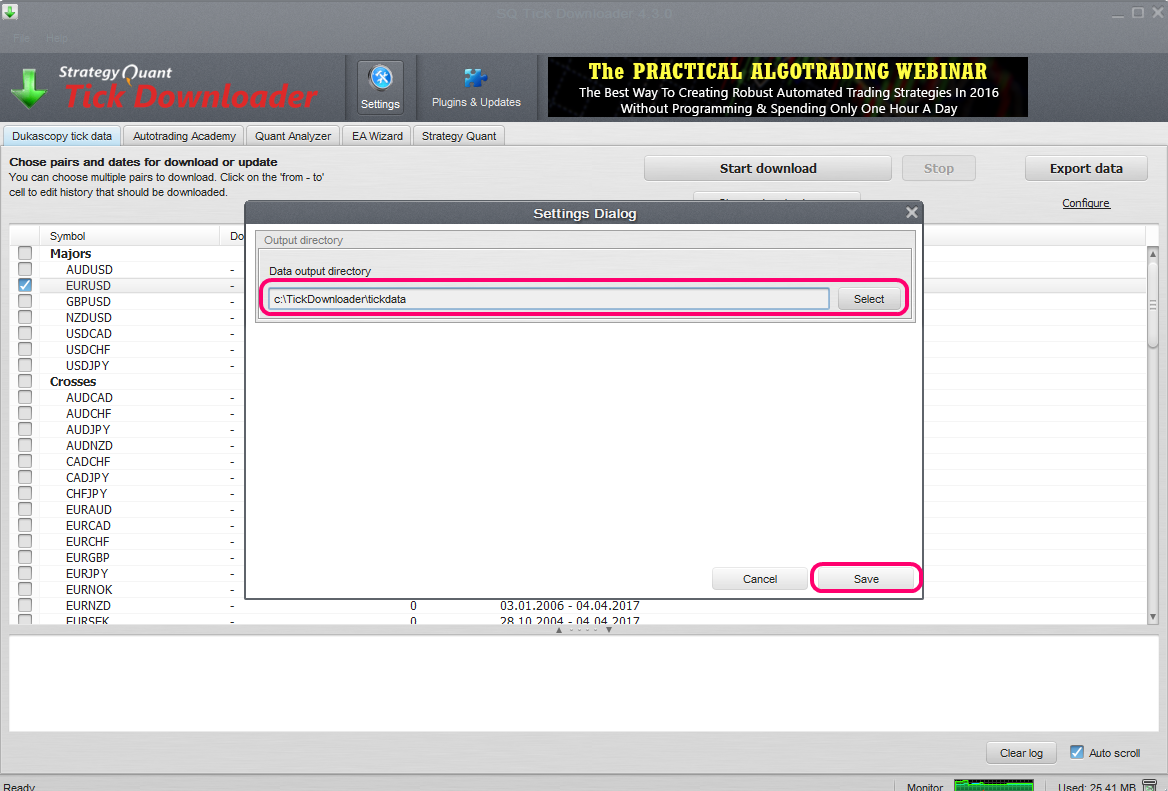 By default, the program suggests writing them to the folder where StrategyQuant Tick Data Downloader is installed, the tickdata subdirectory. You can specify a different folder. Then save the choice: Save.
The download is started with the Start Download button.
As a result, we got 2 files:
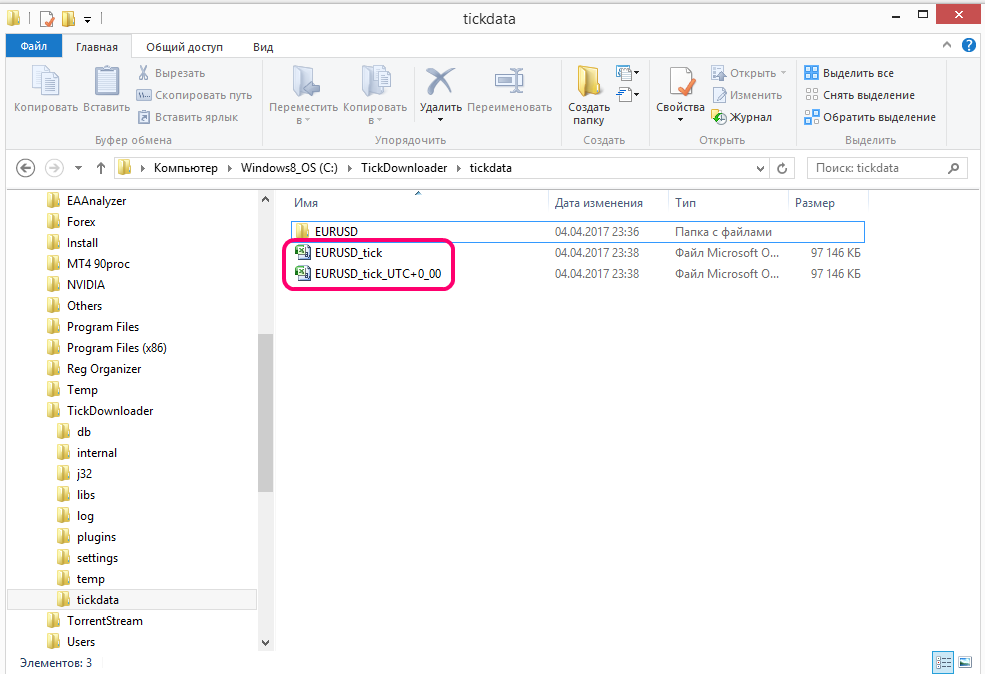 We see two files, EURUSD_tick.csv and EURUSD_tick_UTC+0_00.csv.
Life hack: For our purposes, the first of these two files is enough, so if the file size is very large, after downloading the first one, you can stop the program and delete the second file.
Convert ticks to Metatrader4 format
- Move the quotes file in .csv format (in our example, this is the EURUSD_tick.csv file) to the terminal folder MQL4/Files. For convenience, rename it to EURUSD.csv;
- Launch the MT4 terminal;
- Open the chart of the pair we need (EURUSD), set the timeframe we need;
- Run the CSV2FXT script.
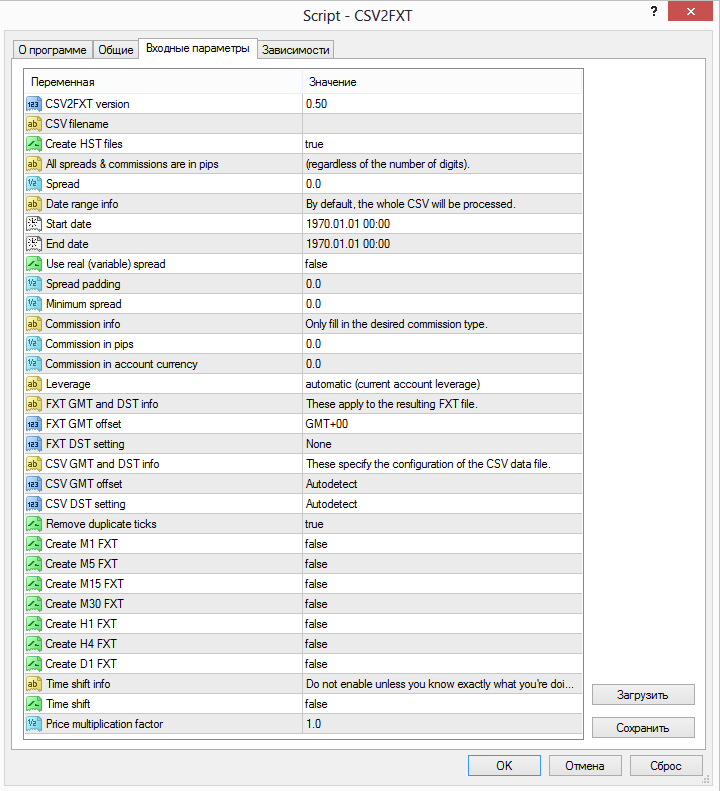 For our purposes, it is not necessary to change all the script parameters, however, let us consider the entire list.
- CSV2FXT version - the version of the script;
- CSV filename - the name of the file with tick quotes, if it matches the name of the currency pair (for example EURUSD.csv and the EURUSD pair in the terminal), then you do not need to fill in this field, otherwise specify it explicitly;
- Create HST - create HST files, of course true (the files in which MetaTrader stores quote history have the .hst extension, and the built-in tester makes files with quote history from them in another format, with the .fxt extension);
- All spreads and commissions in pips - all spreads and commissions in pips combined; for our purposes you can leave the value at "zero";
- Spread - spread; for our purposes you can leave the value at "zero";
- Date range info - information about the date range;
- Start date/ End Date - the start and end dates of tick conversion. If you do not set these values, the script will simply convert everything that is in the specified file;
- Use real (variable spread) - use the real spread. In our case, we will set the spread directly in the tester, so set false;
- Spread padding - the broker's fixed additional spread (broker's markup); for our purposes you can leave the value at "zero";
- Minimum spread - the minimum spread value in the converted file; for our purposes you can leave the value at "zero";
- Commission info - information about commissions;
- Commission in pips - commission in pips; for our purposes you can leave the value at "zero";
- Commission in account currency - commission in the account currency; for our purposes you can leave the value at "zero";
- Leverage - leverage; you can leave automatic;
- FXT GMT and DST info - information about GMT offset settings and daylight saving time settings (DST = daylight saving time);
- FXT GMT offset - the time offset from GMT in FXT files;
- FXT DST setting - the selection of daylight saving time in FXT files depending on the broker;
- CSV GMT and DST info - information about GMT offset settings and daylight saving time in the .csv quotes file;
- CSV GMT offset - the time offset from GMT in the .csv quotes file; for our purposes you can leave the value at "autodetect";
- CSV DST setting - daylight saving time parameters in the .csv quotes file; for our purposes you can leave the value at "autodetect";
- Remove duplicate ticks - remove duplicate tick values;
- Create M1 FXT, Create M5 FXT, Create M15 FXT, Create M30 FXT, Create H1 FXT, Create H4 FXT, Create D1 FXT, Create W1 FXT, Create MN FXT - these parameters make it possible to create several FXT files for different timeframes at once. By default, the script creates FXT files only for the timeframe on which it is launched;
- Time shift info - the use of a time shift;
- Time shift - use a time shift, yes/no. If set to true, all dates in the FXT tester file are rewritten 28 years back. If an expert advisor blocks its operation in the tester for certain dates (to hide poor results), then comparing tests with normal time and with quotes shifted 28 years back will produce different results and help identify "cheaters";
- Price multiplication factor - multiplier; after conversion all quotes are multiplied by this value. For regular forex quotes the value should be 1.0, however, there are brokers that for data such as CFD prices, indices, metals, etc. provide values multiplied by some factor instead of normal quotes (for example, 1234.56 instead of 1.23456), so it is convenient to use multiplication of the values in the .csv file by a specific number.
Conclusion

After setting the parameters, click OK. The script will ask for our permission to move and overwrite files (which, of course, we agree to) and will suggest restarting the MT4 terminal. Restart the terminal, and now you can test expert advisors!
Attention! Do not forget to select the necessary expert advisor, pair, timeframe, and spread in the tester! :)
Sincerely, Alexey aka Merlin TradeLikeaPro.ru