
How to test expert advisors with 99.9% accuracy using Tickstory Lite
 Hello, dear Forex traders. When testing expert advisors in the built-in strategy tester of the MetaTrader 4 platform, the modeling quality is no higher than 90%, because the history used to build all timeframes is based not on tick data, but on full one-minute candles. This can very seriously distort testing results if the advisor uses pipsing or scalping (that is, a take profit or stop of several points), or highly sensitive indicators are used, or there is simply a trailing stop. In addition, all historical data is downloaded by the MetaTrader 4 platform (at least with most brokers) from MetaQuotes company servers, which, unfortunately, differ slightly from the real ones.
We have already looked at a way to test with 99% quality using the Tick Data Suite program, but its downside is that it is paid, and the trial version works for only one week. Today we will look at the Tickstory Lite program, which does the same thing for free, helping to get reliable forex expert advisor tests with 99% modeling quality. After reading this article, that is in about 5 minutes, you will be able to test any expert advisors with 99,9% accuracy, and very easily and quickly.
Installation
The program is installed in the same way as any other program for Windows.
So, download the archive at the end of this review, unpack it, and install it.
After installation, the program will open. The program should be closed without regret, and started again as Administrator. The program looks like this:
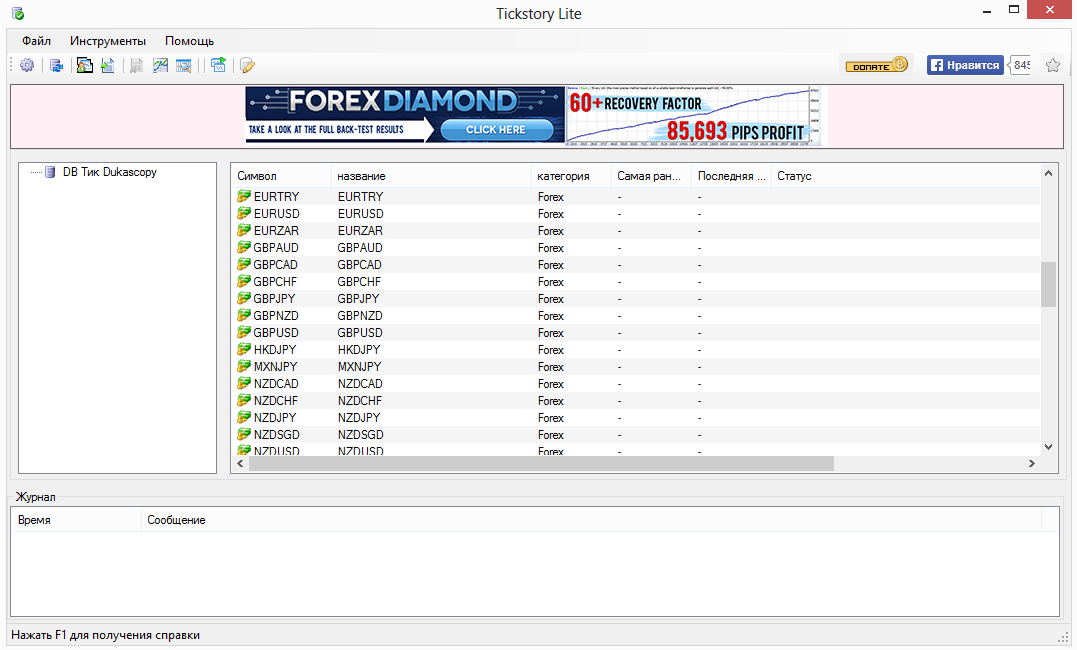
At the top left of the program we see the tabs: File, Tools, Help, buttons under the menu (they duplicate some functions from the menu), then an advertising and social media block (you can ignore it), then in the left pane the source of tick data is written (DB Tick Dukascopy), in the right pane there is a list of currency pairs with parameters that will be shown when downloading tick data, and in the bottom pane the Journal, where the program will write its messages about what it is doing and what it has already done.
Getting started
To begin, go into the main program settings File -> Settings.
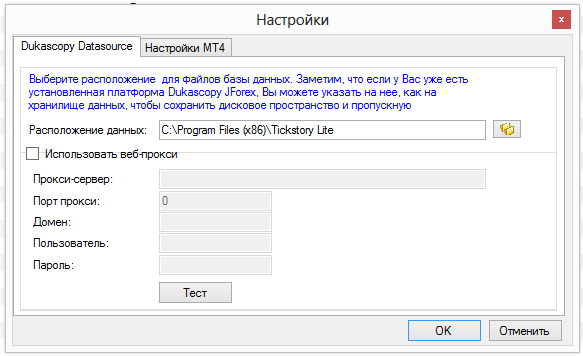
In the Dukascopy Datasource tab, you need to specify a folder for storing the downloaded data. If you have the Dukascopy JForex trading platform, you can specify that program's folder to save space. If you use network storage with access through a web proxy, you can enter the proxy parameters, and if there is no proxy, leave the fields empty.
Go to the next tab, MT4 Settings.
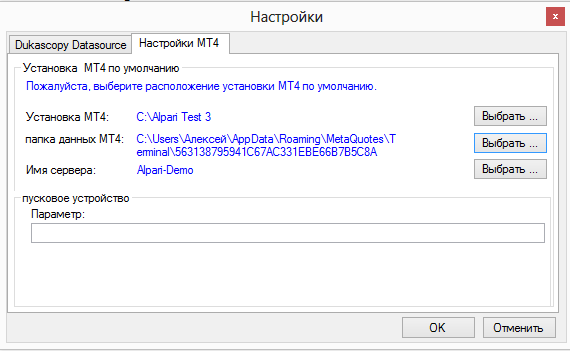
Here you need to choose the MT4 folder into which Tickstory Lite will write the converted files for testing, and then testing will take place in that folder. It is best to put the terminal for testing in a separate folder; as you can see, my folder is called Alpari Test 3. When you specify the MT4 folder, the program itself finds the data folder path and the server name, but you can edit them if some special configuration is needed.
Downloading data
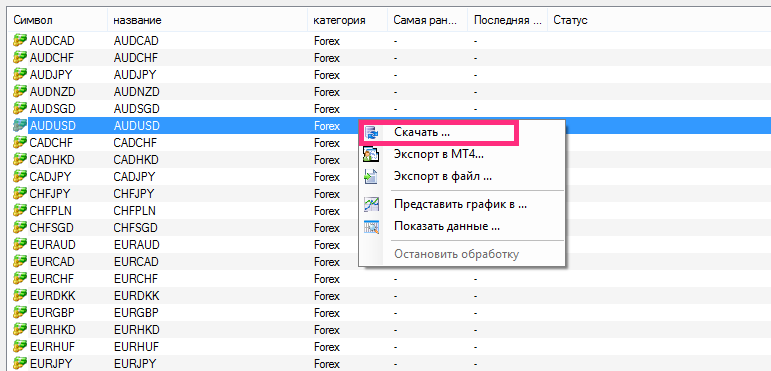
Select the required pair from the list in the right pane with the left mouse button
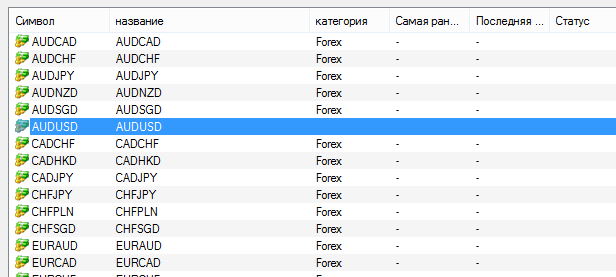
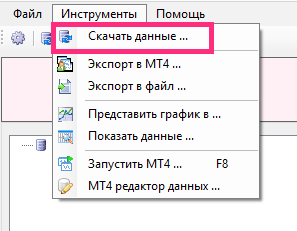
and start downloading tick data in one of two ways:
1) through the menu
2) by right-clicking on the required pair in the pair list field
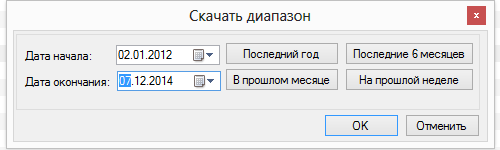
You will get a menu where you need to choose the download range or use the buttons with suggested ranges (for the very lazy:)
After that, the download of tick data will begin
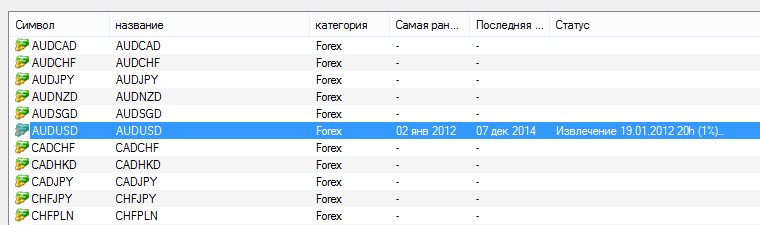
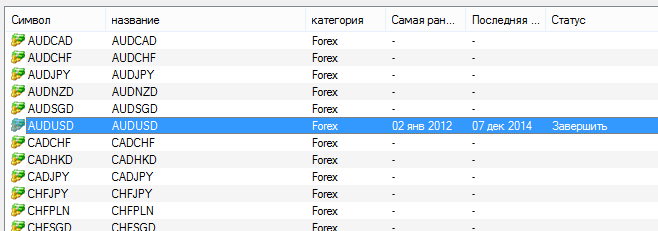
After the data has been downloaded, the inscription "Finish" appears, which translated into Russian means "Completed"
Exporting data to MetaTrader
The downloaded quotes need to be converted into the MetaTrader format. To do this, select the "Export to MT4" item (or the alternative methods using the buttons below the menu, or by right-clicking on the pair with the downloaded history; in general, we will not talk any more about these duplicate methods, implying that these methods are already clear anyway).
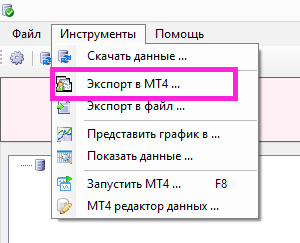
and we get the following menu
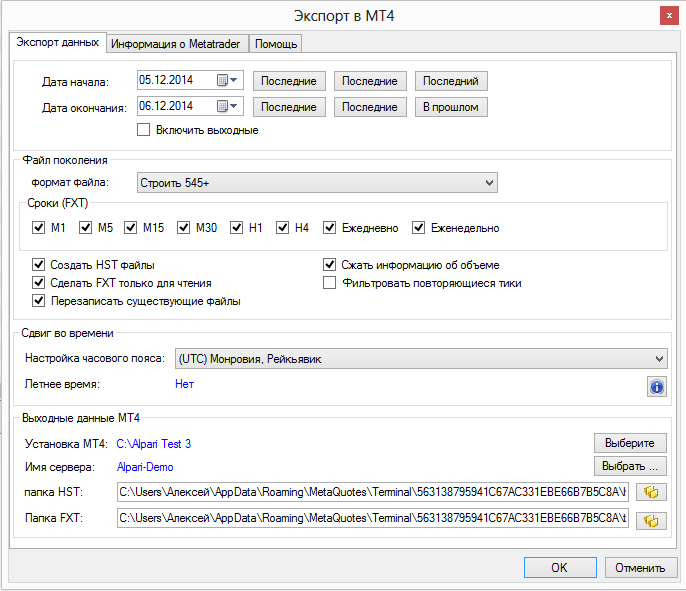
In the "Export Data" tab you can choose:
- the start and end dates of the data for conversion. If a range larger than the already downloaded data is selected, it will be downloaded first and then converted.
- the MT4 build; for new terminals choose 545+
- the timeframes into which the tick data should be converted. You can choose from M1 to weekly charts, and even several at once, but it is better to leave only the timeframes that are needed for a specific expert advisor so as not to take up disk space.
- the time zone setting: set the time zone corresponding to your broker
- the folder and server name of the MT4 test terminal
- the folders for the HST and FXT files. If you do not know exactly why you need to edit them, do not change them.
Next, a very important tab is called
"Information about Metatrader"
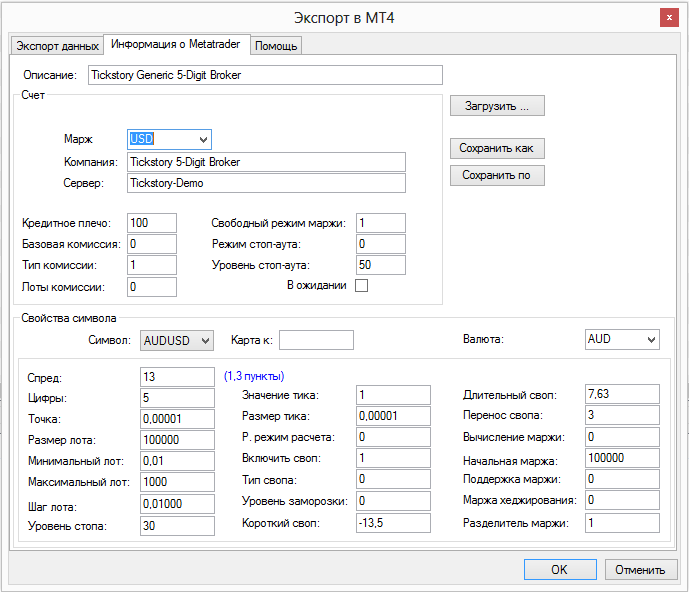
This tab suffered the most brutally from Russification, so let us examine the unclear items in more detail.
- Description: Tickstory Generic 5-Digit Broker is the name of the program's virtual engine for generating MT4 files. The ideology of the program is to use not the data from Dukascopy themselves, but to modify them for tests in accordance with your broker.
- Margin is the account currency. It is best to leave USD
- Leverage is the leverage of your account
Commission settings section
- Base commission sets the amount of commission in currency or points:
0 - commission is charged in money
1 - commission is charged in points
2 - commission is charged in percent
- Commission type indicates what the commission is charged on
0 - commission is charged in money
1 - commission is charged in points
2 - commission is charged in percent
- Commission lots
0 - commission is charged per lot
1 - commission is charged per trade
Margin operation settings section
- Free margin mode is the mode for calculating free funds allowed for opening orders on the current account
1 - when calculating free funds, both unrealized profit and loss on open positions in the current account are used
2 - only the profit value is used in the calculation; the current loss on open orders is not taken into account
3 - only the loss value is used in the calculation; the current profit on open orders is not taken into account
- Stopout mode - the mode for calculating the Stop Out level
0 - calculation of the percentage ratio of margin collateral to funds;
1 - comparison of the free margin level with the absolute value
- "Pending" - stop testing after stopout
- The "Load", "Save as" buttons - respectively load the set parameters for the pair selected below and save them.
- The "Load by" button. This means save as default parameters. The function does not work at the moment.
"Symbol properties" - settings for the selected currency pair
- "Map to" - makes it possible to match this specific currency pair (for example, EUR/USD) with an equivalent currency pair in MT4 (for example EUR/USDm). If the currency pair is identical to the one on the MT4 platform, leave this field empty
- "Currency" - the non-base currency in the pair: for example, for EURUSD this is EUR. Do not change it unless you know exactly what you are doing.
Section of parameters for the selected pair
- Spread - the spread is set (the difference between the best ASK sell quote and BID buy quote at the same moment in time for any asset, indicated in points)
- Digits - the number of digits after the decimal point in the instrument price
- Point - the size of a point in the quote currency
- Lot size - the contract size in the instrument's base currency
- Minimum lot - the minimum lot size
- Maximum lot - the maximum lot size
- Lot step - the increment for changing the lot size
- Stop level - the minimum allowable stop-loss/take-profit level in points
- Tick value - the size of the minimum price change of the instrument in the deposit currency
- Tick size - the minimum increment of price change of the instrument in points
- P. calculation mode - the method of calculating profit, can have 3 values: 0-forex 1-CFD 2-Futures
- Enable swap - presence or absence of swap 1 - swap exists 0 - no swap
- Swap type - the method of calculating swaps, can take the following values: 0 - in points 1 - in the instrument's base currency 2 - in percent 3 - in the collateral currency
- Freeze level - the freeze level of orders in points (freeze level)
- Short swap - the swap amount for sell orders
- Long swap - the swap amount for buy orders
- Swap rollover - the day the weekly (triple) swap is rolled over. By default it equals 3 (Wednesday)
- Margin calculation - the method of calculating collateral funds, can have 3 values: 0-forex 1-CFD 2-Futures
- Initial margin - the amount of required collateral funds in the margin currency to open an order with a volume of one lot. Used when checking client funds upon market entry. As a rule, it equals 100000 (however, for the company's cent accounts at Instaforex it will equal 10000)
- Maintenance margin - the maintenance margin for the instrument. If specified, it indicates the size of the margin in the instrument's margin currency held from one lot. Used when checking client funds when the client's account state changes. If the maintenance margin equals 0, the initial margin is used. This parameter will almost always equal zero (forex brokers do not provide maintenance margin).
- Hedged margin - the margin charged for offsetting orders per 1 lot
- Margin divider - the use of a divider for the *.FXT file, usually equals 1.
Note: All these data correspond to the request identifiers of the function MarketInfo()
The question arises: is it possible not to enter all these data manually, but to automate the process somehow? Of course it is possible, because Tickstory Lite is an excellent program! The instructions are located right in the "Help" tab:
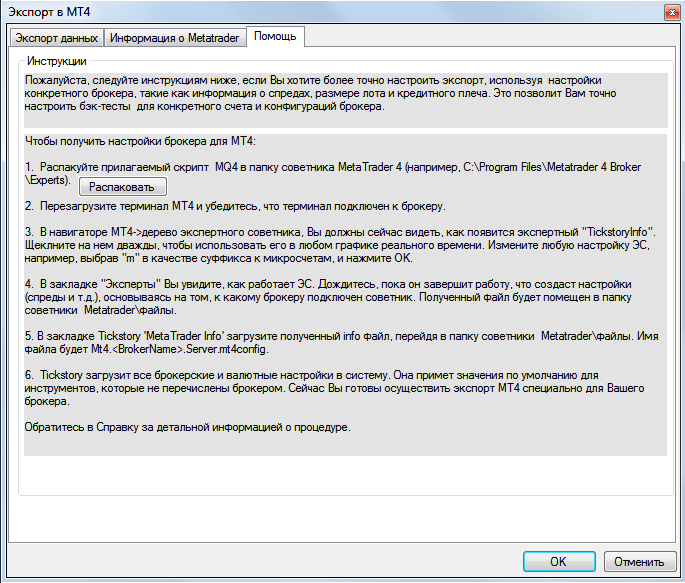 After you press the Extract button, then restart the terminal and find the TickstoryInfoExpert advisor
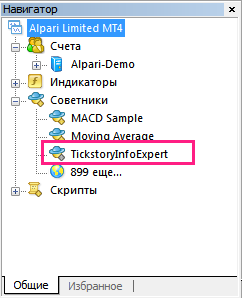
This advisor must be launched on any chart of any pair, and in the Experts tab in the terminal there will be a notification that the work is complete (if the advisor does not find some pairs in the terminal's Market Watch, it will also write about this in this tab)

The configuration file named Mt4.Alpari Limited.Server.mt4config will be located in the data directory folder MQL4->Files
Next, open again the section already familiar to us, "Metatrader Information," click the Load button, and load the file Mt4.Alpari Limited.Server.mt4config
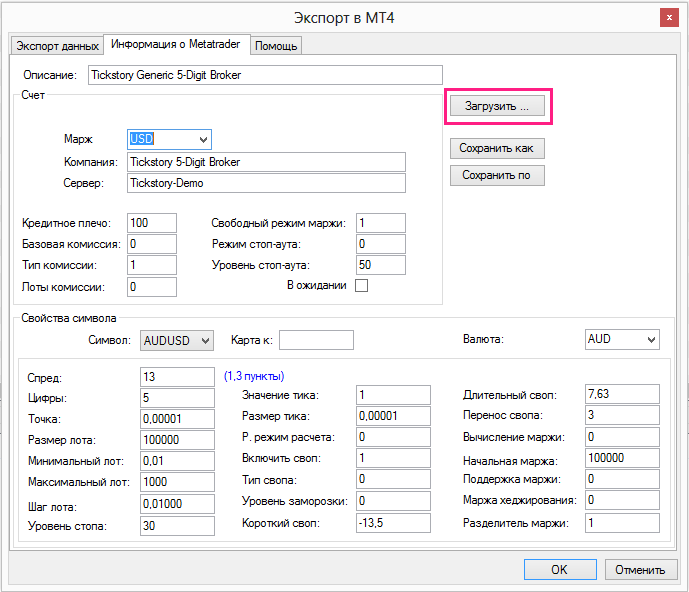
Thus, we obtained information directly from the MT4 terminal.
Attention! The data for currency pairs contain information that existed at the moment the TickstoryInfoExpert advisor was running, and for testing it may need to be edited!
Thus, having filled in the required data for the currency pairs, we can already export the data to Metatrader (see above).
Also, the Tickstory Lite program has some other capabilities.
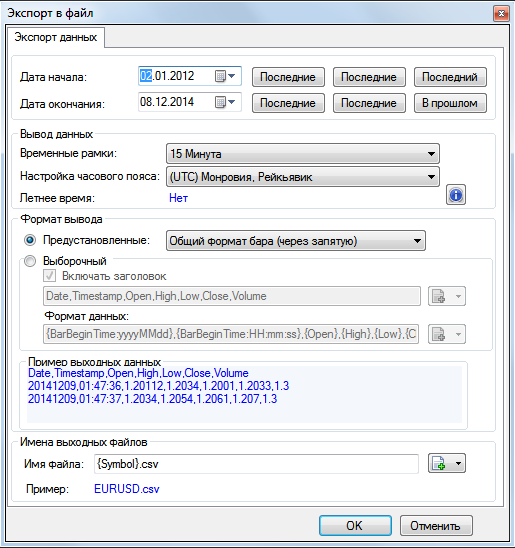
Export to File
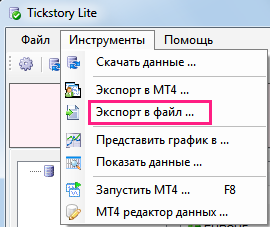
This brings us to the quote export settings window for a file with configurable parameters, which are quite understandable.
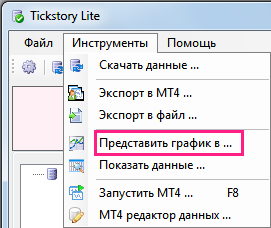
Present the Chart
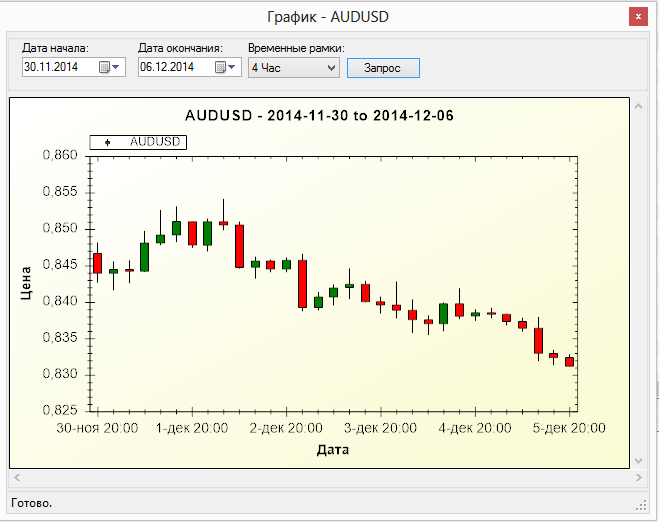
 This item allows you to view the movement chart of the selected pair for a specified period and timeframe, for example:
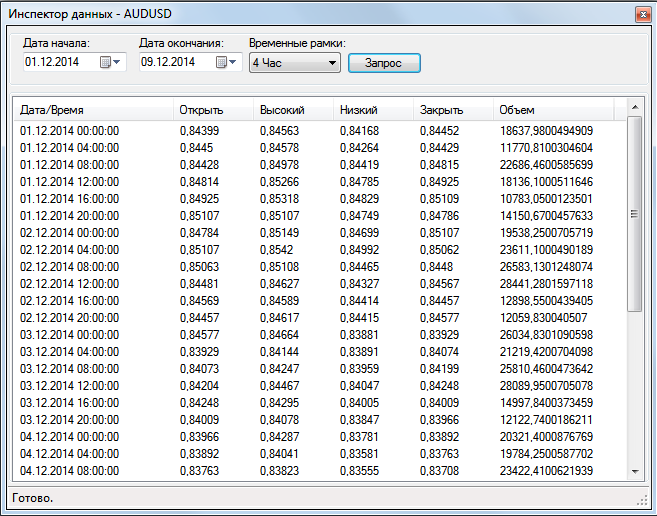
Show Data
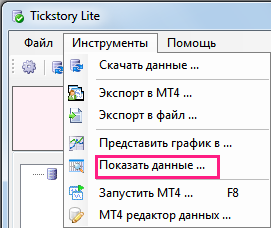
This item allows you to view numerical data for the selected pair for a specified period and timeframe, for example:
Launch MT4
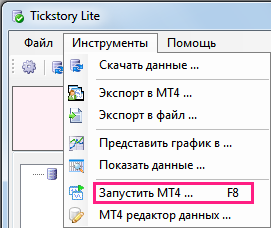
This launches the MetaTrader terminal, into which we have already converted the quotes. Launching MetaTrader not directly, but through the Tickstory Lite program is very important, because during testing the quotes in MetaTrader are locked against being overwritten.
Testing Features on Build 950
When testing with Tickstory Lite on 950-series MT4 builds, an error occurs: testing takes place with a zero spread. In order for testing to take place with the spread we need, it is necessary to:
1. Launch MT4 via Tickstory Lite
2. Set the desired spread value in the MT4 strategy tester
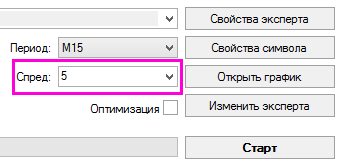
3. Select testing by control points

4. Start the test and stop it immediately
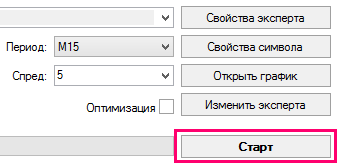
5. Select testing by control points

6. Start the test again
Now the testing takes place with the specified spread and 99,9% quality.
7. If you want to change the spread, repeat steps 2-6.
MT4 data editor
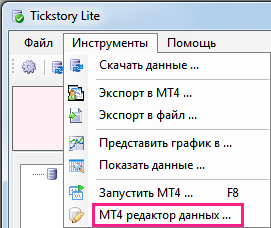
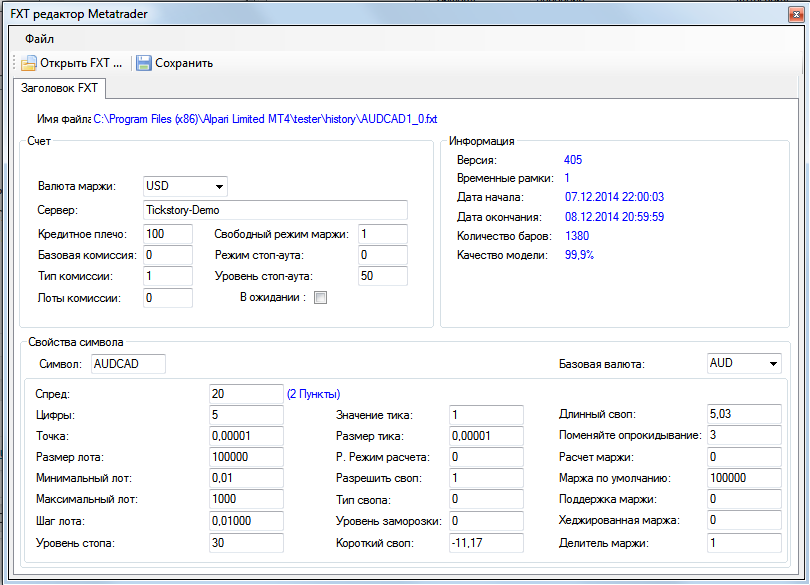
This section allows you to open the database of already converted FXT-format data and edit its parameters in exactly the same way as we did in the "Information about Metatrader" section. It looks something like this:
Conclusion

Tickstory Lite is an indispensable tool for any trader who uses trading robots in their work. The program makes it possible to get test results with 99.9% quality, has a simple interface, is reliable, and is absolutely free. Successful trading, colleagues!
Download TickStory Lite

Sincerely, Alexey aka Merlin TradeLikeaPro.ru
