
How to set up monitoring of your account on MyFxBook

I think many of you have heard more than once about the importance of keeping a trading journal. Tracking and analyzing trading activity on your account, whether you trade with expert advisors or manually, is very, very useful.
But if you analyze reports from the terminal manually, it will be a very long and tedious task. Fortunately, there is the statistics service Myfxbook, which performs all the analytics of your trading activity automatically. You only need to provide the service with the report data from the terminal.
In today's video lesson, we will talk about how to connect your account in MT4/MT5 for monitoring on Myfxbook, how to make it public, and what to do if the monitoring does not update.
Why is monitoring needed?
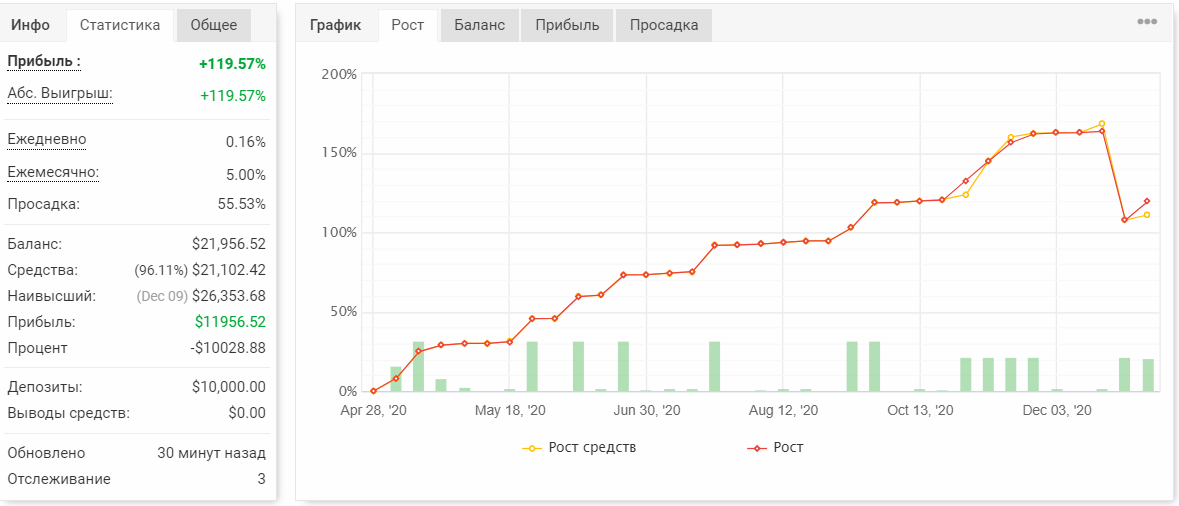
Account monitoring on MyFxBook allows you to build not only a visual chart of profits and losses, but also to find noteworthy nuances of your trading system. For example, there is a distribution of profits and losses by individual currency pairs, days of the week, and even hours.
With the help of monitoring analysis, you can find out, for example, that trading GBPUSD on Tuesday is not the best idea for your robot and that at this time it is better to disable it.
You can also share monitorings. For example, on the forum. Which is also very convenient.
In general, it is a useful thing)
Registration on the Myfxbook website

There are several ways to connect an account.
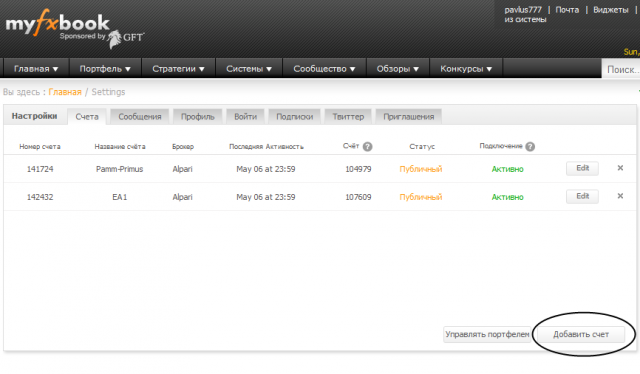
If you use MT5, there is only one method - with the help of an expert advisor. There are more options for MT4.
Let's go through all of them separately.
Let's look at them all separately.
Connection via advisor (MT4/MT5)

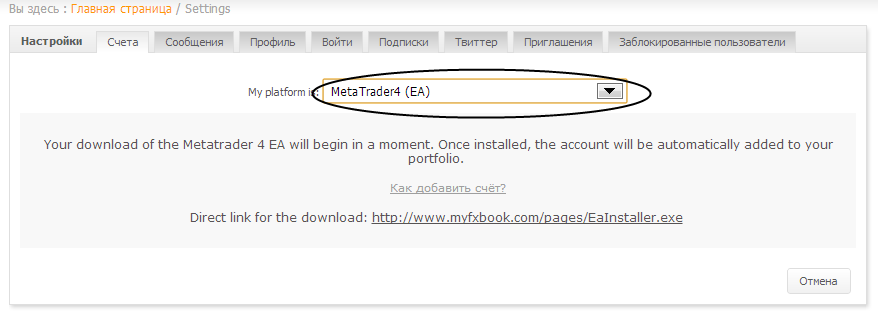
1) So, after clicking the "Add Account" button in the Settings section, choose Metatrader 4 (EA).
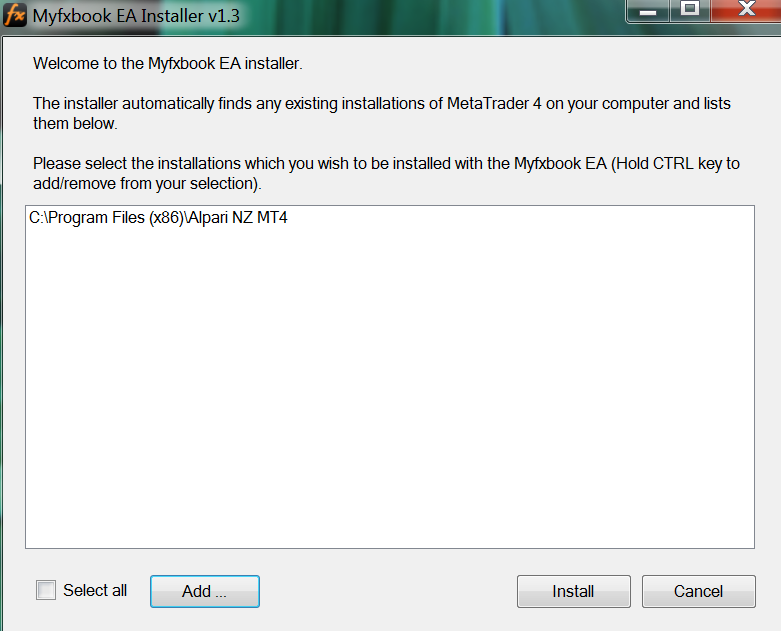
2) The .exe installer of the expert advisor will be downloaded to your computer. Run it (as administrator) and in the window that appears choose the MT4 folder where you want to install the expert advisor. If the terminal folder was not found automatically, you need to add it using the Add button.
3) Next click the Install button and the expert advisor will be installed in our trading terminal. If it was open, the terminal must be restarted.
If for some reason you were unable to install the expert advisor through Installer, then on this page at the bottom you can download the expert advisor and the library for it and install them manually.
4) Attach the expert advisor to any chart, following the instructions for installing expert advisors, starting from item number 5.
5) In the settings of the expert advisor specify the update interval, your email address used when registering with Myfxbook, and the password for the Myfxbook account. Click Ok.
6) A couple of minutes after the expert advisor starts working, a new monitoring entry will appear in the list of accounts on Myfxbook. You will only have to add additional information (optional).
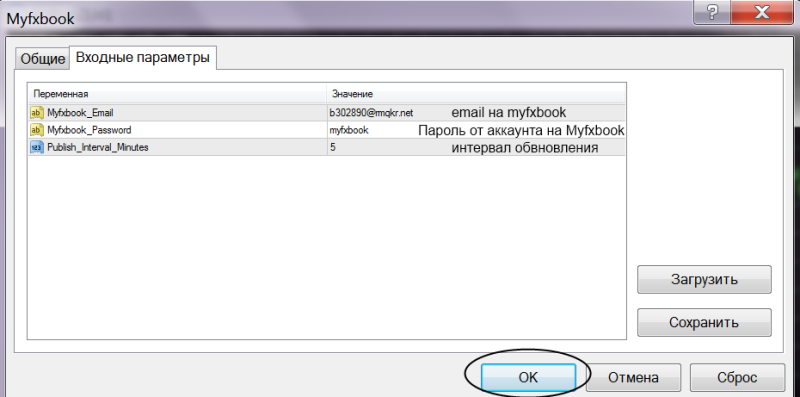
If the monitoring appeared but the connection status is "Pending" and does not change for more than an hour, then you need to delete the monitoring and attach the expert advisor to the chart again.
An important nuance when connecting an account to MyFxBook through an expert advisor:
In order for the monitoring to update, the terminal must be running.
In order for the monitoring to be updated, the terminal must be turned on.
How to remove monitoring from MyFxBook

2) Find the needed account, click "Edit".
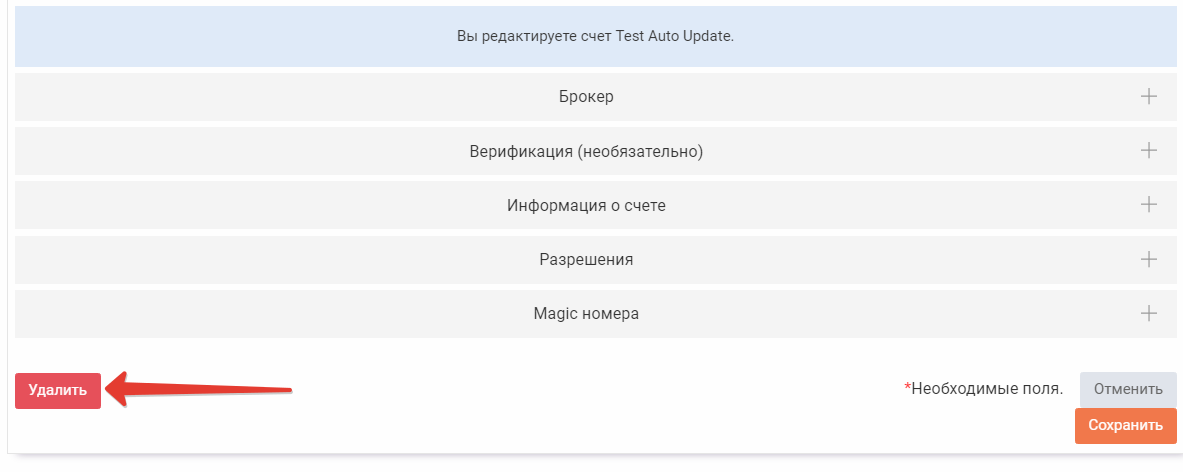
3) Find the "Delete" button. Click it and confirm by entering your account password.
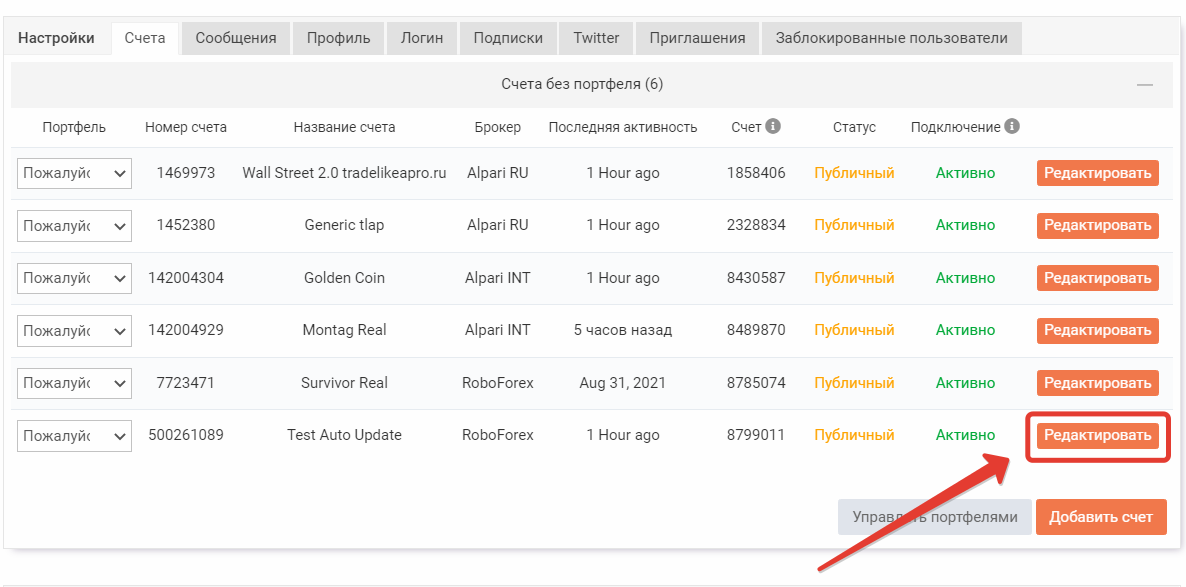
3) Find the “Delete” button. Click and confirm by entering your account password.
Connection via Auto Update (MT4)

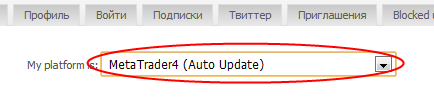
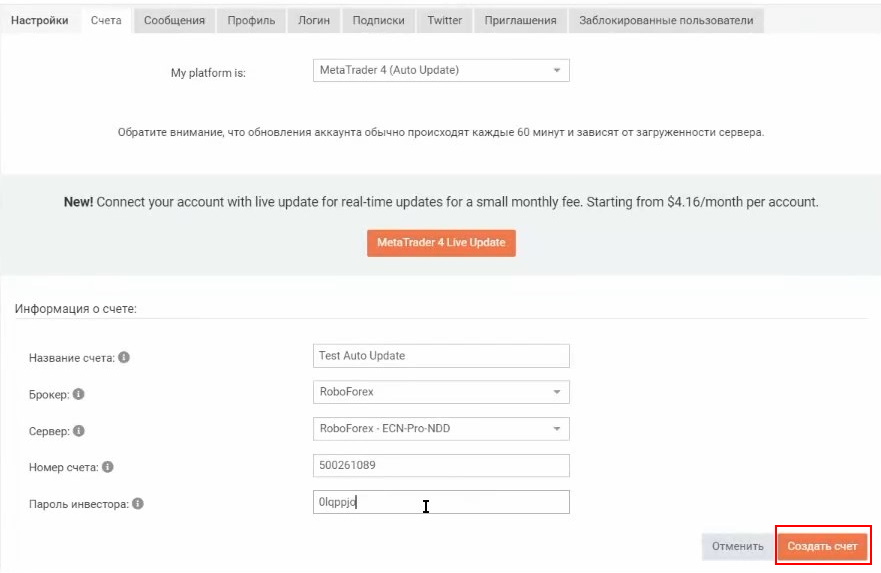
1) Select "Metatrader4 (AutoUpdate)":
2) Specify the account name (it can be anything, like "My System"), broker, server, MT4 login, investor password.
3) After that click "Create Account".
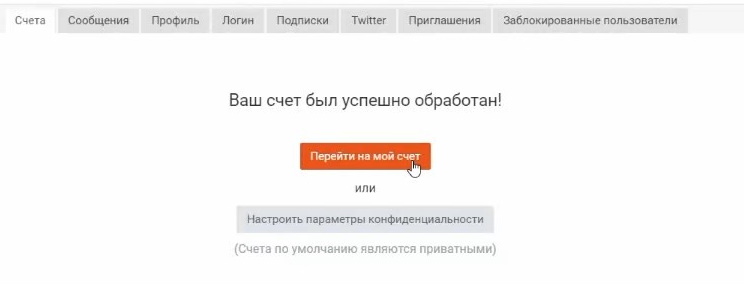
If you entered the correct login/password/server for the account, the system will notify you about this:
And it will offer you to choose "Go to your account monitoring" or "Set privacy settings" (by default account monitoring is visible only to you).
4) That's all, monitoring through Auto Update will be updated once per hour, even if the terminal is closed.
4) That's all,monitoring via Auto Update will be updated once per hour, even if the terminal is closed.
Connection via Publisher (MT4)

1) As with other methods, go to Profile -> Settings -> Add Account.
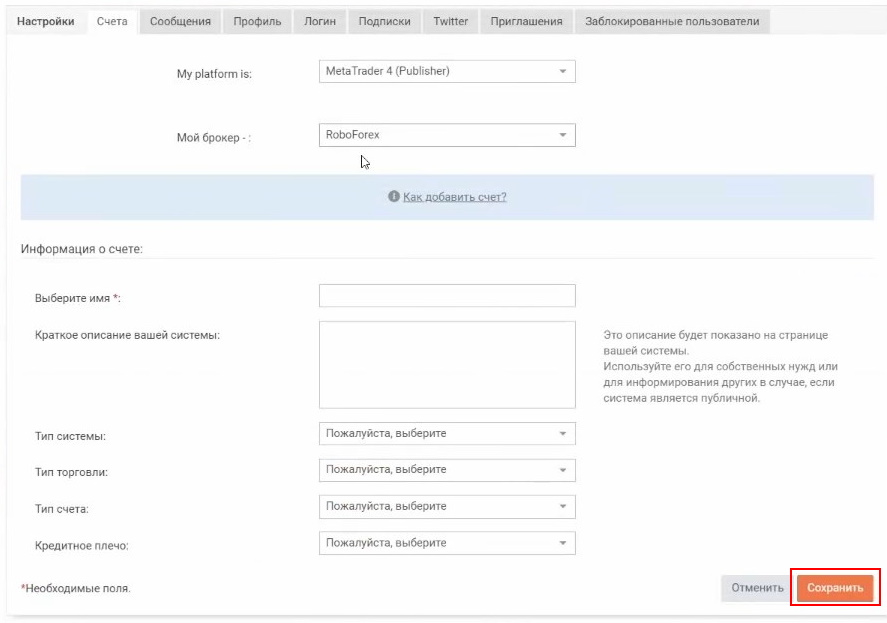
2) Choose the Metatrader4 (Publisher) platform, specify everything requested. Click the "Save" button at the end of the page.
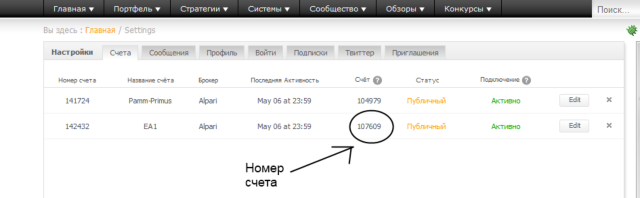
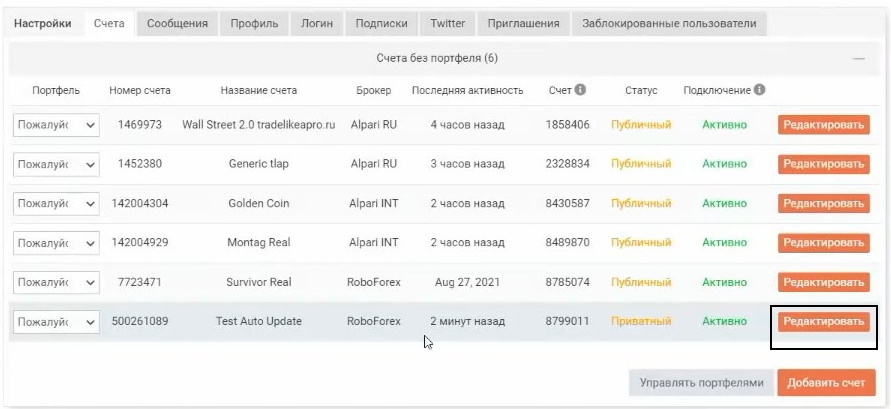
3) Go again to the "Settings" page, find our new account and remember its number.
4) Open the MT4 terminal (logged into our account for monitoring), click Service->Settings->FTP and enter the data as in the screenshot below.
5) Click Test.
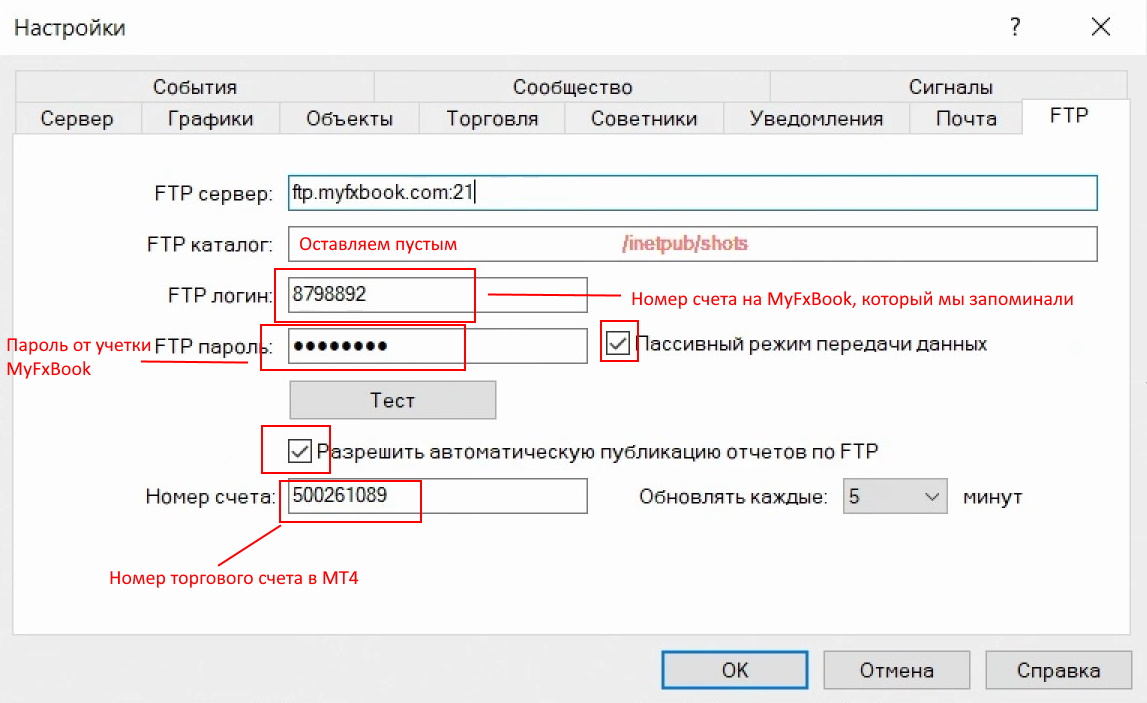
If everything is filled in correctly, a message will appear as in the screenshot above.
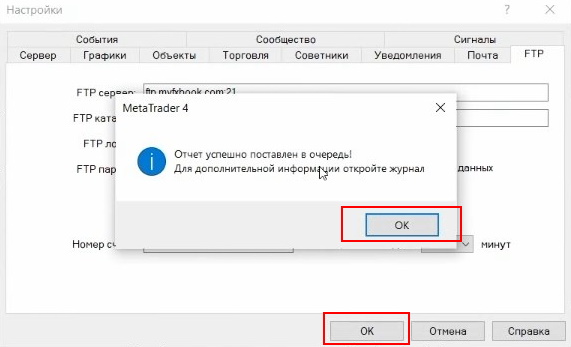
Click Ok 2 times.
In 10-30 minutes the monitoring of our account will update on the MyFxBook website.
When connecting an account to MyFxBook through Publisher, you will not be able to make it public.
Also, for the monitoring to update, the terminal must be running.
Also, to update monitoring, the terminal must be turned on.
How to make monitoring public?

1) Go to "Settings" to see the list of created monitorings. Opposite the required account, click "Edit".
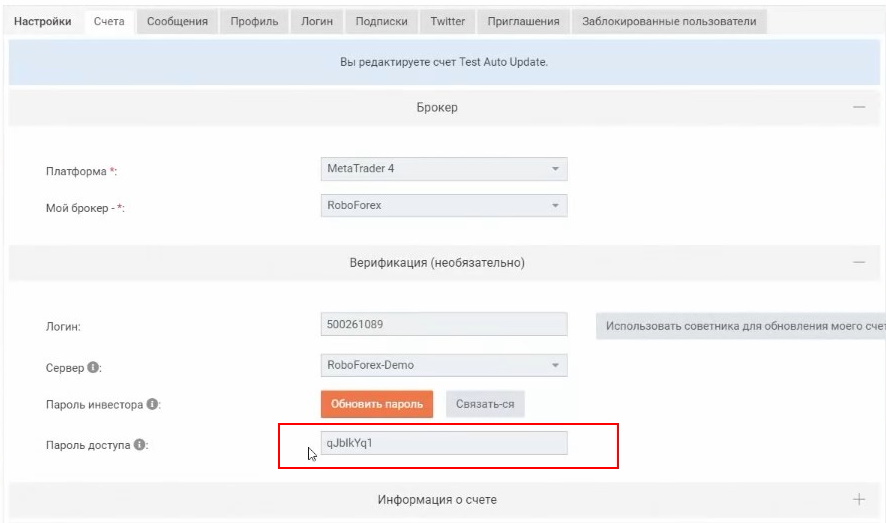
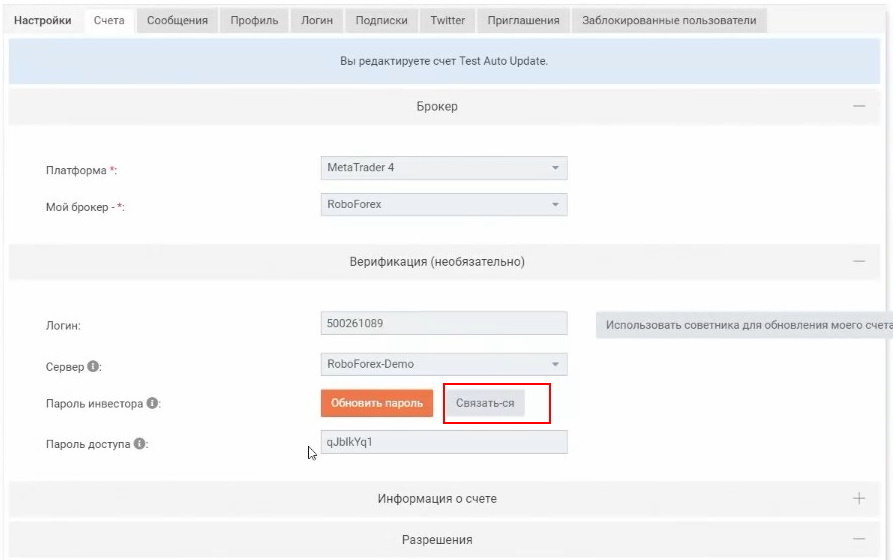
2) In the "Verification" section, find the "Access Password" field. Copy the password and go to MetaTrader 4.
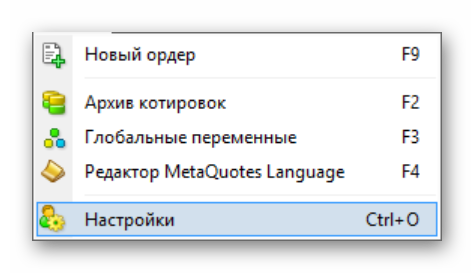
3) Go to "Service" - "Settings" and choose the "Server" tab.
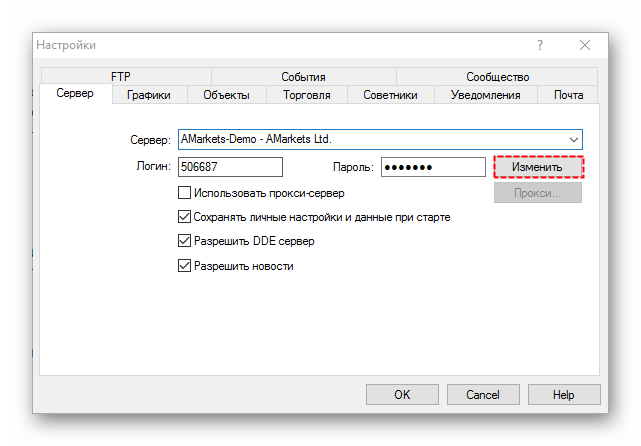
4) Opposite the login and password fields, click "Change".
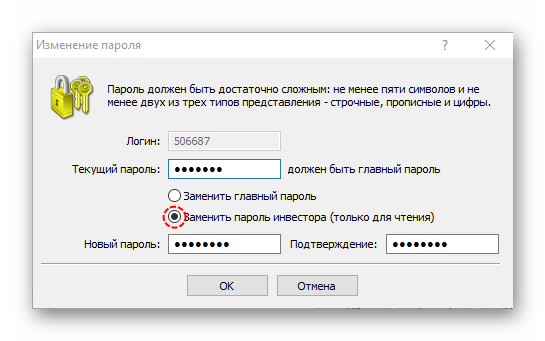
Here enter the current (trading) password for the account and check the box "Change investor password". Below, enter the new password (generated by myfxbook) and click "OK".
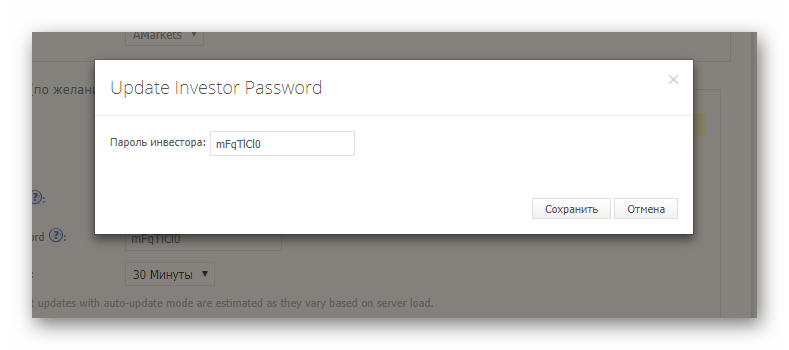
5) Now you need to update the investor password in the myfxbook settings. Return to the site and click "Update Password". In the field, specify the same generated password.
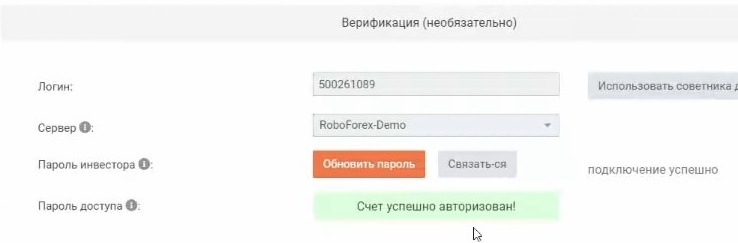
To initiate the connection to the account, click "Connect".
In case of success, the message "Account successfully authorized!" will appear.
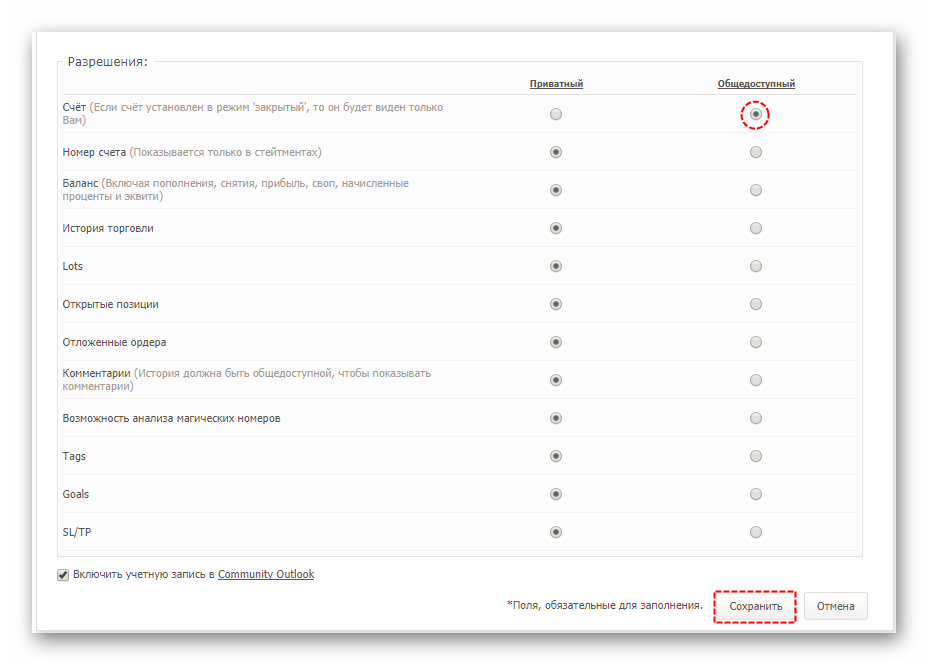
6) Now refresh the page - you will have the option to make the account public. To save the settings, click "Save".
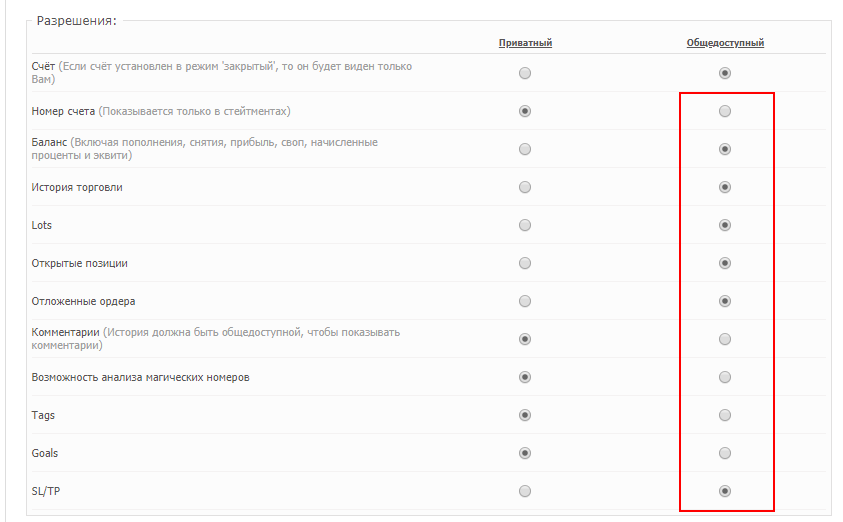
So that others can see open positions, the trade history, etc. in your monitoring, do not forget to check the additional boxes:
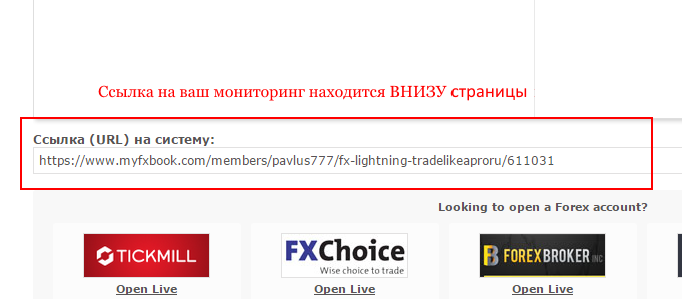
P.S. If you copy the link from the browser to the page of your monitoring, it will give an error for other people. The correct link to your monitoring is located at the very bottom of the page with it.
P.S.If you copy the link from the browser to your monitoring page, it will throw an error for other people.The correct link to your monitoring is at the very bottom of the page with it.
How to update monitoring (if it has stopped updating)
To do this, go to the account settings and in the "Verification" tab click the "Connect" button.
In a couple of minutes the monitoring will update.
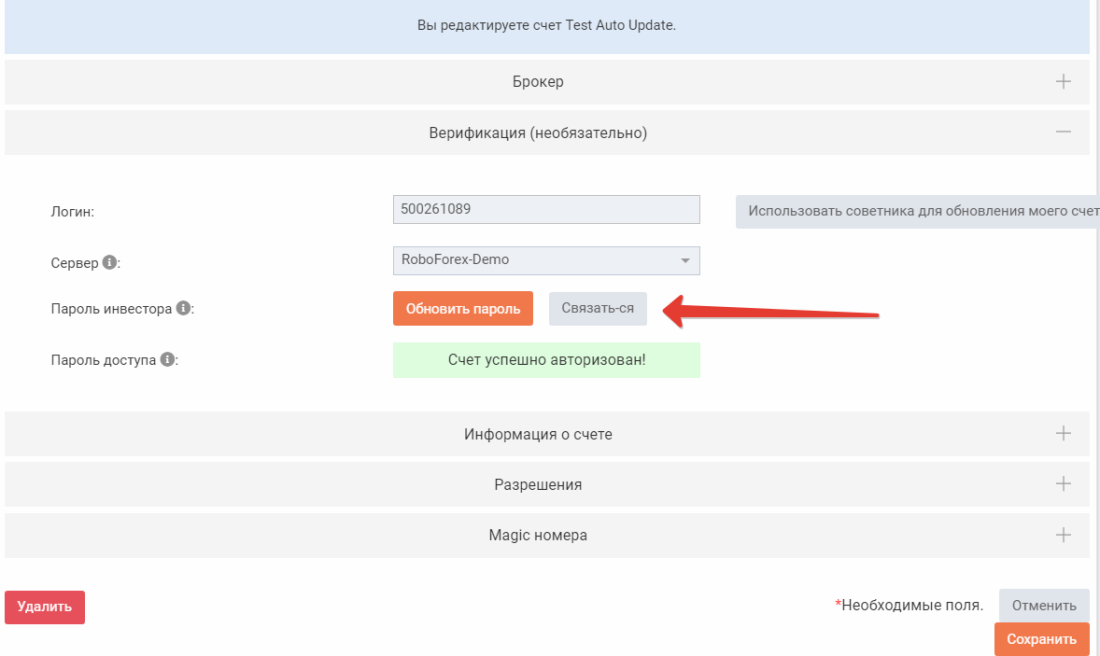
Just do not press this button too often, because after a certain number of presses it stops responding altogether... and only deleting the monitoring will remain.
This method works only when the account is connected through Auto Update.
This method only works when connecting an account via Auto Update.
Conclusion

Best regards, Pavel Vlasov
Tlap.io
Best regards, Vlasov Pavel
Tlap.io