How to monitor your account on FX Blue
 Hello, dear friends, Forex traders !
We all know how important it is to keep track of the statistics of our account. And for many years, the MyfxBook service helped us with this. However, recently the excessive abundance of advertising, technical problems, and annoying offers to subscribe to some signals have made MyfxBook not the most convenient place for monitoring your accounts. Today we will look at an alternative - the FxBlue service.
Let's see how to set up monitoring there, compare it with MyFxBook, and choose what is better.
MyfxBook - less great....
Myfxbook provides more detailed indicators for analyzing trading results, and also makes it possible to share statistics with other users and earn from social trading.
Despite these advantages, the service has turned into a billboard for advertisements. The requirement to disable ad blockers has turned a convenient monitoring tool into a supplier of unexpectedly popping up endless broker offers.
Therefore, we suggest considering an alternative option for automatic analysis - the FX Blue service, familiar to many traders under the mt4i.com brand. It changed its name after the start of active cooperation with other platforms. On the site you can keep statistics of trades from terminals: FXCM TS2 (Vertex FX), MT4, MT5, cTrader, Oanda fxTrade, xOpenHub.
Registering an FX Blue account
Registering an FX Blue Account

The process of registering an account with the connection of a trading account can be done in two ways:
The process of registering an account with connecting a merchantaccountscan be done in two ways:
- Automatically synchronizing the account with FXBlue through the broker's server;
- By downloading and installing the advisor in the trading terminal.
Below we will consider both account connection ways.
Below we will consider both methods of connecting an account.
An easy way to connect your trading account to the FXBlue service

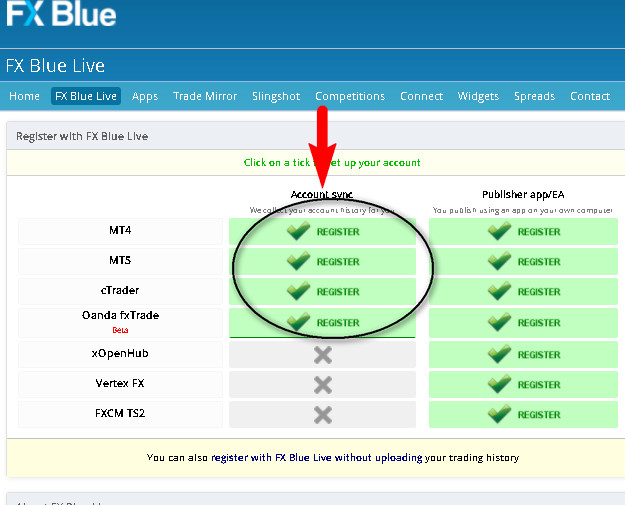 On the page that opens, fill in the data:
On the page that opens, fill in the information:
- Account number;
- Investor password (a reminder: never enter your trading password!).
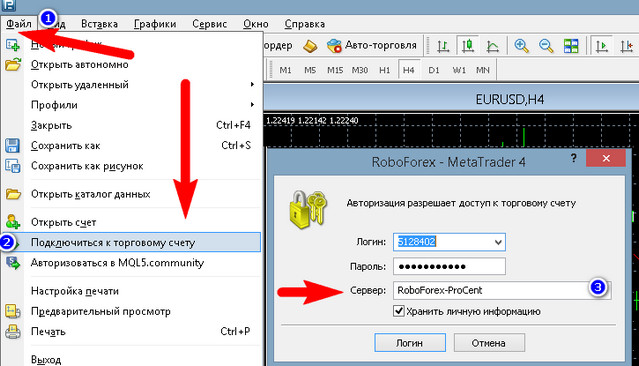
- Account number;
- Investor password (reminder: never enter your trading password!).
At the bottom of the page, specify your e-mail and agree to the service rules available via the Terms & Conditions link.
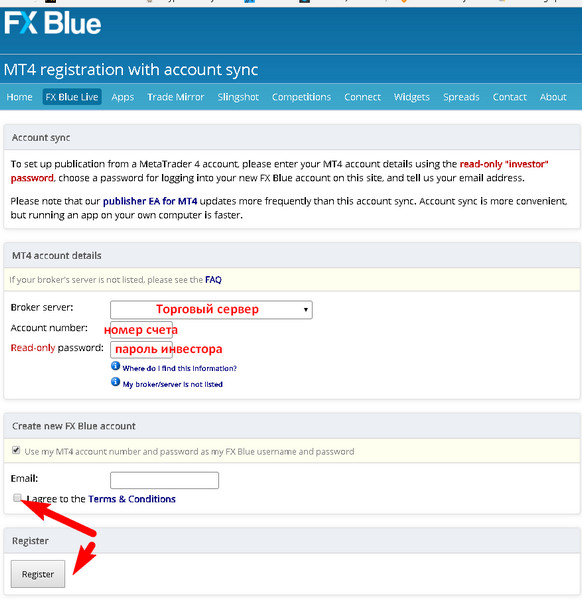 To finish the registration process, you need to confirm the address by clicking the link in the FX Blue e-mail you received. This reminder will "pop up" at the next registration stage; there you can also set additional account protection with a PIN code or close access by "sharing" it only with a certain circle.
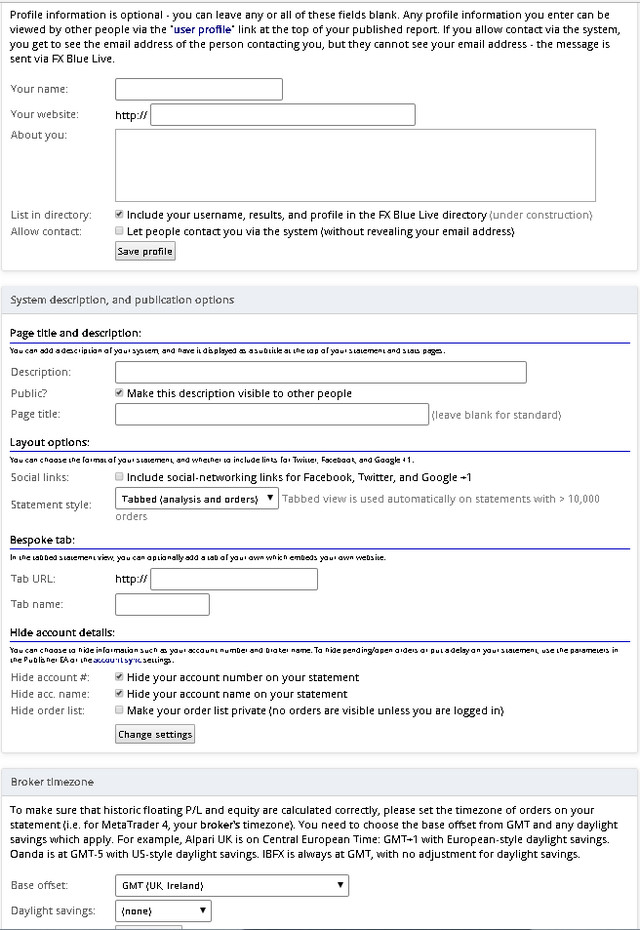
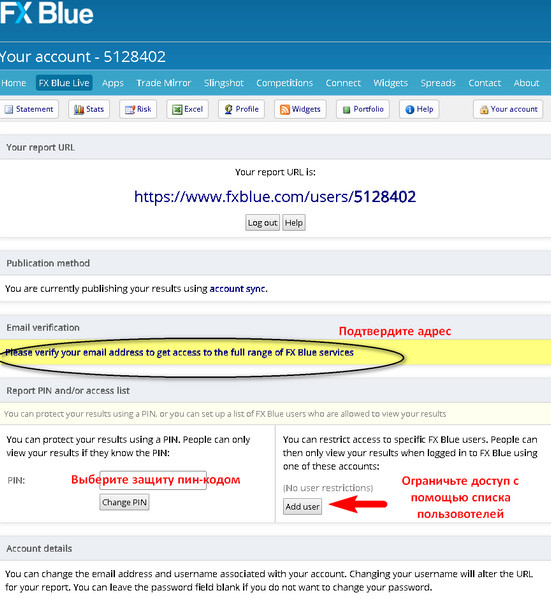 Below are the account display settings, where you can change the password, place a short description of the strategy, link to social media profiles or your own site, etc.
Below are the account display settings, where you can change the password, post a brief description of the strategy, link links to profiles on social networks or your own website, etc.
Transferring trading account data to the FX Blue service using the Advisor

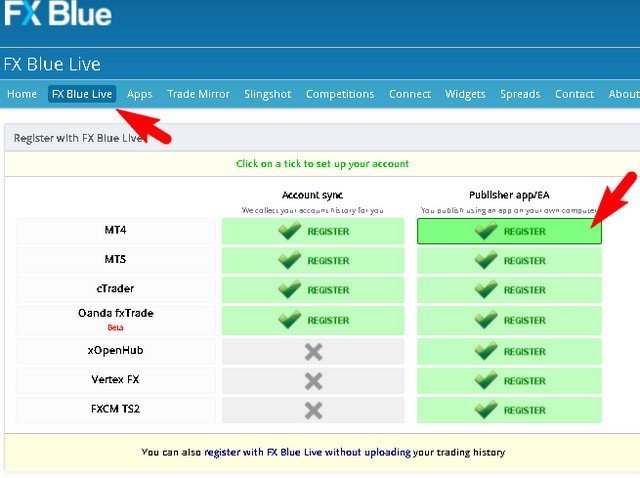 After clicking the cell with the type of trading terminal used by the user, a page will open where you need to specify a login and password. The e-mail is also specified there. Registration data for logging in can be any, not connected with the account (as in the case considered above).
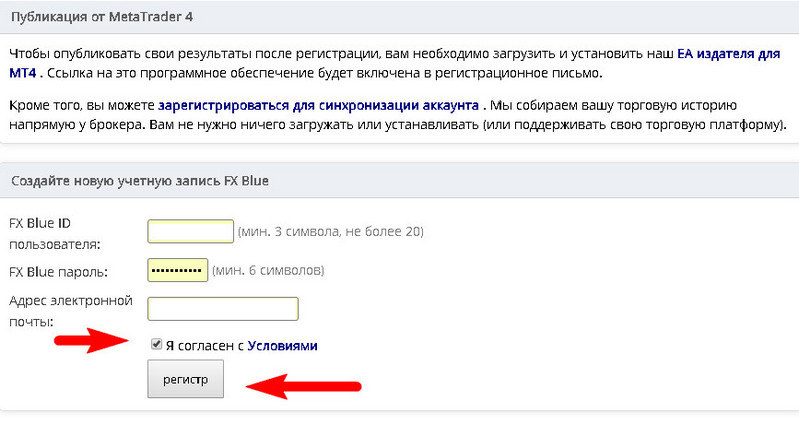 After that, an e-mail with a link to confirm the account will arrive at the e-mail address you specified. The same e-mail will also contain a link to download the software.
After choosing a login, password, and clicking the registration button, the user will be taken to the account settings page. There you can choose the type of protection, as well as link existing social media and personal website profiles. That is, all the same actions that were considered earlier.
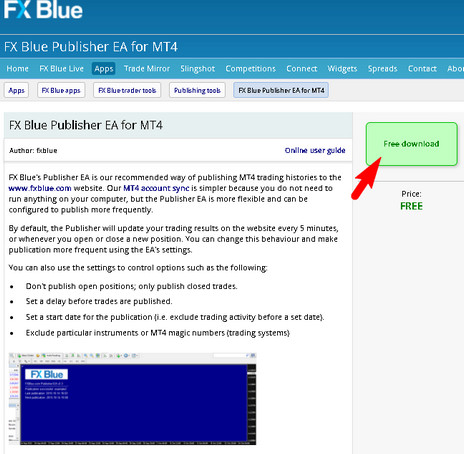
 To download the EA, you need to choose from the set of links the one that contains the name of the working platform. In our case, we choose MT4.
 The link will open a page for downloading the software. It includes a zip archive with an installation exe file and installation instructions in pdf format.
 After unpacking the archive, run the command file. The application works with only one terminal, so a trader who has several identical platforms from different brokers will have to choose one of them.
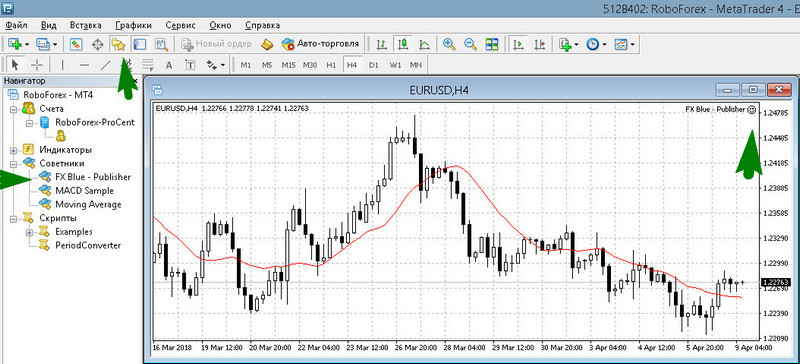
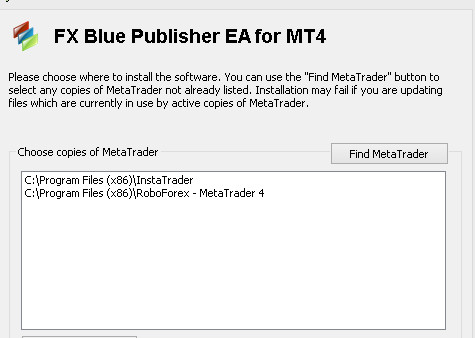 After starting the installation, the EA and libraries will be installed automatically. To find the EA, restart the terminal and use the navigator. After finding the robot in the directory tree, "grab" it with the mouse and drag it onto any chart. This will be enough to display general statistics.
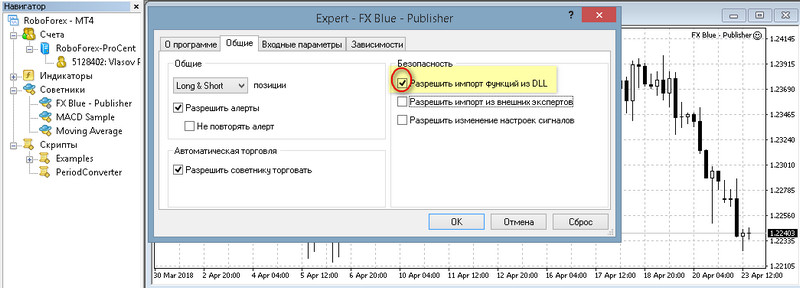
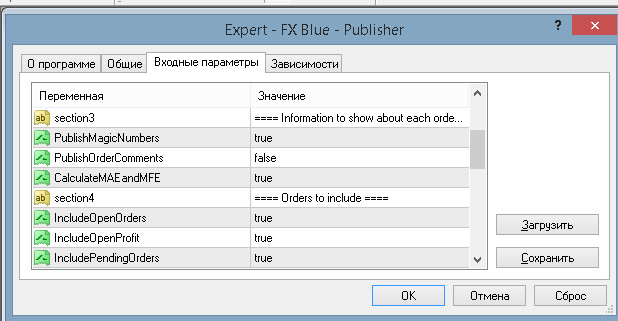
In the opened EA settings window, on the "General" tab, allow the import of DLL libraries:
For the data to be sent to the service website, specify the login and password of the open account. In this example, the account login matches the user account:
Below the login and password are fields defining the following parameters:
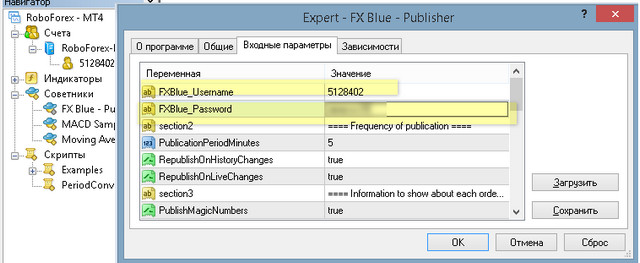
Below the login and password there are fields that define the following parameters:
- Data update frequency in minutes - PublicationPeriodMinutes
- RepublishOnHistoryChanges – mode for instantly updating information after closing a deal (true - enabled, false - updating data with a frequency of PublicationPeriodMinutes)
- RepublishOnLiveChanges - instant update after a new transaction, true/false mode works the same as described above.
Section 3 defines what data is transmitted about each trade:
Section 3 defines what data is transmitted about each transaction:
- PublishMagicNumbers is a unique order number assigned in Metatrader 4.
- PublishOrderComments — comments on the deal, if any are specified.
- CalculateMAEandMFE - complete data on closing, opening, profit, drawdown prices, etc., taking into account what will be allowed for display by the settings of the blocks located below. The false value completely hides any data about closed trades.
To make sure that the data was sent correctly, pay attention to the smiling emoticon in the name of the adviser and check the account statistics on the FX Blue website.
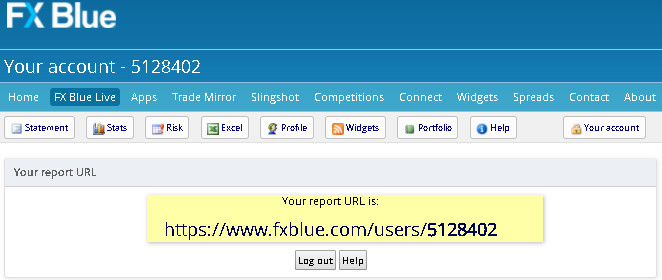
How to share account statistics, customize widgets, add other accounts

 By default, the account trading statistics for everyone are displayed in the same form as for the owner. The results are updated every 60 seconds. The statement is evaluated from the point of view of position analysis and graphical display of statistics, as well as risk management parameters. The statistics are available for download as an Excel table to visitors and the account owner.
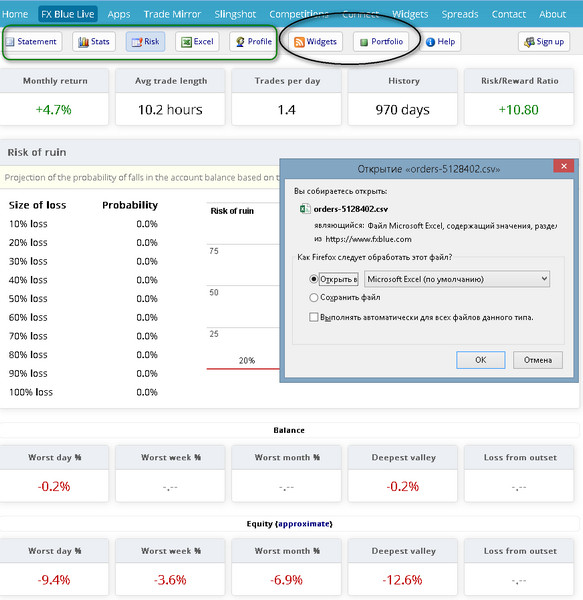 The service's Widgets tab contains codes for embedding reporting widgets on websites and forums. Visual display examples are located next to it for selection. There is also an option to configure window sizes.
FX Blue allows you to create portfolios by connecting your own accounts through the Portfolio menu. It is enough for a trader to register another account in the service, making one e-mail address common for all accounts.
FX Blue allows you to create portfolios by connecting your own accounts through the Portfolio menu. A trader just needs to register another account in the service, making one email common to all accounts.
How to add other user accounts?

Before creating a portfolio, open a separate FX Blue account for each account by going through the registration process described above, and be sure to use the same e-mail address for linking!
Accounts linked to one mailbox are displayed automatically after clicking the link in the "Other account" line.
A portfolio is created as a separate profile, so for it you need to come up with a login (in the first input field) and a name (in the second field); a description (the third field) is optional; after filling in the two fields, click the "Create portfolio" button ("Create portfolio").
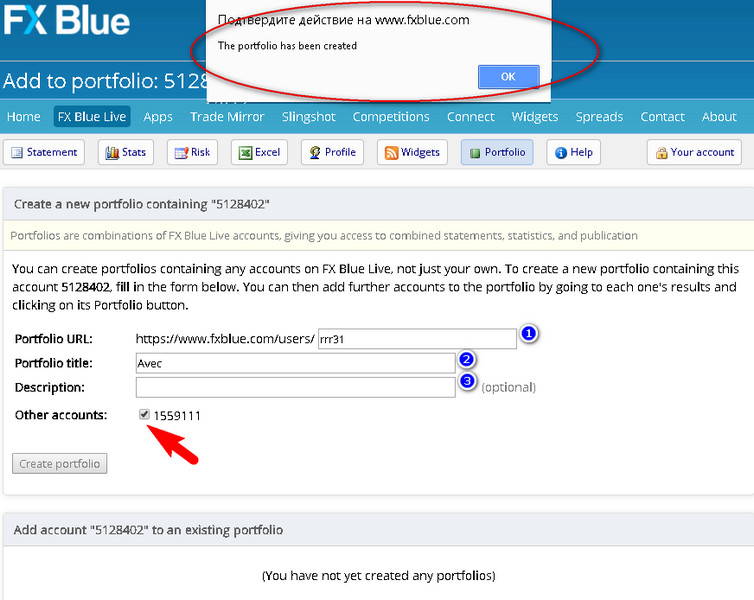 The login, with the fxblue.com/users/ prefix, will become the public link to the statistics of the created portfolio.
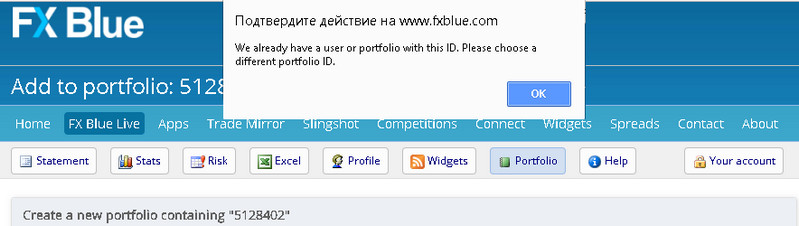
The pop-up window will confirm the success of the operation. If in the first line the portfolio name matches an existing account, an informational window with the corresponding message will appear.
 The list of created portfolios, with the ability to add new accounts, is stored at the bottom of the "Portfolio" page:
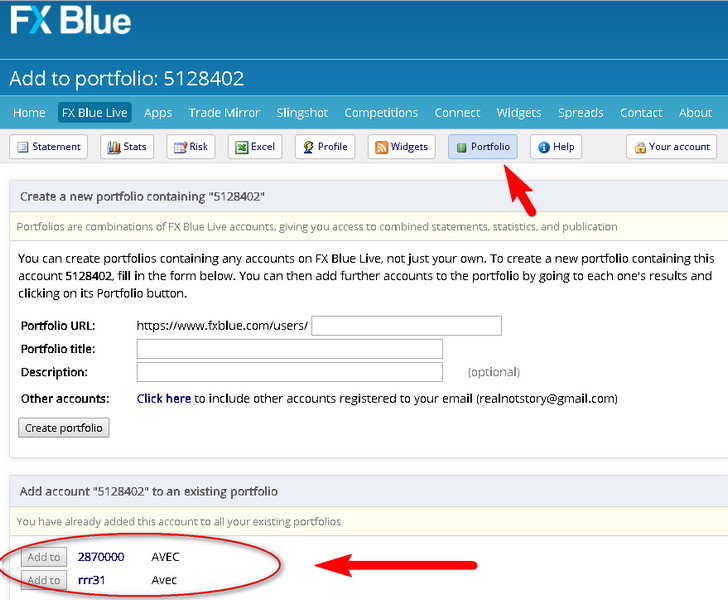 By clicking on the name, the trader will open a page where they can edit the accounts included in it:
By clicking on the name, the trader will open a page where you can edit the accounts included in it:
Statistics display settings modules

The type of display of trade statistics for third-party visitors is configured using three modules. You can get to the settings:
- When logging into your account;
- Through the far right tab “Your account” (your account).
The user can:
- Add or remove information about your own site, make a brief description available, and also allow or prohibit communication by e-mail.
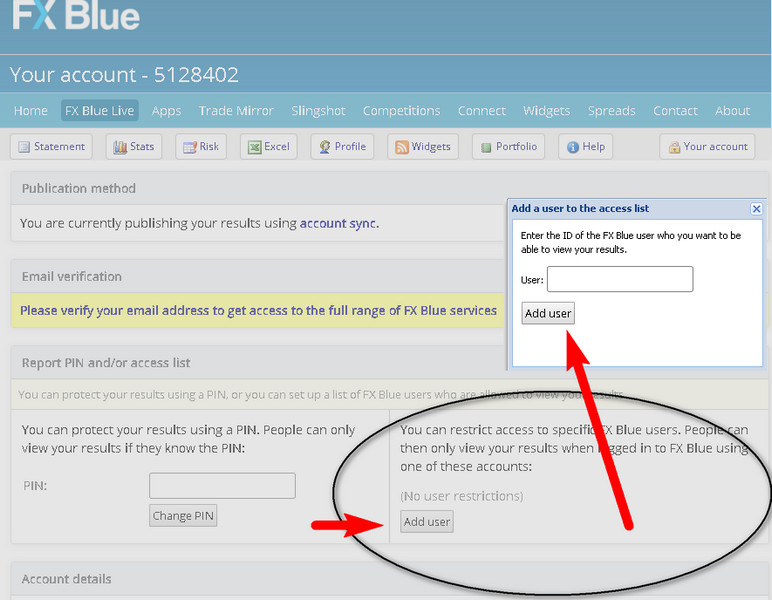
- Hide/show the account number or name, the list of orders, and links to social networks.
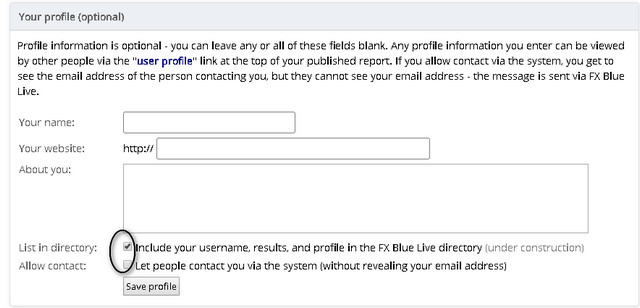
- Hide/display account number or name, list of orders, links to social networks.
Myfxbook or FX Blue?

In the first case, the user may be attracted by the large amount of statistical data; in the second, by work with various platforms, export to Excel, and the ease of connecting accounts.
Despite the English-language interface of both services, FX Blue is easier to connect. With Myfxbook it is more complicated, because the user will constantly be distracted by pop-up windows and advertising.
Statistics and analytics of trading results are the key to the "longevity" of the deposit and the guarantee of future profits, but only if the correct conclusions are taken after "working on mistakes". We hope that this instruction will help you understand the connection and use of the FX Blue service!
Sincerely, Alexey Vergunov TradeLikeaPro.ru
Best regards, Alexey VergunovTradeLikeaPro.ru