
How to Install Metatrader 4 on a Flash Drive
 Hello everyone. There are situations when a trading terminal is needed on removable media. For example, if you travel somewhere once every couple of months and take a separate "travel" laptop with you, discreetly check positions at work, or are simply afraid that someone at home will get into your terminal on the computer and mess something up. And while in older builds it was not difficult to install Metatrader 4 on a flash drive or removable hard disk, in new versions of the terminal additional actions are required. You will learn how to install the MT4 terminal on a flash drive from the video below.
How to Install Metatrader 4 on a Flash Drive?
Why is this needed? Suppose you have a computer and a laptop. So as not to install the program on them, and not to configure in it every time the color schemes, indicators, and templates that you use for trading, you can write it to a flash drive. Insert the flash drive, trade, finish trading, remove the flash drive. Everything is fine. The data has been saved and you will not have to worry about it. This method can be used, for example, to trade while visiting someone. You are not going to take your PC with you to check quotes, are you? In many situations a terminal on a flash drive can be convenient. But the thing is that while earlier old builds of Metatrader 4 could be installed on removable media quite simply, now you will need to perform several actions so that the program works and saves data on the flash drive.
First, download the terminal installation package from your broker's website. Run it. Before that, of course, you need to insert the flash drive or removable hard disk into your computer's USB port. Check in advance which drive letter it is assigned to. In my case it is removable drive D.
In the installation start window, click the "Settings" button:
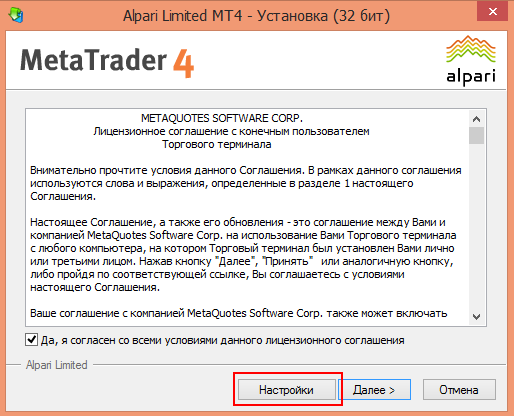
By default, the terminal wants to be installed in the "Program Files" folder.
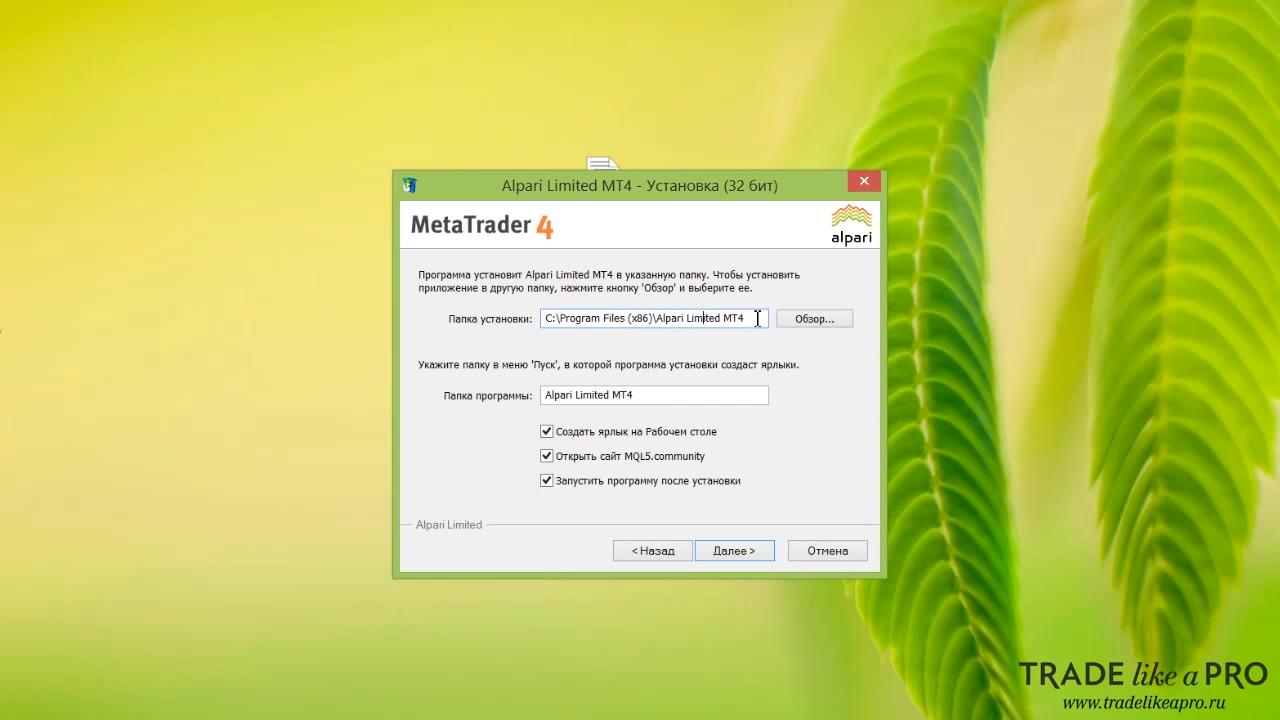
Let's change the program installation location to the removable drive. Click the browse button and find the removable drive.
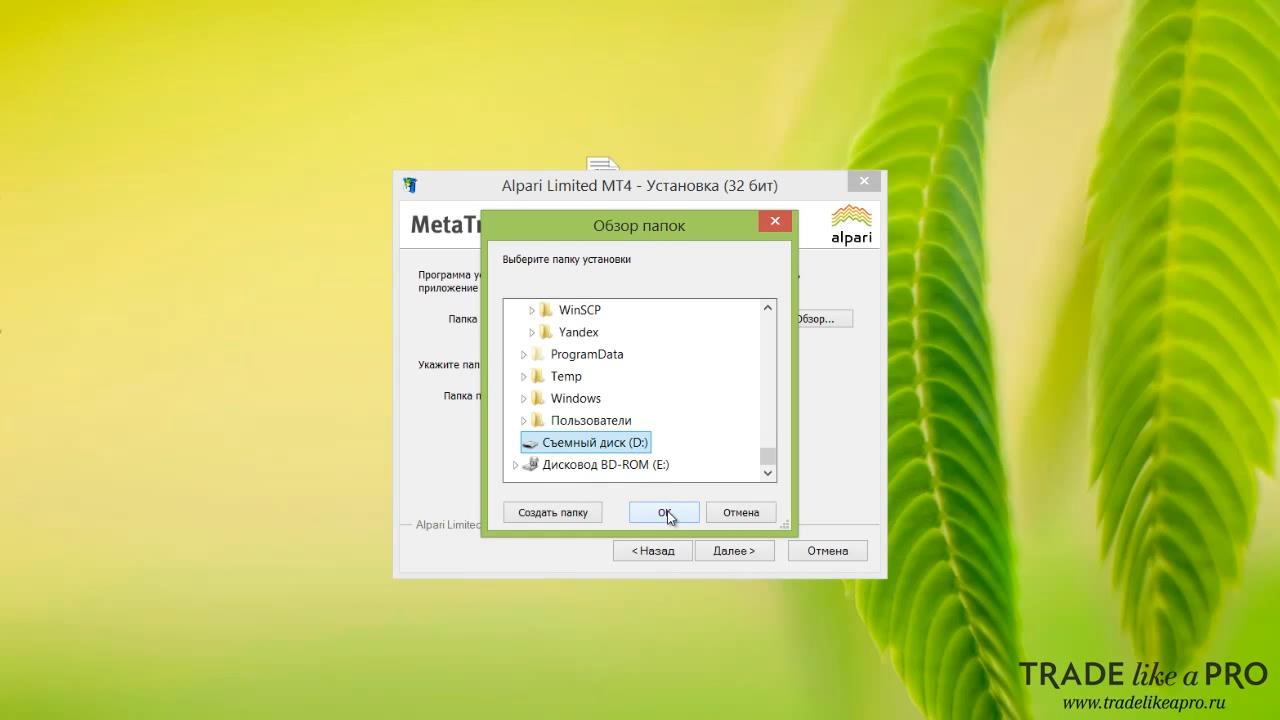
Next, create a folder for the program so that the files are not just lying around.
Click continue.
After the program has been installed on your removable drive, close the dialog window. Open the removable drive where you installed it. Then find the folder with our installed terminal. Open it and move the shortcut that appeared on your desktop into the folder with the installed program.
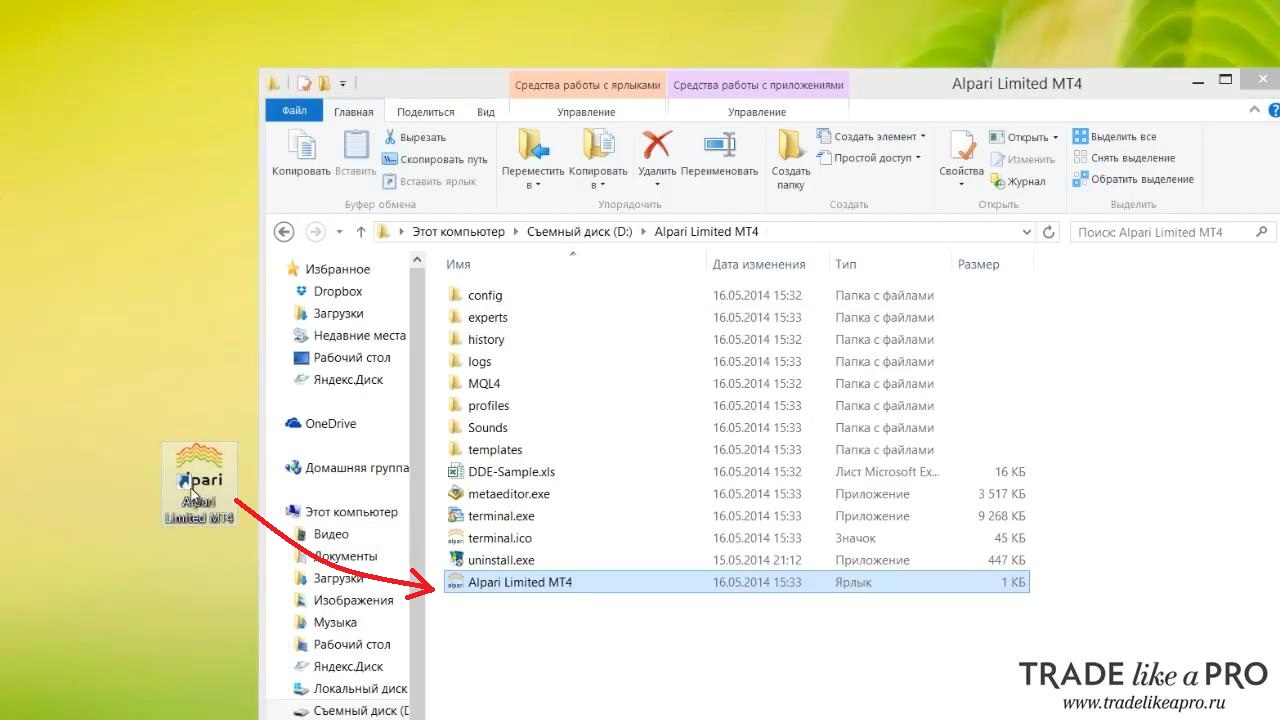
Right-click the shortcut. Select properties.
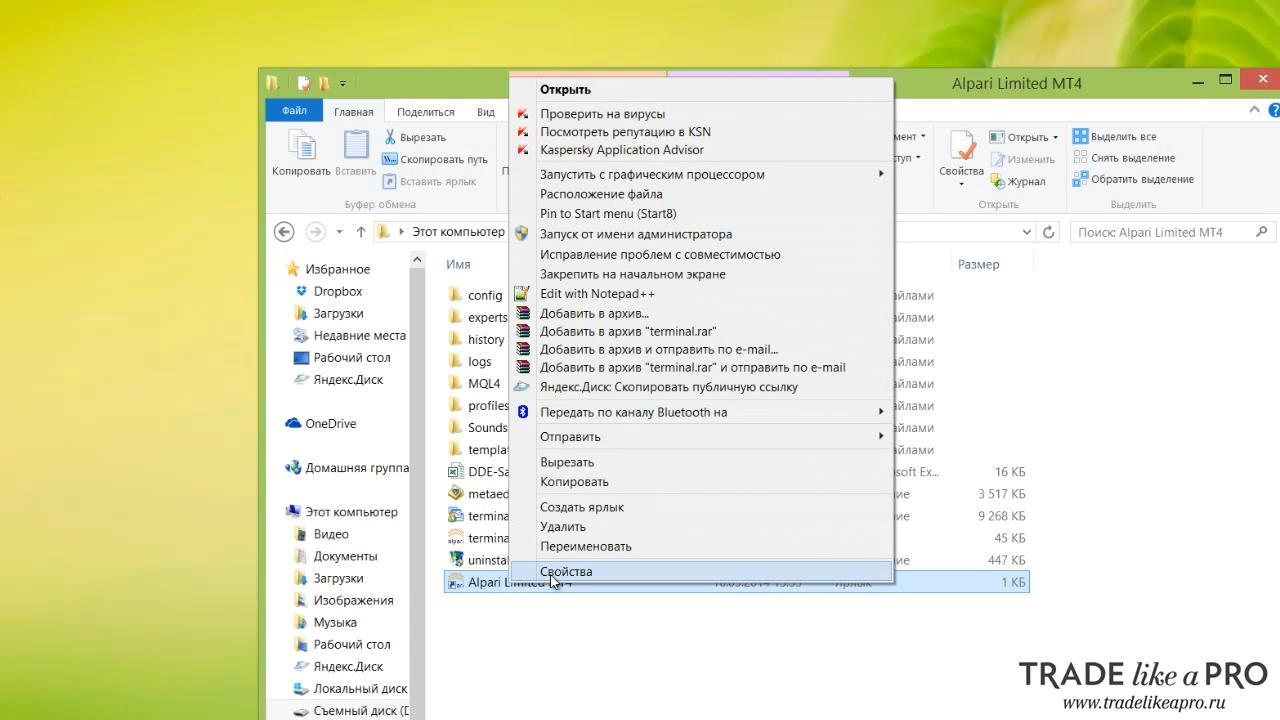
Find the target field.
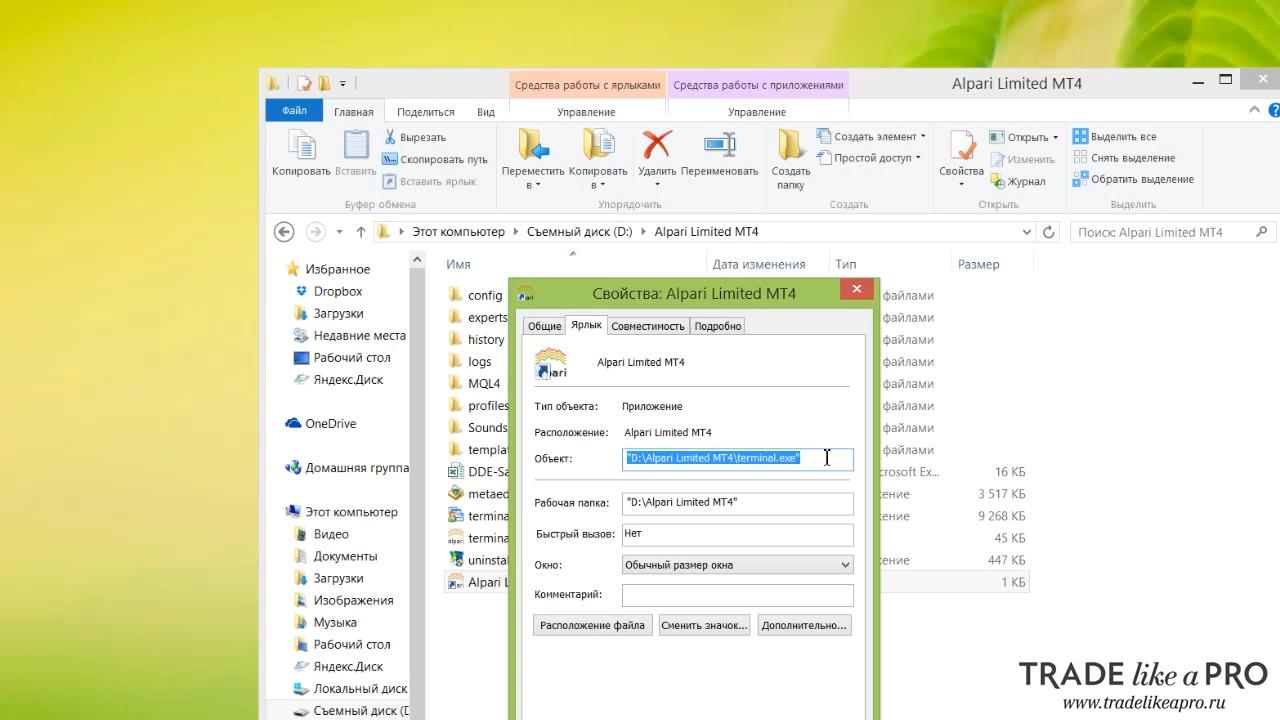
Place the mouse cursor here, press the space bar, this is important, and after the space insert the following text construction: /portable
As a result, it should look like this:
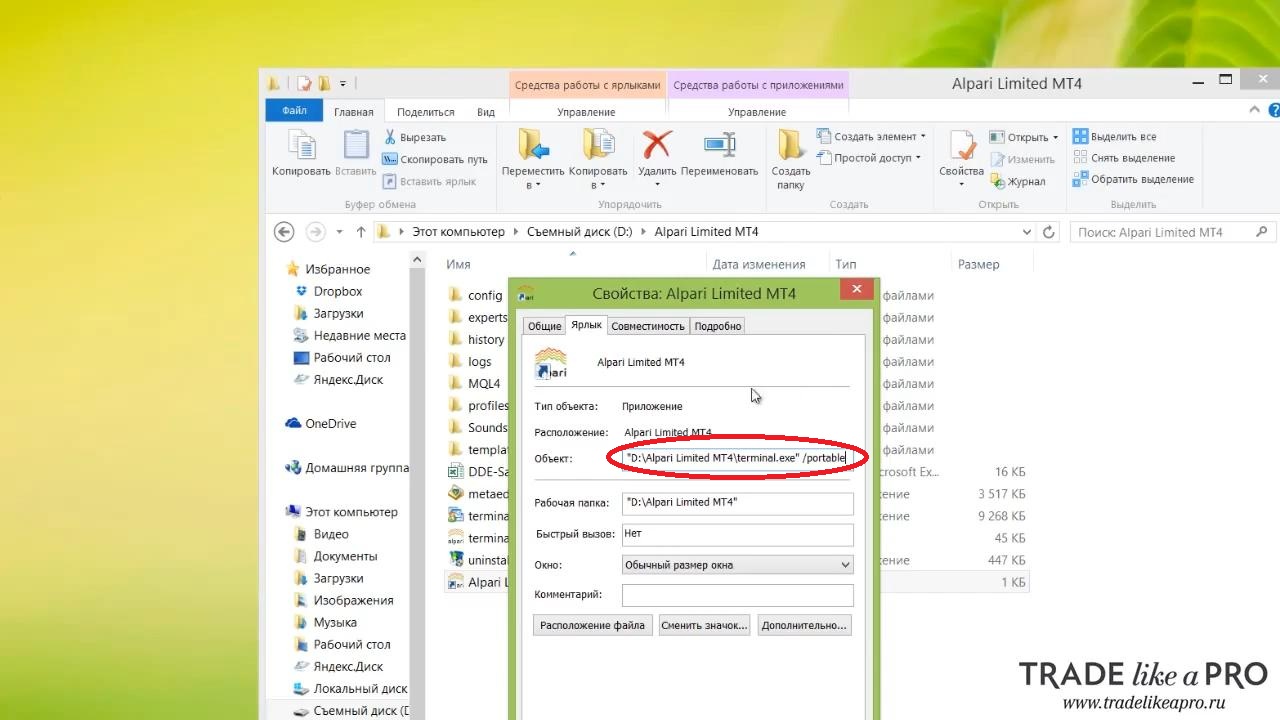
Click apply, and now we can launch the terminal. At the same time, it will save its data on the flash drive, and not somewhere in the PC documents. Remember, you need to launch not the terminal.exe file, but the shortcut whose properties we changed.
Let's Check the Program's Functionality
I opened a demo account after launching the program. The terminal started, quotes are changing, and trading is possible.
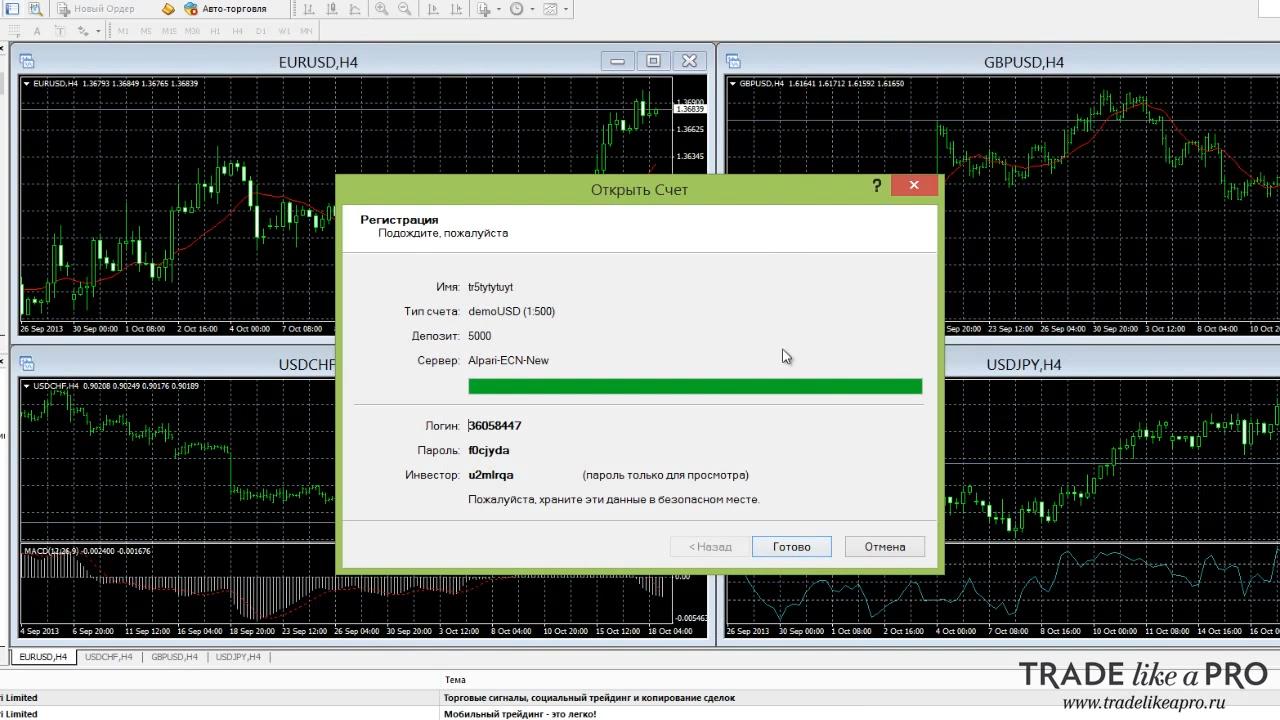
Now the most important thing. The data that we changed is saved to the flash drive. This includes additional indicators, templates, color schemes, and so on.
To check, let us try closing the terminal and installing some additional indicator. Go to the MQL4 folder. Enter the indicators folder and add Dinamic Trader Index.
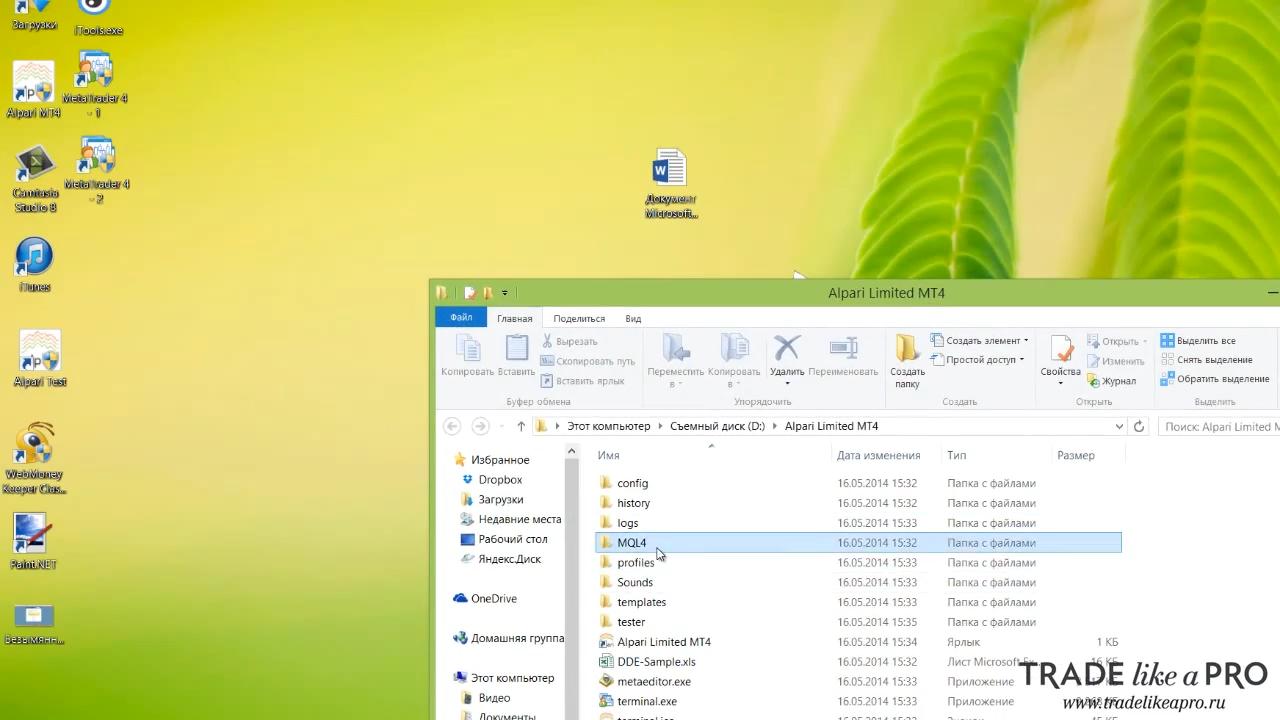
This is an external indicator. It is not present in Metatrader 4 by default. Copy it to the flash drive and go back into the program. Let us try adding our newly installed indicator to the chart. Click Insert - Indicators - Custom
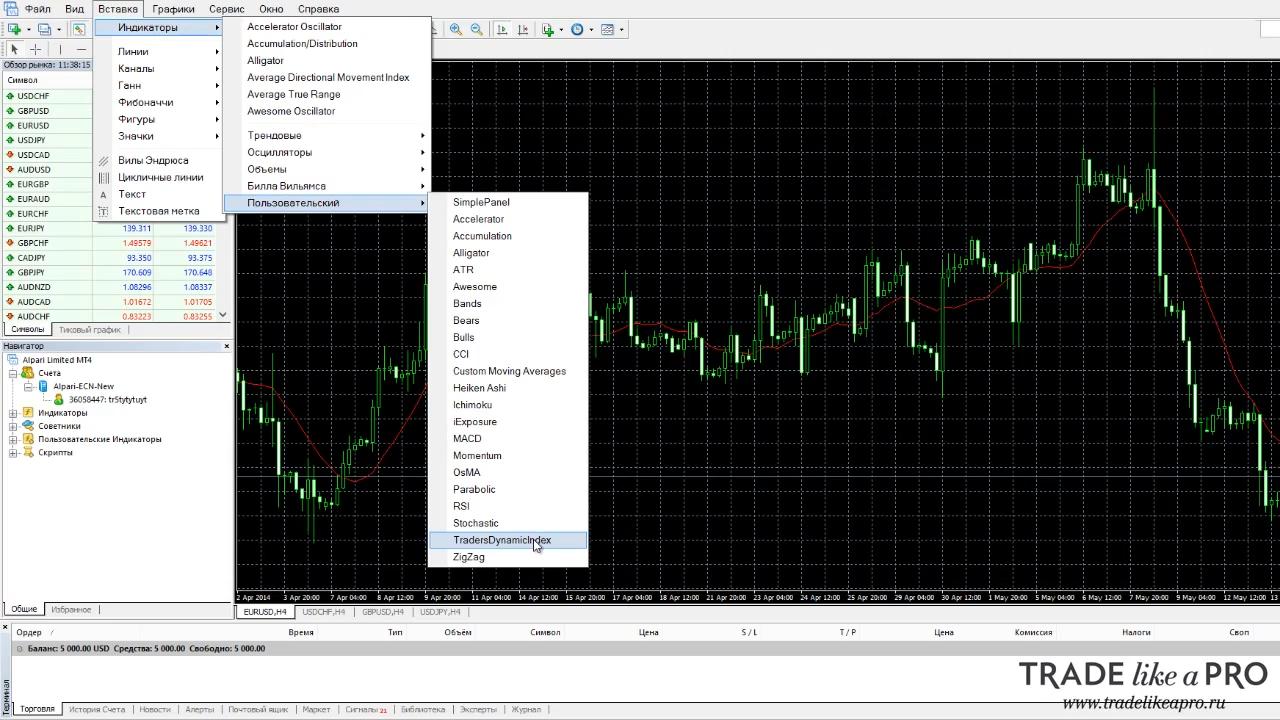
Here is our new indicator. Everything is fine. It is added to the chart. In exactly the same way, you can add expert advisors, indicators, and scripts. And all your data will be stored on the flash drive. As you can see, installing Metatrader 4 on a flash drive is very simple. Now you can use it on any PC. I hope this lesson was useful for you.
Successful trading to you!
Respectfully, Pavel TradeLikeaPro.ru
