
How to Install an Expert Advisor in MetaTrader 5

Hello, ladies, gentlemen, fellow forex traders! In this article, we will look at the topic of installing expert advisors in the MetaTrader 5 terminal.
For many people, expert advisors (in other words, trading robots) are associated with some incredible tool that can make you rich in the blink of an eye without any special effort.
In fact, an expert advisor is nothing more than an automatic algorithm. In other words, it is the same trading strategy as any other, but all trading actions are performed automatically. You do not need to open trades manually, the automatic robot does it for you. Naturally, a robot can both make money if it is based on a good strategy, and drain if the strategy is not so well thought out. Therefore, expert advisors should be treated in exactly the same way as ordinary manual systems, soberly evaluating the very idea underlying the robot.
You can install an expert advisor in MT5 either from the Market (the online store built into the terminal), or manually by downloading the robot files from the Internet.
Let us consider both options.
Installation from the Market

The standard terminal already has preinstalled expert advisors. However, these are only very basic examples, like the same advisor based on MACD or Moving Average.
All expert advisors can be found in the Experts section in the Navigator window on the left side of the terminal.
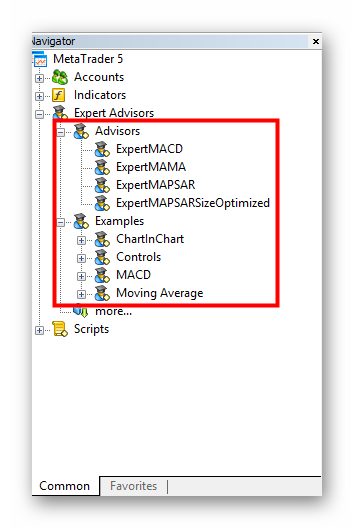
There are two ways to install an expert advisor in MetaTrader 5. The first way is installation through the Market.
- To do this, in the terminal window go to the " Market " tab. Market products are sorted into the corresponding sections:
- Experts;
- Indicators;
- Panels;
- Libraries;
- Utilities.
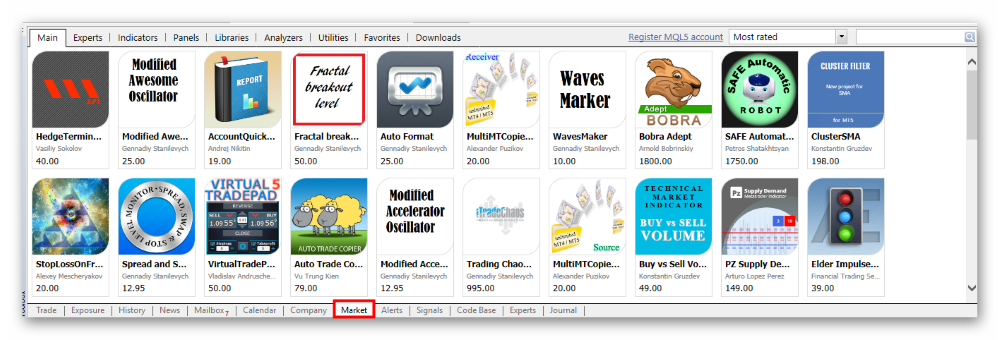
We are interested in the "Experts" section. For those who still have not understood, experts are another name for trading robots.
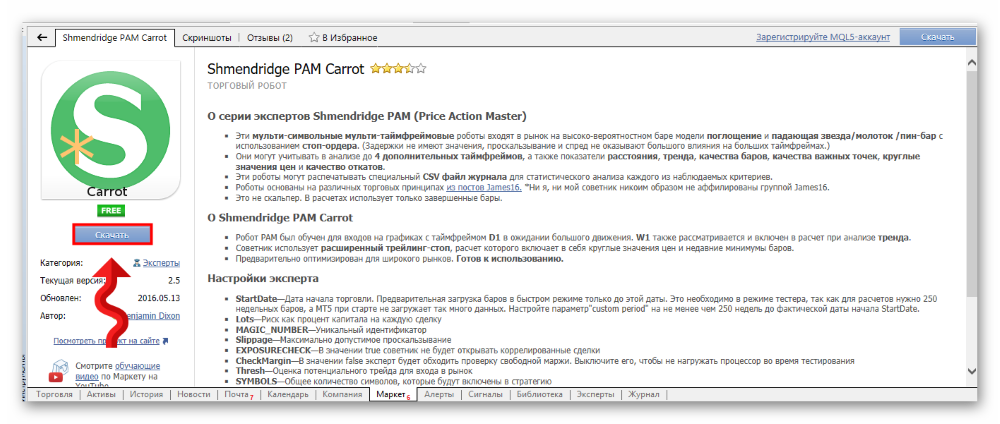
2. When you have selected a suitable robot, click on the advisor icon, then on the advisor page click "Download" to load the robot into the terminal. Before installation, read the robot description carefully. The description may contain recommendations on testing, suitable symbols, or time periods.
After you have downloaded the expert advisor, a new "Market" folder will appear in the Navigator, where all expert advisors downloaded from the store will go.
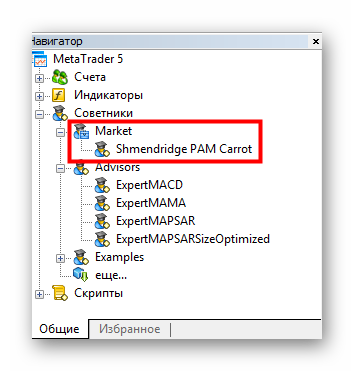
Of course, the probability that you will download another grail from the Market is zero. Most products, both paid and free, are ordinary junk. Therefore, there is no point in looking for a grail in the Market. Nevertheless, installing expert advisors this way is quite simple. You clicked "Download" and the expert advisor automatically appears in the "Market" folder.
Installing Expert Advisor Files
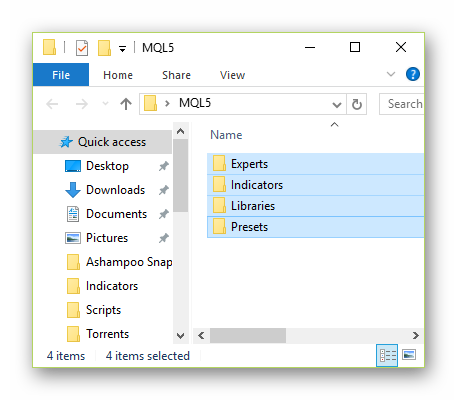
Now let us consider the situation when you need to install an expert advisor downloaded from a website or forum that is located in a folder or archive. As a rule, the archive contains the MQL5 folder and, possibly, instructions for the expert advisor. The MQL5 folder itself may contain both the expert itself and indicators, libraries, sets, and other files.
The expert advisor files may already be distributed among folders, or they may simply lie all together in a pile.
- If the expert advisor files are already sorted into folders, then open this folder, select all the contents, copy them (drag with the mouse, then press the right mouse button -> Copy)
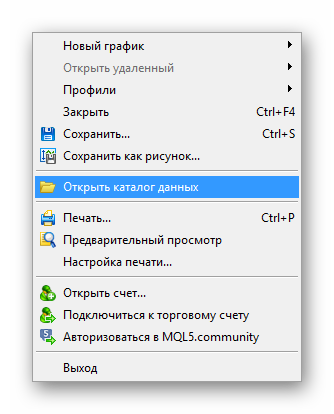
2. Next, you need to open the terminal data directory. To do this, go to MT5, then to File -> Open Data Folder.
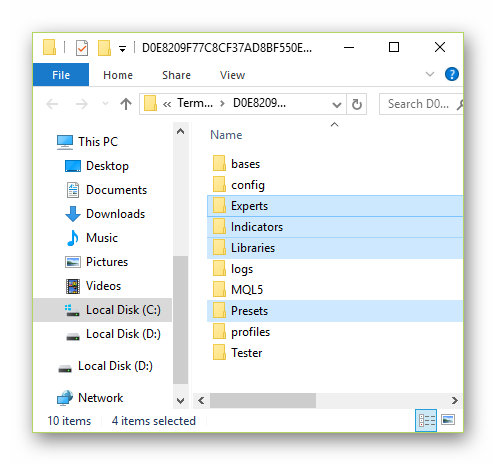
3. In the opened directory, go to the MQL5 folder and paste all the contents of the clipboard there. (Right mouse button -> Paste). Agree to merge the folders if the system asks such a question.
4. Next, restart the terminal, and the downloaded expert advisor will appear in the list of expert advisors in the terminal navigator.
However, not all expert advisors downloaded from the internet are sorted by directories.
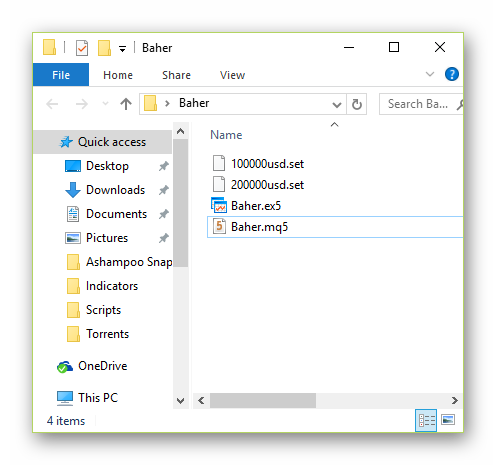
Similarly to how we did it before, open the terminal directory, only in this case we need to distribute the expert advisor files manually.
First of all, we are interested directly in the executable file of the expert advisor. In most cases, this will be a file with the name of the expert advisor and the extension ex5 - this file will be enough to install the expert advisor in the terminal.
Also, the folder may contain the source code of the expert advisor - a file with the mq5 extension. It is not needed for the expert advisor to work, but if there is no file with the ex5 extension, the mq5 file will do as well, and when the terminal starts it will be automatically compiled into ex5. If the folder contains both files, then copy both files at once.
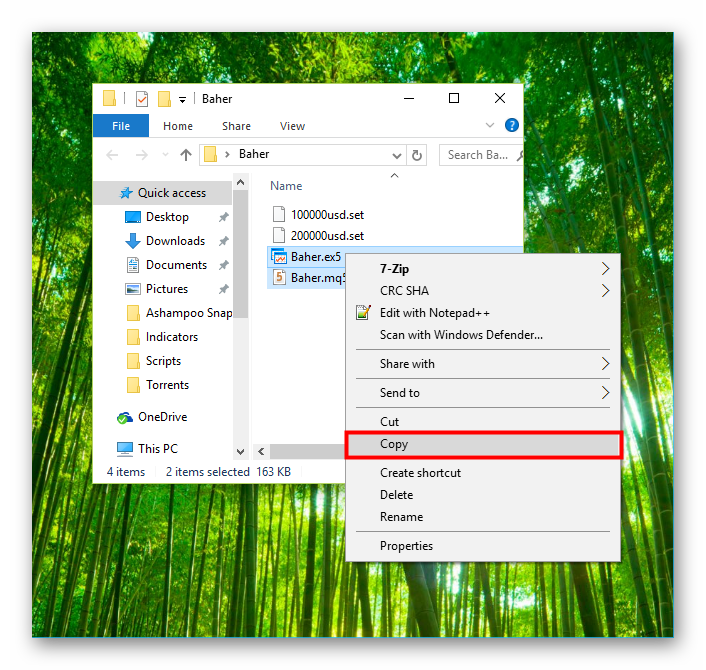
Next, paste the copied files into the Terminal Data Directory - MQL5 - Experts - Advisors.
Also, together with the expert advisor there may be library files with the dll or dat extensions. Copy these files as well, and move them to the MQL5 - Libraries folder.
Also, sets of optimal settings in the form of set files (the set extension) often come with the expert advisor. If such files are available, they can be copied to the MQL5 - Presets folder. If there is no such folder, you can create it manually using the context menu Right mouse button - Create New Folder.
The package with the expert advisor may also include additional indicators. Indicators have the same extension as expert advisors. Copy these files as well, if available, to the MQL5 - Indicators folder. Now restart the terminal, and all installed expert advisors should appear in the corresponding navigator directory.
Terminal setup

Before launching the expert advisor, you need to make some terminal settings.
To do this, inside the terminal go to Tools - Options and select the "Expert Advisors" tab. Here you need to check the box next to "Allow algorithmic trading" and "Allow DLL imports". Also, if the expert advisor needs access to some website, additionally check the box next to "Allow WebRequest for the following URL", and enter the required address in the field, starting with "http://".
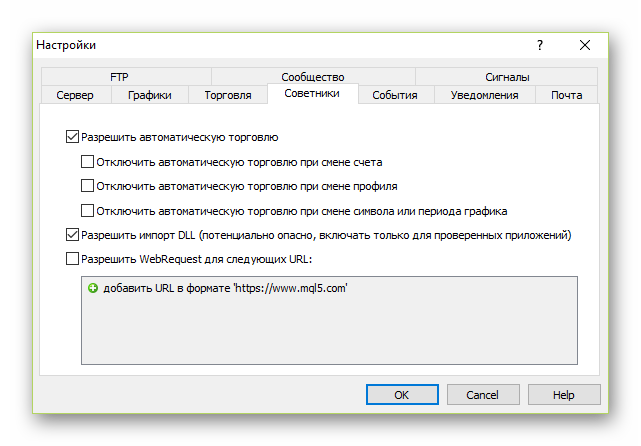
Also, you need to allow auto trading on the terminal toolbar. Otherwise, the expert advisor will not trade. Just click the button so that it turns green.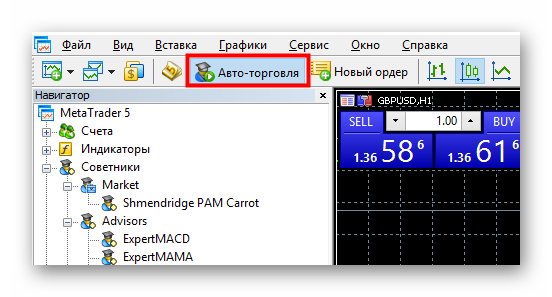
Installing the expert advisor on the chart

- We proceed to install the expert advisor on the chart. First, open the chart of the currency pair needed for the expert advisor and set the required timeframe. As a rule, the description of the expert advisor specifies the currency pairs it works on and the suitable time period.
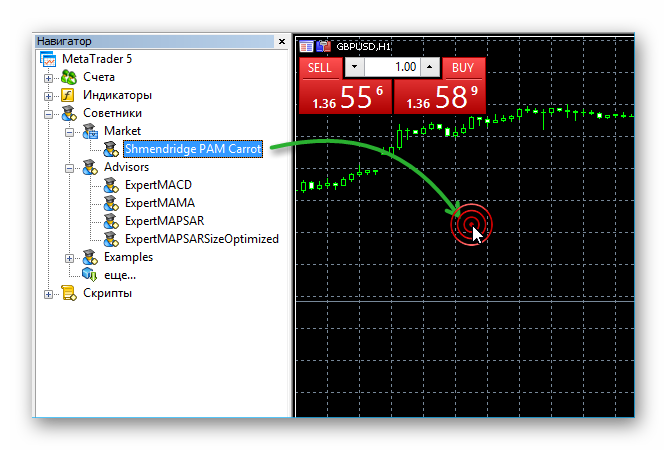
2. Next, simply drag the expert advisor from the navigator onto the trading instrument chart.
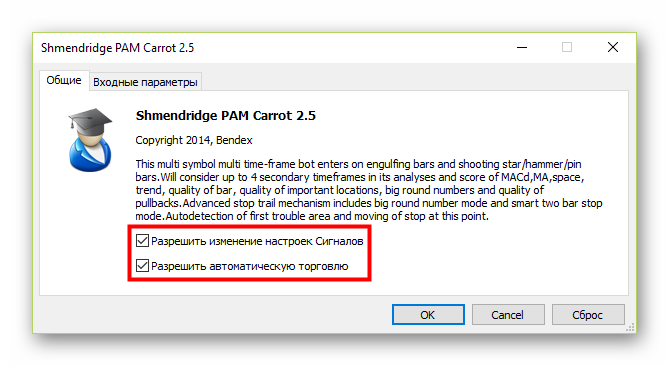
3. In the window that opens, on the "Common" tab, check the boxes if they are not already checked.
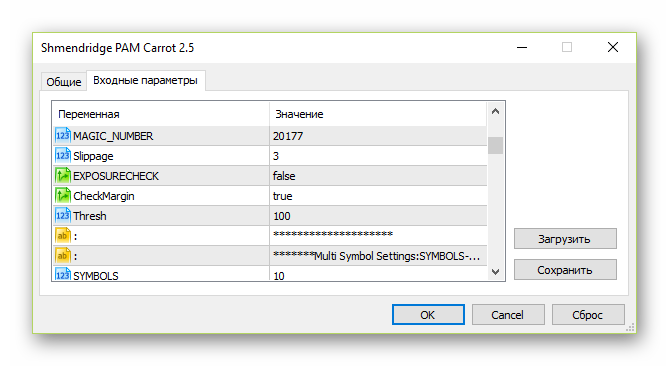
4. On the "Inputs" tab, you can change the expert advisor parameters at your discretion. As a rule, this is where the settings of the indicators used and money management are located.
You should also set a unique Magic Number for the expert advisor, if such a parameter exists. This allows the expert advisor to distinguish its own orders from orders opened by other expert advisors. That is, if you want to install two expert advisors on the same currency pair, you will need two charts and two expert advisors with different Magic Number values. In most cases, however, this parameter can be left unchanged.
By clicking the "Load" button, you can load a set of preset settings (a file with the .set extension) that we installed earlier. You can also save your own settings for future use by clicking the "Save" button. To reset the expert advisor settings to the original ones, click "Reset". After all the parameters are configured, click "OK" and the expert advisor will be attached to the current chart.
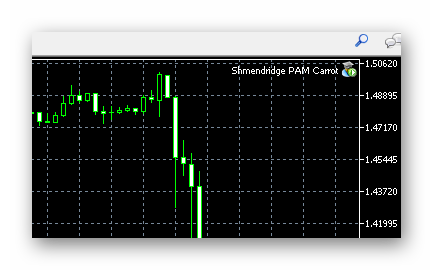
5. After that, pay attention to the icon that appears in the upper right corner of the chart. If it is green, then everything is fine and the expert advisor is allowed to trade. If the icon is red, check the terminal settings (see above)
Please note that the expert advisor is not required to open orders immediately. Some expert advisors may trade only once a week, and this is absolutely normal. If indicators came bundled with the expert advisor, it is not necessary to apply them to the chart. You can certainly do so, but it will not affect the operation of the expert advisor in any way.
However, only one expert advisor can work on one chart at the same time. If you want to launch another one, you need to open another chart for it and repeat the same procedure for installing the expert advisor on the chart.
Answers to Frequent Questions About Working with Expert Advisors
Q. I installed the expert advisor, 2 hours have already passed, and it is not opening positions. What is wrong?
A. Everything is fine. The expert advisor will open an order when suitable conditions appear. Be patient.
Q. The expert advisor closed a trade at a loss!!! I am panicking! Maybe something needs to be fixed in the settings?
A. There is no need to fix anything. An expert advisor is not a magic machine that knows where the market will go. Losing trades will happen, and that is normal. What matters to us is that the number of profitable trades exceeds the number of losing ones, and in the end the robot provides positive balance growth in the account.
Q. The expert advisor comes with indicators. What should I do with them? Put them on the chart?
A. If additional forex indicators are used in the operation of the expert advisor, they need to be placed in the Data Folder/MQL5/Indicators folder. It is not necessary to attach them to the chart; it is enough to attach only the expert advisor.
Q. Is it possible to run 2 different expert advisors on one account at once?
A. Yes, of course. A separate chart window must be opened for each expert, and under no circumstances should the MagicNumber values match.
Q. How do I run two terminals of the same dealing center at the same time? I want both demo and real to trade simultaneously.
A.You need to install the second terminal in a folder with a different name. For example, Metatrader4-2. See more details here
Q. Is it possible to trade manually on the account where the expert advisor is running?
A. Yes. The expert advisor will not touch your orders.
Q. Can I manually close orders opened by the robot?
A. You can. But be careful, not all bots respond adequately to closing an order manually. For example, after you close a trade, the expert advisor may open the same one again.
Q. I downloaded the expert advisor, but it does not test. What is the problem?
A. If the expert advisor has an AutoGmT parameter, it must be disabled and set manually to work in the Strategy Tester.
Q. Will the expert advisor work if I close the terminal or turn off the computer?
A. No. The computer and terminal must be running. As an option, you can consider using a VPS server.
Q. What if I reboot the computer and open the terminal again? Will the expert advisor continue working, or do I need to set everything up again?
A. In that case, the expert advisor will continue its work without any problems. But if a signal to open a position appears while you are rebooting the computer, the expert advisor may miss it because it was not running when the signal appeared.
Q. How can I test an expert advisor on historical data?
A. Watch the video lesson "How to test an expert advisor in MT5".
Q. My account is in rubles. What settings should I use in the expert advisor's money management?
A. The expert advisor does not know what rubles are. It will think that you have dollars in your account and open large positions. That is, if your account is in rubles, you should not use automatic money management, only a fixed lot. Or open an account in dollars.
Respectfully, Pavel Vlasov Tlap.io