
How to Install a Forex Expert Advisor - Universal Guide + Mini F.A.Q.

Help with installing, setting up, and using forex expert advisors for Metatrader 4, as well as answers to frequently asked questions about working with trading robots on Forex.
To start with: What is an expert advisor (Expert Advisor or EA for short)? A trading expert is a trading algorithm in the form of mql code.
For some reason, many beginner traders associate expert advisors with something mysterious, magical. There is no magic here, an expert advisor is nothing more than a strategy for manual trading, only automated. If a manual system is unprofitable, then no one, not even the best programmer in the world, will help, the expert advisor will trade at a loss.
Installing Expert Advisors
1. First of all, we need to download and install the Metatrader 4 terminal.
2. When downloading an archive with an expert for the first time, the user looks for an .exe file, as for installing regular programs. Usually they do not find one. Sometimes system sellers provide such a file, but all it does is distribute the files into folders. We can do this ourselves quite easily.
So, let us see what files we have available. Usually this is the expert advisor file itself (.ex4 or .mql, either one will work for trading) and some auxiliary files (indicators or libraries).
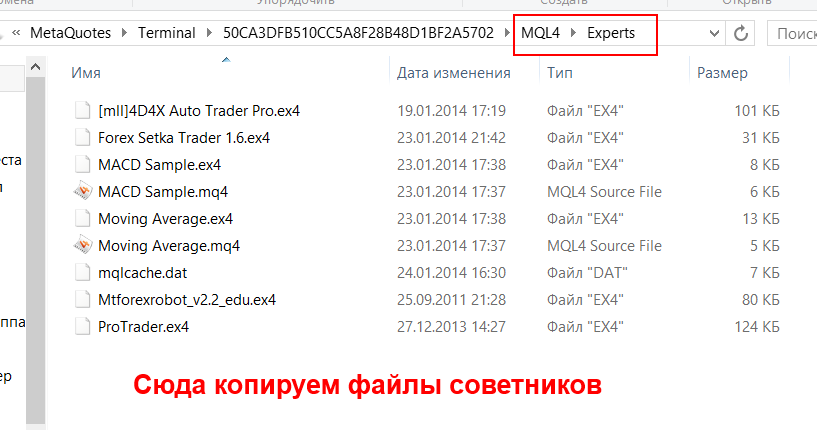
3. The expert advisor file (.ex4 or .mql) must be placed in the MQL4/experts folder in your terminal's data directory.
To get to the data directory, in the terminal click File -> Open Data Folder
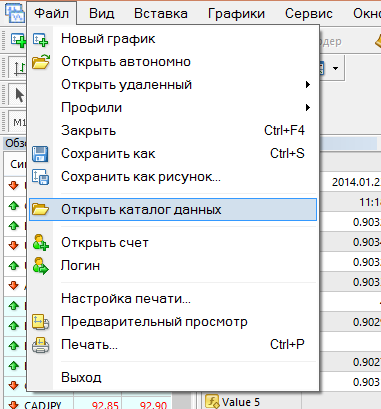 The folder will open; there we go to the MQL4 section, into the Experts directory. And we copy our expert advisor files there. Close the folder and restart MT4.
4. If there are additional files, they also need to be distributed into folders inside the Metatrader 4 data directory.
- A .dll file is a library, often included with commercial expert advisors. This file must be placed in the Data Folder/MQL4/Libraries folder.
- If .set file(s) are present (expert advisor settings templates), move them to Data Folder/MQL4/Presets.
- Sometimes expert advisors come with indicators required for the expert to work. They are provided as .ex4 (or .mql) files. Place them in the Data Folder/MQL4/Indicators folder.
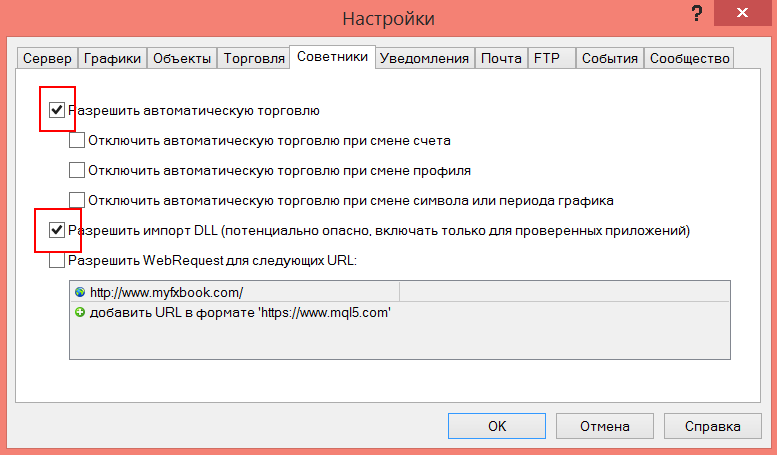
5. Open the trading terminal, go to Tools->Options
Select the Expert Advisors tab and check the boxes as in the picture below. Press OK
6. Find the window called Navigator
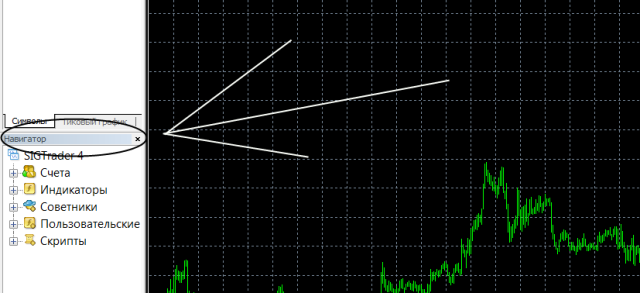 If you do not have such a window, click the button
 at the top of the terminal.
In the Navigator window, click the plus sign next to the Expert Advisors section
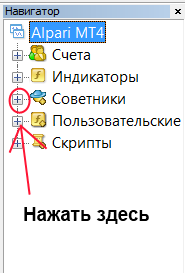
From the drop-down list, drag the desired expert advisor with the mouse onto a pre-opened chart with the currency pair and timeframe suitable for the expert to work on (usually specified in the description).
7. The expert advisor settings window appears, it looks approximately like this
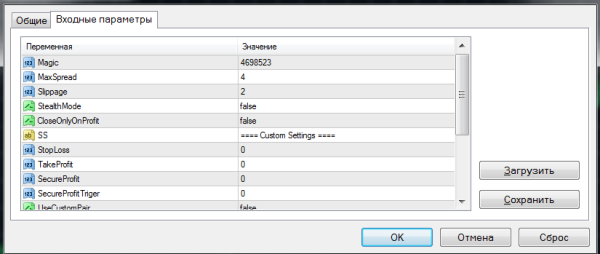
Here you can change the expert advisor parameters, for example the trading lot size. Also, if the trading expert came with a settings template file (.set), you can load this template by clicking the Load button and selecting the corresponding file. Likewise, you can save your own settings template by clicking Save.
8. After changing the settings, press OK. A smiley face will appear in the upper right corner of the chart.
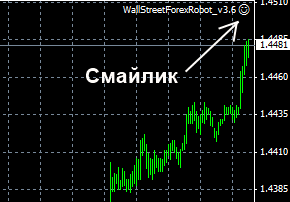
If it is smiling, then everything is fine, the expert advisor is working. If not, then on the chart with the expert advisor right-click, select Expert Advisors->Properties (this will take us to the expert advisor settings window), select the Common tab and check that the checkboxes are set as in the screenshot below
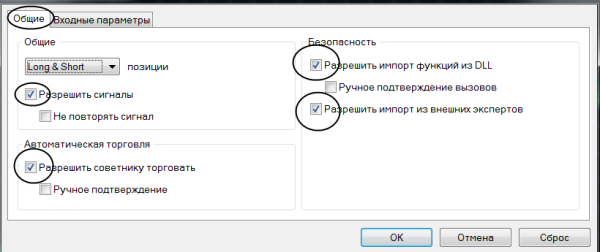 You also need to check that the button
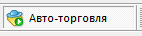
at the top of the terminal was green; if it is red, click it with the mouse.
9. Main settings.
Settings can be expressed in numbers (for example, trade lot) or as on/off.
On - enable, usually displayed as true
Off - disable, usually displayed as false
That is, if there is a choice of true / false next to some parameter, then this way we can enable it (true) or disable it (false).
Of course, for different expert advisors the description of parameters will differ greatly, but there are a number of settings that are repeated in most experts:
Lotsize - the size of the trading lot that will be used by the expert advisor.
MicroLots - on/off, trading micro lots 0.01,0.02,0.03 ....
MoneyManagement - on/off. When this parameter is enabled, the expert advisor will determine the size of the trading lot itself.
Comment - a comment for the expert advisor's orders. It is needed so that later, when studying the trade history, you can distinguish the expert advisor's positions from other orders (opened manually or by other experts).
MagicNumber - the code by which the expert advisor identifies its positions; it can be any value. However, two expert advisors on one account must not have the same magic. Otherwise, confusion with orders may arise.
GmtOffset - see How to Set the Correct GMToffset
Answers to Frequent Questions About Working with Expert Advisors
Q. I installed the expert advisor, 2 hours have already passed, and it is not opening positions. What is wrong?
A. Everything is fine. The expert advisor will open an order when suitable conditions appear. Be patient. At the same time, experts that trade very often (a big hello to Ilan) usually blow the deposit. Do you need that? Better less often, but better.
Q. I try to change the settings, but they do not change; when I open the settings again, they are the same!!!
A. You need to change the expert advisor's parameters on the chart with the attached expert advisor, not in the Navigator window.
Q. Why is the expert advisor icon in the Navigator window gray and not colored? Is it inactive?
A. It is active. This simply means that you do not have the source mql code. If you are not familiar with programming, there is no difference for you. The expert advisor will still trade the same.
Q. The expert advisor closed a trade at a loss!!! I am in a panic! Maybe something needs to be fixed in the settings?
A. Nothing needs to be fixed. An expert advisor is not a magic machine that knows where the market will go. There will be losing trades, and that is normal. What matters is that the number of profitable trades exceeds the number of losing ones, and in the end the robot gives positive balance growth in the account.
Q. The package with the expert advisor includes indicators. What should I do with them? Put them on the chart?
A. If additional forex indicators are used in the operation of the expert advisor, they need to be placed in the Data Folder/MQL4/Indicators folder. It is not necessary to put them on the chart; it is enough to attach only one expert advisor.
Q. Can I run 2 different expert advisors on one account at once?
A. Yes, of course. A separate chart window must be open for each expert, and the MagicNumber must by no means match.
Q. And how do I run two terminals of the same broker at the same time? I want both demo and live to trade simultaneously.
A.You need to install the second terminal into a folder with a different name. For example Metatrader4-2.
Q. Can I trade manually on the account where the expert advisor is running?
A. Yes. The expert advisor will not touch your orders.
Q. Can I manually close orders opened by the robot?
A. You can. But be careful, not all bots respond adequately to closing an order manually. For example, after you close a trade, the expert advisor may open the same one again.
Q. I downloaded an expert advisor, but it does not test. What is the problem?
A. If the expert advisor has an AutoGmT parameter, it must be disabled and set manually for work in the Strategy Tester.
Q. Will the expert advisor work if I close the terminal or turn off the computer?
A. No. The computer and terminal must be running. As an option, you can consider using a VPS server .
Q. And if I reboot the computer and open the terminal again? Will the expert advisor continue working or do I need to set everything up again?
A. In that case, the expert advisor will continue its work without any problems. But if a signal to open a position appears while you are rebooting the computer, the expert advisor may miss it, since it was not working when the signal appeared.
Q. And how can I test an expert advisor on historical data?
A. Watch the video lesson "How to test an expert advisor".
Q. Several experts are trading on my account. How can I calculate the profitability of each one separately?
Q. My account is in rubles. What settings should I use in the expert advisor's money management?
A. The expert advisor does not know what rubles are. It will think that you have dollars in your account and open large positions. That is, if your account is in rubles, you should not use automatic money management, only a fixed lot. Or open an account in dollars.
Sincerely, Pavel Vlasov Tlap.io
