
Authentication error when connecting to VPS - how to fix it ?
 Hello everyone!
Almost all of you are already familiar with advisors in forex and many of you use them on your demo or real accounts. Most often, for convenience, many use VPS services, both paid and free, weak services that are optimized in a certain way for running terminals.
If you regularly update your operating system, then you most likely installed the May 8, 2018 update as well, after which you may have been unable to connect to your terminals on the VPS as before because of the message:
"An authentication error has occurred...."
How to deal with this problem is covered in today's material.
Also, most of you use the Windows operating system on your computers and connect to your server using the "Remote Desktop Connection" utility.
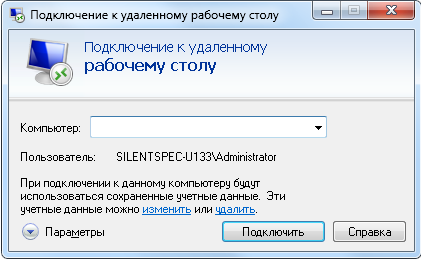 But the fact is that if you regularly update your system, then you have most likely already encountered a problem like this:
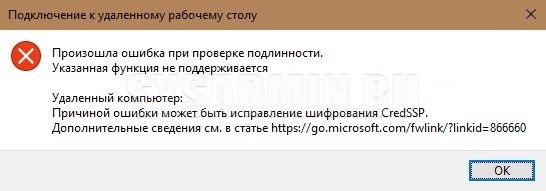
"An authentication error has occurred.
The function requested is not supported
Remote computer:
This could be due to CredSSP encryption remediation."
When trying to connect to the VPS, you most likely see this error.
Is it necessary to update Windows at all?

Some people, after buying a new computer or reinstalling the operating system, immediately turn off automatic updates, considering them unnecessary. Others constantly install the latest system updates, thinking they are mandatory for the security and stable operation of Windows. Who is right?
Indeed, system updates make it possible to be better protected from various spyware programs. With new updates, Microsoft releases improved protection, closing various "holes" in the operating system through which malware can penetrate. And if you do not have a powerful enough antivirus, or you do not have one at all and you do not update the system, then the risk that a virus will get onto your PC is very high.
With new updates, various bug fixes in the system are also released. If you do not update the system, then after some time you may notice a deterioration in the computer's performance: various lags and slowdowns in the system, slower operation in "heavy" programs (such as Photoshop, 3DMax, and so on), as well as glitches in terminals and various games. With the help of updates, many such problems that appear due to system malfunctions disappear.
In the system update center, you can enable automatic installation of new Windows components. The advantage here is that they will not bother you and are installed automatically.
Now, for objectivity, a few words about the disadvantages. And the biggest drawback of updates is the huge variety of computer hardware. System developers cannot, even with all their desire, release updates that would work equally well for all users. On one hardware configuration, updates will install and work perfectly, and on another, they will lead to a complete system failure and a critical BSOD error (the so-called blue screen) when turning on the computer. From this, the conclusion follows: any updates for the system carry a potential threat to its operation. Because of "crooked" updates, a computer can lose performance, and in some cases stop booting altogether.
My advice here is very simple: install updates only if you really need them. If a certain update is required to run some program, then these applications usually report exactly what is needed themselves. You will be able to selectively install only what is needed. In all other cases, the main admin rule applies: "if it works, don't touch it." If your computer works stably without glitches and freezes, and all installed programs briskly perform their tasks, updating is not necessary.
I have already updated the OS and got an error when connecting. What now?

Today we will look at as many as three ways to fix this error. The first method is the most correct one and it is the one that should be used if you are faced with this problem. The second and third methods, although they make it possible to remove the error, should be used only if there is no way to install the patch.
Method 1: Installing an update to fix CredSSP encryption

The cause of this error is the absence of the CVE-2018-0886 update on the server side or on the computer you are trying to connect to using Remote Desktop (RDP). To eliminate it, it is enough simply to install this update on the computer that acts as the server. This update can be easily found by simply typing its name into a search engine - "CVE-2018-0886" - and choosing the option suitable for your operating system.
If this option does not suit you and does not solve the problem, try the second method.
Method 2: Disabling the CredSSP encryption error notification through group policies

If it is impossible to install updates for some reason, then you can disable this error notification. To do this, on the computer that acts as the client, perform the following actions:
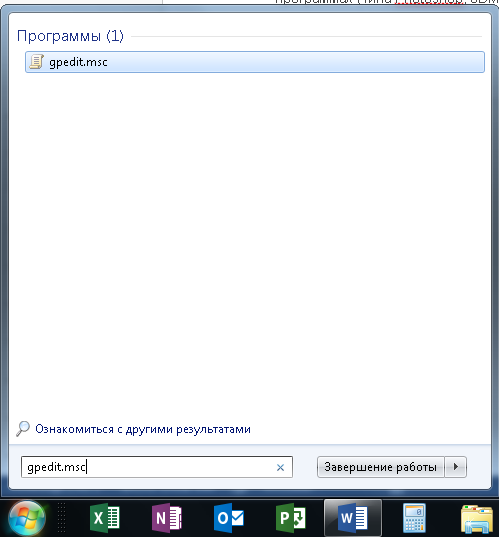
In the "Run" window, in the "Command Prompt" or PowerShell, you need to execute the command gpedit.msc.
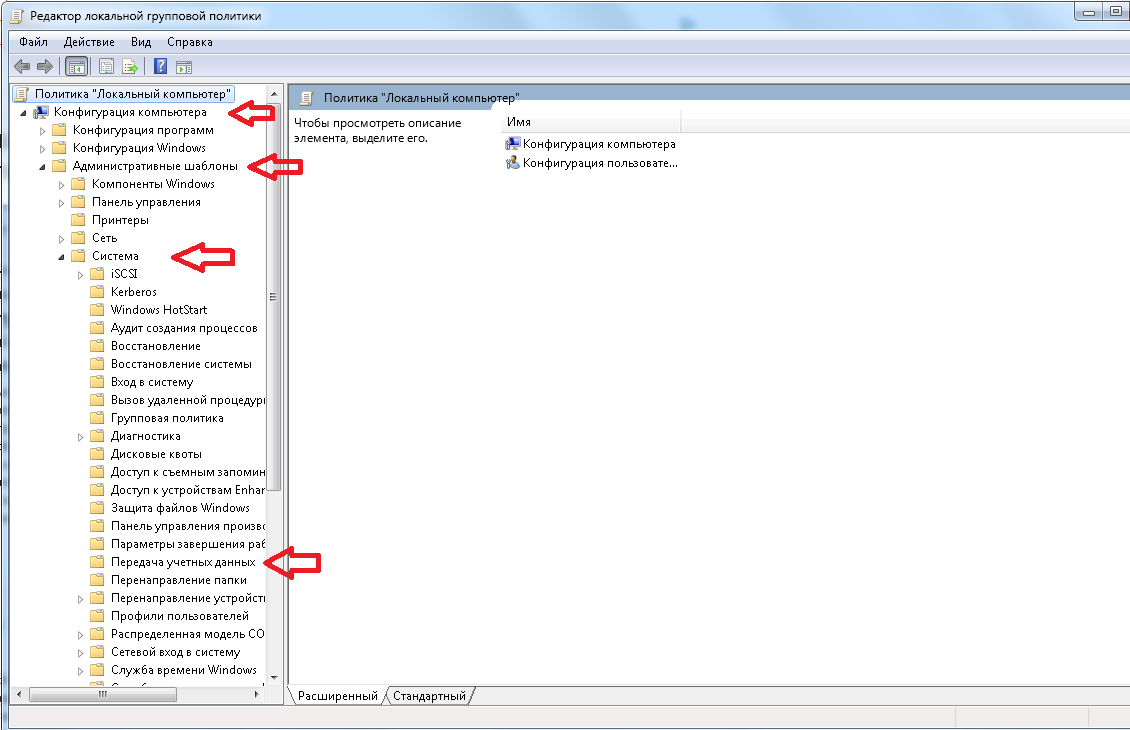
 After this, the Group Policy Management Console will load:
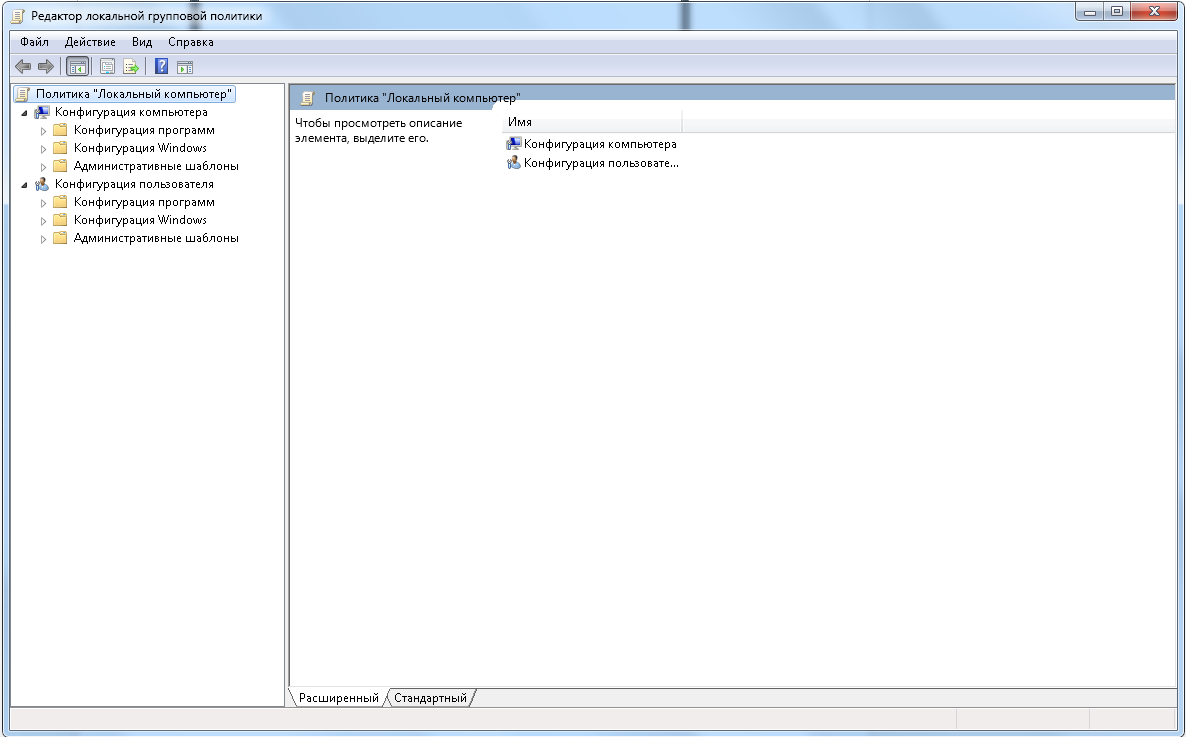 In it, you need to go to the following path: Computer Configuration - Administrative Templates - System - Credentials Delegation. For the English version, this path looks as follows: Computer Configuration - Administrative Templates - System - Credentials Delegation:
 Open the "Encryption Oracle Remediation" setting, and click "Enabled." Set the protection level to "Vulnerable."
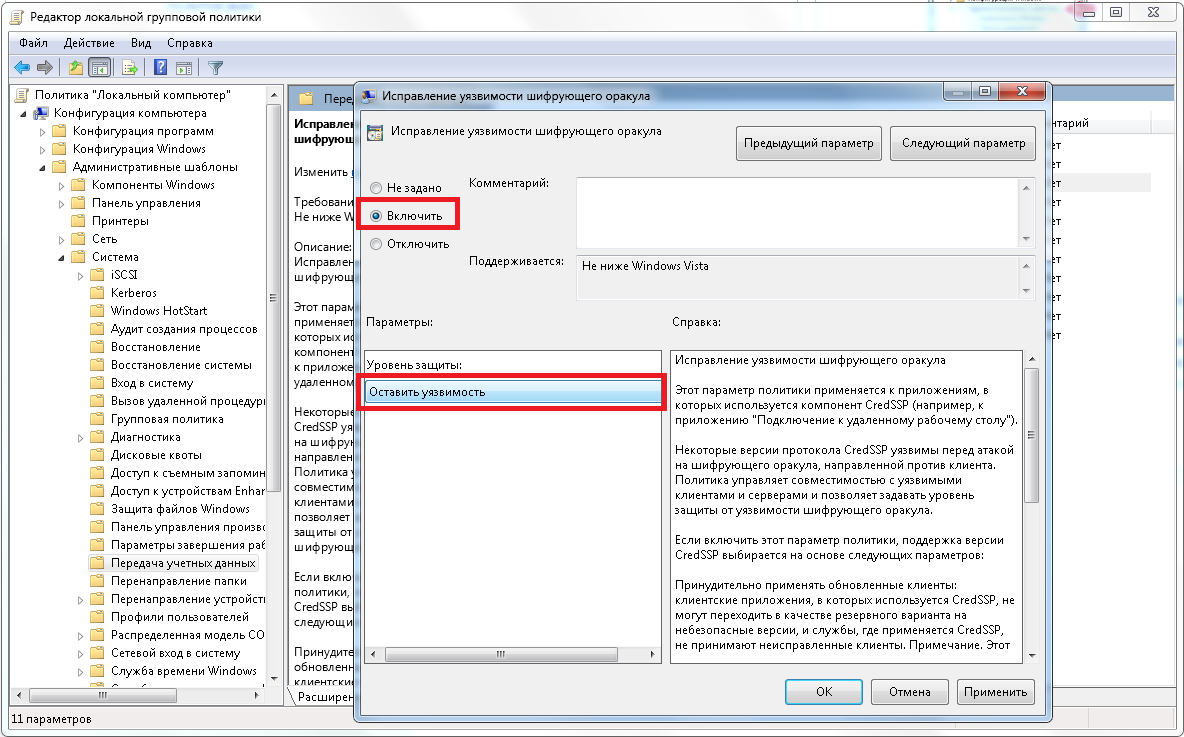 Click "OK," and exit Group Policy Management.
If that does not help either, then you will have to dig around in the registry a little.
Method 3: Disable the CreedSSP encryption error notification by editing the registry

If your edition of Windows does not have the Group Policy Editor (for example, Windows 10 Home), or the previous method did not solve the problem, then you will have to make the necessary changes to the registry manually. To do this, on the computer acting as the client, perform the following actions:
Find the Registry Editor:
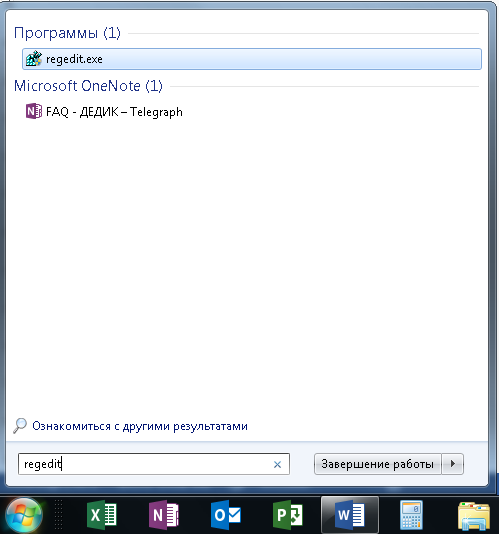 Open it:
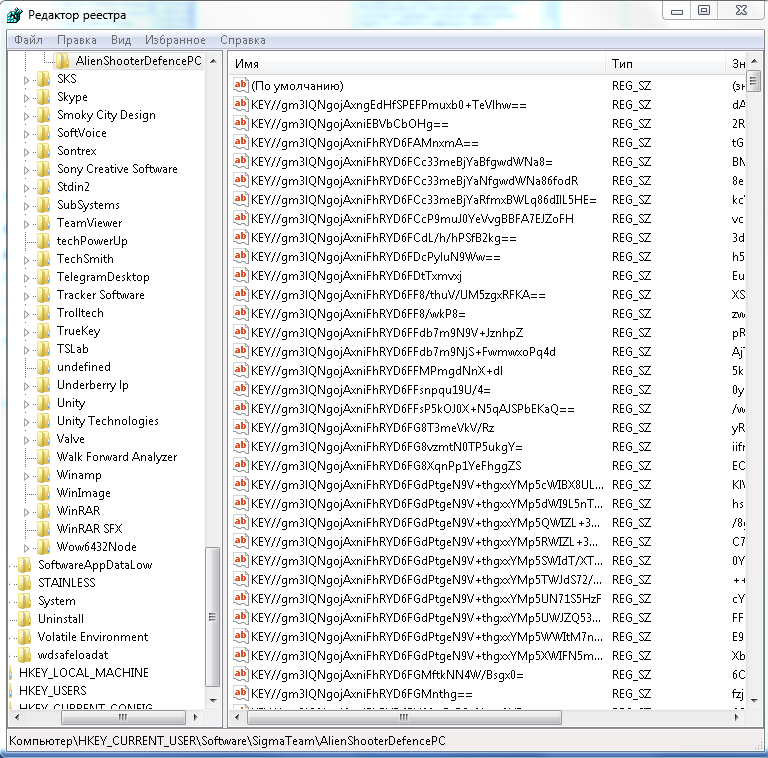 Go to the following path:
Look for a DWORD parameter called AllowEncryptionOracle, and set its value to 2. If there is no such parameter, create it.
Restart the computer.
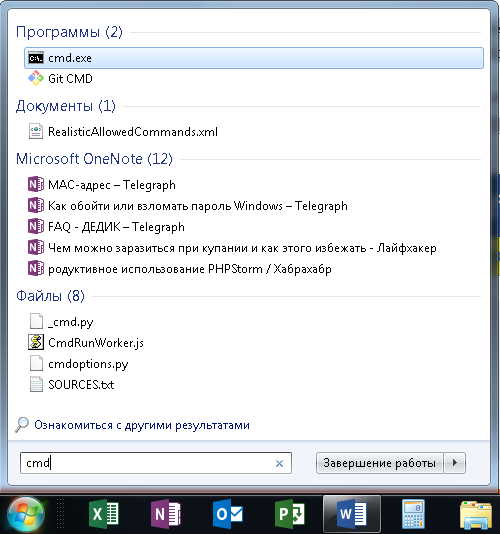
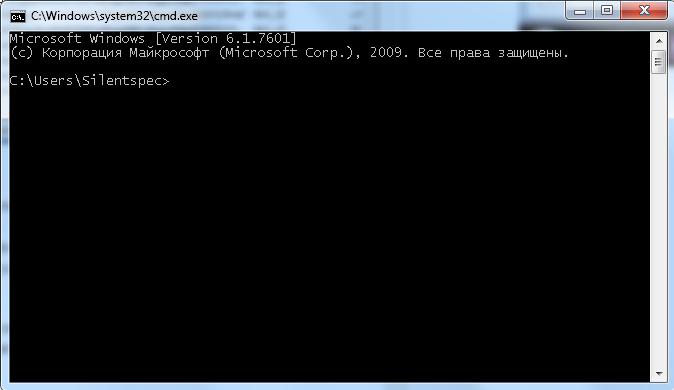
For those who do not want to mess with the registry, it is enough to simply run the command below in the command line with administrator rights. This is even easier.
Find cmd:
 Enable it:
 Copy this command (Ctrl+c):
Right-click on the console window and click "Paste":
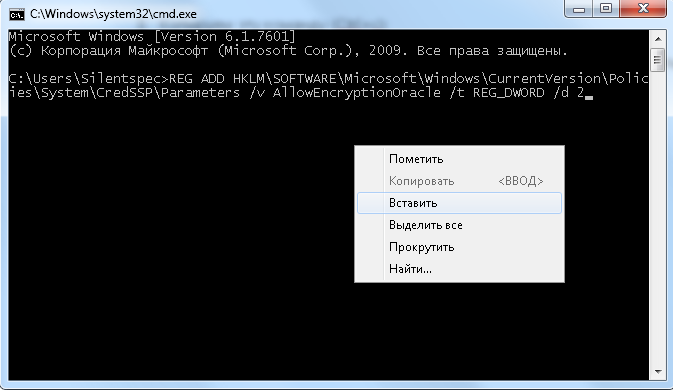 Press Enter.
Conclusion

As you can see, there is nothing complicated. One of these three methods definitely should have worked. But whether to update the operating system or not is, of course, only up to you. Nevertheless, if you do not understand computers well, I would still recommend enabling automatic updates and also installing a good antivirus - there is now quite a large selection of decent options even in the free segment.
Respectfully, Dmitry aka Silentspec TradeLikeaPro.ru
