
VR Stealth Pro - the trading panel that keeps your stops invisible to market makers
MetaTrader 4 is unquestionably the most popular trading platform in the world. Unfortunately, its developers do not always manage to keep up with the times, and many practical and useful functions that simplify work remain without proper attention. Our review today is devoted to the Vr Stealth Pro advisor.
The task of this advisor is to bring some convenient functions to work with the terminal we are used to. With its help, you can quickly and conveniently manage open positions and pending orders right from the chart window; there are also unusual functions, such as hiding stop loss and take profit from the broker, as well as automatic closing of orders at a specified time.
Installation

Installing the Vr Stealth Pro advisor is much easier than many others; we simply download it from the Market. In the Market section of our trading terminal, in the search box, type in "Vr Stealth Pro" and the advisor we need appears automatically. Then click the "download" button. After the installation is complete, close the terminal window and forget about it.
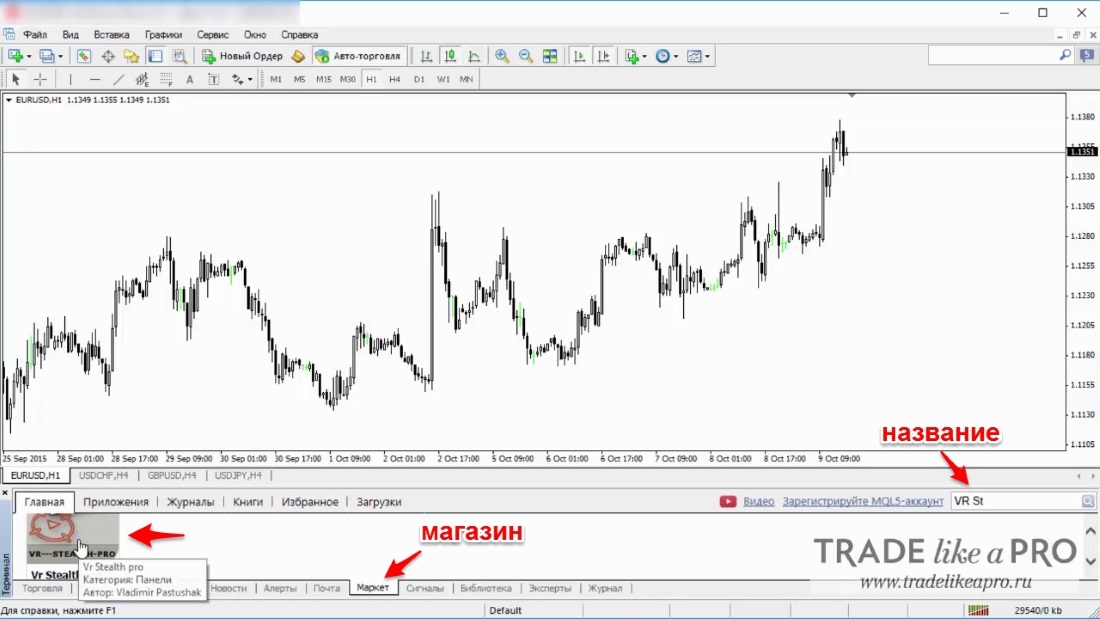
Before we attach the advisor to the chart, I would like to make a reservation. The advisor is semi-automatic; it does not conduct trading on its own. It only helps us trade, thereby making our life easier thanks to its excellent functionality.
Vr Stealth Pro settings
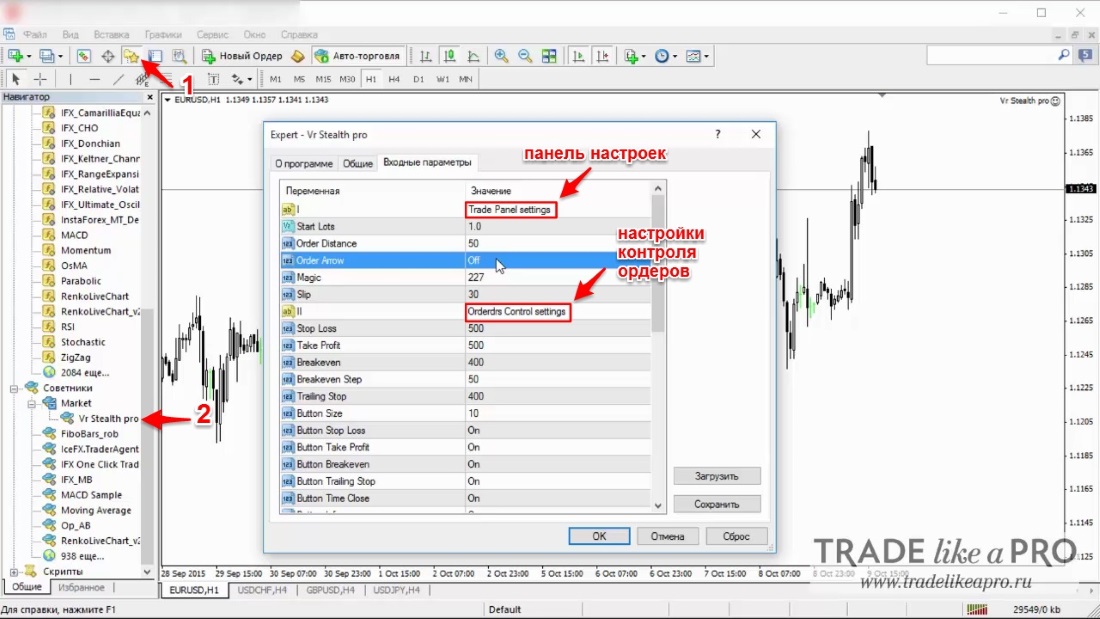
Settings panel:
- Trade Panel settings - trading panel settings
- Start Lots - initial lot for trading. Can be changed from the trading panels;
- Order Distance - distance for pending orders from the current price;
- Order Arrow - display of terminal icons when opening, closing, and modifying orders;
- Magic - unique number of the advisor's orders. Accounting of orders at -1 - all orders in the terminal, 0 - only manual ones, >0 only its own or another advisor's orders;
- Slip - slippage.
Order control settings:
- Stop Loss - default initial stop loss; it can be changed manually on the chart by dragging the line with the mouse;
- Take Profit - default initial take profit; it can be changed manually on the chart by dragging the line with the mouse;
- Breakeven - distance for setting breakeven;
- Breakeven Step - minimum profit when setting breakeven;
- Trailing Stop - pulling the stop loss behind the price in the profitable direction;
- Button Size - size of the order control buttons;
- Button Stop Loss - enable / disable the Stop Loss button;
- Button Take Profit - enable / disable the Take Profit button;
- Button Breakeven - enable / disable the Breakeven button;
- Button Trailing Stop - enable / disable the Trailing Stop button;
- Button Time Close - enable / disable the button for closing/deleting an order by time;
- Button Info - enable / disable the button for full order information;
- Edit Field Lots Close - enable / disable the lot edit field for partial order closing;
- Vertical Line Level - enable / disable the vertical Take Profit and Stop Loss lines;
- Default Stop Loss - enable / disable setting Stop Loss when opening an order;
- Default Take Profit - enable / disable setting Take Profit when opening an order;
- Default Breakeven - enable / disable setting Breakeven when opening an order;
- Default Trailing Stop - enable / disable setting Trailing Stop when opening an order;
- Default Time Close - enable / disable setting the time for closing / deleting an order when opening an order;
- Default Info - enable / disable showing the information window about an open order.
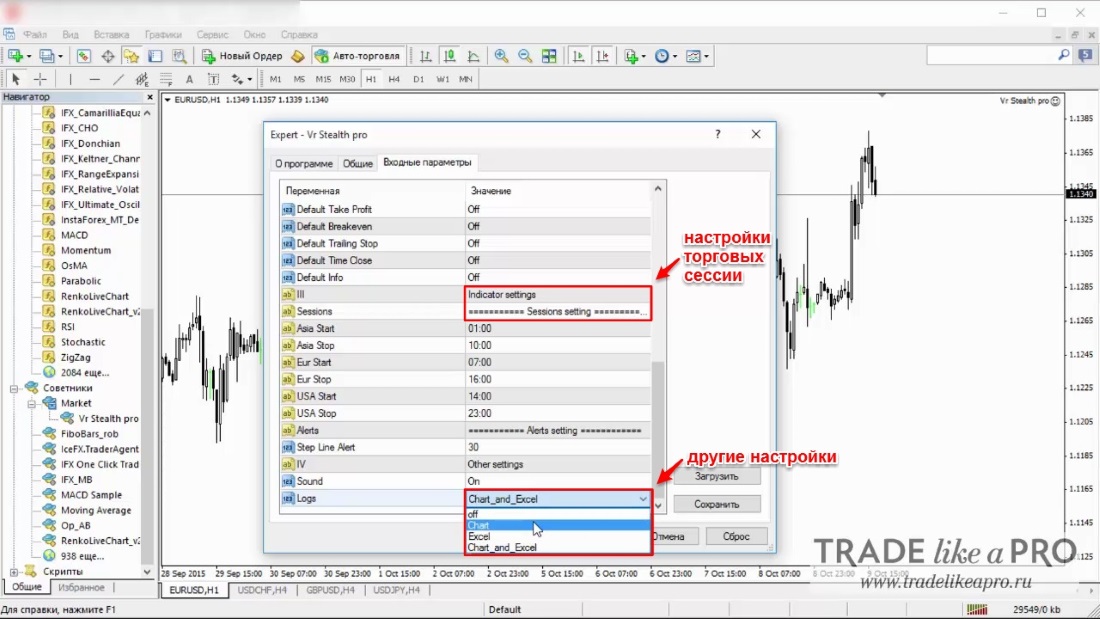
Trading session settings:
- Asia Start - start of the Asian session;
- Asia Stop - end of the Asian session;
- Eur Start - start of the European session;
- Eur Stop - end of the European session;
- USA Start - start of the American session;
- USA Stop - end of the American session;
- Step Line Alert - distance for the Alert lines.
Other settings
Sound - enable / disable sound when opening and closing orders.
Logs - keeping logs:
- off - do not keep logs;
- chart - only on the chart;
- excel - only in Excel;
- chart_and_excel - on the chart and in
As you have already managed to notice, at the beginning I removed 0 from almost all settings. Settings in three-digit values are used for accounts with five-digit pricing. Since I have an account with 4 digits after the decimal point, I set a two-digit value for a four-digit account. Read more about this in What are new and old points.
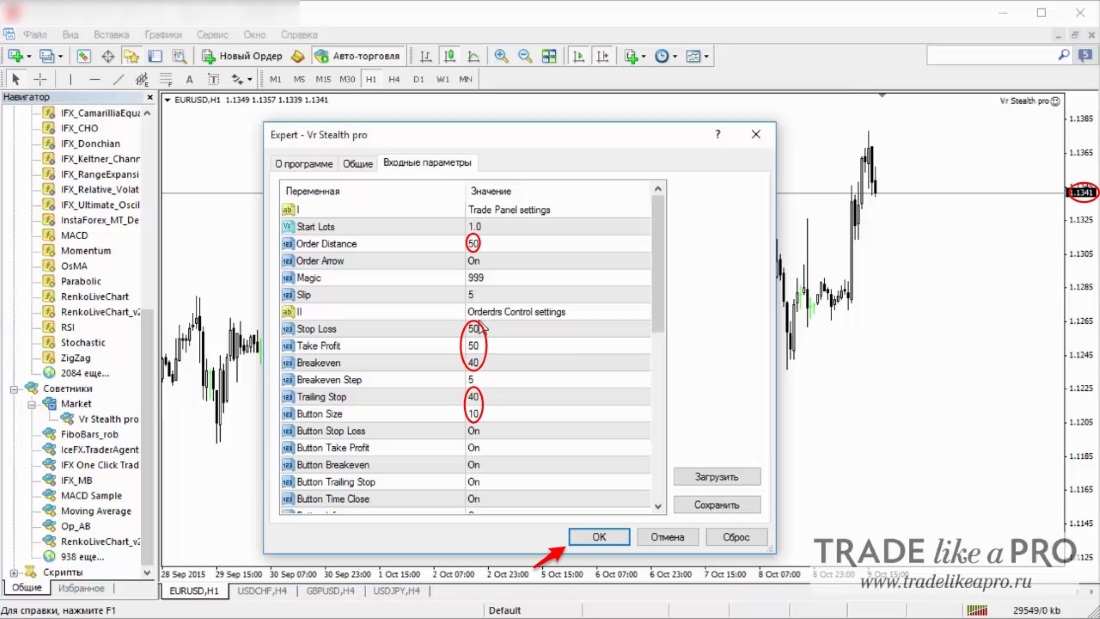
Next, click "ok" and start trading.
Working with Vr Stealth Pro
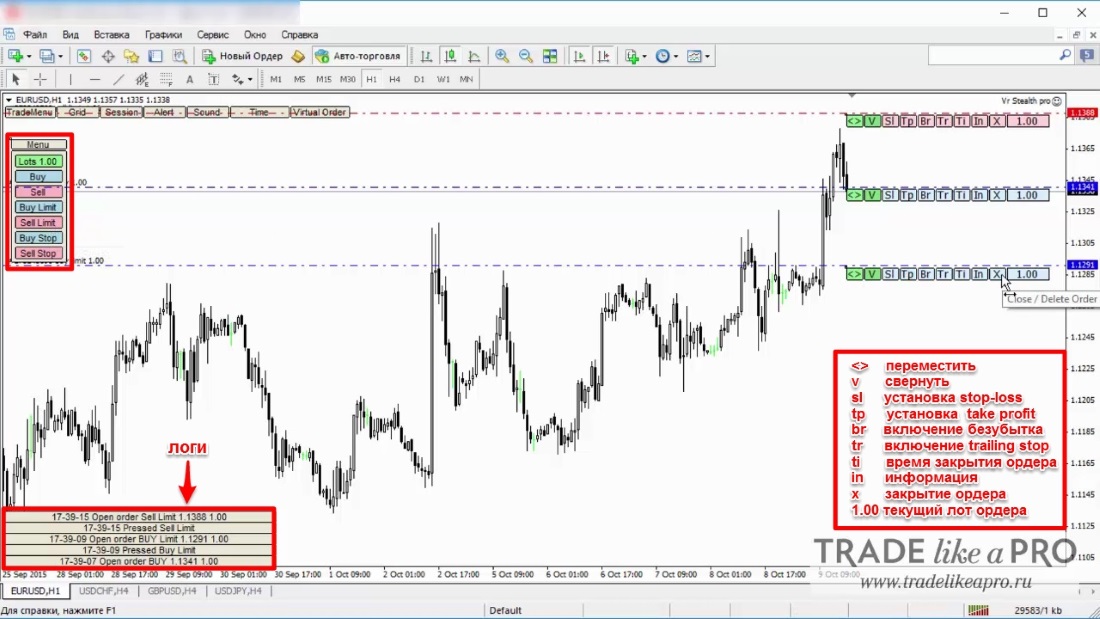
Menu:
- lots - increasing/decreasing the trading lot;
- buy/sell - placing orders for a rise/fall;
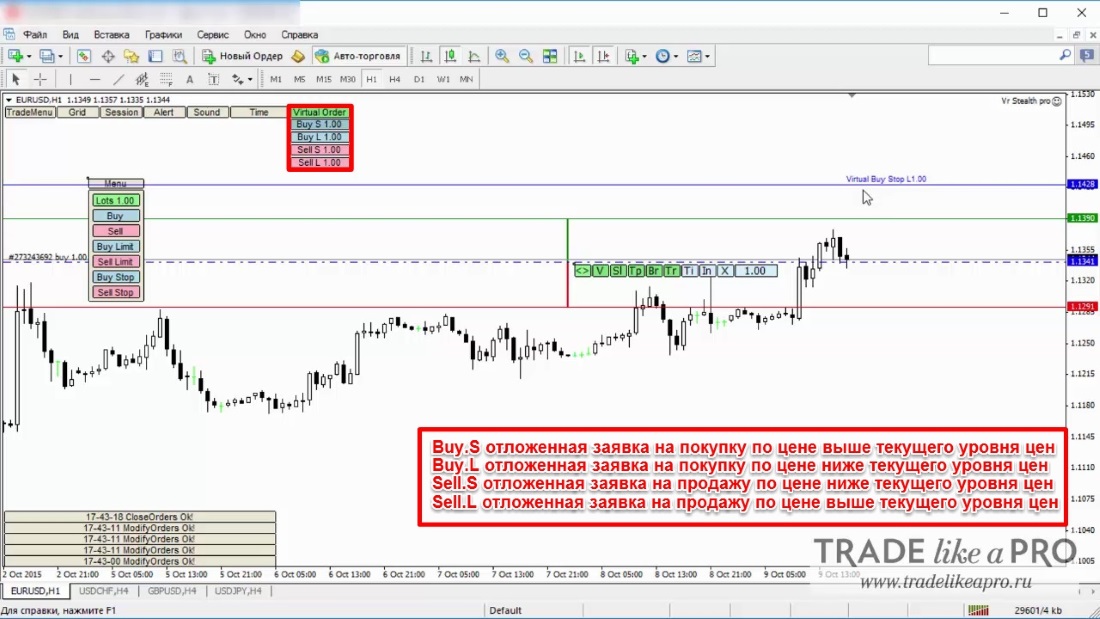
- buy limit - a pending request to buy at a price below the current price level;
- sell limit - a pending request to sell at a price above the current price level;
- buy stop - a pending request to buy at a price above the current price level;
- sell stop - a pending request to sell at a price below the current price level.
Buttons under the order line:
- <> - move;
- v - collapse;
- sl - set stop loss;
- tp - set take profit;
- br - enable breakeven;
- tr - enable trailing stop;
- ti - order closing time;
- in - information;
- x - close the order;
- 00 - the current order lot.
All this works for pending orders as well.
Let us go through the elements located in the upper left corner of TradeMenu - it allows moving and fixing the expert advisor's trading menu.
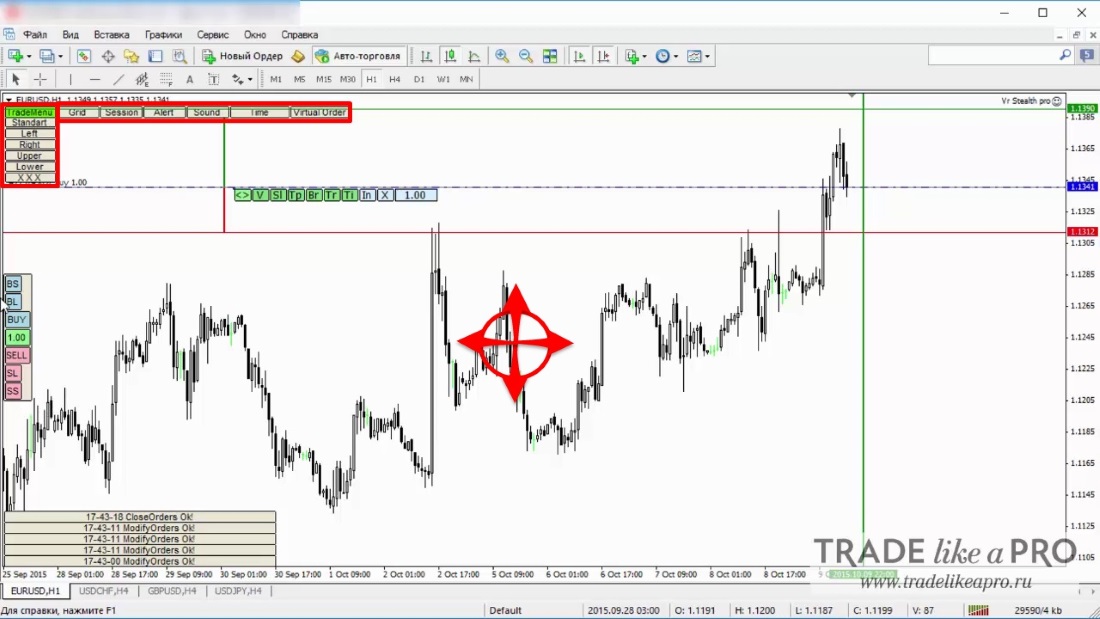
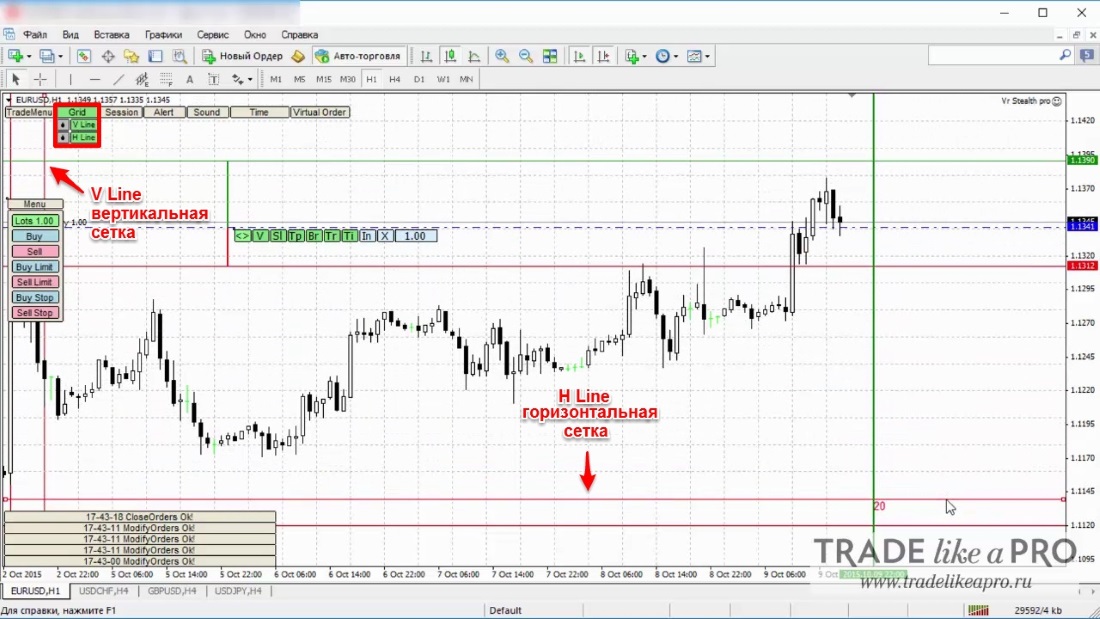
Grid - helps the trader place horizontal and vertical cyclic lines. The grid allows setting the period of the lines by moving the initial values relative to each other.
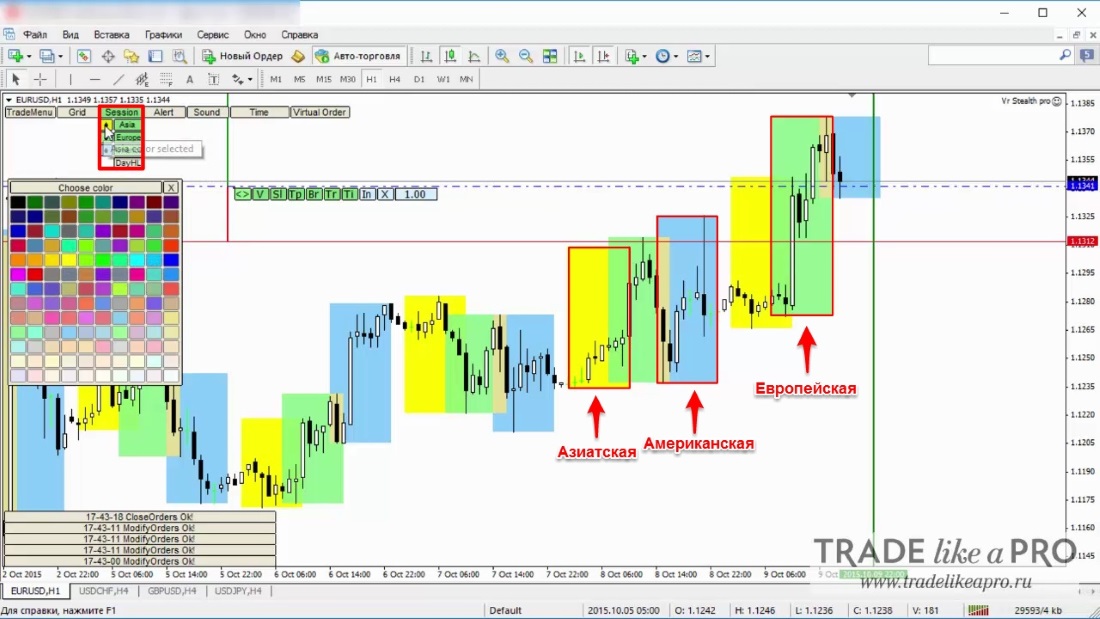
Session - allows you to overlay the chart with the display of the Asian/European/American trading sessions.
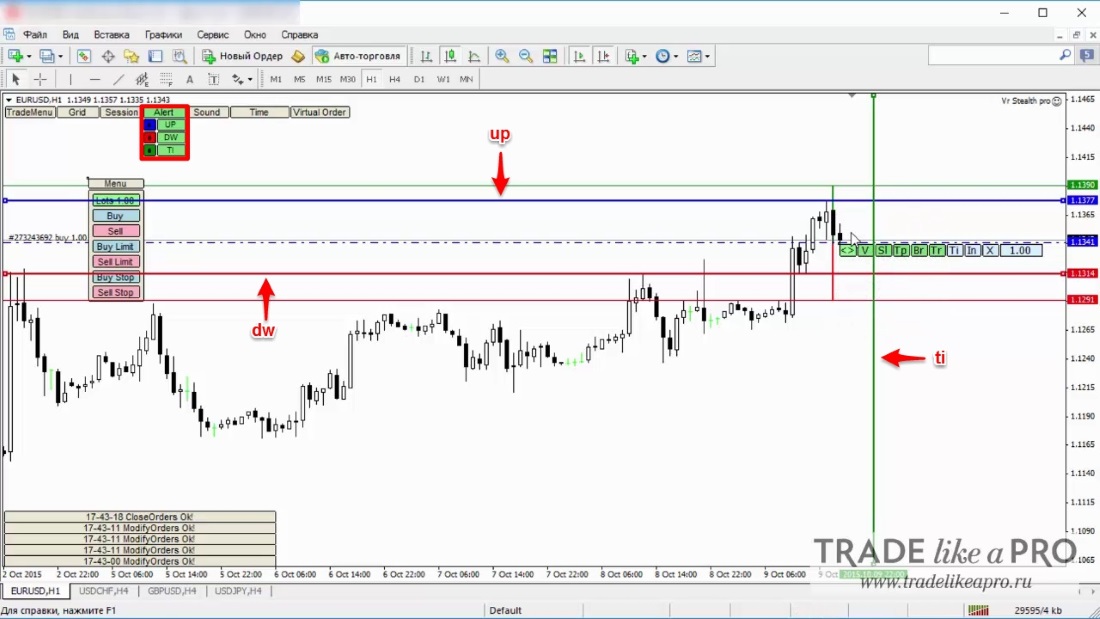
Alert - allows adding lines to the chart, upon reaching which the expert advisor will begin making characteristic signals indicating that the price and the line have touched. The lines can be either vertical or horizontal.
Sound
- Tick - signals every tick;
- New bar - signals a change of bar
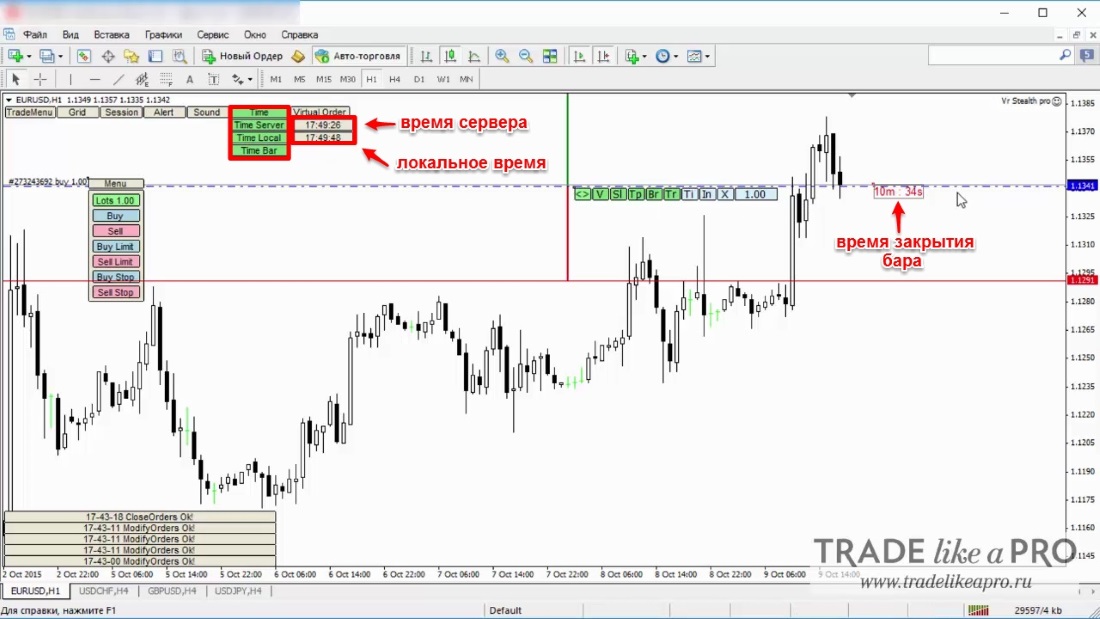
Time - allows displaying:
- server time
- local time
- bar closing time
Virtual order - allows adding lines with virtual order values to the chart. That is, the order is not placed until the price reaches the set line.
Please note!
The expert advisor keeps stop losses and take profits in its memory. Commands are sent to the server exclusively by the expert advisor itself. In the event of, for example, a loss of connection or a power outage, the broker will not know where your stop loss or take profit is set.
Conclusion

As you have been able to see, this expert advisor has an amazingly well-thought-out visual interface, extremely clear and accessible to any trader, even a beginner. In principle, this is one of the best expert advisors in its field. Many thanks to the author for its development.
Download the Vr Stealth Pro expert advisor

Forum discussion
Sincerely, Alexey Vergunov
TradeLikeaPro.ru