
Trade Interceptor - advanced technical analysis and a strategy tester in your pocket

Greetings, gentlemen and ladies of forex trading!
In times of technological progress, each of us constantly has a smartphone or tablet with us. Mobile trading is developing rapidly, but portable versions of Metatrader are still far from desktop ones in terms of functionality.
Applications from third-party developers try to solve this problem, and some of them manage it quite well.
Today we will talk about the Trade Interceptor mobile app, which combines advanced technical analysis capabilities and a trainer for testing manual strategies on history.
Installation and Registration

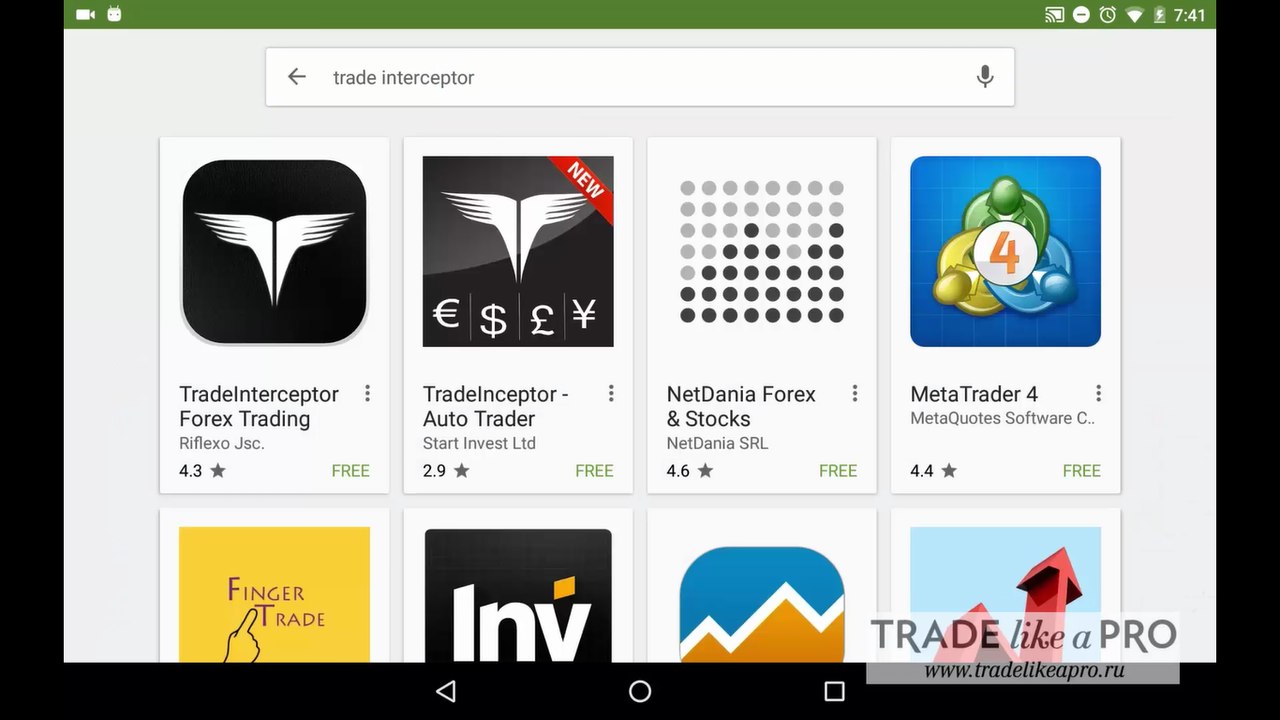
The application is installed just like any other. We go to the app store (AppStore or Google Play) and enter "Trade Interceptor" in the search. On the application page, click the "Download" (Install) / Install button. After the application is installed, open it using the "Open" button or through the shortcut on the home screen.
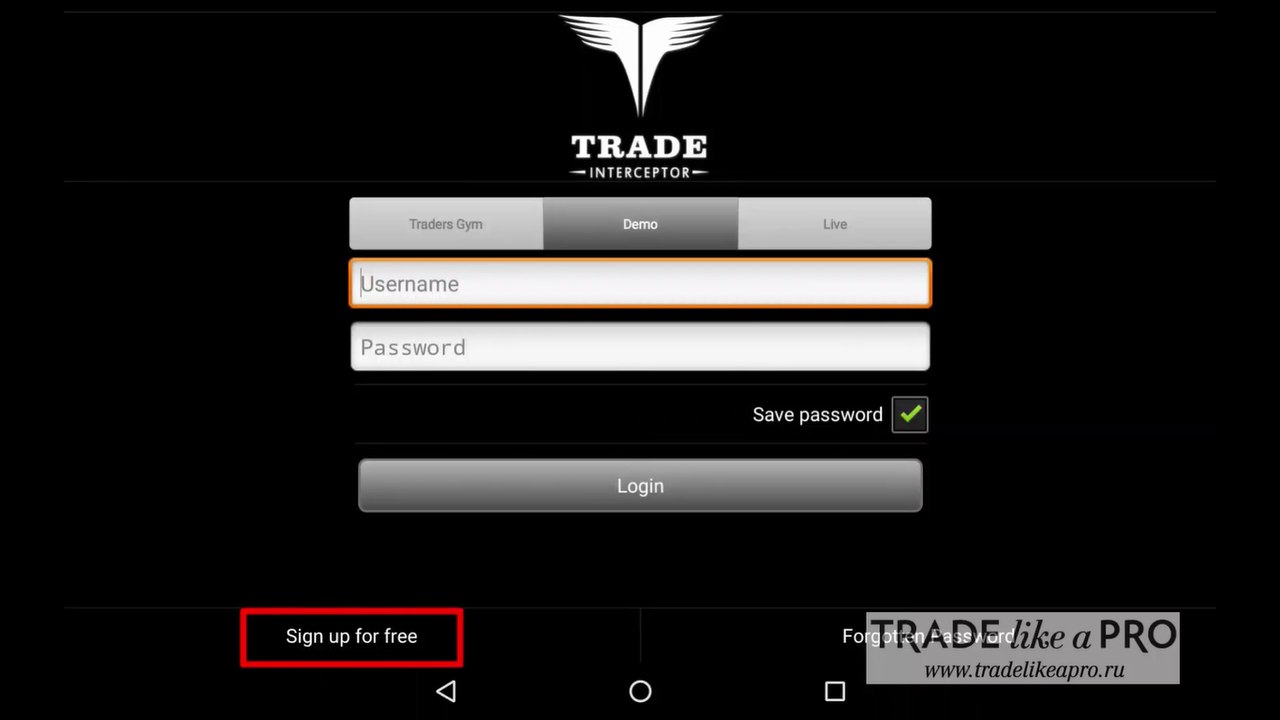
If you do not yet have an account in this application, you need to create one. To do this, click "Sign up for free," after which a new user registration form will open.
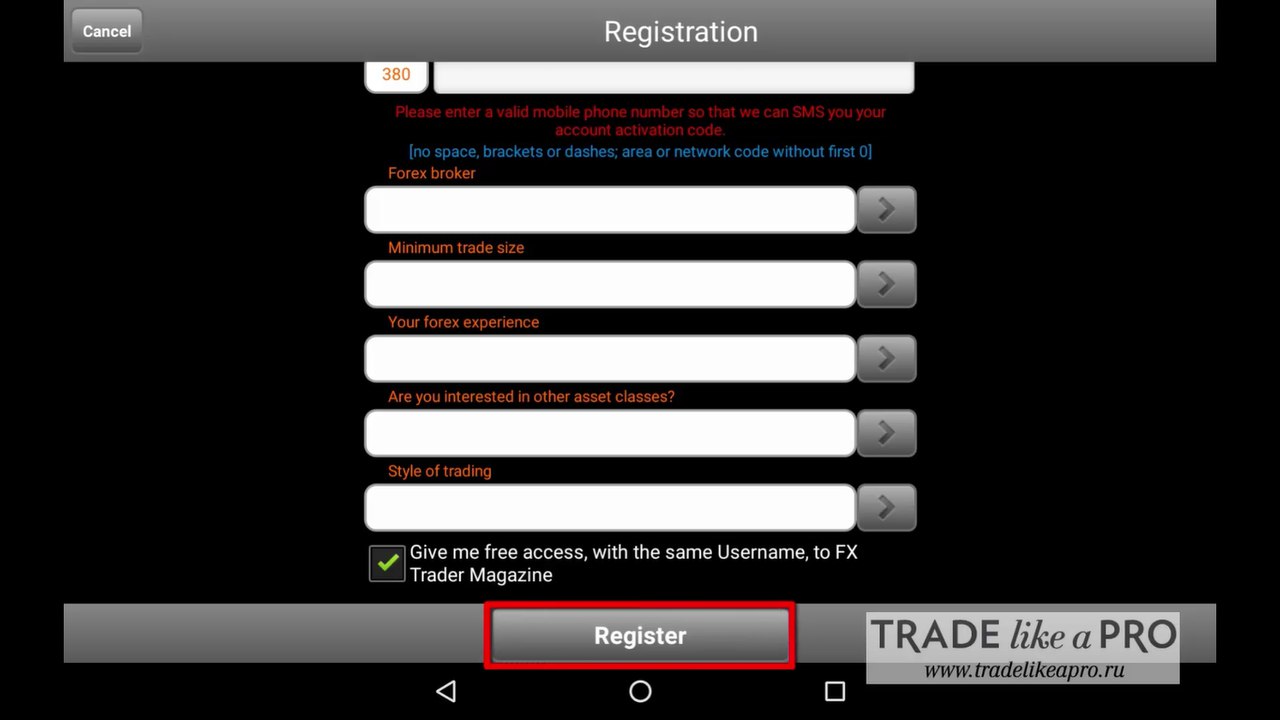
Here we specify:
- Your first name
- Your last name
- Email address
- Password
- Country of residence
- Mobile number
- Name of your broker (if any)
- Trading account size
- Trading experience
- Types of instruments you are interested in
- And trading style
Next, click "Register."
In the form on the main page, you need to enter your email details, your password, and click "Login." An SMS with a confirmation code should arrive at the specified phone number. Enter the code in the window that appears, after which the account is considered activated.
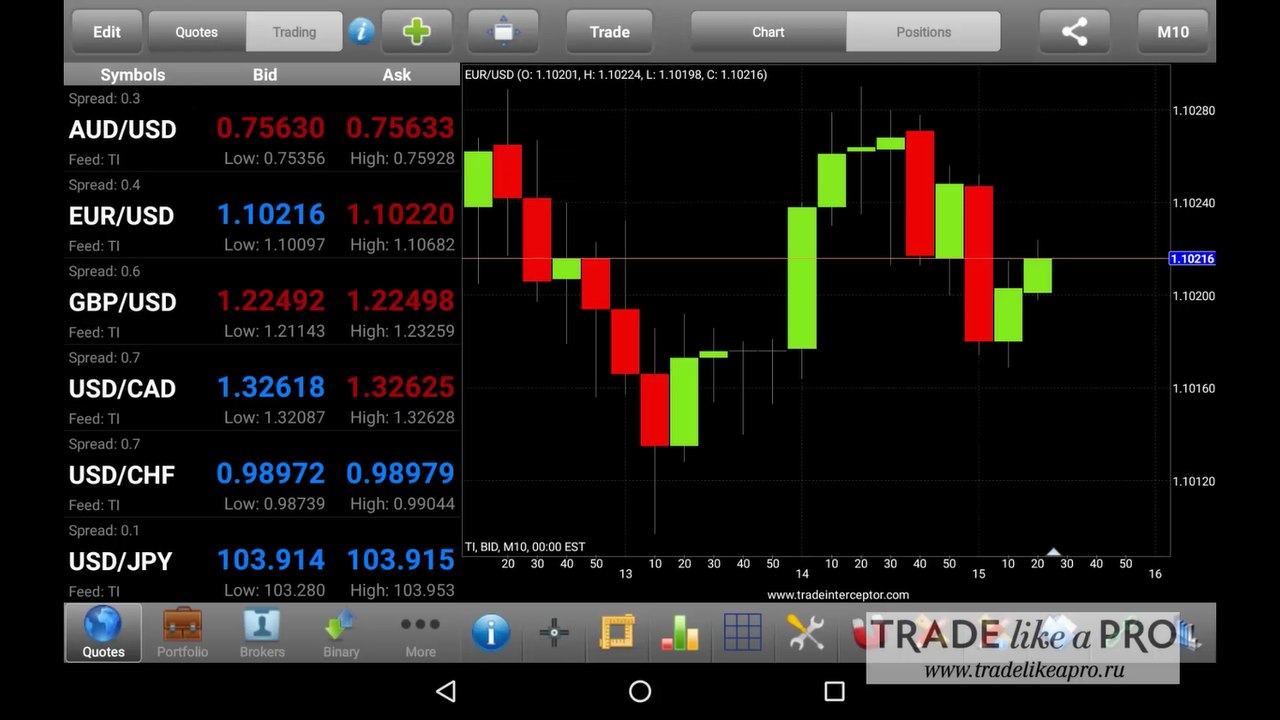
The first thing to do after entering the platform is to enter the details of an existing account, or create a new demo account. To do this, click the green "Plus" icon on the upper toolbar, and in the form that appears specify the account name, deposit size, currency, and leverage.
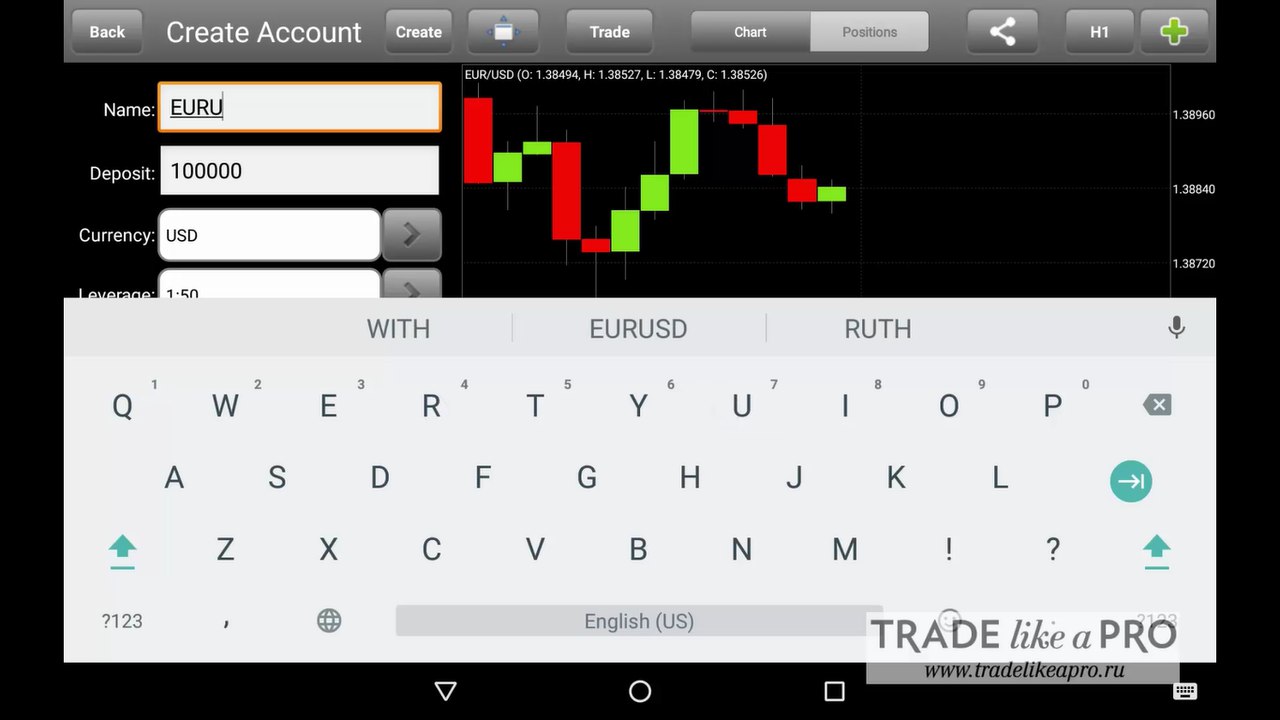
Then click "Create" and the account is created.
Note: the review considers the Android version. For Iphone / Ipad the program looks about the same and the installation process is similar.
Trading Platform

Extensive functionality is one of the main advantages of TradeInterceptor. In addition to the button for creating a new account, the upper toolbar also contains:
- Button for switching to full-screen mode
- Button for opening a new order
- Switch between the chart and open positions
- Share button for victims of social networks
- Selection of the chart timeframe and plotting method: by bid price, ask price, or average spread
- Button for adding a new symbol (in Traders Gym mode)
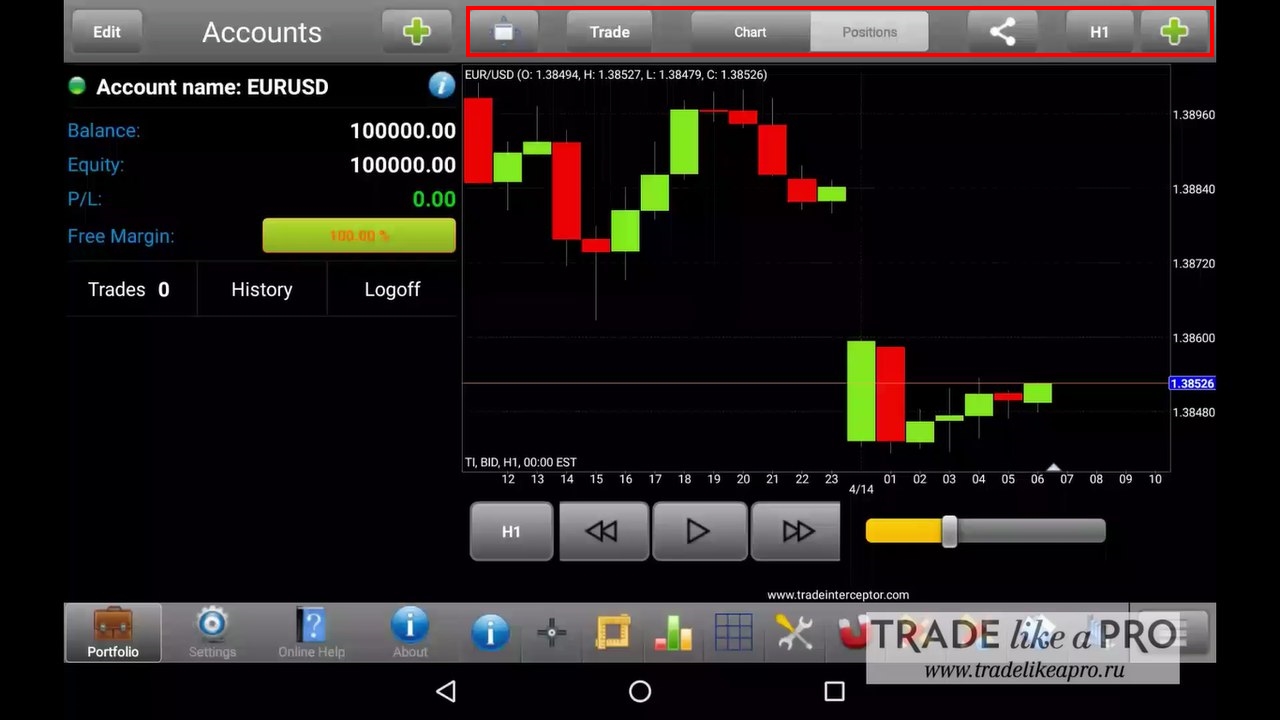
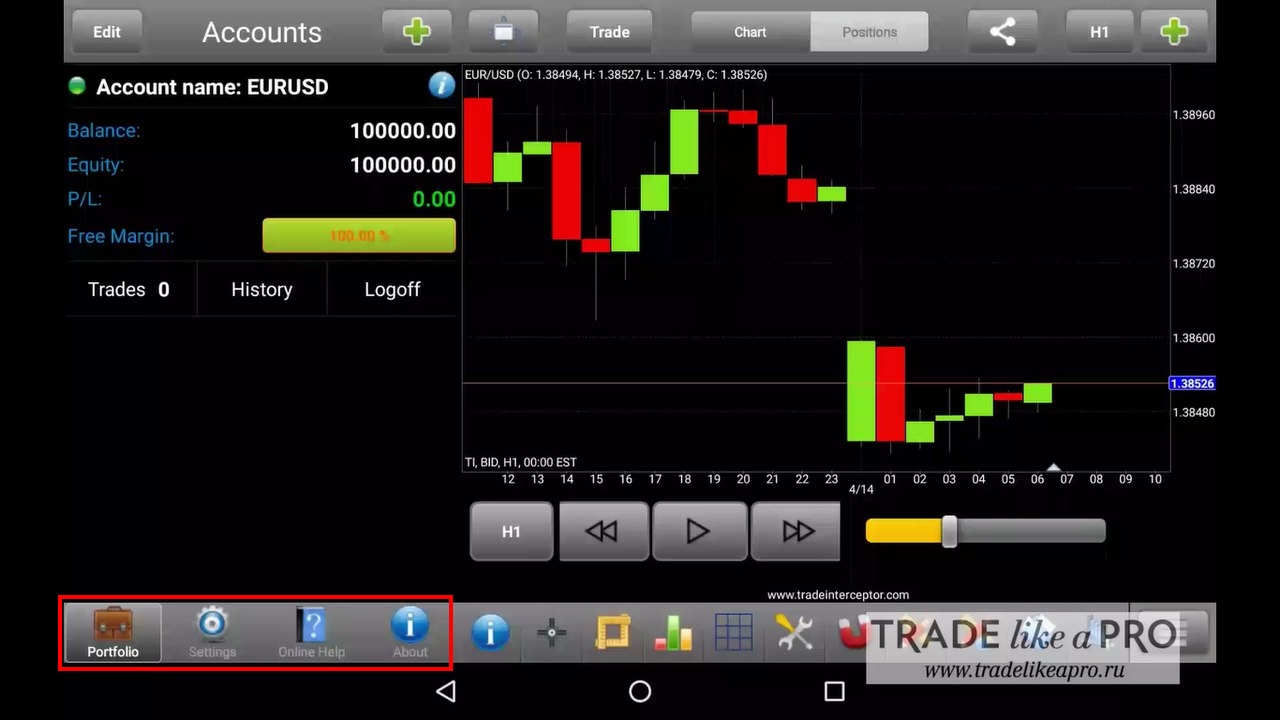
The bottom toolbar contains the following tabs:
- "Portfolio" with the list of accounts.
- Settings.
- Online support.
- And information about the application.
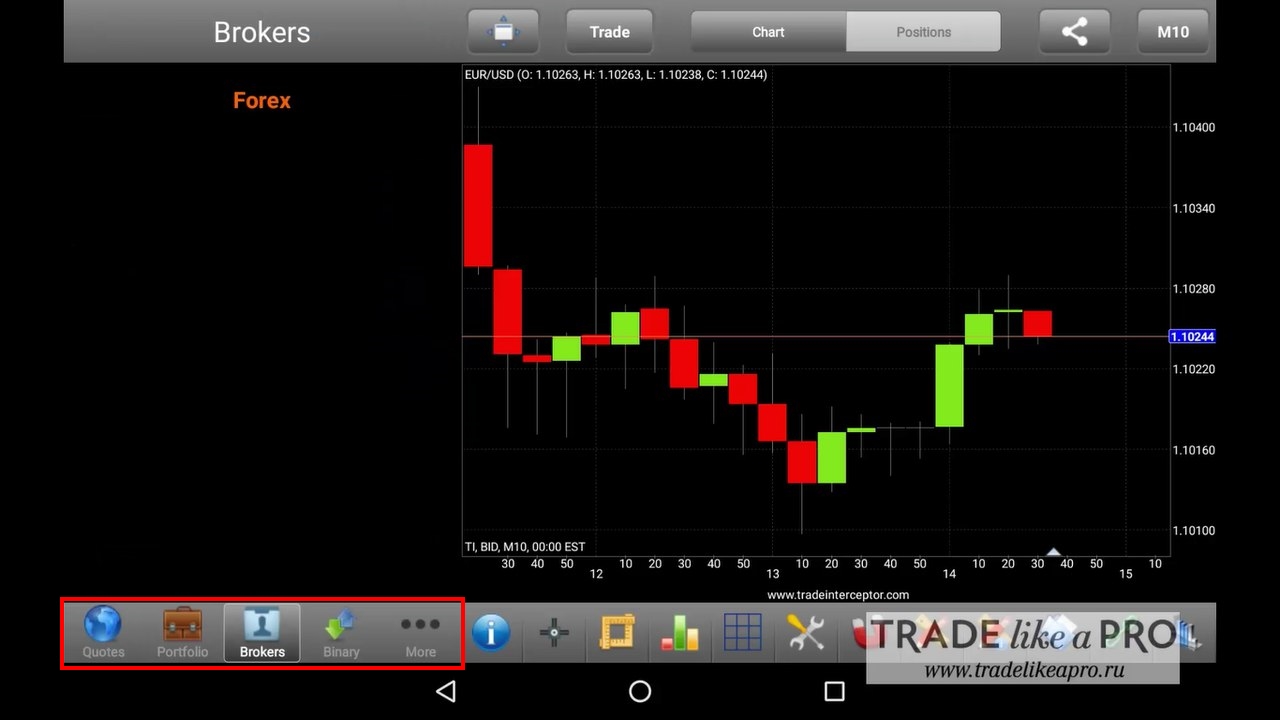
In demo and live modes, the following tabs are also available:
- The "Quotes" tab resembles the analog of the "Market Watch" window in MT4, where the current BID and ASK prices for the specified symbols are displayed. The quick trading panel is also located here.
- A list of forex brokers and binary options brokers.
- "News" with a list of current news items (the red indicator on the right side shows the number of new unread events).
- Economic calendar. The most important news is marked in red, medium-importance news in yellow, and low-importance news in white. Here you can also set an alert some time before the news so as not to miss the release of an important event.
- Alerts: here you can set an alarm for specific events, for example, when the price crosses the Alligator line. To add an alarm, press the green plus at the top. There are two fields here: the left and right sides of the equation. In one you add the Alligator line, in the other the price. When the condition is met, the corresponding notification will arrive on your phone.
- Instrument analysis is a powerful risk management tool that makes it possible to identify potential entries with the best reward-to-risk ratio. Potential trading opportunities are sorted by the reward-to-risk coefficient. Also, the timeframe, forecast target, and stop level are specified for each currency. In the table, you can change the sorting method: by time, by instrument name, or by reward-to-risk ratio.
- Training materials.
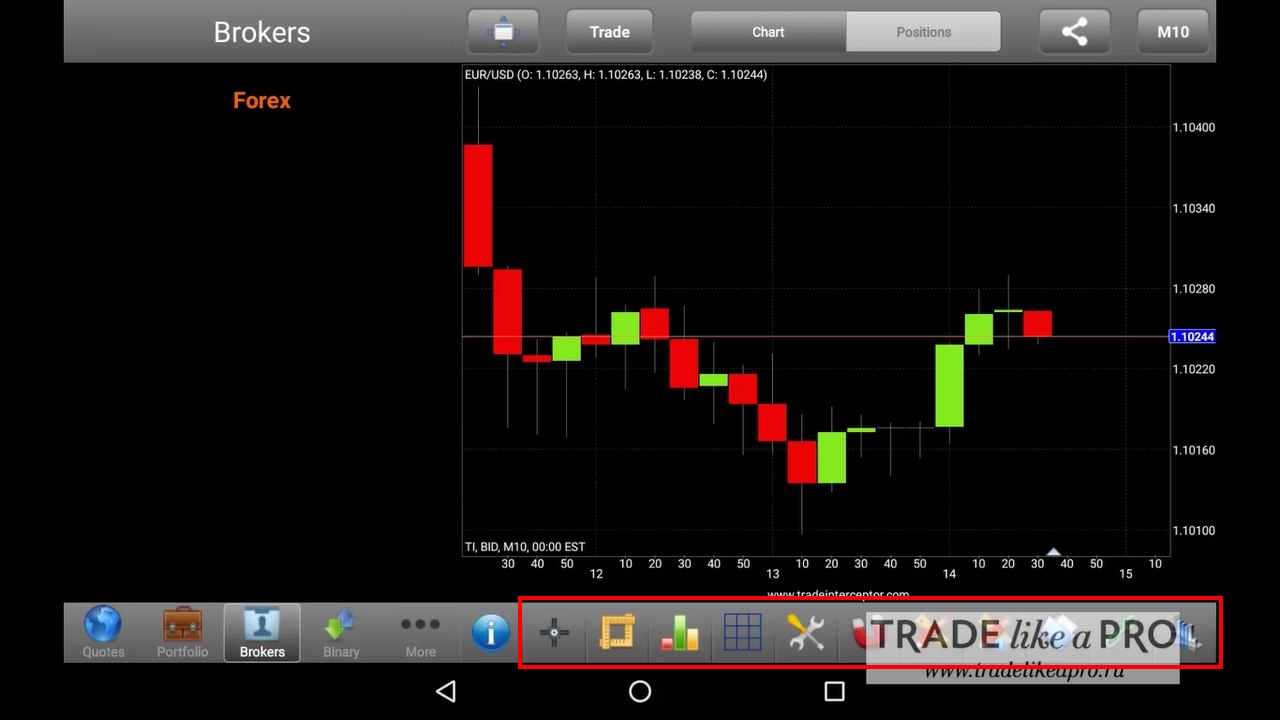
Next come the chart controls:
- The "Crosshair" element can be used to determine the exact match of a price and time pair.
- "Angle ruler" for marking out an area.
- Choosing the chart display type: Japanese candlesticks, bar chart, line chart, High-Low bars, High-Low-Close bars, and Heiken Ashi candles.
- Selecting the window grid: a total of 11 chart layout methods are available. At the same time, up to six charts can be displayed in one window.
- Settings.
- A flag that enables snapping graphical elements to bars.
- A list of graphical objects, including trend, horizontal, and vertical lines; linear regression channels; Fibonacci figures; Gann angles; simple objects; cyclical lines, as well as markers for Elliott wave markup.
- Managing graphical objects.
- Linking charts.
- Adding indicators. Unlike the MetaTrader mobile app, Trade Interceptor includes both standard indicators and many lesser-known ones: the Aroon oscillator, Donchian channels, the Elliott oscillator, Fisher, Kaufman's Adaptive Moving Average, the Keltner channel, the chart pattern indicator, Spearman correlation, and others. Users of the app also have access to a special TrendRisk indicator package that will help determine safe stop-loss and profit levels.
Working with orders

To create a trade order, press the new order opening button on the top toolbar (Trade). A window will open where you can immediately choose the order type: market or pending. For a market order, you can immediately set the stop-loss, take-profit, and position size. To send the order, press the corresponding button: Buy or Sell.
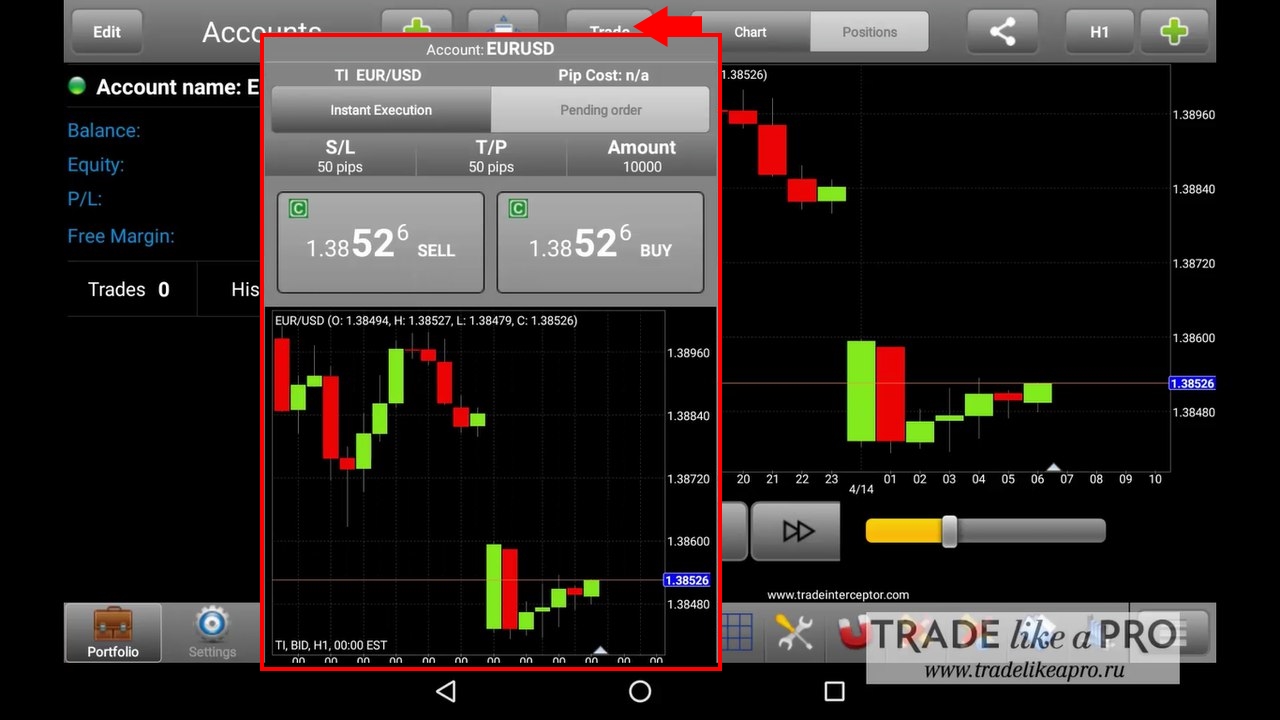
In the case of a pending order, you also need to choose one of the four types: Buy Limit, Sell Limit, Buy Stop, or Sell Stop. Then enter the price and press the "Place Order" button.
Trading simulator

In Trader's Gym mode, you do not have to wait for the market to open and can simply press "Play" to start visual testing. Here, you can also use the slider to adjust the price movement speed.
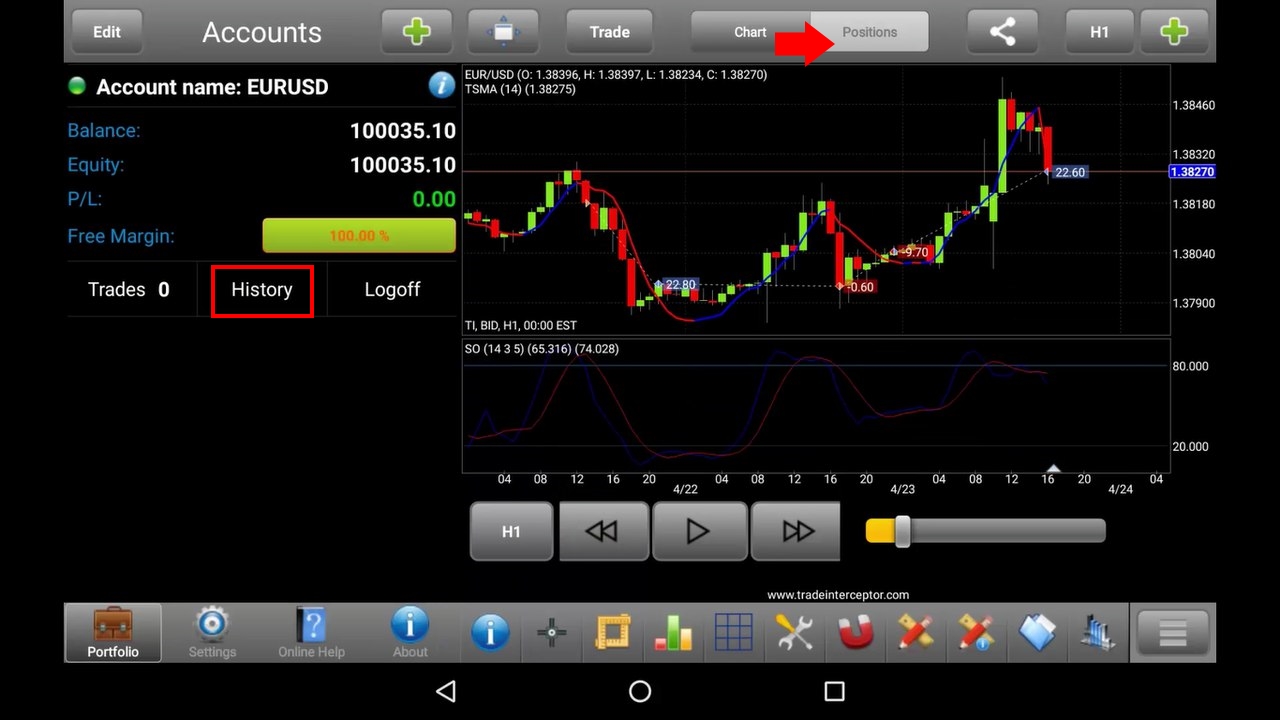
Open orders are displayed in the "Trades" tab in the accounts menu, where you can view current active and pending orders. When an order is closed as a result of stop-loss or profit, it is moved to "History". Here you can also view the full trading report.
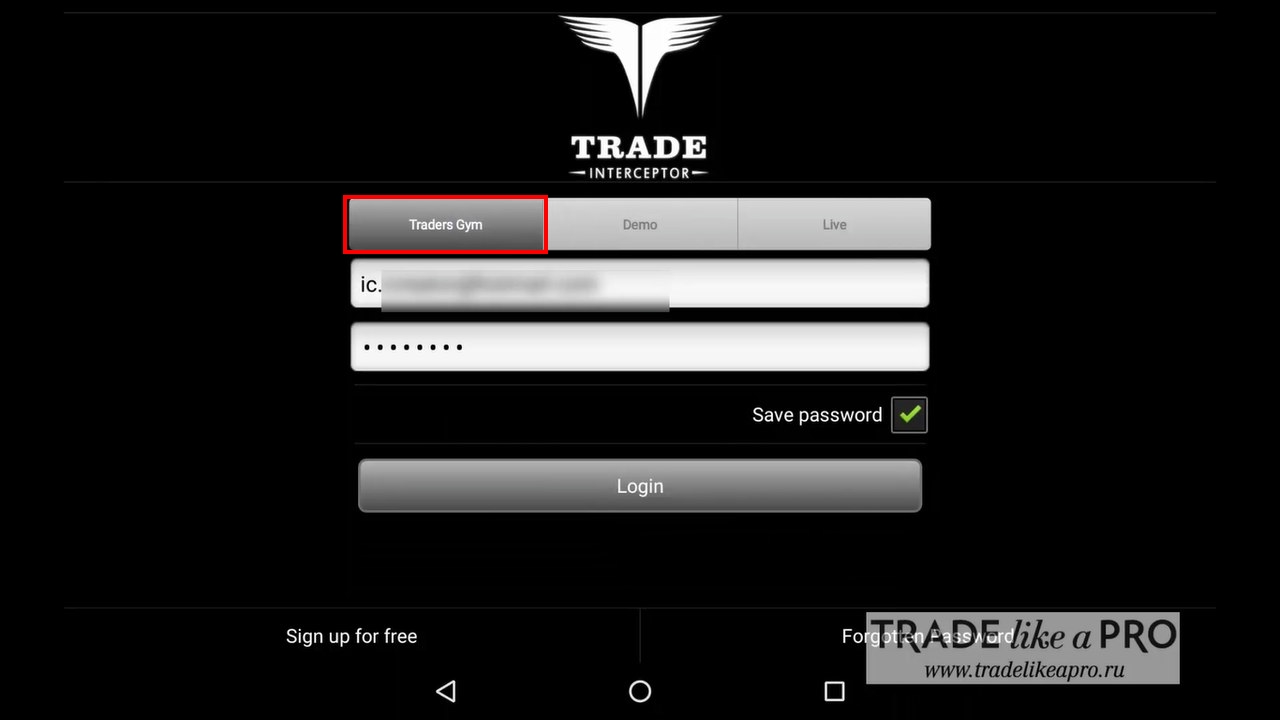
To get into the visual tester, you need to exit the program and log in again. On the login page there are 3 tabs: Traders Gym, Demo, and Live, respectively. We need to choose the "Traders Gym" tab.
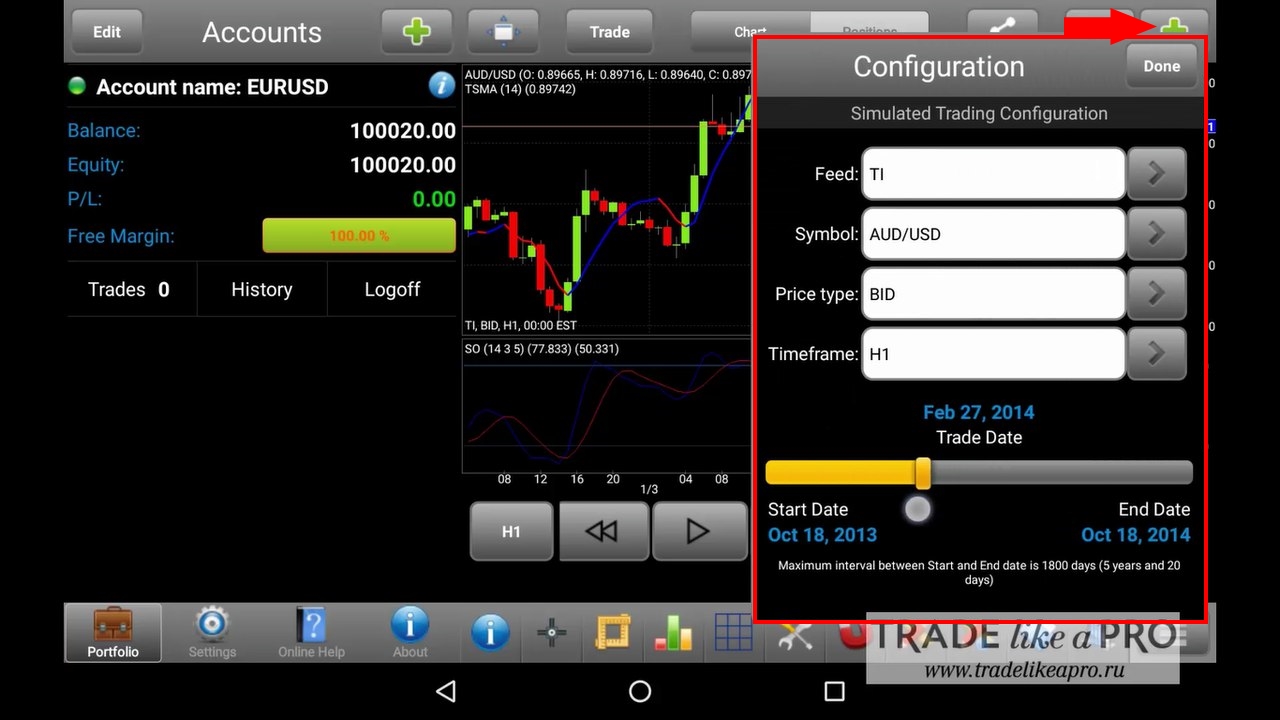
To set the test start date, you need to go into the tester configuration, choose an instrument, and use the slider to select the desired date.
The Traders Gym trading simulator allows you to test any manual strategy on historical data before trying it in the real market. For the test, we will use a simple trading system based on the stochastic oscillator and a moving average.
When the MA is rising and the stochastic is above the signal line, we buy; when the MA is falling and the stochastic drops below the signal line, we sell. We close the position on the reverse signal.
So, first you need to place the required indicators on the chart. In the indicator list, select Time series moving average, then specify the period, source price, and the color of the rising/falling trend. Next, add the stochastic to the chart and specify its parameters.
To start testing, just press the "Play" button.
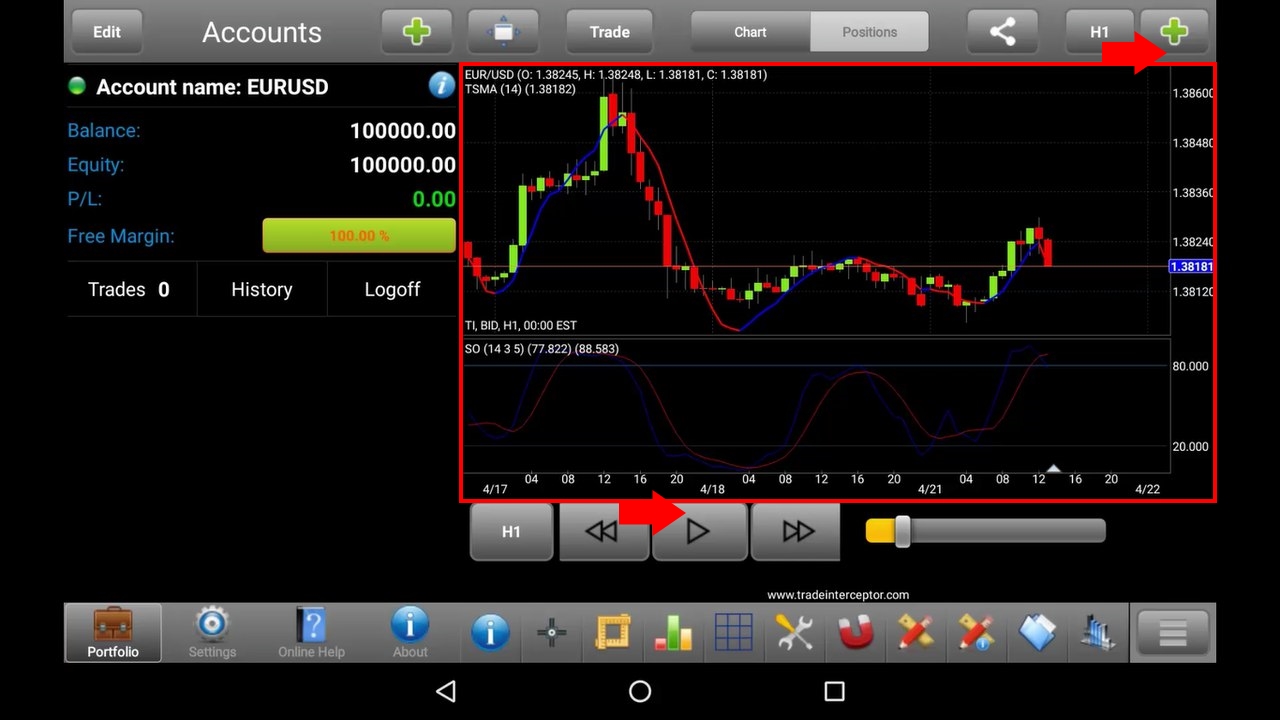
When a signal appears, open a new order. To close an order, you need to go to the list of all trades, select the required one, and in the menu that appears choose "Close order" (Close). If you opened an order by mistake, you can delete it by pressing the "Delete" button. If you missed a signal, that is not a problem, just pause the test and scroll the chart back.
The strategy testing results can be viewed in the trading report, in the account history. Here you can also delete any trades made earlier, and then their trading result will not be taken into account.
Conclusion

The universal trading platform Trade Interceptor supports an extensive list of brokers, including binary options brokers and forex brokers, so just one program is enough for all your accounts. In terms of technical analysis capabilities, the mobile platform is several steps ahead of all its competitors. The charting tools include both popular technical analysis elements, such as trend lines and the regression channel, and rarer ones, such as Gann angles and Fibonacci arcs. It is also an excellent launchpad for beginners. The built-in trading simulator greatly simplifies the learning process, allowing you to test ideas even while away from the computer.
And yes, the program is completely free.
Download the app from the AppStore
Download the app from Google Play
Best regards, Alexey Vergunov TradeLikeaPro.ru
