
Setka TLP Expert Advisor - Everything You Have Believed In All These Years...
 Hello, dear Forex traders!
We present to your attention the unique indicator-free Setka TLP expert advisor, developed by active members of our forum. This advisor is the most advanced grid robot with truly fantastic trading parameter customization options, convincing tests, and excellent independent monitoring. Several years of development, sleepless nights, and thousands of man-hours spent polishing the algorithm to perfection. None of it was in vain.
In this review, we will examine the operating logic of the Setka TLP expert advisor, its settings, test it on the currency pairs recommended by the authors and evaluate the results obtained, and also look at additional utilities that simplify working with the expert advisor. So, let us begin!
CONTENTS
1. The Setka TLP expert advisor development team
2. Expert advisor characteristics
3. Installation guide
4. Wow, that's a lot of text, what am I to you - Confucius? Can you explain the point in 2 words?
5. The Setka TLP expert advisor strategy
6. Important nuances and setup recommendations
7. Expert advisor backtests
8. Monitoring
9. Description of the expert advisor settings
10. Recommended money management
11. Additional utilities
12. "Model"
13. "Model + Trade Analyzer"
14. CandlesSingleAverageStatistics 1.7.1ind indicator
15. CandlesSingleAverageStatistics.xlsx
16. Setka - InfoPanel
17. Description of the InfoPanel indicator settings
18. Summary
19. "And what am I supposed to do with all this?"
20. Download the Setka TLP expert advisor and additional utilities
21. Forum thread
The Setka TLP Expert Advisor Development Team

The Setka TLP expert advisor is the result of the collective work of our forum members!
- Qj - initiator and programmer, master of the source code;
- Starik - chief ideologist of the project, editor-in-chief, leader;
- nixxer - testing, analysis;
- ilnur17021992 - developer of expert advisor sets, mods, and third-party utilities;
- jocker - developer of mods and sets;
- kornet - testing, bug hunting;
- EG10 - testing, bug hunting;
- pegaskrs - set developer;
- The NorD - analysis, objective criticism, testing;
- DENYA - testing, bug hunting;
- va40pud - testing, bug hunting;
- Drew - development of sets and utilities;
- usver73 - development of sets, market analysis;
- Monroff - testing;
- master_255 - development of sets;
- maxand - development of sets, ideologist of multi-grid trading;
- NeonIX - testing;
- Chex - development of sets;
- xFalcon - testing;
- Roman26rus - development of sets;
- cakrani - development of sets;
- Trix - development of sets;
- chinch19 - testing sets with stops;
- Ent - testing;
- Oleg Snegov - testing, bug hunting.
Expert Advisor Characteristics
Platform: Metatrader 4
Advisor version: 1.43
Currency pairs: any (according to the sets)
Timeframe: does not matter
Working time: around the clock (working-time filters are possible)
Recommended brokers: Roboforex, Forex4You, Exness, FortFS
Installation Guide

We install the advisor as usual. If this is your first time dealing with Forex robots and you have lots of questions, download and watch the free course Forex on Autopilot.
Attention! Since the advisor is potentially dangerous, be sure to read the article on the basic principles of trading robots based on averaging.
Do not forget to load the presets for optimal settings.
Wow, That's a Lot of Text, What Am I to You - Confucius? Can You Explain the Point in 2 Words?

6 years ago, in the depths of our forum, the idea arose to create a good expert advisor. Which later grew into the idea of creating not just an advisor, but an invincible robot that fears no market fluctuations, black swans, or other Armageddons.
And so, over long winter evenings, work went on for many years. Hundreds of ideas were tested and discarded, at times it began to seem that the market could not be beaten, but.... as is known, even water wears away stone. And as a result of thousands of tests, trials, errors, and improvements, a robot was born that can withstand the giant machine called Forex.
The robot turned out to be complex, with a huge number of settings to handle any market situation if desired, or to act as an auxiliary tool for turning your strategy into a break-even one (yes, the bot can do that too). And since the bot is complex, you need to understand it.
And here there are two paths:
- The warrior's path

Study the bot itself, the forum thread (link at the end of the post), the auxiliary utilities, and become a Master of grids. This will give you, without exaggeration, the most advanced weapon in the fight against the market, which you will also be able to tune depending on market conditions and your personal profit objectives.
This path is long, but it is worth it.
- 2. The monk's path

Install the advisor on a VPS, following the money management recommendations (see below), load the sets from the archive, periodically checking that everything is working, let the robot work, and do not interfere with its trading.
This path is simpler, it does not require advanced skills in algo trading, but it also has a right to life, and as a result you will get something similar to our monitoring in Robotest:
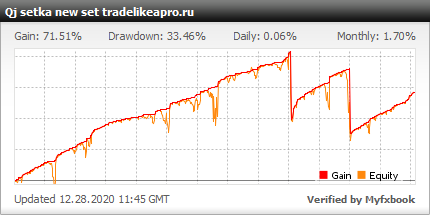
Which, agree, is not bad either. In principle, you can start with this option, and then gradually move on to the Warrior's Path described above.
Most of the information in this review is devoted to the Warrior's Path. Therefore, if you are not ready yet, you can simply download the expert advisor and install the set files from the archive.
Setka TLP Expert Advisor Strategy

The "Setka TLP" expert advisor belongs to trading robots that use a grid of orders and increase the lot after losses in their work, that is, it uses a martingale strategy.
The "Setka TLP" expert advisor starts trading by using filters to open the first order. In the usual case, the expert advisor simply waits for three candles (three by default, but this can be changed in the settings) to appear in one direction on the selected timeframe, and immediately after that places an initial buy or sell order.
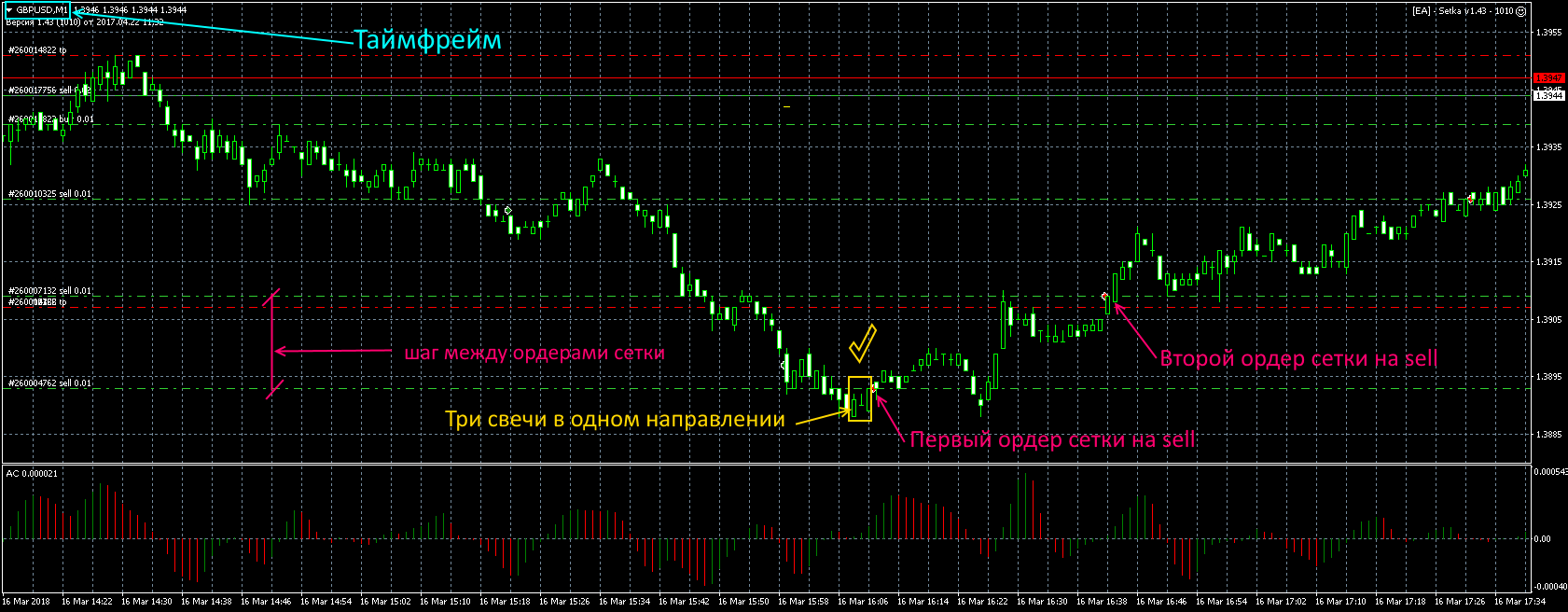 ⇒Thus, no indicators, calculations, or strategies are used to start trading.
So, if the filters allow it, an order with take profit but without a stop is placed, and then, in the event of price movement in the direction opposite to the entry, a series of orders is placed with a fixed distance between them (the so-called order grid, which is why robots with this operating principle are called grid traders). Orders in the grid are opened with lots, each subsequent one of which is multiplied by a preset multiplier. The expert advisor waits for a price pullback, at which it closes the series of orders with a profit, and the cycle repeats - checking the filters for opening the first order, placing the first order, and so on.
The expert advisor can trade grids simultaneously in two directions - grids are built both for buy and for sell.
An example of the expert advisor's operation:
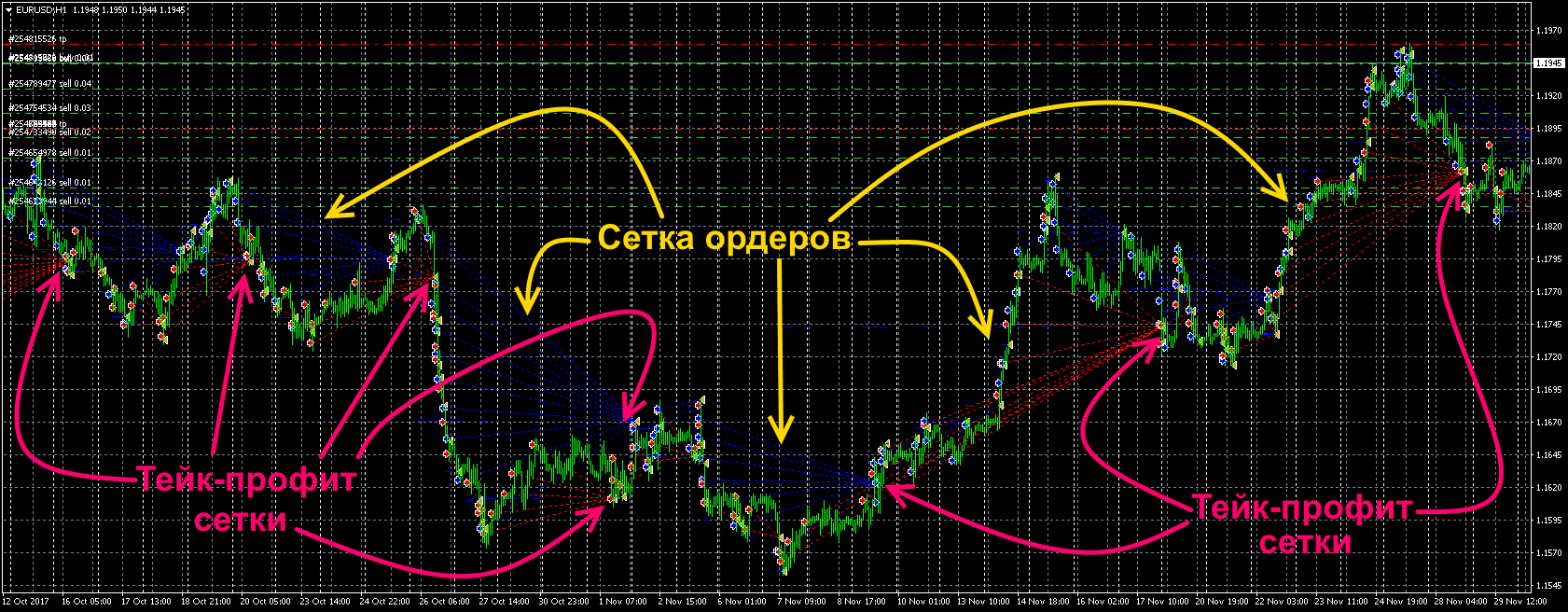
⇒A feature of the "Setka TLP" expert advisor is its very broad trading settings:
1) a large number of first-entry filters (indicator-free - if the price has formed the number of consecutive candles in one direction that you specified, spread, volatility, by drawdown, by price impulse, by martin gap, by the number of simultaneously traded currency pairs, by the number of open orders, by opening time);
2) The use of the lot multiplier can begin from an arbitrarily specified grid number (leg);
3) The ability to adjust the grid structure. The "Setka TLP" expert advisor can adjust:
3.1) The grid geometry - adding or reducing the distance between legs after a predefined leg number. Three independent levels of grid adjustment are provided, that is, three specified legs, each with its own adjustment value for the distance between orders. The adjustment is calculated relative to the original step between orders in the grid. The amount of the distance adjustment can be either positive or negative and is expressed in 4-digit pips.
3.2) Grid multipliers - increasing or decreasing the multiplier after a predefined leg number. Three independent levels of grid multiplier adjustment are provided, that is, three specified legs, each with its own adjustment value for the lot size multiplier of the subsequent order. The adjustment is a number that is added to the original multiplier. The amount of the multiplier adjustment can be greater than or less than zero.
⇒Grid geometry adjustments and grid multiplier adjustments are absolutely independent of each other.
4) Price impulses and gaps in quotes are handled correctly. When trading after a price impulse or a gap, either an enlarged market post-gap order may be used, or pending orders may be placed on the untraded section of the chart corresponding to the grid orders, as if there had been no gap. The expert advisor's ability to trade correctly after an impulse or a gap is ensured by an algorithm that has no analogues in other expert advisors.
5) The ability to force close grid orders before the calculated take profit is reached - by the amount of floating profit, by the amount of drawdown, by the specified trading close time.
6) Buy and sell grids can have different settings, which makes it possible to trade asymmetric sets.
Attention! In this expert advisor, the settings have a very strong effect on trading results, and if you are not developing your own sets, then use the recommended set files (see the archive at the end of this article).
Important Nuances and Setup Recommendations

- The bot works tick by tick and does not depend on the chart timeframe to which it is attached. You explicitly set in the bot settings the timeframe of the candles that the bot can analyze during operation. This is fully implemented in the bot code.
However, practice shows that MT4 at different dealing centers does not always correctly provide information about candles of different timeframes, and therefore it is highly recommended to trade with the bot and test the bot only on the timeframe that you set in the settings of the indicator-free entry block.
- It is also not recommended to switch the timeframe of the chart to which the bot is attached often, because each such switch of the bot chart timeframe leads to an immediate interruption of the bot's operation and a restart of the bot "from scratch" with a large amount of work being performed, including the recognition and full recalculation of the existing order grids.
Therefore, if you need to switch timeframes often on the currency pair traded by the bot, it is highly recommended to open another chart of the currency pair traded by the bot and switch the timeframe there, without bothering the bot for no reason.
The bot is designed for fully automatic around-the-clock trading without human intervention, while taking into account the maximum possible number of your wishes/preferences and trading order options.
- In semi-automatic mode, it is permissible to use the bot to manage with a grid (including averaging) one market/pending order opened/placed by you according to your trading system manually/by script or by another bot.
To do this, you need to specify S_OpenFirstOrder=false and/or B_OpenFirstOrder=false and, in the bot settings, describe which grid should manage your market order (or, after activation, pending order).
(For now, placing pending orders is possible only with GapControl=0, that is, with gap/price impulse control and processing disabled.)
It is even permissible that the first order of one grid (for example, sell) will be opened by the bot automatically based on candles, while you will open/place the first order of the second grid (for example, buy) yourself manually or with another bot.
- All grid settings in pips are specified (for now) only as whole numbers in 4-digit pips (old points). The bot automatically recalculates the pip settings for the specific account.
If you specify that the first grid step equals 16, then for a 5-digit account the bot will use the value 160 in its calculations.
This applies to absolutely all parameters in pips.
- All numeric settings of the sell and buy grids are completely separate/independent and may differ radically, both in grid geometry and in mathematics/risk.
To the point that the lots of one grid may be fixed, while those of the other may be dynamic according to MM, and/or, for example, the lots of the sell and buy grid orders may be calculated using two radically alternative algorithms.
- Trading with several copies of the bot on several charts of one currency pair is permissible, provided that each copy of the bot on all charts of that currency pair has a different MagicNumber.
However, the multicurrency trading management options do not yet "see" such multicurrency trading by several copies of the bot on one currency pair and assume that only one copy of the bot is trading on one chart/pair, not several.
The basic public bot is currently indicator-free.
- In automatic trading mode, the bot opens the first order of the sell or buy grid if the price has formed the number of consecutive one-direction candles specified by you, and there are no other restrictions/prohibitions on opening the first grid order.
All settings and some condition filters for automatic opening of the first grid orders are explicitly specified by you in the indicator-free entry block.
The settings make it possible to specify a huge number of condition variants for opening the first grid order.
- In semi-automatic mode (S_OpenFirstOrder=false and/or B_OpenFirstOrder=false), the indicator-free entry block is disabled, but the bot is ready to work and waits for the user for the first grid order that is adequate and matches the settings specified in the bot.
With CandlesToOpen1Order=0, the indicator-free entry block is disabled, and the bot opens the first grid order "where it stands" immediately after the grid is closed by TP without any control of the conditions for opening the first grid order.
- The bot has theoretically complete sets of trade schedulers and trade management depending on drawdown, as well as multicurrency trading management options, spread and volatility filters, and various other useful things.
The combination of separately simple and understandable bot options makes it possible to design and conduct extremely complex ordinary and multicurrency trading, partially or completely impossible in other bots.
The bot has an original system for processing price impulses and martin-gaps (price gaps or skipped trading on part of the chart) of any duration/size and nature.
- At the moment, 2 fundamentally different options have been implemented for the bot to process price impulses and martin-gaps of any size and nature: with an increased first post-gap order or by placing pending orders on the untraded section of the chart.
- The algorithms implemented in the bot for placing pending orders on the untraded section of the chart are original; we have not seen close analogues, and in most cases they effectively process powerful news impulses and even prolonged connection loss.
- The bot has a number of parameters that make it possible to test and optimize both ordinary and exotic sets on regular deposits or micro kamikaze deposits much more reliably and comparably, including with a fixed lot.
- The CloseAllOrders_ByDDMoney option, set equal to the initial deposit, simulates constant profit withdrawal and makes it possible to test trading with a small kamikaze deposit, and also to correctly run fixed-lot tests for as many years as needed.
- The FinalGridDate=YYYY.MM.DD HH:MM option prohibits opening new grids from the specified date and time, which makes it possible to complete tests without hanging grids that have to be forcibly closed, and this significantly increases the efficiency of set optimization.
- The bot comes with an Excel model exactly matching the bot, allowing you to perform a highly accurate "visual" analysis of the grid settings you specify and reliably calculate the deposit minimally required for the trading you plan.
The model instantly performs analysis of the grid settings you specify for a particular pair and account and outputs, among other things, critically important data for trading that the terminal strategy tester does not and will not have.
⇒The Setka TLP bot is distributed under the terms of GNU GPL3.
According to the terms of the license under which this software is distributed, all software modifications and autonomous developments related to the software must be published in source code.
So, unlike the existing analogues, this robot has very broad parameter configuration capabilities:
- the expert advisor works tick by tick and does not depend on the timeframe to which it is attached;
- the possibility of semi-automatic trading (management of a manually opened position);
- correct operation after price gaps (GAPs) of any nature;
- three levels of grid correction;
- the absence of indicators for calculating anything (in the basic version);
- an entry filter by the number of same-direction candles;
- an entry filter by the volatility of the current candle of the specified timeframe;
- filters for spread, leverage, order opening frequency, and the number of simultaneously traded pairs and currencies;
- very detailed schedulers for the start and end of trading.
Attention! The "Setka TLP" expert advisor uses a martingale strategy. Sooner or later, a large loss will occur; however, with periodic withdrawal of investments, probability theory works in our favor. After the withdrawal of the initial deposit, the dangerous martingale strategy immediately becomes loss-free and highly profitable.
Expert Advisor Backtests

Backtests are done for each pair separately, since the Metatrader 4 platform does not allow multicurrency testing.
A series of tests is done with a fixed lot. This makes it possible to evaluate the testing results without taking money management into account.
Sets corresponding to the monitoring in Robotest are used.
Setka 1.43 EURUSD 2017 robotest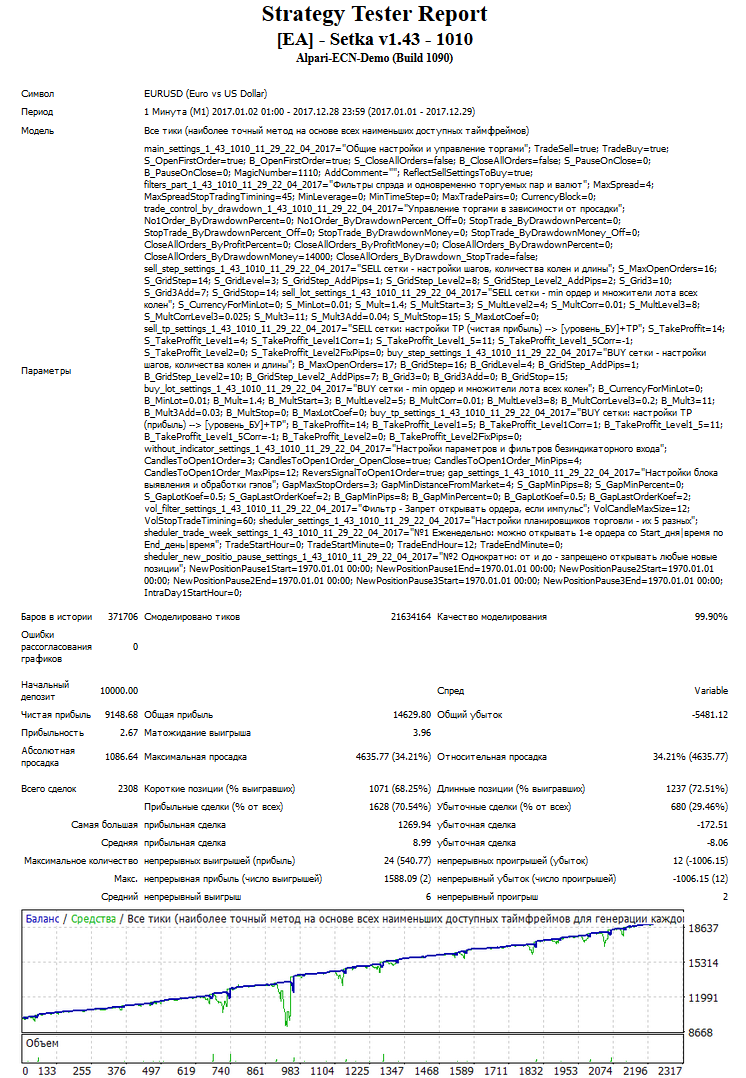 The test results are good
Setka 1.43 GBPUSD 2017 robotest
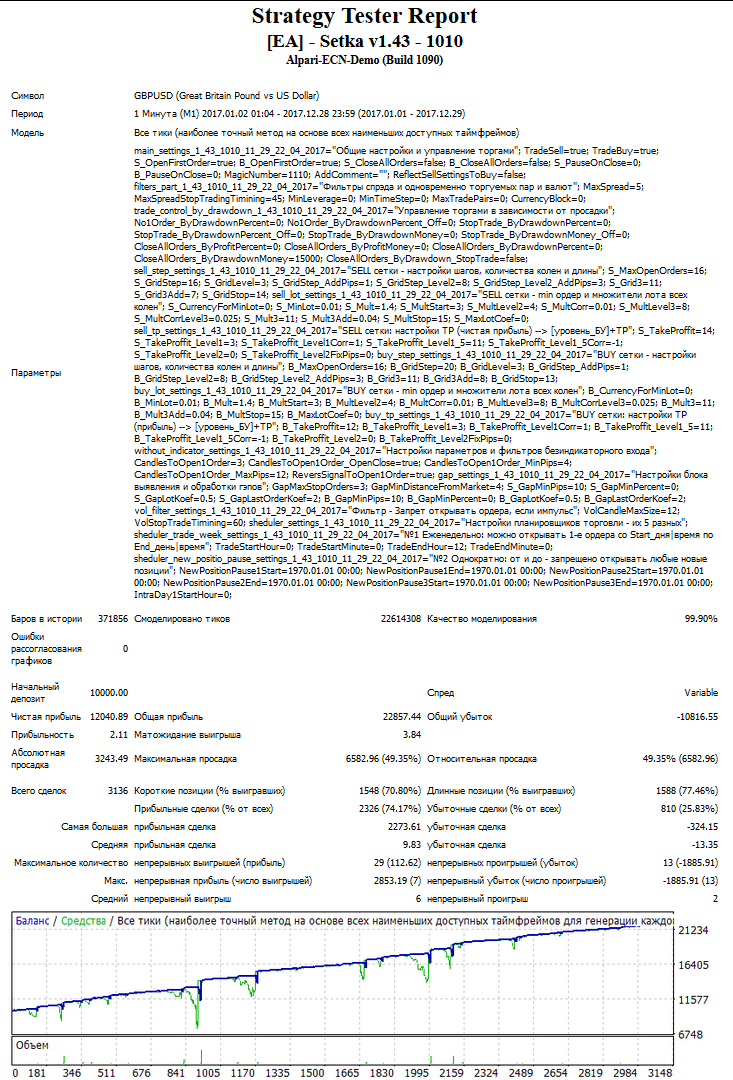 The test results are good
⇒Please note that the tests do not contain the so-called "fire poker," that is, there is no deposit wipeout characteristic of primitive averaging robots.
Using the EA Analyzer program, let us make a summary statement:
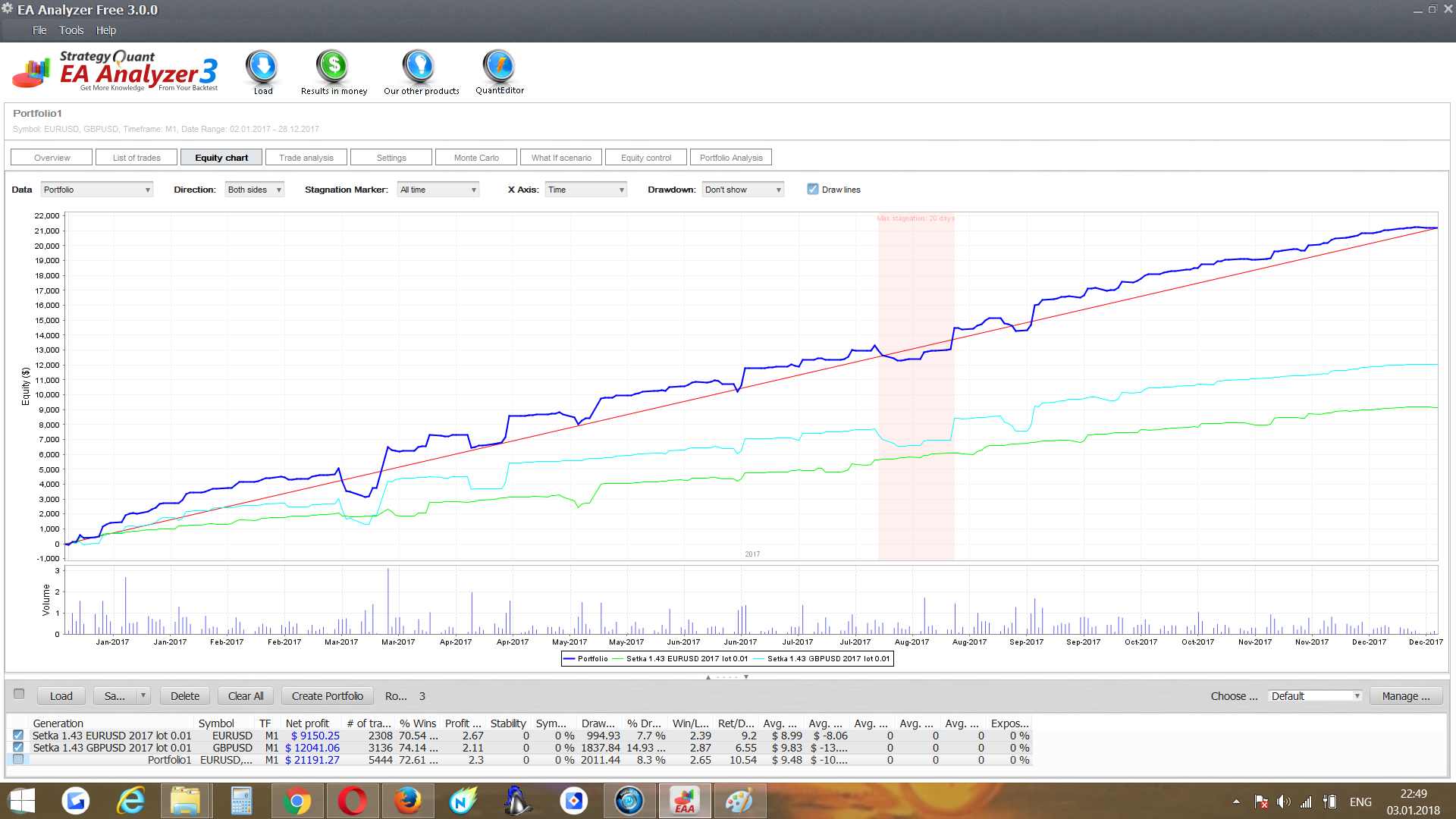 Conclusion: The Setka expert advisor, when operating on the EURUSD and GBPUSD pairs, shows stable profit growth without drawdowns critical for the deposit.
Monitoring
Real account monitoring from Chex (aggressive growth)
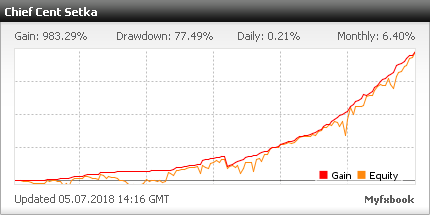
Monitoring in Robotest
Description of the Expert Advisor Settings

main_settings
General settings and trade management
- TradeSell=true - ( true | false ) ( 1 | 0 ) - allow | forbid opening Sell orders and placing SellStop pending orders. It is applied immediately and remains effective for an unlimited time until you command/set the opposite. The ban on opening/placing orders can be introduced/cancelled at any moment and regardless of whether there are orders on the chart or not;
- TradeBuy=true - ( true | false ) ( 1 | 0 ) - allow | forbid opening Buy orders and placing BuyStop pending orders;
- S_OpenFirstOrder=true -( true | false ) ( 1 | 0 ) - allow | forbid the bot to open the first order of the Sell grid by itself. The prohibition on the bot opening the first order of a new grid is used:
- in semi-automatic trading (then the first order is placed by the trader or another bot) or
- for the planned withdrawal of the bot from trading after the grid is closed by TP.
The prohibition on the bot opening the first order of the grid can be introduced/cancelled at any moment and regardless of whether there are orders on the chart or not.
- B_OpenFirstOrder=true -( true | false ) ( 1 | 0 ) - allow | forbid the bot to open the first order of the Buy grid by itself (similarly to S_OpenFirstOrder);
- S_CloseAllOrders=false - ( false | true ) ( 0 | 1 ) - when you set S_CloseAllOrders = true, then all Sell orders will be closed and all SellStop pending orders deleted as quickly as possible at a price close to the current one. !!! After applying the option and closing all orders of the Sell grid, you must independently (manually) set S_CloseAllOrders = false - otherwise all Sell orders opened by the bot will be immediately closed by the bot itself!;
- B_CloseAllOrders=false - ( false | true ) ( 0 | 1 ) - when you set B_CloseAllOrders = true, then all Buy orders will be closed and all BuyStop pending orders deleted as quickly as possible at a price close to the current one. !!! After applying the option and closing all orders of the grid, you must independently (manually) set B_CloseAllOrders = false - otherwise all Buy orders opened by the bot will be immediately closed!;
- S_PauseOnClose=0 - The number of minutes during which opening the first market order of the Sell grid is forbidden after the Sell grid is closed by TP. This is a temporary activation of the S_OpenFirstOrder = false option;
- B_PauseOnClose=0 - The number of minutes during which opening the first market order of the Buy grid is forbidden after the Buy grid is closed by TP. This is a temporary activation of the B_OpenFirstOrder = false option;
- MagicNumber=1110 - The magic order number - the same No. (identifier) for all orders of the Buy and Sell grids of this copy of the bot. Any integer. Most often it is not mandatory, but it is highly recommended to set your own magic number in each copy of the bot. !!! When trading 2 or more copies of the bot on one currency pair in one account, different magic numbers for all copies of the bot on this currency pair are strictly mandatory - and in multicurrency trading they are only recommended;
- AddComment - Your text comment for orders (for example, magic digits or text). It is placed to the left of the bot orders comment. Empty by default. Convenient when trading 2+ copies of the bot, including on one chart. The allowed size of your comment and the symbols used in it may differ among brokers and on different accounts. Somewhere a longer comment will be allowed, and somewhere there are disallowed symbols. In one dealing center, for example, it is permissible to set no more than 11 characters in AddComment. Spaces are allowed (even several in a row), as well as /.,;:|<>"'-_. But not all symbols are allowed by the dealing center. !!! If in AddComment you specify symbols disallowed by a particular dealing center, Cyrillic, or a longer comment, then in the terminal not only your comment but also the comment of the bot itself will not be visible;
- ReflectSellSettingsToBuy=true - Whether to apply the Sell grid settings in Buy grids or not - whether the settings in both grids of the bot will be symmetrical or not. If set = true, the settings will be symmetrical and it will be enough for you to specify the settings only for the Sell grid - and copies of the Sell grid settings will be used in the Buy grid. If set = false, the Sell and Buy grid settings will be different and you need to set them separately for the Sell and Buy grids.
Filters_Part1
Filters for spread, leverage, order opening frequency, and simultaneously traded pairs and currencies
- MaxSpread=5 - ( =0 - control disabled) The maximum spread size in pips up to which the bot is allowed to open market orders and place pending orders in both grids of the currency pair traded by the bot. The spread is checked only when there are conditions for opening an order. If the current spread exceeds MaxSpread, the opening/placement of orders is blocked for MaxSpreadStopTradingTimining seconds. !!! The use of the option in the tester is limited or impossible. On accounts with a fixed spread, the use of the option may be extremely rare and block the bot's operation from tens of minutes to several days!;
- MaxSpreadStopTradingTimining=30 - The number of seconds of a pause in trading (a ban on opening market orders and placing pending orders in both grids of the traded pair) if the current spread becomes greater than the value set in the MaxSpread parameter;
- MinLeverage=0 - the minimum leverage at which it is allowed to open the 1st grid orders (new grids) on the pair traded by this copy of the bot. If the leverage becomes lower than specified, a ban on opening the 1st grid orders takes effect until the leverage increases to the level specified in the parameter. The bot will try to continue building already existing grids even with leverage lower than you specified. With MinLeverage=0, leverage control is disabled;
- MinTimeStep=0 - The minimum pause between opening orders in seconds. By default, MinTimeStep=0 is disabled. The pause between opening orders in sell and buy grids is controlled separately/autonomously, and the pause time is counted from the moment the next market order of the sell or buy grid is opened or a pending order is activated. Pending orders that have been placed but not activated are not taken into account. For all its simplicity, the option is tricky and multifunctional. First, it makes it possible not to open orders too frequently during a strong or trending price movement, stretching the grid and/or causing pending orders to be placed instead of opening market orders. Second, both online and in the tester, the option acceptably replaces the mode of opening orders on a new bar. For example, with MinTimeStep=900, orders will be opened no more often than once every 15 minutes regardless of the price movement during that time. !!! It is not recommended to abuse the option. In a flat market (or with large values), the use of the option may lead to lost profit, or even to not placing the senior grid orders that are often critically important for closing the grid sooner at TP on a sufficient correction/pullback;
- MaxTradePairs=0 - ( =0 - disabled ) The option affects the number of currency pairs traded simultaneously (at the moment) on the whole account in multicurrency trading. All orders are taken into account - both those opened manually and by bots. It sets the maximum number of pairs traded simultaneously on the whole account, until reaching which (including this pair) this copy of the bot is allowed to open the 1st grid orders (new grids). If the option is enabled and the account is trading (has orders on) more than MaxTradePairs pairs (including the currency pair of this bot), the opening of the first grid order (a new grid) in this copy of the bot is blocked. That is, this is a self-limiting option only for this copy of the bot on one pair in fact and only at the current moment: if the account already has orders on MaxTradePairs pairs, this bot will not open a new grid. Since the parameter is set separately for each currency pair, you can allow some pairs to trade in a whole crowd, while limiting other pairs from entering the market starting from just a few simultaneously traded pairs. !!! The option does not take magic numbers into account, therefore several copies of the bot trading on one pair and each building their own grids separately will be mistakenly counted by the MaxTradePairs option as one pair (1 bot on the pair);
- CurrencyBlock=0 - The option limits the simultaneous trading activity of several copies of the bot on one account on different currency pairs by controlling how many times each currency (from the pair) has been sold and bought on the account, including the currency pair from the chart to which this copy of the bot is attached. All orders on the account with any magic numbers and without them are taken into account - both those opened manually/by script and by other bots. The option controls (across the whole account) not the number of orders with each currency of the currency pair traded by this bot, but only the fact of purchases and sales of each currency of the pair across all pairs on the account. At the same time, the buying/selling of currencies in currency pairs across the whole account is interpreted by the bot in the standard way. For the pair CUR1/CUR2: sell means selling CUR1 and buying CUR2, buy means buying CUR1 and selling CUR2. That is, if, for example, at the moment there are 8 sell orders on EURUSD, the option takes this into account in fact as 1 sale of EUR and 1 purchase of USD. That is, only as the direction of operations with each currency of the pair. If, at the same moment, there are another 7 Sell orders on GBPUSD open on the account, then both copies of the bot (from the EURUSD and GBPUSD charts) simultaneously see on the account 1 EUR sale, 1 GBP sale, and 2 USD purchases. CurrencyBlock=0 - in this copy of the bot, control over the number of purchases/sales on the account of each currency of the bot pair is disabled. CurrencyBlock=X - each of the 2 currencies (CUR1/CUR2) of the currency pair of this copy of the bot can simultaneously be sold and bought no more than X times in any number of currency pairs on the whole account. And if, taking into account the opening of the first sell or buy grid order requested in the bot, the number of purchases or sales of either of the 2 currencies of the pair exceeds X times, the opening of the first grid order only in this copy of the bot is blocked until the next check by this copy of the bot, but across the whole account, of the possibility of opening the first order of one of the grids. That is, this is a self-limiting option only for this copy of the bot on one pair in fact and only at the current moment: if the account at the moment already has X purchases or X sales of one of the currencies of the chart pair of the bot copy and the opening of the requested first sell or buy grid order will lead to exceeding the limit of X purchases or sales of one of the currencies of the bot pair, this copy of the bot will not open a new grid. !!! Since the parameter is set separately for each copy of the bot, you can assign bots different CurrencyBlock values and thereby design very flexible and complex multicurrency trading options. !!! The option does not take magic numbers into account, therefore several copies of the bot trading on one pair and separately building their own grids will be mistakenly counted by the CurrencyBlock option as the orders of only 1 bot on the pair, and each bot on the account will mistakenly count/interpret the orders of all copies of the bot on this one pair as only 1 purchase and 1 sale of each of the 2 currencies of this currency pair.

TradeControl_ByDrawdown
Trade management depending on drawdown
- No1Order_ByDrawdownPercent=0 - ( =0 - disabled) Prohibits opening the first Buy and Sell grid orders if the total drawdown (of all the bot's and other people's market orders that are on the account) exceeds the % of the account balance specified by you (for example, =65). This applies only to new grids; already open grids grow and are managed without restrictions. The value of the parameter is set individually in each copy of the bot and applies only to its own currency pair. On some pairs, you can prohibit the opening of new grids at a smaller drawdown on the account, while on other pairs you can prohibit the opening of the first grid orders later, giving these pairs more trading freedom;
- No1Order_ByDrawdownPercent_Off=0 - ( =0 - disabled) allows you to set at what level of the total drawdown of all pairs on the account (as a % of the balance) this copy of the bot is again allowed to open the first grid orders;
- StopTrade_ByDrawdownPercent=0 -( =0 - disabled) Prohibits the opening/placement of orders (in the grid of the pair traded by this copy of the bot that is in the greater drawdown) after reaching the drawdown in % of the deposit specified by you (for example, =65). Drawdown is calculated only from the orders of the traded currency pair with one magic number opened by this copy of the bot;
- StopTrade_ByDrawdownPercent_Off=0 - ( =0 - disabled) The reverse parameter allows you to set from what level of drawdown in % of the deposit it is again allowed to open/place orders in the drawdown buy or sell grid (for example, =62). Drawdown is calculated only from the orders of the traded currency pair with one magic number opened by this copy of the bot;
- StopTrade_ByDrawdownMoney=0 - ( =0 - disabled) Prohibits the opening/placement of orders (in the grid of the pair traded by this copy of the bot that is in the greater drawdown) after reaching a drawdown equal to the amount specified by you in the account currency (for example, =3000). Drawdown is calculated only from the orders of the traded currency pair with one magic number opened by this copy of the bot;
- StopTrade_ByDrawdownMoney_Off=0 - ( =0 - disabled) The reverse parameter allows you to set from what level of drawdown in the account currency it is again allowed to open/place orders in the drawdown buy or sell grid (for example, =2700). Drawdown is calculated only from the orders of the traded currency pair with one magic number opened by this copy of the bot;
- CloseAllOrders_ByProfitPercent=0.0 - ( =0 - disabled) Closes at the current price all Buy and Sell orders (with one magic number) of one currency pair when these orders reach a profit equal to the specified % of the deposit. The profit+drawdown of the buy+sell orders opened only by this copy of the bot with one magic number on this one currency pair is taken into account, and all buy+sell orders only with this one magic number are closed. If several copies of the bot trade on the account (preferably with different magic numbers), then in each copy of the bot you can set your own/different values of the CloseAllOrders_ByProfitPercent parameter;
- CloseAllOrders_ByProfitMoney=0.0 - ( =0 - disabled) Closes at the current price all Buy and Sell orders (with one magic number) of one currency pair when these orders reach a profit equal to the specified amount in the account currency ($). The profit+drawdown of the buy+sell orders opened only by this copy of the bot with one magic number on this one currency pair is taken into account, and all buy+sell orders only with this one magic number are closed. If several copies of the bot trade on the account (preferably with different magic numbers), then in each copy of the bot you can set your own/different values of the CloseAllOrders_ByProfitMoney parameter;
- CloseAllOrders_ByDrawdownPercent=0 - ( =0 - disabled) Closes at the current price all Buy and Sell orders upon reaching a drawdown in % of the deposit. Only the drawdown from the orders opened by this copy of the bot on this currency pair is taken into account;
- CloseAllOrders_ByDrawdownMoney=0 - ( =0 - disabled) Closes at the current price all Buy and Sell orders upon reaching a drawdown equal to the amount specified by you in the account currency. Drawdown is calculated only from the orders opened by this copy of the bot. !!! The option is very important for testing bots, because it makes it possible to carry out long-term testing with a fixed lot while simulating the withdrawal of all profit above the deposit, as if the account were real. The option also provides a rare opportunity in martingale systems for adequate testing of all kinds of acceleration trading with arbitrarily small kamikaze deposits, correctly using orders with a fixed lot;
- CloseAllOrders_ByDrawdown_StopTrade = false - ( false | true ) ( 0 | 1 ) - block the bot's operation after closing all orders of both grids as a result of reaching on the pair traded by this copy of the bot a drawdown greater than the maximum allowed by you. This is an additional parameter that works only in conjunction with one of the CloseAllOrders_ByDrawdownPercent or CloseAllOrders_ByDrawdownMoney options (if at least one of them is enabled) and only in this one copy of the bot.

sell_step_settings
SELL grids - step settings, number of legs, and grid length
- S_MaxOpenOrders=15 - The maximum number of SELL orders (legs) that you allow the bot to open in the SELL grid;
- S_GridStep=14 - The initial step of the SELL grid in pips;
- S_GridLevel=3 - The serial number of the SELL grid order (leg) starting from which (inclusive) the current SELL grid step will be adjusted (on each leg) by S_GridStep_AddPips pips. If S_GridLevel>0 (the 1st grid step correction option is enabled) and S_GridStop>0, then the proportion S_GridStop>= S_GridLevel must be observed;
- S_GridStep_AddPips=1 - The number of pips by which the current SELL grid step will be adjusted on each leg, starting from leg S_GridLevel. It may be =0, >0, and even <0;
- S_GridStep_Level2=10 - The serial number of the SELL grid order (leg) starting from which (inclusive) the current SELL grid step will be adjusted (on each leg) by S_GridStep_Level2_AddPips pips. If S_GridStep_Level2>0 (the 2nd grid step correction option is enabled) and S_GridStop>0, then the proportions S_GridStop>= S_GridStep_Level2 and S_GridStep_Level2> S_GridLevel must be observed;
- S_GridStep_Level2_AddPips=7 - The number of pips by which the current SELL grid step will be adjusted on each leg, starting from leg S_GridStep_Level2. It may be =0, >0, and even <0;
- S_Grid3=0 - The serial number of the SELL grid order (leg) starting from which (inclusive) the current SELL grid step will be adjusted (on each leg) by S_Grid3Add pips. If S_Grid3>0 (the 3rd grid step correction option is enabled) and S_GridStop>0, then the proportions S_GridStop>= S_Grid3 and S_Grid3> S_GridStep_Level2> S_GridLevel must be observed;
- S_Grid3Add=0 - The number of pips by which the current SELL grid step will be adjusted on each leg, starting from leg S_Grid3. It may be =0, >0, and even <0;
- S_GridStop=0 - If =0, it is disabled. If S_GridStop>0, then this is the leg number on which grid step corrections/adjustments (S_GridStep_AddPips, S_GridStep_Level2_AddPips, or S_Grid3Add) are triggered/applied for the last time. Until the end of the grid (after leg S_GridStop), the step becomes fixed and equal to the grid step on leg S_GridStop.
sell_lot_settings
SELL grids - min order and lot multipliers for all legs
- S_CalcLotType = LastOrder|MinOrder - S_CalcLotType = LastOrder|MinOrder - the switch for the multiplier factor of the next N-th leg of the SELL grid. With CalcLotType = LastOrder, the lot of the previous N-1 leg SELL grid order is multiplied by the multiplier of the current N-th leg of the grid (the previous order is multiplied). With CalcLotType = MinOrder, the lot of the 1st (first) minimum order of the grid is always multiplied by the multiplier of the current N-th leg of the grid. The lot of the 1st order of the grid may be dynamic (S_CurrencyForMinlot>0). With CalcLotType = LastOrder and CalcLotType = MinOrder, all other/remaining parameters for controlling the multiplier and the order lot are applicable and function identically;
- S_CurrencyForMinlot=0 - Calculation of the lot of the first SELL grid order depending on the account balance (mini MM). If S_CurrencyForMinlot=0, then MM is disabled: the lot of the first SELL grid order is fixed and is always equal to S_MinLot. For example, if you set S_CurrencyForMinlot = 3000 and S_MinLot = 0.01, then with an account balance below 6000 the first order will be =0.01 lots, and with an account balance from 6000 to 8999 the first order will be =0.02 lots;
- S_MinLot=0. 01 - The lot of the 1st (first) minimum grid order;
- S_Mult=1. 4 - The initial lot multiplier for SELL grid orders. Most often, the lot of the next opened grid order = the lot of the last SELL grid order * S_Mult (with or without correction);
- S_MultStart=3 - The serial number of the SELL grid order (leg) starting from which S_Mult begins to be applied. Before rounding, the lot of the S_MultStart leg order = S_MinLot * S_Mult;
- S_MultLevel2=5 - The serial number of the SELL grid order (leg) starting from which (inclusive) the current/calculated lot multiplier value of the SELL grid (starting from S_Mult) is adjusted by the amount of S_MultCorr (on each leg). If S_MultLevel2>0 (the 1st grid multiplier correction option is enabled), then the proportions S_MultLevel2> S_MultStart must be observed (and if S_ MultStop >0, then S_MultStop>= S_MultLevel2 as well);
- S_MultCorr=0. 01 - The amount of correction (on each leg) of the current/calculated lot multiplier value of the SELL grid, starting from leg S_MultLevel2 inclusive;
- S_MultLevel3=8 - The serial number of the SELL grid order (leg) starting from which (inclusive) the current/calculated lot multiplier value of the SELL grid is adjusted by the amount of MultCorrLevel3 (on each leg). If S_MultLevel3>0 (the 2nd grid multiplier correction option is enabled), then the proportions S_MultLevel3> S_MultStart and S_MultLevel3> S_MultLevel2 must be observed (and if S_ MultStop >0, then S_MultStop>= S_MultLevel3 as well);
- S_MultCorrLevel3=0. 02 - The amount of correction (on each leg) of the current/calculated lot multiplier value of the SELL grid, starting from leg S_MultLevel3 inclusive;
- S_Mult3=11 - The serial number of the SELL grid order (leg) starting from which (inclusive) the current/calculated lot multiplier value of the SELL grid is adjusted by the amount of Mult3Add (on each leg). If S_Mult3>0 (the 3rd grid multiplier correction option is enabled), then the proportions S_Mult3>S_MultStart and S_Mult3>S_MultLevel3> S_MultLevel2 must be observed (and if S_ MultStop >0, then S_MultStop>= S_Mult3 as well);
- S_Mult3Add=0. 03 - The amount of correction (on each leg) of the current/calculated lot multiplier value of the SELL grid, starting from leg S_Mult3 inclusive;
- S_MultStop=0 - If = 0, it is disabled. S_MultStop is the leg number on which the corrective multiplier parameters S_MultCorr, S_MultCorrLevel3, or S_Mult3Add are applied for the last time (if the user has activated them). S_MultStop is the leg number after which, until the end of the sell grid, the lot multiplier remains fixed and will be the same up to and including the last leg of the grid;
- S_MaxLotCoef=0 - S_MaxLotCoef is the user-defined coefficient of the maximum order lot for any leg of the Sell grid. S_MaxLotCoef allows you to calculate the maximum lot with which the bot is allowed to open market orders (place pending orders). The bot will not open orders with a lot larger than that allowed/set by S_MaxLotCoef. If S_MaxLotCoef=0, then maximum order lot control/limitation is disabled. Traditionally in bots, the maximum allowed order lot in a grid is set as a constant in lots. In our case, the maximum permissible order lot in the grid is calculated from the lot of the first grid order, which makes the maximum order lot dynamic and proportional to the size of the deposit (if S_CurrencyForMinlot>0 and the lot of the first grid order is not fixed, but calculated depending on the size of the deposit). S_MaxLotCoef specifies the maximum order in the grid as the maximum allowed number of first grid orders, with the lot fixed or calculated depending on the deposit size. If the calculated lot of the next grid order exceeds MaxLotCoef * the lot of the first grid order, then an order will be opened with a lot equal to MaxLotCoef * the lot of the first grid order. For example, S_MaxLotCoef=150, with the first sell grid order of 0. 02 lots, allow a maximum order for sell grids =3 lots. This option allows averaging to be applied on the last orders of the grids.
sell_tp_settings
SELL grids: TP settings (pips of net profit) --> - TP
- S_TakeProffitType= tp_level_without_loss (=1) - You choose the algorithm/method for calculating the grid TP: tp_avg - by weighted average or tp_level_without_loss - relative to the breakeven level. Both algorithms for calculating the grid TP level give close figures. But with tp_level_without_loss, commission and swap are taken into account and, if the grid lives long and the swap is noticeable, then almost every day after midnight the grid TP is recalculated and adjusted by 1-2 pips;
- S_ TakeProffit =14 - The initial number of TP pips, the profit from the grid. Added (with a minus sign) to the breakeven level or the arithmetic weighted average of the SELL grid;
- S_ TakeProffit_Level1=4 - The serial number of the SELL grid order (leg) starting from which the current/calculated TP value of the grid will be adjusted by S_TakeProffit_Level1Corr pips (on each leg). The 1st grid TP correction option;
- S_TakeProffit_Level1Corr=1 - The number of pips by which the current/calculated TP value of the grid in pips is adjusted, starting from leg S_ TakeProffit_Level1. It may be >0 or <0;
- S_TakeProffit_Level1_5=12 - The serial number of the SELL grid order (leg) starting from which the current/calculated TP of the grid (in pips) will be adjusted by S_TakeProffit_Level1_5Corr pips (on each leg). The 2nd grid TP correction option. If S_TakeProffit_Level1_5>0, then the proportion S_TakeProffit_Level1_5 > S_TakeProffit_Level1 must be observed;
- S_TakeProffit_Level1_5Corr=-1 - The number of pips by which the current/calculated TP value of the grid in pips is adjusted, starting from leg S_ TakeProffit_Level1_5. It may be >0 or <0;
- S_TakeProffit_Level2=0 - The serial number of the SELL grid order (leg) starting from which the TP level of the grid in pips is fixed and rigidly set at the breakeven level minus S_TakeProffit_Level2FixPips. The 3rd grid TP management option. If S_TakeProffit_Level2>0, then the proportions S_TakeProffit_Level2 > S_TakeProffit_Level1_5 > S_TakeProffit_Level1 must be observed;
- S_TakeProffit_Level2FixPips=0 - The number of pips of positive offset (profit) from the SELL grid breakeven level, fixedly set starting from leg S_ TakeProffit_Level2 of the grid.

buy_step_settings
BUY grids - step settings, number of legs, and grid length
Similar to the settings for Sell orders B_MaxOpenOrders=15 B_GridStep=14 B_GridLevel=3 B_GridStep_AddPips=1 B_GridStep_Level2=10 B_GridStep_Level2_AddPips=7 B_Grid3=0 B_Grid3Add=0 B_GridStop=0
buy_lot_settings
BUY grids - min order and lot multipliers for all legs
Similar to the settings for Sell orders B_CalcLotType = LastOrder|MinOrder B_CurrencyForMinlot=0 B_MinLot=0. 01 B_Mult=1. 4 B_MultStart=3 B_MultLevel2=5 B_MultCorr=0. 01 B_MultLevel3=8 B_MultCorrLevel3=0. 02 B_Mult3=11 B_Mult3Add=0. 03 B_MultStop=0 B_MaxLotCoef=0
buy_tp_settings
BUY grids: TP settings (pips of net profit) --> +TP
Similar to the settings for Sell orders (except for the direction and the use of TP in the formulas: in Buy grids TP is added to the breakeven level, and in Sell grids TP is subtracted from the breakeven level.) B_TakeProffitType=1 B_ TakeProffit =14 B_ TakeProffit_LEVEL1=4 B_TakeProffit_Level1Corr=1 B_ TakeProffit_LEVEL1_5=12 B_TakeProffit_Level1_5Corr=-1 B_ TakeProffit_LEVEL2=0 B_TakeProffit_Level2FixPips=0
without_indicator_settings
Indicator-free entry block: parameter and filter settings. Used only to open the first order of the grid. Closed candles are analyzed.
- OpenFirstOrderTF=1 - The timeframe of candles that the bot's indicator-free entry block analyzes when deciding whether or not to open the first Buy or Sell order of the grid;
- CandlesToOpen1Order=3 - How many candles in one direction in a row there must be to open the first Buy or Sell order of the grid. Any number from 0 (zero) is allowed, at least two is recommended. !!! If CandlesToOpen1Order=0, the indicator-free entry block/filters are completely disabled. The bot will open the first order of the grid at the current price immediately after the previous grid is closed by TP (or, if there is no grid, on a 'new' chart), completely ignoring all other settings and filters of the indicator-free entry block;
- CandlesToOpen1Order_OpenClose=true - ( false|true). This parameter specifies how to measure the size (in pips) of the CandlesToOpen1Order candle group on the OpenFirstOrderTF timeframe, by bodies or by shadows. If =true, the size of the bodies (OpenClose) of the CandlesToOpen1Order candle group is summed and taken into account. If =false, the gap between opposite shadows, the local extremes (HighLow) of the CandlesToOpen1Order group of closed candles, is taken into account;
- CandlesToOpen1Order_MinPips=4 - the minimum size in pips of the CandlesToOpen1Order candle group on the OpenFirstOrderTF timeframe required to open the first order of a new order grid. If you set it to >0 and the size in pips of the CandlesToOpen1Order candle group is less than CandlesToOpen1Order_MinPips, the bot treats this as a 'dead flat' and the first grid order is not opened. If CandlesToOpen1Order_MinPips=0, control of the minimum total size in pips of the CandlesToOpen1Order candle group is disabled;
- CandlesToOpen1Order_MaxPips=18 - the maximum size in pips of the CandlesToOpen1Order candle group on the OpenFirstOrderTF timeframe allowed for opening the first order of a new order grid. If the size in pips of the CandlesToOpen1Order candle group is greater than CandlesToOpen1Order_MaxPips, this is treated as an 'impulse', the first grid order is not opened, and the bot waits for one more candle. If CandlesToOpen1Order_MaxPips=0, control of the maximum total size in pips of the CandlesToOpen1Order candle group is disabled;
- ReversSignalToOpen1Order=true - Reverse the entry signal (by candles): open the 1st order of a new order grid in the direction (= false) or against the direction (= true) of the last CandlesToOpen1Order candles on the OpenFirstOrderTF timeframe.

gap_settings
Gap-control block: settings for the block that detects and processes martingale gaps
- GapControl=2 - Martingale gap processing mode. We call martingale gaps the areas on the chart (farther than / larger than the grid step) where at least 1 next grid order should have been opened, but was not. A martingale gap or untraded chart segment can arise for many reasons: a Monday gap, a news impulse, the broker server froze, you forgot to pay for the internet, you spilled beer on the computer... But as soon as the bot sees that there is not at least one order on the pair's chart where it should be, the bot interprets this as a martingale gap and processes it in one of the following ways: =0 no_gap - the martingale gap is not compensated. After the martingale gap, a market order of the next grid leg is opened at the current price with the same lot that this order would have had even without the martingale gap; =1 inc_lot - the distortion of the grid due to the martingale gap is partially compensated by opening 1 market order at the current price with an increased lot according to the formula taking into account the GapLotKoef and GapLastOrderKoef settings; =2 op_stop - no more than GapMaxStopOrders pending orders are inserted into the martingale gap instead of all or part of the skipped market orders. The lots of the pending orders placed will be the same as the lots of the market orders of the next grid legs would have been if there had been no martingale gap, i.e. if order openings had not been skipped. GapControl=2 is usually optimal for speeding up grid closure by TP with a smaller but still good profit;
- GapMaxStopOrders=3 - The maximum number of consecutive pending orders placed when processing one or more martingale gaps in a row. Opening a market order breaks the chain of martingale gaps (if there were 2 or more in a row) or 'closes' one martingale gap, and the count of martingale gaps and pending orders to be processed starts again from 0. If there were several gaps in one grid but with at least one market order opened between them, then there may be 3-6 or more pending orders in one order grid as a consequence of several martingale gaps. A value of GapMaxStopOrders equal to the number of senior / largest grid orders that close in profit when the grid closes by TP is recommended. Usually there are 2-3 such orders, and in dense grids there can be more. Used only with martingale gap processing mode GapControl=2 (=op_stop);
- GapMinDistanceFromMarket=4 - An additional offset of the farthest pending order from the current price, above StopLevel. 4-2 pips is recommended in order to reduce the risk of accidental activation of the pending order by a twitchy price. Used only with martingale gap processing mode GapControl=2 (=op_stop);
- S_GapMinPips=10 - The minimum number of pips by which the price must step beyond the calculated opening level of the next SELL grid order, which was not opened where it should have been for any reason, in order to identify and 'declare' a martingale gap and trigger the gap-control block. S_GapMinPips must always be at least 2+ pips less than any next grid step between any two adjacent SELL grid orders;
- S_GapMinPercent=0 - The same as S_GapMinPips, only the price overstep beyond the calculated opening level of the next order required to recognize and process a martingale gap is specified as a percentage of the next SELL grid step. For example, S_GapMinPercent=50;
- S_GapLotKoef=0. 5 - An empirical reduction coefficient used when calculating the lot of the first post-gap market enlarged SELL order of the grid after a martingale gap. Used only with gap processing mode GapControl=Inc_lot. The enlarged lot of the first post-gap order is calculated by the formula = lot_of_the_last_order * (current_lot_multiplier + current_lot_multiplier * S_GapLotKoef );
- S_GapLastOrderKoef=2. 0 - The opened post-gap market SELL order must be no more than S_GapLastOrderKoef times larger than the last market SELL order of the grid before the martingale gap. Used only with gap processing mode GapControl=Inc_lot;
- B_GapMinPips=10 - The minimum number of pips by which the price must step beyond the calculated opening level of the next BUY grid order, which was not opened where it should have been for any reason, in order to identify and 'declare' a martingale gap and trigger the gap-control block. B_GapMinPips must always be at least 2+ pips less than any next grid step between any two adjacent BUY grid orders;
- B_GapMinPercent=0 - The same as B_GapMinPips, only the price overstep beyond the calculated opening level of the next order required to identify and process a martingale gap is specified as a percentage of the next Buy grid step. For example, B_GapMinPercent=50;
- B_GapLotKoef=0. 5 - an empirical reduction coefficient used when calculating the lot of the first post-gap market enlarged BUY order of the grid after a martingale gap. Used only with gap processing mode GapControl=Inc_lot. The enlarged lot of the first post-gap order is calculated by the formula = lot_of_the_last_order * (current_lot_multiplier + current_lot_multiplier * B _GapLotKoef );
- B_GapLastOrderKoef=2. 0 - The opened post-gap market BUY order must be no more than B_GapLastOrderKoef times larger than the last market BUY order of the grid before the martingale gap. Used only with gap processing mode GapControl=Inc_lot.
vol_filter_settings
Volatility filter - Do not allow orders to be opened if there is an impulse
- VolCandleTF=1 - The timeframe of the current candle by which price volatility at the moment is measured. Recommended and default =M1;
- VolCandleMaxSize=15 - The maximum allowable size of the current candle in pips, high - low. If the current candle exceeds VolCandleMaxSize pips, a full ban on opening/placing orders in all grids is enabled for VolStopTradeTimining seconds. If you set a large VolCandleMaxSize value (for example, 500 pips), the volatility filter will be de facto disabled;
- VolStopTradeTimining=60 - The time / interval in seconds during which opening/placing orders is prohibited after the volatility filter detects a price impulse.
!!! the volatility filter will block the opening/placement of orders until the current VolCandleTF candle closes. If the candle has already become larger than VolCandleMaxSize, it will keep 'signaling' and activating the volatility filter until it closes. Therefore, it is recommended / acceptable to set VolStopTradeTimining equal to 60*TimeFrame seconds and up (+ add another 10-20 seconds to 'let the price decide on the new candle whether to keep running or whether enough is enough for now').

sheduler_settings
Trading scheduler settings - 6 different schedulers
sheduler_trade_week_settings
No. 1 Weekly: it is possible / allowed to open the 1st grid orders (S_OpenFirstOrder=true and B_OpenFirstOrder=true) from Start_day|time to End_day|time.
- TradeStartDay=0 - Day of the week when trading starts;
- TradeStartHour=0 - Hour when trading starts;
- TradeStartMinute=0 - Minute when trading starts (at this moment S_OpenFirstOrder=true and B_OpenFirstOrder=true will start to apply, unless you explicitly forbid these modes manually with the 3rd and/or 4th parameters);
- TradeEndDay=6 - Day of the week when trading ends;
- TradeEndHour=12 - Hour when trading ends;
- TradeEndMinute=0 - Minute when trading ends (at this moment S_OpenFirstOrder=false and B_OpenFirstOrder=false will be enabled. The orders / grids existing at this moment may continue to grow and will be managed by the bot until they are closed by TP).
sheduler_new_position_pause_settings
No. 2 One-time: from and to - opening the first grid orders is forbidden. Specify it in the format YYYY.MM.DD HH:MM (pauses can be set in advance and for any duration, even for a year).
- NewPositionPause2Start=0 - Date and time of the start of pause No. 2 of scheduler No. 2;
- NewPositionPause2End=0 - Date and time of the end of pause No. 2 of scheduler No. 2;
- NewPositionPause3Start=0 - Date and time of the start of pause No. 3 of scheduler No. 2;
- NewPositionPause3End=0 - Date and time of the end of pause No. 3 of scheduler No. 2;
- NewPositionPause4Start=0 - Date and time of the start of pause No. 4 of scheduler No. 2;
- NewPositionPause4End=0 - Date and time of the end of pause No. 4 of scheduler No. 2;
- NewPositionPause5Start=0 - Date and time of the start of pause No. 5 of scheduler No. 2;
- NewPositionPause5End=0 - Date and time of the end of pause No. 5 of scheduler No. 2;
- NewPositionPause6Start=0 - Date and time of the start of pause No. 6 of scheduler No. 2;
- NewPositionPause6End=0 - Date and time of the end of pause No. 6 of scheduler No. 2;
- NewPositionPause7Start=0 - Date and time of the start of pause No. 7 of scheduler No. 2;
- NewPositionPause7End=0 - Date and time of the end of pause No. 7 of scheduler No. 2;
- NewPositionPause8Start=0 - Date and time of the start of pause No. 8 of scheduler No. 2;
- NewPositionPause8End=0 - Date and time of the end of pause No. 8 of scheduler No. 2;
- NewPositionPause9Start=0 - Date and time of the start of pause No. 9 of scheduler No. 2;
- NewPositionPause9End=0 - Date and time of the end of pause No. 9 of scheduler No. 2;
- NewPositionPause10Start=0 - Date and time of the start of pause No. 10 of scheduler No. 2;
- NewPositionPause10End=0 - Date and time of the end of pause No. 10 of scheduler No. 2.
sheduler_trade_day_settings
No. 3 Daily: time intervals when it is allowed to open the 1st grid orders - up to 10 intervals during the day. If specified, they apply on all days of the week.
- IntraDay1StartHour=0 - Hour of the start of intraday/daily interval No. 1 when it is allowed to open the first grid orders;
- IntraDay1StartMinute=0 - Minute of the start of intraday/daily interval No. 1 when it is allowed to open the first grid orders. From this moment, the parameters S_OpenFirstOrder=true and B_OpenFirstOrder=true are applied, unless these modes are explicitly prohibited by you manually by the 3rd and/or 4th parameters/settings of the bot;
- IntraDay1EndHour=0 - Hour of the end of intraday/daily interval No. 1;
- IntraDay1EndMinute=0 - Minute of the end of intraday/daily interval No. 1. From this moment, the parameters S_OpenFirstOrder=false and B_OpenFirstOrder=false begin to apply. The orders/grids existing at this moment may continue to grow and will be managed by the bot as long as necessary until they are closed by TP.
Settings of intraday/daily interval No. 2 of scheduler No. 3 IntraDay2StartHour=0 IntraDay2StartMinute=0 IntraDay2EndHour=0 IntraDay2EndMinute=0
Settings of intraday/daily interval No. 3 of scheduler No. 3 IntraDay3StartHour=0 IntraDay3StartMinute=0 IntraDay3EndHour=0 IntraDay3EndMinute=0
Settings of intraday/daily interval No. 4 of scheduler No. 3 IntraDay4StartHour=0 IntraDay4StartMinute=0 IntraDay4EndHour=0 IntraDay4EndMinute=0
Settings of intraday/daily interval No. 5 of scheduler No. 3 IntraDay5StartMinute=0 IntraDay5EndHour=0 IntraDay5EndMinute=0 IntraDay5EndMinute=0
Settings of intraday/daily interval No. 6 of scheduler No. 3 IntraDay6StartHour=0 IntraDay6StartMinute=0 IntraDay6EndHour=0 IntraDay6EndMinute=0
Settings of intraday/daily interval No. 7 of scheduler No. 3 IntraDay7StartHour=0 IntraDay7StartMinute=0 IntraDay7EndHour=0 IntraDay7EndMinute=0
Settings of intraday/daily interval No. 8 of scheduler No. 3 IntraDay8StartHour=0 IntraDay8StartMinute=0 IntraDay8EndHour=0 IntraDay8EndMinute=0
Settings of intraday/daily interval No. 9 of scheduler No. 3 IntraDay9StartHour=0 IntraDay9StartMinute=0 IntraDay9EndHour=0 IntraDay9EndMinute=0
Settings of intraday/daily interval No. 10 of scheduler No. 3 IntraDay10StartHour=0 IntraDay10StartMinute=0 IntraDay10EndHour=0 IntraDay10EndMinute=0
sheduler_trade_pause_settings
No. 4 One-time: from and to - it is forbidden to open/place orders. Set in the format YYYY. MM. DD HH:MM (Pauses can be set in advance for any day and time even years ahead).
- TradePause1Start=0 - Date and time of the start of pause No. 1, during which it is forbidden to open market orders and place pending orders. For example, TradePause1Start=2015. 05. 12 20:45. !!! Set in the bot settings window!;
- TradePause1End =0 - Date and time of the end of pause No. 1, during which it is forbidden to open market orders and place pending orders. For example, TradePause1 End =2015. 05. 12 22:15 - this is a prohibition on opening orders for 1. 5 hours;
- TradePause2Start=0 - Date and time of the start of pause No. 2 of scheduler No. 4;
- TradePause2End=0 - Date and time of the end of pause No. 2 of scheduler No. 4;
- TradePause3Start=0 - Date and time of the start of pause No. 3 of scheduler No. 4;
- TradePause3End=0 - Date and time of the end of pause No. 3 of scheduler No. 4;
- TradePause4Start=0 - Date and time of the start of pause No. 4 of scheduler No. 4;
- TradePause4End=0 - Date and time of the end of pause No. 4 of scheduler No. 4;
- TradePause5Start=0 - Date and time of the start of pause No. 5 of scheduler No. 4;
- TradePause5End=0 - Date and time of the end of pause No. 5 of scheduler No. 4;
- TradePause6Start=0 - Date and time of the start of pause No. 6 of scheduler No. 4;
- TradePause6End=0 - Date and time of the end of pause No. 6 of scheduler No. 4;
- TradePause7Start=0 - Date and time of the start of pause No. 7 of scheduler No. 4;
- TradePause7End=0 - Date and time of the end of pause No. 7 of scheduler No. 4;
- TradePause8Start=0 - Date and time of the start of pause No. 8 of scheduler No. 4;
- TradePause8End=0 - Date and time of the end of pause No. 8 of scheduler No. 4;
- TradePause9Start=0 - Date and time of the start of pause No. 9 of scheduler No. 4;
- TradePause9End=0 - Date and time of the end of pause No. 9 of scheduler No. 4;
- TradePause10Start=0 - Date and time of the start of pause No. 10 of scheduler No. 4;
- TradePause10End=0 - Date and time of the end of pause No. 10 of scheduler No. 4.

sheduler_trade_stop_settings
No. 5 Daily - up to 10 intervals during which it is forbidden to open market orders and place pending orders. If specified, they apply on all days of the week.
IntraDayStopTrade1StartHour=0 - Hour of the start of intraday/daily interval No. 1, when it is forbidden to open market orders and place pending orders;
IntraDayStopTrade1StartMinute=0 - Minute of the start of intraday/daily interval No. 1, when it is forbidden to open market orders and place pending orders;
IntraDayStopTrade1EndHour=0 - Hour of the end of intraday/daily interval No. 1;
IntraDayStopTrade1EndMinute=0 - Minute of the end of intraday/daily interval No. 1.
Settings of intraday/daily interval No. 2 of scheduler No. 5 IntraDayStopTrade2StartHour=0 IntraDayStopTrade2StartMinute=0 IntraDayStopTrade2EndHour=0 IntraDayStopTrade2EndMinute=0
Settings of intraday/daily interval No. 3 of scheduler No. 5 IntraDayStopTrade3StartHour=0 IntraDayStopTrade3StartMinute=0 IntraDayStopTrade3EndHour=0 IntraDayStopTrade3EndMinute=0
Settings of intraday/daily interval No. 4 of scheduler No. 5 IntraDayStopTrade4StartHour=0 IntraDayStopTrade4StartMinute=0 IntraDayStopTrade4EndHour=0 IntraDayStopTrade4EndMinute=0
Settings of intraday/daily interval No. 5 of scheduler No. 5 IntraDayStopTrade5StartHour=0 IntraDayStopTrade5StartMinute=0 IntraDayStopTrade5EndHour=0 IntraDayStopTrade5EndMinute=0
Settings of intraday/daily interval No. 6 of scheduler No. 5 IntraDayStopTrade6StartHour=0 IntraDayStopTrade6StartMinute=0 IntraDayStopTrade6EndHour=0 IntraDayStopTrade6EndMinute=0
Settings of intraday/daily interval No. 7 of scheduler No. 5 IntraDayStopTrade7StartHour=0 IntraDayStopTrade7StartMinute=0 IntraDayStopTrade7EndHour=0 IntraDayStopTrade7EndMinute=0
Settings of intraday/daily interval No. 8 of scheduler No. 5 IntraDayStopTrade8StartHour=0 IntraDayStopTrade8StartMinute=0 IntraDayStopTrade8EndHour=0 IntraDayStopTrade8EndMinute=0
Settings of the intraday/daily interval No. 9 of scheduler No. 5 IntraDayStopTrade9StartHour=0 IntraDayStopTrade9StartMinute=0 IntraDayStopTrade9EndHour=0 IntraDayStopTrade9EndMinute=0
Settings of the intraday/daily interval No. 10 of scheduler No. 5 IntraDayStopTrade10StartHour=0 IntraDayStopTrade10StartMinute=0 IntraDayStopTrade10EndHour=0 IntraDayStopTrade10EndMinute=0
sheduler_close_all_order_settings
No. 6 Daily - closing both grids at one time. If specified, they apply on all days of the week.
- CloseAllOrders_EveryDay_Hour=0 - Hour (time XX o'clock), starting from which attempts will be made to close all market orders and delete all pending orders (server 24-hour clock, for example =10);
- CloseAllOrders_EveryDay_Minute=0 - Duration (minutes) of the period of attempts to close and delete all orders on the chart (in case there is no connection to the server at the beginning of the hour at XX:00).
other_settings
Other general settings
- TAKEPROFFITControlTiming=90 - ( =0 - disabled, >0 - enabled) Number of seconds after which the TP level in all orders of sell and/or buy grids is rechecked and, if needed, corrected;
- TAKEPROFFITControlNoLossFixPips=3 - Number of pips for the TAKEPROFFITNoLossControlTiming option. If, because of the settings, the grid TP turns out to be at a loss, the TP of all orders in the grid will be set to the breakeven level + TAKEPROFFITControlNoLossFixPips;
- FinalGridDate=1609286400 - The parameter sets the date and time after which it is forbidden to open the first orders of sell and buy grids. For example, FinalGridDate=2015. 05. 12 20:45 !!! Set only in the bot settings window !!! If the option is used in tests by setting the date a few days before the end of the tested period, there will be no hanging grids at the end of the test and the comparability of test/optimization results will increase sharply;
- GlobalParamsUpdateTiming=60 - Time in seconds for updating global variables (service option);
- LogVerbose=2 - ( 0 = disabled, 1 = errors only, 2 = minor information, 3 = more detailed information, 4 = full debug information). Display in the log - the degree of detail of information about the bot's operation.
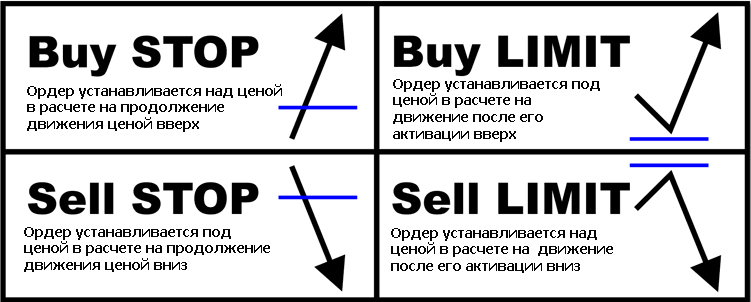
⇒A brief illustration of the essence of pending orders:
Recommended money management

It is recommended to initially aim for a deposit of at least 10000 units of currency per 0.01 lot for each pair used.
| Account type | Minimum lot and lot step | Min. starting deposit | Examples of brokers |
|---|---|---|---|
| Cent-mini | 0.01 | 100$ (10000 cents) | Forex4you |
| Cent account | 0.1 | $1000 | Roboforex |
| Standard | 0.01 | $10000 | Alpari |
| Pro accounts | 0.1 | $100000 | The classic account type at most brokers |
⇒Attention! To accurately calculate the deposit amount, you need to use the "Model" utility (see the description below).
Additional utilities
Additional utilities are absolutely necessary for those who develop their own sets.

"Model"
Calculation of grid geometry, multipliers, drawdowns, and profits
The "Model" utility is an Excel file intended for automatic calculation of the parameters and performance results of the Setka TLP expert advisor.
Screenshot of the main sheet of the Model
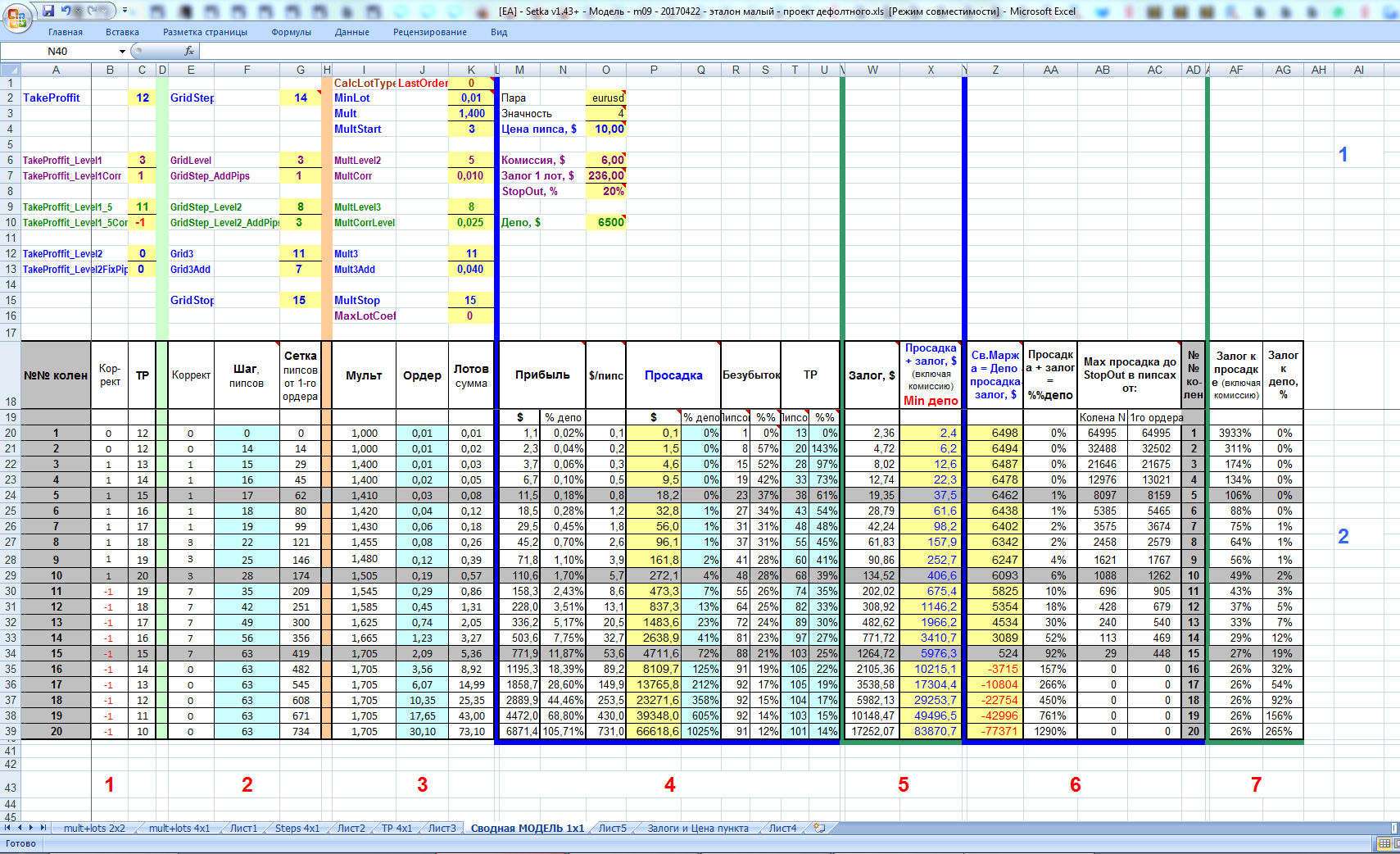
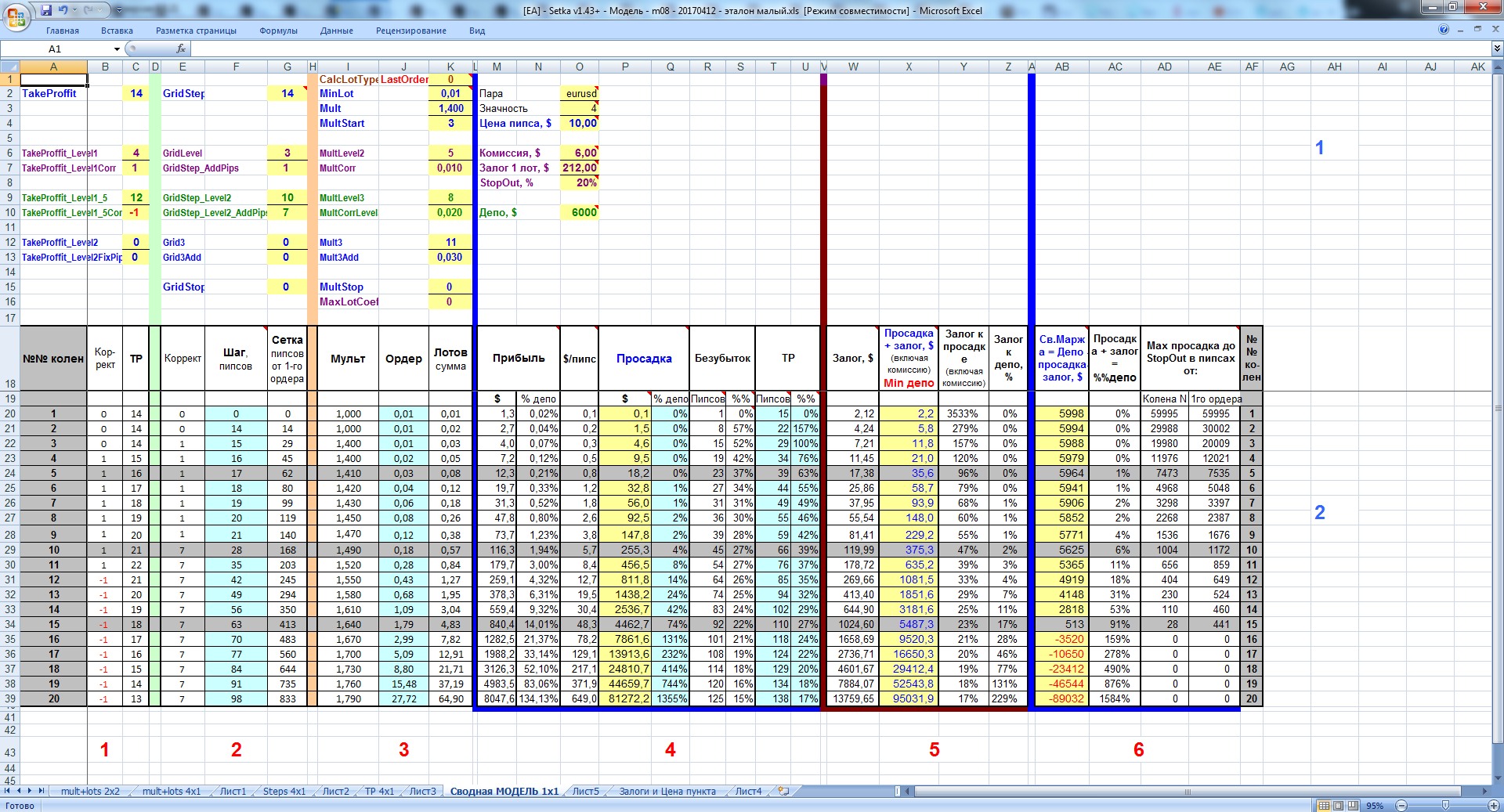
Vertically, we have 2 blocks:
1) a user-accessible block of cells for entering grid parameters/settings and the parameters needed for calculations of a specific account and a specific currency pair (the pip value, commission, margin for one pair, and stop out in %%) - for each pair and each account they are different. Moreover, the margin and pip price change together with the pair price, and they need to be clarified and updated in the Model quite regularly;
2) a block of the model itself protected from accidental erasure/damage, where all calculations necessary for users are performed and all information necessary for users of the Setka TLP expert advisor is visualized.
Horizontally, we have 6 blocks:
1) The block for calculating and visualizing TakeProfit: the number of pips of net profit - placed after/farther than the breakeven level of the grid in the direction of the start of the grid. The grid TP zone, depending on the number of legs and the grid length, can begin either 7-10 pips or 100 pips away from the senior order of the grid. In most medium-aggression grids of 3 or more orders, the TP zone is placed/completed around the 3rd of the maximum grid orders;
2) The block for calculating and visualizing the steps of the grid legs/orders and the critically important grid length. In this block, the order placement is determined in such a way as not only to cover the likely trading range of the pair (for example, =350 pips), but also to arrange the first 5-7-10 orders (on average >95% of grids are exactly like this) optimally for quick closure of the grid by TP on a minimal price rebound and with regard to the profit that suits you;
3) The block for calculating and visualizing the lots of the grid orders;
4) The block for calculating and visualizing the first, most analyzed part of the characteristics of the designed grid. Here, for each leg of the grid, the breakeven levels and the TP of the grid are shown - information of exceptional importance for assessing the probability and frequency of the grid being closed by TP with account taken of Fibonacci levels of probable rebounds/corrections. Here too is the calculated drawdown, extremely important for correct MM control. Here too is the calculated profit at each leg, extremely important for analyzing the degree of aggressiveness of the grid and the adequacy of the grid design, including on the junior legs;
5) The block for calculating and visualizing information about the margin and the funds that need to be reserved for margin. On this issue, the terminal provides practically no information - yet it is exceptionally important. Many will be surprised that even at 1:500 leverage on the first 7 legs of the grid the margin usually exceeds the drawdown - which means that the minimum deposit must be more than twice the drawdown that everyone watches without taking their eyes off when testing bots.
⇒So those who want to try trading a "kamikaze deposit" should take the information from the 5th block of the Model with the utmost seriousness;
6) A block for calculating and visualizing information about the deposit required for the grid you are designing, and final information on how many pips of price movement your specified deposit will withstand. Calculating the deposit required for trading with the grid you designed requires at most one addition or subtraction with the result entered into the "Deposit, $" cell.
7) A block for calculating and visualizing information about margin relative to drawdown (including commission) and deposit;
⇒To fill in the "Margins and Pip Value" tab, you can use the AccountInfo+ script from the archive at the end of this article. Attention! The script gives the pip value for the 5th digit in 5-digit quotes, while the Model works with 4-digit pips.
"Model + Trade Analyzer" (version by Drew)
The analyzer calculates grid parameters using the results of testing the set in MetaTrader
The utility is the "Model" by Starik with unique additional trade statistics calculation functions from Drew.
In the Model, a set is designed, then we run a test and paste the test report into the analyzer from Drew. If the grid statistics are unsatisfactory, we refine the set in the "Model", run the test with the updated set, and load the test report into the trade analyzer.
Screenshot of the main sheet of the "Model + Trade Analyzer"
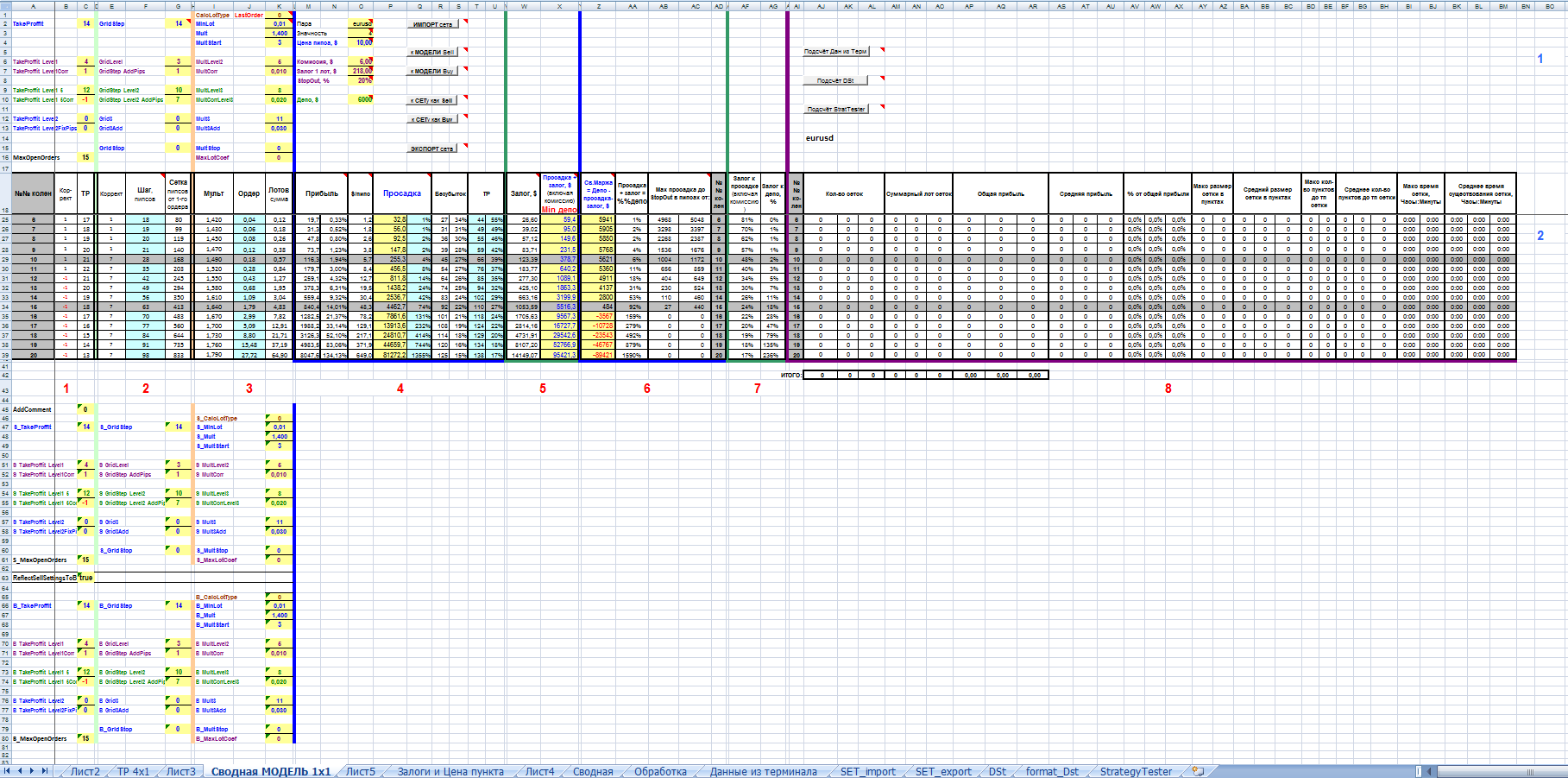 Instructions for using the Trade Analyzer
Grid calculation.
1. ⇒A very important point! Configure Excel. File=>Options=>Advanced, find the parameter "Use system separators". Uncheck it if it is checked, then in the parameter "Decimal separator:" set a PERIOD. Click "Ok". We do this so that copied data from MT4 is pasted correctly. This step is also necessary for correct import and export of sets;
2. Open the model and go to the "Terminal Data" sheet;
3. Switch to MT4, in the strategy tester select the "Results" tab and press Alt+A (Copy All);
4. Switch to Excel, on the "Terminal Data" sheet place the cursor in cell A1 and press Ctrl+V;
5. Go to the "Summary MODEL 1x1" sheet and select the pair in cell AJ14;
6. Press the "Calculate Terminal Data" button. Wait for the pivot tables to update. As a result, you get information about the grids built by the expert advisor.
Grid calculation from Statement, DetailedStatement, and StrategyTester reports.
1. On the "Summary MODEL 1x1" sheet, select the pair in cell AJ14;
2. Go to the "DSt" sheet. Place the cursor in cell A1;
3. On the "Data" tab, under Get External Data, choose "From Other Sources", then click "From XML Data Import". In the "Select Data Source" window, choose the file with the Statement or DetailedStatement report and click "Open";
4. In the "New Web Query" window click "Import". The "Import Data" window will open, click Properties, uncheck "Save query definition", click "Ok", then "Ok" again;
5. Go to the "Summary MODEL 1x1" sheet. Use the "Calculate DSt" button. Formatting and calculation are not instantaneous, wait 1-3 minutes depending on the PC specifications. If the loaded file contains several currencies, then to recalculate it is enough to select another pair and click "Calculate DSt" (only for Statement / DetailedStatement reports). Proceed similarly to calculate grids from the StrategyTester report. On the corresponding sheet import the data and click the "Calculate StratTester" button. Before importing a new report or pasting data from the terminal, clear the sheet: Ctrl+A, Delete.
Import and export of sets.
Perform step 1 of the grid calculation instructions.
- The "IMPORT set" button loads a set into the file. To see files with the "set" extension during import, choose "All files". Only "*.set" or "*.txt" files are imported correctly. If you cancel the import, error "1004" pops up (a bug that has not yet been defeated), just press "End" and continue working;
- The "to MODEL Sell" button applies to the model the parameter values for Sell grids from the loaded set;
- The "to MODEL Buy" button applies to the model the parameter values for Buy grids from the loaded set;
- The "to SET as Sell" button applies the model's current parameter values to the set that will be exported and saves them as parameter settings for Sell grids;
- The "to SET as Buy" button applies the model's current parameter values to the set that will be exported and saves them as parameter settings for Buy grids;
- The "EXPORT set" button exports a set from the file. Export is performed in "txt" format, so in MT4 when loading choose "AllFiles". The current state of the set settings for export can be viewed (viewed only!) on the "SET_export" sheet;
- The parameters that can be changed in the set are shown in the attached "Parameters" image. That is, the remaining settings of the loaded set do not change. By default, the default set is loaded.
⇒So, any technology for working with sets is as follows.
In MetaTrader, we run the expert advisor version for optimization and find sets that we like in terms of profitability, drawdown, or other traits. Then the set is run in the MetaTrader tester as usual. After that, the statement from the test is "loaded" into the grid statistics analyzer from Drew and you get a simply spectacular table with statistics of the grids from the test statement. From the table you learn the maximum number of legs reached during the test/optimization!
Further, also automatically, by pressing buttons and clicking the mouse, you load the analyzed set into the model.
The AccountInfo+ script gives you genuine information about the properties of the tested currency pair at your broker and you enter exact settings for the pair|broker into the model: pip value, margin, %stopout.
Having the set in the model, the settings for the pair|broker, and the number of legs, you accurately calculate the deposit size required for the set with the known number of legs and the drawdown identified in tests!
All that remains is to enter the real number of legs into the set, and you have a set for trading calculated using mathematical analysis of the set's behavior over the selected time interval.
Thus, we do not set expert advisor parameters blindly, hoping that it will withstand market movements, but construct sets based on market conditions.
Indicator CandlesSingleAverageStatistics 1.7.1ind (author - usver73)
The indicator is used to obtain information about volatility on a specified timeframe for a specified pair, which is necessary for designing the optimal grid length
The CandlesSingleAverageStatistics 1.7.1ind utility is an indicator installed according to the standard instructions, which is launched on the required timeframe and calculates statistics on candle sizes over the specified period. This information is very useful for designing martingale trading.
For the period specified in the settings, for the instrument and timeframe on which the indicator is attached, statistics on candles are collected. The information is grouped into 12 blocks of the same type (each block is its own period), which in turn provide the following information:
- Number of bars;
- Average volatility;
- Average body;
- Average upper shadow;
- Average lower shadow;
- Maximum candle;
- Maximum candle body;
- Maximum upper shadow;
- Maximum lower shadow.
This set is calculated separately for the following periods (a separate block for each period):
- the entire period (all candles, BUY only, SELL only);
- by days of the week (all candles, BUY only, SELL only):
Monday
Tuesday
Wednesday
Thursday
Friday
The same periods, but for a specific interval within the day. For example, the European session:
- the entire period (that is, all candles during the European session);
- by days of the week (again, only candles during the European session are taken into account):
Monday
Tuesday
Wednesday
Thursday
Friday
Screenshot of the indicator settings
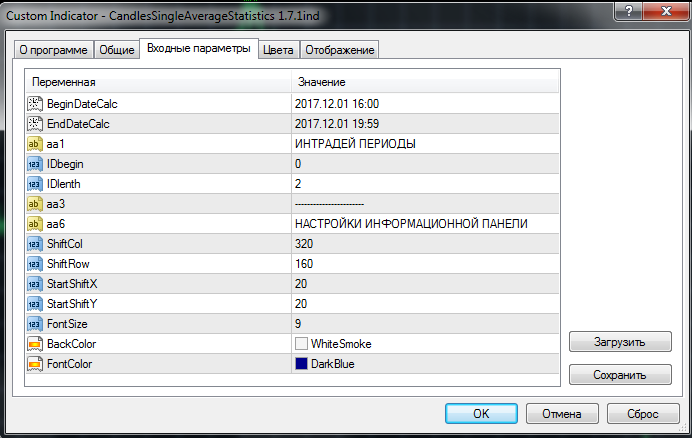 Period settings:
BeginDateCalc = D'2017.01.01'; - the beginning of the analyzed period;
EndDateCalc = D'2017.06.30 23:59:59'; - the end of the analyzed period.
"Intraday periods":
IDbegin=0;// Intraday period start - the beginning of the intraday period (hour);
IDlenth=2;// Intraday period length - the duration of the intraday period (hour). If intraday analysis is not performed (IDlenth=0), then only 6 blocks are displayed on the screen.
Panel settings:
BackColor = clrWhiteSmoke; //Background color;
FontColor = clrDarkBlue; //Font color.
Screenshot of the indicator results
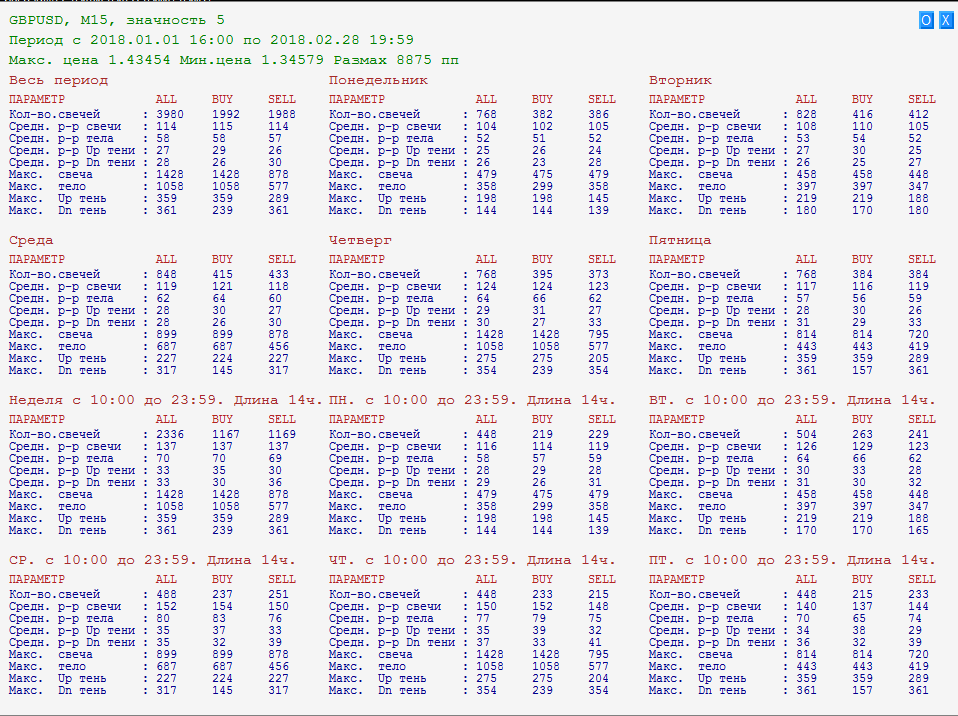 X - the cross in the upper right corner - the button for closing the calculation results;
O - the letter in the upper right corner - the "refresh" button. Useful if you need to load history by scrolling the chart backward.
⇒All information is also written to a csv file located at:
TerminalMQL4Files (when testing on an account), or at:
Terminaltesterfiles (when testing in the strategy tester).
File name: "IndicatorName_Instrument_Timeframe".csv
for example, "CandlesSingleAverageStatistics_GBPUSD_M15.csv".
If you run a test on the same instrument and on the same timeframe, the new information is written to the end of the file.
If the indicator is attached to a chart, then the *.csv file is locked and unavailable for reading. There will also be an error if you launch the indicator on another chart with the same instrument and timeframe.
CandlesSingleAverageStatistics.xlsx (author - Drew)
The file is intended to obtain volatility information on a specified timeframe for a specified pair, but not with the help of an indicator, rather by using the quote archive in the Metatrader terminal This is an analogue of the CandlesSingleAverageStatistics 1.7.1ind indicator in the form of an Excel spreadsheet. This may be useful for those who want to get the data directly in Excel format.
Screenshot of the spreadsheet start screen
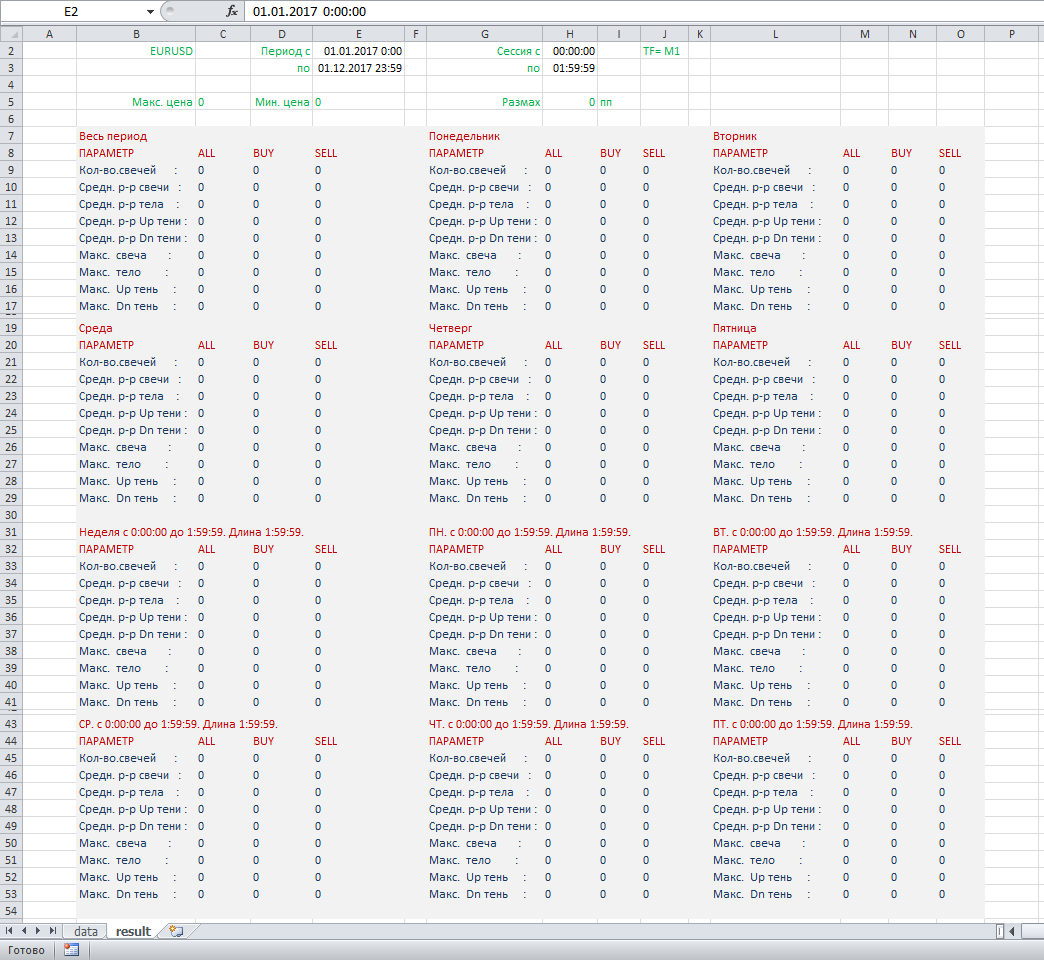 Instructions:
1) A very important point! Configure Excel. File=>Options=>Advanced, find the parameter "Use system separators." Remove the check mark if it is set, and then in the parameter "Decimal separator:" set a DOT. Click "OK";
2) In the terminal settings, set max. bars in history to no more than 500000;
3) From the terminal quote archive, export the data for the required pair and the necessary timeframe to a csv file;
4) Open the file "CandlesSingleAverageStatistics.xlsx". On the "result" sheet, in cell B2, select the pair whose history you previously unloaded from the terminal;
5) In the "Data" tab, click "Refresh All." In the window that appears, select the previously unloaded history file in csv format. Click "Open";
6) After loading, enter the period of interest and the session interval in the corresponding cells.
The data in the cells will be calculated automatically.
Setka - InfoPanel (author - ilnur17021992)
Screenshot of InfoPanel in Full display mode (full version)
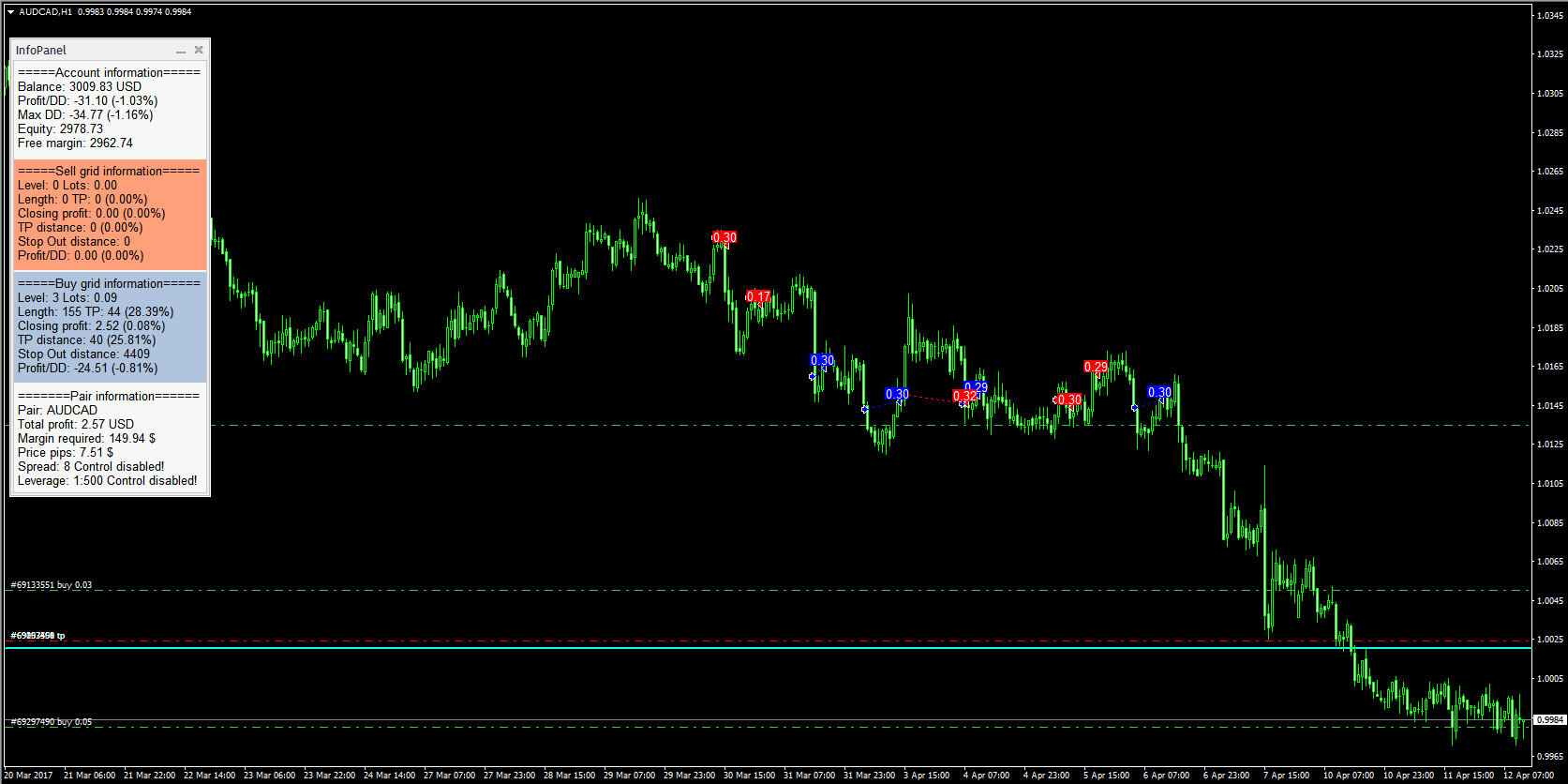 Screenshot of InfoPanel in Light display mode (simplified version)
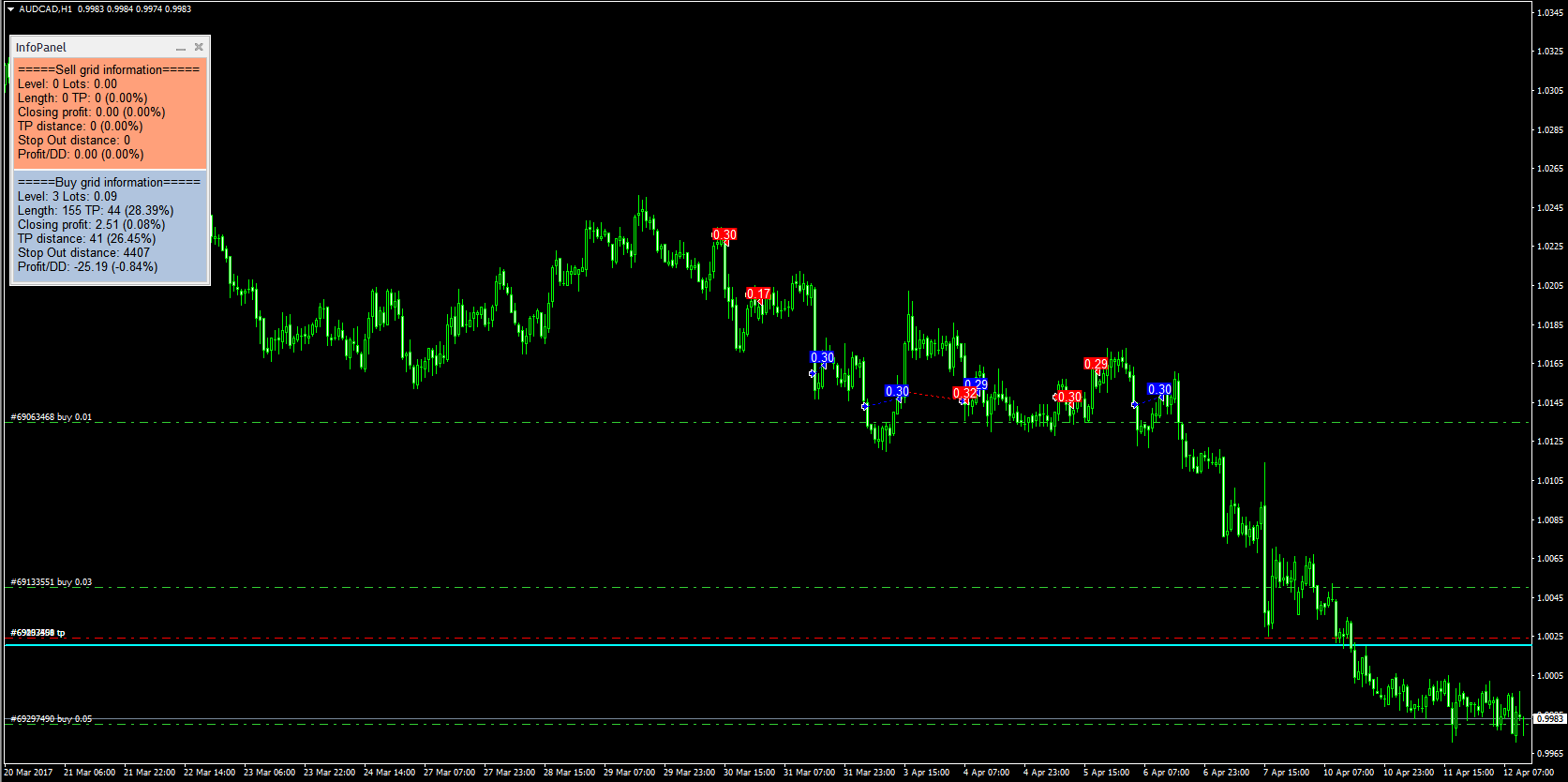
Displayed information and explanations for it
Account information - account information block:
- Balance: 3095.49 USD - balance in the account currency;
- Profit/DD: -94.61 (-3.06%) - current account profit/drawdown (as a % of balance);
- Max DD: -94.61 (-3.06%) - maximum drawdown recorded since the panel was launched (as a % of balance);
- Equity: 3000.88 - equity;
- Free margin: 2936.69 - free margin.
Sell grid information - information block for the Sell grid:
- Level: 14 Lots: 0.38 - number of legs and total lots;
- Length: 147 TP: 44 (29.93%) - grid length and the distance from the last leg to TP (as a % of the grid length);
- Closing profit: 33.65 (1.09%) - the amount of profit when closing the current grid by TP (as a % of balance);
- TP distance: 33 (22.45%) - current distance from the price to TP (as a % of the grid length);
- Stop Out distance: 783 - current distance from the price to Stop Out;
- Profit/DD: -92.75 (-3.00%) - current grid profit/drawdown (as a % of balance).
Buy grid information - information block for the Buy grid
...similar to the Sell grid information block
Pair information - information block for the traded pair:
- Pair: AUDCHF - symbol name;
- Total profit: 310.13 USD - the amount of profit in the account currency earned on this pair starting from the date specified in ProfitFromDateTime;
- Margin required: 153.68 $ - margin requirements;
- Price pips: 10.08 $ - pip price;
- Spread: 8 - spread;
- Leverage: 1:500 - leverage.
Order (grid) history, the amount of profit after closing the grid, and the break-even level on the chart:
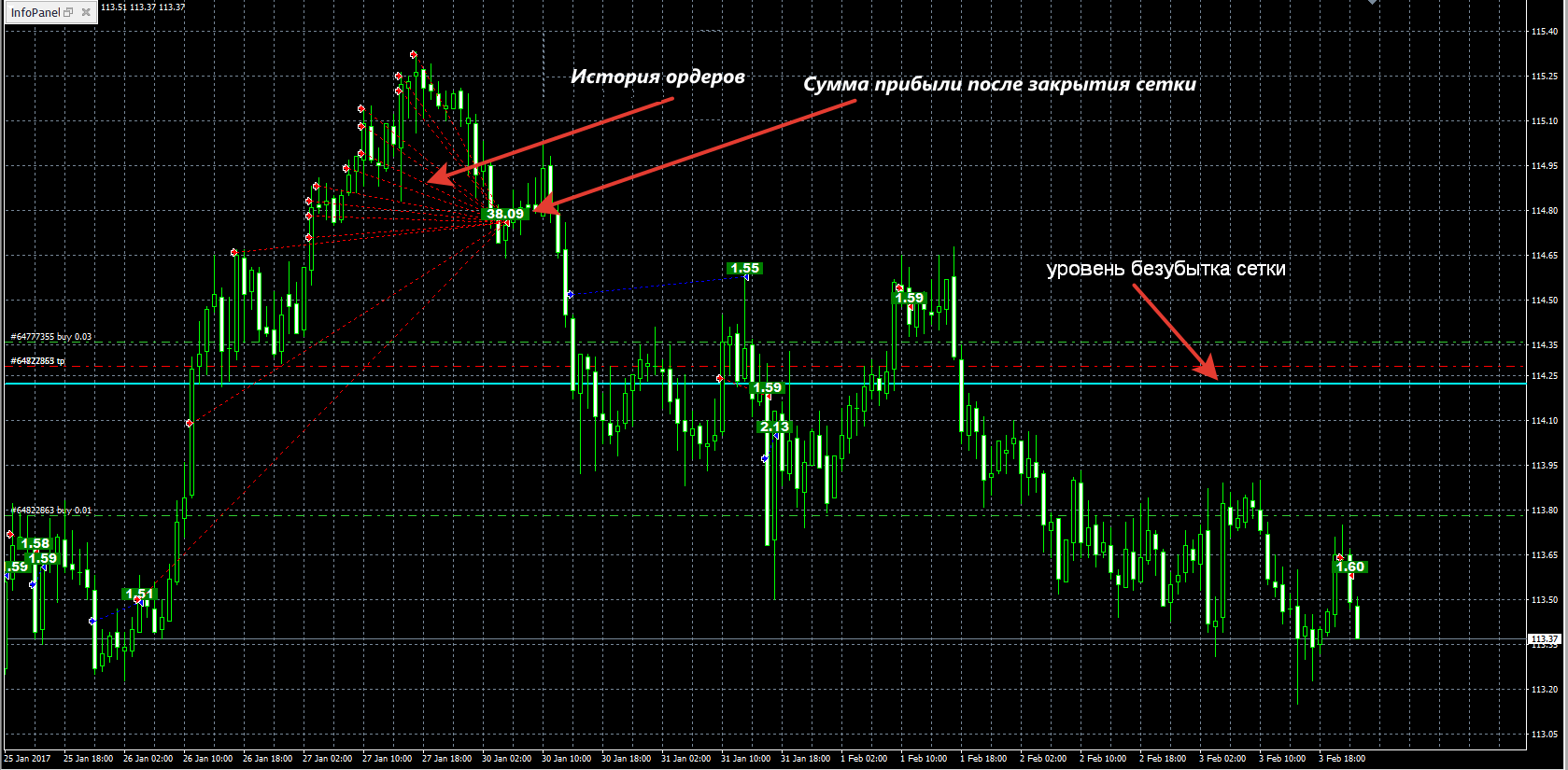
Description of the InfoPanel indicator settings
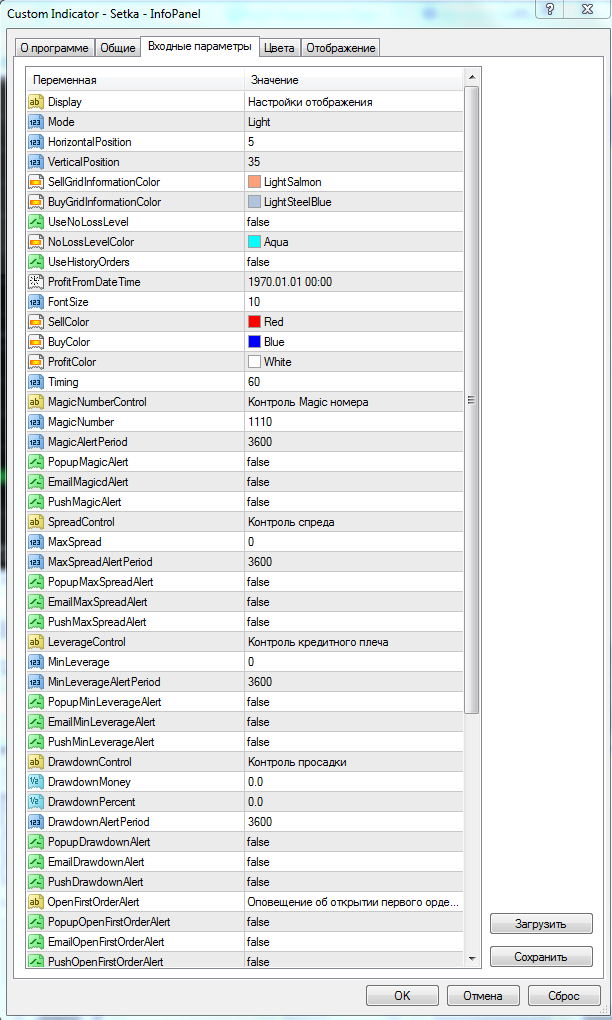 Display - display settings:
- Mode - mode (Light - simplified, displaying only grid information blocks, Full - full-featured, displaying all information blocks);
- HorizontalPosition - horizontal position of the panel on the chart;
- VerticalPosition - vertical position of the panel on the chart;
- SellGridInformationColor - background color of Sell grid information;
- BuyGridInformationColor - background color of Buy grid information;
- UseNoLossLevel - display the break-even level of grids on the chart;
- NoLossLevelColor - break-even level color;
- UseHistoryOrders - display the history of orders/profit on the chart;
- ProfitFromDateTime - the date from which the history of orders/profit will be displayed on the chart, as well as the date from which it will be calculated;
- FontSize - text size;
- SellColor - profit background color for Sell grids;
- BuyColor - profit background color for Buy grids;
- ProfitColor - profit color;
- Timing - number of seconds for calculating the profit of closed grids.
MagicNumberControl - Magic number control:
- MagicNumber - grid order magics;
- MagicAlertPeriod - period for sending a notification/report in seconds about the order magic number;
- PopupMagicAlert - display a notification/report on the terminal screen about the control of order magics;
- EmailMagicAlert - send a notification/report to the terminal email about the control of order magics;
- PushMagicAlert - send a notification/report to mobile devices about the control of order magics.
OpenFirstOrderAlert - Alert on opening the first grid order:
- PopupOpenFirstOrderAlert - display a notification/report on the terminal screen about opening the first grid order;
- EmailOpenFirstOrderAlert - send a notification/report to the terminal email about opening the first grid order;
- PushOpenFirstOrderAlert - send a notification/report to mobile devices about opening the first grid order.
SpreadControl - spread control:
- MaxSpread - maximum allowable spread;
- MaxSpreadAlertPeriod - period for sending a notification/report in seconds about the maximum spread;
- PopupMaxSpreadAlert - display a notification/report on the terminal screen about the maximum spread;
- EmailMaxSpreadAlert - send a notification/report to the terminal email about the maximum spread;
- PushMaxSpreadAlert - send a notification/report to mobile devices about the maximum spread.
LeverageControl - leverage control:
- MinLiverage - minimum allowable leverage;
- MinLiverageAlertPeriod - period for sending a notification/report in seconds about the minimum allowable leverage;
- PopupMinLiverageAlert - display a notification/report on the terminal screen about the minimum allowable leverage;
- EmailMinLiverageAlert - send a notification/report to the terminal email about the minimum allowable leverage;
- PushMinLiverageAlert - send a notification/report to mobile devices about the minimum allowable leverage.
DrawdownControl - drawdown control:
- DrawdownMoney - maximum allowable drawdown in deposit currency;
- DrawdownPercent - maximum allowable drawdown in percent;
- DrawdownAlertPeriod - period for sending a notification/report in seconds about the maximum allowable drawdown;
- PopupDrawdownAlert - display a notification/report on the terminal screen about the maximum allowable drawdown;
- EmailDrawdownAlert - send a notification/report to the terminal email about the maximum allowable drawdown;
- PushDrawdownAlert - send a notification/report to mobile devices about the maximum allowable drawdown.
OpenFirstOrderAlert - alert about opening the first grid order + opening price of the first order:
- PopupOpenFirstOrderAlert - display an alert/report on the terminal screen about the opening of the first grid order and its price;
- EmailOpenFirstOrderAlert - display an alert/report to email in the terminal about the opening of the first grid order and its price;
- PushOpenFirstOrderAlert - send an alert/report to mobile devices about the opening of the first grid order and its price.
CloseGridAlert - alert about grid closing + amount of profit upon grid closing:
- PopupCloseGridAlert - display an alert/report on the terminal screen about grid closing and the amount of profit;
- EmailCloseGridAlert - display an alert/report to email in the terminal about grid closing and the amount of profit;
- PushCloseGridAlert - send an alert/report to mobile devices about grid closing and the amount of profit.
NoLossLevelAlert - alert about reaching the price of the grid breakeven (BE) level:
- NoLossLevelAlertPeriod - period for sending an alert/report in seconds about reaching the breakeven level price;
- PopupNoLossLevelAlert - display an alert/report on the terminal screen about reaching the breakeven level price;
- EmailNoLossLevelAlert - display an alert/report to email in the terminal about reaching the breakeven level price;
- PushNoLossLevelAlert - send an alert/report to mobile devices about reaching the breakeven level price.
Report - sending a report on the current status of the account and grids:
- ReportPeriod - period for sending an alert/report on the current status of the account and grids;
- PopupReport - display an alert/report on the screen about the current status of the account and grids;
- EmailReport - display an alert/report to email in the terminal about the current status of the account and grids;
- PushReport - send an alert/report to mobile devices about the current status of the account and grids.
Note: In order for the panel to "see" your orders, you must necessarily fill in MagicNumber in the settings. The panel is not rigidly attached to the chart; it can be collapsed and dragged to any convenient place. You can also find out in advance what the profit/drawdown for the current grids will be at a certain price level. To do this, drag the BE level up or down with the mouse to a certain price (and do not release it); on the next tick, the panel will calculate the profit/drawdown and display it in Profit/DD. If you release the BE line, then on the next tick it will return to its place, that is, to the BE level.
⇒How to configure the terminal for sending messages to email is described in the official help here;
⇒How to configure the terminal for sending Push messages to mobile devices is described in the official help here.
Summary

The Setka TLP expert advisor and additional utilities are a professional set of tools for earning profit.
Autonomous grid settings separately for buy and for sell, the ability to adjust the geometry and order multipliers, a large number of conditions for opening and forced closing, and unique handling of impulses and gaps allow you to configure the expert advisor depending on the nature of the market and the currency pair, including asymmetrically for the buy and sell directions.
Additional utilities are an absolutely essential "gentleman's kit" for set developers, since the parameters of the Setka TLP expert advisor are calculated based on testing data in the terminal or trading on an account. We adapt the robot to the market rather than waiting for the market to adapt to us!
The correctness of this approach has been proven by tests, monitoring, and a large number of traders who are already successfully trading the Setka TLP expert advisor on real accounts.
"So what am I supposed to do with all this?"

⇒If you do not have much experience in trading grid systems, or simply want to use a proven reliable option, then you should use the sets and pairs from the archive (EUR/USD and GBP/USD, deposit from 15,000 units) - they are configured conservatively, and you can observe the result of their use in the monitoring on Robotest.
If, however, you are ready to explore the possibilities of working with the Setka TLP expert advisor as efficiently as possible, then you need to use additional utilities for testing and analysis; this has become the de facto standard procedure in developing professional sets for the Setka TLP expert advisor on our forum. And you will have to study the expert advisor thread on the forum. Yes, this will take time, but at the moment the bot is the most sophisticated and advanced grid trader in the world.
Important!
For the expert advisor to work correctly, the trading terminal must be turned on from the market opening on Sunday evening until its closing on Friday evening. If you are unable to keep your computer running 24/5, then it is recommended to use a VPS server service.
Download the Setka TLP Expert Advisor and Additional Utilities
Archive password - setka
⇒ Forum thread ⇐
Respectfully, Aleksey aka Merlin
TradeLikeaPro.ru
