
Ninja Trader Terminal Review - Your Assistant in VSA Analysis
 Hello everyone!
In the life of every trader who studies the topic of volumes, there comes a moment when they need special programs in order to dig deeper into this field, into the market profile, clusters, and so on. And the question arises of where they can view the data they are interested in. Thank progress and the internet, there are plenty of needed programs there. And today we will choose a very well-known platform - Ninja Trader 7.
The whole beauty of this terminal is that its entire arsenal is available completely free of charge, although you do need to perform some manipulations in order to keep using it constantly, but more on that a little later. You can also add any indicators and scripts to the program, and there are many of them across the internet - everyone can find what they need.
Overview

Let us begin with the process of registration and downloading, as well as installing the program.
Follow the link http://ninjatrader.com/ru/, and enter a valid email address.
Please note that at present CQG does not send a login and password to email addresses from mail.ru, bk.ru, list.ru, inbox.ru, so you need to enter an email address from the yahoo, gmail domain, and so on.
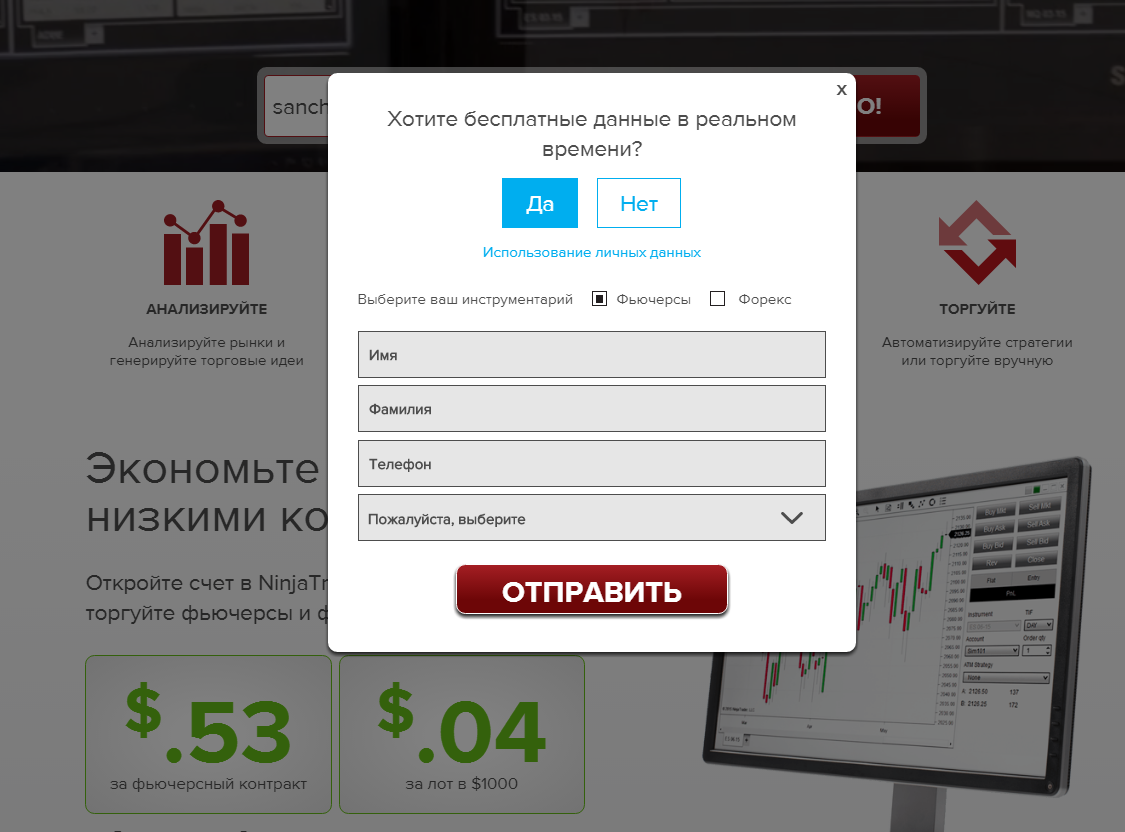
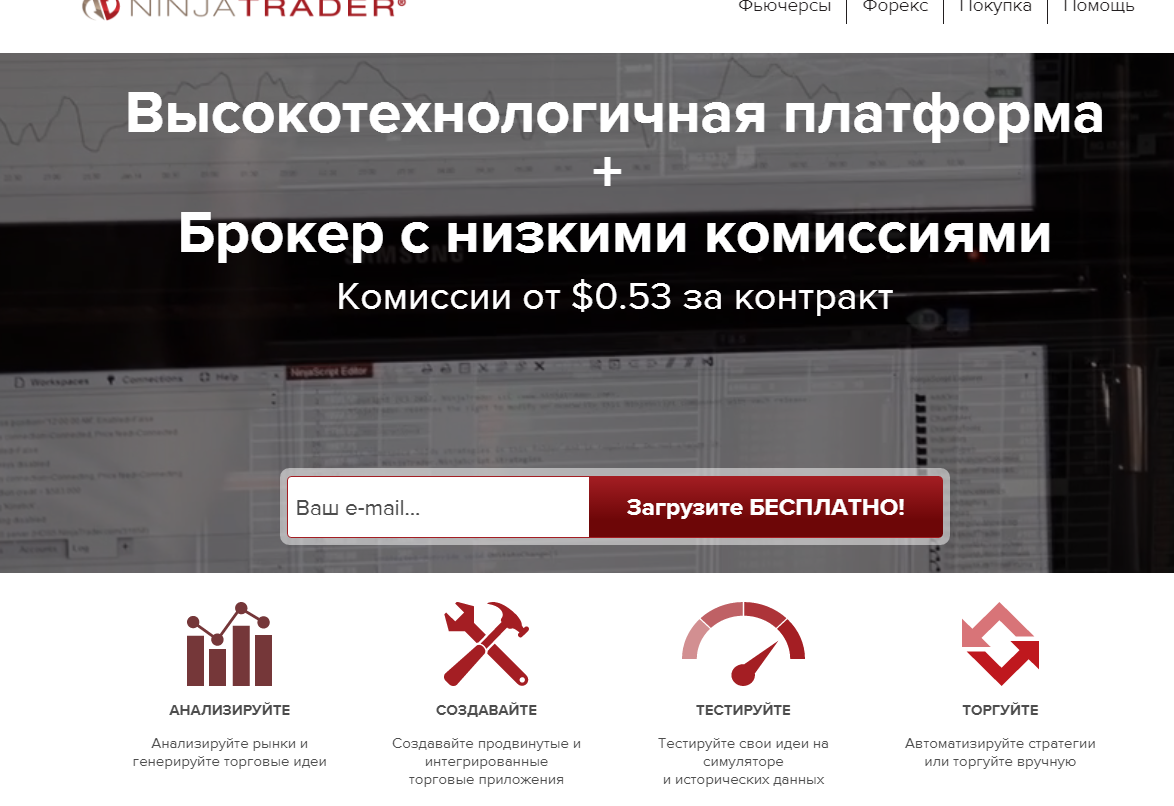 There are temporary email services if you do not want to enter a real one:
Next, fill in all fields using Latin characters and click submit.
 Select version 7.
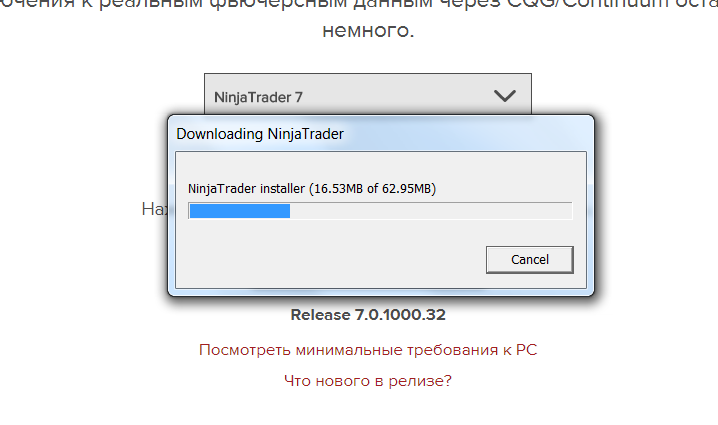
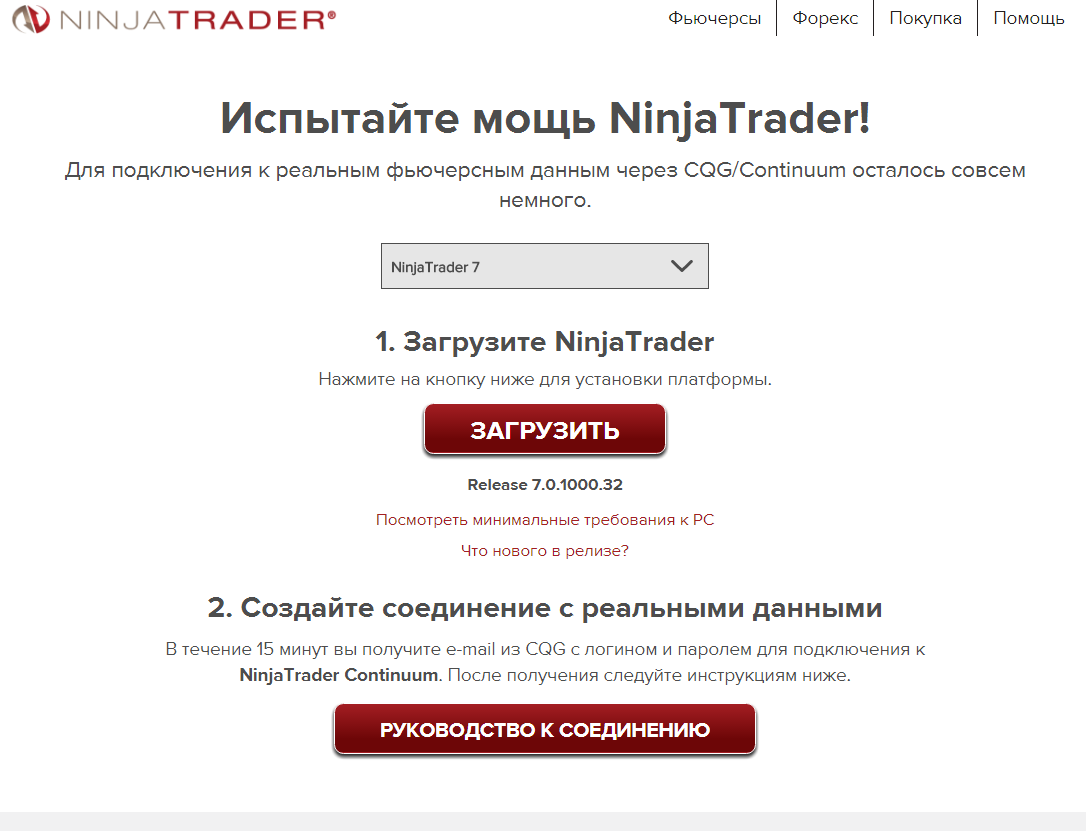 Download the installation file and install it.
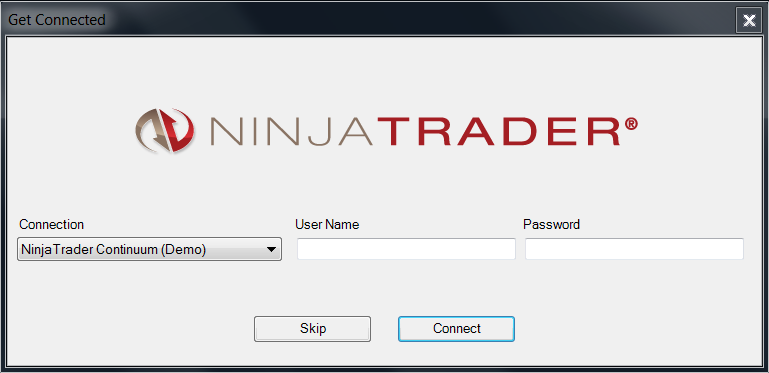
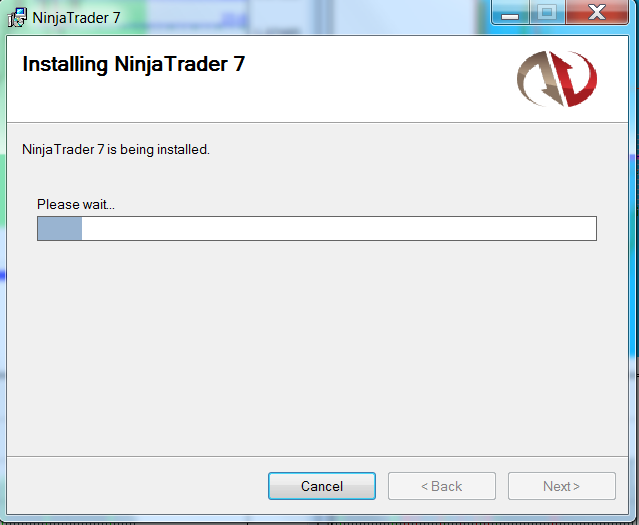 Next, launch the platform; those who launch it for the first time will see a window like this.
 Also, for those installing Ninja on their computer for the first time, you need to enter a license key. It is on the site there as well, but so you do not have to search for it, you can use the one entered by me - it works:
@SIM-A82F-D583-40B1-AE74-B79F-705D-1952
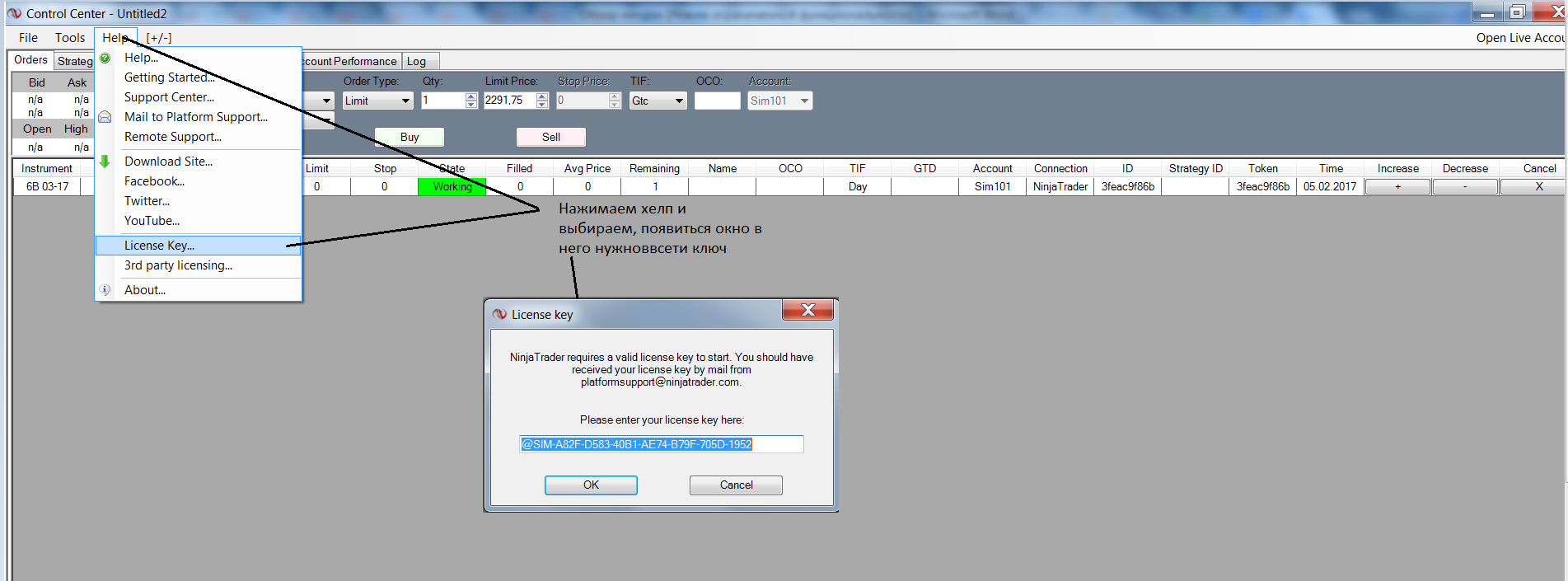 When 14 days pass, the registration procedure will need to be repeated to obtain a new login and password.
Next, we enter the login and password that were sent to the email, and click connect.
In the picture below, we see how the terminal loads for the first time. Please note that a green square with the word Connected in the control center indicates that a connection is present.
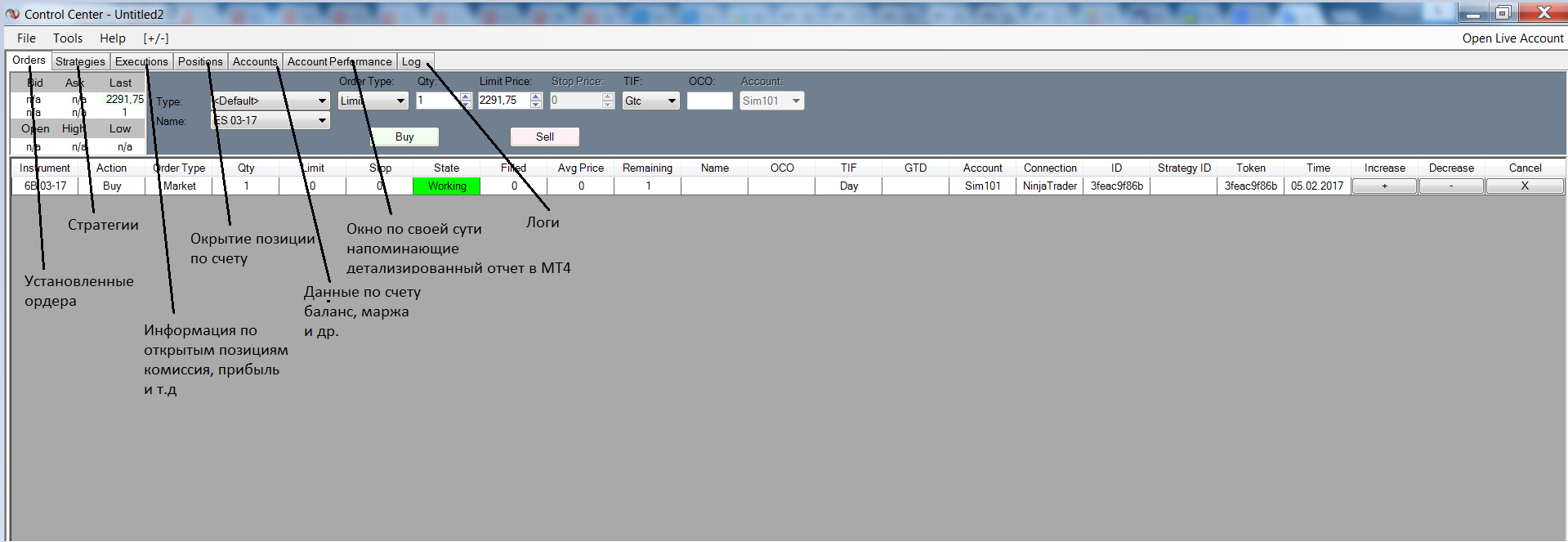
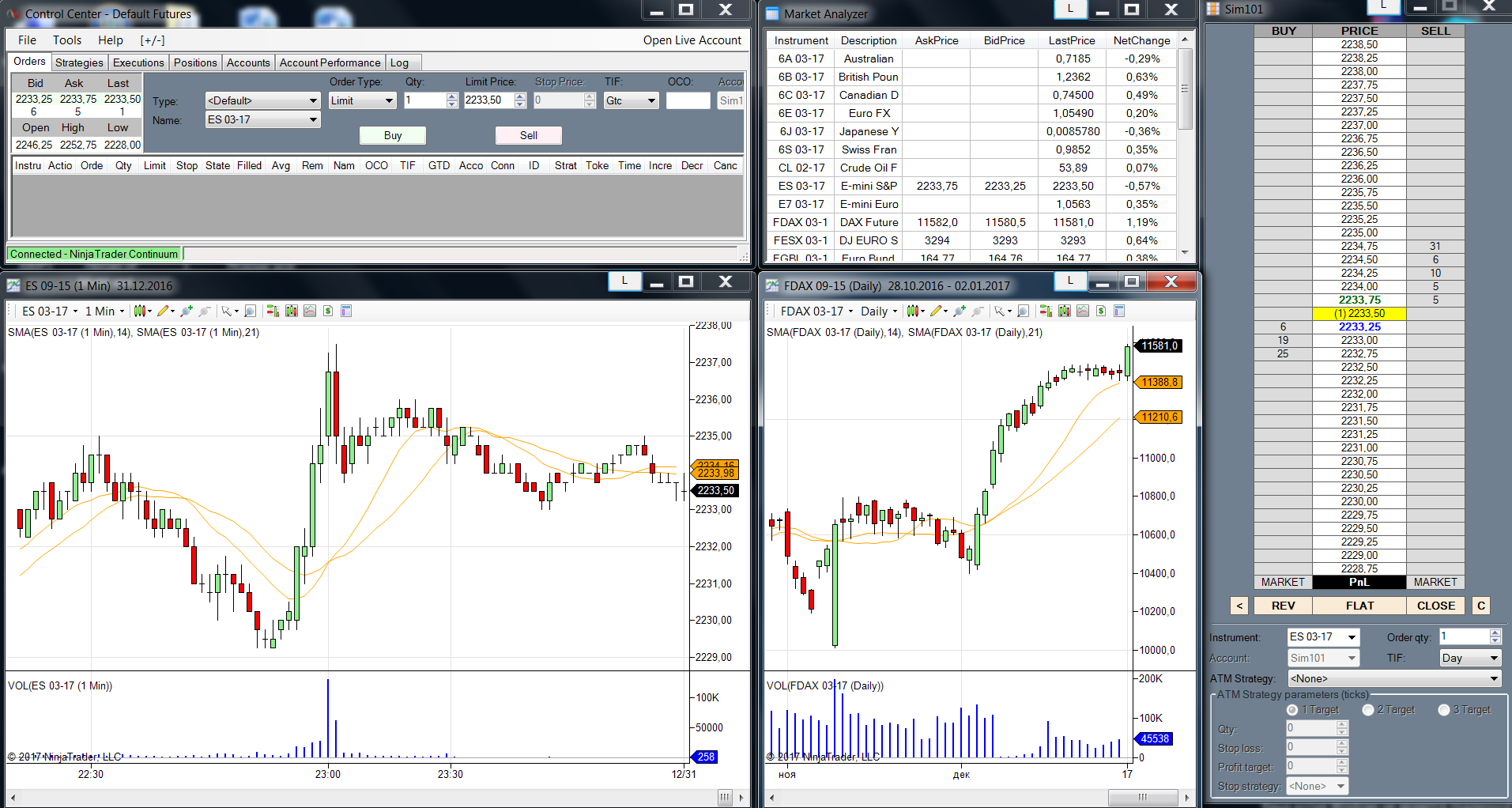 Next, we will review all the tabs available in the control center.
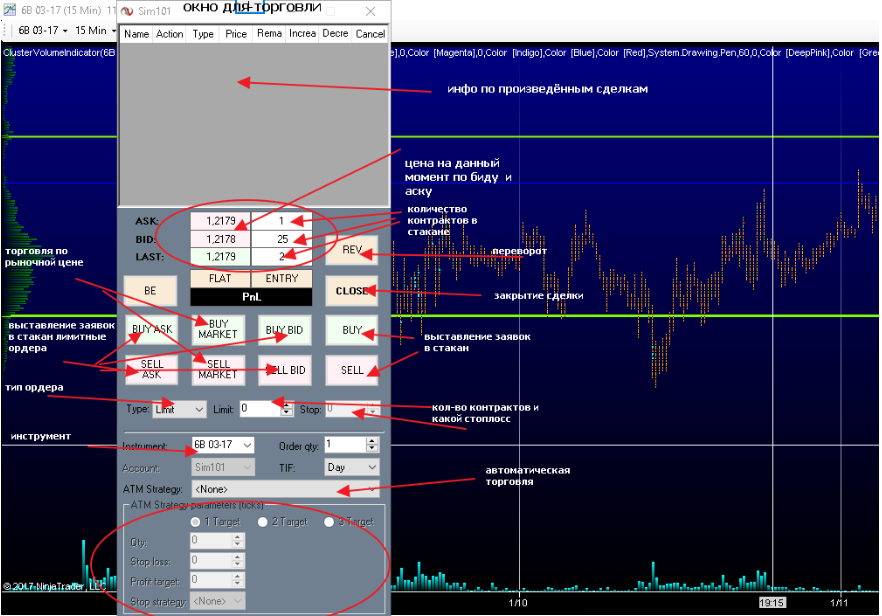
 Here is the trading window. It is better to trade online, because orders and open positions are not stored on the server as they are in MetaTrader4, so if you want to open positions with a pending order, the terminal must be running (if it is turned off, nothing will work for you). The same applies to an already open position - if you turn off the program, the position will be closed.
The trading window looks intuitive, and it is quite convenient to place trades.
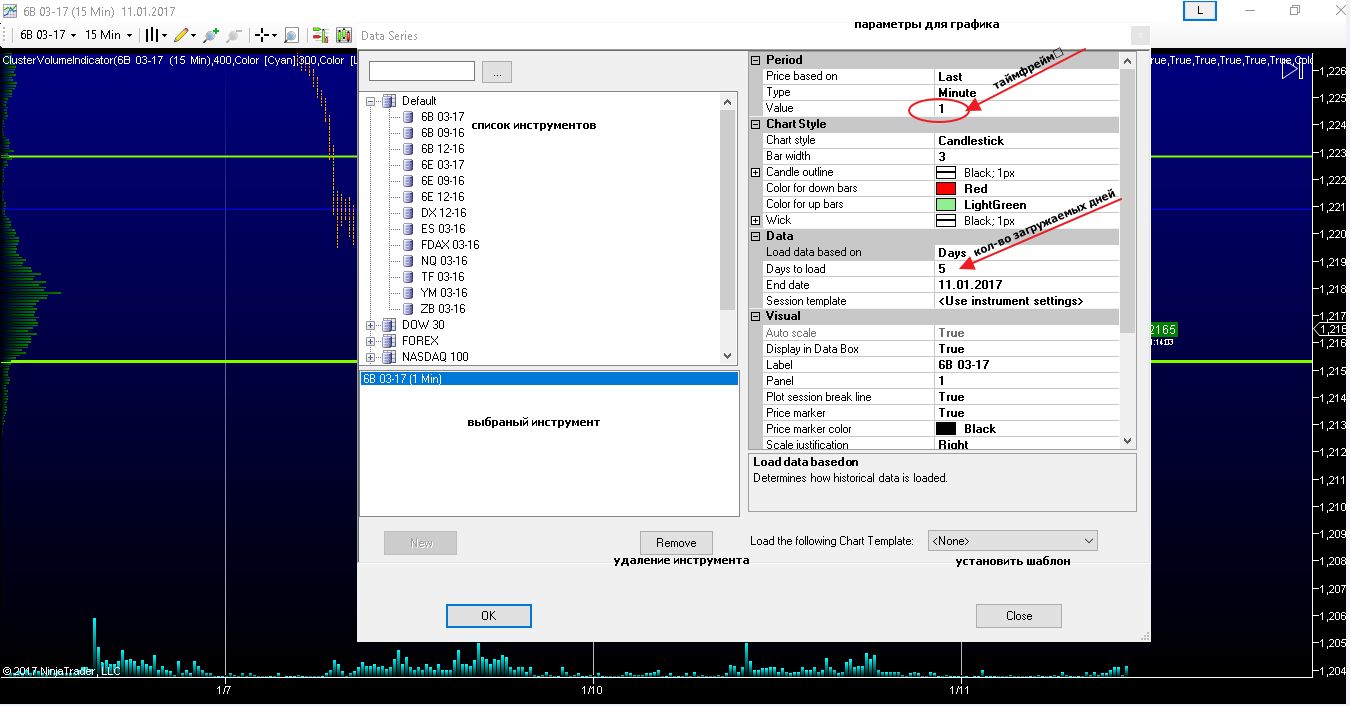
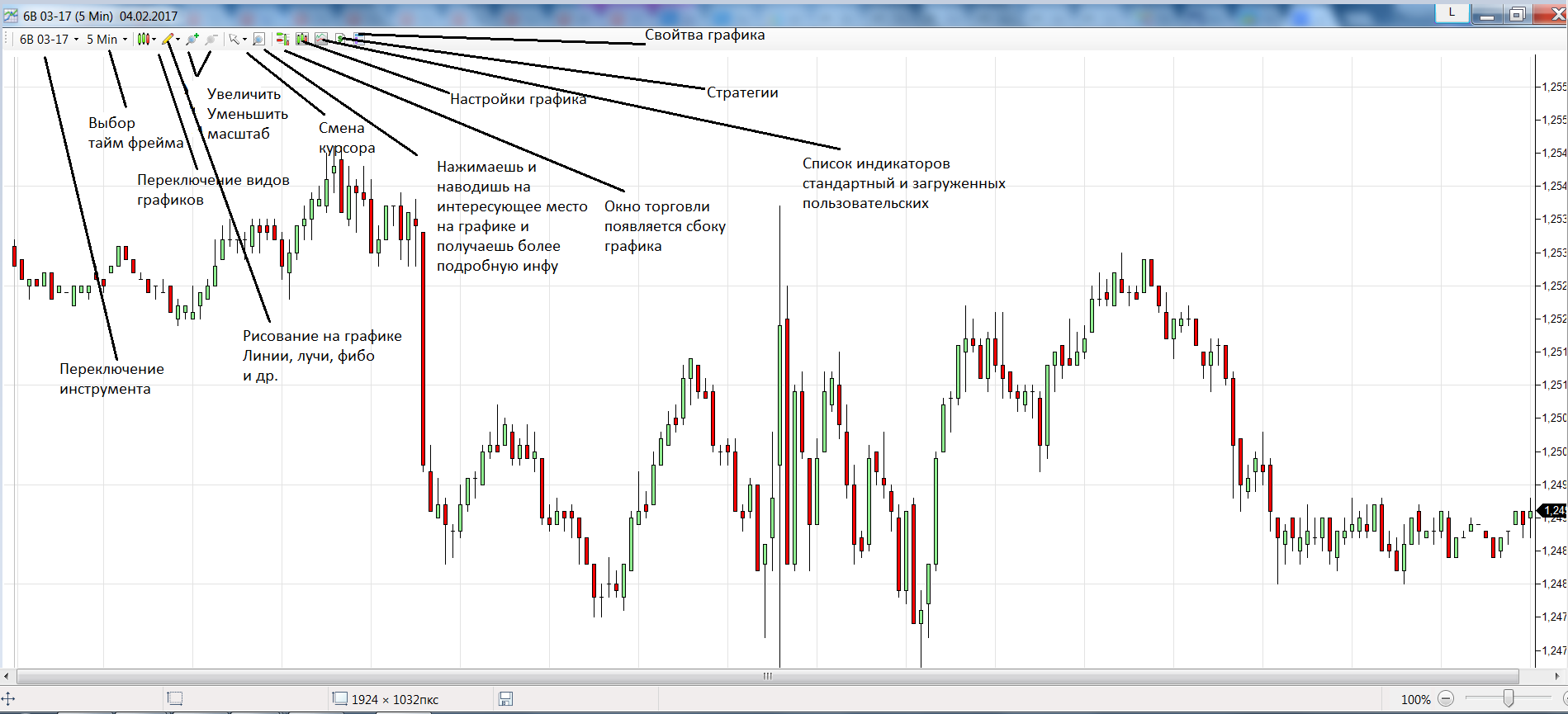
 A window with chart settings and template loading.
Here you can choose a timeframe + there are also specific timeframes here, such as seconds, renko, ticks, and so on.
 Dynamic Depth of Market, and you can also trade in this window, set take profits and stops.
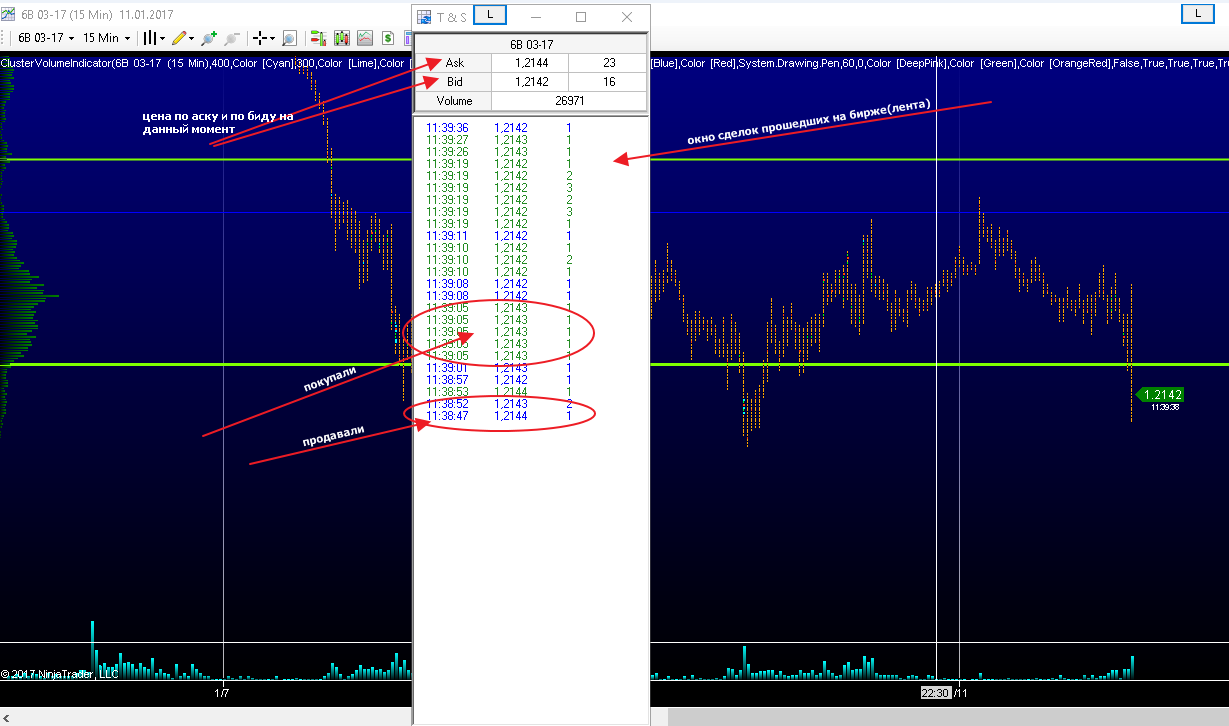 A window of trades executed for the instrument by number of contracts and by time.
We add indicators through Control Center-File-Utilities-Import Ninja Script.
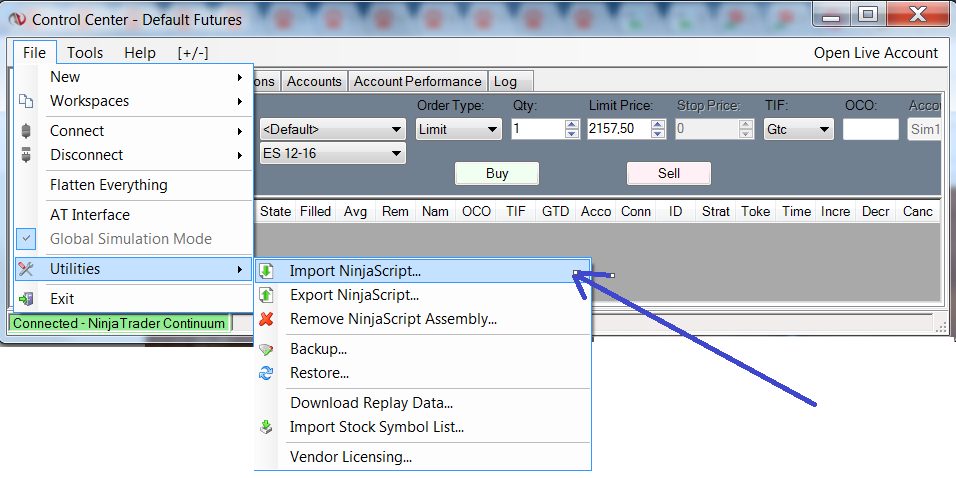 Next, click yes in the pop-up window and add the downloaded indicators as an archive.
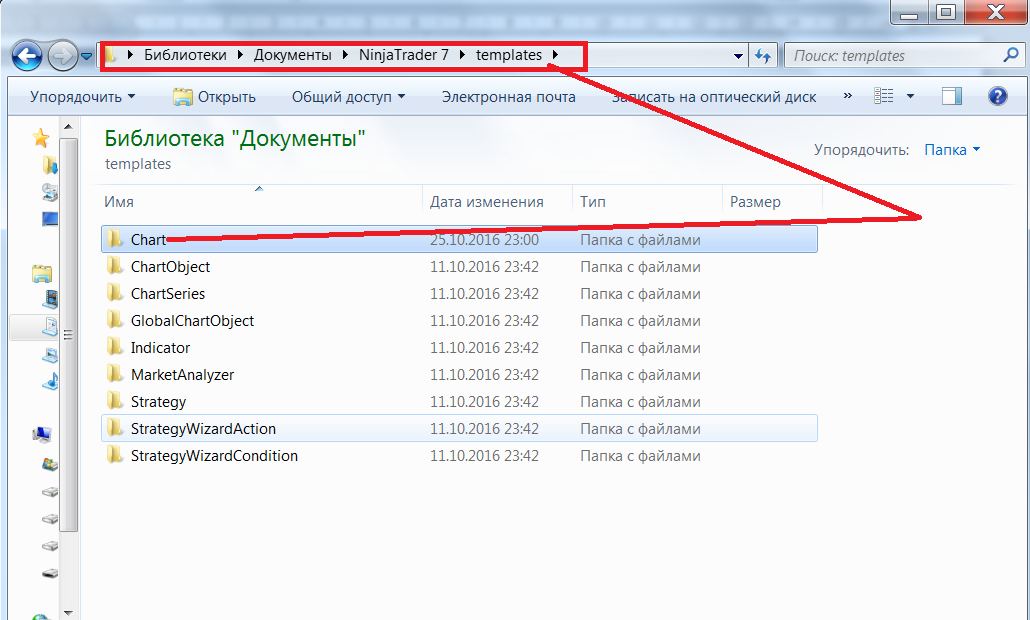
The template must be copied with the XML extension into the Libraries-Documents-Ninja Trader 7-templates-Chart folder.
 Next, let us move on to the Chart window in more detail.
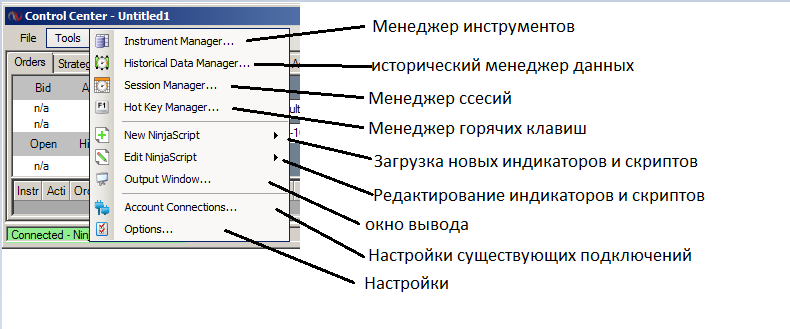
 Description of the Control Center window.
 I would also like to show you a very interesting indicator that can display large trades (large clusters) on a candlestick chart that occurred within 1 second. It is called Market Stop.
You need to set the desired cluster volume; I recommend selecting it individually for each instrument.
For the pound, for example, it is 150-200 contracts. Using them, you can observe how stops are taken at levels, and you can also see how breakouts occur.
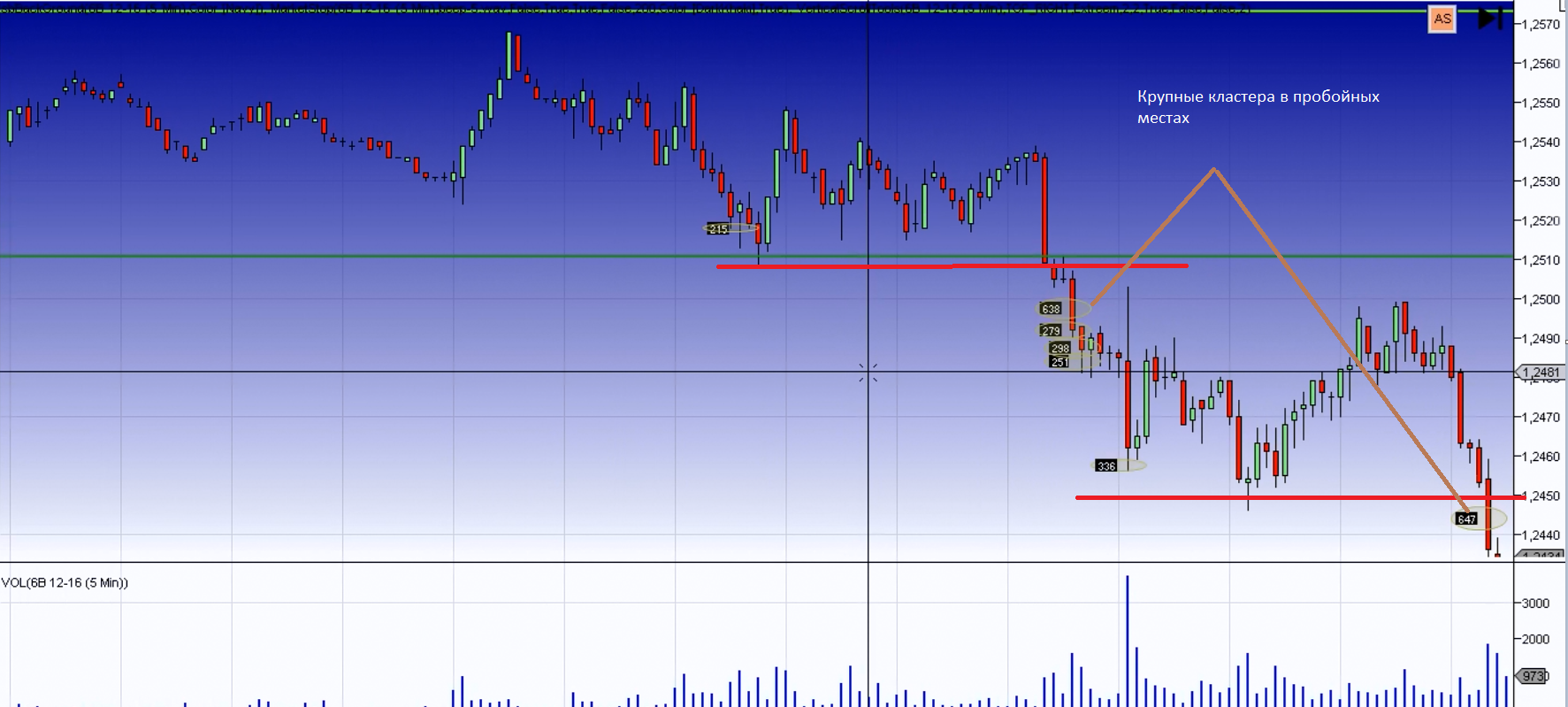 Next, let us look at how to configure the footprint.
We will need the following indicators.
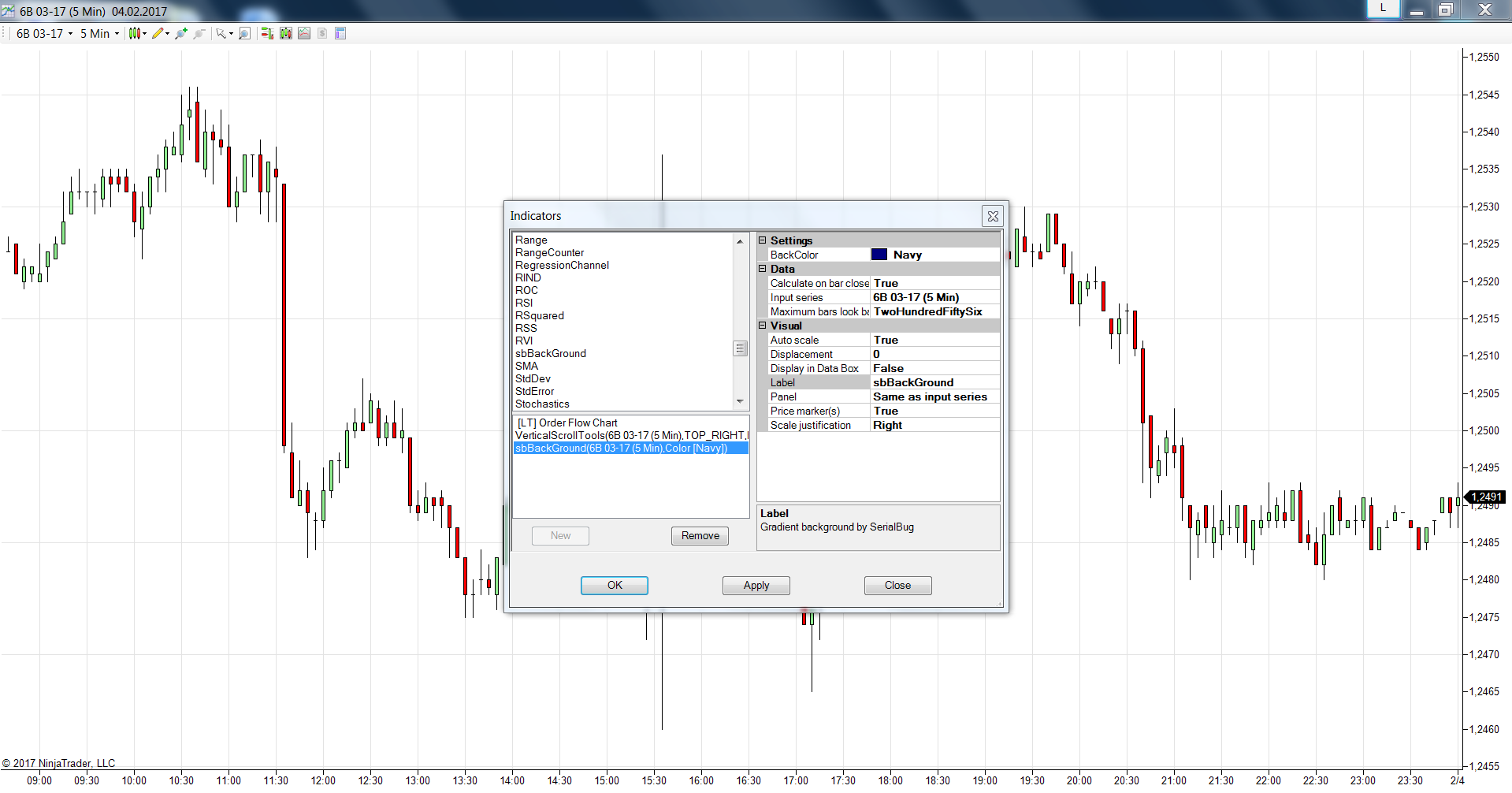 If you like it, you can keep the blue background, but for me white is better. I removed the last indicator from the list.
This is the kind of picture you get. The delta is set by default here, i.e., in each cluster we are shown the number (volume traded at the ask price minus volume traded at the bid price).
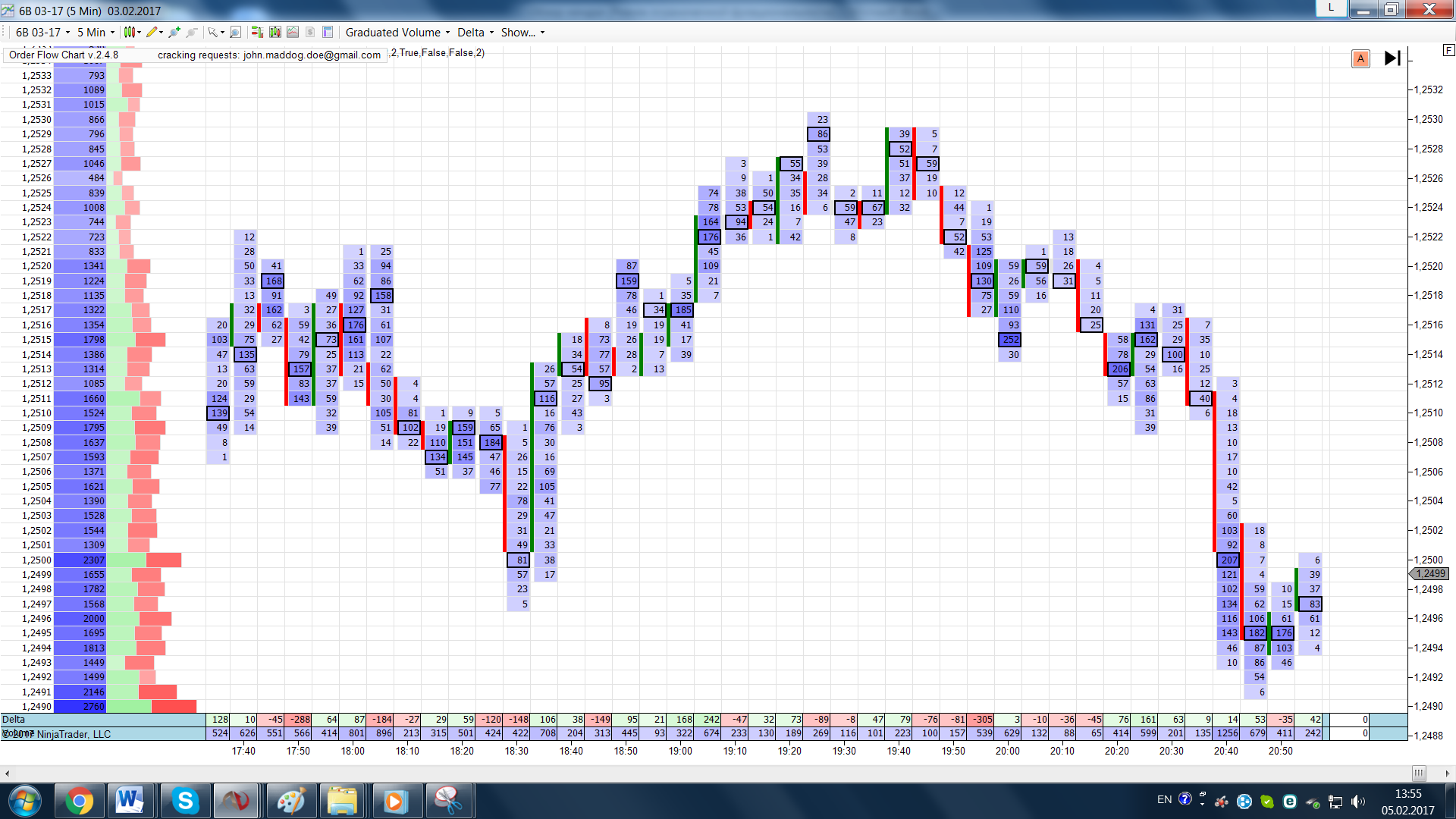
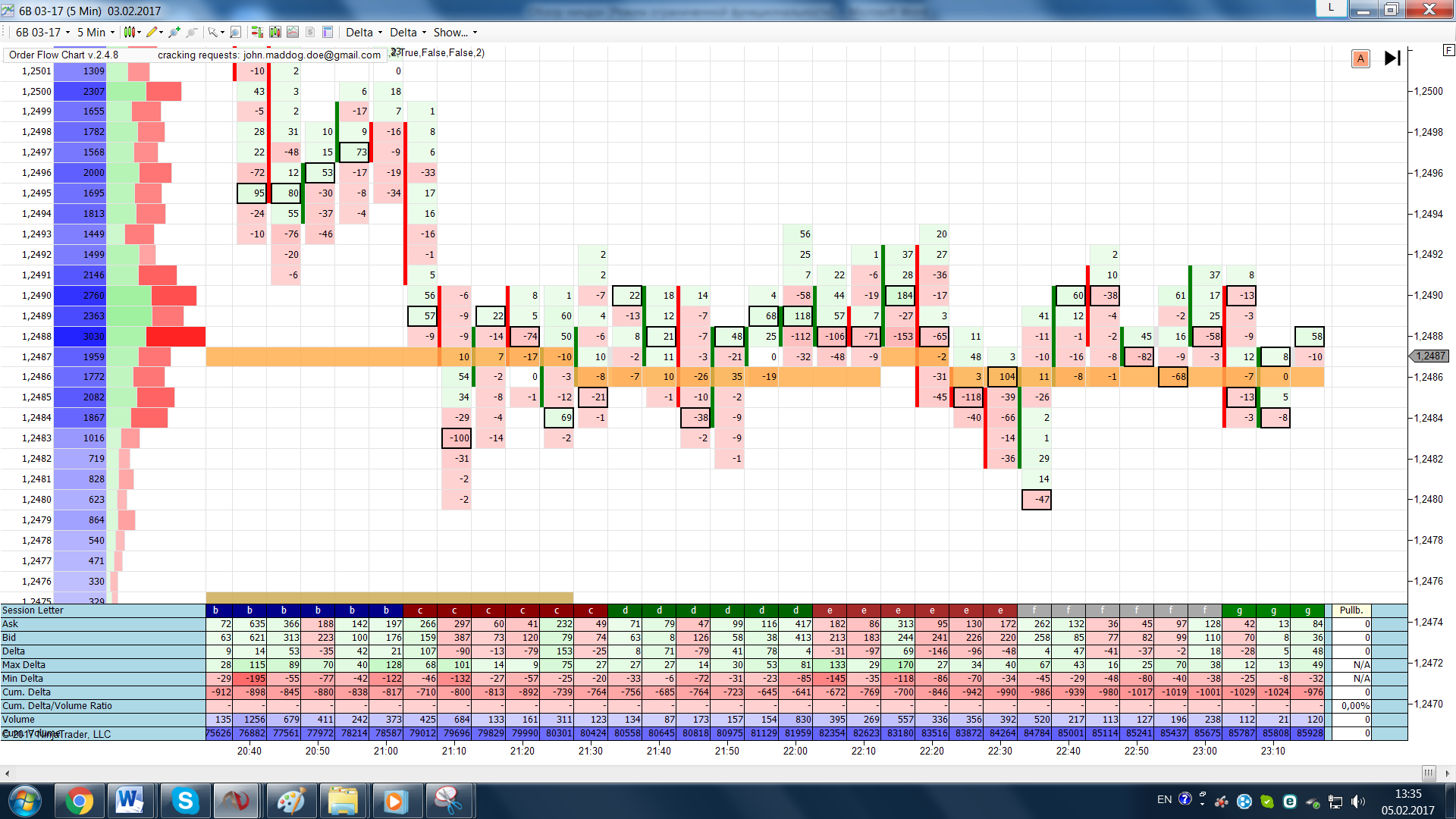 Here you can play with the display settings, either by delta or by volume; my overall view looks like this. Here you can see the delta, the volume in each candle, candle coloring (bullish or bearish), the price on the side, horizontal volume at each price, and delta coloring at each price.
 It is also worth noting separately that the program has a so-called Market Replay simulator.
But before you can start working, you need to load quotes for the desired day so you can practice.
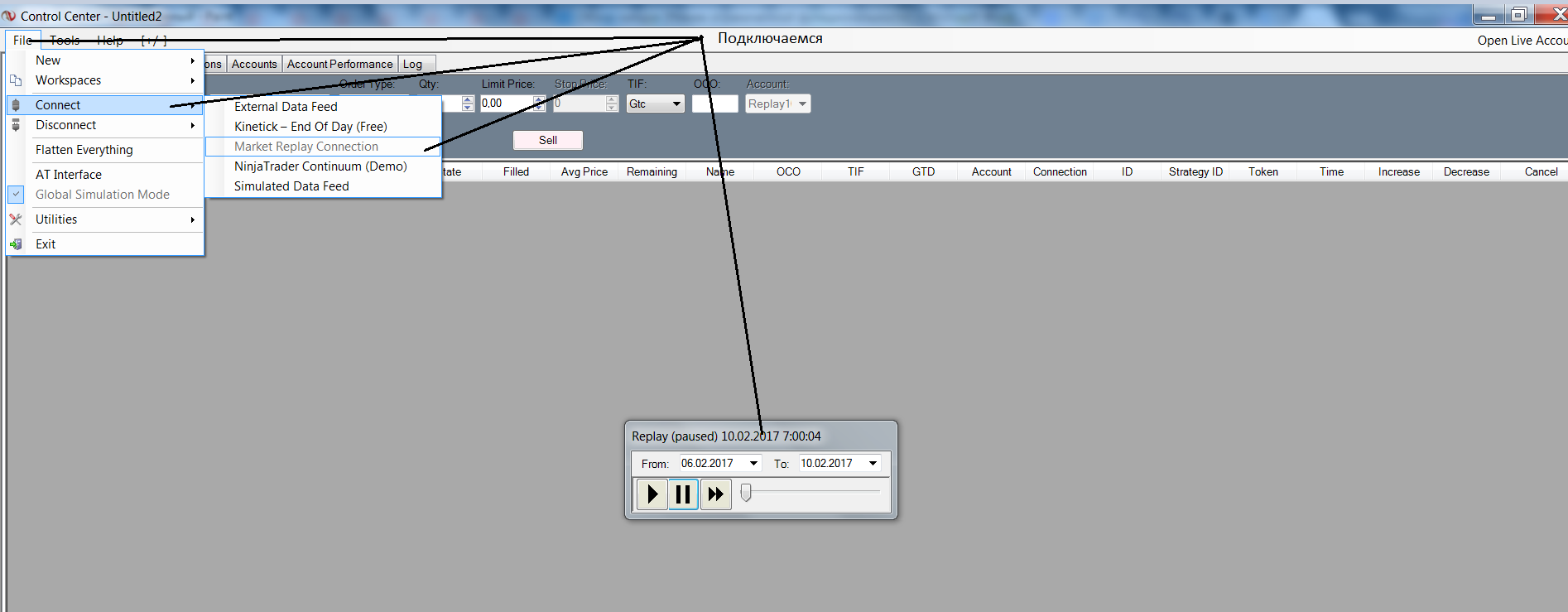
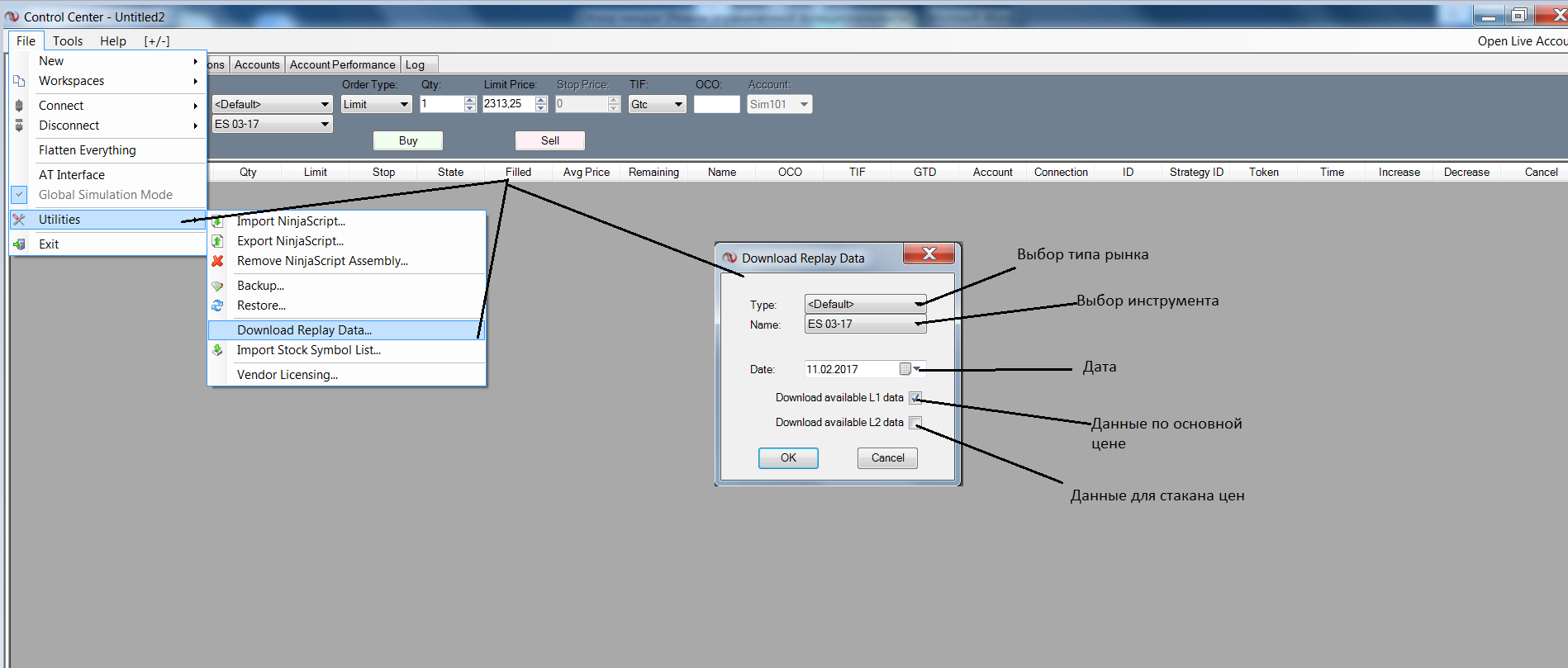 Next, connect to Market Replay Connection.
 Open the chart, paying attention to the contract that you loaded for trading.
You can add all the indicators to the chart and watch how they work in "online" mode, and you can also open trades.
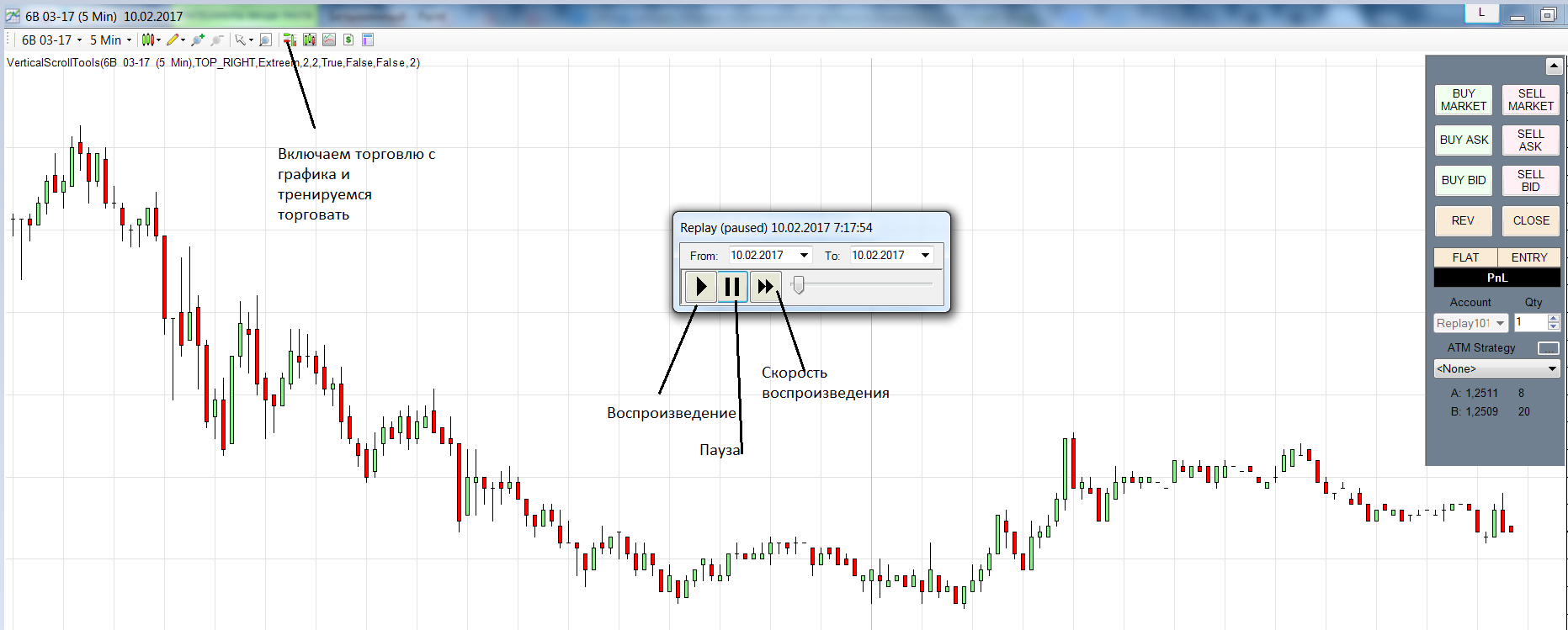 The Market Replay function will save more than one deposit; first test your trading system on Market Replay, and only then go to the market.
Conclusion

Undoubtedly, the Ninja Trader 7 platform has a fairly high level of analytical and trading capabilities. Its fairly rich functionality does not exclude high efficiency and ease of use. NinjaTrader has the same capabilities as other terminals: you can create trading strategies there, test them in real time, and trade in automatic mode. The platform has more than a hundred indicators in its arsenal, different timeframes, and high chart visualization; it has a Demo mode, and most importantly, everything can be configured individually for each trader. And of course, the indisputable plus on top of all this is that all the functions can be used completely free of charge.
Useful links
Link to download the indicators that were used in the article:
 Link to download a large archive with indicators and templates for Ninja Trader 7:
Respectfully, Alexander Volkov TradeLikeaPro.ru
