
MetaTrader 5 - the future of trading or is it better to stay on MT4?

Hello, fellow Forex traders! As you have probably heard, the market leader, Alpari, recently introduced trading in MetaTrader 5 on live accounts. Will this contribute to the growing popularity of MT5? Will the terminal, which has long been at the forefront, be able to become the new standard for trading on Forex?
Let us figure it out. We will look at the current version of MetaTrader 5, examine its pros and cons. We will identify the differences from the familiar MetaTrader 4 and decide whether it is worth switching to the fifth version or staying with the fourth.
To begin with, I would like to note that MT5 and MT4 differ from each other roughly the same way different versions of Windows do. As you understand, not by much at all.
Initially, the MT5 terminal was developed for exchange markets. For example, the Dubai exchange plans to work with it. Consequently, the terminal's original focus on exchanges imposes a number of limitations on it, which is why not everyone came to like MT5, but more on that a bit later.
Installing MT5
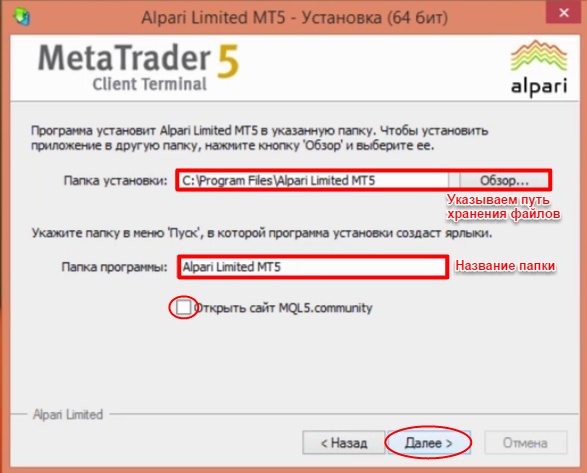
Download the platform from your broker's website. Find and run the installation file. To install the terminal in any other folder (not the default one), click the "Settings" button and specify the desired file storage path. During installation, agree to the terms of service.
Feel free to uncheck "Open the MQL5.community website". We will not need it. Click "Next".
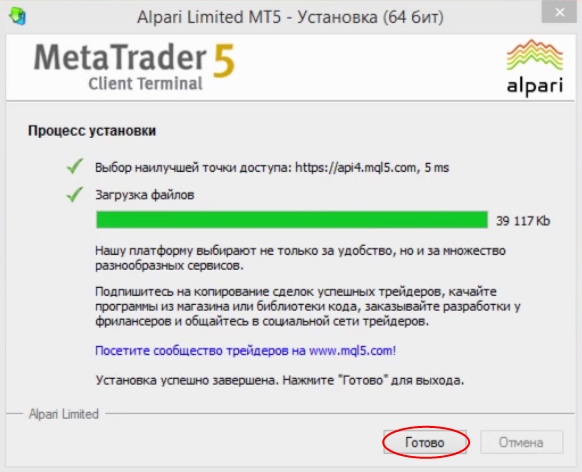
Wait for the installation results and click "Finish".
Opening an account
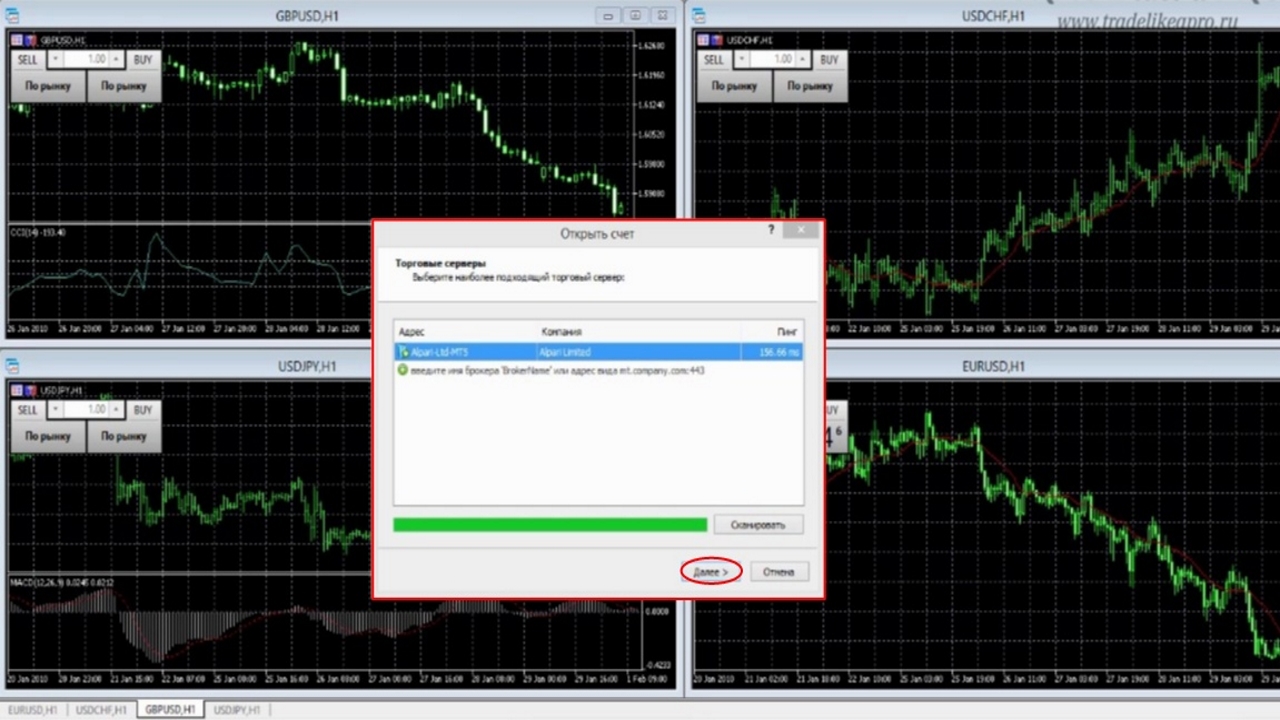
The installation process is complete. Next, we arrive at the terminal window, where we are offered to open a live or demo account. Click "Next".
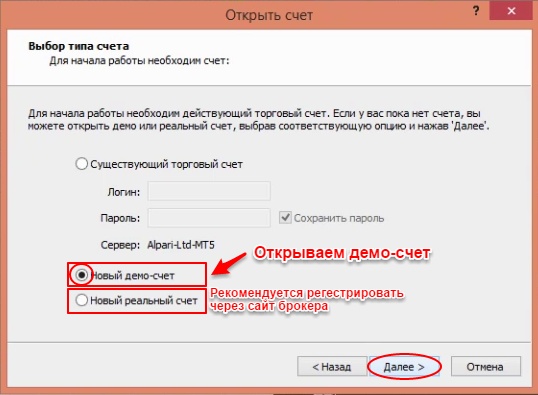
We are offered to open a "New live account" and a "New demo account". It is recommended to register a "New live account" through the personal cabinet on the broker's website. It is not recommended to do this through the platform. Let us try opening a demo account.
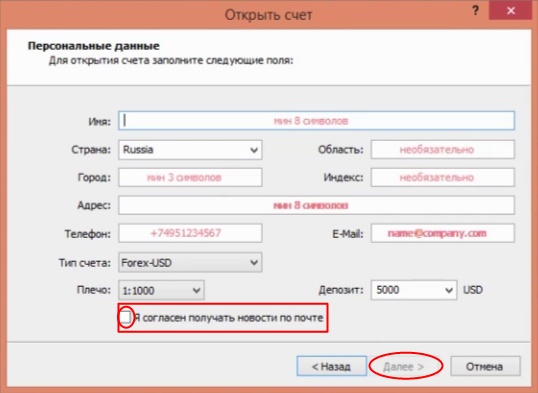
Fill in the required fields according to the requirements indicated by the red marker. Fortunately, just as in MT4, it is enough for us to enter the required number of symbols, but it is better to type something more meaningful, combining not only consonants but vowels as well. The green highlight means compliance with the rules for the data you enter.
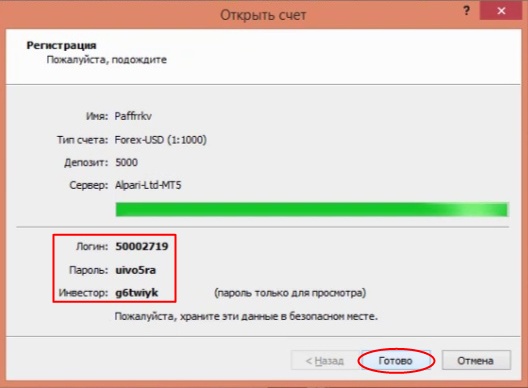
If necessary, save the access keys for the demo account to our terminal and click "Finish".
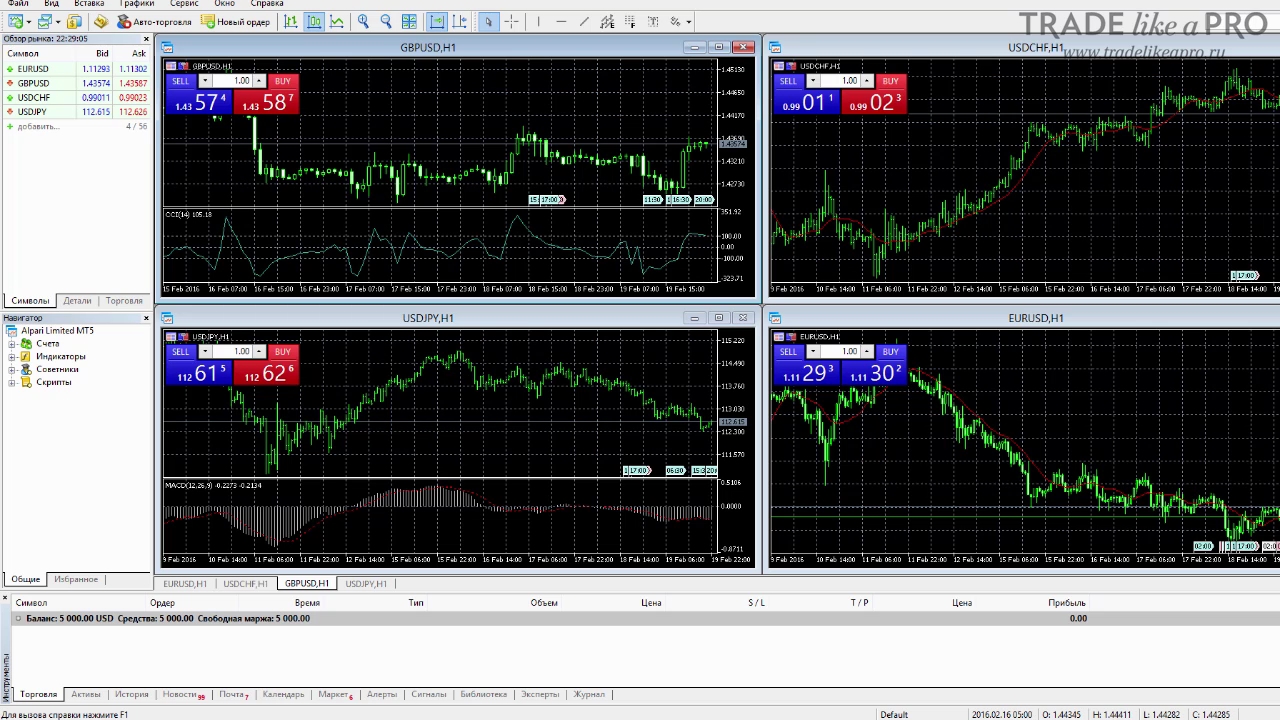
Next, we arrive in our terminal. And what do we see? The interface has become more cheerful. Something is chiming, something is glowing more brightly than usual. Overall, we see the same windows as in the fourth version, only with a somewhat different design.
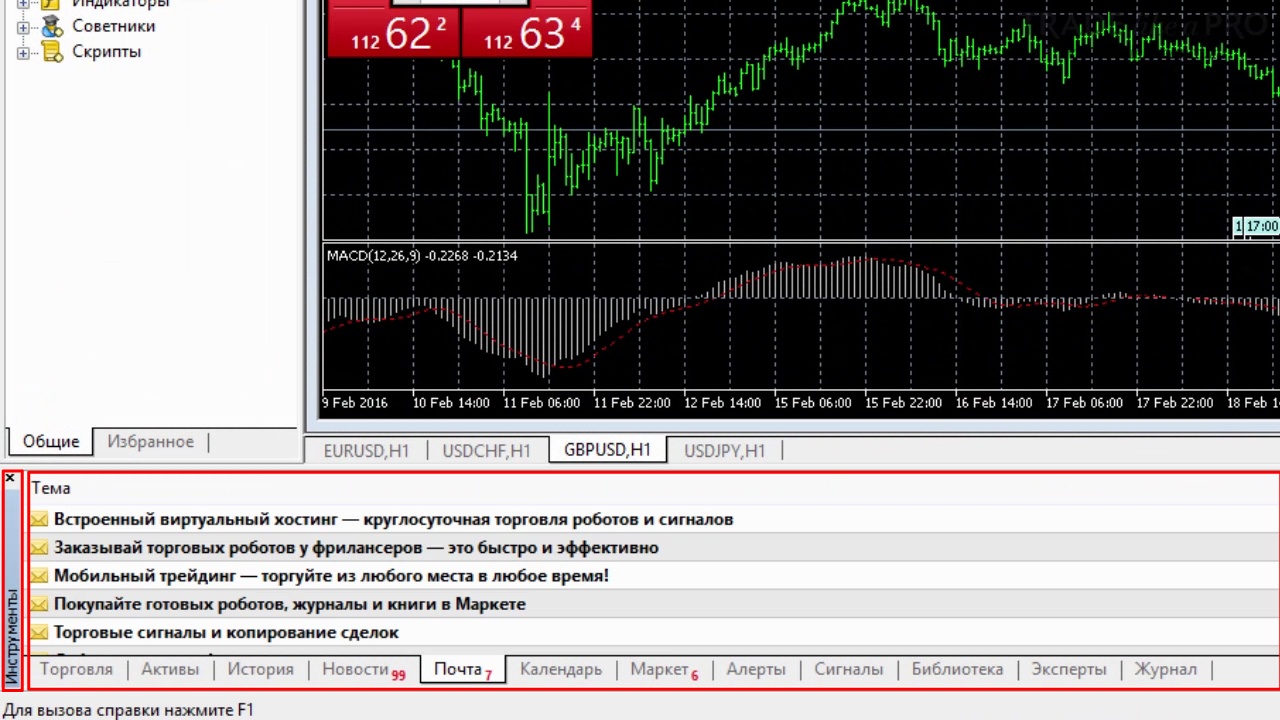
Now what used to be called "Terminal" is called "Toolbox".
Let us begin, perhaps, with the most important thing, with opening and closing orders, and find out whether there are any significant differences from MT4.
In the upper left corner, we can see the same default quick order execution panel.
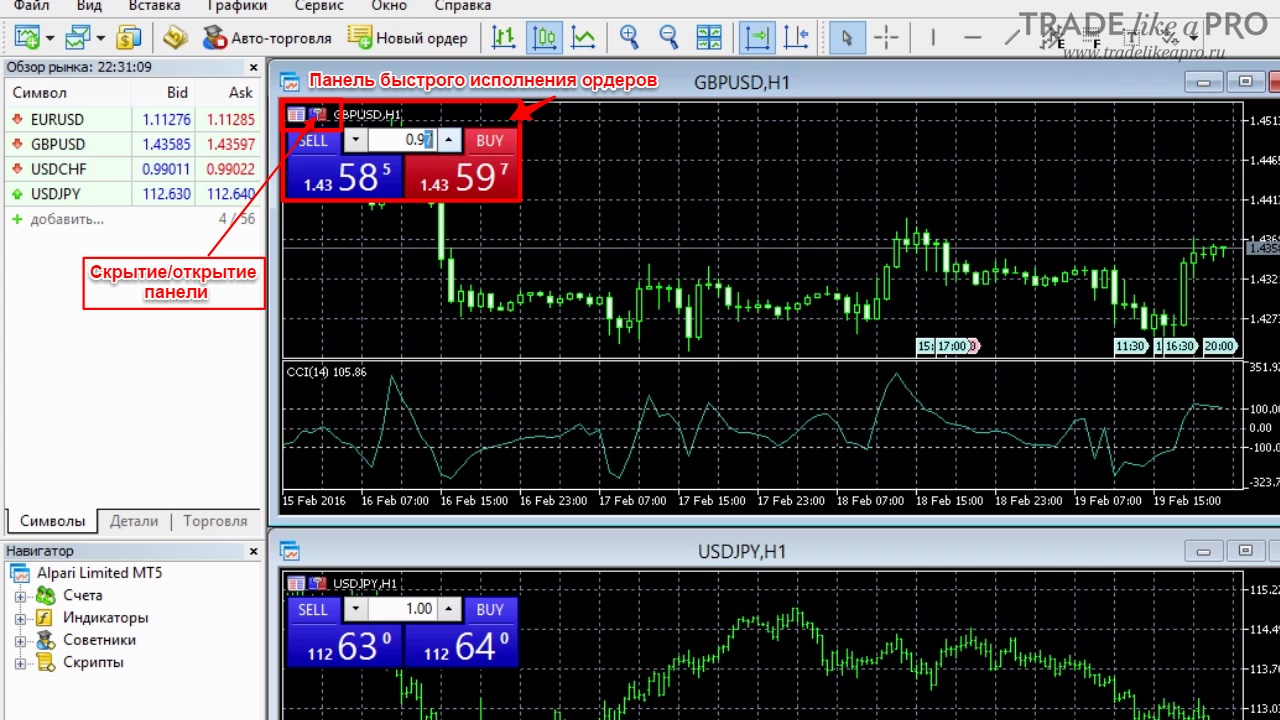
Working with Orders and the Depth of Market
Let us examine the "Depth of Market" button in the quick order execution panel. The tool allows you to place limit (pending) or stop orders, depending on the type or direction of the desired instruction. That is, if in the stock market, in the depth of market, you see participants' buy or sell orders with a known volume, then in the Forex market, in MT5, in the depth of market we simply see a tool for placing pending orders. For us, Forex traders, this function is of no interest at all, but we will still try to analyze it.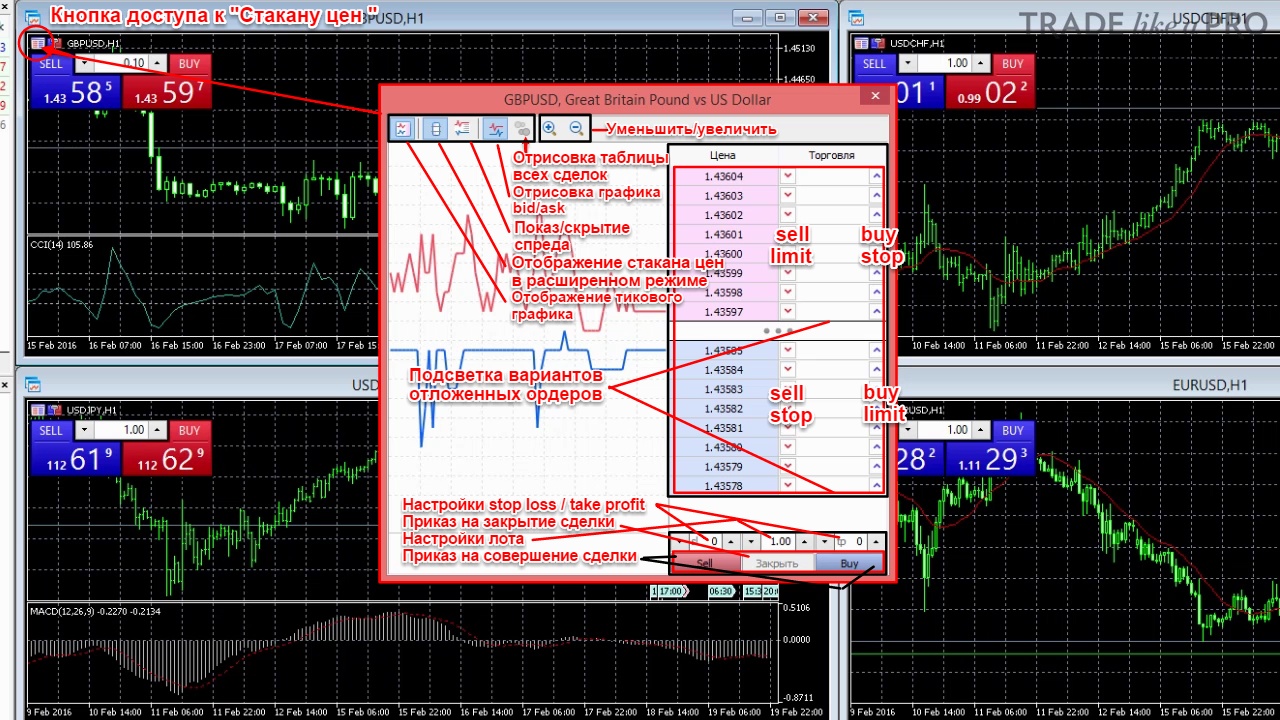
Functions of the upper Depth of Market panel:
- Zoom in/out of the tick chart;
- Displaying the table of all trades is unavailable to us, since this tool is intended for the stock market;
- Displaying the bid/ask chart (we leave it on);
- Show/hide the spread;
- Display the Depth of Market in extended mode;
- Display the tick chart .
Functions of the lower Depth of Market panel:
- Stop-loss/take-profit settings;
- Instruction to close the trade;
- Trading lot settings;
- Sell/buy trading instructions.
Functions of the side Depth of Market panel:
Highlighting of pending orders before execution of the instruction
- buy stop;
- sell limit;
- buy limit;
- sell stop.
Having selected any of the desired pending orders, we can observe its display in the side Depth of Market panel right up to its execution at the market price. After its execution, the "Close" order button becomes available to us.
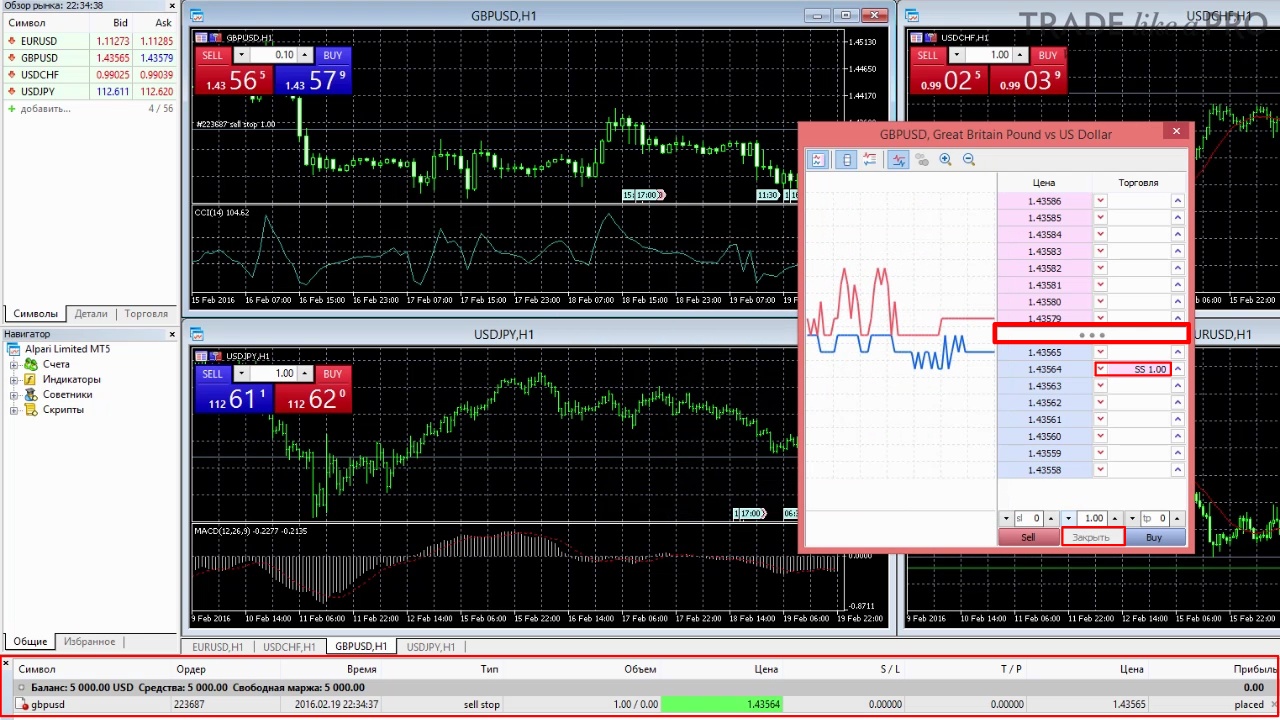
The gradation of the Depth of Market is very close to the current price, so our orders will be executed almost instantly. As mentioned earlier, the depth of market has no practical value for us.
Opening orders is also available through the upper panel of the "New Order" section. We do not observe any special changes; everything here is similar to MT4.
Let us try to make a sell trade using the UCD/CHF pair as an example.
We find its display in the "Instruments" panel. By double-clicking the current trade, its modification settings become available to us. Let us set stop-loss and take-profit. The restriction settings are placed a little differently than in MT4, but overall they are intuitive. After setting the restrictions, as you can see, a cross has appeared not only next to the position itself, but also next to T/P and S/L, which is good news.
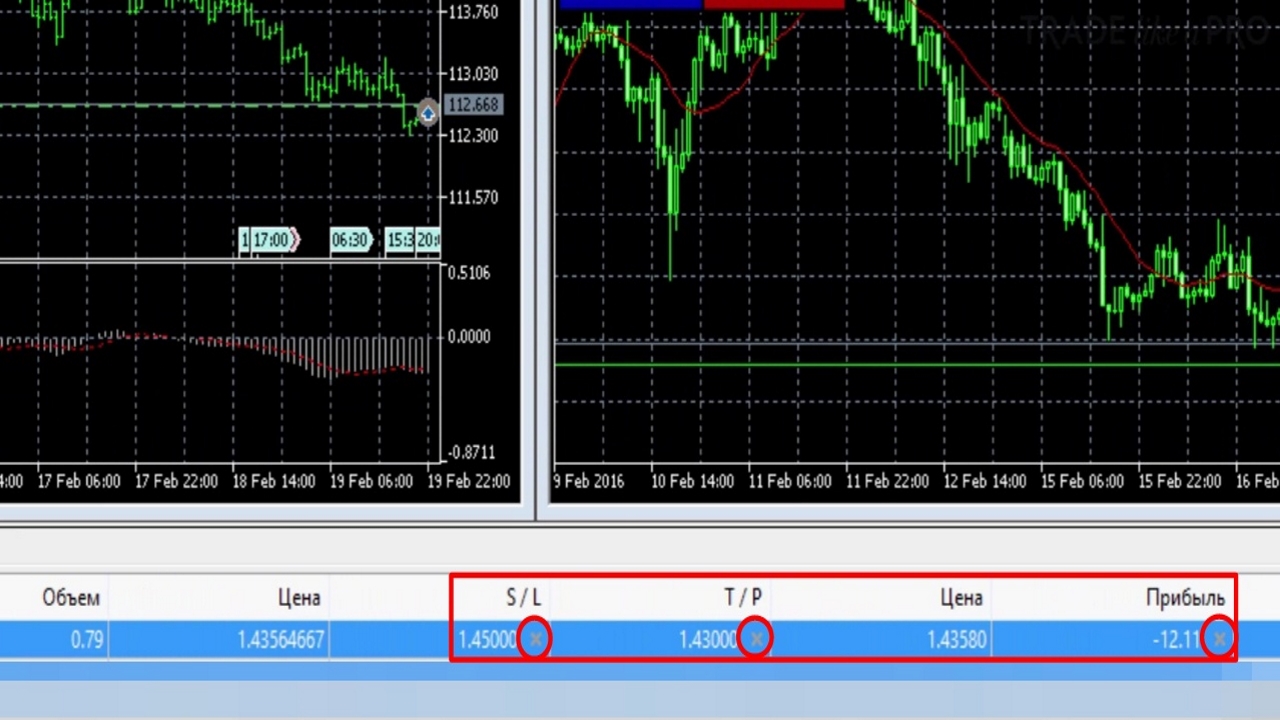
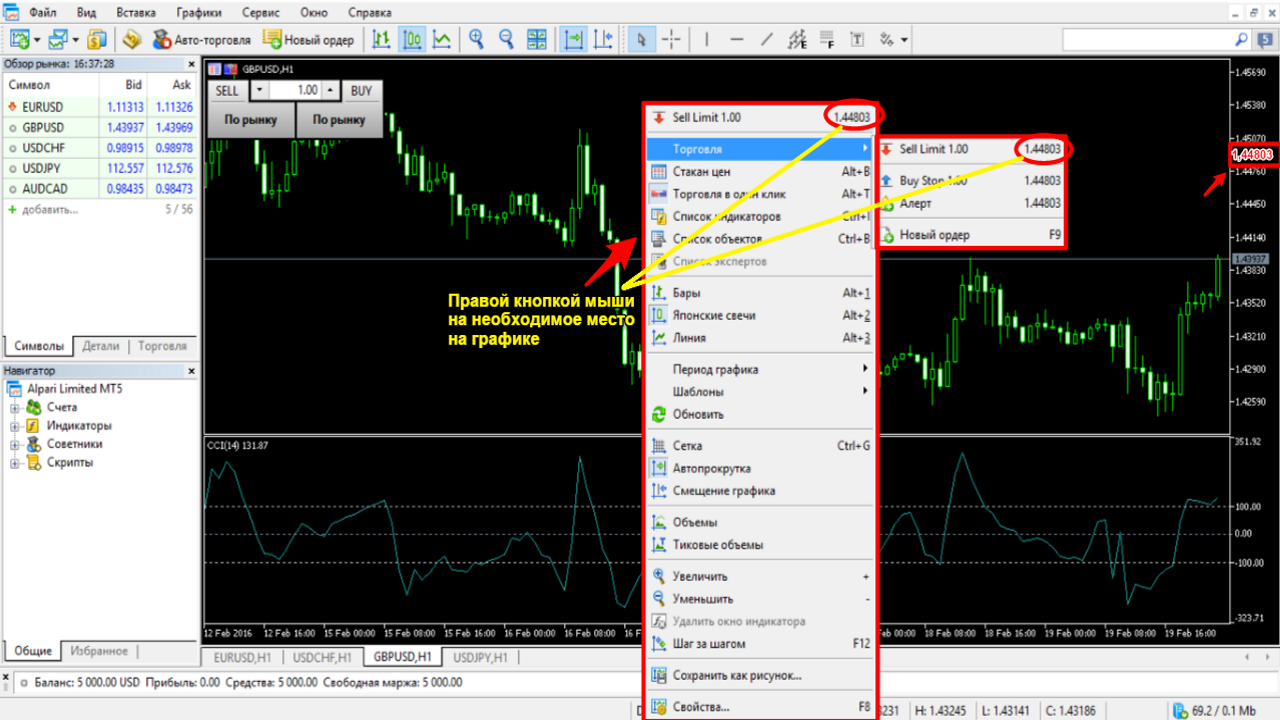
Positions can also be opened by pointing the cursor at the desired price location on the chart. The command is the right mouse button.
Stop-limit orders
For those who do not know, a new order type was added in MetaTrader 5: the stop-limit order. Sell Stop Limit and Buy Stop Limit are stop orders for placing a limit order. That is, a stop order is placed which activates a limit order. Stop-limit orders are essentially the same limit orders, but they are placed on a breakout. When the price reaches a certain level after a breakout, the price usually pulls back to the level where we place the limit order. In this way, you can enter at a very favorable price.
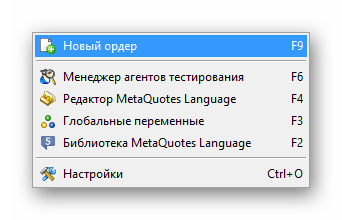
To place an order in the terminal, open the new order window using the button on the toolbar or through the "Service" menu.
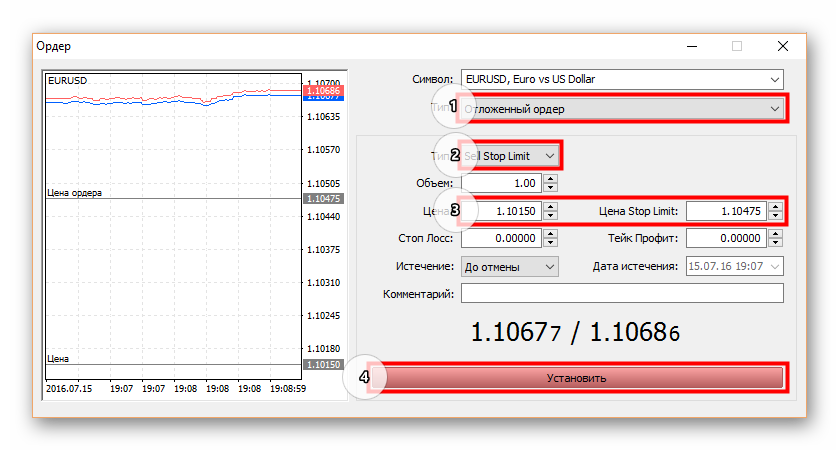
1. In the drop-down list, select "Pending Order".
2. Order type: Sell Stop Limit, to place a sell order, or Buy Stop Limit, to place a buy order.
3. Set the stop order price and the limit order price.
4. Click "Place" to send the order to the server.
Two lines should appear on the chart: the Sell Limit order and the Sell Stop Limit order.
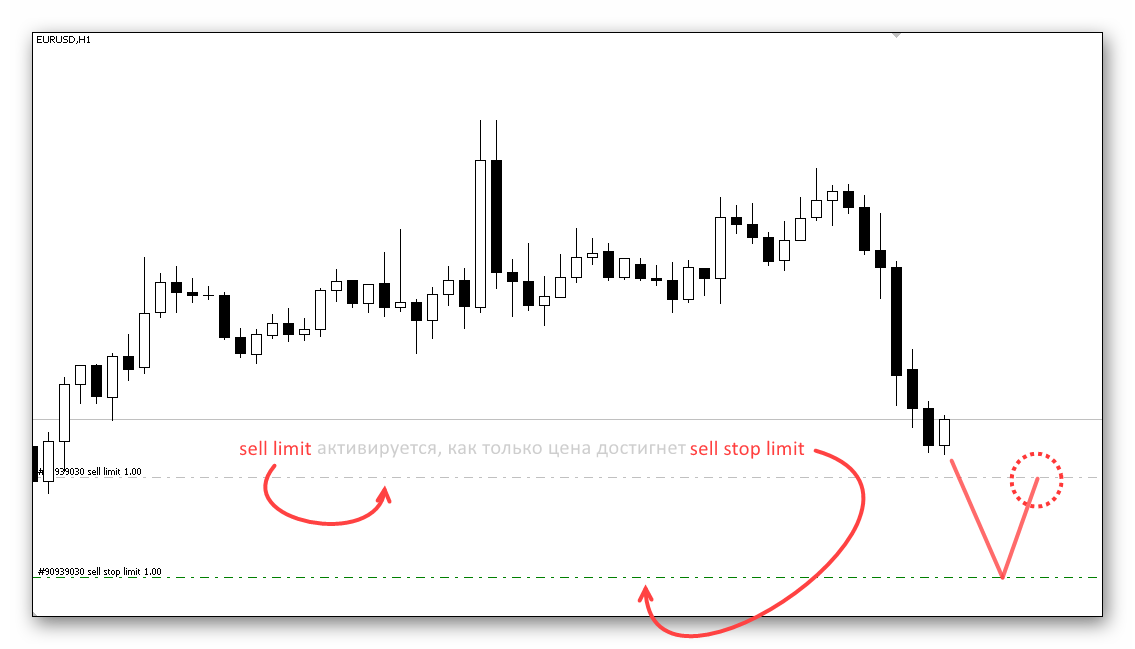
This order type should be used when confirmation of reaching a certain level is needed to enter a position. We wait until the price reaches the stop-limit order level, after which the limit order set at the pullback level is activated.
File menu
File-New Chart - opening a new chart. The chart opens by default;
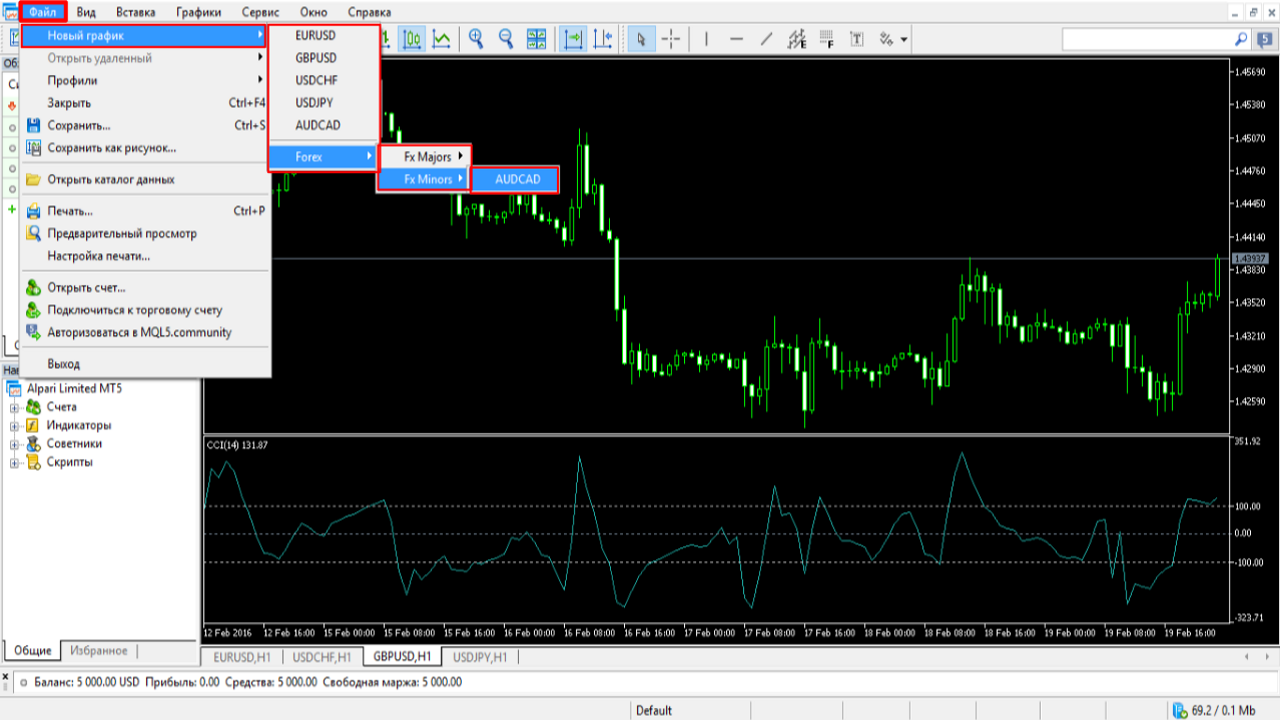
File-Open Remote restores closed or deleted charts;
File-Profiles the ability to open a whole set of charts. Saving, deleting, switching between profiles, a kind of desktop template.
Allows you to trade various strategies by moving through different profiles of this window;
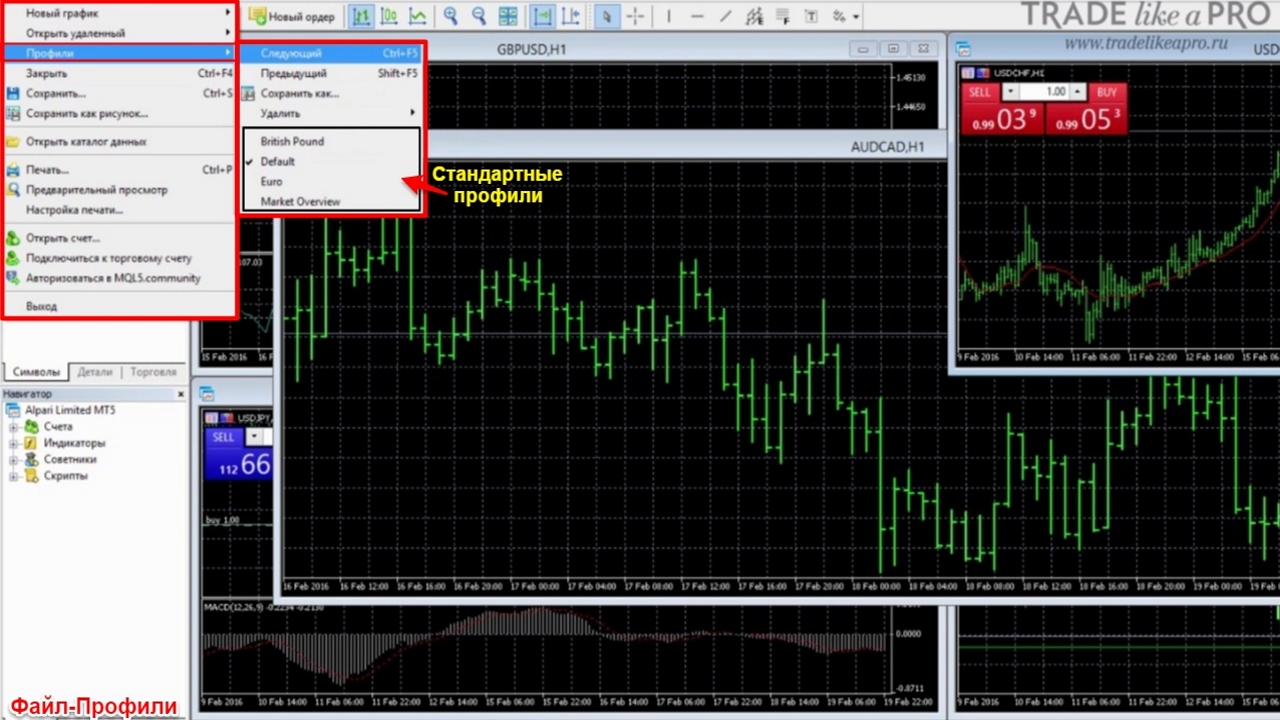
Let us try selecting the standard profile British Pound. What do we see? We see four chart pairs of GBP/USD on different timeframes with additional indicators by default;
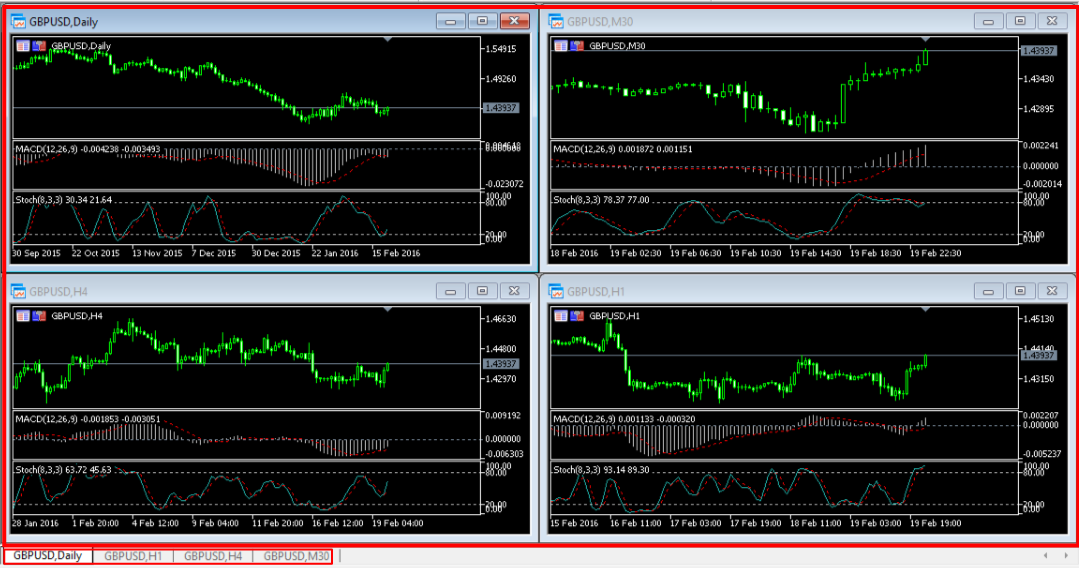
File-Close (Ctrl+F4) closes the current chart;
File-Save (Ctrl+S) the ability to save the current quote history;
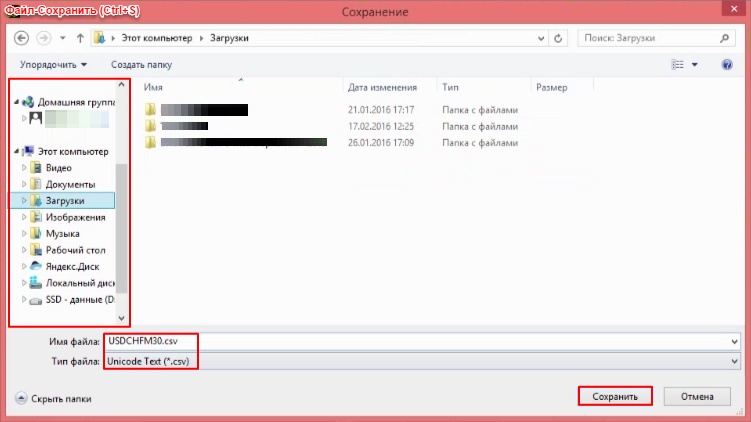
File-Save as Picture saves a screenshot of the chart;
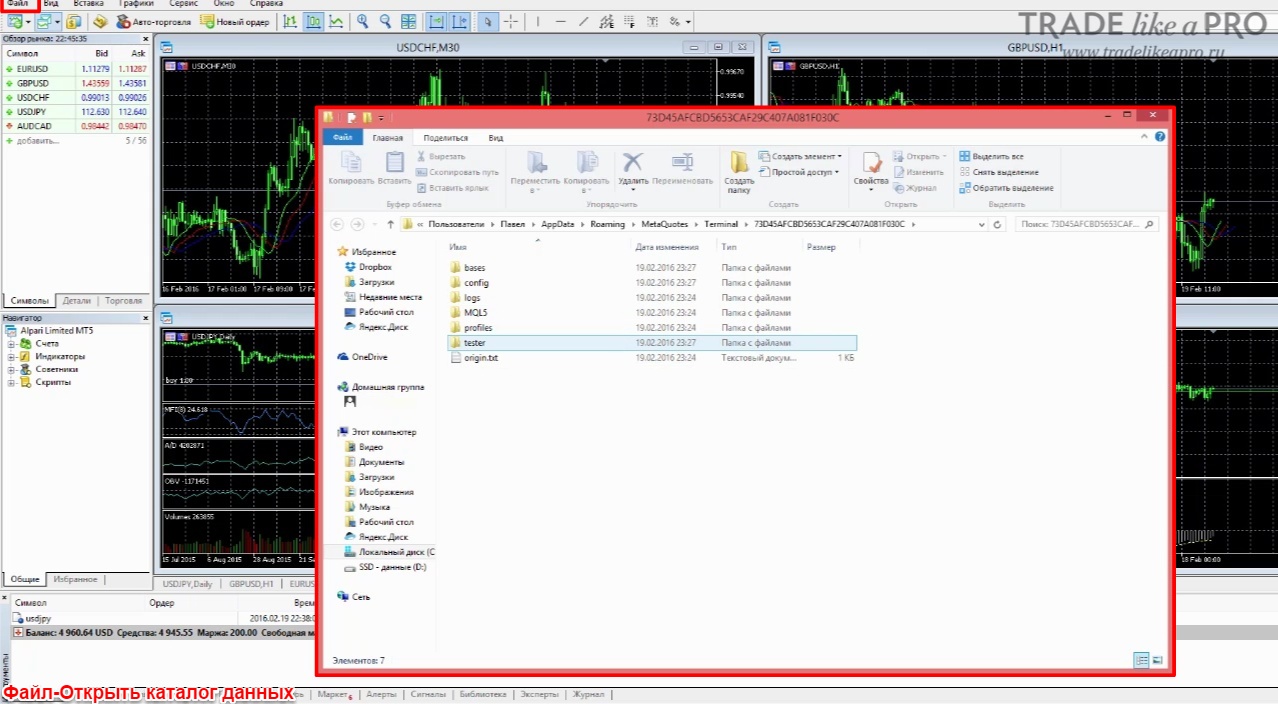
File-Open Data Folder (of the terminal) is needed to install additional templates, indicators, various auxiliary utilities, and expert advisors;
File-Print (Ctrl+P) prints the existing chart;
Preview;
Print settings;
File-Open an Account opens a new demo account. We already reviewed this procedure earlier above;
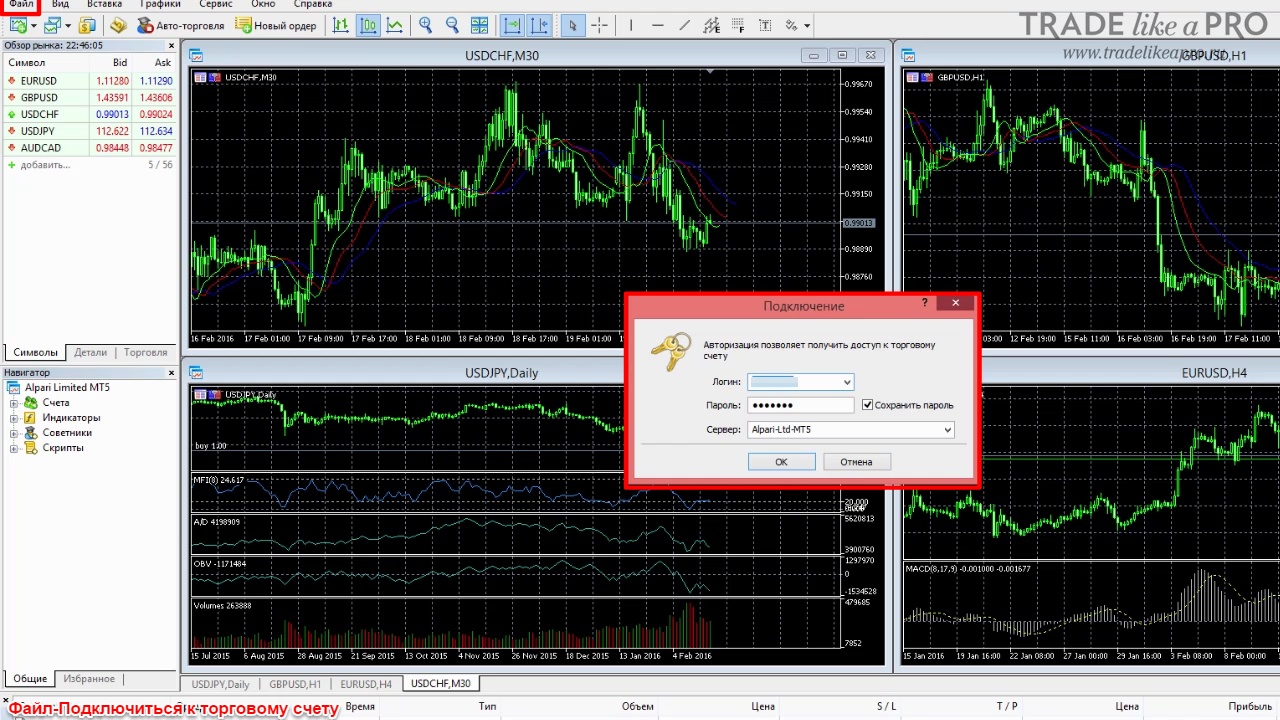
File-Connect to Trade Account enter the data keys;
File-Log in to MQL5.community if you use the services of this resource;
File-Exit closes the platform.
View Menu
View-Languages allows you to choose the language;
View-Toolbars use of tools in the form of separate buttons:
- Standard;
- Graphical tools;
- Chart period (timeframe);

View-Status Bar call/cancel the panel at the bottom of the terminal, which shows the current terminal connection, the amount of data received, etc.;
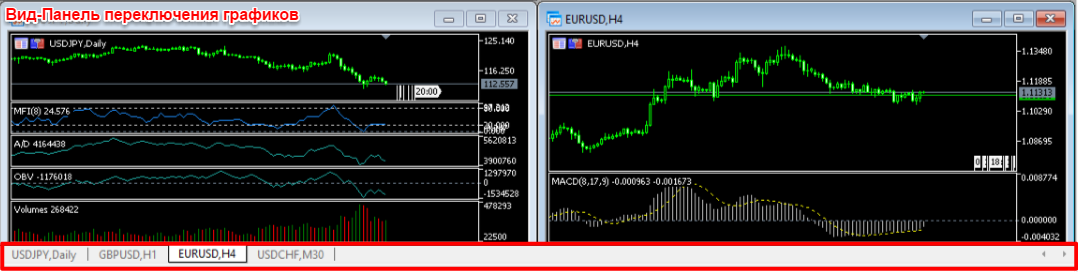
View-Chart Bar call/cancel quick navigation through working charts;
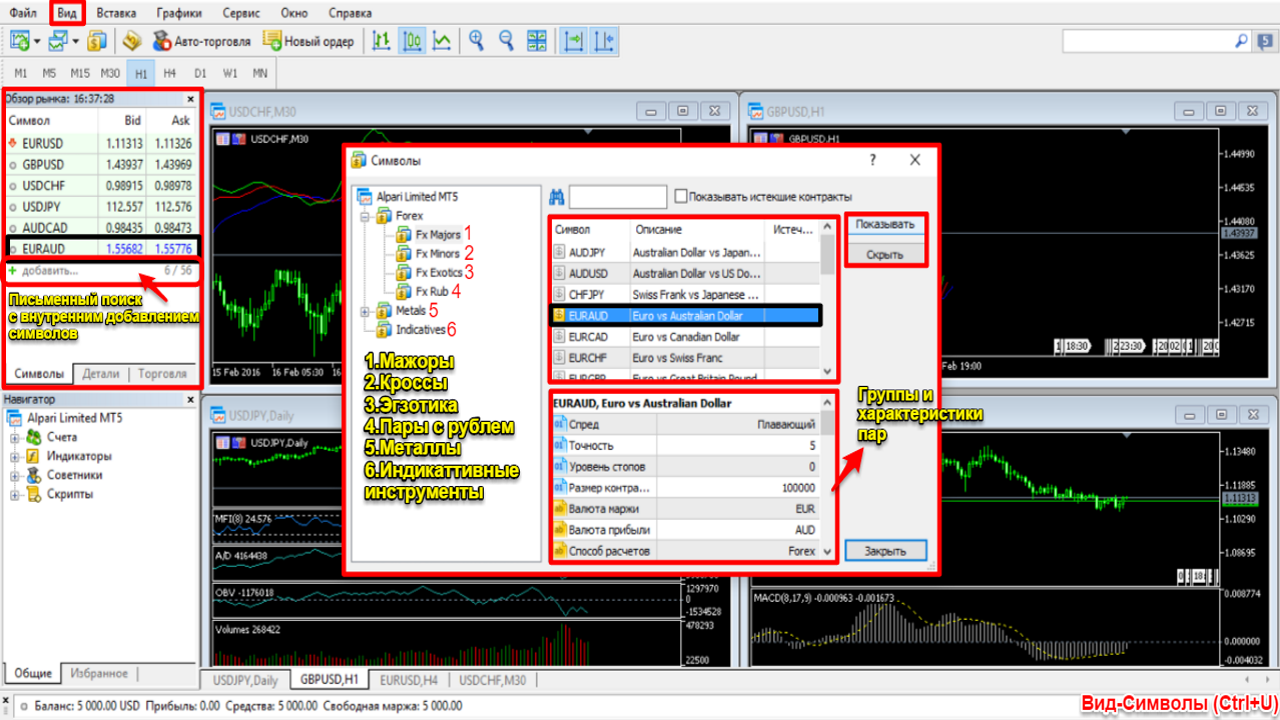
View-Symbols allows you to add/remove the desired symbol to/from the "Market Watch" window. To add/hide the desired symbol, click on it 2 times, then "Show" or "Hide". Right there we can observe the display of our actions in the "Market Watch" window. It is also possible to add symbols by entering a typed search in the "Market Watch" window;
View-Depth of Market is tailored for exchange trading activity;
View-Market Watch (Ctrl+M);
View-Data Window (Ctrl+D);
View-Navigator (Ctrl+N);
View-Toolbox (Ctrl+T);
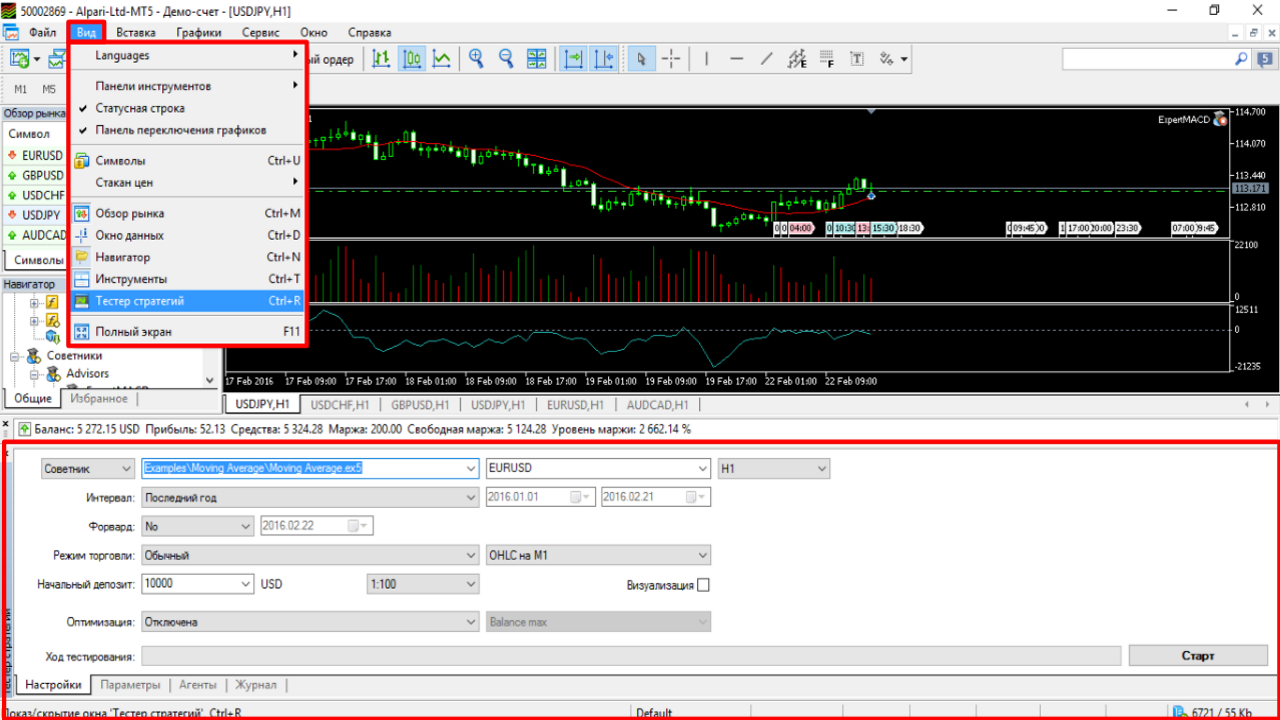
View-Strategy Tester (Ctrl+R);
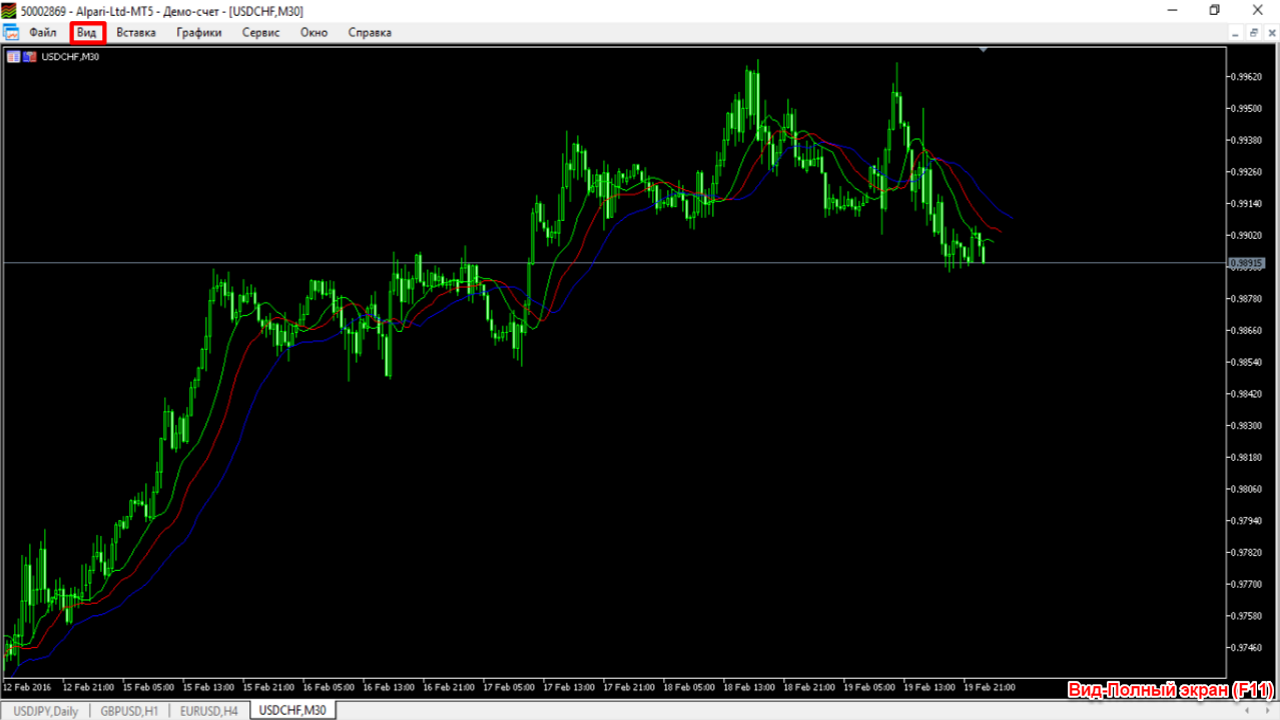
View-Full Screen (F11);
Insert Menu
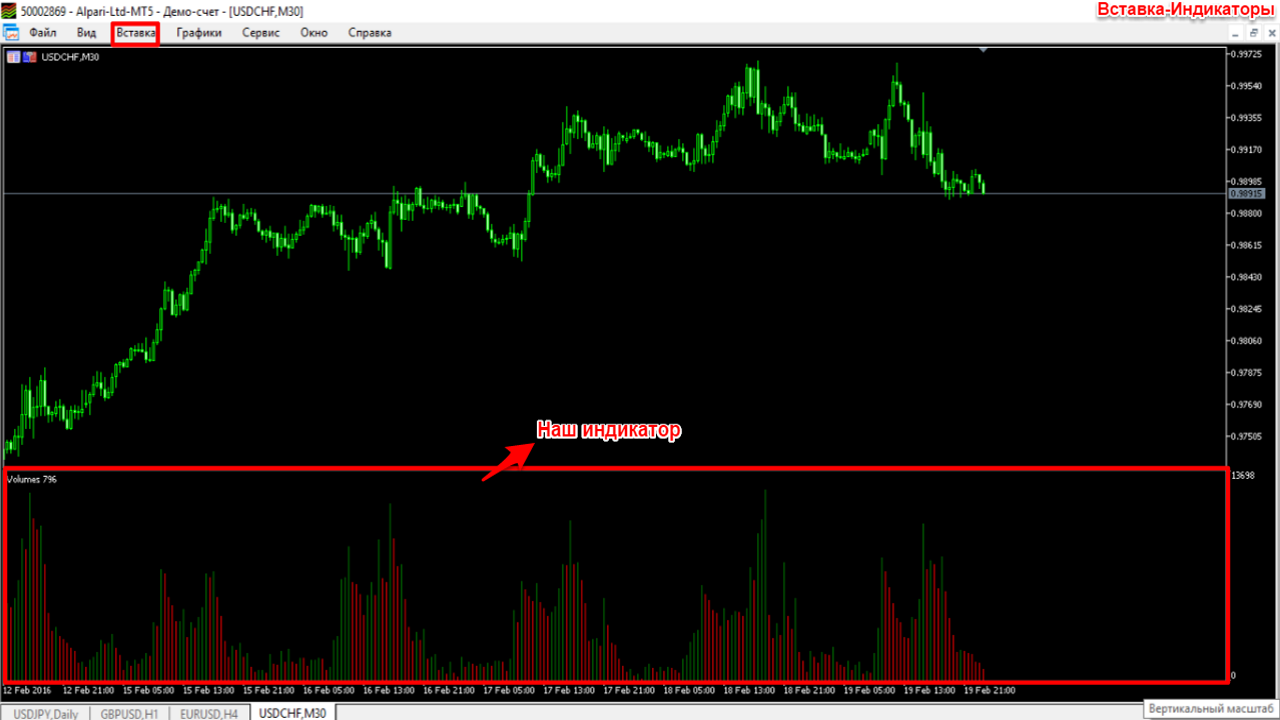
Insert-Indicators - overlaying on the chart any indicator from the standard set with its sub-settings. The range of choices is slightly larger than in MT4. Let us try applying the Volumes indicator to the chart. We set the desired parameters and find its instant display on the chart;
List of available indicators:
- Trend;
- Oscillators;
- Volumes;
- Bill Williams;
- Custom;
Insert-Objects the ability to choose graphical analysis tools: vertical line, horizontal line, trend line, trend line by angle, cycle lines, and much more. The appearance of icons for marking take-profit and stop-loss in the "Insert", "Arrows" section is also pleasing, which allows placing marks on the chart for keeping a journal, printing screenshots, or demonstrating them. Otherwise, this section is analogous to MT4;
Insert-Experts the ability to choose trading advisors from the list;
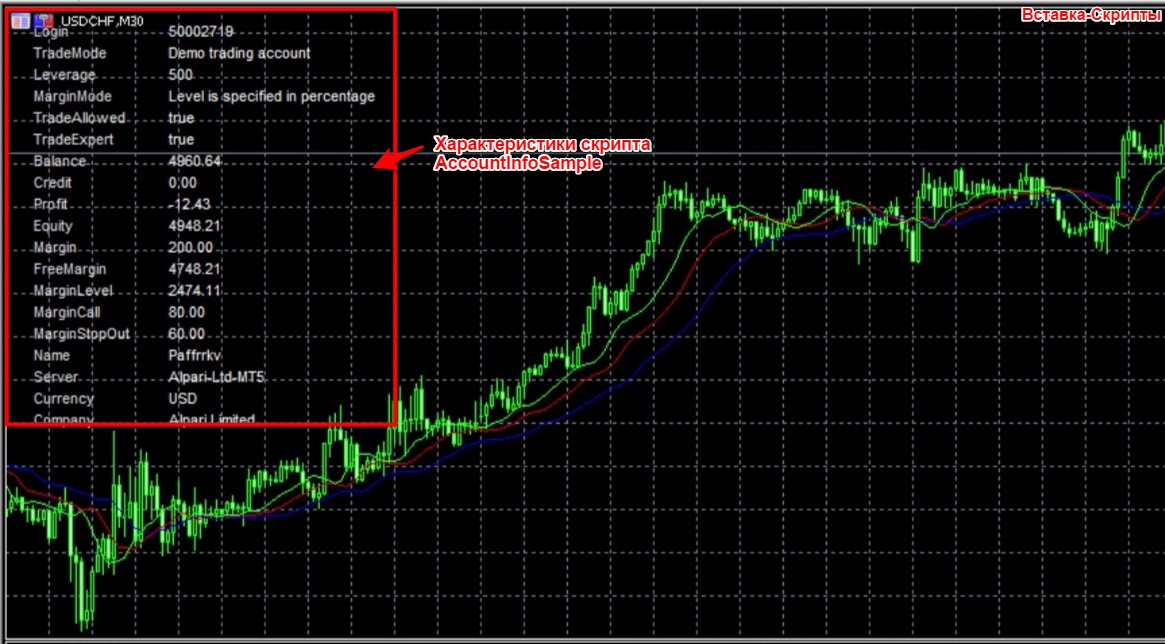
Insert-Scripts A script is a one-time algorithm of actions, unlike trading advisors. We try placing AccountInfoSample from the proposed list and immediately find its display on the chart;
Charts Menu
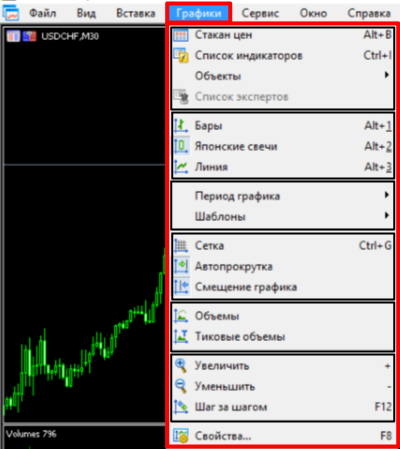
And here we also have nothing new. Everything is analogous to right-clicking on the chart in MT4
Service Menu
Service-New Order (F9) allows opening a new order;
Service-Testing Agents Manager (F5) the possibility of paid use of the computing power of other users' computers in the MQL5 community, created by the developers of the MT5 terminal, to speed up the optimization of your own advisors. This function will be very useful for programmers writing advisors;
Service-MetaQuotesLanguage Editor (F4) for those who know the programming language. This function is also useful for programmers writing advisors for this terminal;
The functions Global Variables (F3) and MetaQuotesLanguage Library (F2) are also intended for a programming audience;
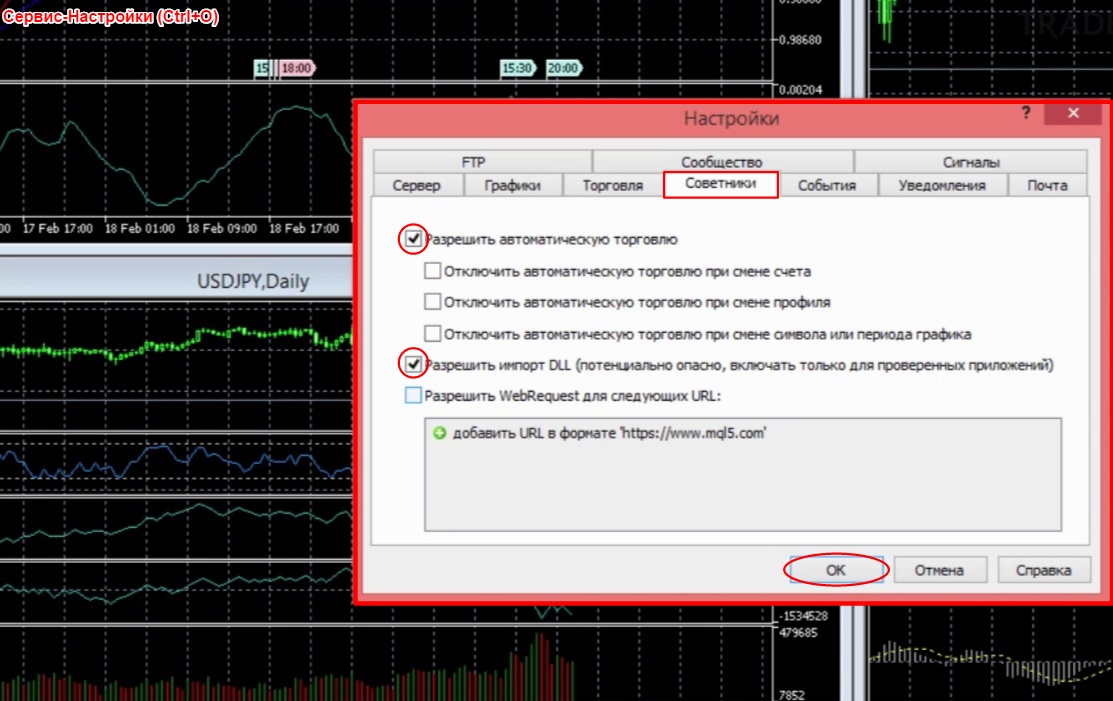
Service-Settings (Ctrl+O) the settings have not changed much. Let us enable "Expert Advisor Trading" by checking the necessary places in the picture below;
Window Menu
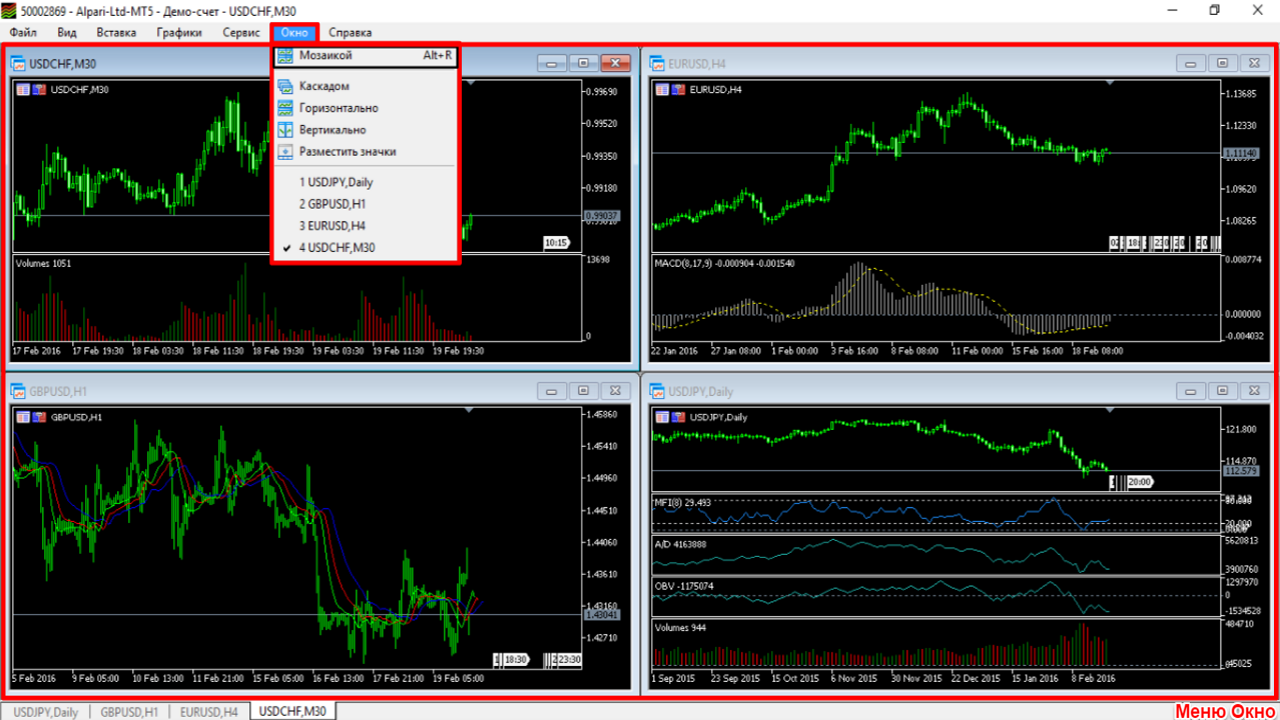
This menu allows you to choose the necessary (convenient) arrangement of chart windows in the terminal. For example, "Tile" (Alt+R).
Help Menu
Toolbar
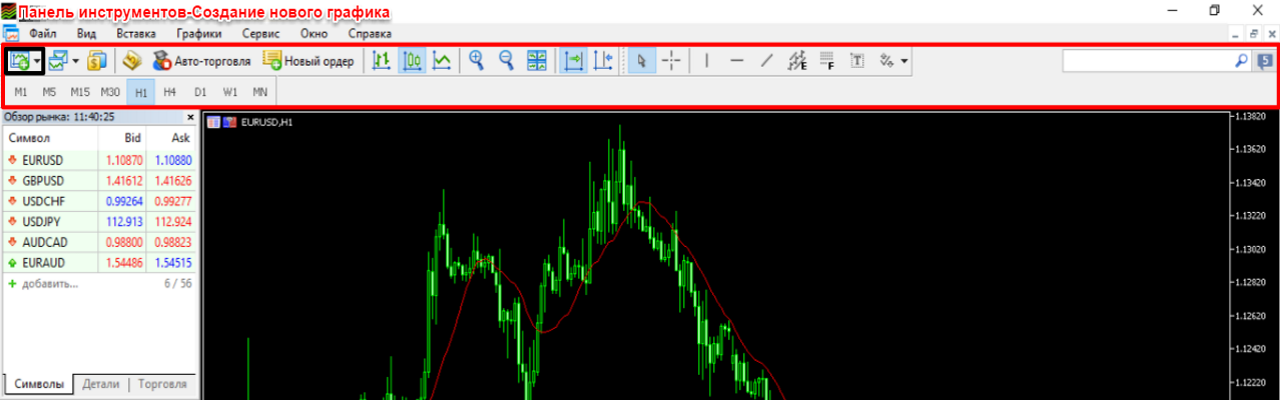
All the buttons of the Toolbar discussed below are arranged in a clear sequence. The panel buttons are concentrated inside the red marker in the picture below.
Button-Creating a new chart of one of the currency pairs available for the current account type;
Button-Profile management is analogous to Menu File-Profiles;
Button-Displaying the list of symbols (Ctrl+U) is analogous to Menu View-Symbols;
Button-MetaQuotesLanguage Editor (F4) is analogous to Menu Service. For those who know the programming language. This function is useful for programmers writing trading advisors. It opens in a separate window from the terminal;
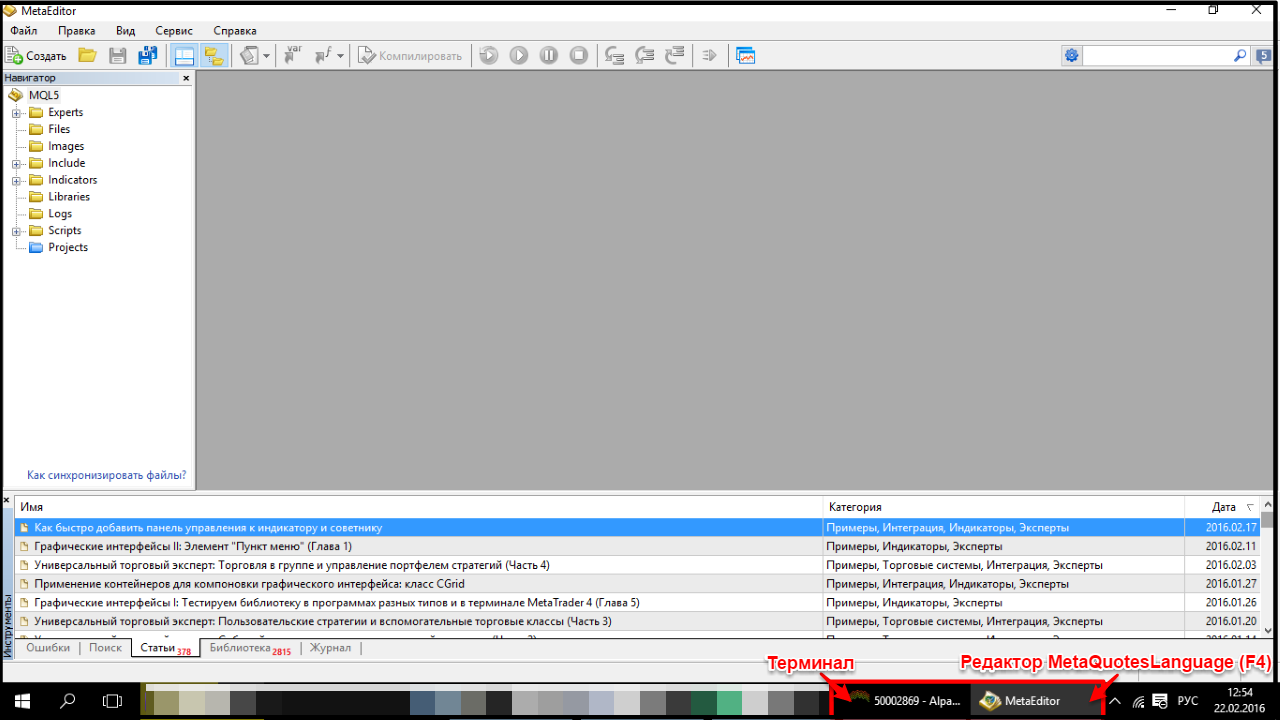
Button-Auto Trading allows/prohibits trading by advisors. The button function is considered active after pressing it (the button is green) and deactivated after releasing it (the button is red);
Button-New Order is analogous to Menu Service-New Order (F9);
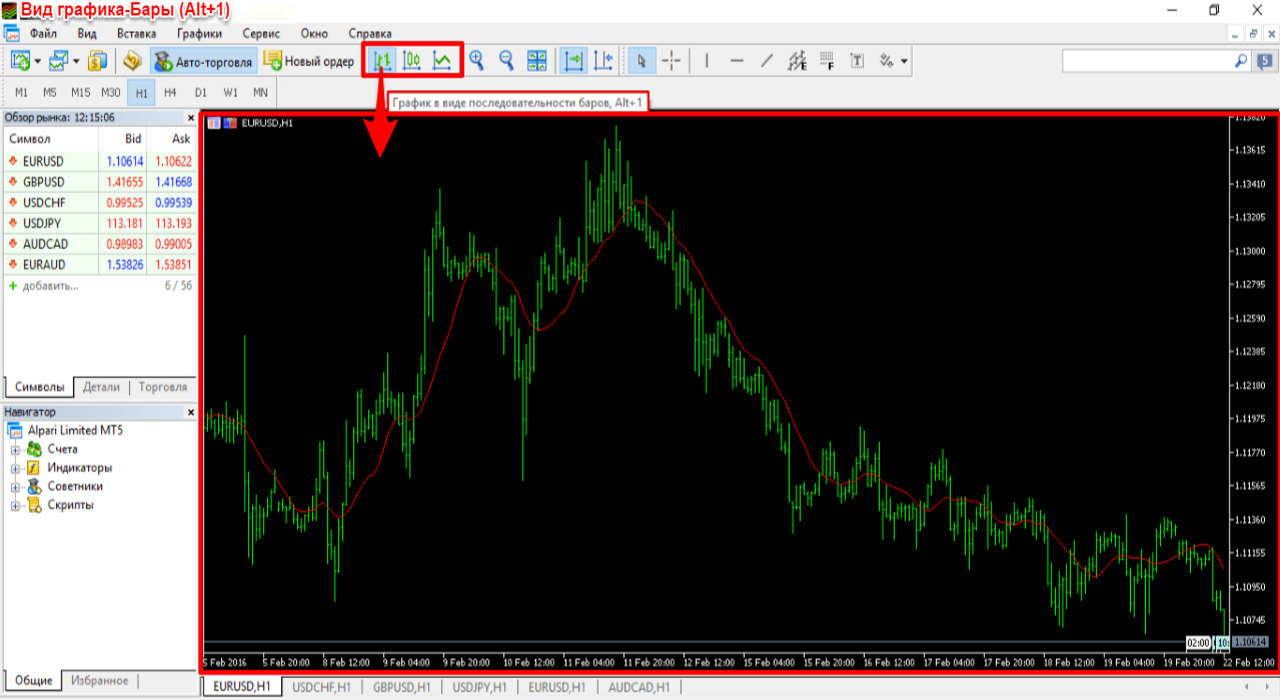
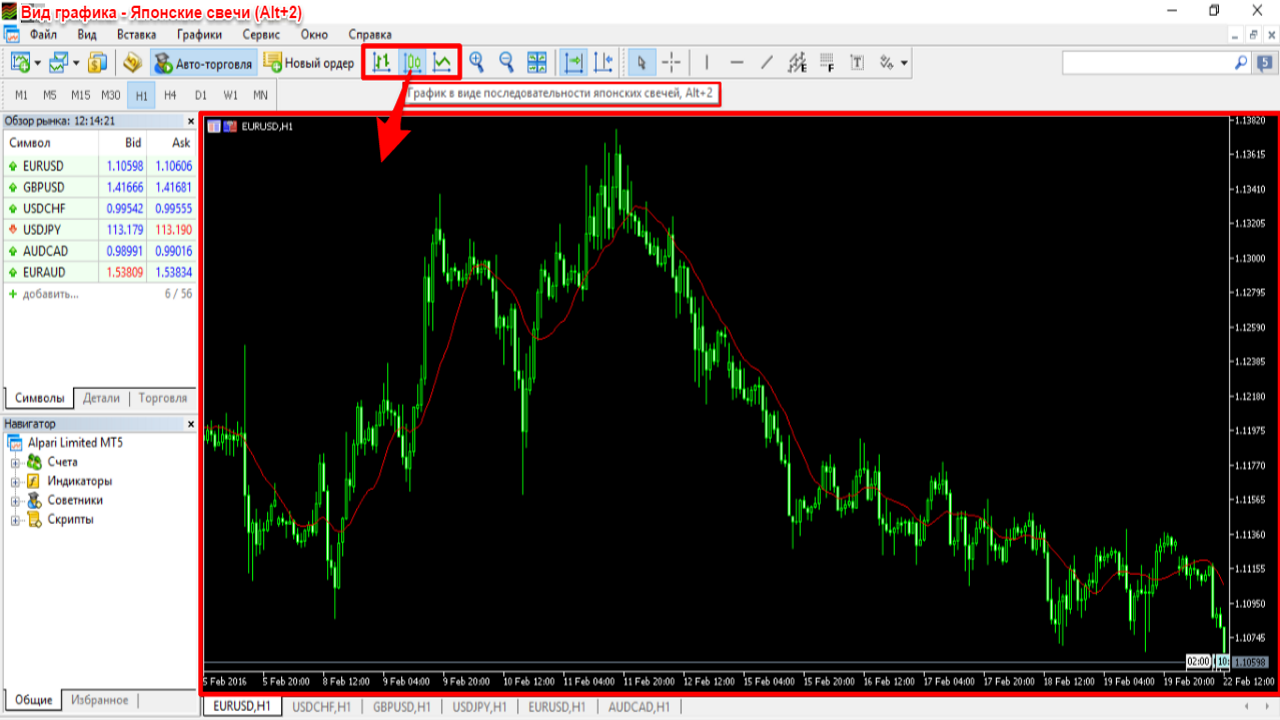
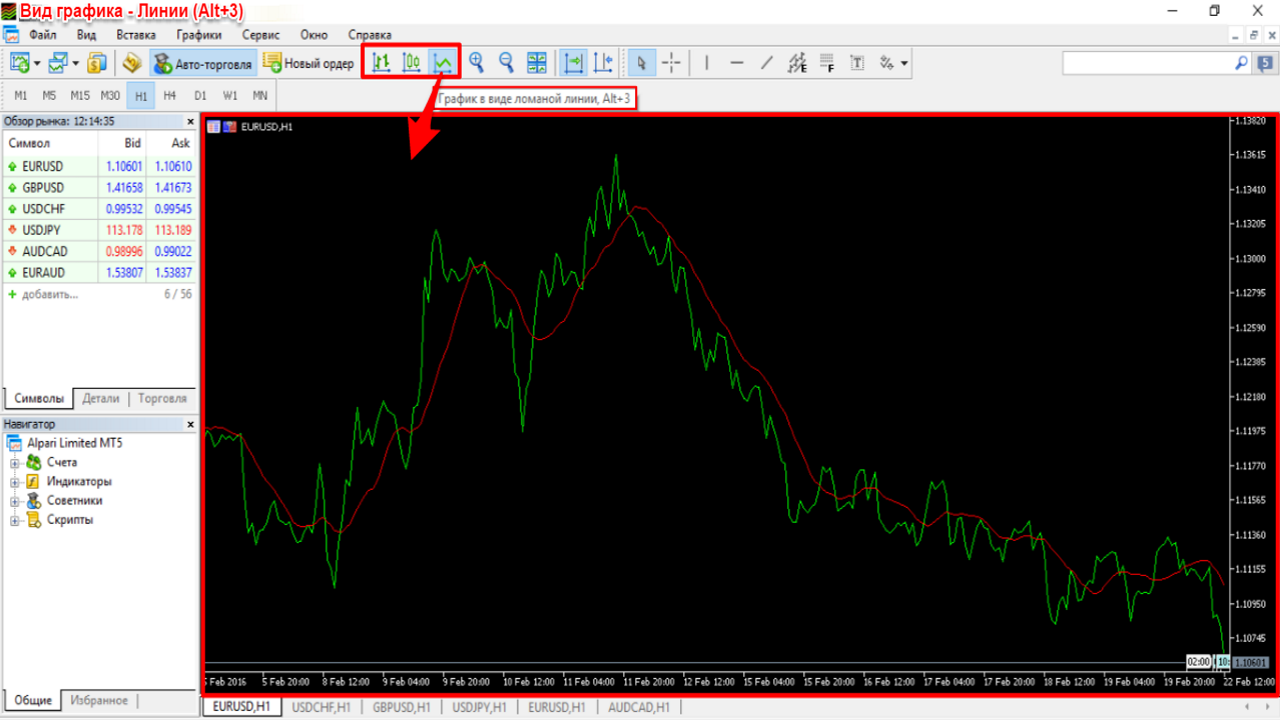
Next come the buttons responsible for the chart view:
- Bars (Alt+1) ;
- Japanese candlesticks (Alt+2) ;
- Lines (Alt+3) .
The +/- buttons zoom the chart in/out. This action can also be performed with the +/- keys on your computer keyboard;
Button-Tiled arrangement of chart windows (Alt+R) is analogous to the Window Menu;
Button-Auto-scroll chart to the end as new ticks arrive (returns to the original price tick) and Shift of the chart from the right border (for convenience when using technical tools, auxiliary indicators, marking targets;
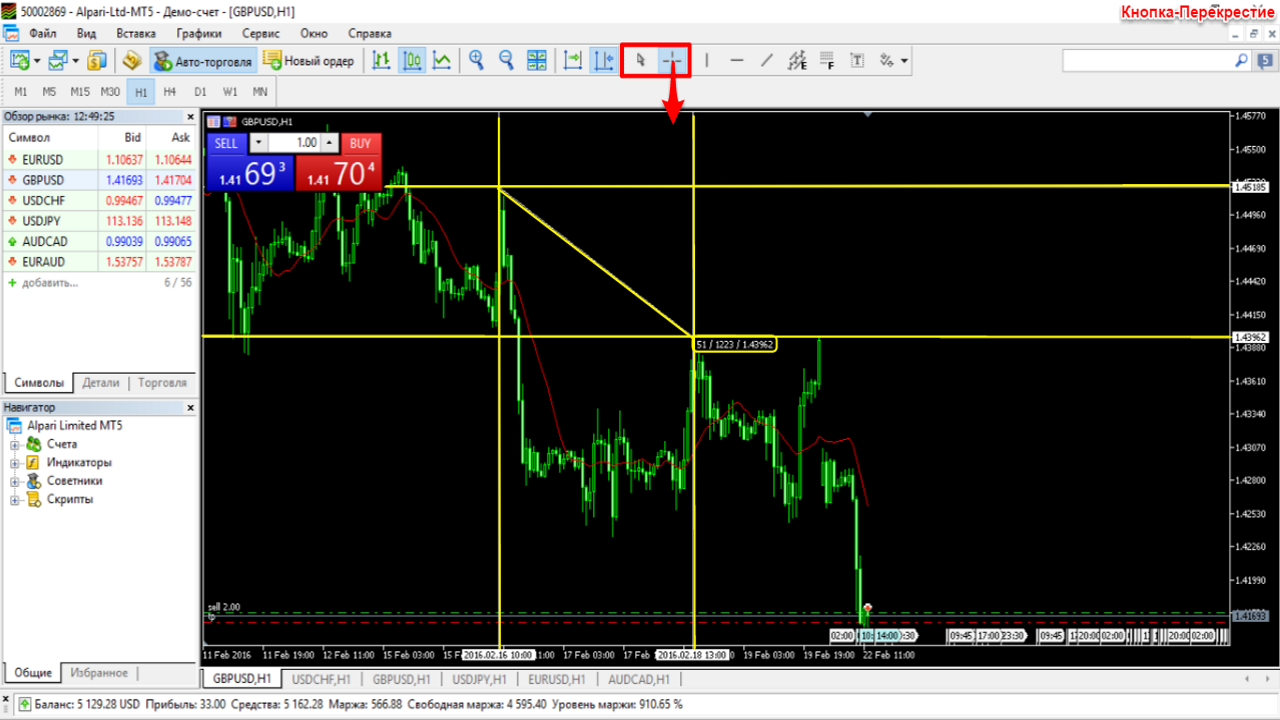
Button-Cursor - the mouse cursor;
Button-Crosshair is necessary for measuring distances in points on the chart, or data that seem interesting to you. A one-time use of this button returns the crosshair to the usual cursor;
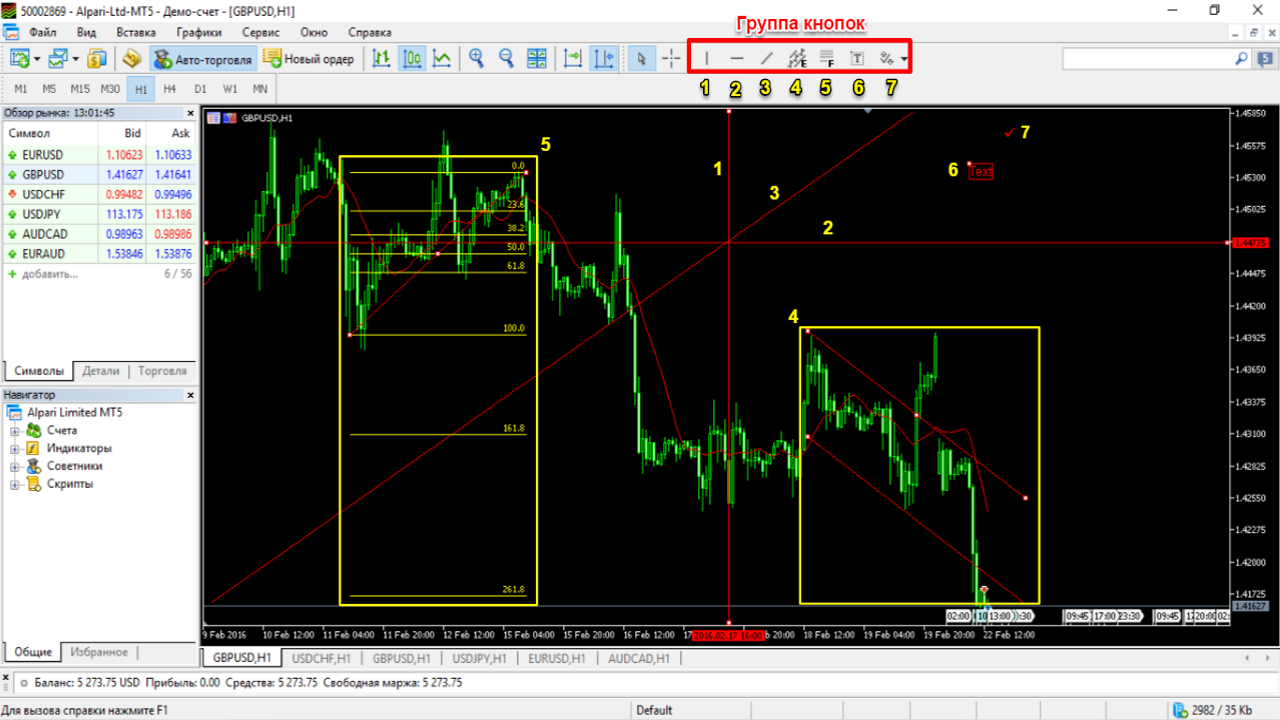
A group of buttons for graphical analysis and manual markup. Analogous to the Insert Menu.
- Drawing a vertical line;
- Drawing a horizontal line;
- Drawing a trend line;
- Drawing an equidistant channel;
- Drawing Fibonacci lines ;
- Drawing text;
- Drawing an arrow.
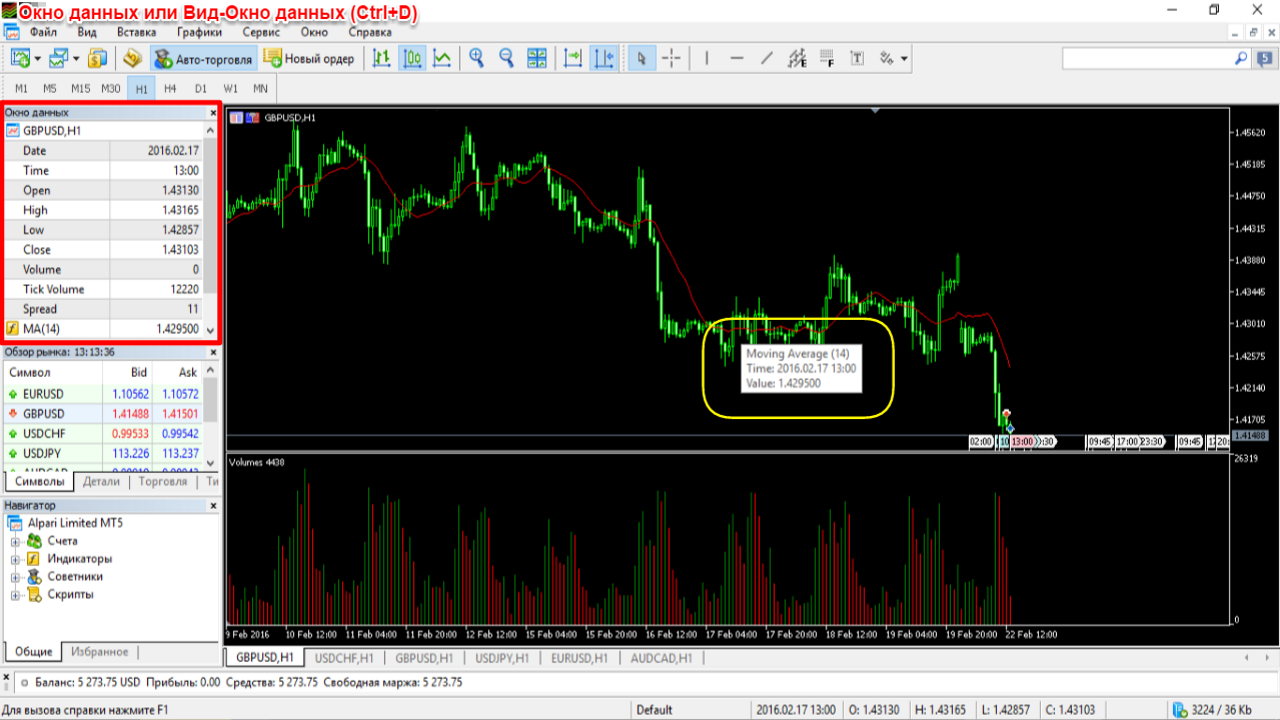
Data Window
This window displays current data on candles and other tools overlaid on the chart. The direction of the mouse cursor displays ALL of its values in the data window. There is an option for convenient scaling of windows throughout the terminal. Additional command call View Menu-Data Window (Ctrl+D).
Market Watch
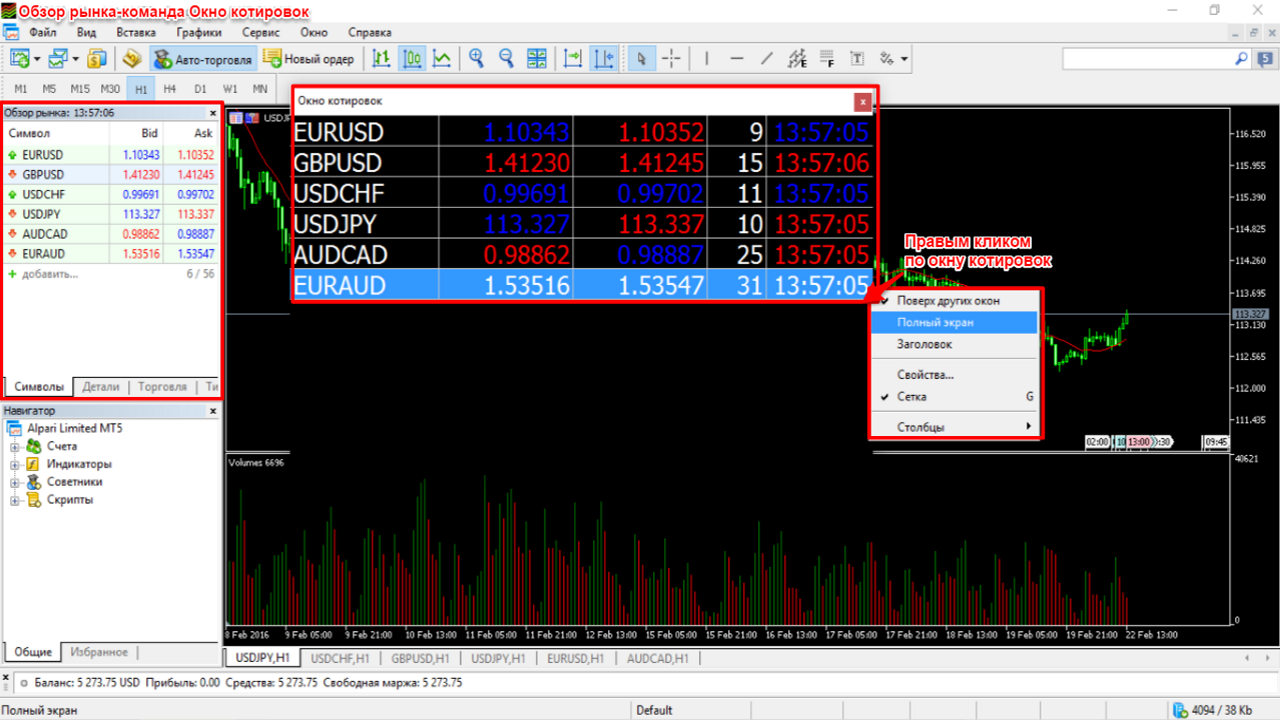
Here we see the Bid/Ask prices of the selected symbols. A double-click of the mouse allows you to open an order. A right-click, however, gives us many more possibilities for using the desired symbol. Let us consider some of them below. Additional command call Market Watch - View Menu-Market Watch (Ctrl+M).
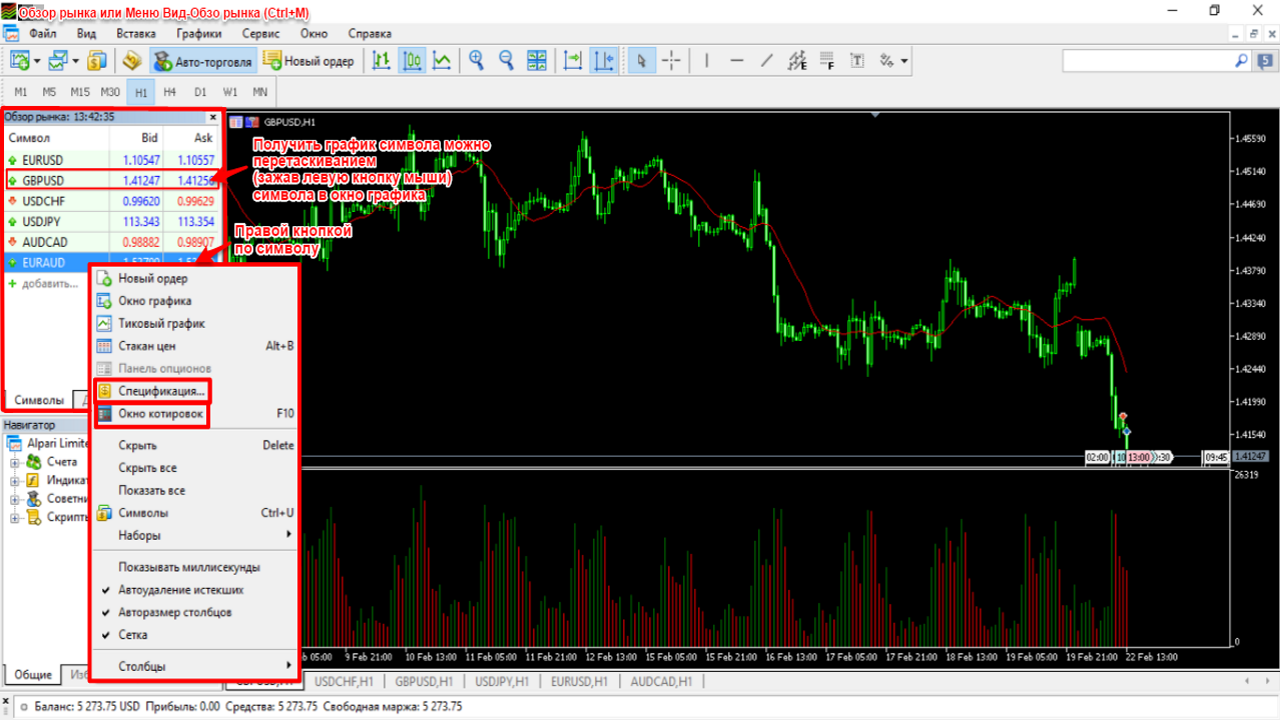
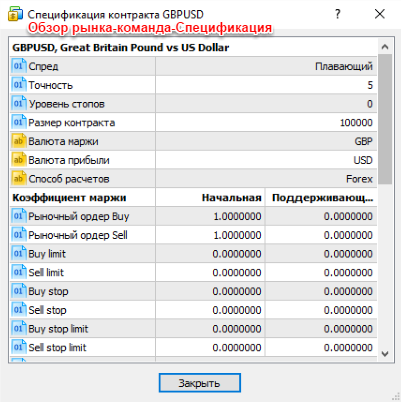
Let us consider the "Specification". This command contains a list of characteristics of the selected symbol.
 .
.
Another interesting command is the "Quotes Window". Its sub-settings become available with the right mouse button. A quick transition to one-click trading is available through the "Trading" tab in the "Market Watch" window.
Navigator
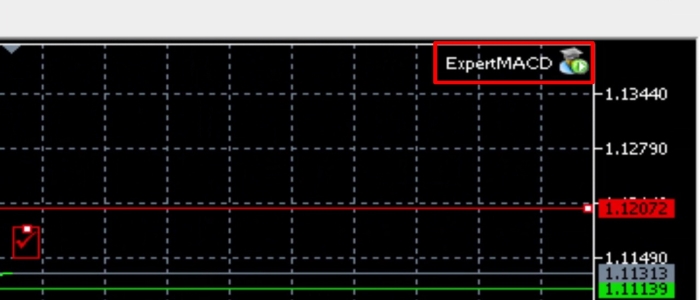
The window allows you to choose any of the available accounts (on different servers), indicators, expert advisors, and scripts. To place it on the chart, it is enough to drag the object while holding down the left mouse button. Let us try using the help of the ExpertMACD advisor. We configure the sub-settings and input parameters after moving it onto the chart. Right here we can also observe the display of the advisor in the upper right corner of our terminal. It is possible to deactivate permission to trade through the advisor after releasing the "Auto-Trading" button in the "Toolbar". As in Mt4, only one advisor can be added to one chart. Additional command call Navigator -View Menu-Navigator (Ctrl+N).
Tools
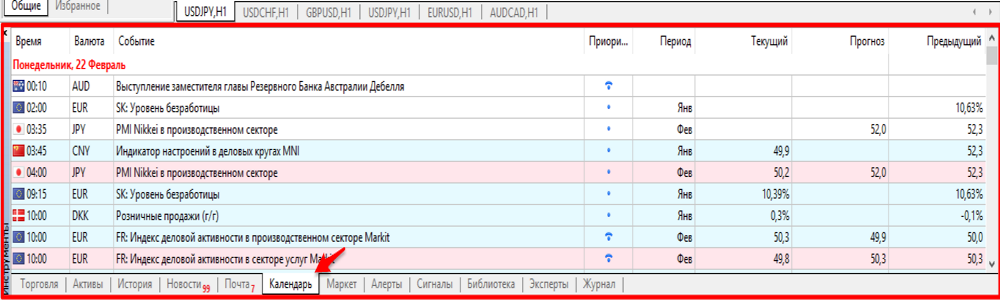
We do not observe any special changes, except that the "Calendar" section for news events has appeared. An insanely convenient and interesting innovation. Calendar events are scheduled for a week ahead.
Charts
Let us move on to the chart itself. Everything here looks quite familiar, just like in Mt4. Among the new features, it is worth noting the colored (numbered) marks displaying the time of news releases. The colors of the labels are painted depending on the degree of importance of the news.
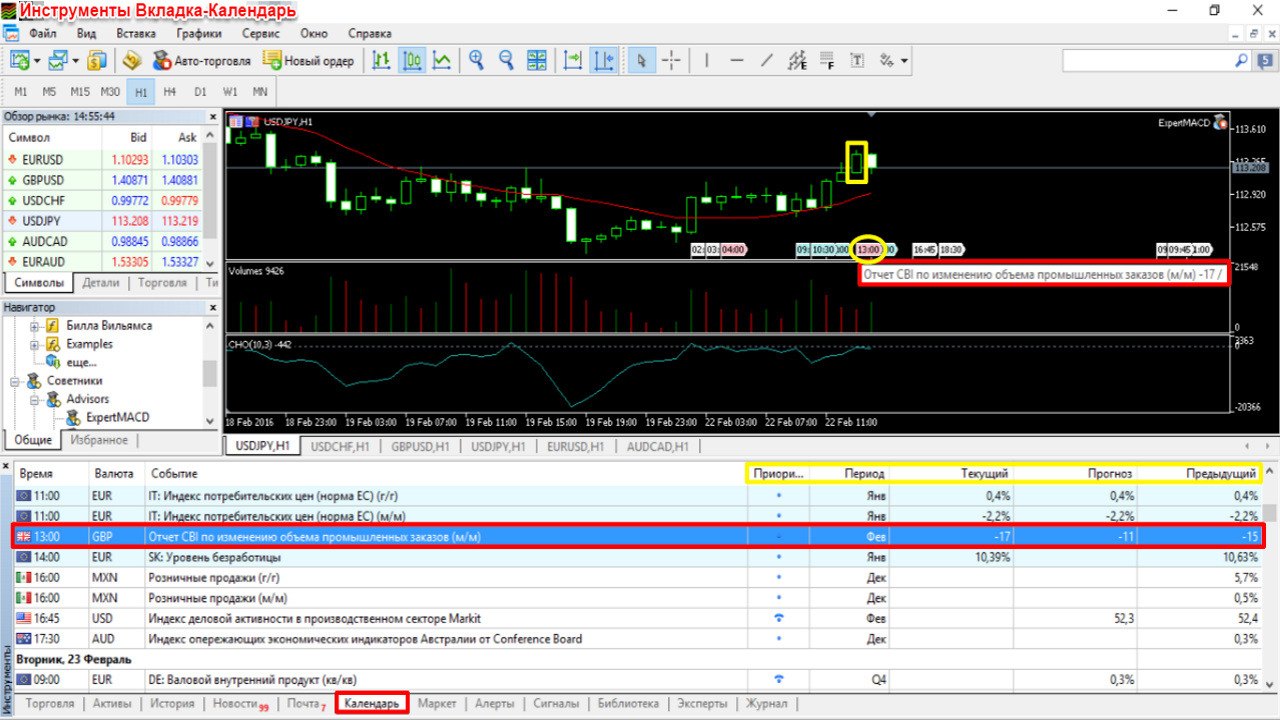
Chart Menu
The menu (right-click on the chart) allows you to:
- open pending orders at the price of the directed cursor;
- alert setting of sound notifications;
- open a new order;
- turn the depth of market on/off;
- turn one-click trading on/off;
- a list of indicators present on the current chart, objects, and experts;
- chart view;
- chart period. It has become possible to set unusual timeframes. This function is necessary for specific strategies that imply the use of unusual timing. In Mt4 this function is implemented using separate scripts;
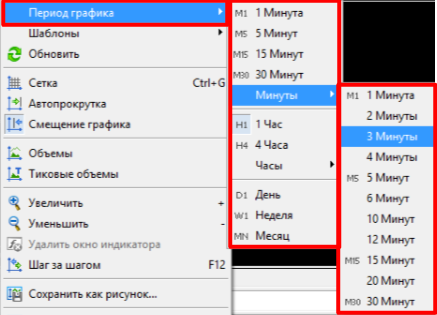
- Templates allow you to open a previously saved template on the chart (the necessary list of indicators, advisors, oscillators, etc.);
- Updating data from the server, in case gaps are detected on the chart at startup;
- Grid (Cttl+G) helps when measuring distance;
- Autoscroll and shift from the border with the price;
- Volumes are intended for stock market trading;
- Tick volumes for the Forex market;
- Zoom in/zoom out the chart;
- Delete the indicator window;
- Step by step (F12) movement of the chart by one unit of price measurement;
- Saving a screenshot;
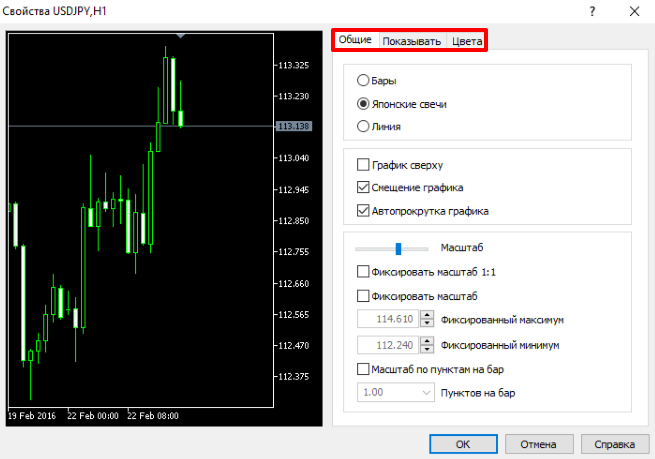
- Properties for chart display parameters and its sub-settings.
Strategy Tester
The (Ctrl+R) Strategy Tester command is necessary for testing advisors, indicators, and strategies on chart history. Let us perhaps devote a separate lesson to analyzing the strategy tester.
Differences Between MetaTrader 5 and MetaTrader 4
- The appearance of additional timeframes;
- New order types;
- The strategy tester is more functional than in Mt4. It allows testing strategies on different currencies simultaneously and much more;
- The MQL5 language is more advanced than the MQL4 language. This is another plus for the programming audience;
- Minor differences in the set of indicators;
- The ability to remove stops directly from the tools window;
- The appearance of a calendar of news events;
- The appearance of the depth of market and other exchange instruments;
- The possibility of using the computing power of other traders to speed up advisor optimization.
So What Should You Use, Mt4 or Mt5?
I think that if:
- developers of indicators and advisors provide massive support for Mt5;
- brokers actively implement the Mt5 platform on real accounts.
And only in that case does Mt5 have every chance for popularization and widespread use by Forex traders.
Conclusion
I think Mt5 will be interesting first of all to exchange traders and programmers, since there are far more opportunities for experiments here than in Mt4. The more powerful internals of the Mt5 program make it possible to use all the capabilities of your computer to the maximum. At the moment, I still consider Mt4 to remain the optimal choice for a trader. Thank you for your attention.
Sincerely, Pavel Vlasov
TradeLikeaPro.ru
