
Hit of the Season: Web Version of MetaTrader 4
The prayers of numerous forex traders have been heard. It has happened. At last trading platforms are moving to the web. Our review today is dedicated to the web version of the most popular trading platform in the world - MetaTrader 4. This web terminal is now being actively adopted by many brokers. Let us examine the web version of our favorite terminal and identify its pros and cons compared with the familiar desktop version.
We conducted our review on the platform of broker Alpari
You can log in to the web platform of this broker via the link (registration required) -> https://alpari.com/ru/?partner_id=1215286
Main Menus
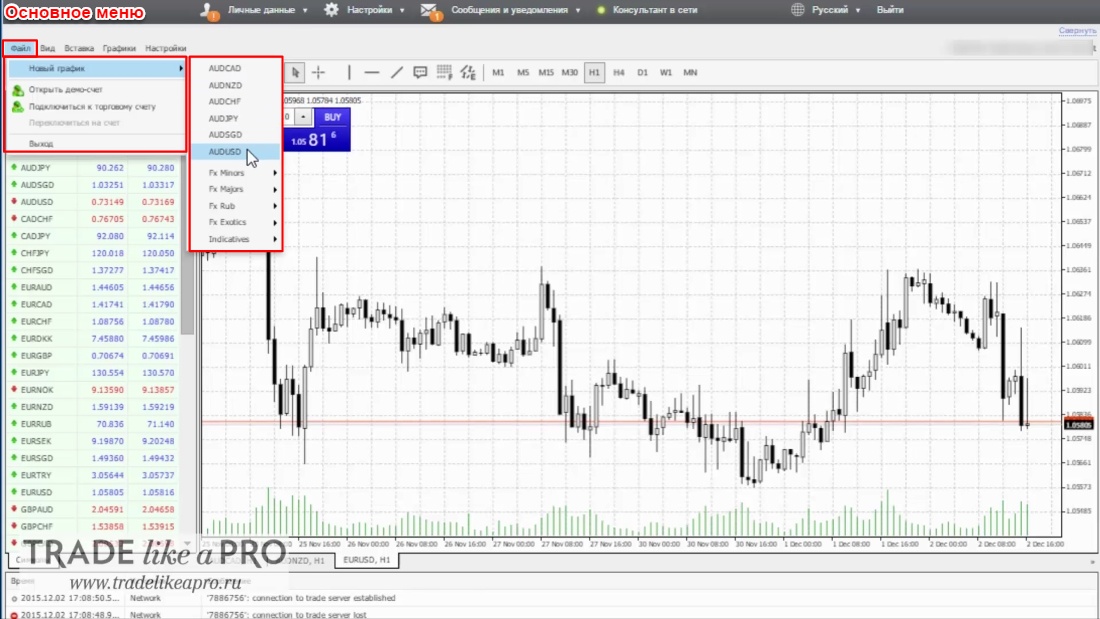
File
In the "File" menu we can open any chart available for trading with this broker. Open a demo account and connect to a live trading account.
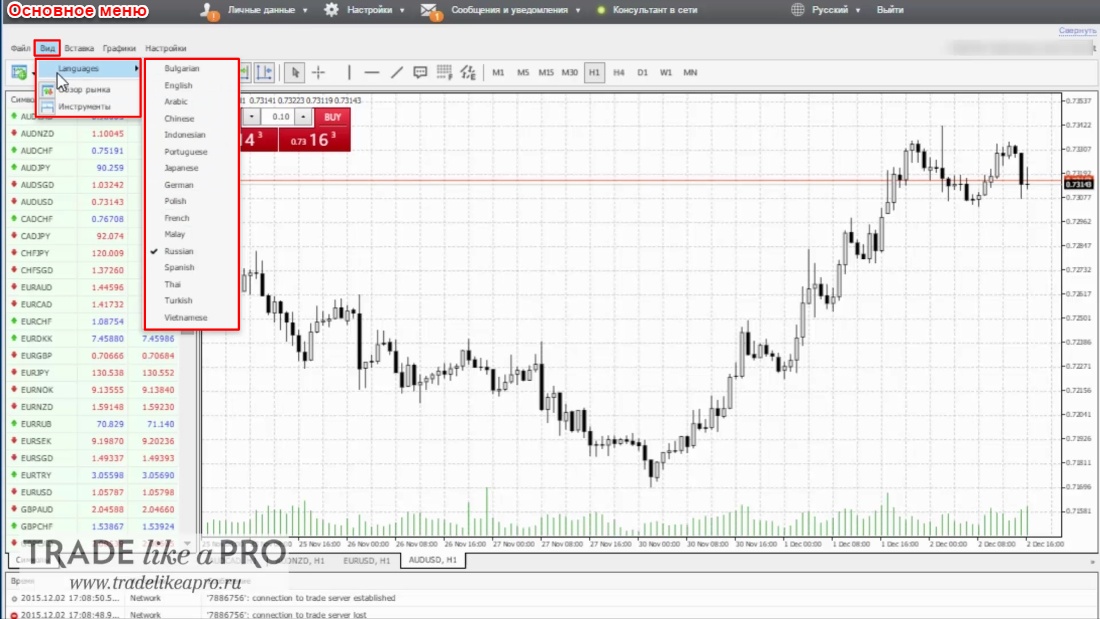
View
- switch the platform language;
- disable/enable Market Watch;
- enable/disable the "toolbar," also known as the "trading terminal".
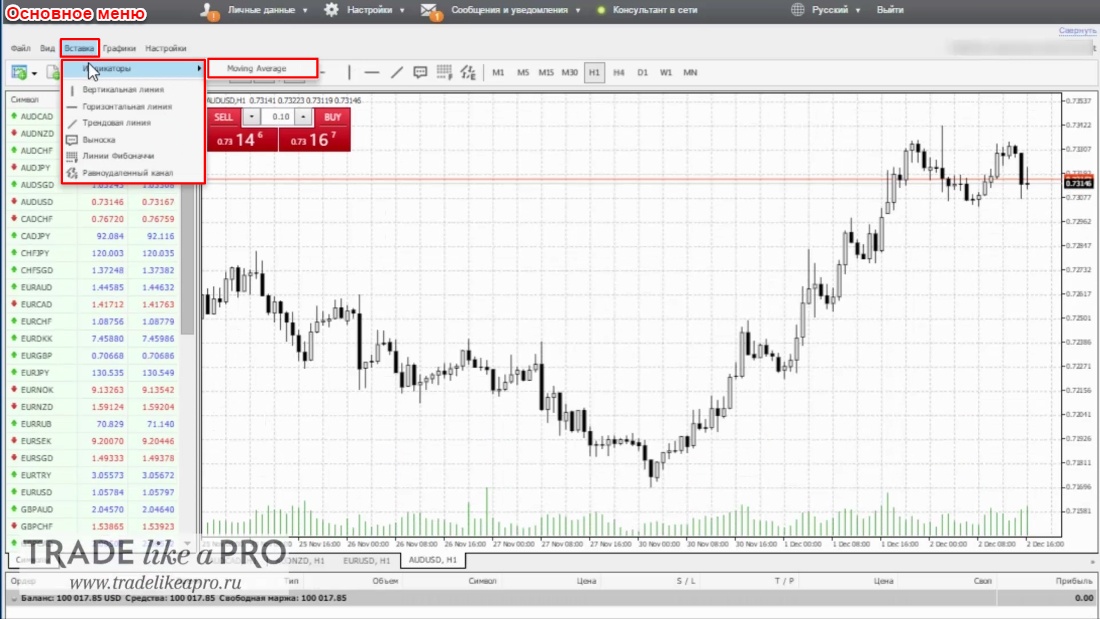
Insert
Using the "Insert" menu, you can add one of six graphical and technical analysis objects to the chart. At the moment only one indicator has been added Moving Average
Charts
Submenu:
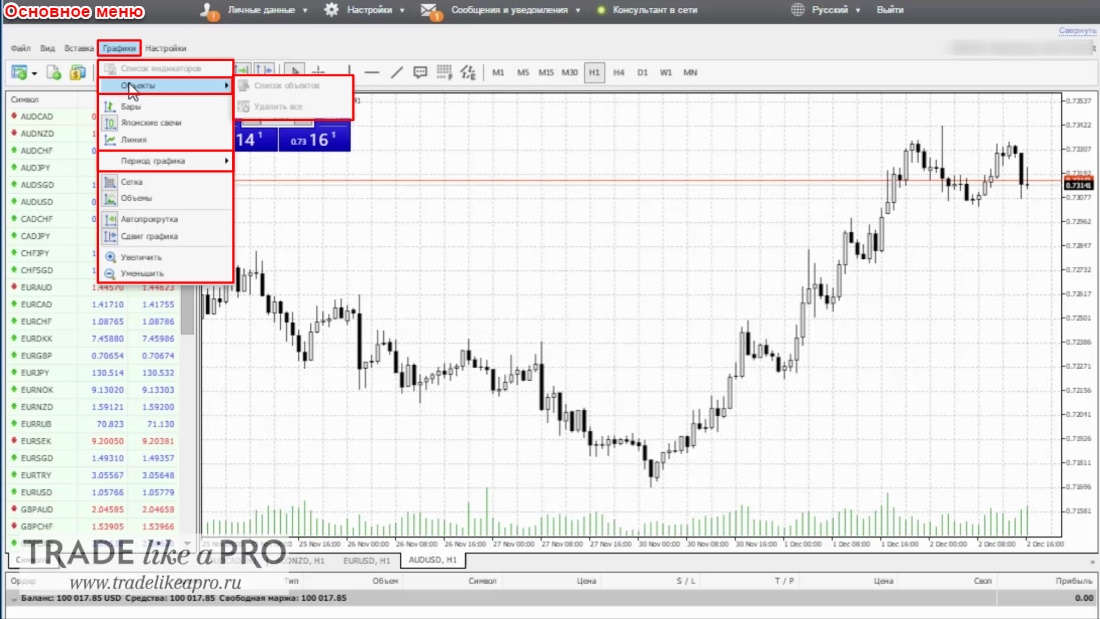
- Objects - allows you to display a list of all objects on the currently open chart, as well as delete all objects;
- Switching between bars, Japanese candlesticks, and line;
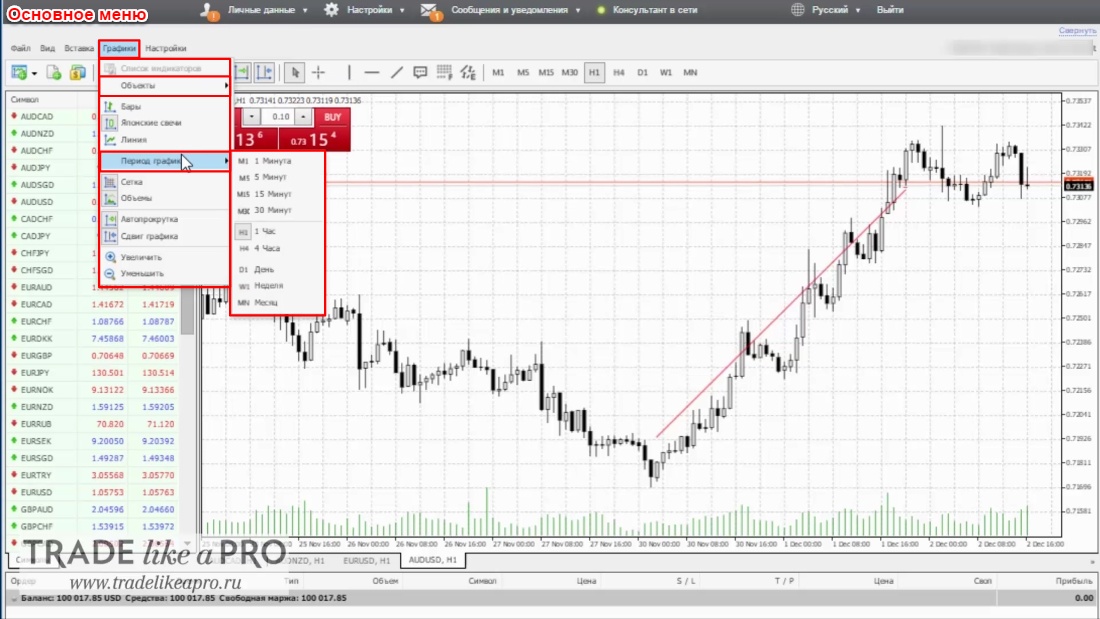
- Switching between the main timeframes from one minute to one month;
- Remove/add grid, volumes;
- Enable/disable auto-scroll, chart shift;
- Zoom out, zoom in.
Settings
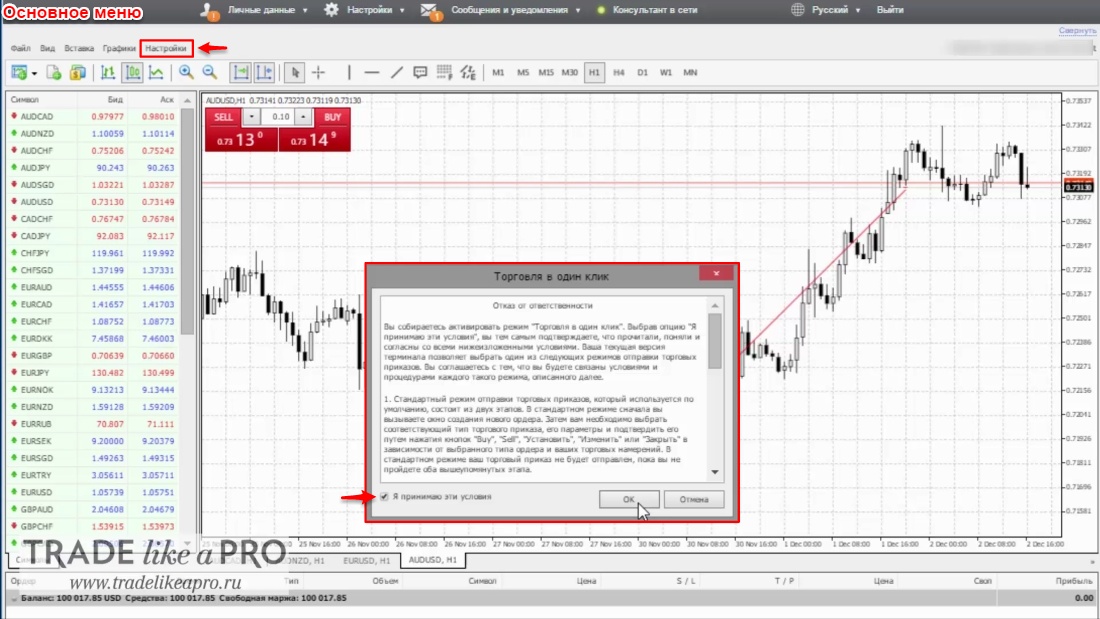
In the settings you can allow one-click trading operations.
Quick Icons
They duplicate the most frequently used functions from the main menu.
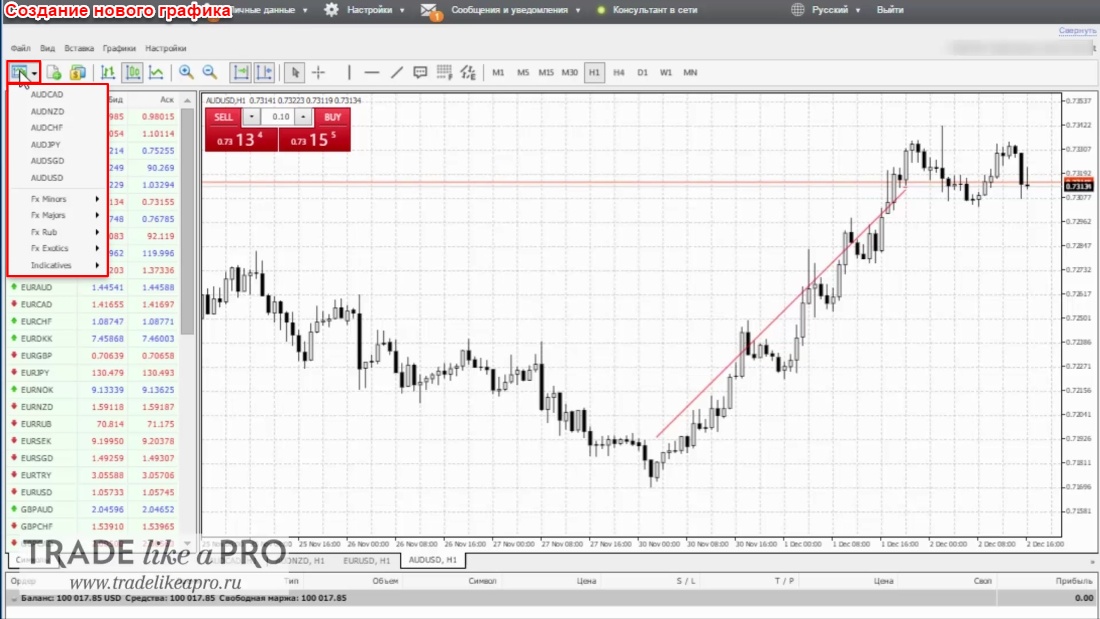
Creating a New Chart
Allows you to add a new chart from the list provided by your broker.
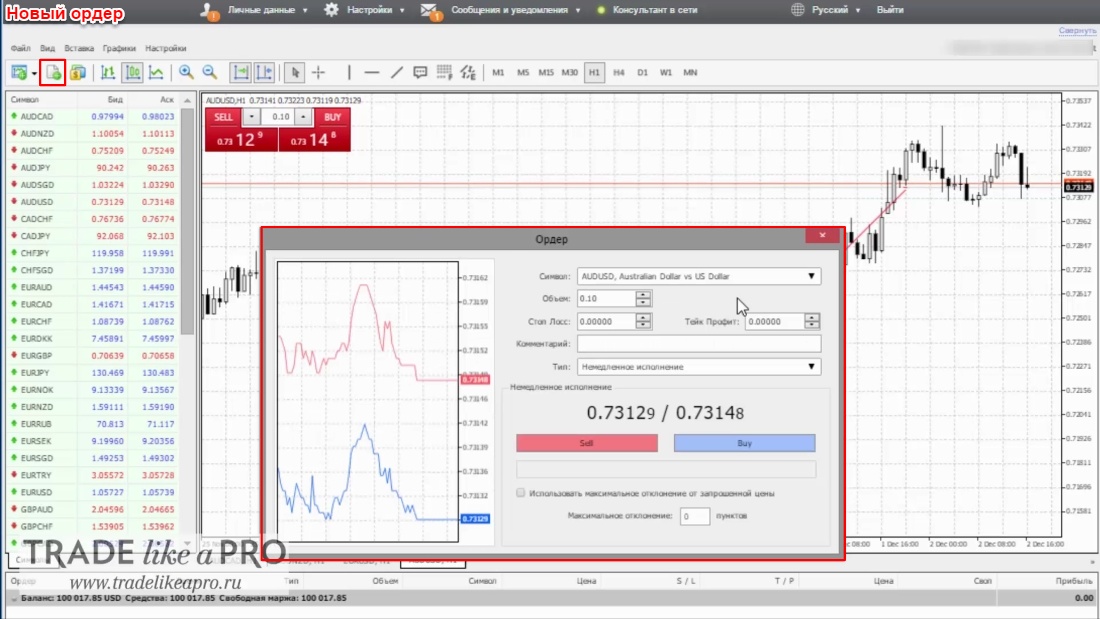
New Order
Opens the order interface.
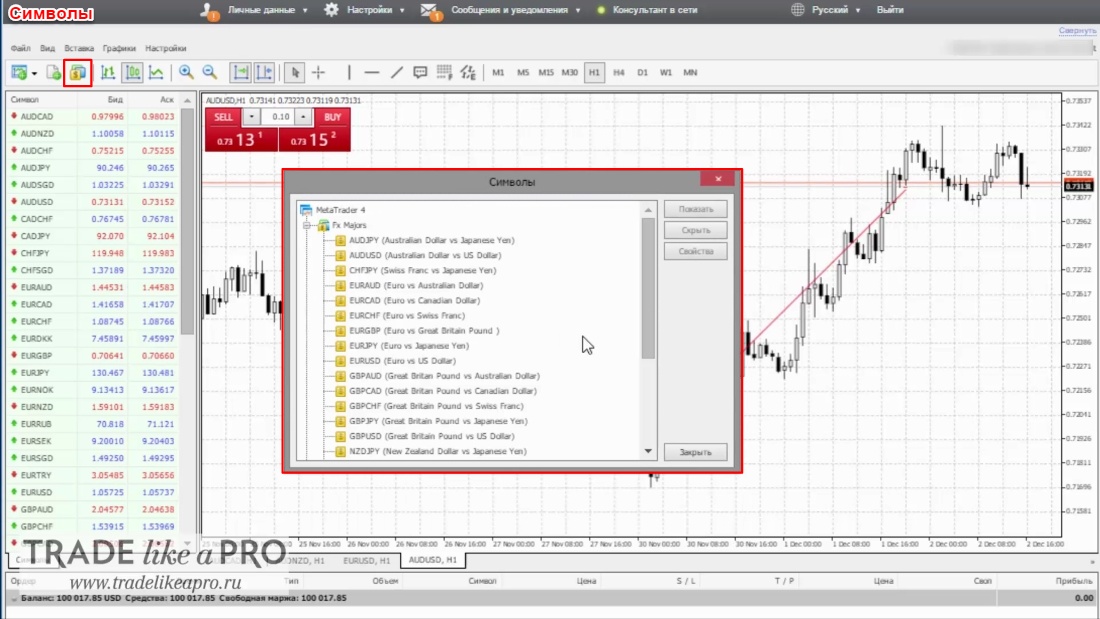
Symbols
Allows you to add trading instruments not available by default in the new chart creation menu, such as: metals, indices, CFDs.
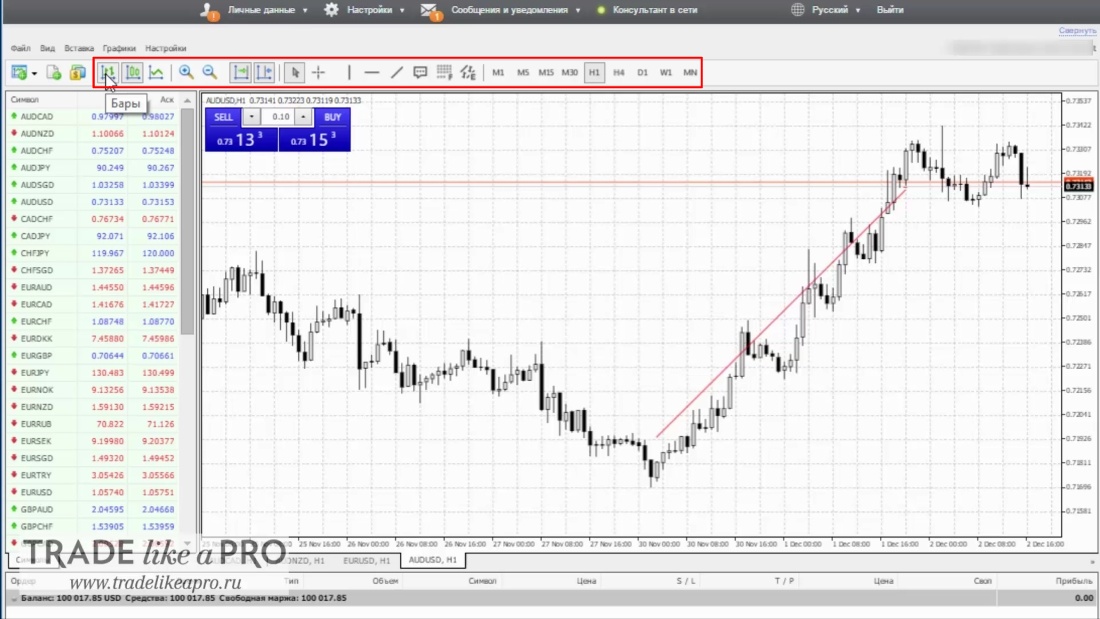
The following buttons duplicate the "chart" and "insert" menus. Let us go through them once again.
- Switching between bars, candles, and lines;
- Zoom out and zoom in on the chart;
- Enable/disable auto-scroll and shift;
- Cursor tool;
- Crosshair tool;
- Graphical technical analysis tools such as: vertical line (when placed on the chart, displaying the time and date);
- Horizontal line (displaying the price);
- Trend line;
- Text callout;
- Fibonacci lines;
- Equidistant channel for identifying trends;
- Switching between the main timeframes from a minute to a month.
Symbols Section
By default, most likely in the "symbols" section, as well as in the "new chart" submenu, a very small number of instruments will be available to you. In order to open the full list of instruments, you need to right-click on an empty area in the "symbols" section and click "show all". Also, using the right mouse button you can call up:
- the interface for placing a new order;
- open a chart window;
- view the contract specifications for the selected trading instrument;
- gain access to the nomenclature of exotic symbols;
- add columns for spread, high/low, and time.
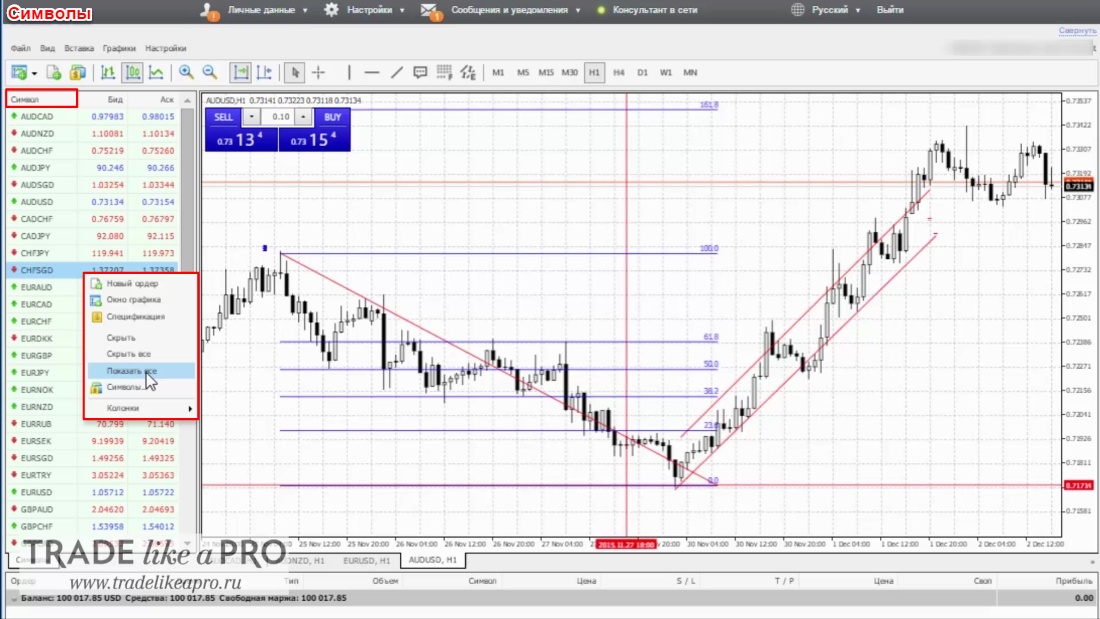
Chart Interface Section
In the upper left corner of the chart, we see a one-click trading control panel. With its help, in one click we can open buy and sell trades, as well as change the lot by entering it manually or using the up/down arrows to move by one hundredth of a lot. By right-clicking on any part of the white chart, we can observe pop-up menus with quick access:
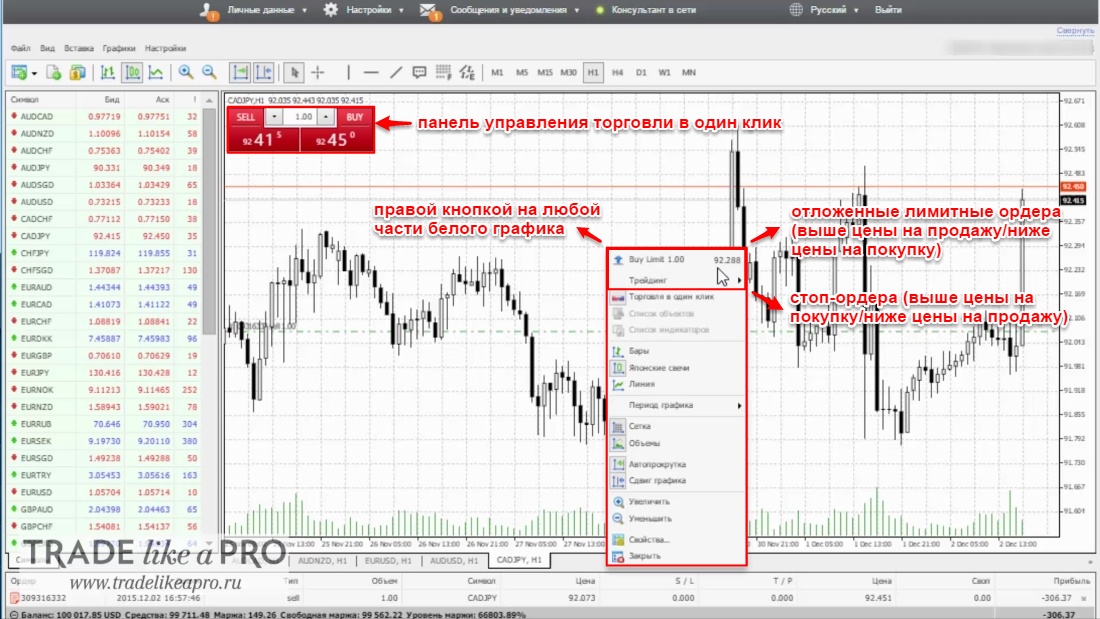
- setting pending limit orders (above the price for sell/below the price for buy)
- setting stop orders (above the price for buy/below the price for sell)
- functions from the "chart" menu that are almost completely duplicated, the ability to quickly close the chart, as well as chart properties, which we will consider a little below.
Chart Properties
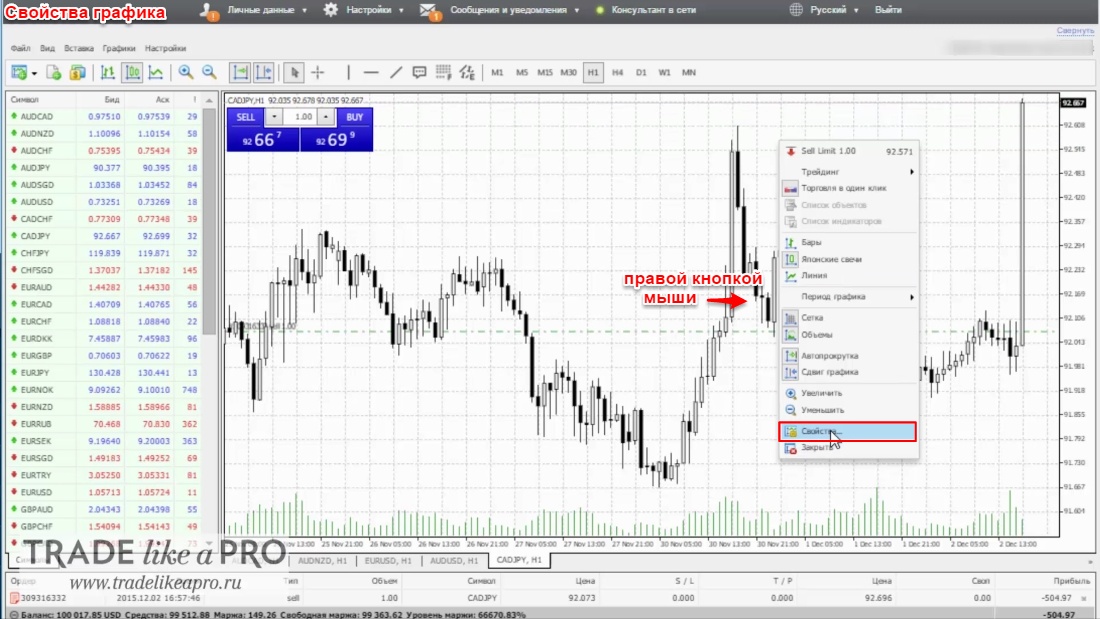
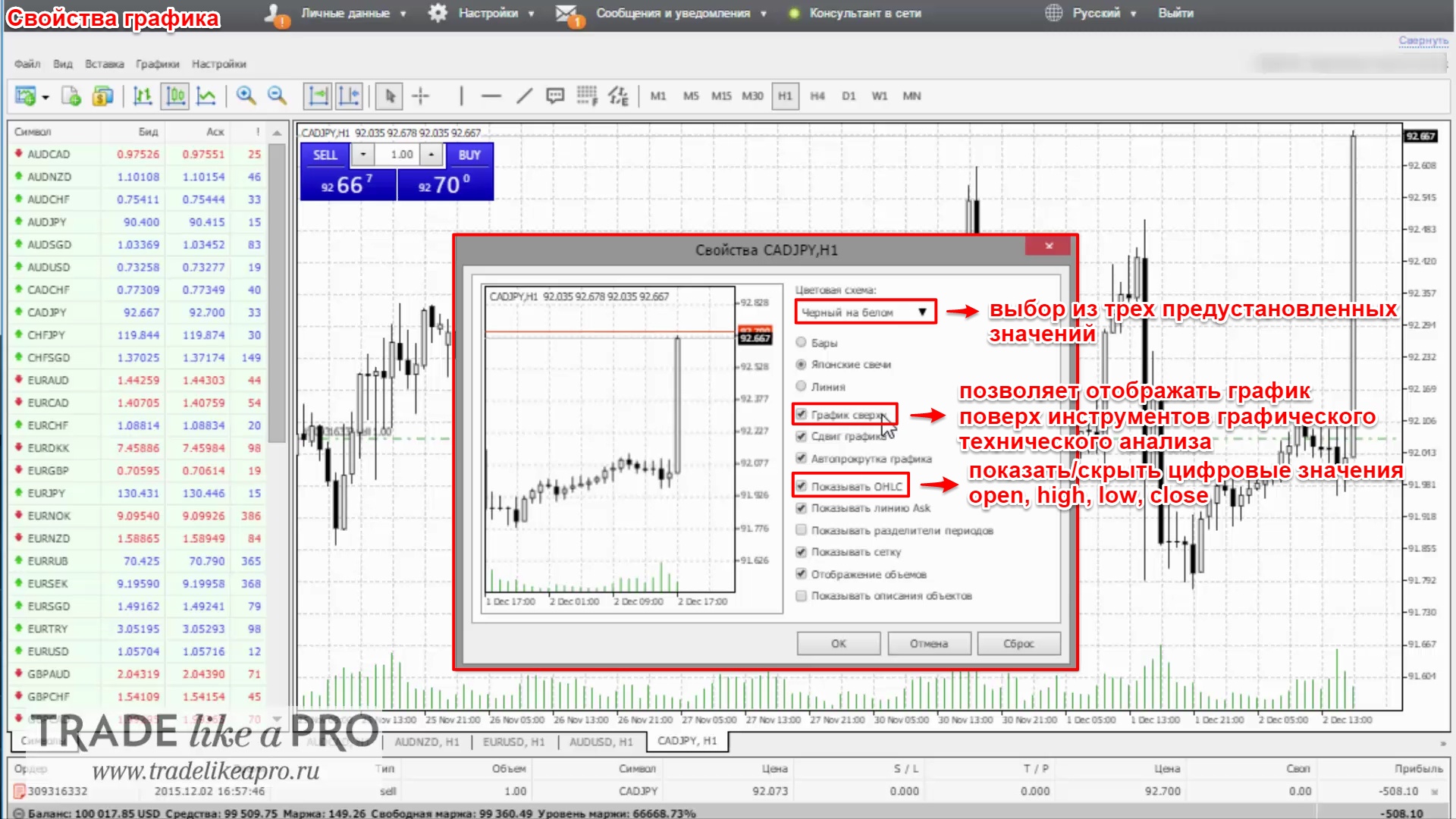
- color scheme - a choice of three preset values;
- the "chart on top" checkbox - allows the chart to be displayed above graphical technical analysis tools;
- show/hide the numerical values of open, high, low, close;
- show/hide the ask line;
- show/hide daily period separators;
- show object descriptions.
Opening an Order
Opening settings:
- symbol: lets you choose any of the available trading instruments;
- volume;
- stop-loss;
- take-profit;
- comment;
- type (position or order).
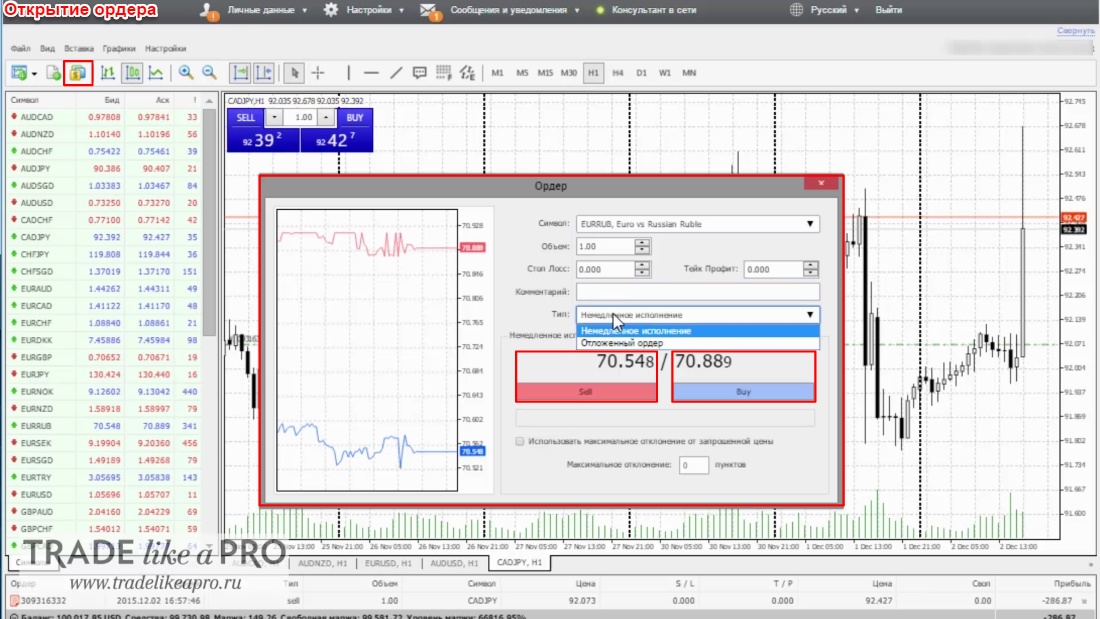
If you chose "instant execution," you can see two buttons for buying or selling, as well as the current bid/ask prices. Next, you can set the maximum deviation from the requested price in points.
In a pending order, you can choose the type of pending order (buy limit, sel limit, buy stop, sel stop, select the price for placing the pending order, and the expiration date or time of the order.
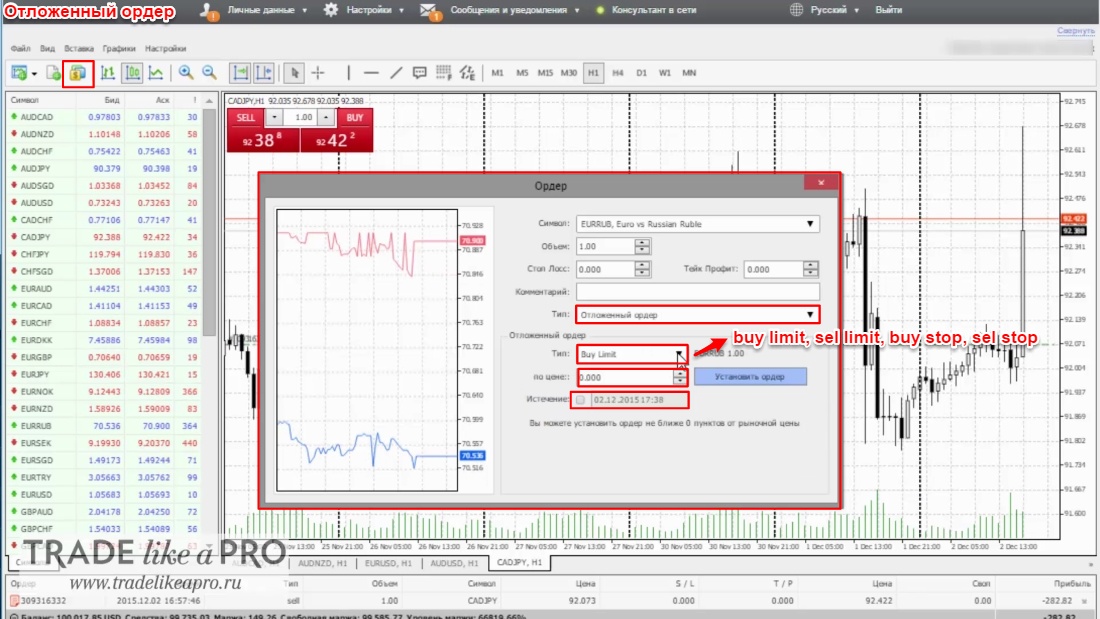
Let us open a position. Just like in the desktop version of MT4, you can drag stop-losses and take-profits directly from the open position.
Placing a pending order. A pending order can also be dragged along the chart by holding down the left mouse button.
Trading Terminal Interface
By default, we can see the following columns:
- ticket: the number of the trading instruction;
- time of placement;
- type (buy or sell);
- volume in lots;
- symbol;
- price;
- stop-loss, take-profit;
- current price;
- current profit;
- one-click "close position" is available via the cross.
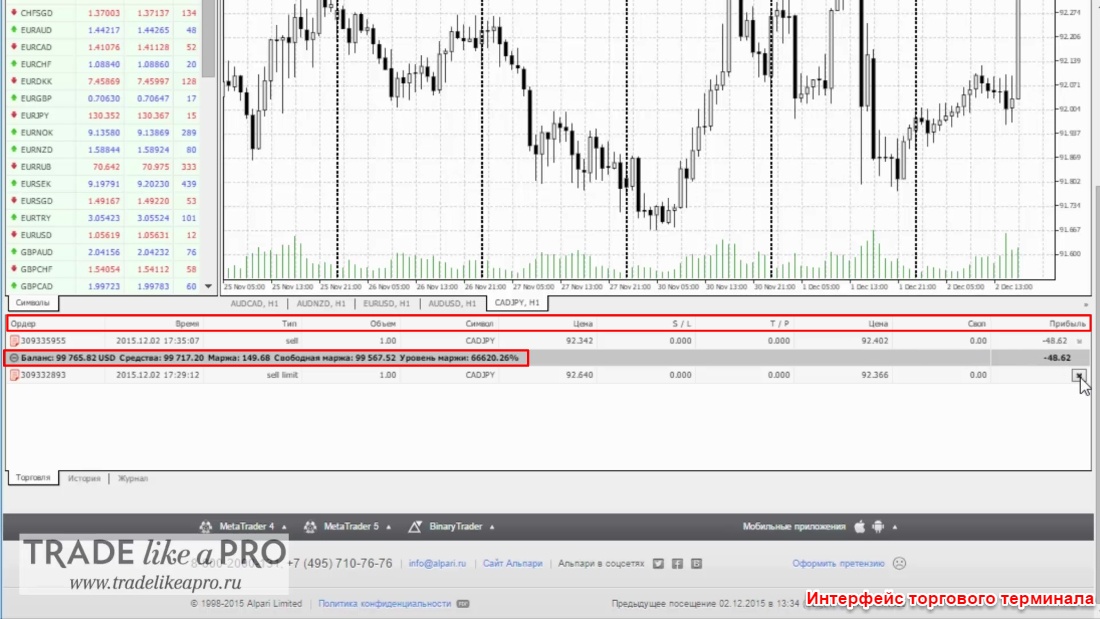
The gray line separates positions and orders. The gray line displays:
- balance;
- equity;
- margin;
- free margin;
- margin level.
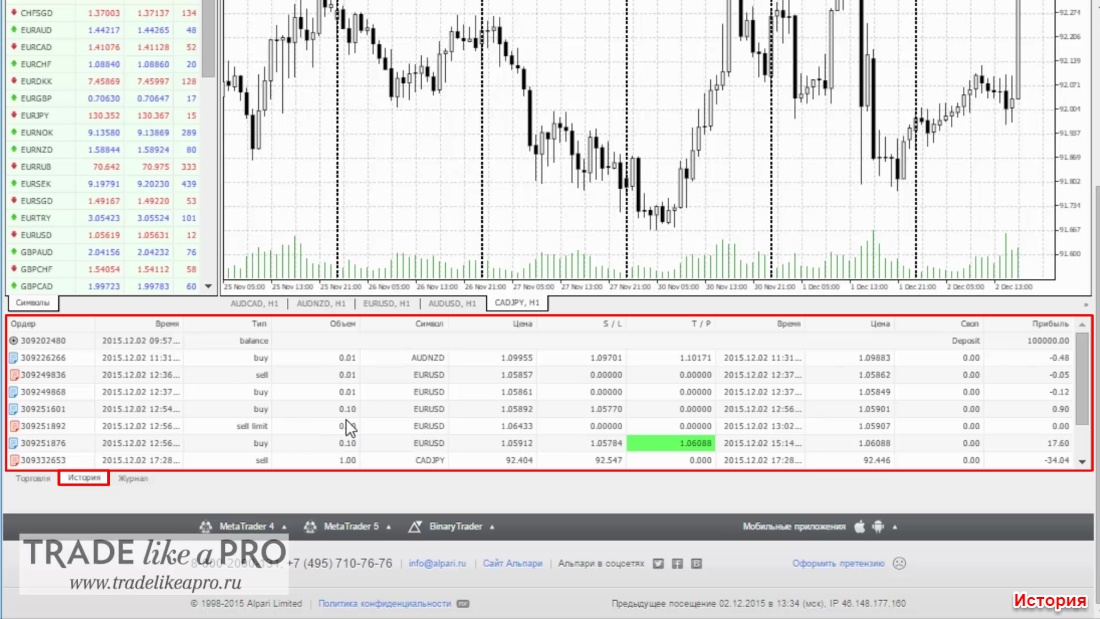
History
There we can see the trading history for all closed orders or positions.
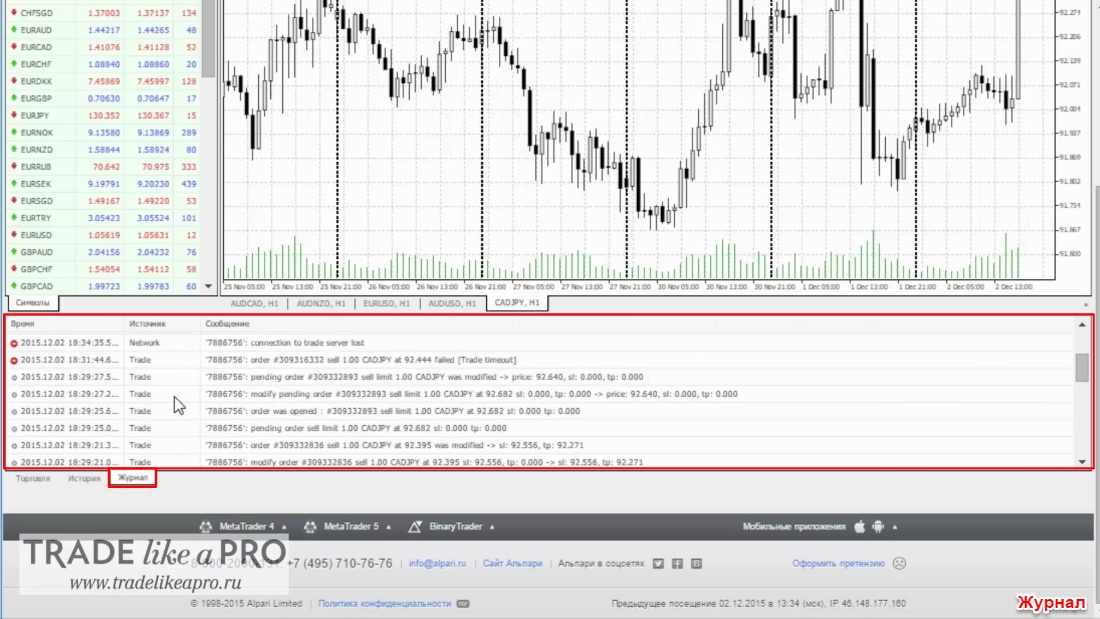
Journal
The full history of events that happened with your trading terminal is displayed.
Pros and Cons of the Web Version of MetaTrader 4
Cons:
- There are practically no charting tools
- Indicators are completely absent (except for the moving average)
- It is impossible to add your own indicators
- It is impossible to work with expert advisors
- There is no strategy tester
- There is no ability to change the interface color settings
- There are no alerts
- It is impossible to reconfigure the interface
Pros:
- Mobility: the ability to log into the terminal from any device
- No dependence on operating systems
- There is no longer any need to keep track of MT4 updates
Conclusion

The beginning has been made. The terminal familiar to all of us is finally moving to the web. At the moment, the development still looks rather raw. It categorically will not suit those forex traders who use complex indicators and advisors in their trading. In its current state, this platform will quite satisfy conservative traders, long-term investors, and beginners. We hope that further development of the web platform will not be abandoned and that in the end it will catch up with the desktop MetaTrader that we have all come to love.
Respectfully, Alexey Vergunov
TradeLikeaPro.ru