
Overview of the MetaTrader 4 Trading Terminal
A trading terminal is a program for trading, for carrying out market operations, placing pending orders, technical analysis using forex indicators and trading systems, and working with expert advisors. On the Forex market, the most popular platform for trading is the MetaTrader 4 trading terminal. In this video review, we will get acquainted with this program and learn how to use it for successful forex trading.
Main Menu
File. This menu combines commands for working with charts, managing profiles, saving historical data and charts, as well as printing charts.
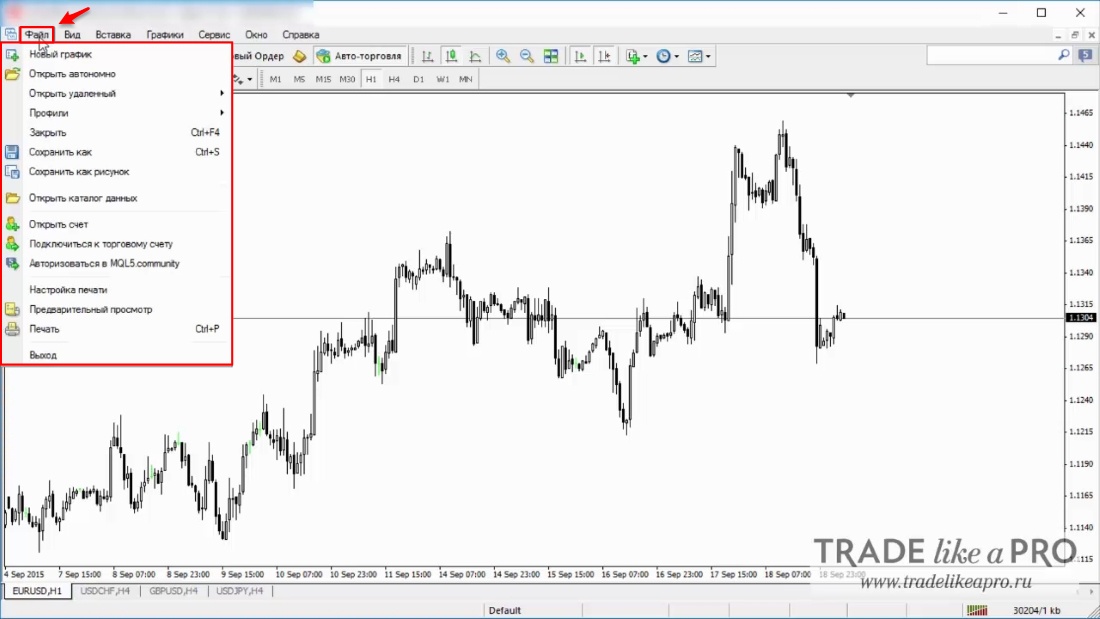
The following commands are available in the menu:
- Open New Chart - a list from which you can choose currency pairs, metals, CFD contracts, or indices;
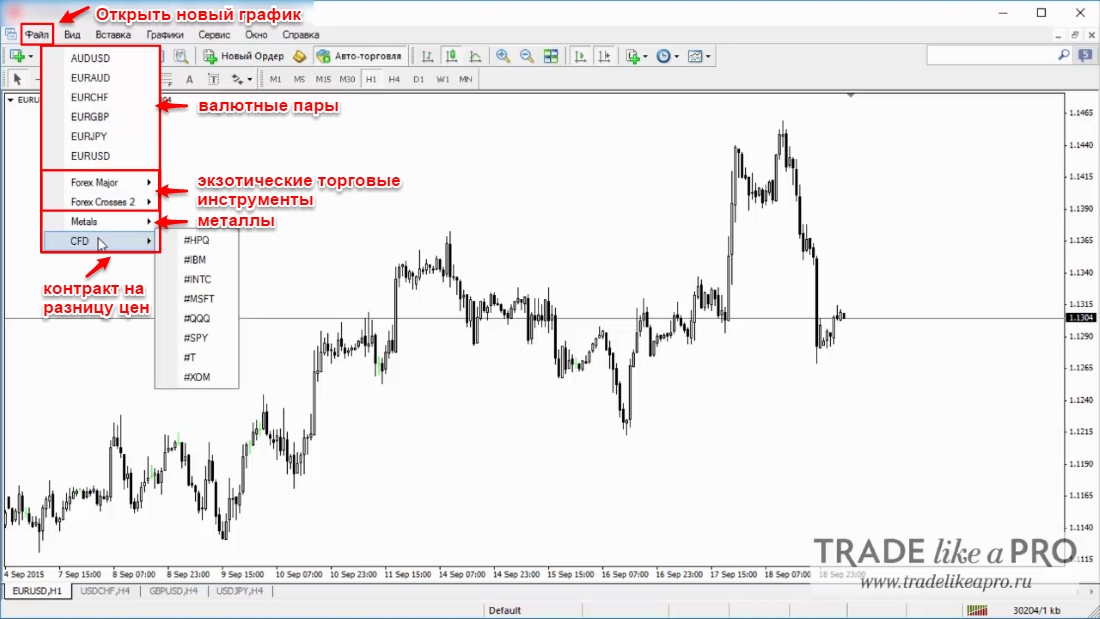
- Open Offline - allows you to open previously downloaded historical data for the selected assets;
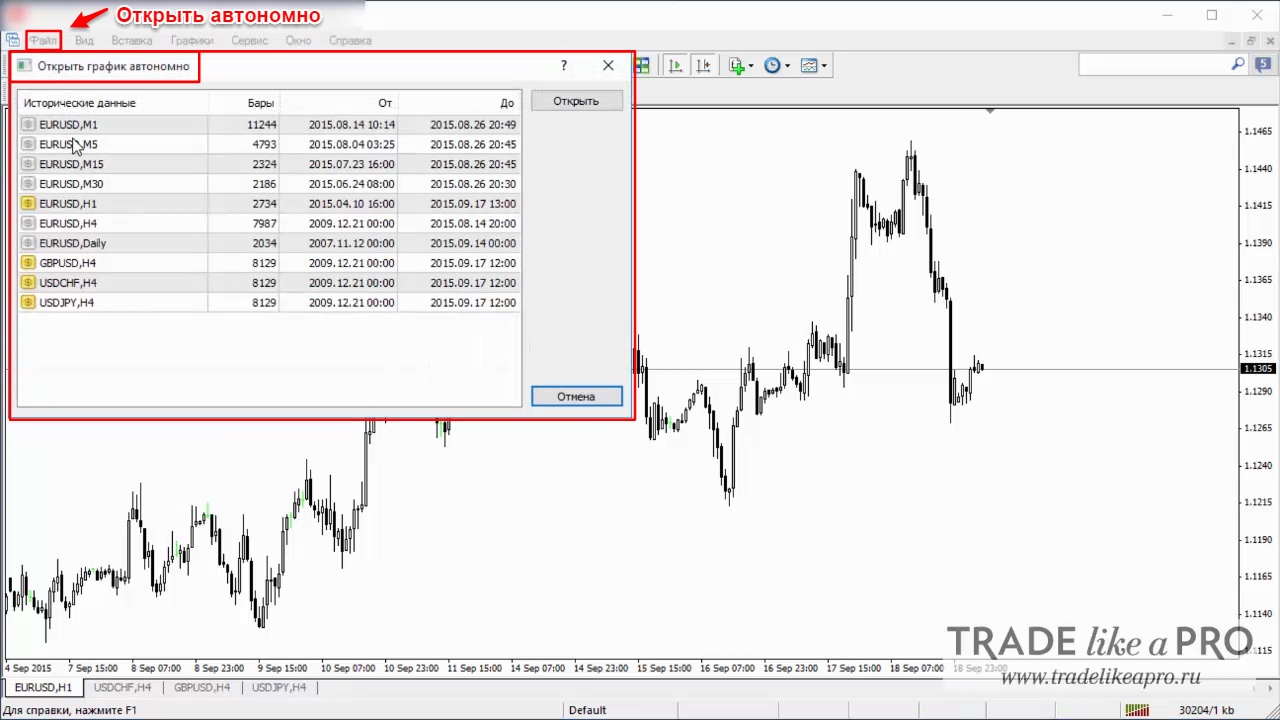
- Open Deleted - opens a chart that was just closed;
- Profiles - use one of the current terminal setup profiles or save your own;
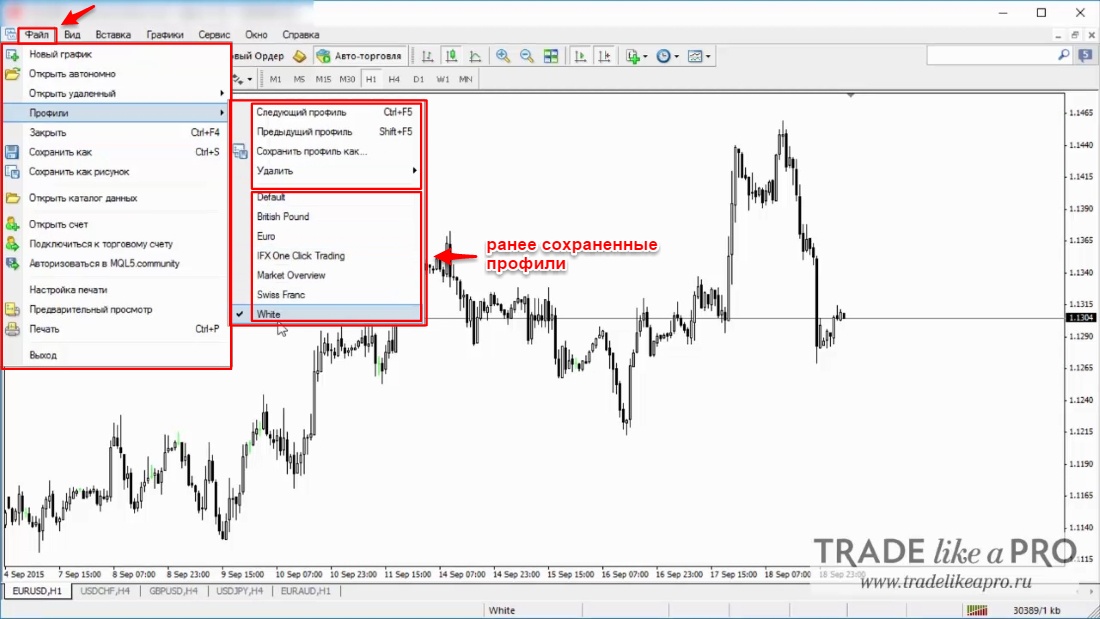
- Close - closes the current currency pair;
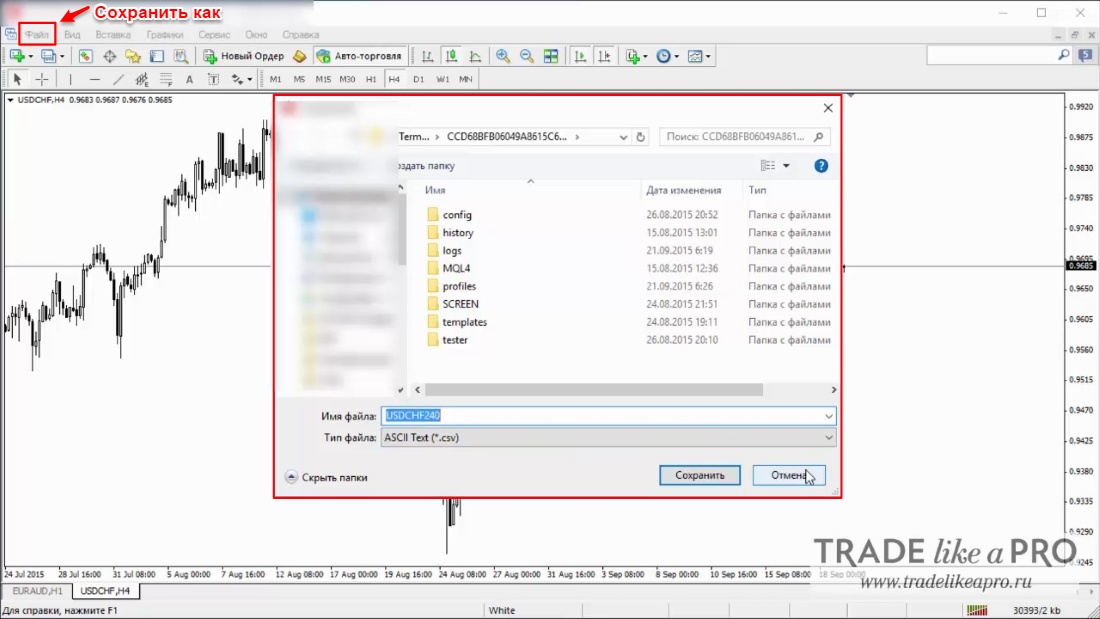
- Save As - allows you to save the currently open pair as an independent file with some loaded history. This file can be opened via "Open Offline";
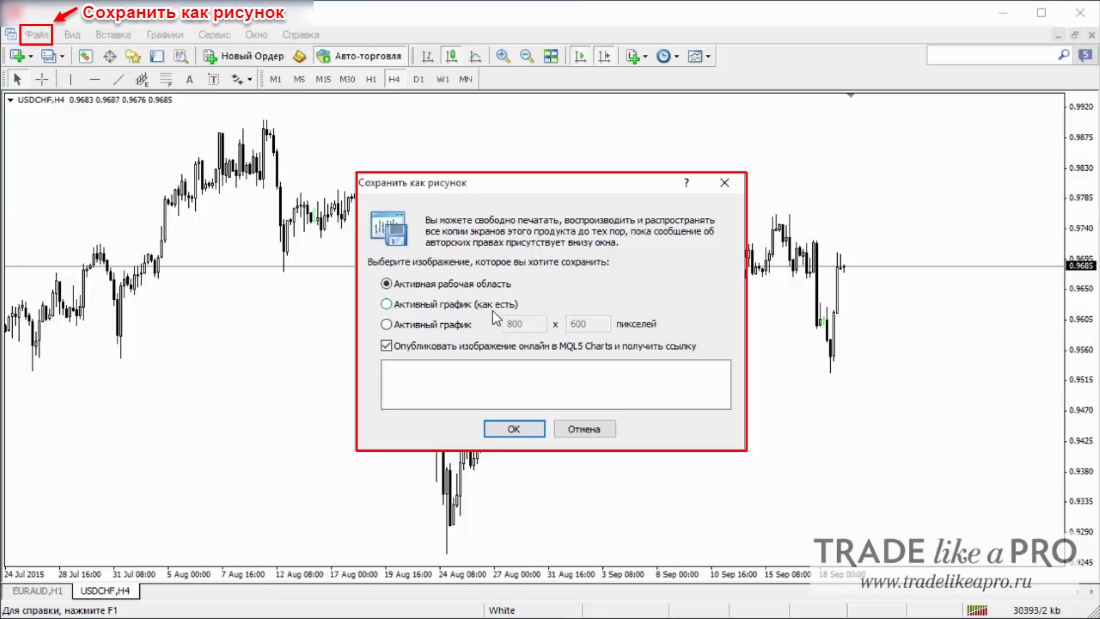
- Save As Picture - saves the active workspace as an image;
- Open Data Folder - opens the program's main data directory (needed for installing additional expert advisors and indicators);
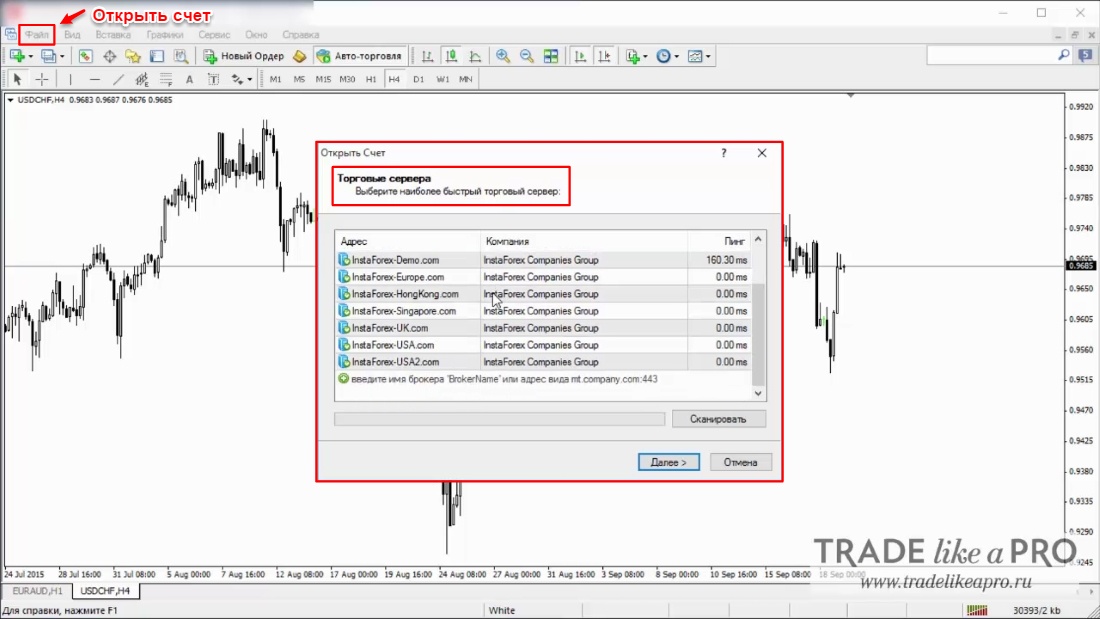
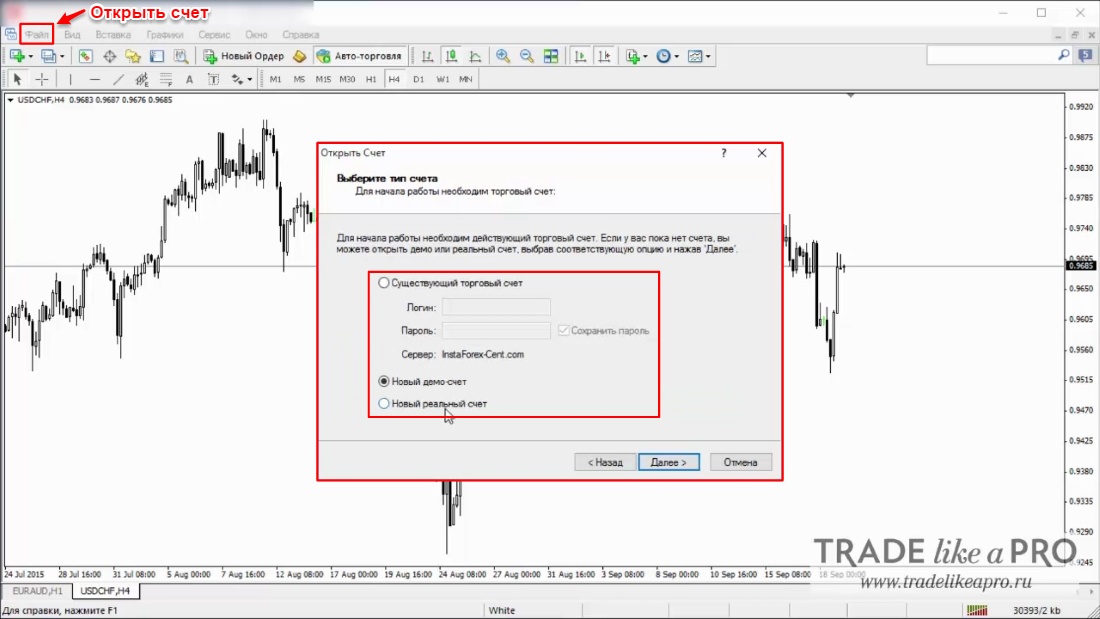
- Open an Account - allows you to choose a server and connect to an existing trading account or register a new demo account;
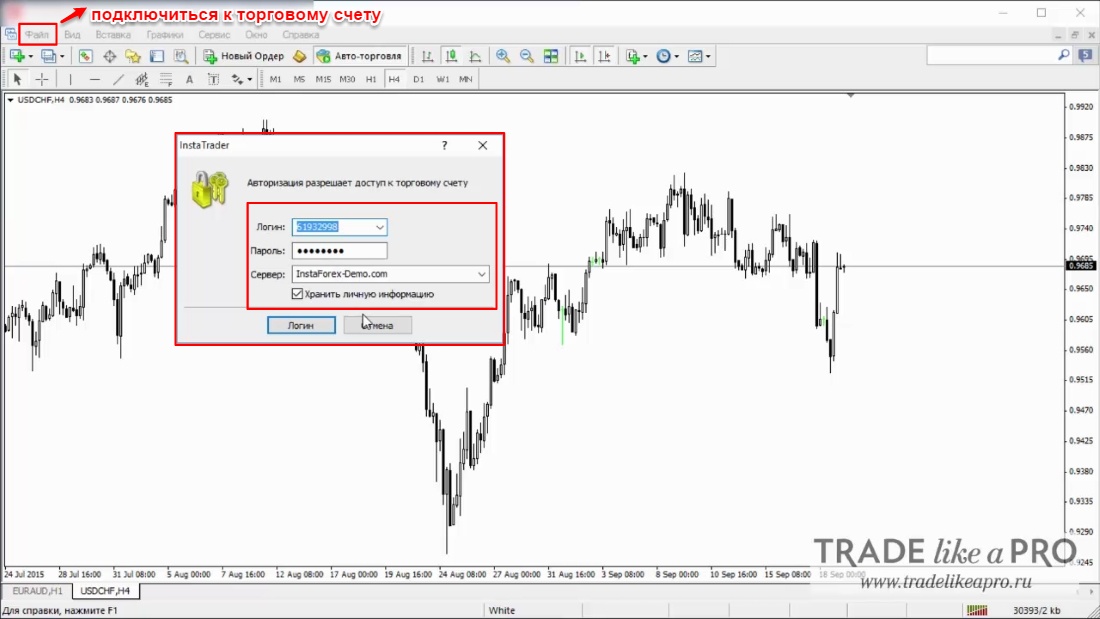
- Login to Trade Account - quick connection to a trading account;
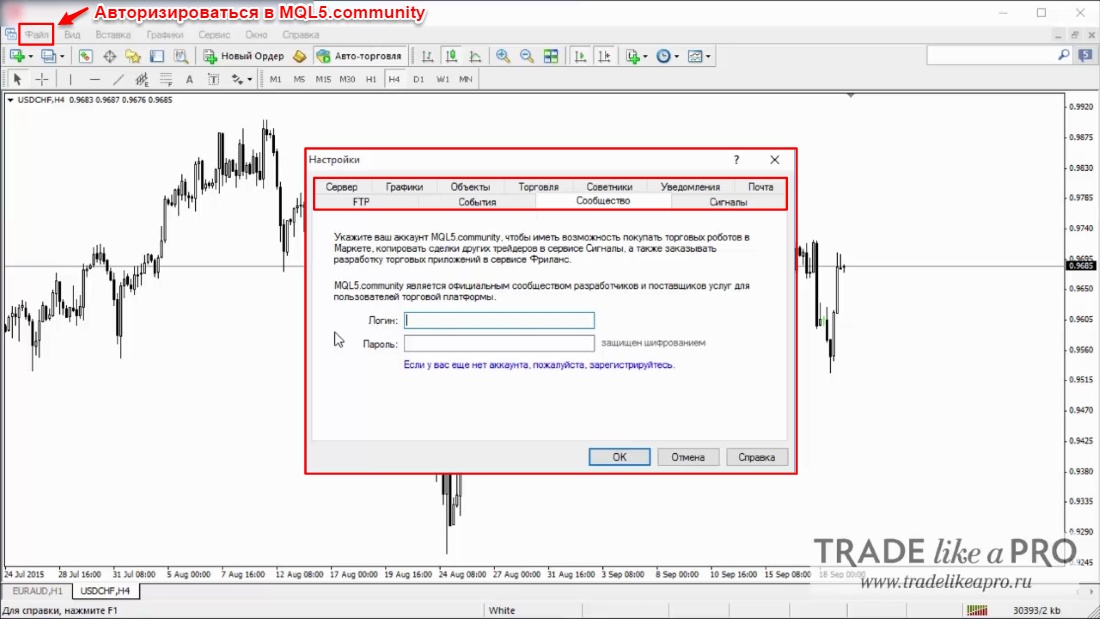
- Authorize on MQL5.community - allows you to log in to MQL5.community accounts in order to purchase trading robots, indicators, as well as copy other traders' trades in the "Signals" section or order the development of trading applications in the "Freelance" service;
- Print Setup - settings for the current printer state;
- Print Preview - allows you to review the settings applied to your image area;
- Print - printing the required data;
- Exit - closes the terminal.
View. Here you can find all the necessary tools for configuring the program interface: utility windows, toolbars, as well as the interface language. Below, we will characterize each of the commands offered by the "View" menu:
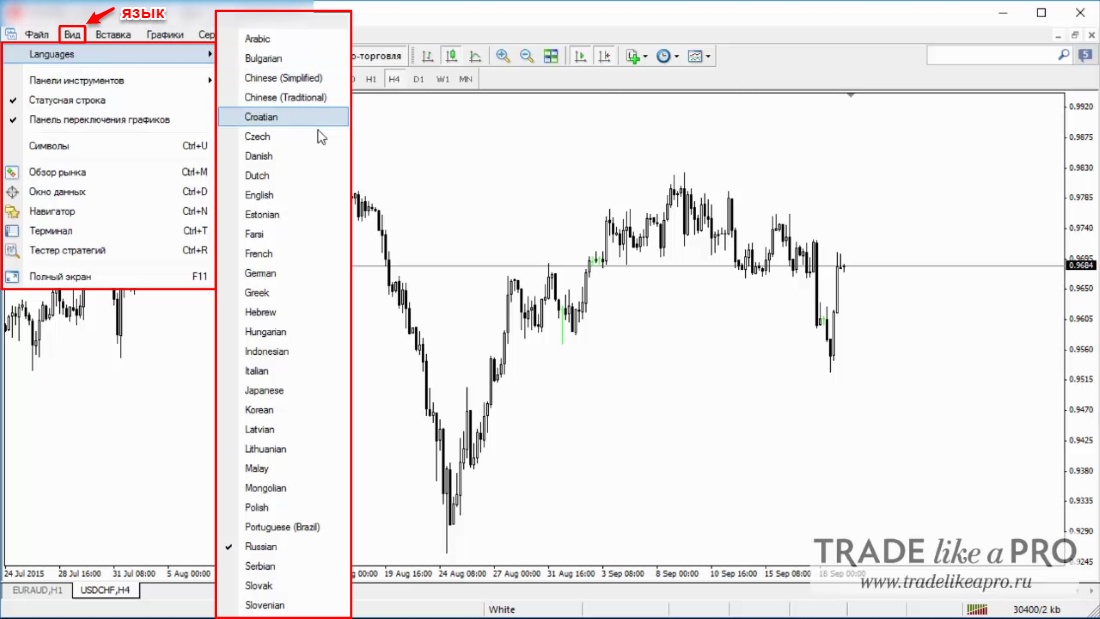
- Language — as you may have already guessed, this command is used for the interface language settings;
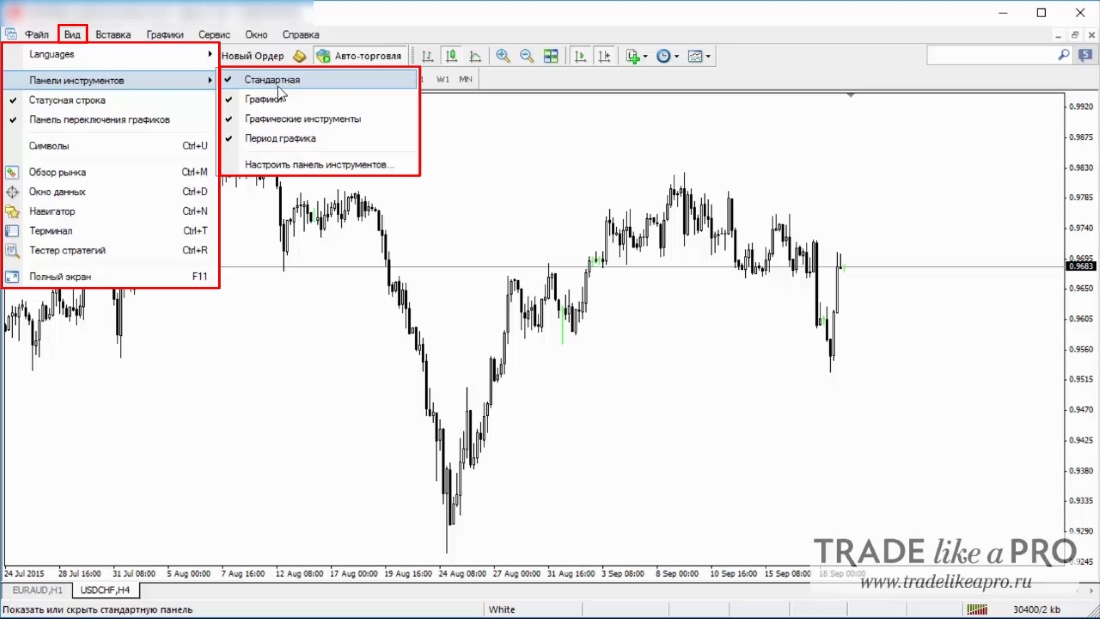
- Toolbars — a set of commands for setting up the toolbar, allows adding some tools and submenus from the panel: graphic tools, settings menu, charts, etc.
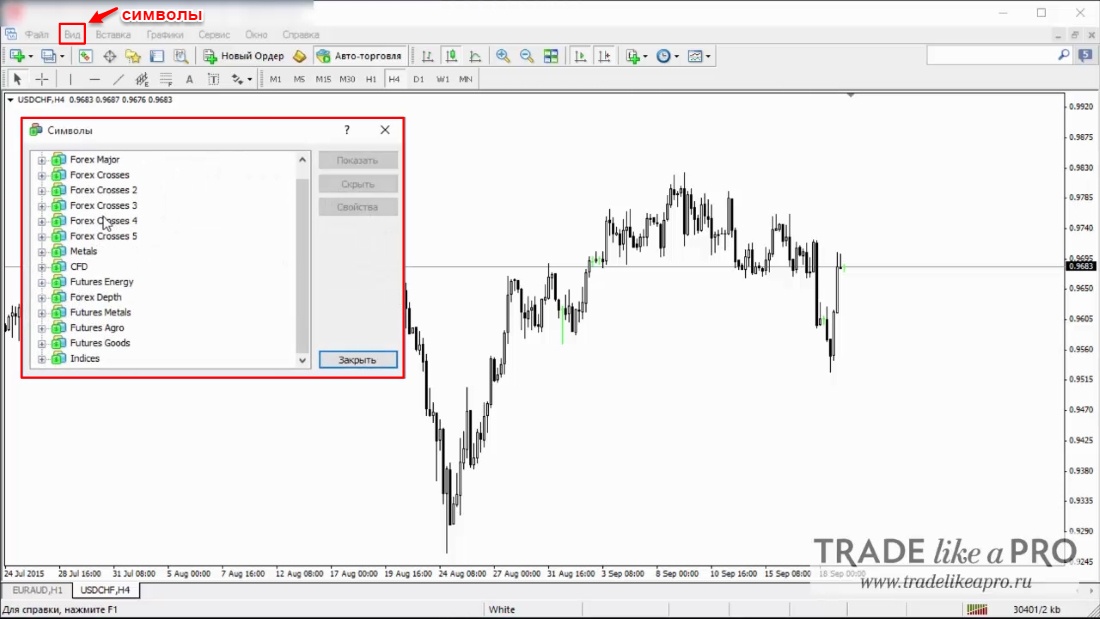
- Symbols — adds a number of exotic instruments not present in the "New Chart" file by default. Different brokers may have different sets of trading instruments;
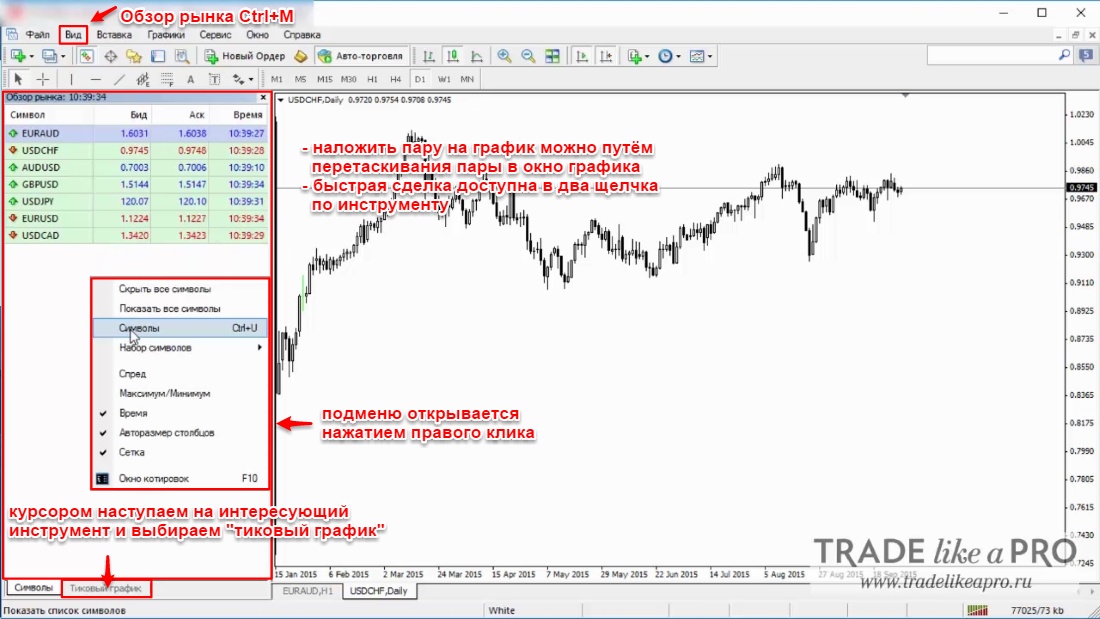
- Market Watch (can also be called with the Ctrl+M key combination) — calls up a service window in which the user is offered a look at the current state of quotes; sub-settings are called by right-clicking on the menu structure.
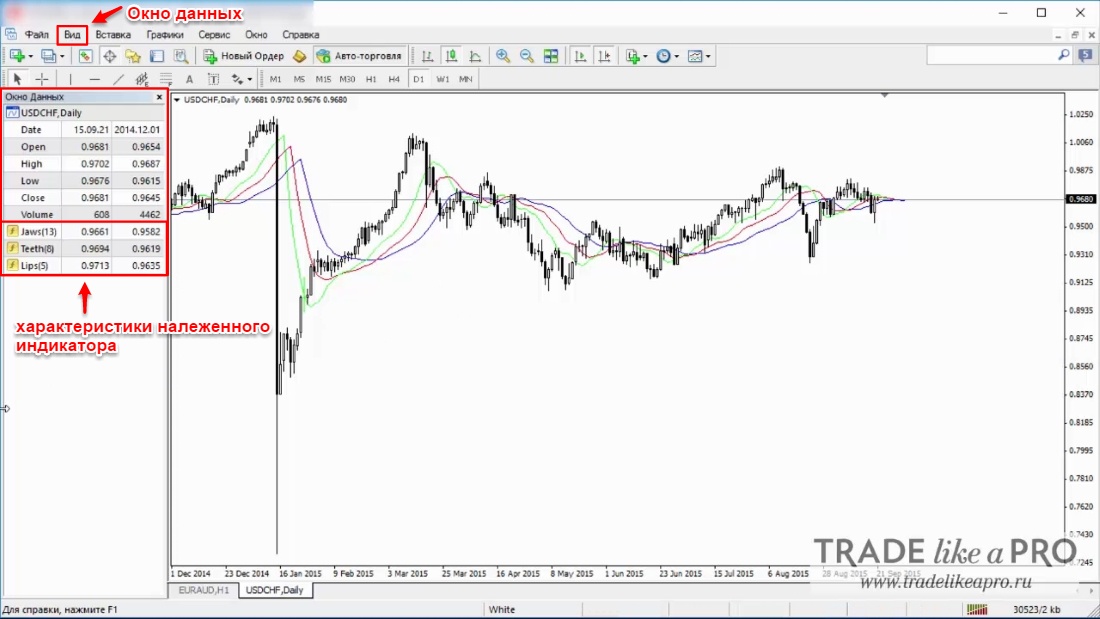
- Data Window — in this window the user can view information about the state of the last opened candle. Also, you can view the data for any arbitrarily selected candle by pointing the cursor at it;
- Navigator (Ctrl+N) — calls up a navigation window in which data is organized in a tree-like way: lists of accounts, indicators, expert advisors.
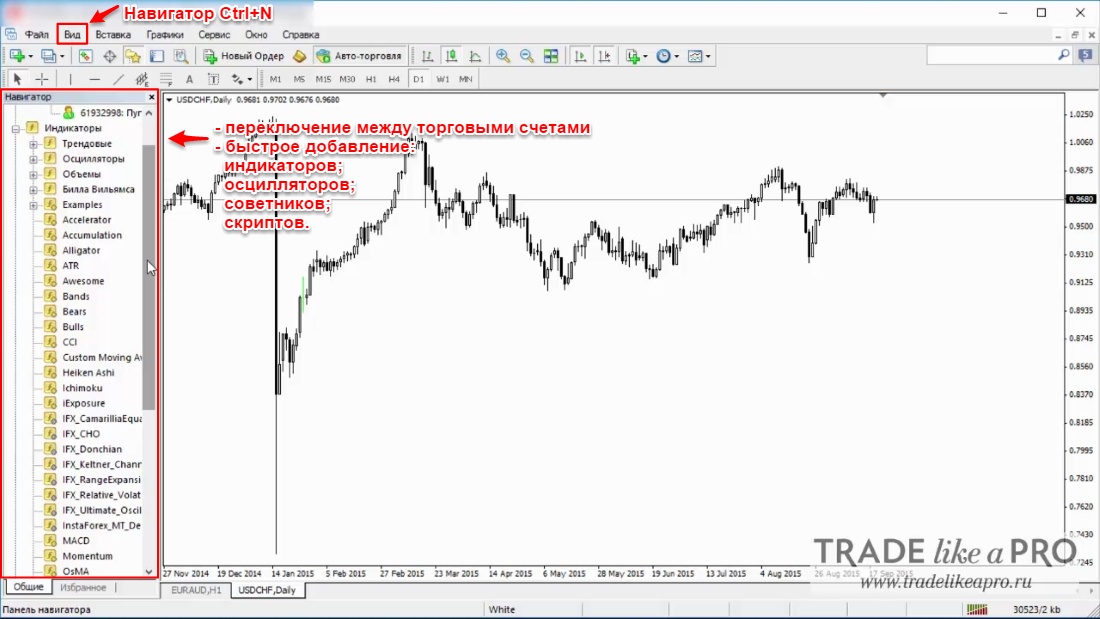
Terminal. The terminal is a window offering a wide range of possibilities for work. This includes trade control, news viewing, account history monitoring, tools for setting up the necessary signals, as well as a mail service and system journal. The window is called up with the Ctrl+T key combination, or by the command "View>Terminals". Now let us talk in more detail about each of the Terminal tabs:
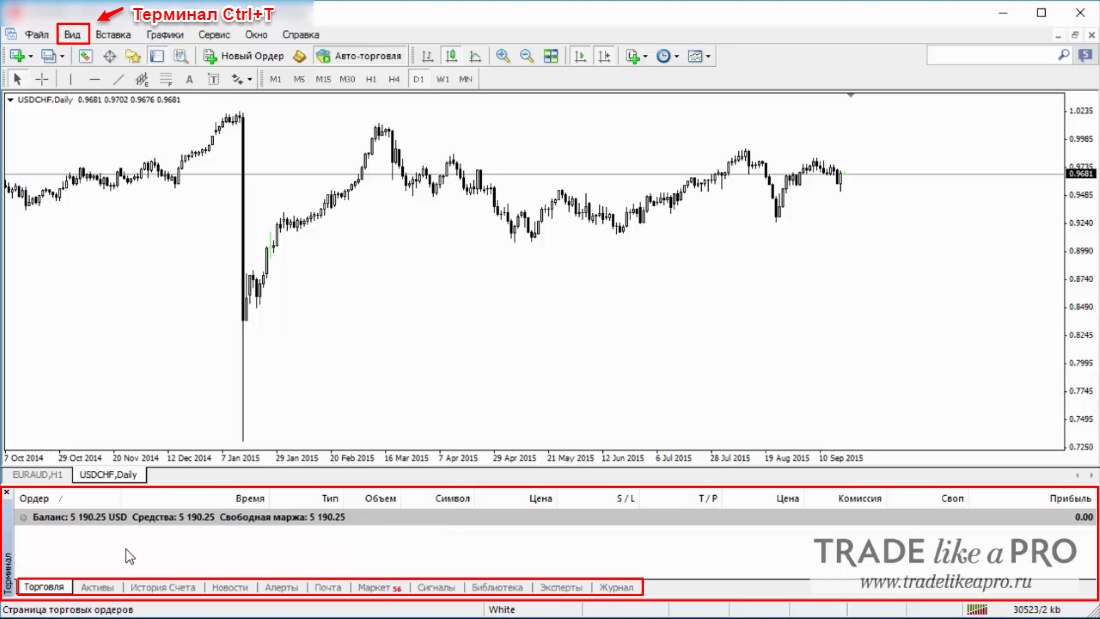
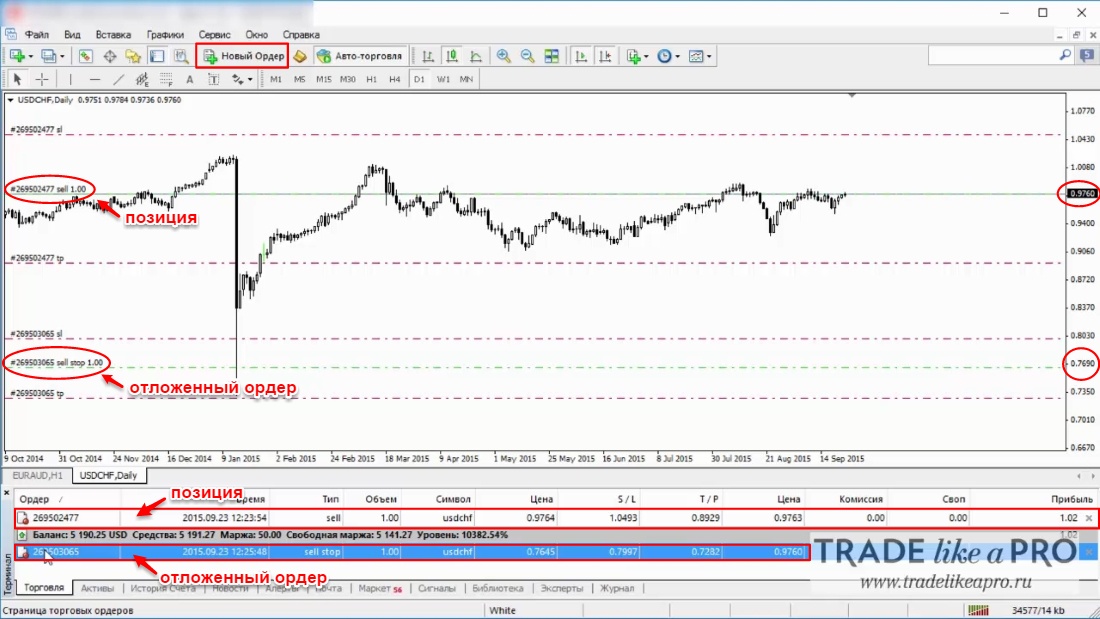
- Trade — here is all the necessary information about the state of open positions and pending orders and, moreover, here you can fully manage trading, as well as track aggregate financial statistics for open positions;
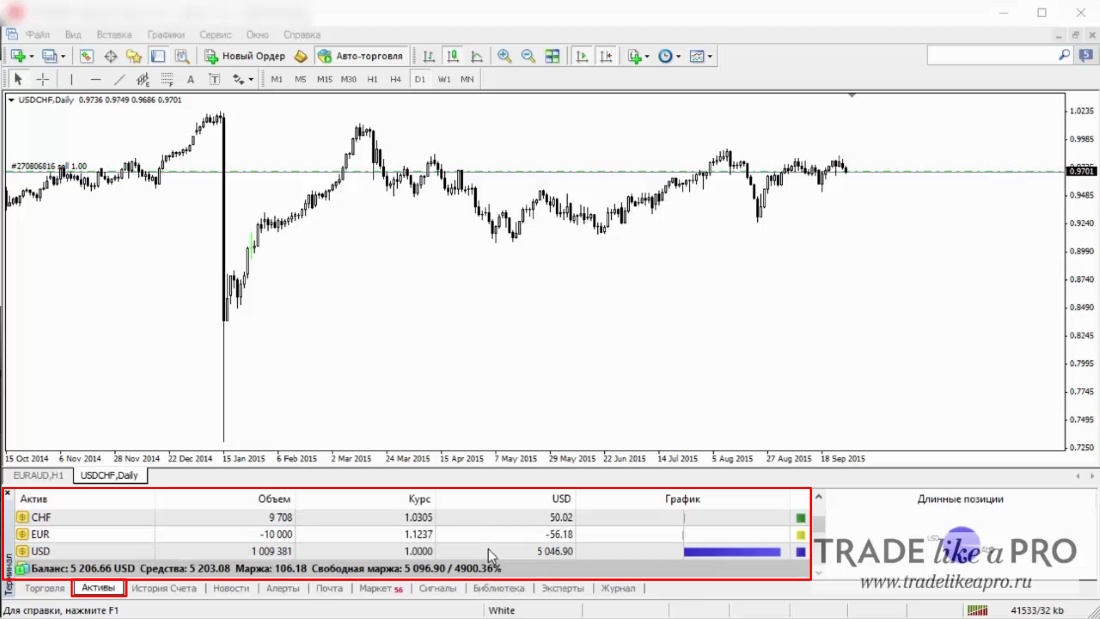
- Assets - asset allocation;
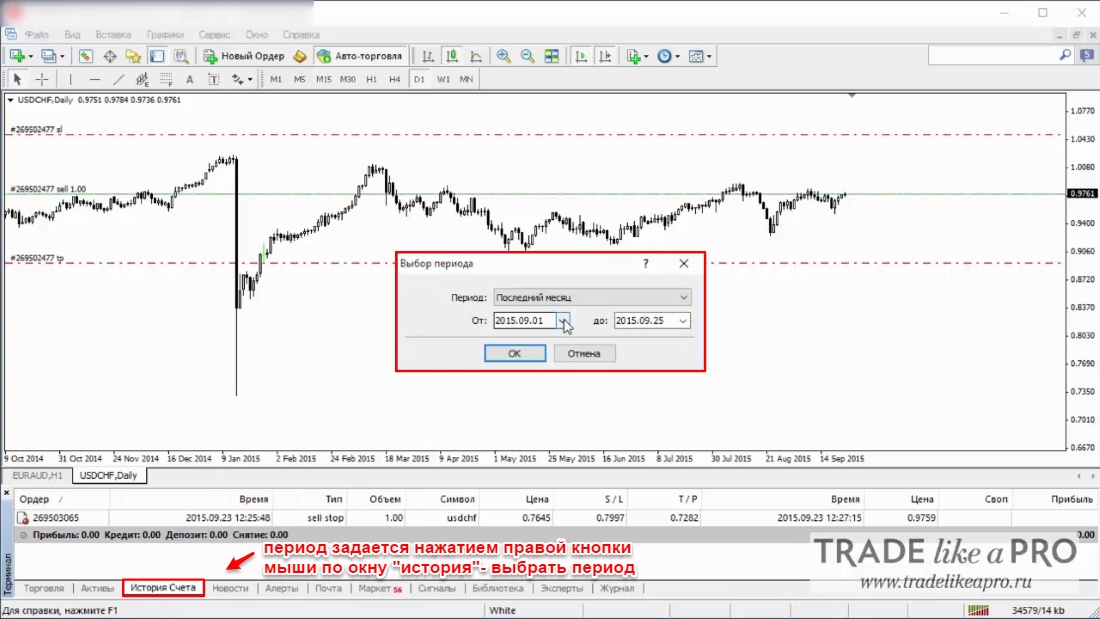
- Account History — the history of trading operations, as well as the balance state (not taking open positions into account). Mainly, it serves to assess trading efficiency;
- News — an indispensable submenu for viewing news feeds connected to the terminal that display key events in the world of economics and finance relevant to trading;
- Alerts - these are signals notifying the trader about various market events;
- Mailbox — internal mail;
- Market - quick access to the application store;
- Signals — trading signals broadcast by traders through the MQL5 community;
- Library - up-to-date information for traders;
- Experts — monitoring of the work of various connected experts: the state of positions, orders, and other data;
- Journal — logging of terminal operation and trading activities.
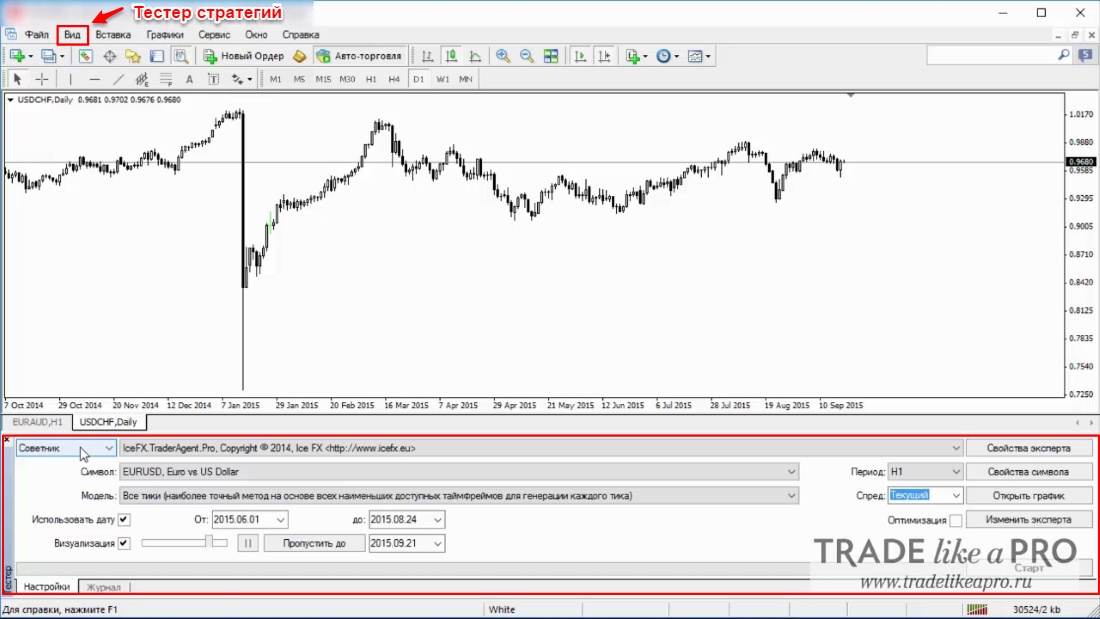
Strategy Tester. Such a tool makes it possible to predetermine the most effective input parameters for an expert advisor directly before launching it. The tester keeps records and analyzes quotes, making virtual trades based on a predetermined algorithm. In general, it helps analyze trading systems on quote history. We will not dwell on a detailed review of this section, because we already have a review devoted to the "Strategy Tester".
Full Screen. It is also called up with the F11 hotkey. It allows you to expand the chart to the full screen, hiding all additional menus.
Insert. This menu groups all the objects necessary for overlaying on the chart. These are technical indicators, graphical tools of technical analysis, as well as text and signs. The "Indicators" submenu contains all the most popular technical indicators that can be overlaid on the chart. Let us go through the submenu: lines, channels, Gann, Fibonacci, figures, Andrews' pitchforks, cyclic lines - graphical tools of technical analysis.
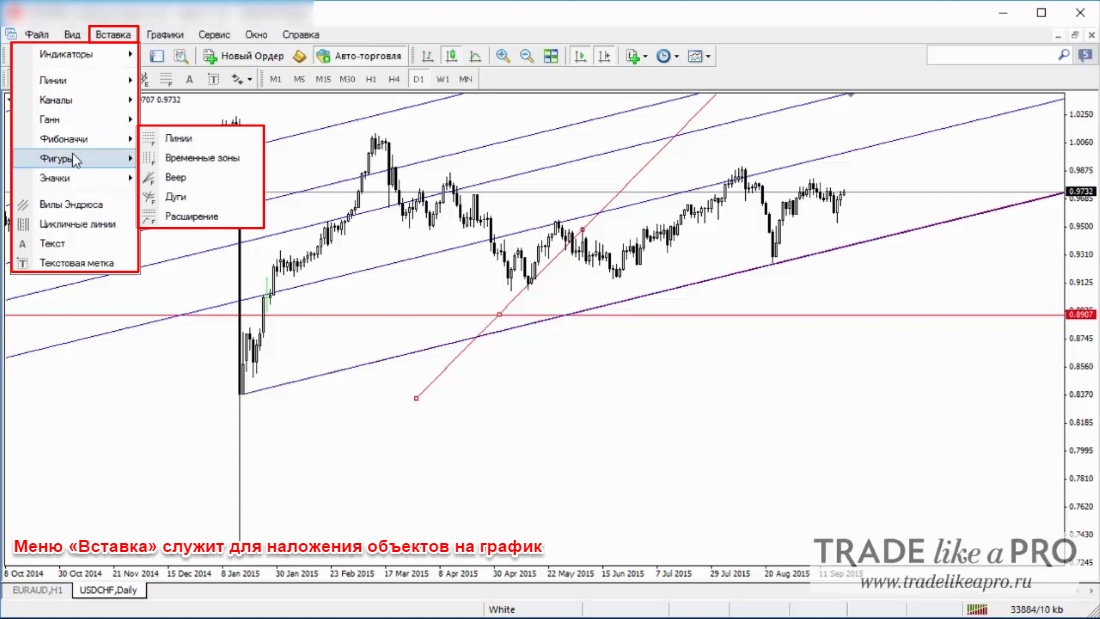
- Shapes — geometric figures for highlighting the necessary areas on the chart;
- Icons — various symbols (arrows, marks) for highlighting the necessary significant points;
- Text — allows inserting text which serves, as a rule, for comments on the chart. It is important to note here that the text is attached to the chart and moves in accordance with it when scrolling;
- Text Label — and this text is tied to the window, not the chart, and does not move when it is scrolled.
Charts. Commands for effective chart and indicator management are collected here.
The "Objects" submenu allows you to manage various overlaid objects. The menu contains the following commands:
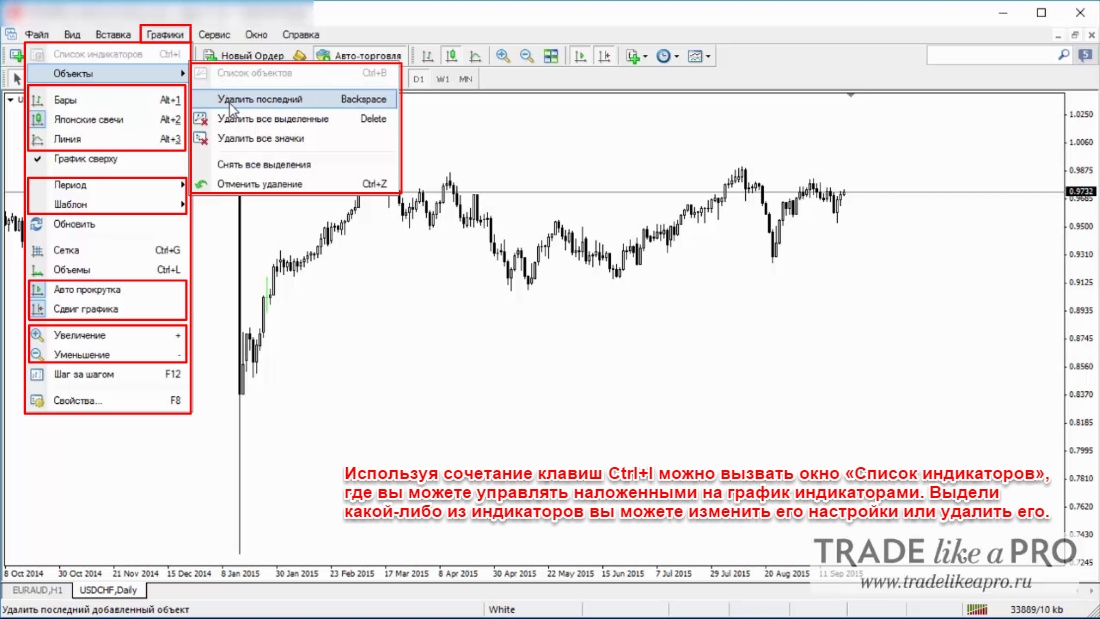
- List of Objects — calls up a window where you can manage overlaid objects.
- Delete Last Object (Backspace hotkey) — allows deleting the last object applied to the chart;
- Delete All Selected (or Delete) — deletes all objects you have selected from the chart;
- Remove All Selections — cancels the selection applied to objects;
- Undo Deletion (or Ctrl+Z) — returns a deleted object to the chart;
- Bars — presents the chart in the form of bars following one another;
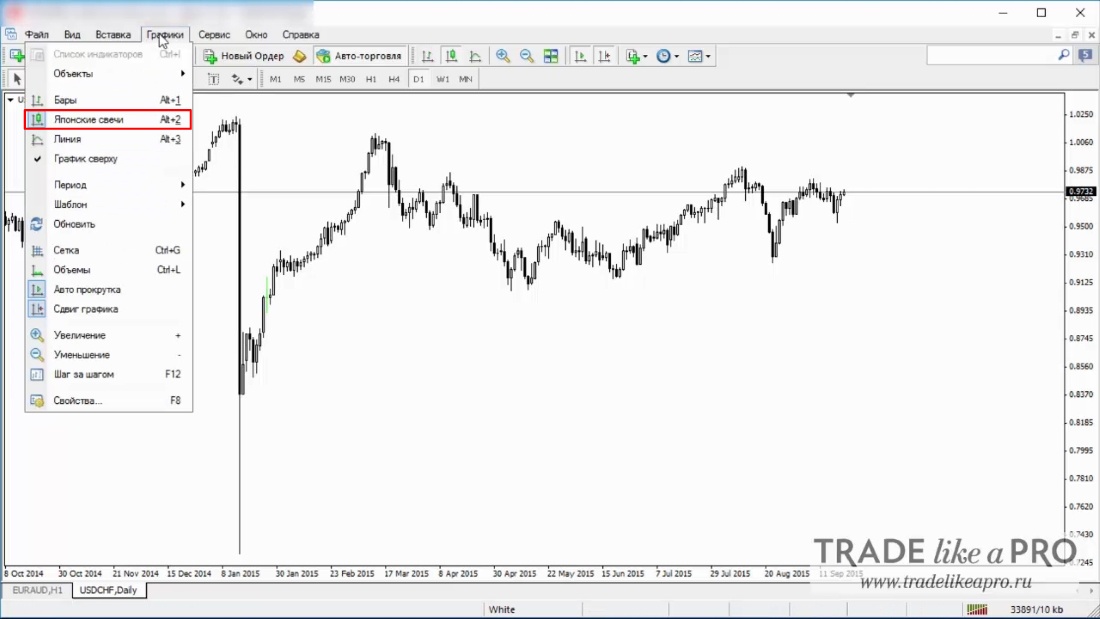
- Japanese candlesticks — in the form of Japanese candlesticks;
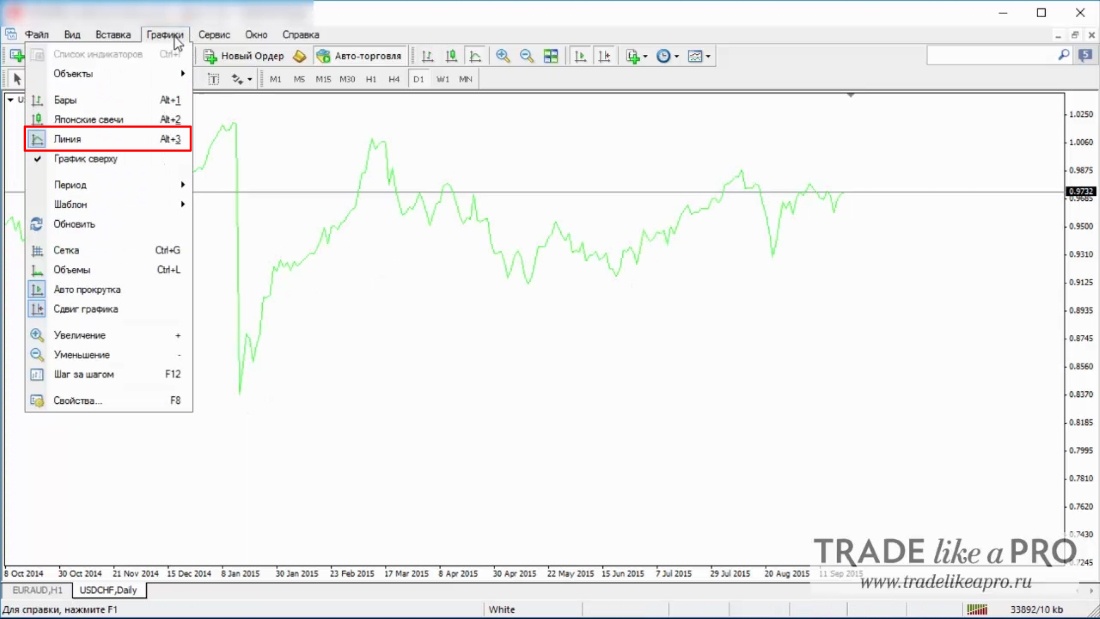
- Line — displays the chart as a broken line;
- Chart on top — brings the chart to the foreground, while graphical objects and indicators move under the chart;
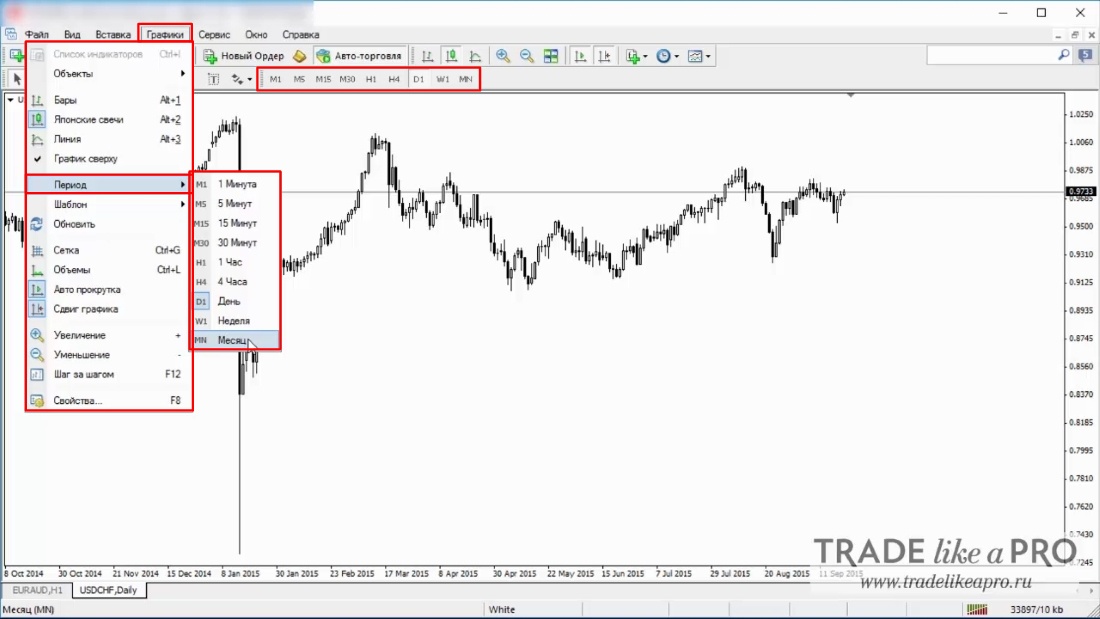
- Period - a choice between nine timeframes;
- Template — a submenu for managing and editing templates;
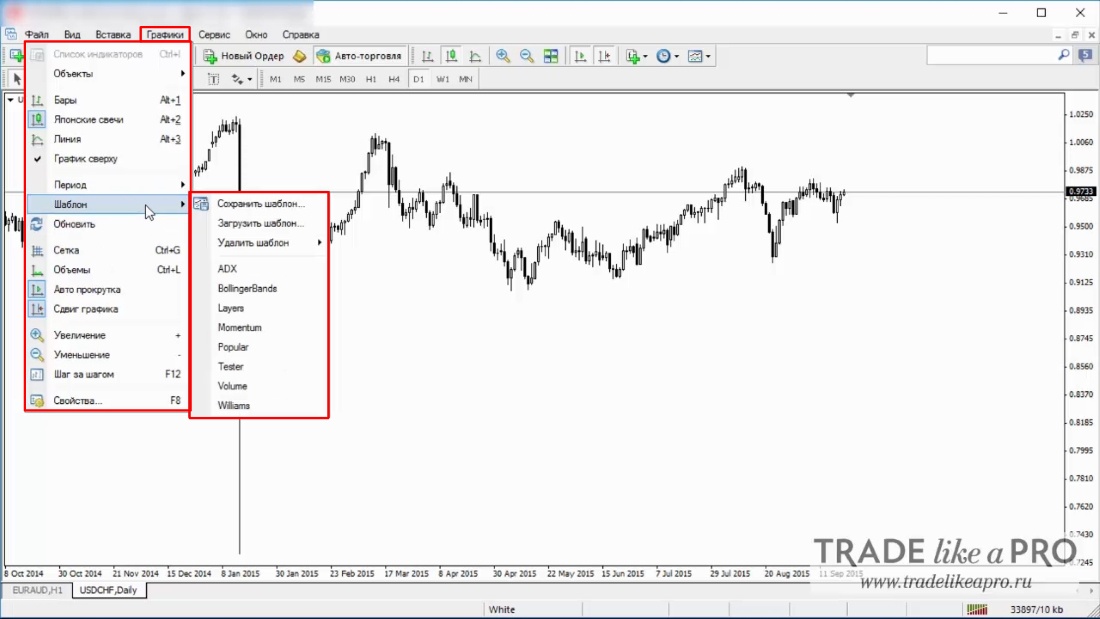
- Refresh — refreshes the chart;
- Grid — activates and deactivates the grid on the chart;
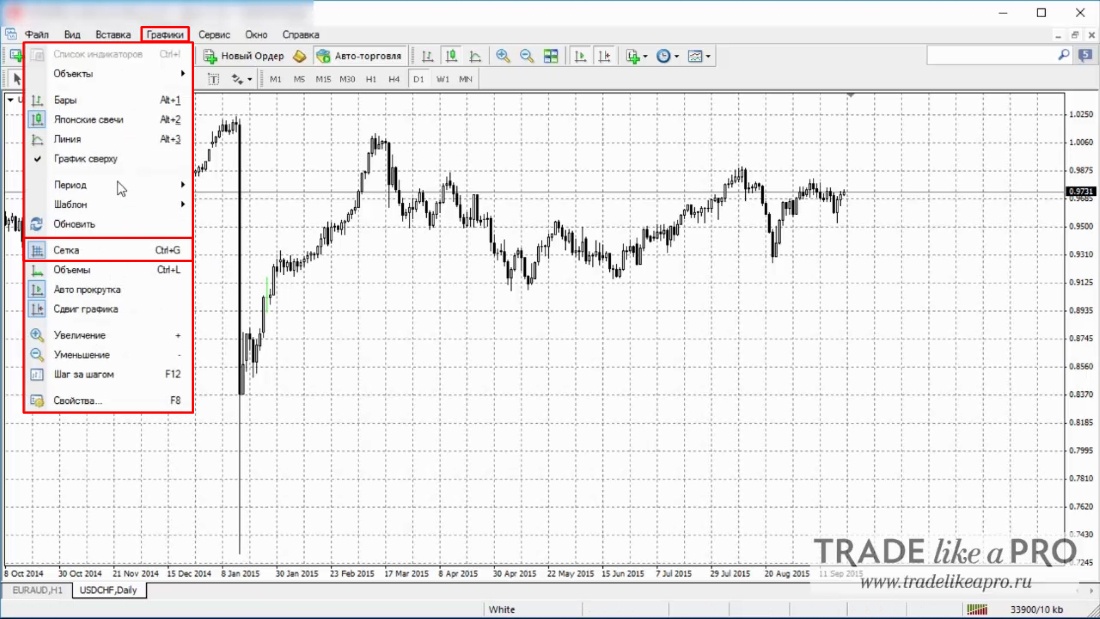
- Volumes — adds and removes volumes on the chart;

- Auto Scroll — activates or deactivates auto scroll;
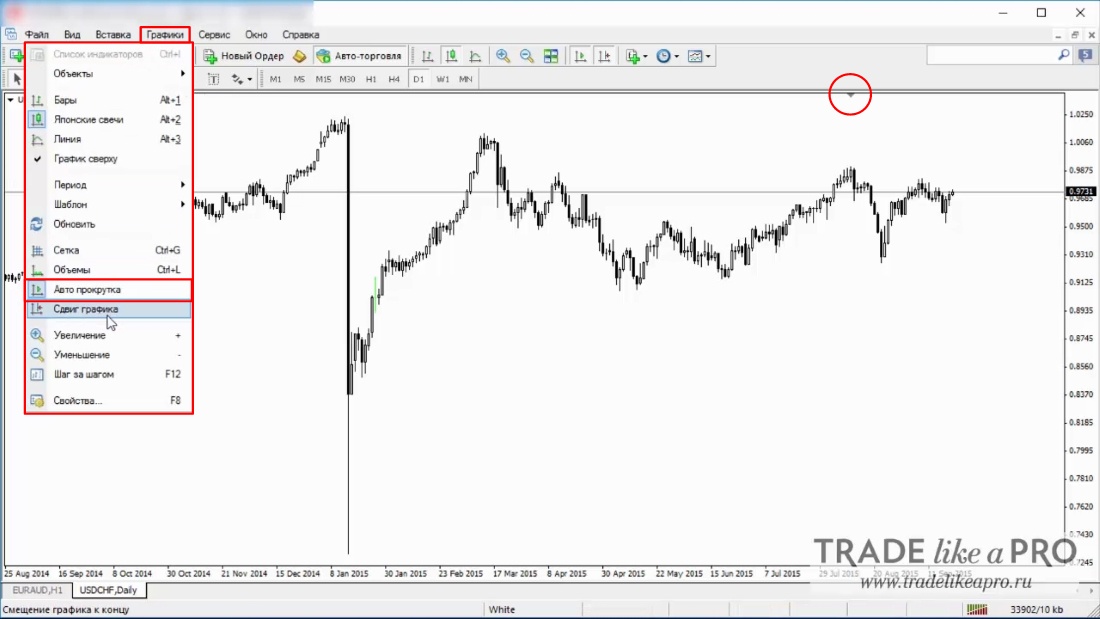
- Chart Shift — fixes or detaches the chart from the conditional line adjusted by the small triangle;
- Zoom In and Zoom Out — enlarges or reduces the chart;
- Step by Step — scrolls the chart one candle forward. This can be done with the F12 key. In this case, auto-update must be disabled;
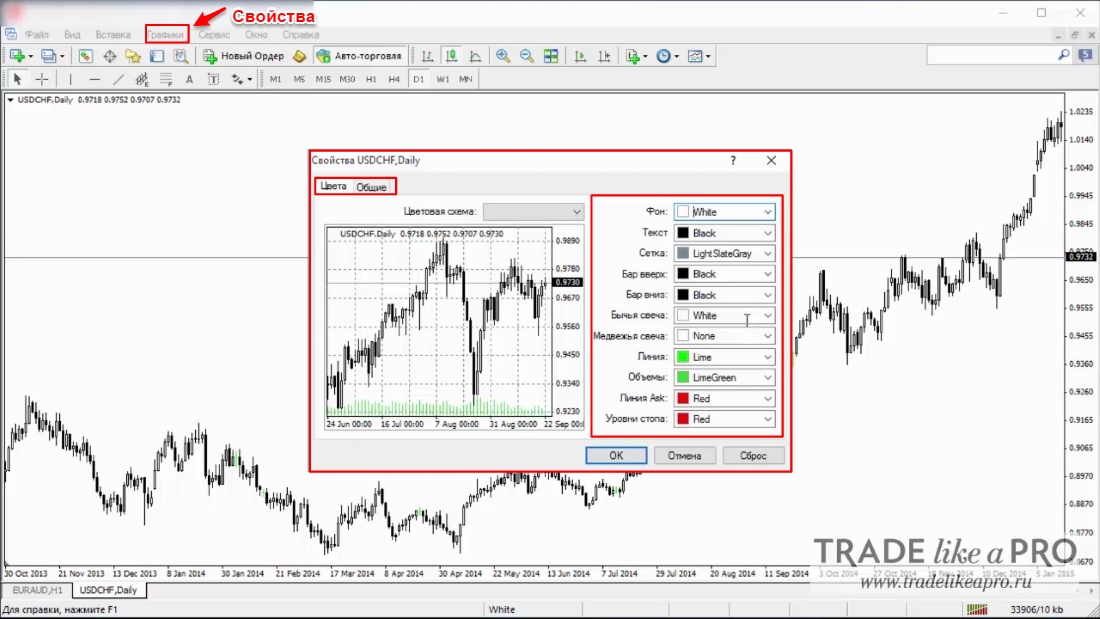
- Properties — allows you to set various interface settings, including changing the color scheme and design elements.
Service. A set of service commands and settings:
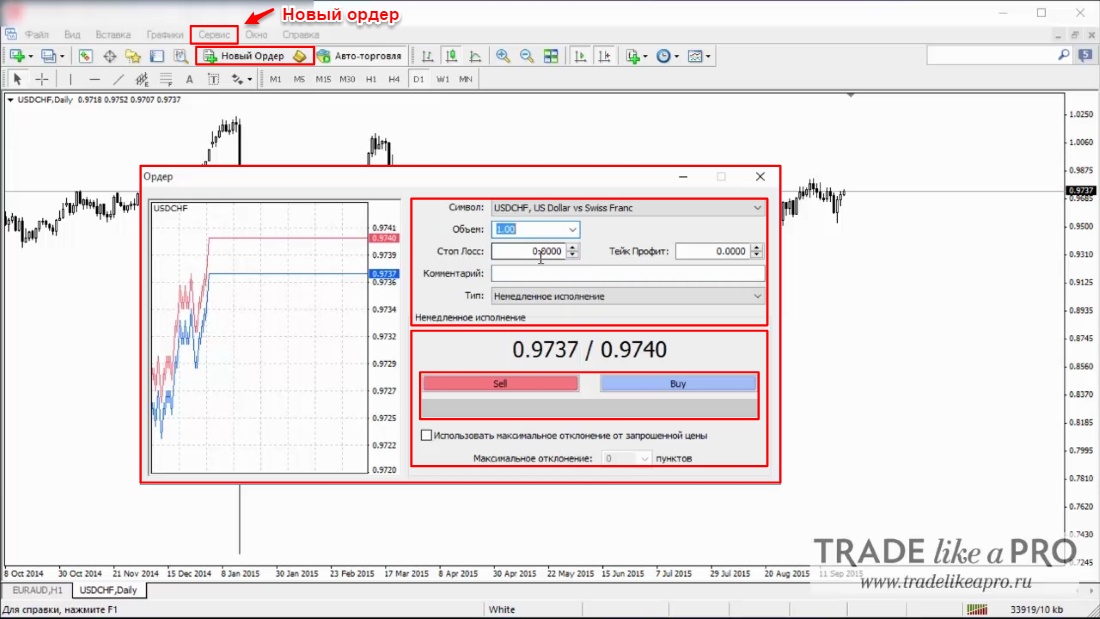
- New Order — a window for managing orders, where you can place market and pending orders;
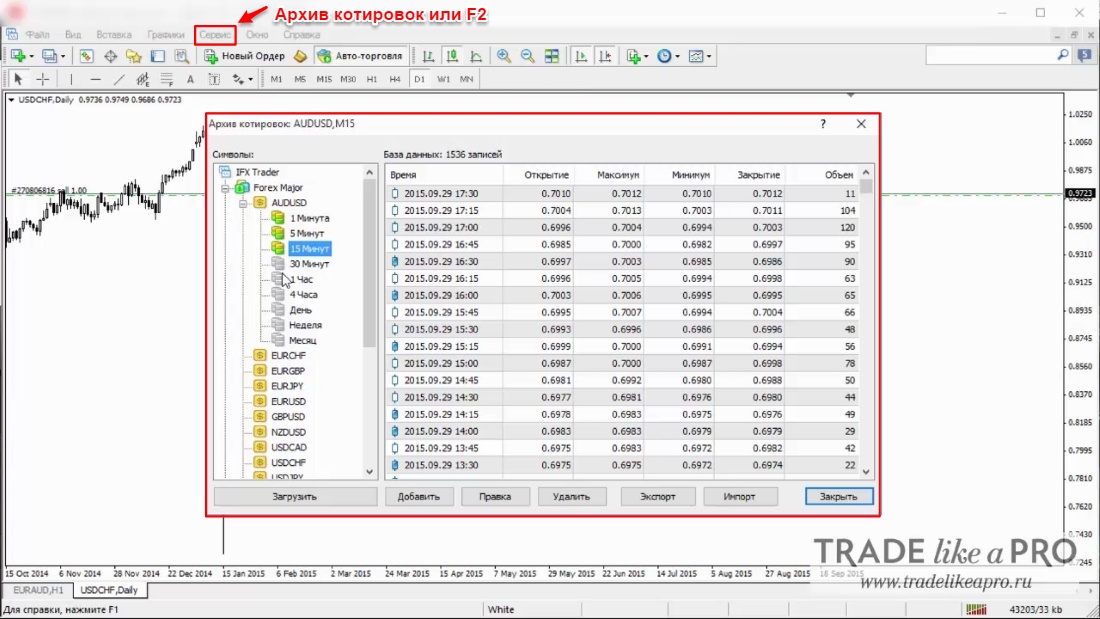
- History Center — opens a window for managing historical data, where you can modify the quotes used to build charts;
- Global Variables — can also be opened with the F3 key and opens the list of terminal global variables;
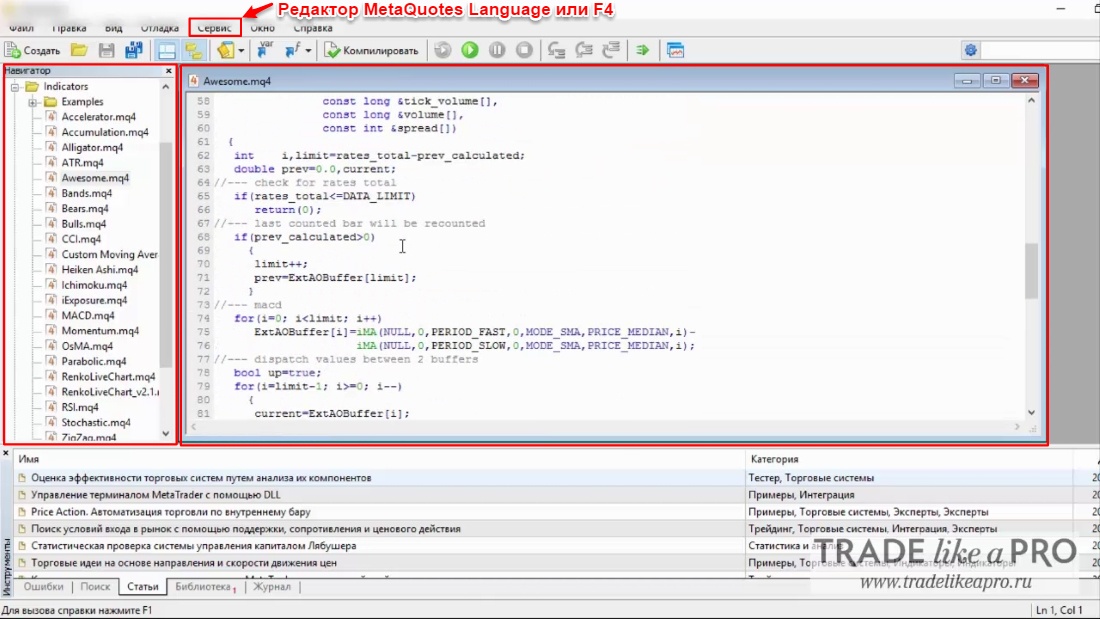
- MetaQuotes Language Editor — respectively F4, opens the editor for advisors, where you can edit expert advisors as well as create your own indicators;
- Settings — the window of key client terminal settings.
You can configure your terminal in a special window that opens with the command Service>Settings or the Ctrl+O key combination. In turn, all settings are located on separate tabs:
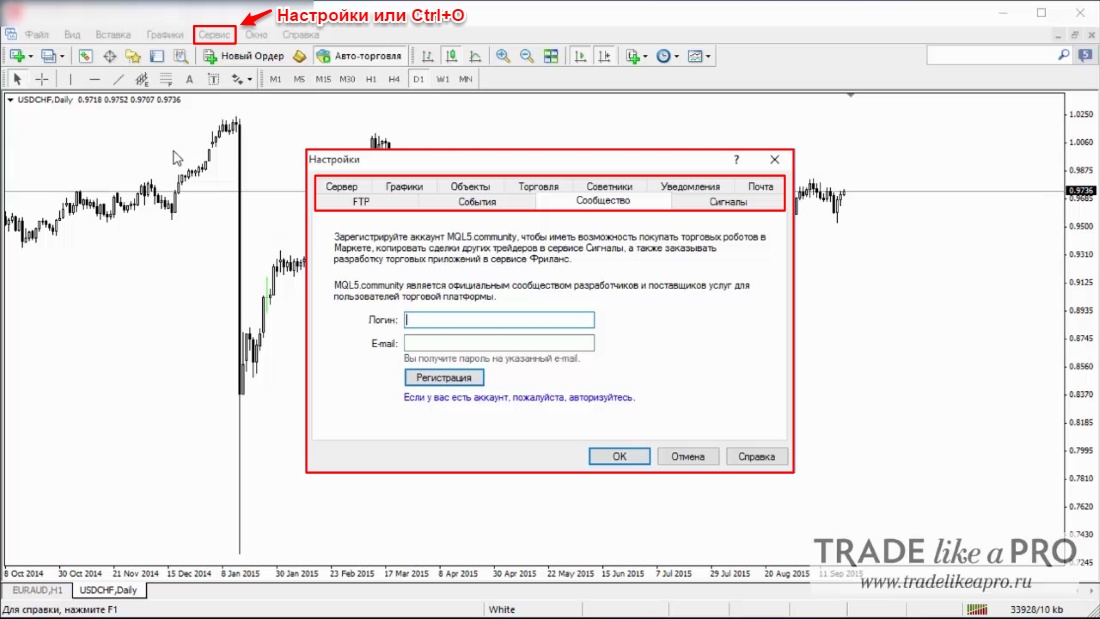
- Server — here you can set the necessary parameters for connecting to the server, configure a proxy, and change other connection settings;
- Charts — in this tab the chart display is configured. Here the period separators, ask price levels, and the OHLC line are configured and adjusted. Also, the number of bars displayed on the price chart is set here;
- Objects — here the parameters for working with objects are set, including the "snap" parameters;
- Trade — in this tab you can set the properties for opening each new order by default. These include the characteristics of financial instruments, the number of lots, and deviations;
- Expert Advisors — here there are a number of general settings for all expert advisors. You can set parameters prohibiting their operation, the import of functions from external libraries and expert advisors, and others;
- Notifications - the ability to configure receiving notifications from the MetaQuotes service;
- Mail — here the parameters of the internal mail are adjusted. If you want to send messages directly from the terminal, then you need to refer to this tab;
- FTP - obtaining access to the FTP directory for data transfer;
- Events — here signals about in-system events are configured. These include signals indicating a lack of connection, notifications, and other signals intended to make working in the terminal easier;
- Community - allows you to log in to the MQL5 community;
- Signals - connecting and setting up a subscription to receive signals from MQL5.
Window. Here, commands for managing chart windows are activated. Here you can configure the way charts are displayed for yourself or open a new window:
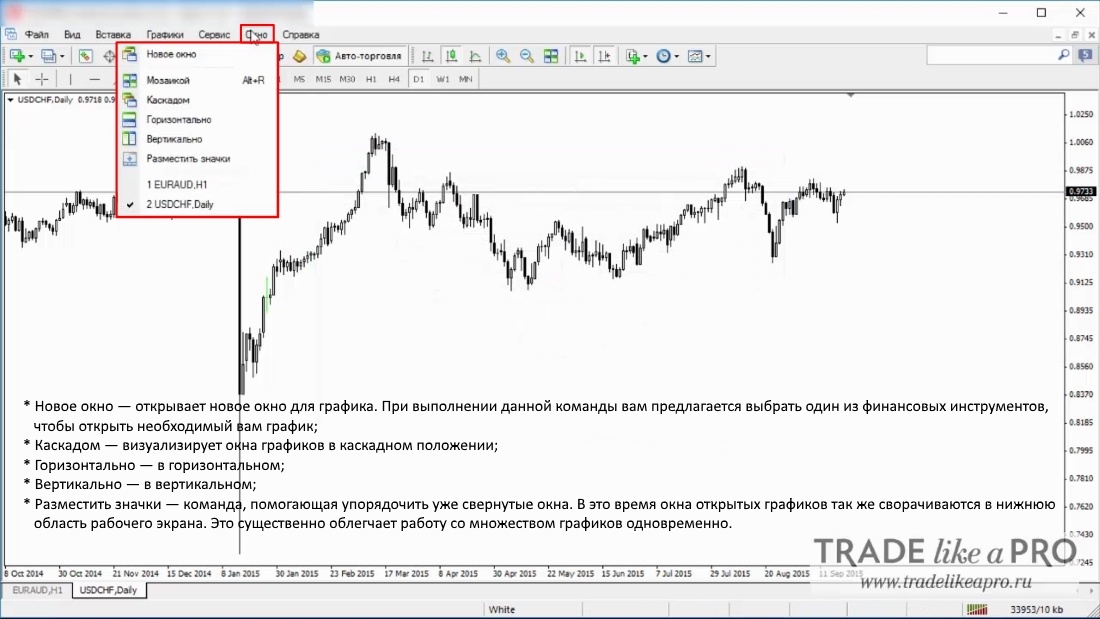
At the bottom of the Window menu there is a list of all chart windows, with the active window marked with a check mark. To activate another chart, you need to select the corresponding instrument from the list.
Help. Executing the commands from this menu has no effect whatsoever on the terminal's operation. From this menu you can:
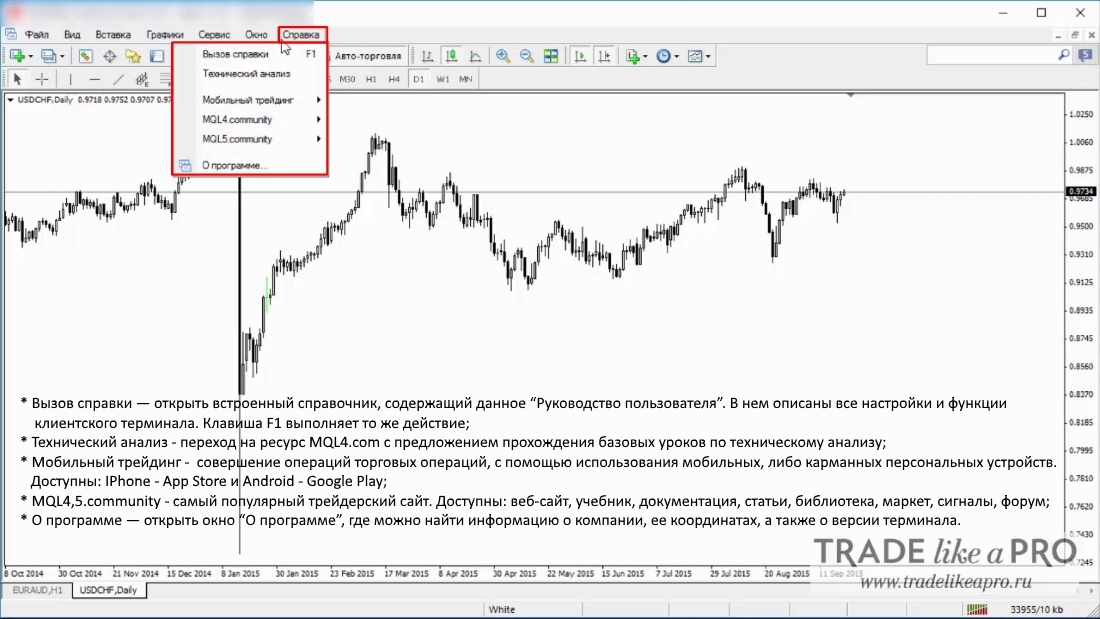
The Help menu, as you may already have guessed, allows you to call up the built-in reference guide, which is a user manual for all terminal settings and functions. You can call up help with the F1 hotkey.
About — here is all the necessary information about the company that released the terminal, as well as about its current version.
Let us consider the icon menus from the quick access panel:
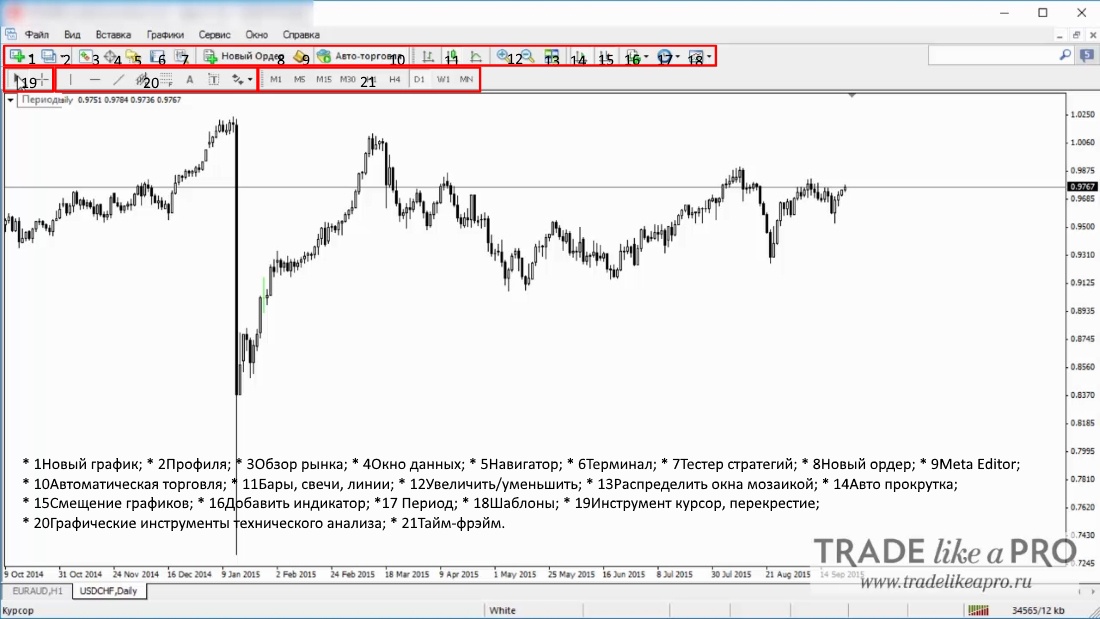
Opening Positions
Next, let us move on to opening trades and to the terminal itself. There are two ways to open a trade: at the current price (at market) or with the help of a pending order.
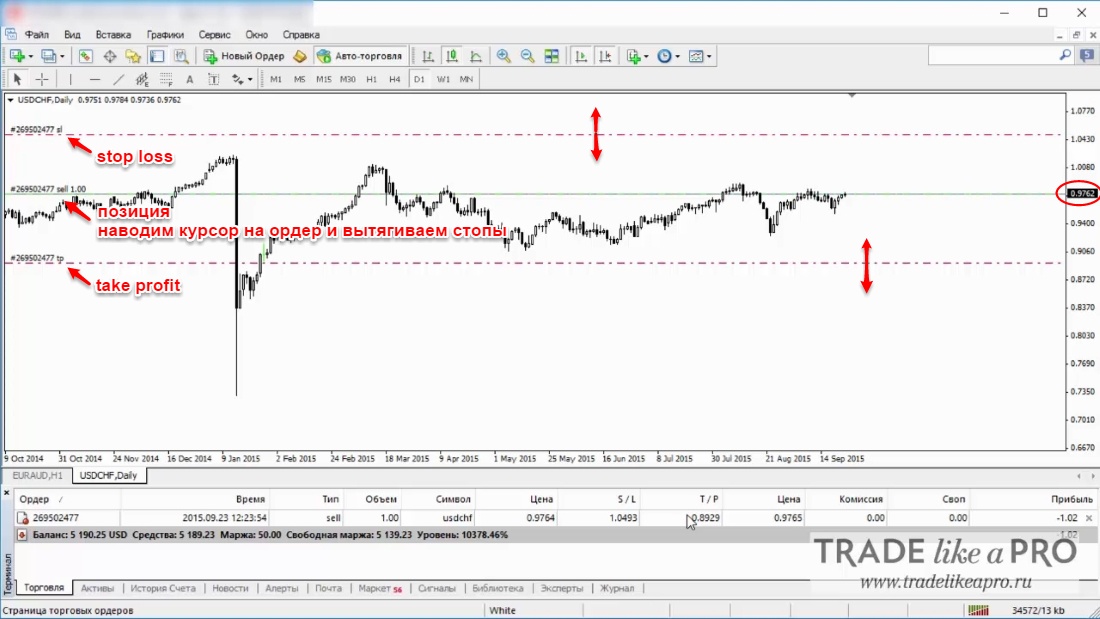
When opening a position of "instant execution," it is necessary to specify the following parameters:
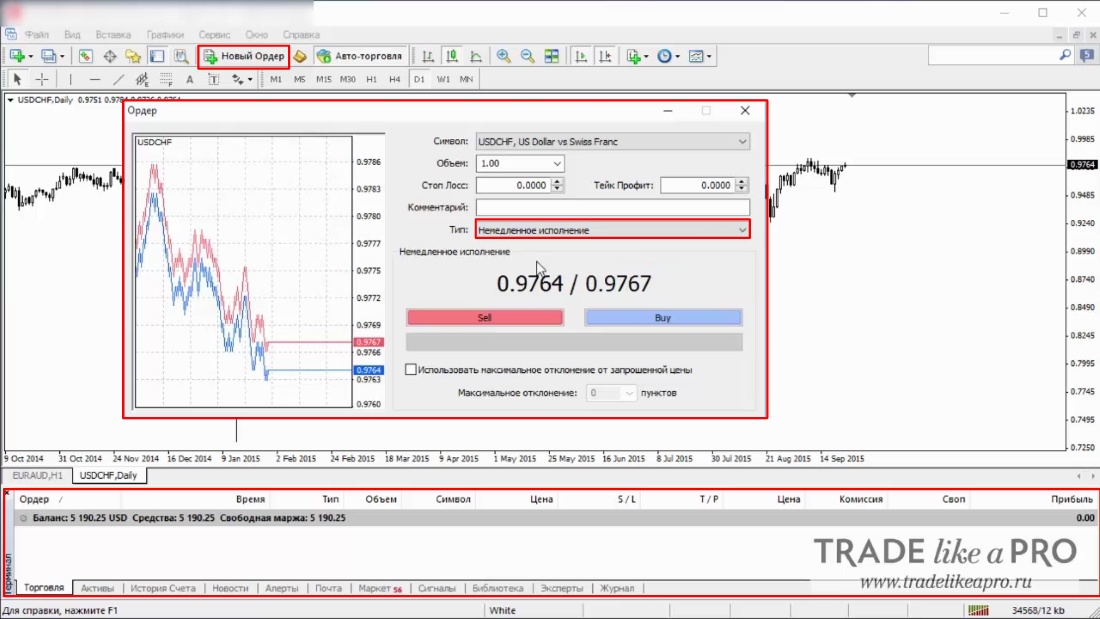
- Symbol - selection of a financial instrument;
- Volume - specify the trade volume (number of lots);
- Stop Loss - set the loss limiter;
- Take Profit - set the profit limiter;
- Comment - write a comment. The length of the comment must not exceed 25 characters;
- Type - opening a position at the current price with "instant execution" or opening a position with a "pending order," the opening parameters of which are set in advance;
- Use maximum deviation from the quoted price - enable/disable deviation. If the broker provides a new execution price (requotes), the deviation of the new price from the originally requested one is calculated. In this case, if the deviation is less than or equal to the specified parameter, the order is executed at the new price without additional notification. Otherwise, the broker returns new prices at which the order can be executed; for more details, see Slippage in Forex
- Maximum deviation - the amount of the allowable price deviation in points.
 When opening a "pending order" position:
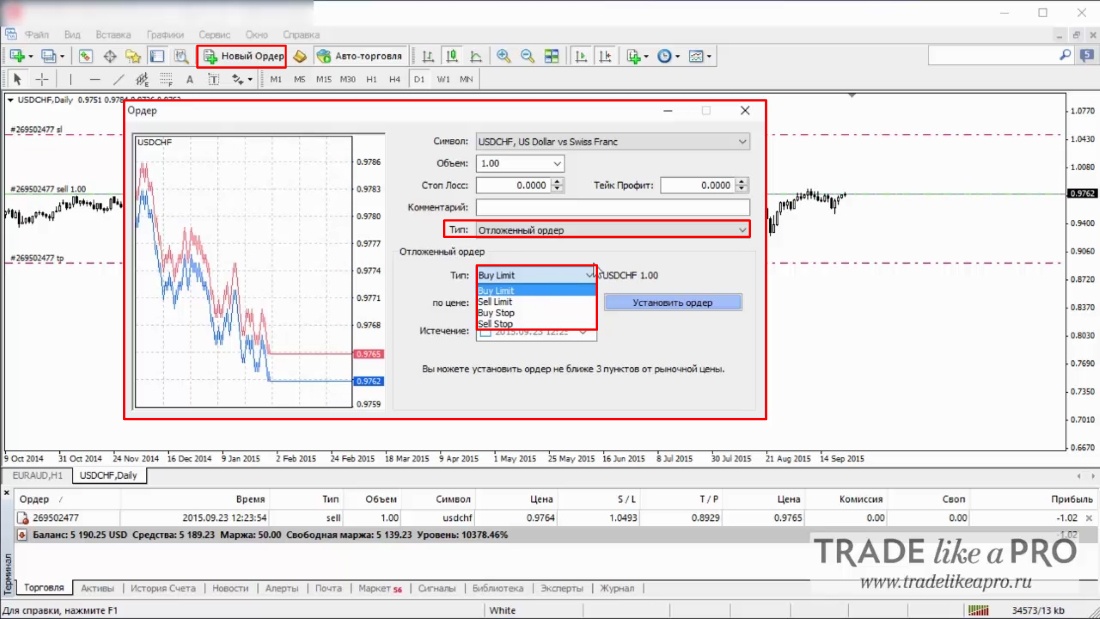
- Type – selection of one of the 4 types of pending orders: Sell Limit, Buy Limit, Sell Stop, Buy Stop;
- At price – the price at which the broker opens a position for you is specified;
- Expiration – selecting the time after which the order will no longer be relevant.
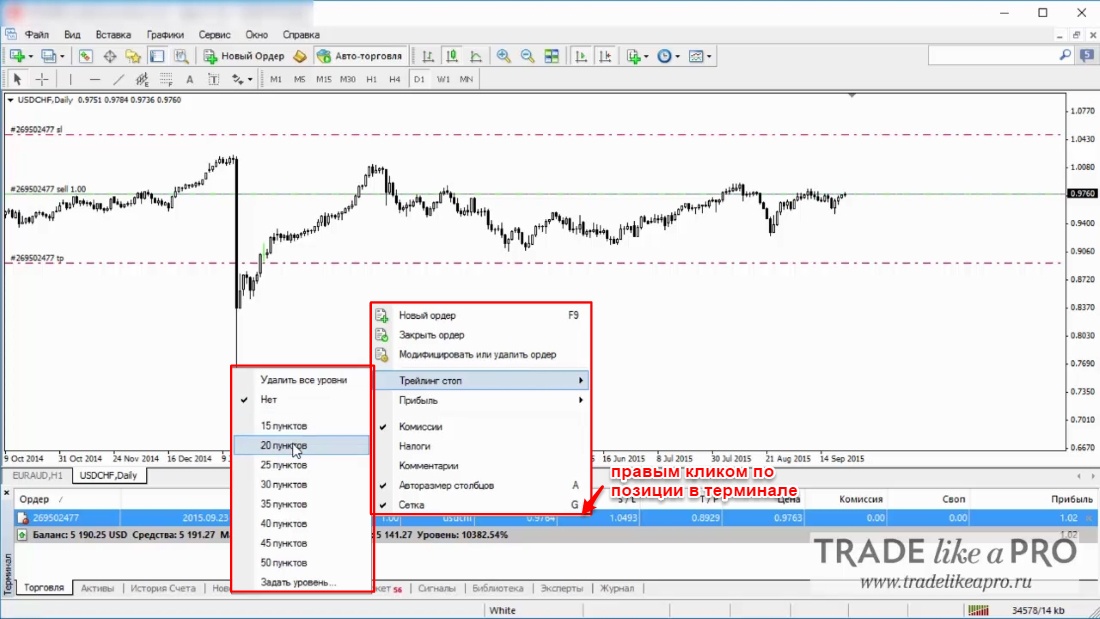
 Using the right mouse button, select the order to set a "trailing stop."
A trailing stop makes it possible to automatically set Stop Loss at the required level from the current price. It is perfect when the market is moving strongly in one direction and the trader has no opportunity to monitor the price change.
Using the right mouse button, select the order to set a "trailing stop."
A trailing stop makes it possible to automatically set Stop Loss at the required level from the current price. It is perfect when the market is moving strongly in one direction and the trader has no opportunity to monitor the price change.
 Assets. Distribution, as a percentage of the deposit, of the number of assets across the instruments currently being traded.
 Account History. The history of open and closed positions for the selected period of time is displayed.
 This concludes our overview of the world's most popular trading platform, Metatrader version 4. In the future, we will follow the platform's updates and, whenever possible, introduce you to them.
Sincerely, Alexey Vergunov TradeLikeaPro.ru