
MetaTrader 4 for smartphones review
 Hello everyone! Smartphones have become firmly embedded in our lives; children are now introduced to the iPhone practically from the age of 2. Mobile forex trading is no exception. Not so long ago, the developers brought the mobile version of the MetaTrader 4 terminal to quite a workable state, the ability to carry out chart analysis appeared, the other functions were also improved, and many bugs were fixed. We have already looked at the version for iPad tablets; I suggest getting to know the version for smartphones more closely.
It is worth noting that although the review was made using the iPhone version, the version for Android smartphones is practically identical. You can download the mobile terminals from the AppStore for iOS and from Google Play Market for devices running Android.
MetaTrader 4 for smartphones
Let's launch the application just like any other one. Since I have already logged into my account, the application immediately opens the menu where quotes are displayed:
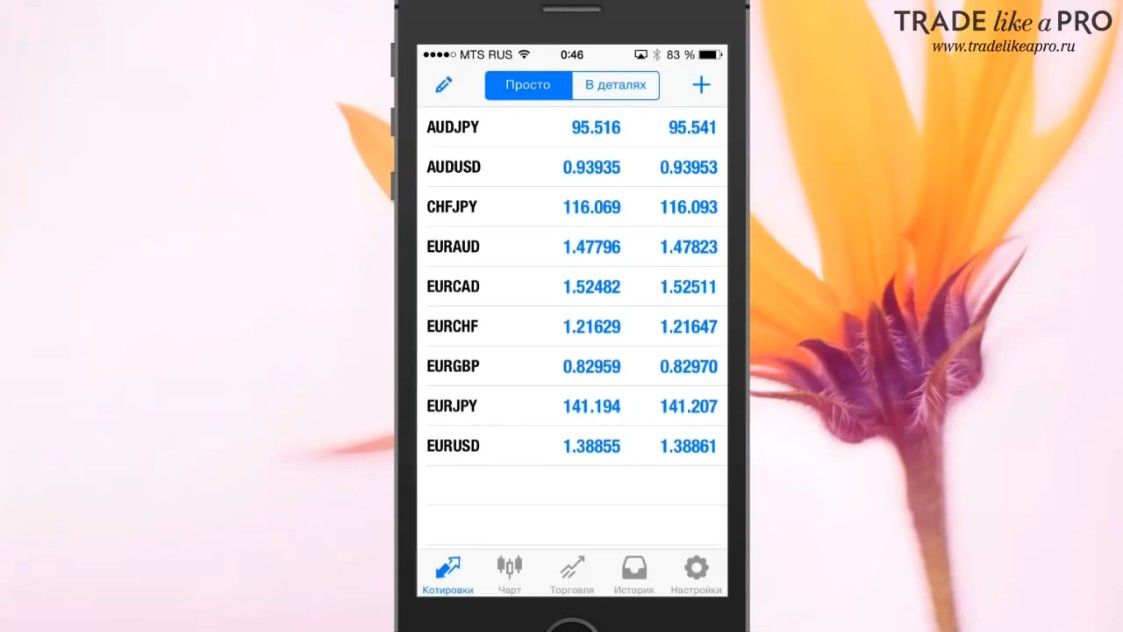
In order to open a new account, you need to go to the settings:
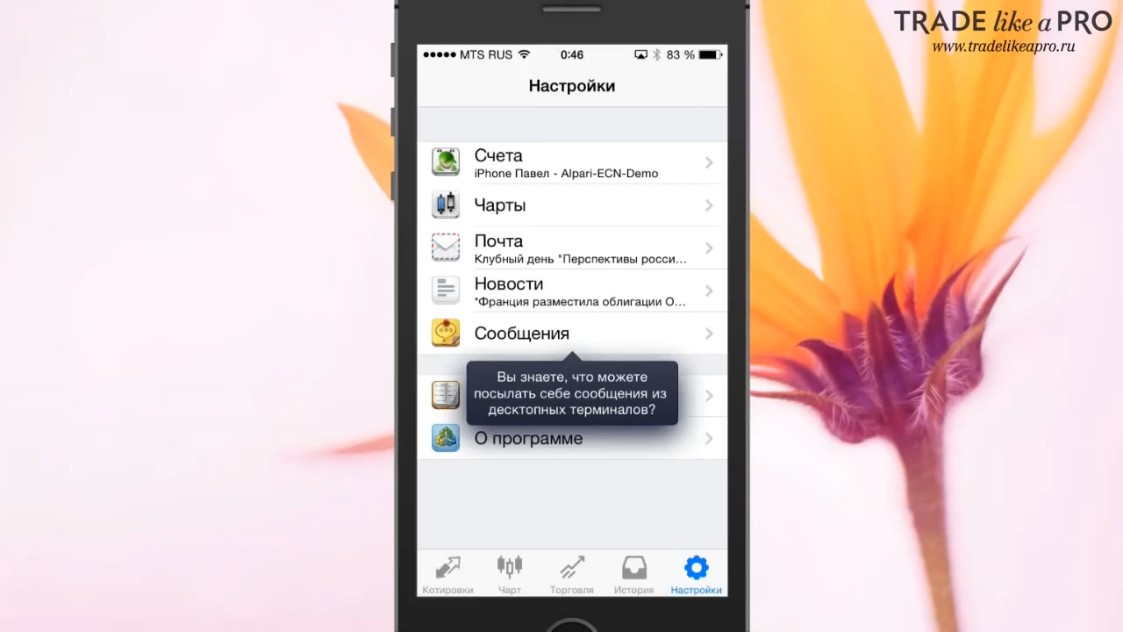
Here you will need to select the "Accounts" tab and go to the menu where you can choose or add a new account:
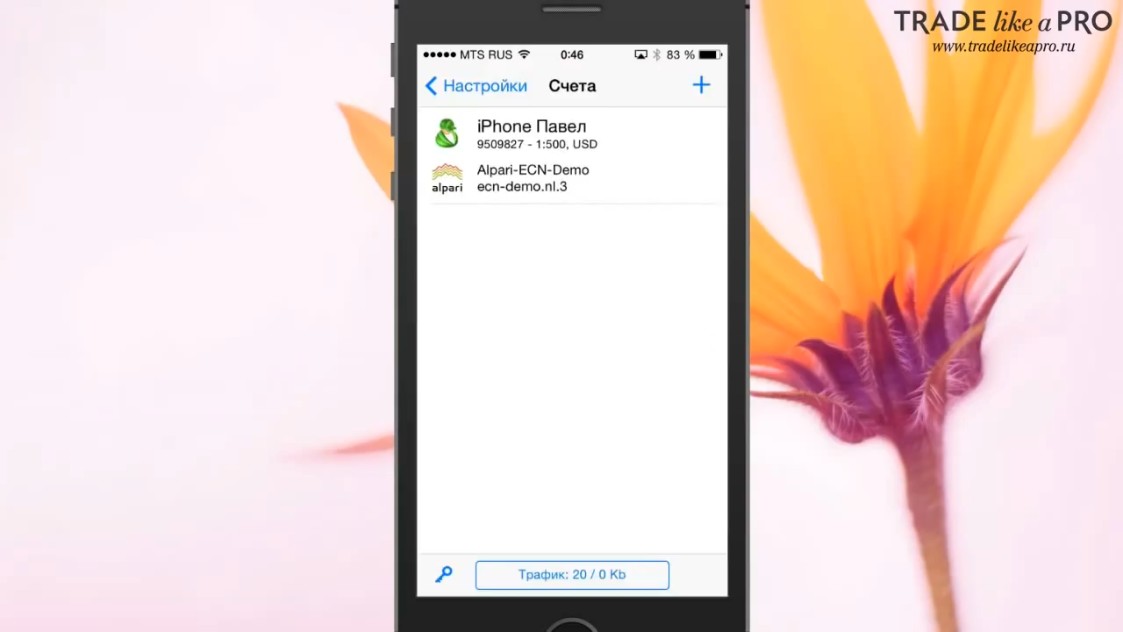
In order to add a new account, you need to tap the plus in the upper right corner of the screen and choose "Open a demo account," or connect to an existing account:
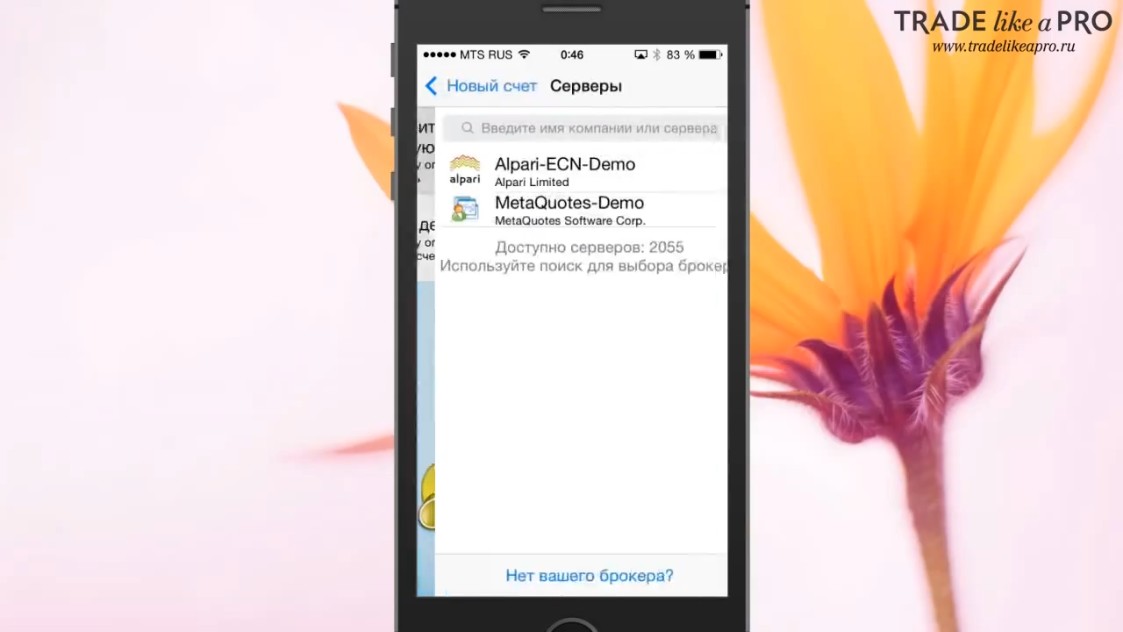
If you decide to log into an already existing account, you will be asked to enter the name of the company where it is opened for you, or choose from the list of companies that you entered earlier.
If you decide to open a new demo account, you will need to enter your details.
In this case, I advise you to enter any details, the main thing is that they match the format required by the application:
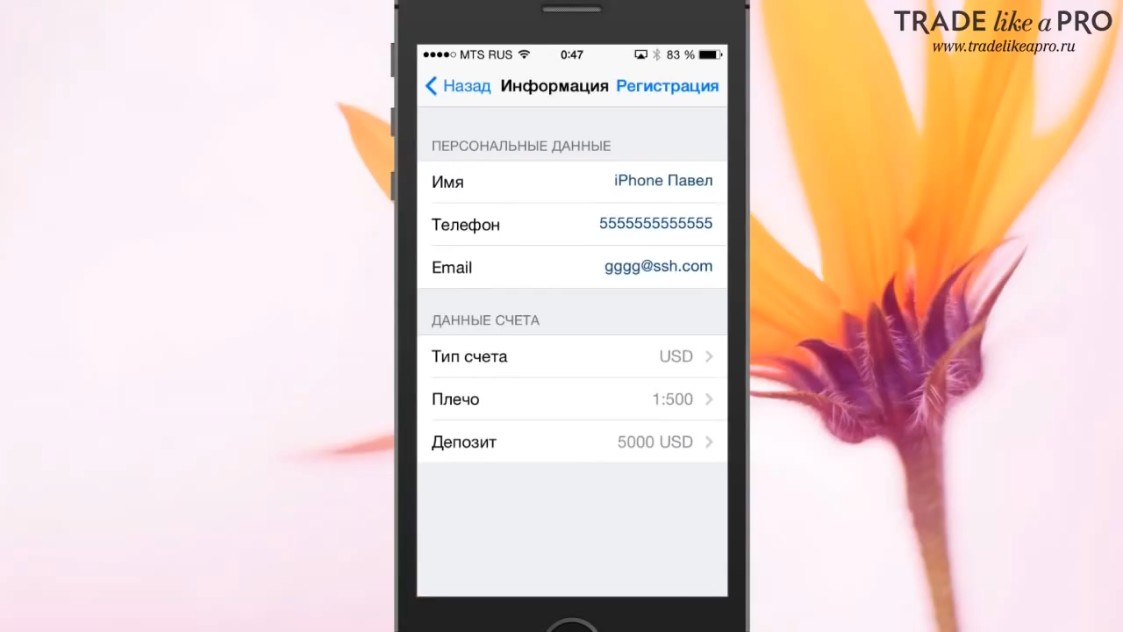
After the demo account is opened, quotes will load for you and the application will be ready to start working.
First of all, let's look at the screen to which we are taken after registration:
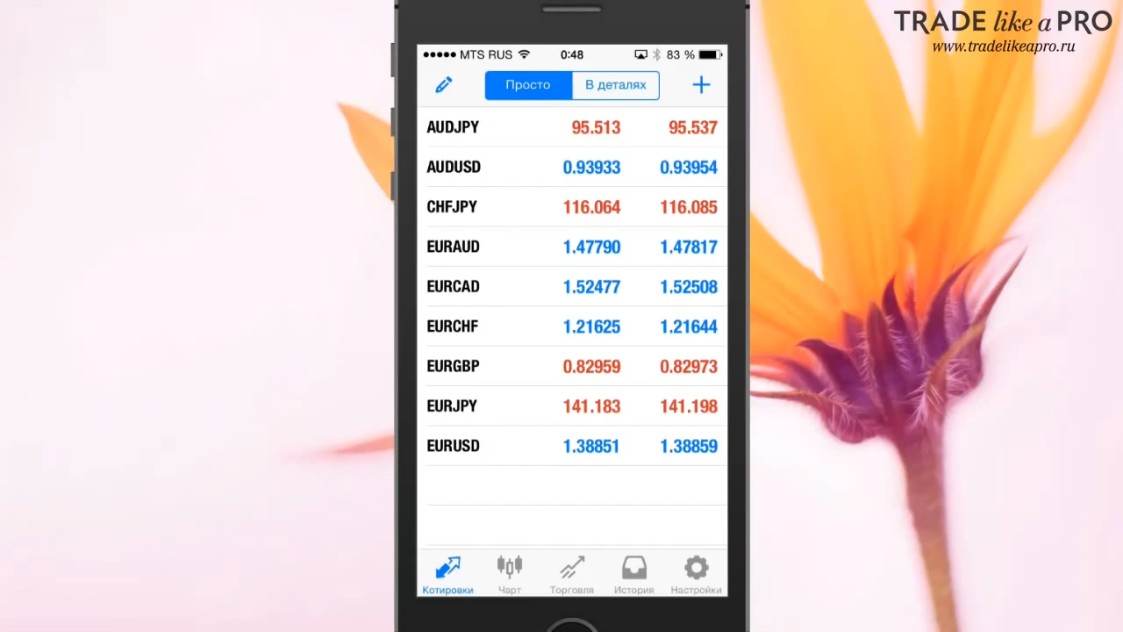
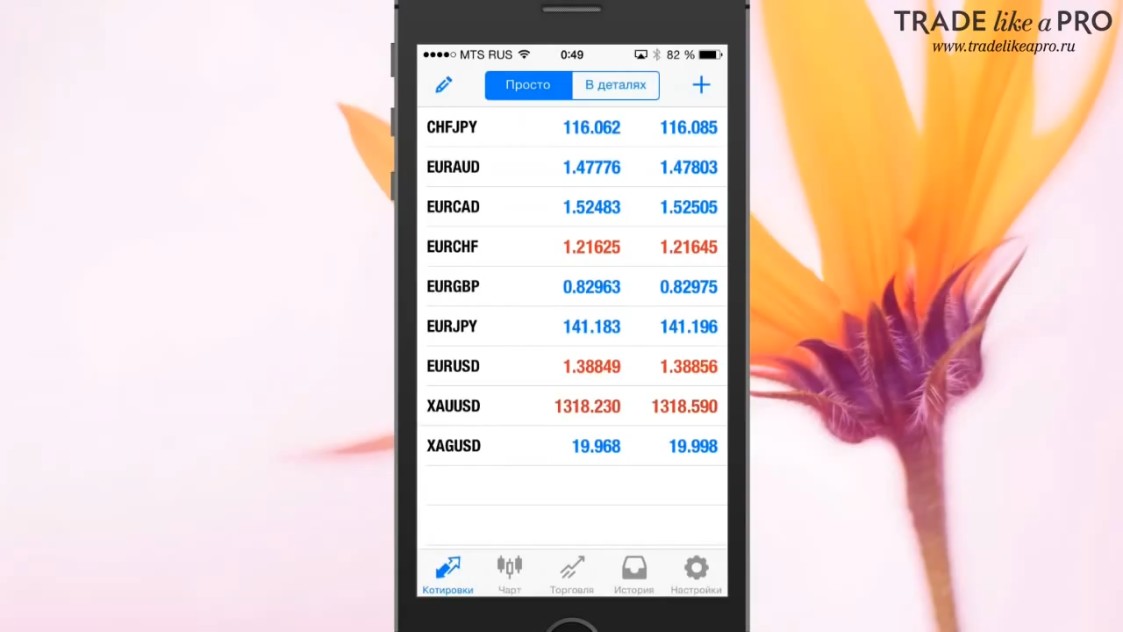
This is the overview screen of the current quotes for currency pairs. Right away I want to say that far from all currency pairs are presented here. If you need some additional instruments, then you need to carry out a series of simple actions.
If you tap the pencil in the upper left corner of the screen, you will be able to delete or edit the currency pairs you do not need:
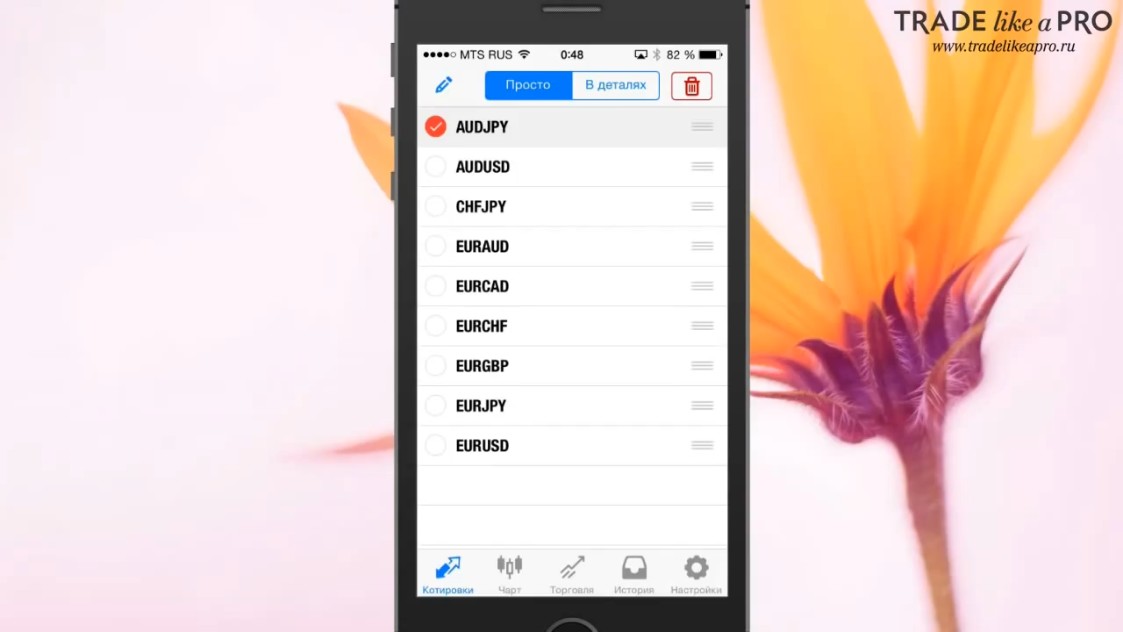
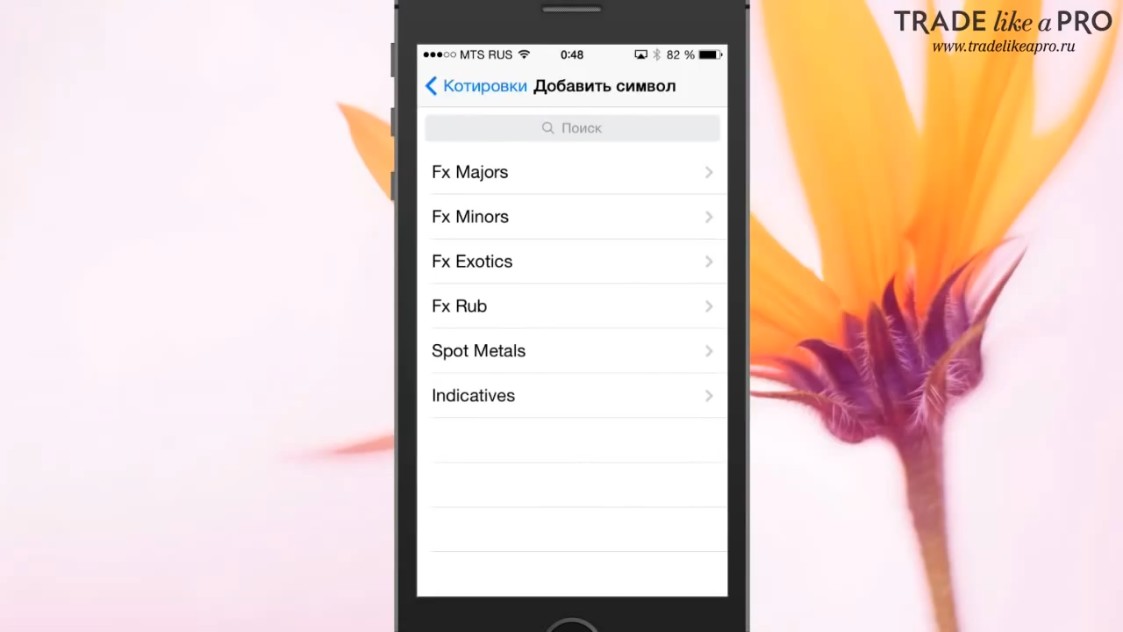
A menu opens that is almost identical to the same screen in the desktop version of the terminal.
As soon as you choose the instrument you need and add it, it will be displayed in the initial menu at the end of the list:
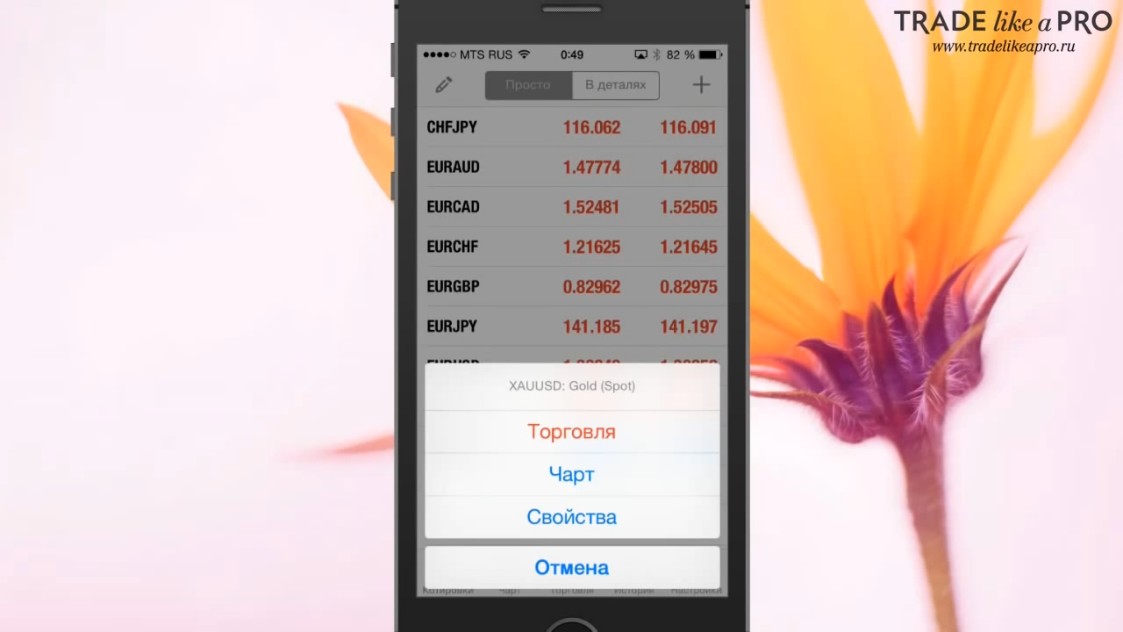
If you press and hold on any symbol, a menu will appear:
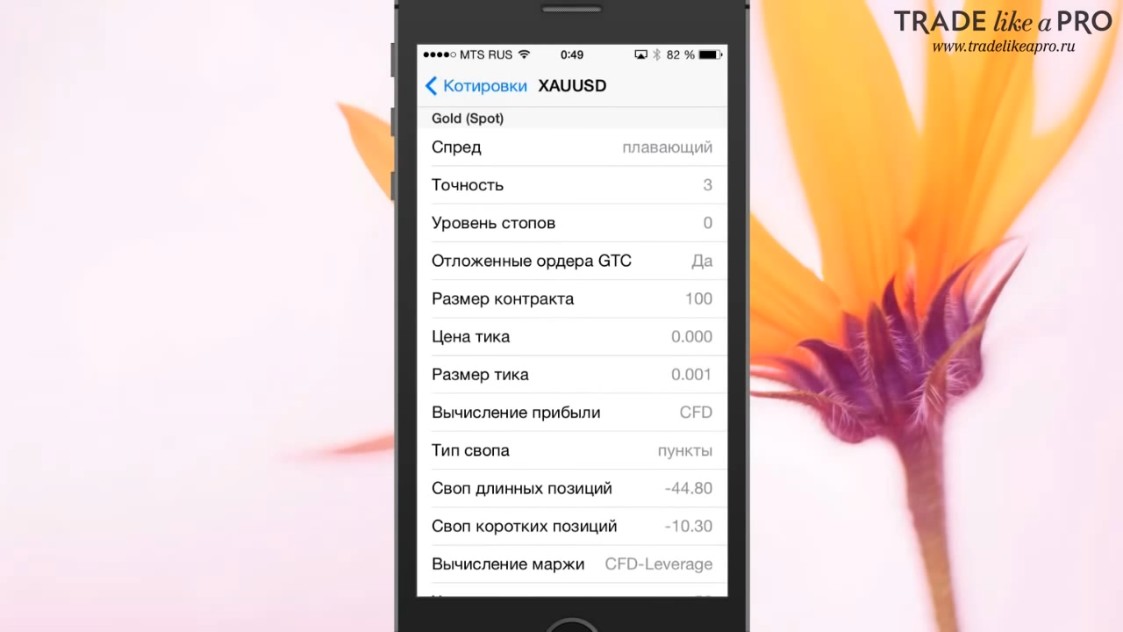
If you click the "Properties" tab, information about this instrument will appear:
If you open the previous menu again, you will be able to go straight to trading by pressing and holding on any currency pair and selecting the "Trading" tab from the menu that appears:
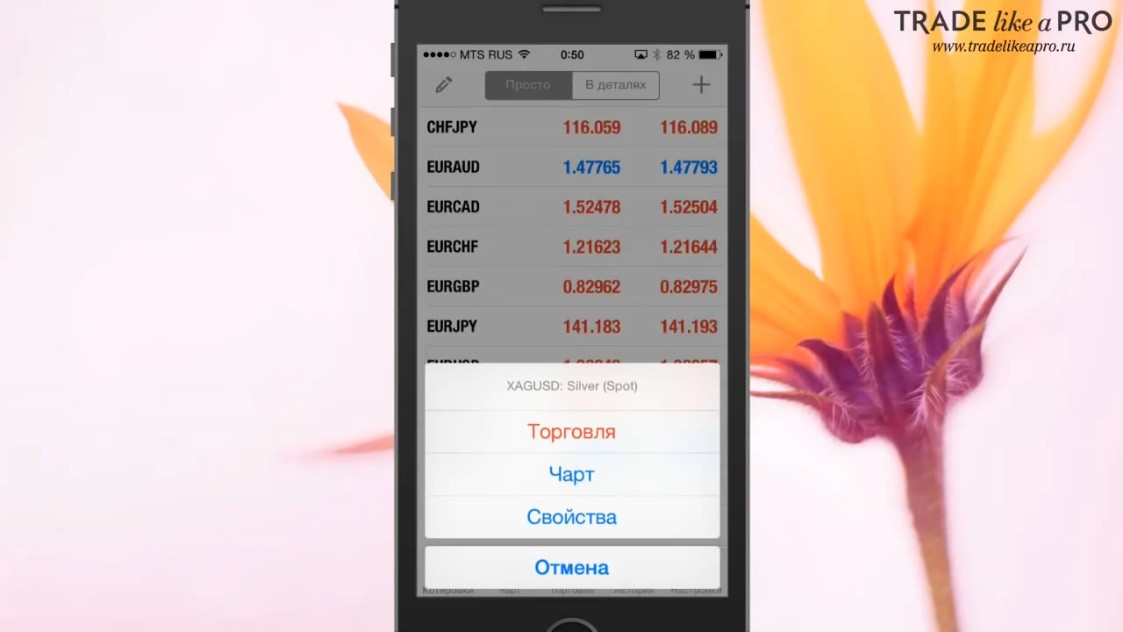
This way, you will go to the screen where you can open an order for this instrument.
By default, the volume is set to 0.01:
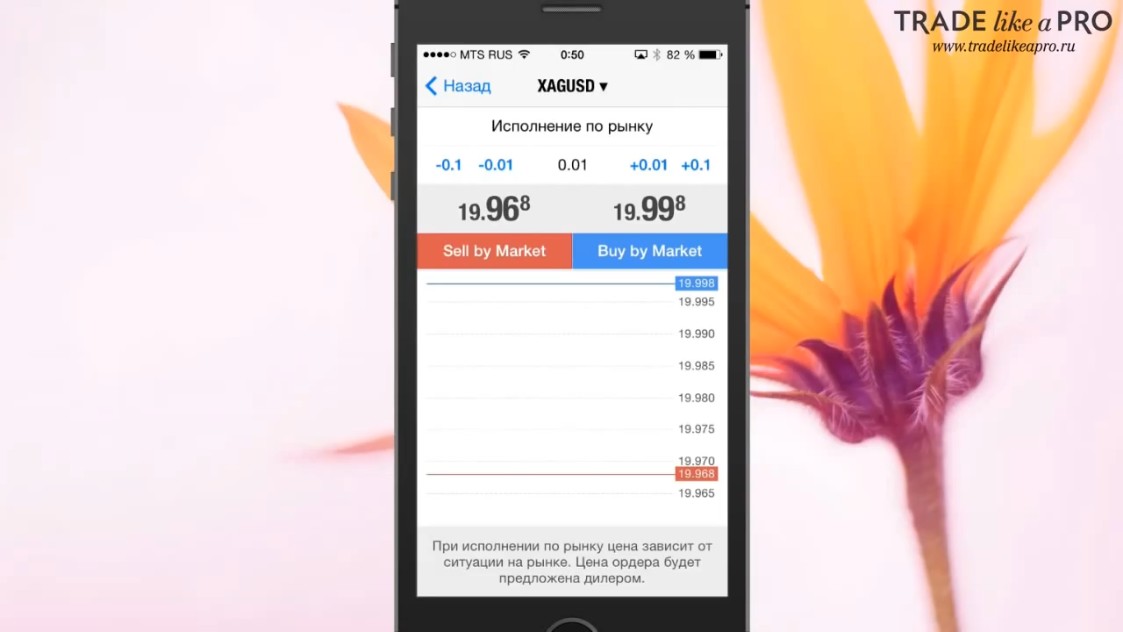
You can change the order volume by pressing the "+" and "-" values located on the right and left. In this simple way, you can set the volume you are interested in.
Below are the options to buy or sell at market.
If you want to open a pending order, you will need to click on "Market Execution."
Then a menu for choosing pending orders will open:
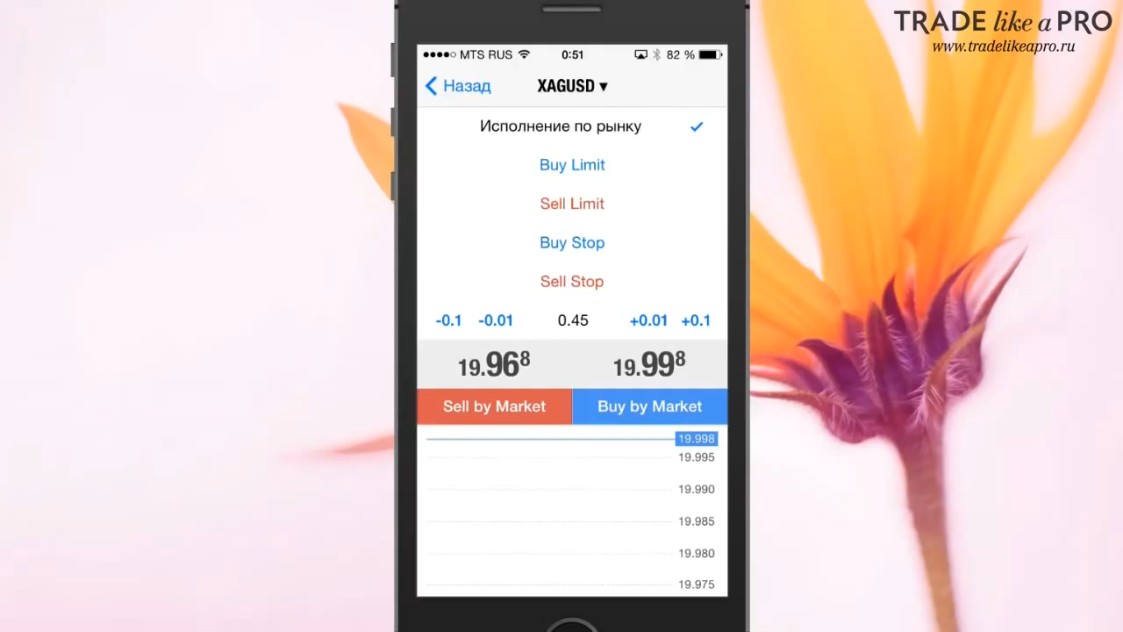
For example, I will make a purchase. After the operation is completed, trading information appears on the "Trade" tab:
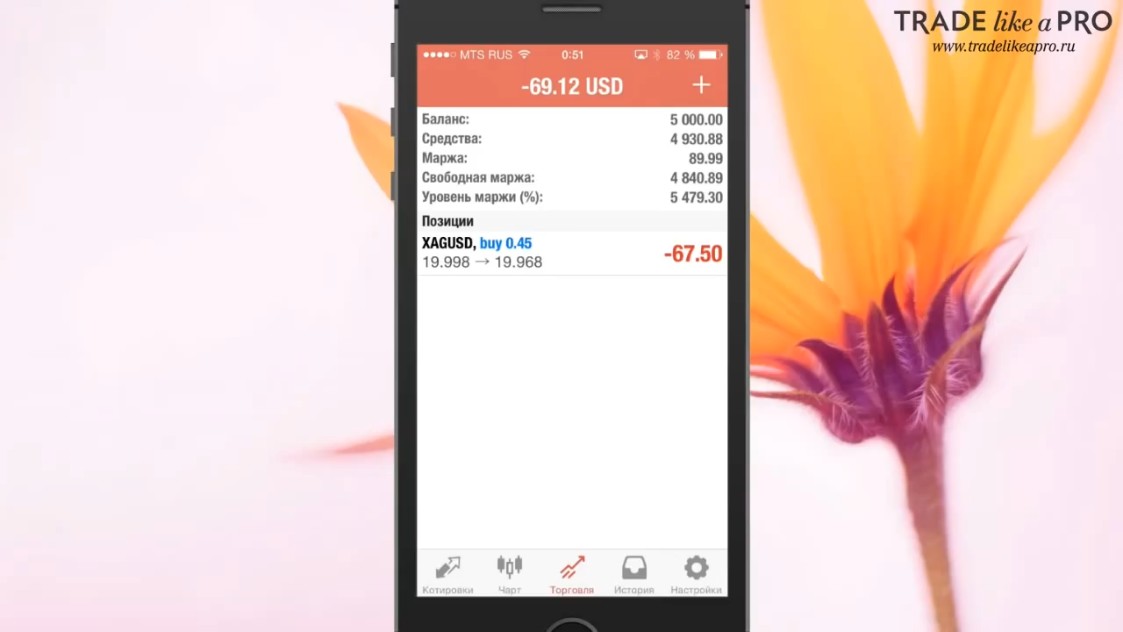
Here there is information about the balance, equity, margin, and, in addition, a list of open orders is displayed:
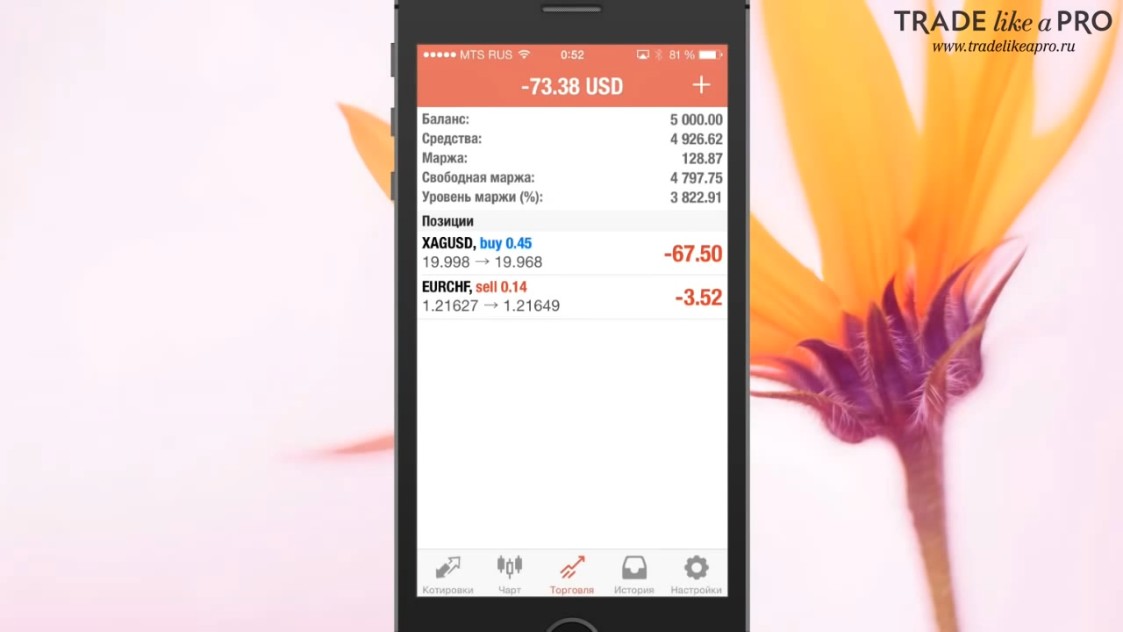
How can you work with these positions?
If you swipe left on any position, this menu will open:
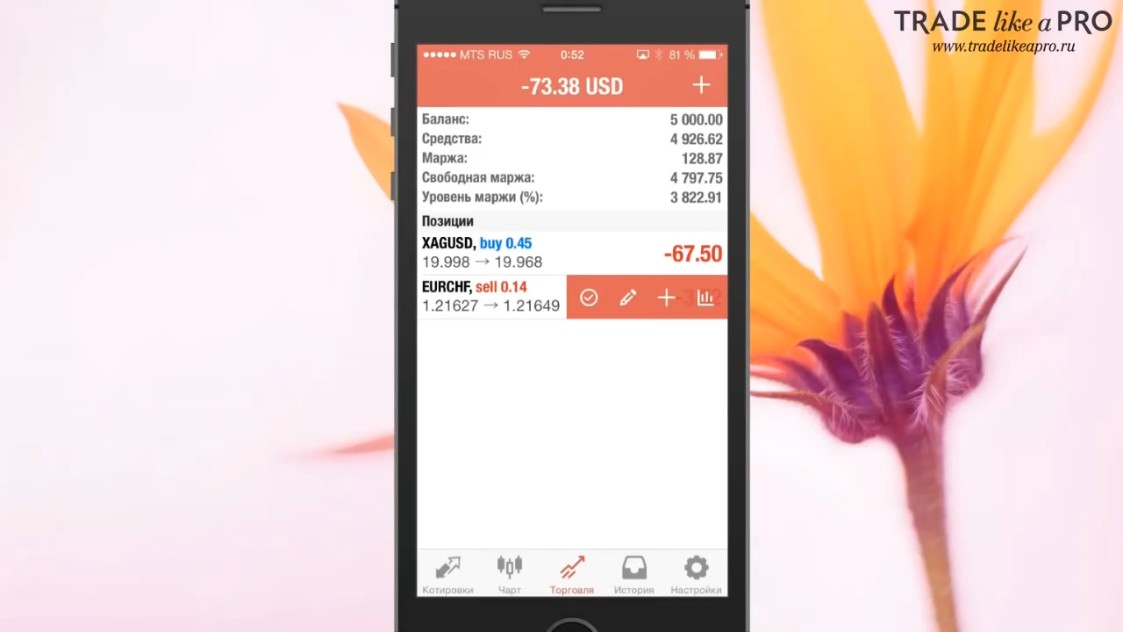
Here we have a list of tools.
Let us start with the checkmark. By clicking on it, the following screen will open:
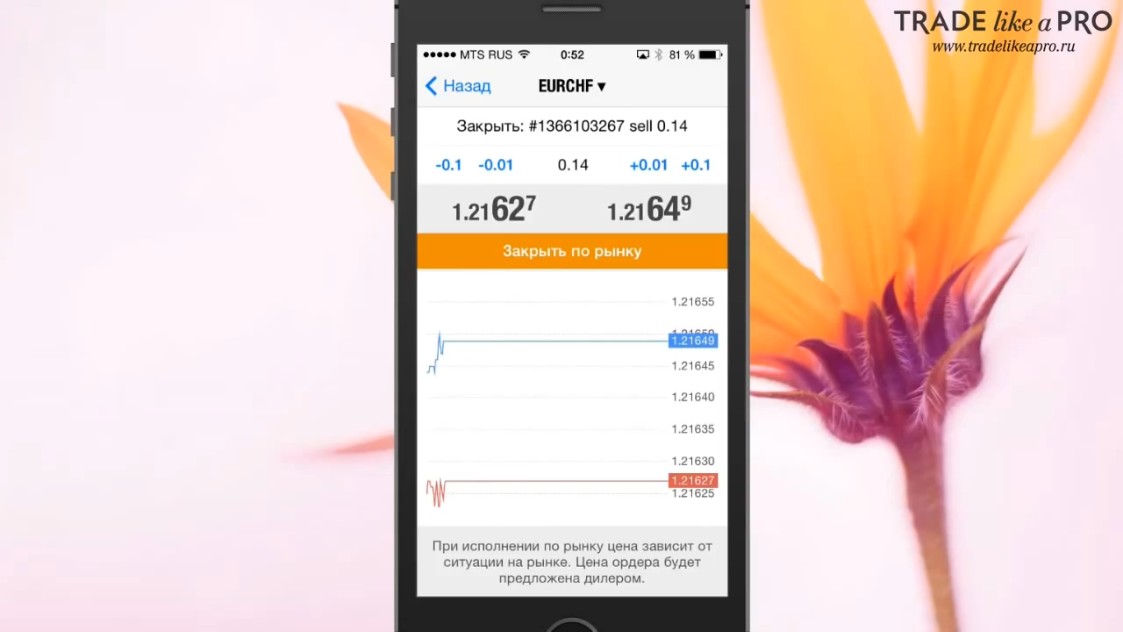
Here there are options to close the position at market, or to modify the order.
The next tool looks like a pencil. It allows you to edit the position and change the Stop Loss and Take Profit level:
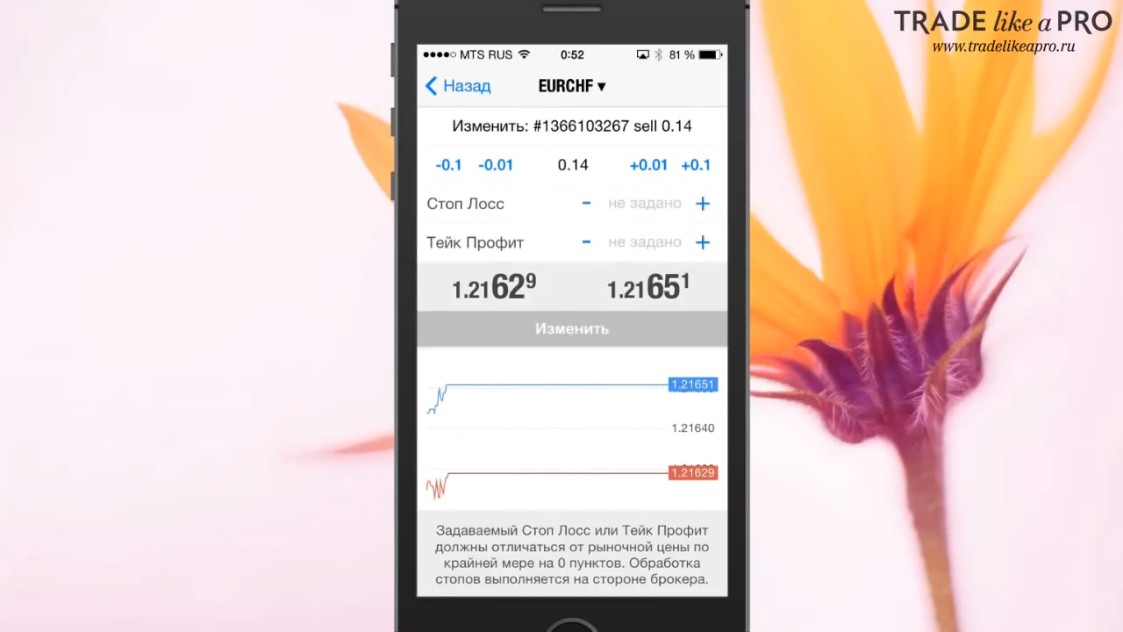
The next tool in the menu is a plus. It allows you to open an additional position in the trade.
The last icon allows us to see additional information about the position:
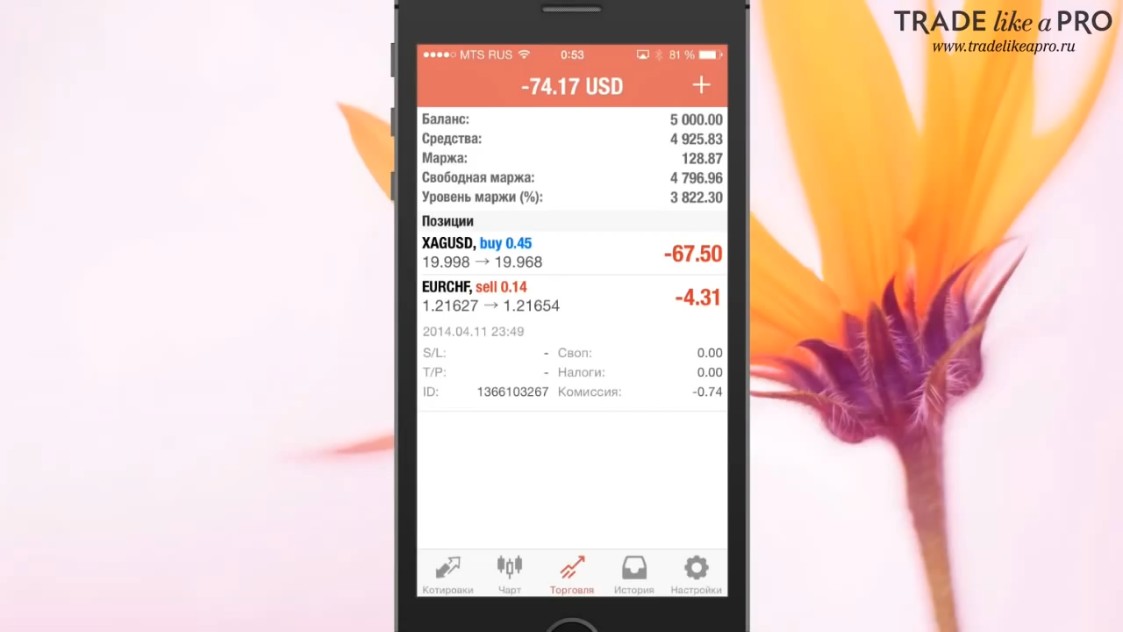
Now let's look at the menu that appears if you press and hold on an order:
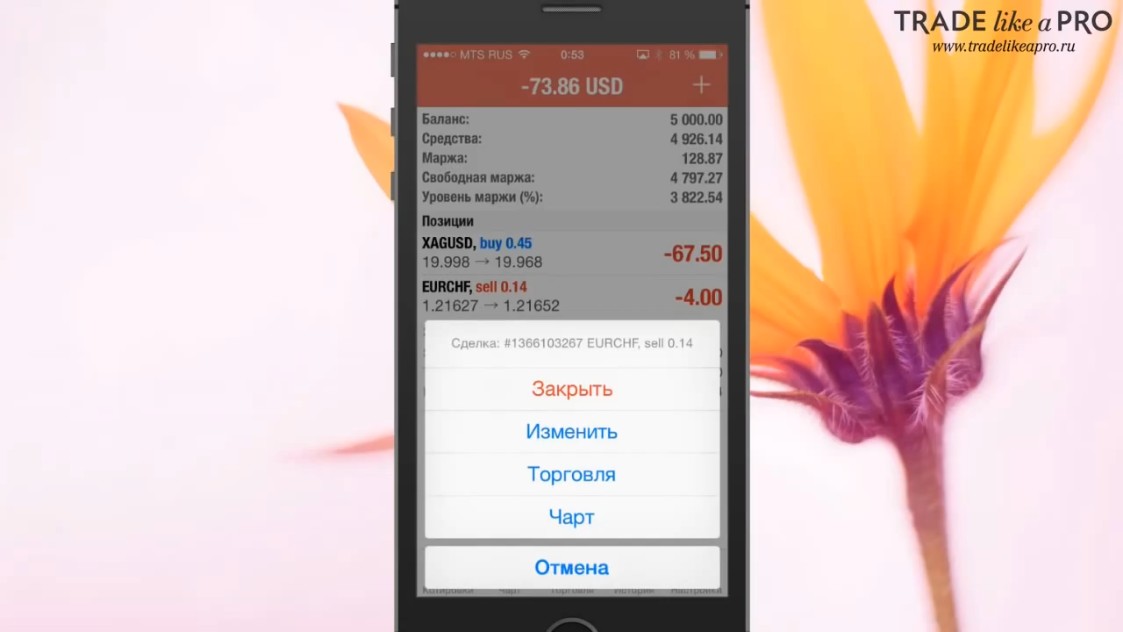
In this menu, we can close the position, edit it, or open a new position. In this menu, the "Chart" tab will be of interest to us.
It allows you to open a chart for this instrument:
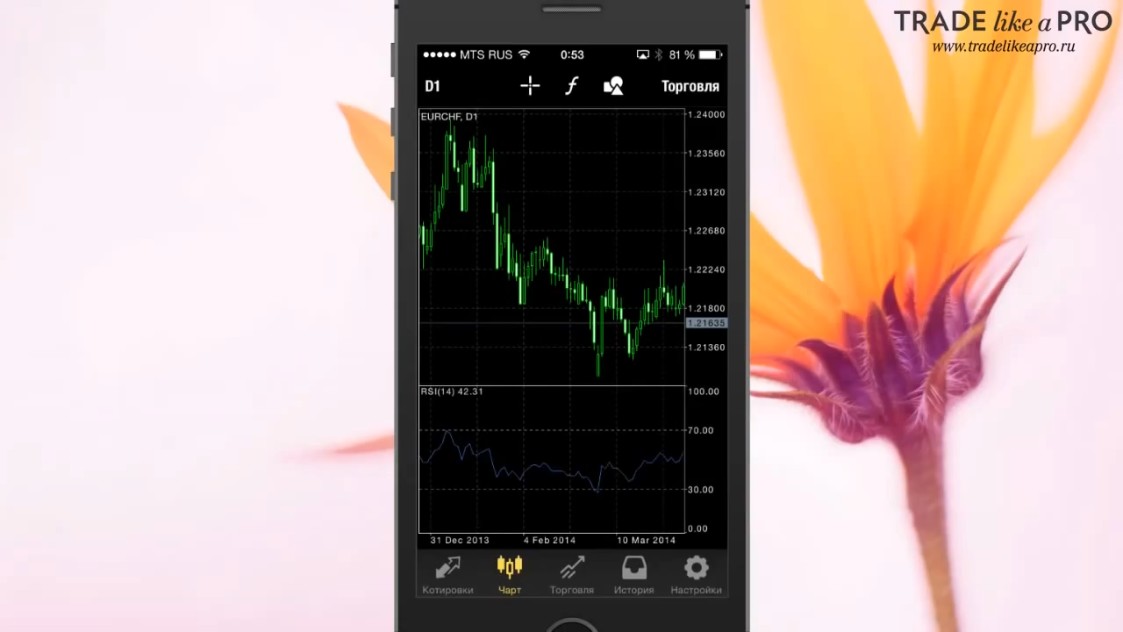
It should be noted right away that the chart can change if you rotate your phone vertically or horizontally.
If you hold it in a vertical position, a full-screen chart opens:
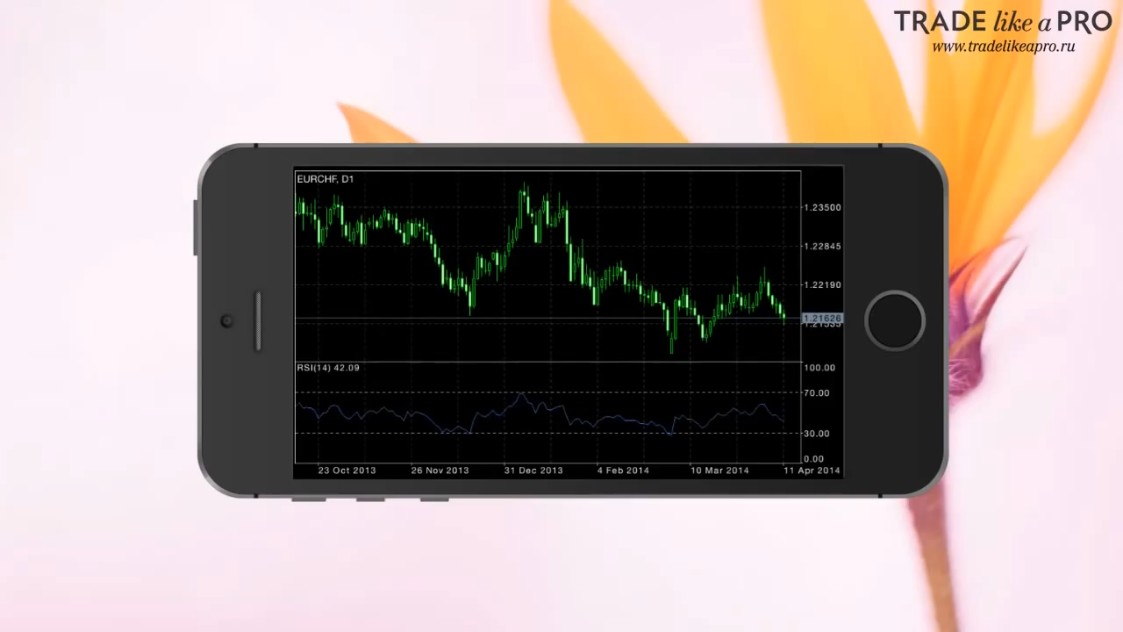
In the horizontal position, there are additional functions and controls:
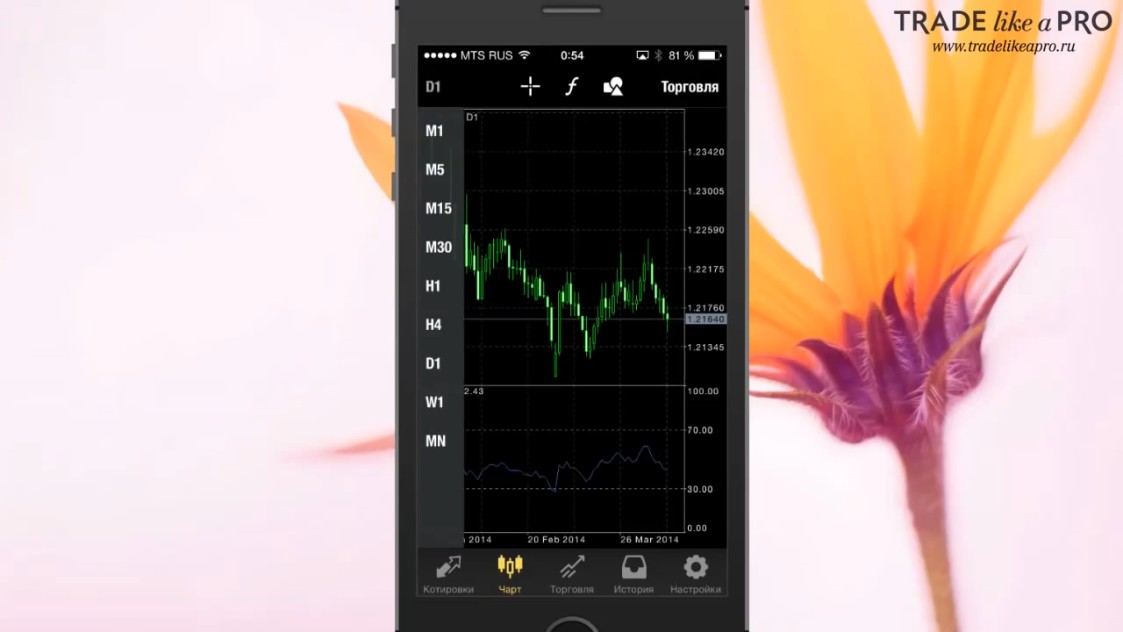
Let's look at this functionality in this window.
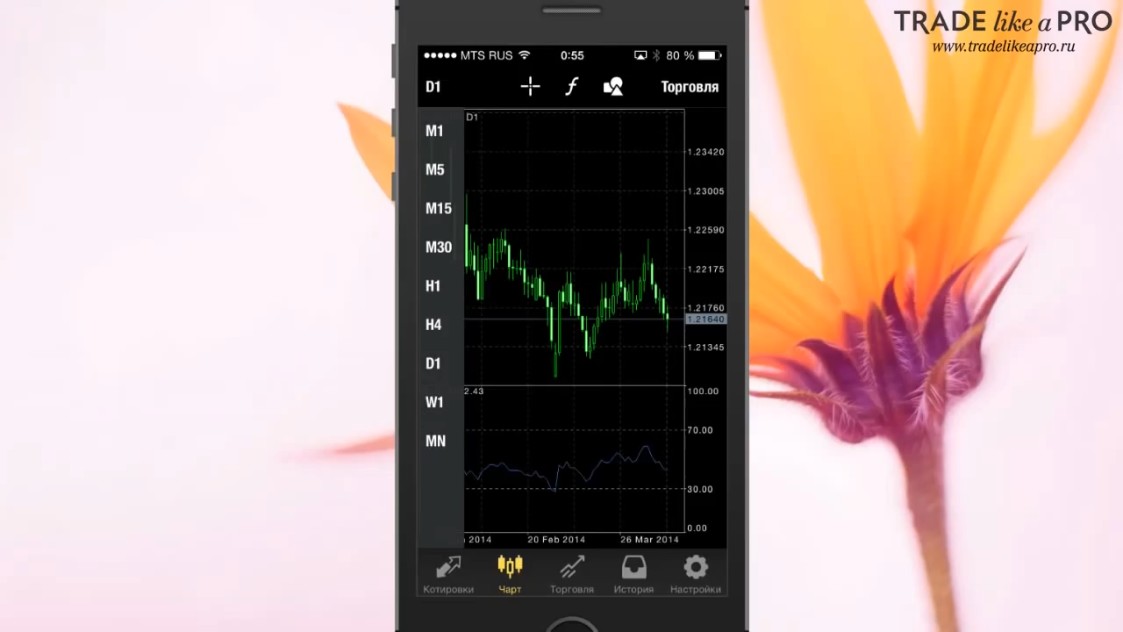
At the top left, we can choose the time frame of our chart:
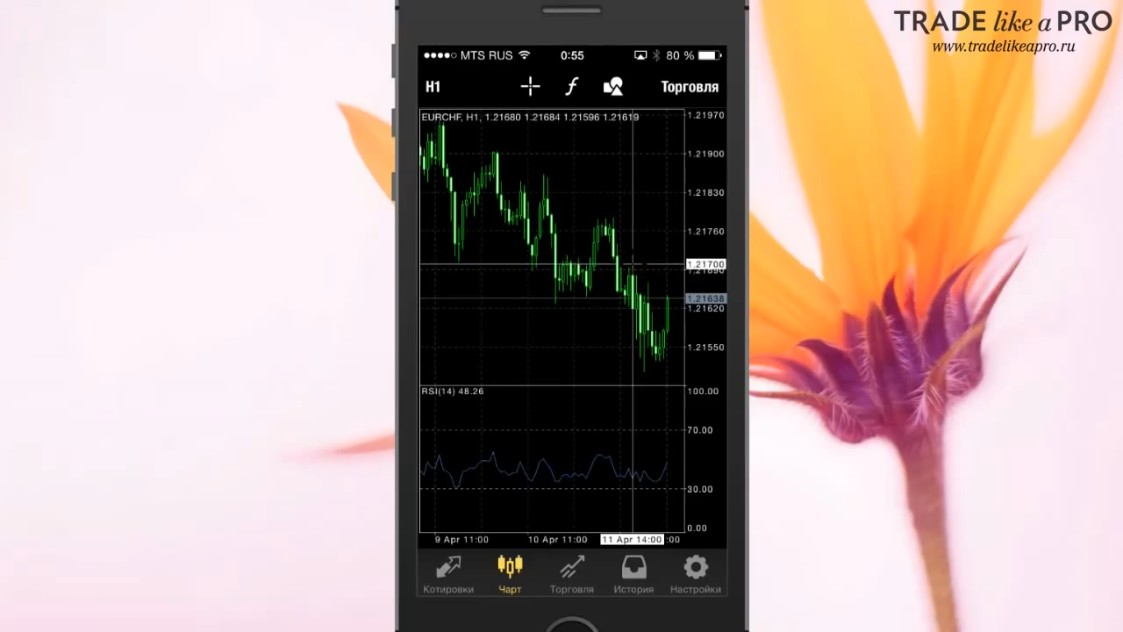
Next, you can select the crosshair for more precise movement along the chart and viewing the current candles:
If you click the button with the Latin letter "ƒ", a menu will appear where you can add indicators:
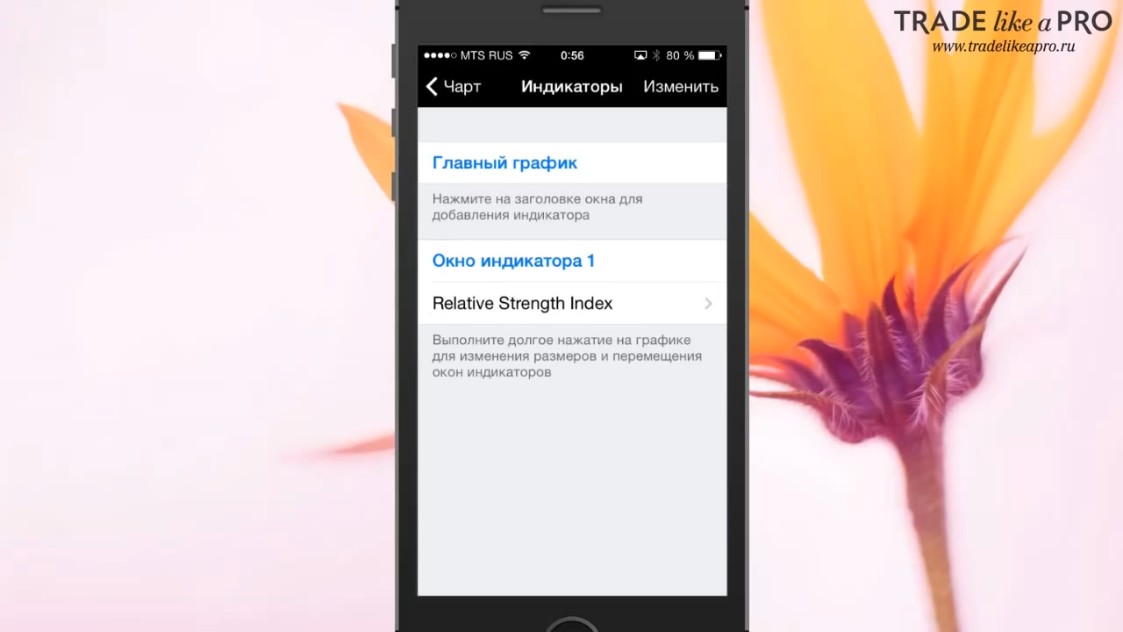
In it, you will be able to change and edit the properties of any indicator that is currently present on the chart.
Anticipating a very frequent question, I will give you the answer right away. In the mobile version of MetaTrader 4, neither on iOS nor on Android can you add your own additional indicators. This limitation exists in the mobile versions of the application. You can add to the chart only those indicators that are present in the application by default. There are quite a lot of them in this application.
Let's examine for example the indicator called "Bollinger bands":
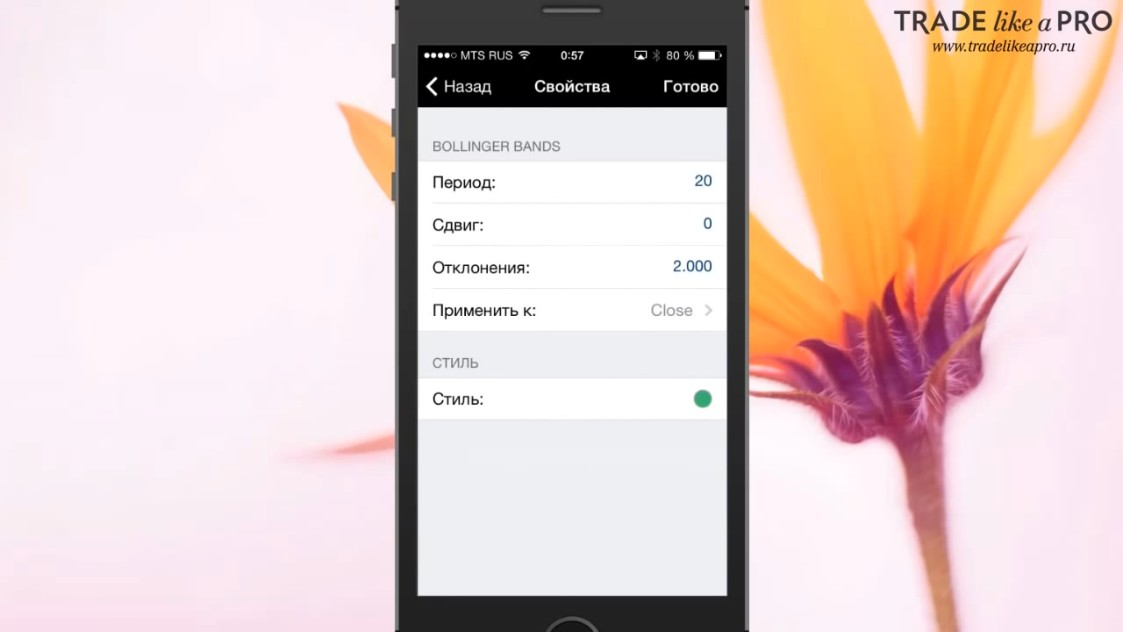
Before adding it to the chart, you need to edit the indicator settings.
When everything is ready, it will be displayed on the chart:
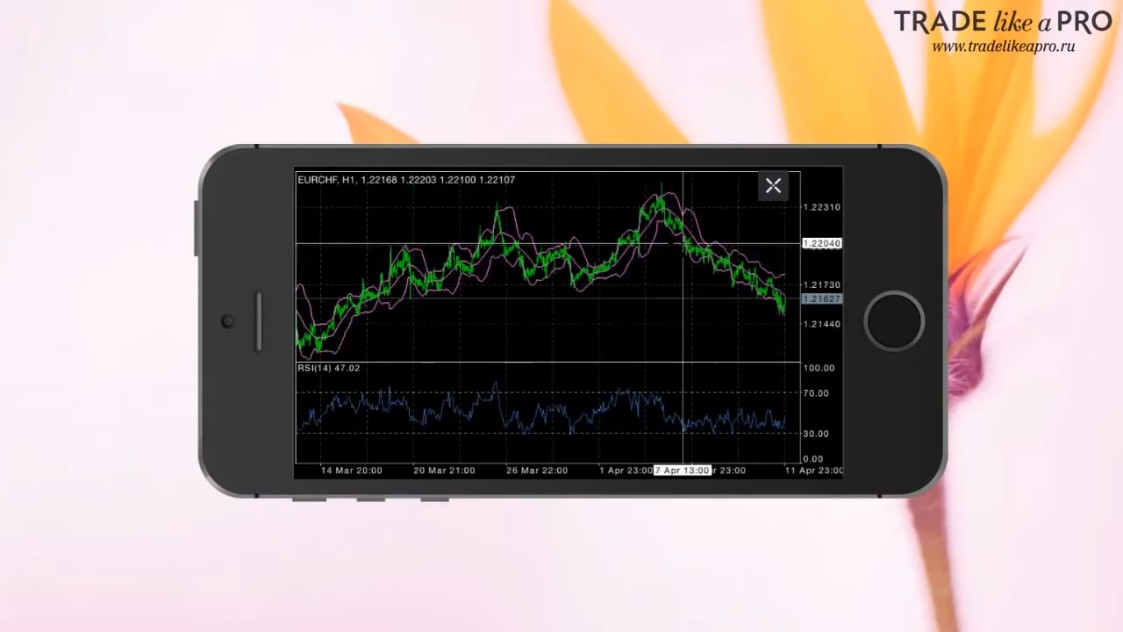
By pinching in and out, the chart will zoom in and out. Similarly to how you would view photos.
The next tool located on the chart looks like a collage of a triangle, a square, and a circle. This is nothing other than objects.
This function allows you to add various objects to the chart.
For example, we can draw horizontal lines or, in other words, build support and resistance levels, without which, in principle, trading is impossible:
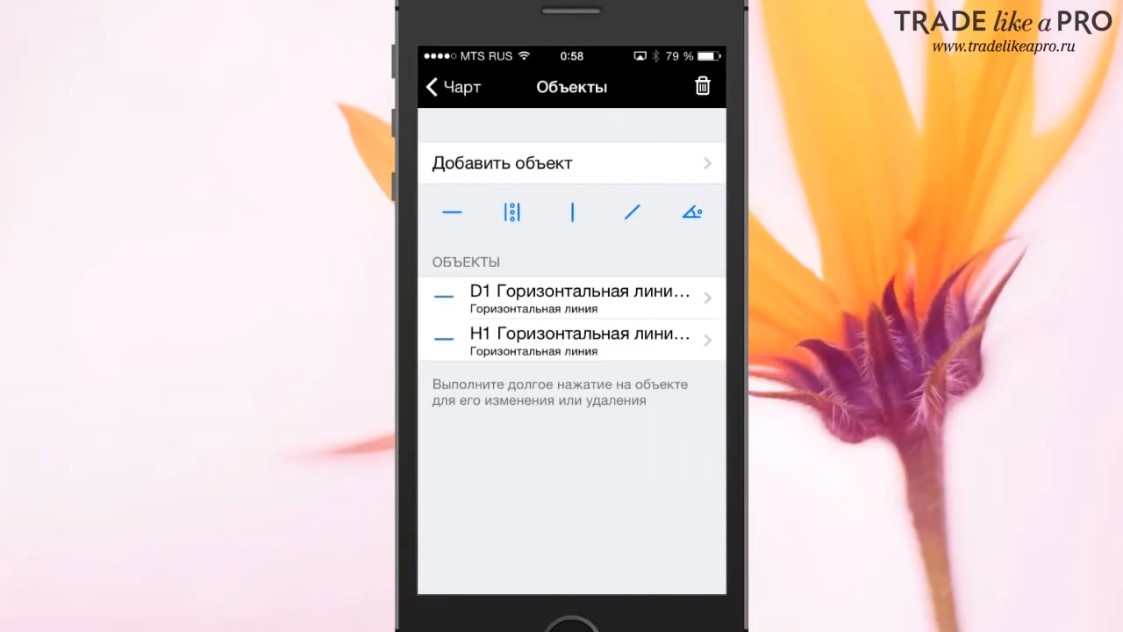
This function allows you to add trend lines in any place, however you like:
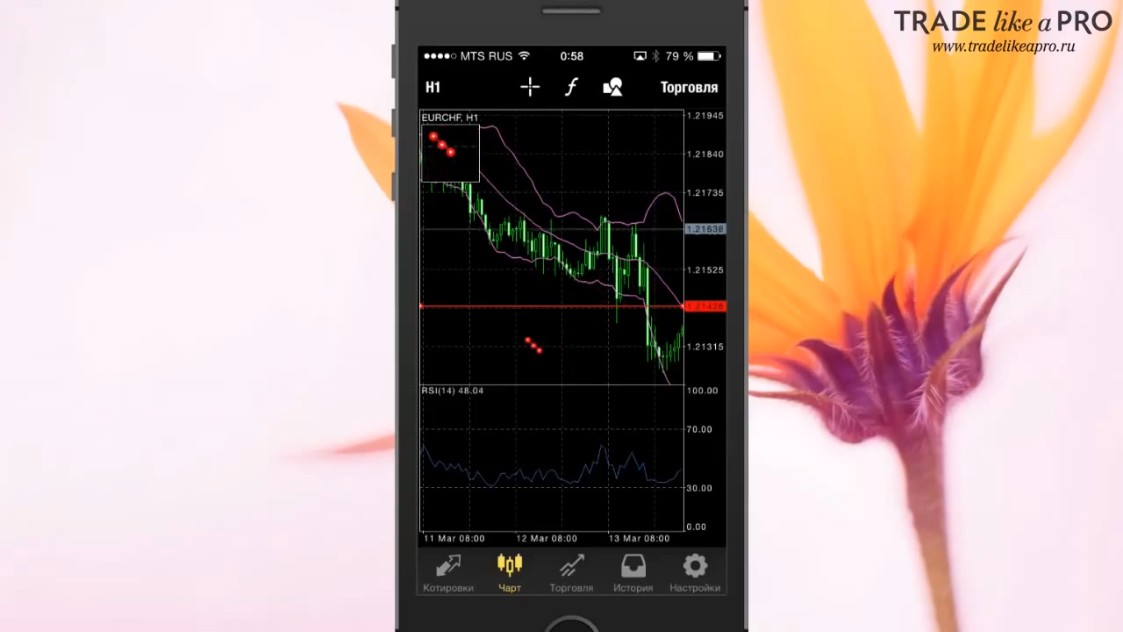
To delete an object on the chart, you need to tap it twice.
Then a window like this will appear:
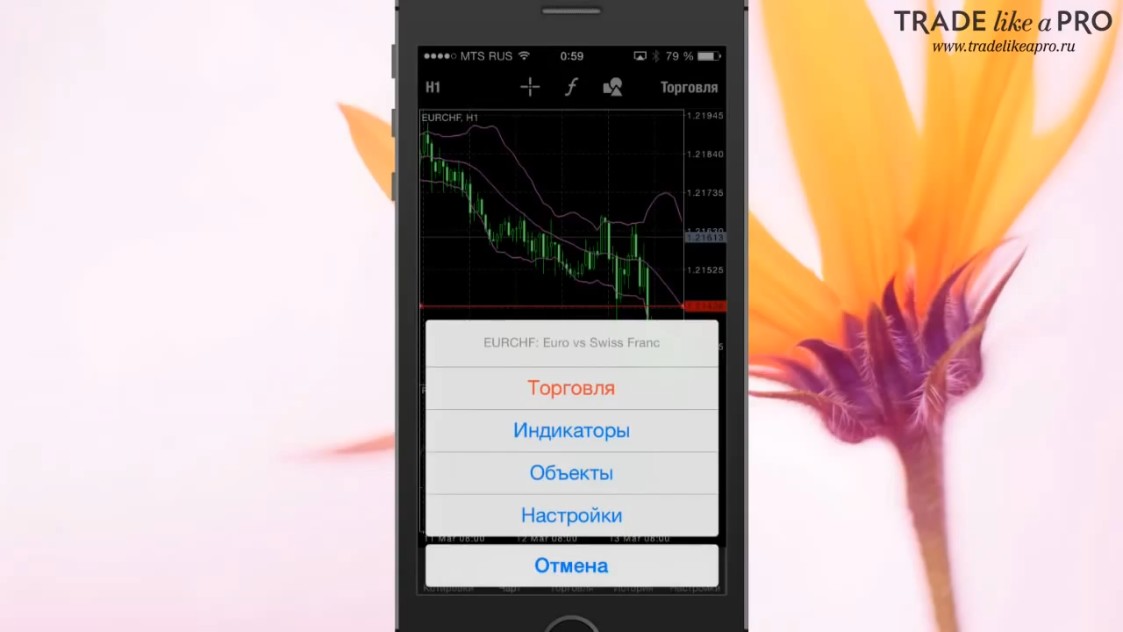
If you select the “Objects” field, you will be able to remove the line you do not need.
To delete it, you need to swipe left on this layer and press the delete button:
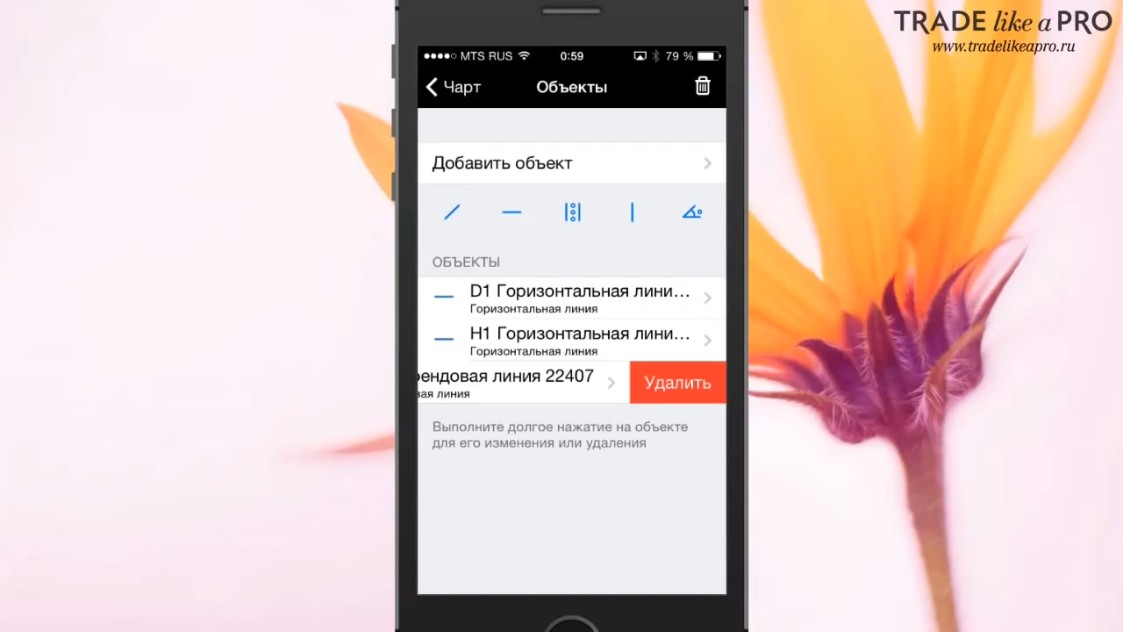
If you press the arrow on the right, then you will be able to edit the properties of this object:
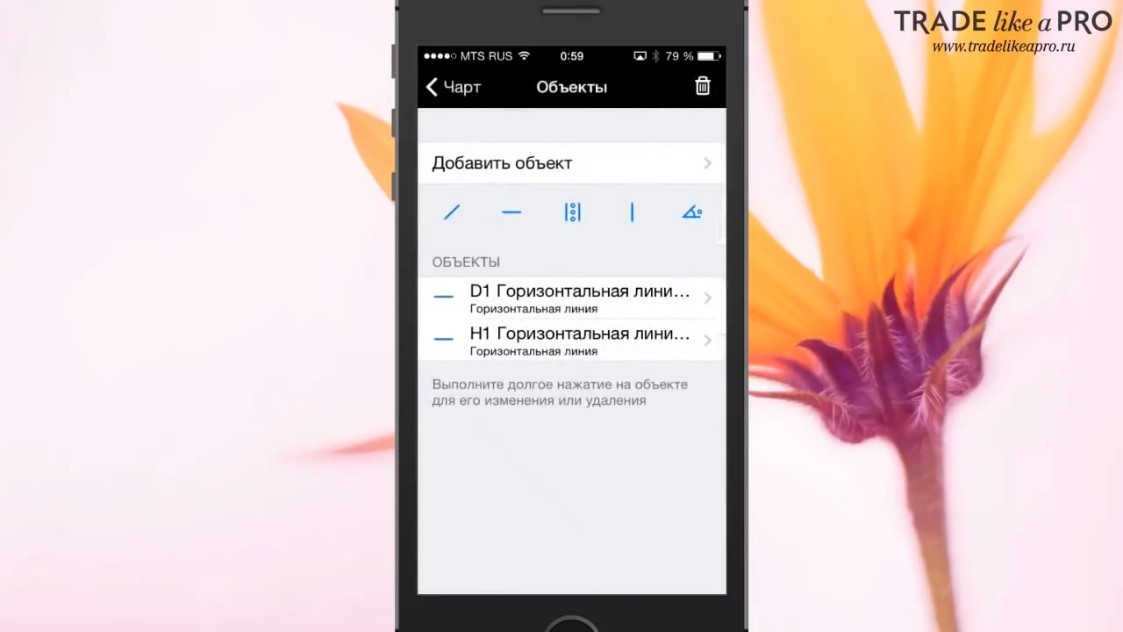
Almost the entire arsenal of graphical analysis is present in the mobile application.
To open the menu with all the objects available in this trading terminal, you need to tap “Add object”:
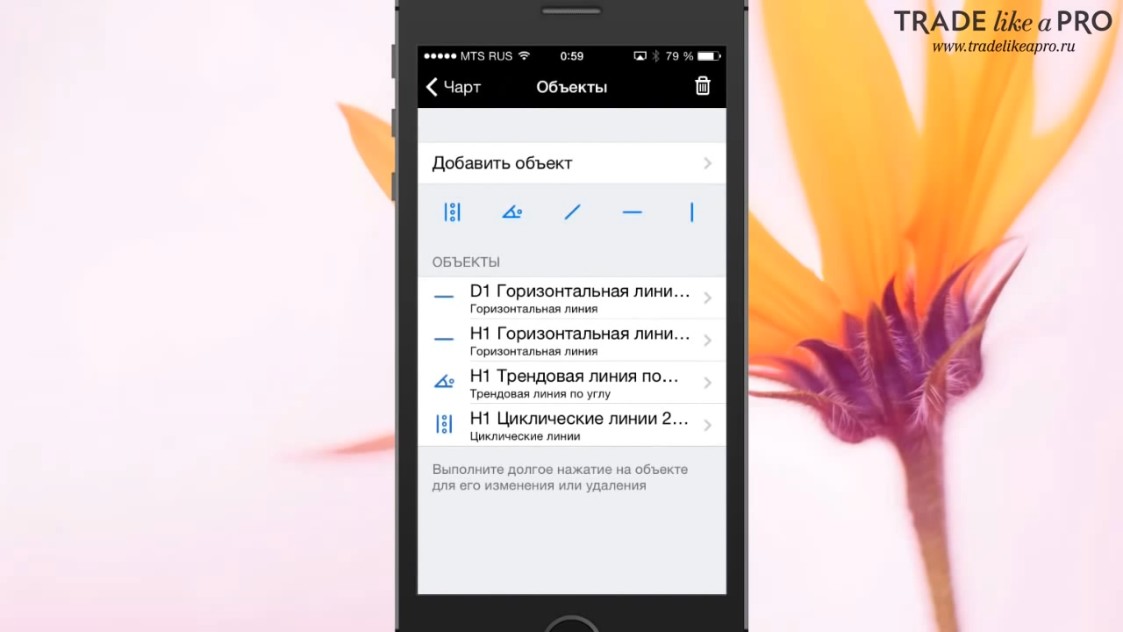
Then a menu with a rich selection of various graphical objects will open for you:
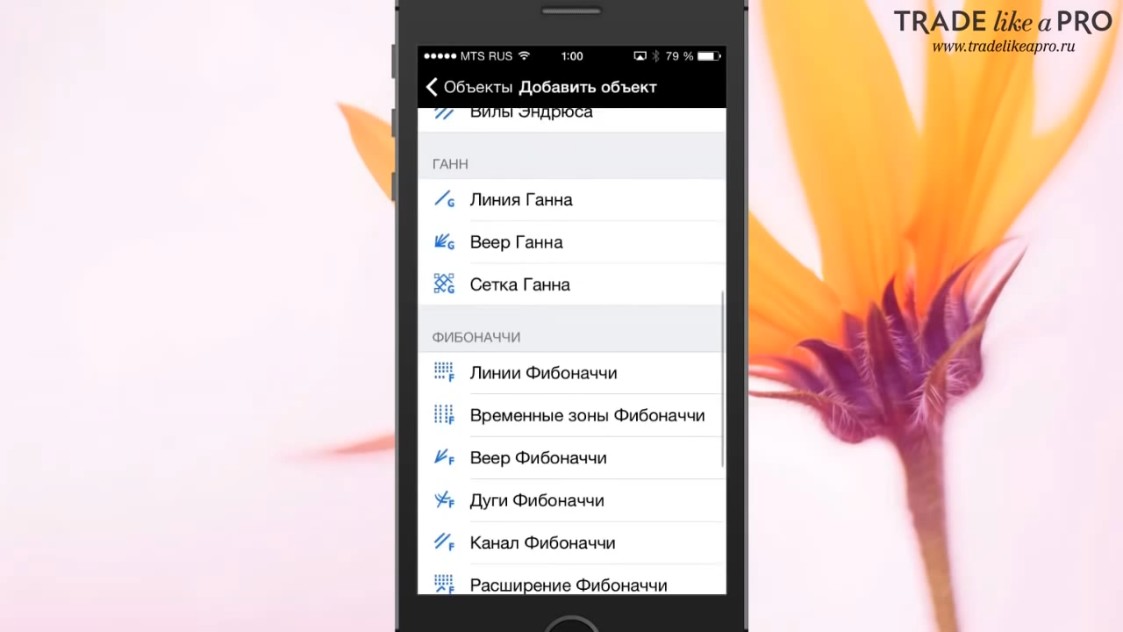
If you wish, it is possible to turn your chart into a Christmas tree. Therefore, fans of graphical analysis will remain satisfied.
Let's return to looking at the chart's capabilities.
Let me remind you that if we tap it twice, a menu will appear:
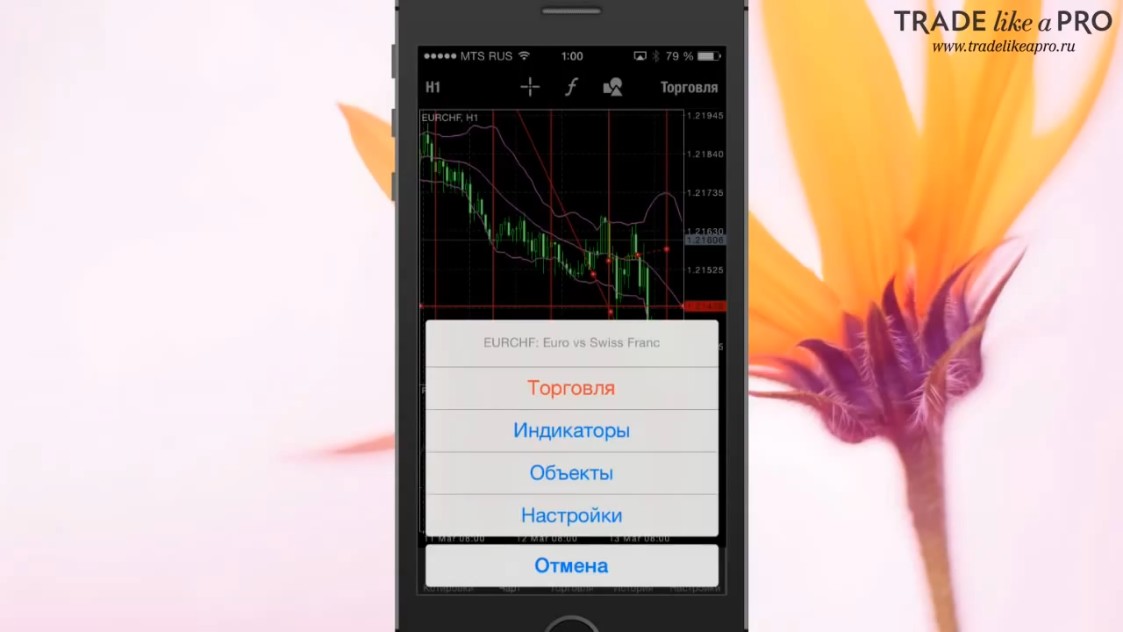
We have already become familiar with the main elements; they duplicate the functions I talked about above. But at the same time, the "Settings" tab appears here:
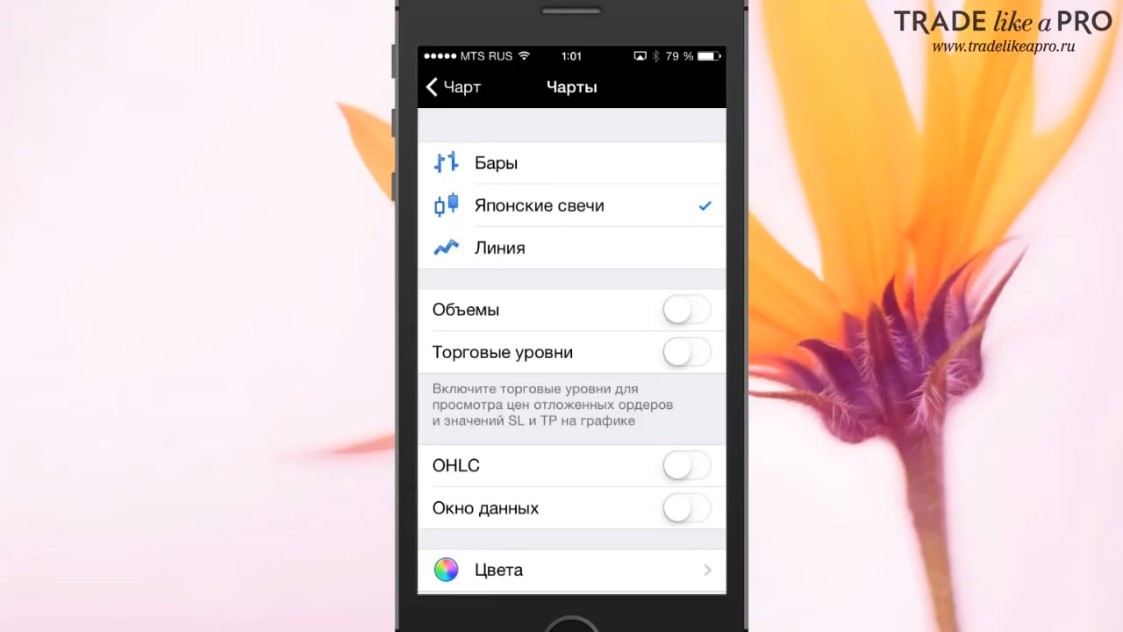
It allows you to change the appearance of the chart, enable the display of volumes and trading levels. In addition, you can choose the color of your chart and enable the data window and OHLC.
Everything is exactly the same as in the standard desktop terminal.
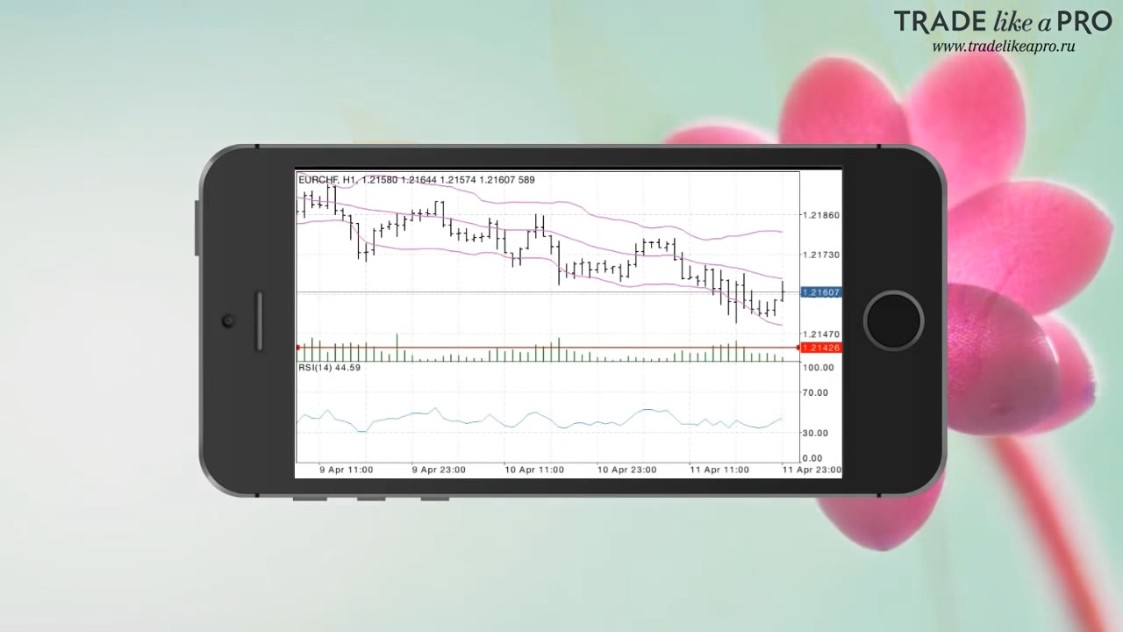
When editing the settings, you can change the appearance of the chart and get something like this:
Now let's return to the buttons at the bottom of the chart. We have already looked at "Quotes," "Chart," and "Trade" with you.
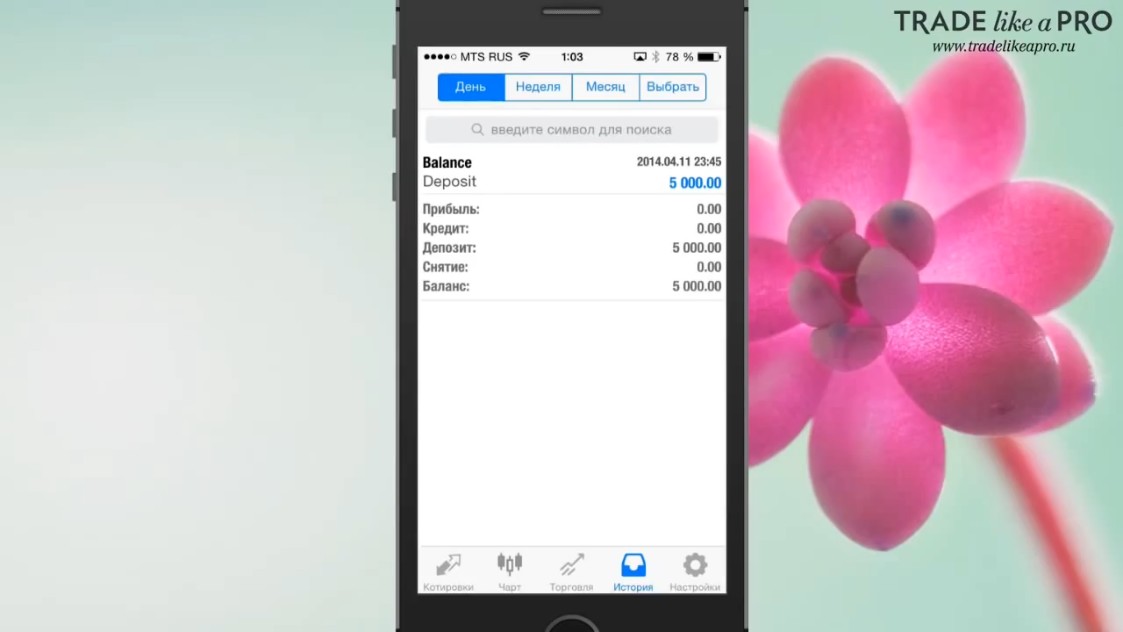
In the "History" tab, you will be able to view the history of your trades. If you close any trade, it will be displayed in this window:
And the final tab is called "Settings":
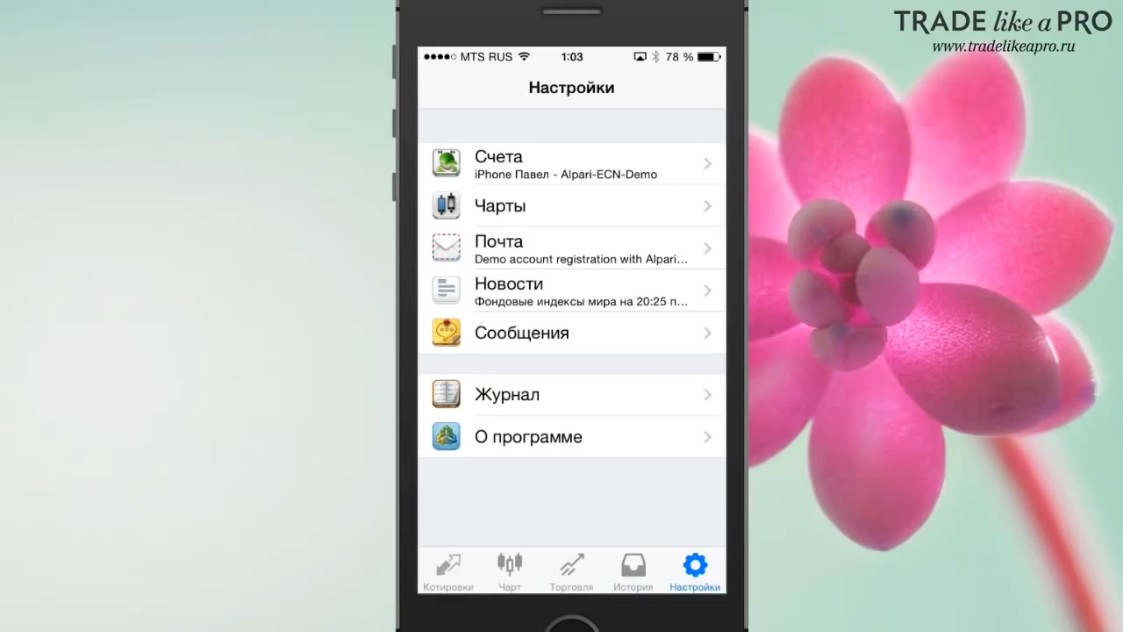
In this tab, you have the option to add and delete your accounts, set the default settings for the chart, and view mail and news. You can also receive messages from the MQL5 community. If someone uses it, then perhaps this function will be useful to you.
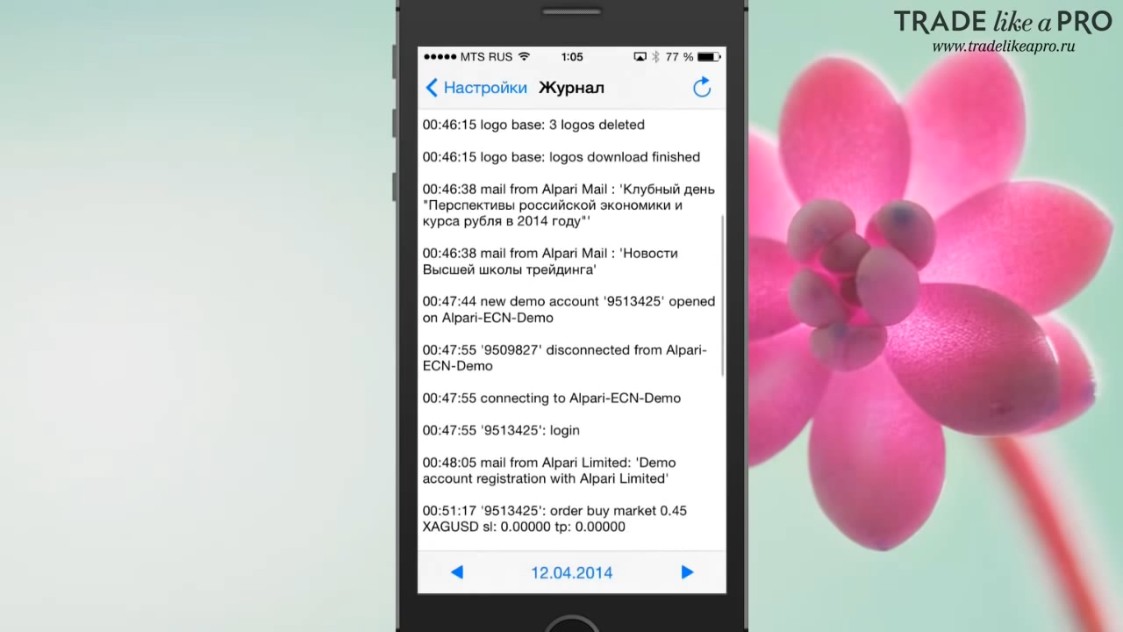
The penultimate tab is called "Journal." It is unlikely to be useful for us, because the application does not have the ability to add third-party indicators. But perhaps it will be useful for people who review information about order execution. It may come in handy when communicating with the broker's technical support.
And the final tab is "About":
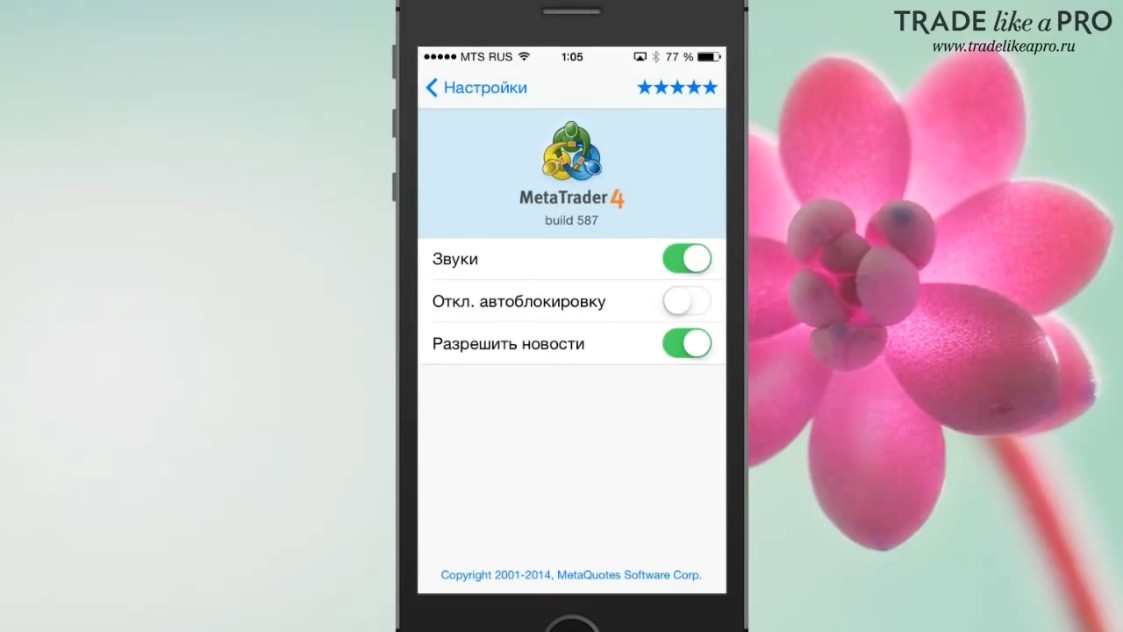
It contains additional application settings, such as turning sound and news on and off, as well as disabling auto-lock. This concludes the review of this application. I hope this article will be useful to you. Until next time, dear friends.
Sincerely, Pavel
TradeLikeaPro.ru