
Making work with pending orders convenient and comfortable

Greetings to all! As we know, starting from build 500 in Metatrader 4 there is an excellent one-click trading function that noticeably simplifies work with market orders. But placing pending orders is still slow and inconvenient. Those who know will understand. I myself enter trades mainly with pending orders and feel this inconvenience firsthand. Today I want to present to you an excellent utility FastOrder, which makes working with pending orders on Forex easy, fast, and comfortable!
Installation

The FastOrder utility is made in the form of an expert advisor (it will not trade by itself), so it is installed like any other trading expert. Beginners, read the installation guide.
Using FastOrder

Buttons
FastOrder consists of 6 buttons (if PLines are enabled). The definitions of all these buttons will be described below.
Pressing a button in the FastOrder system will perform the action associated with that button; nevertheless, sometimes a button appears "gray," which means that it cannot be used because there is no logical purpose for it. For example, if you have no open positions, you cannot use the "Close" button. It will be "gray."
Pending order lines (PLines):
Pending order lines. Press this button if you want FastOrder to display lines for managing pending orders. They will include an entry line with which you can open a position. The lines are described in more detail below. This button will be available only when there are no lines on the chart and no position is open. This button will not be displayed if you set the Show Pending ("Show pending orders") setting to "False".
Market order lines (Lines):
Press this button if you want FastOrder to display lines for opening positions for a market order. This button will be available only when there are no lines on the chart and no position is open.
Hide:
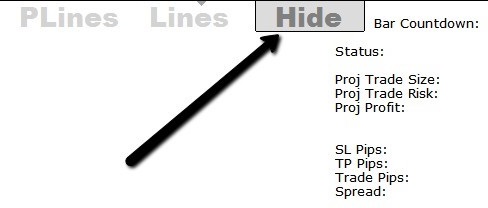
Press this button if you want to hide the pending order lines (PLines) or market order lines (Lines) on the chart. This button is available only when pending order lines (PLines) or lines (Lines) are enabled on the chart.
Buy:
Press the Buy button if you want to open a buy order. If pending order lines (PLines) are active, you will be able to open a pending order. If lines (Lines) are active, you will be able to open market orders. If the lines are not active, you will open a market order with TP (Take Profit) and SL (Stop Loss) lines set to ATR values. This button is available only when pending order lines (PLines) or lines (Lines) are enabled on the chart, and the lines are in the correct order to open a buy position (TP > Entry > SL )
Sell:
Press the Sell button if you want to open a sell order. If pending order lines (PLines) are active, you will be able to open a pending order. If lines (Lines) are active, you will be able to open market orders. If the lines are not active, you will open a market order with TP (Take Profit) and SL (Stop Loss) set to ATR values. This button is available only when pending order lines (PLines) or lines (Lines) are enabled on the chart, and the lines are in the correct order to open a sell position (SL > Entry > TP ).
Close position:
Click Close if you want to close an open active position or a pending order. This button will be available only if there are open positions or pending orders.
Managing Lines
FastOrder lines can sometimes be confusing. It is recommended to have no more than three active lines at the same time (not counting any lines you have marked yourself). If you set the Show Legend parameter to “True”, you will see the line labels in the upper-left part of the chart. After using FastOrder for a short period of time, they will all become familiar to you.
When you click the pending order button (Pending Lines), you will see a TP line (blue by default), an SL line (red by default), and an entry price line (pinkish-purple by default).
The lines are arranged in the following order: the TP line is above, and the SL line is below the entry line, which is located in the middle. This is the correct line configuration for opening a long position (buy). For the correct line configuration when opening a short position (sell), you will need to swap the positions of the TP and SL lines. To do this, select the TP line , then click and drag the TP line to the desired place. Select the SL line, then click and drag it to the desired place. Select the entry line, click on it, and drag it to the desired place. Now you can press the Buy or Sell button and open a pending order using the levels you selected.
The Buy button will be active only if the TP line is above the entry line and the entry line is above the SL line. The Sell button will be active only if the SL line is above the entry line and the entry line is above the TP line. The order size will correspond to the percentage of your trading account you selected. After the order is executed, the lines will disappear, and you can use the standard functions in MT4 to manage the stop-loss and take-profit.
Activating the Lines button (market lines) works in a similar way, except that there is no entry line for pending orders. After moving the TP and SL lines to the desired places, pressing the Buy or Sell button will open a market order at the current market price with the TP and SL levels you set and the selected lot size. Again, the Buy button will be active only if the TP line is above the current market level and the SL line is below the current market level.
The Sell button will be active only if the SL line is above the current market level and the TP line is below the current market level. After the market order is executed, the lines will disappear.
Whenever the lines are displayed, pressing the Hide button will hide the lines.
You can close an open position or a pending order at any time by pressing the Close button. This is also confirmed in the dialog box (the confirmation can be disabled)
If your lines have “disappeared,” you can simply press the Hide button at any time, and then press the corresponding Lines button again to display your lines.
Description of FastOrder Settings

- Risk Percentage - This is the percentage of your total account that you are willing to risk in a single trade. FastOrder automatically calculates the order size based on the risk percentage you selected. It is recommended to set it from 1% to 3%.
- Show Pending - If you do not use pending orders, select “False” to hide the pending order lines “Plines”. If you select “True”, the “Plines” button will always be displayed at the top of the chart.
- Confirm Orders - If you select “True”, a pop-up window will be shown before each order is opened to confirm the order you are opening (this prevents accidental order openings). The “False” option lets you skip confirmation and open a position immediately when you press the “Buy” or “Sell” button.
- Bar Count Down - Setting this to “True” will display a countdown timer until the current candle closes on the current timeframe.
- Display Status - It will display the status of pending or market orders in the right corner of the screen; here you will be given information about potential risk and potential profit.
- Show Legend - Setting this to “True” will display labels for the trade management lines; in the upper-left corner of the chart you will be shown the prices at which your lines are currently placed.
- Magic Number - This is the number FastOrder uses to track your orders. It is recommended to leave the default number (11175875) unless it conflicts with other expert advisors (if you use them).
Download the FastOrder Utility

Discussion on the Forum
Respectfully, Pavel Vlasov TradeLikeaPro.ru