
How to Test an Expert Advisor in the MT5 Tester

Before sending an expert advisor to a live account, you need to find out: does it even make sense? After all, many forex robots are designed solely to be sold to gullible fools. One of the first stages of checking an expert advisor for professional suitability is running it in the strategy tester.
During testing, the expert advisor is run through historical data, processing each quote and making virtual transactions just as it would in the real market. In essence, the tester shows how the robot would have traded in the past. We already have an instruction on testing experts in MT4, so we prepared a similar one for the newer terminal - Metatrader 5.
The MT5 trading platform is a powerful tool for developing, testing, and debugging automated trading strategies. The main feature of the MT5 tester is that you can test strategies that work simultaneously on several symbols.
MT5 does not support robots written for MT4, and vice versa: MT4 does not support expert advisors for MT5.
Setting Up the Strategy Tester

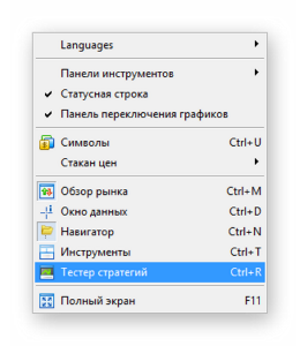
To launch the tester, go to the View - Strategy Tester menu, or open the tester window with the Ctrl + R key combination.
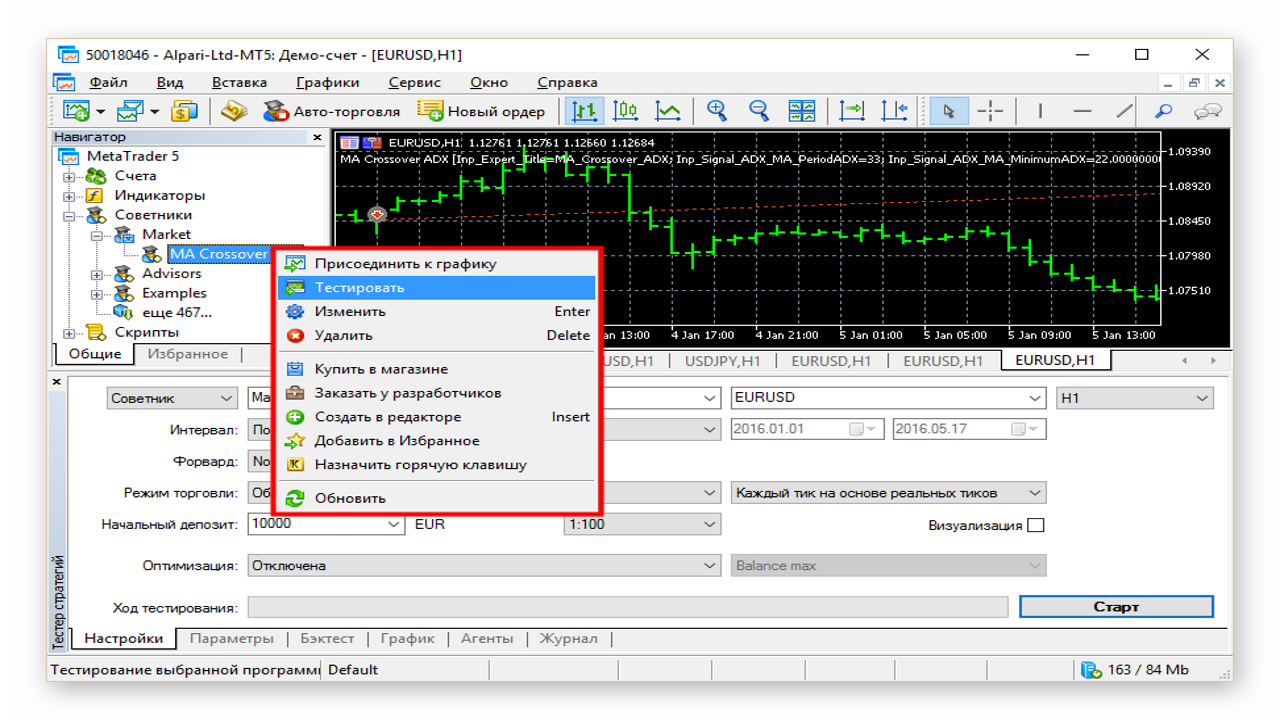
You can also select a strategy from the Navigator window and, after opening the context menu, click the "Test" item - the expert advisor will be selected in the strategy tester.
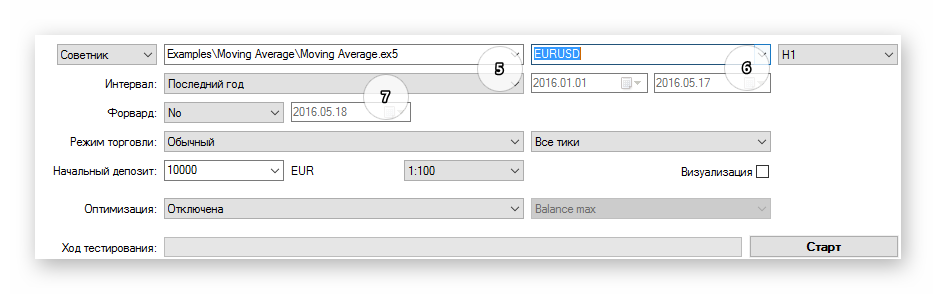
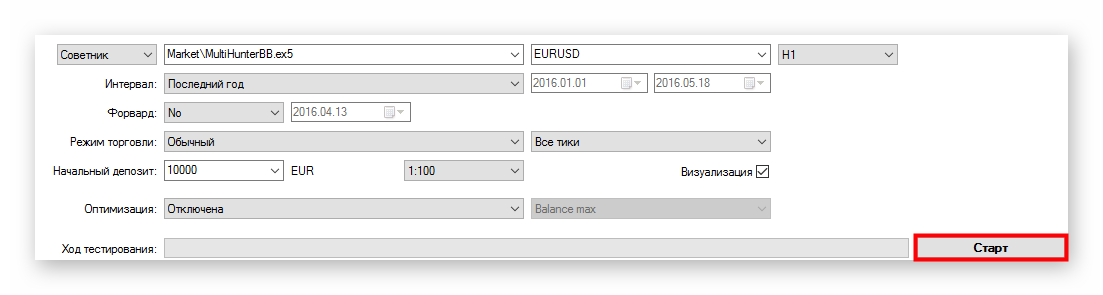
- In the drop-down list, select the expert advisor test (the tester also supports visual indicator testing);
- Next, select the expert advisor or indicator that we are going to test. Custom expert advisors are stored in the Advisors section, examples supplied with the terminal are in Examples, and advisors downloaded from the store are in Market;
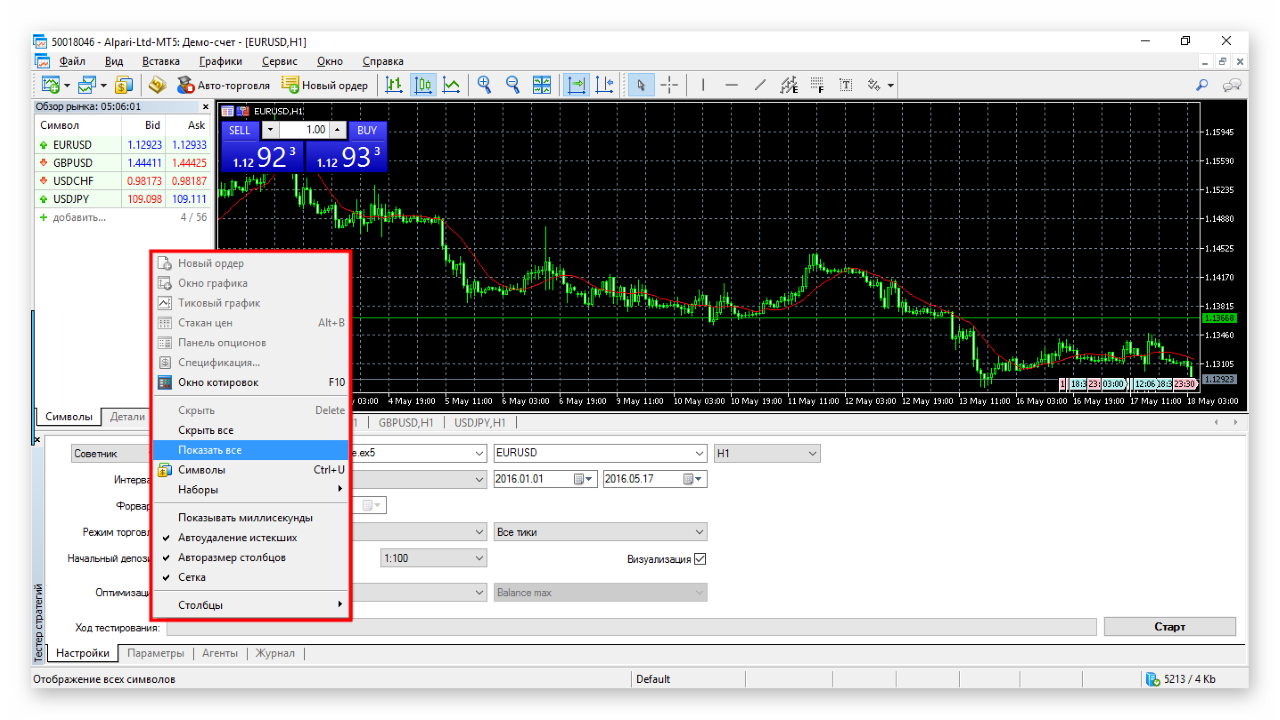
- Here we choose the trading instrument on whose historical quotes we will conduct the test. If the required symbols are not in the list, check the Market Watch window. To display all available symbols, open the context menu with a right-click and select "Show All";
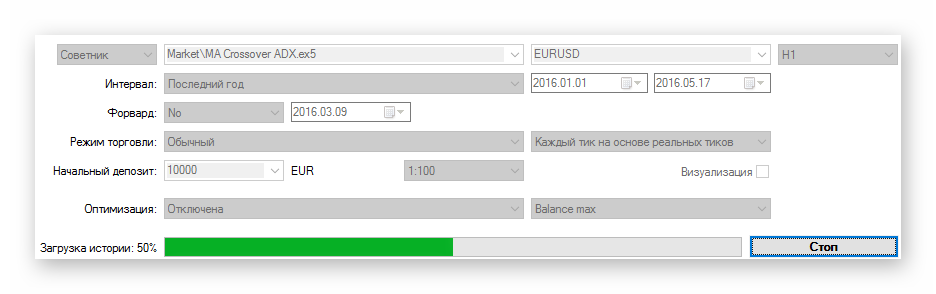
 Before starting the test, the tester automatically downloads all the necessary history, so you do not need to worry about it yourself. Downloading the history may take some time, but on the next launch only the missing data will be downloaded.
For the strategy tester in MT4, it was necessary to load the history manually. In MT5 this problem has been solved. Everything is downloaded automatically.
- Next, choose the timeframe for the test. MetaTrader 5 supports 21 timeframes: from one minute to one month;
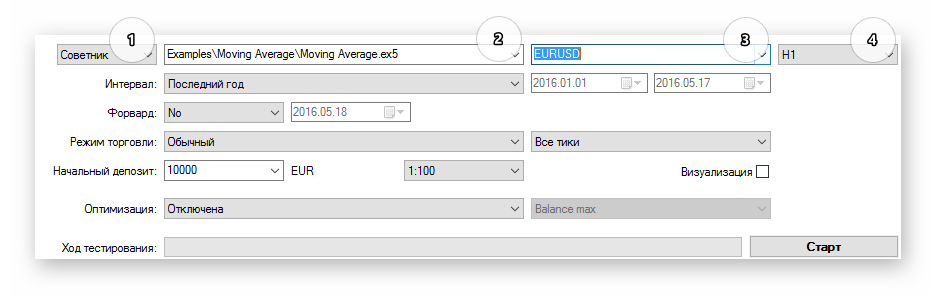
- After selecting the timeframe, you need to decide on the testing period. You can choose one of the preset options: all available history, the last month, the last year, or your own period;
- Here you can manually specify the exact start and end date of the test, right up to today;
- To avoid "curve fitting," you can specify an additional forward period (for a standard expert advisor test, without selecting settings, you will not need this). Suppose you selected the optimal parameters for an expert advisor in a test for the current year, up to today's date. In this case, there is a non-zero probability that the selected parameters will work only within the tested period, and in the future the results may differ greatly. For an additional check, you can split the test period into 2 parts: a backtest and a forward test. A forward test is a period of rerunning the expert advisor, say, the last quarter of the entire test. In the MT5 tester, you can choose a forward period of one half, one third, or one quarter of the test duration, or choose your own start date. That is, in the first time segment you optimize the parameters of the expert advisor, and in the second you carry out repeated testing with the same parameters. If during forward testing the strategy results differ radically from the results of the previous test, then the selected parameters are unstable and such an expert advisor cannot be used on a live account;
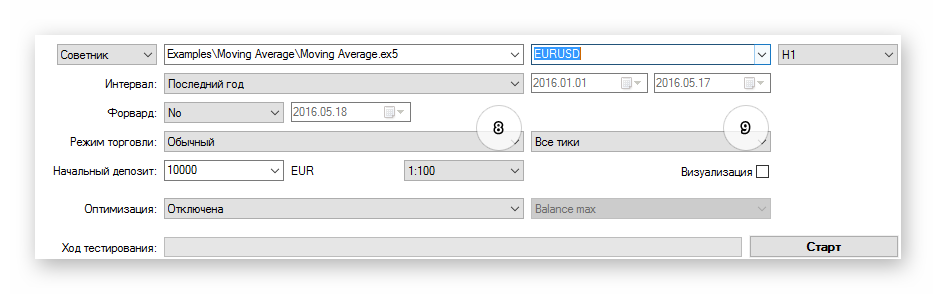
- At the moment, two trading modes are available: normal and random delay mode. Normal mode provides ideal execution without requotes and slippage. Random delay mode allows you to test the expert advisor in conditions close to real ones. For this, a delay in order execution is set randomly, in 90% of cases up to 8 seconds, in the remaining ten up to 18 seconds. A small remark: such delays are unrealistic in the market, but if your expert advisor can cope with them, then it is really quite good.
- Next, you have to choose the method for generating tick data. In the " All ticks " mode, tick data is modeled on the basis of minute history. This is a fairly accurate method, especially when there is no possibility of testing on real tick data. If the strategy sends high-frequency requests or uses ultra-short targets, the testing results in this mode may differ somewhat from the real ones. In this mode, only the average spread value during the M1 bar is modeled;
- The next mode, " Every tick based on real ticks ", allows you to test automated strategies on real tick data downloaded from the broker's server. You do not need to download anything yourself, the tester does this automatically before the test begins. Since real prices are used in the test, this is currently the most accurate method for testing strategies. In particular, testing accuracy is ensured by the real floating spread. Tick data can take up a substantial amount of disk space, so before starting the test, wait for the history to finish loading;
- " OHLC on M1 " means testing on M1 history using only the opening, high, low, and closing price levels. When testing an expert advisor in the "Open prices only" mode, only the opening prices of bars are used;
- The last mode, " Mathematical calculations ", disables automatic history downloading and tick generation. This method can be used to select expert advisor parameters.
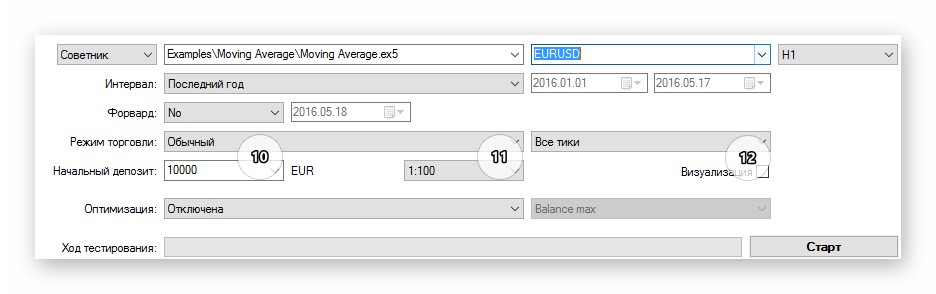
- The deposit size should be specified based on your real risk capital and the money management of the strategy itself. That is, there is no point in choosing a 100,000$ deposit if you do not have a 100000$ deposit;
- Choose the leverage size;
- Visualization mode allows you to clearly evaluate the expert advisor's operation on historical data - all trades will be displayed on the chart. We will return to this function a little later. We will talk in more detail about optimization in MT5 in our next lessons.
- All that remains is to press the START button and the test will begin.
Test Visualization

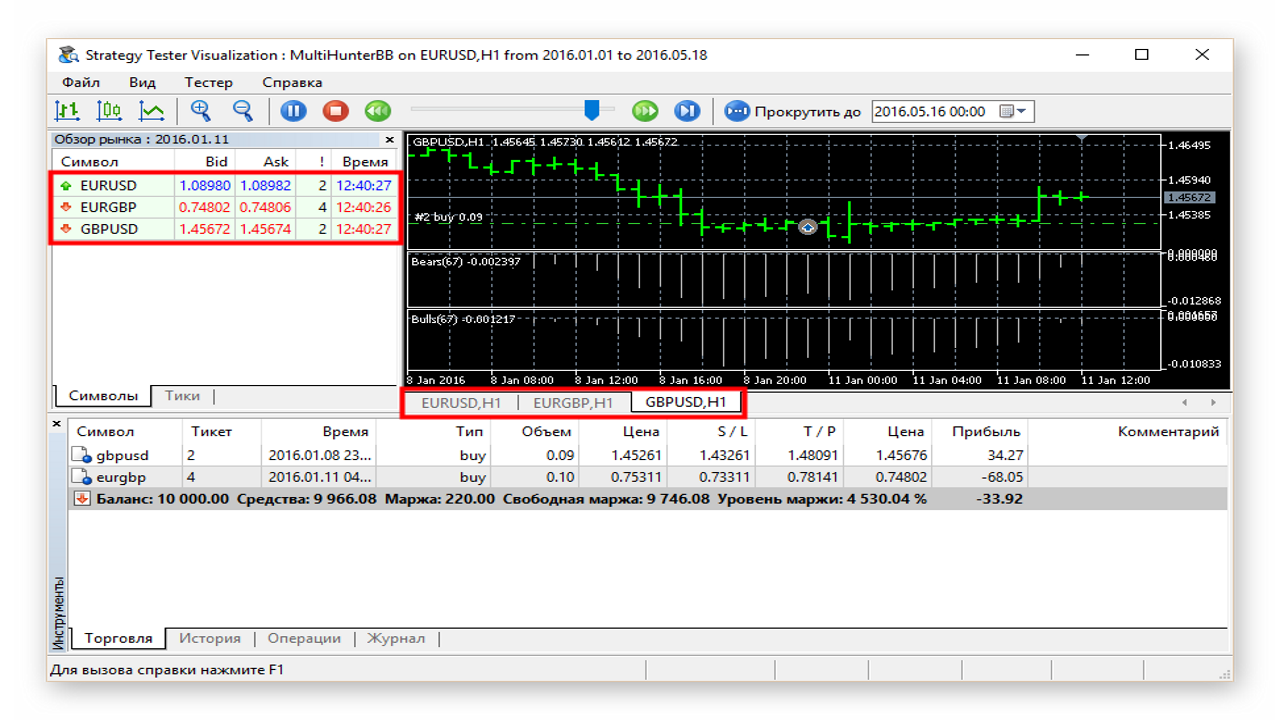
Visualization should be used when a regular test may be insufficient and a visual assessment of the expert advisor's work on the chart is needed. When this function is activated, the visualization will open in a separate application, in a new window. In terms of functionality, the visualization window almost fully matches the trading terminal interface. Before starting, make sure that optimization is disabled, since the visual test works only for single runs.
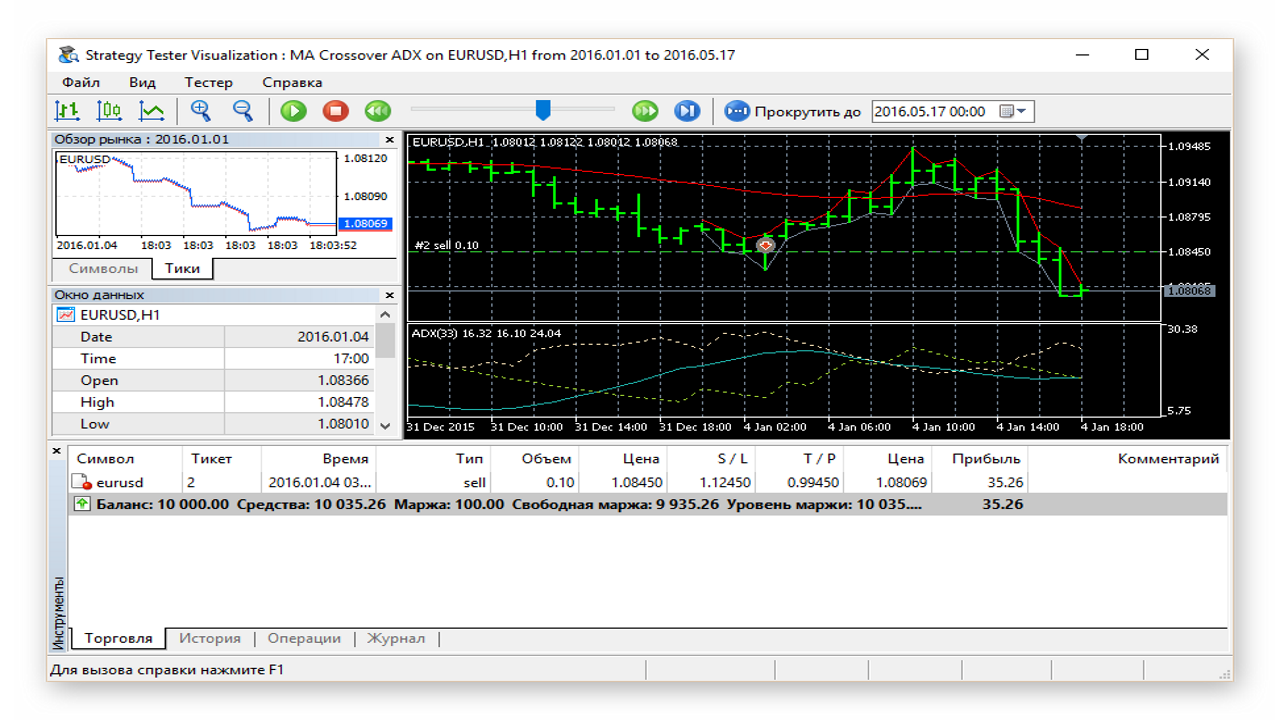
On the top toolbar, you can configure the display style of price data, change the scale and testing speed. Information about current prices is available from the Market Watch window, and all instruments participating in the calculation are displayed there as well. Using the values in the Data window, you can check the indicator's operation on history. In the Toolbox window, you can monitor current open positions, as well as study the trading history and trading journal.
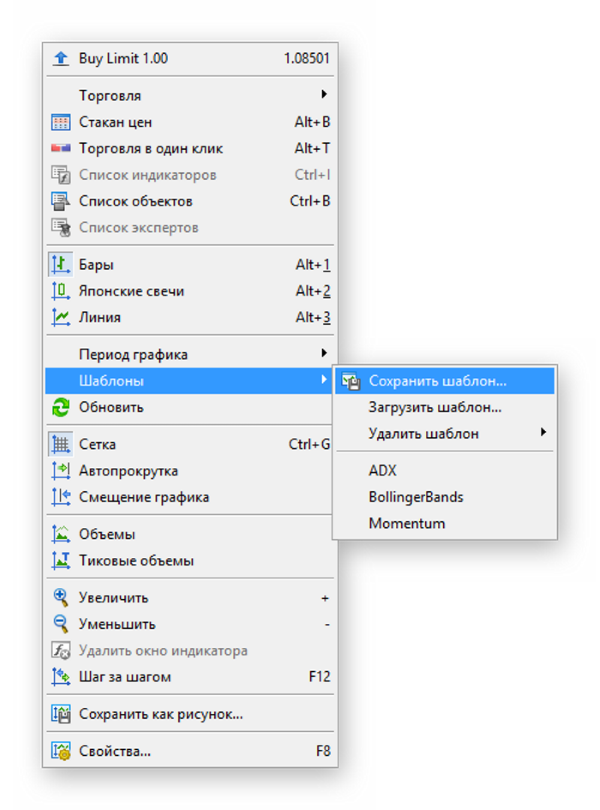
The chart itself cannot be customized, but you can use your own template. To do this, just create a chart template with the desired color scheme, attach the needed indicators or objects, and save the template under the name of the expert advisor being tested. To do this, call up the chart's context menu and select "Save Template".
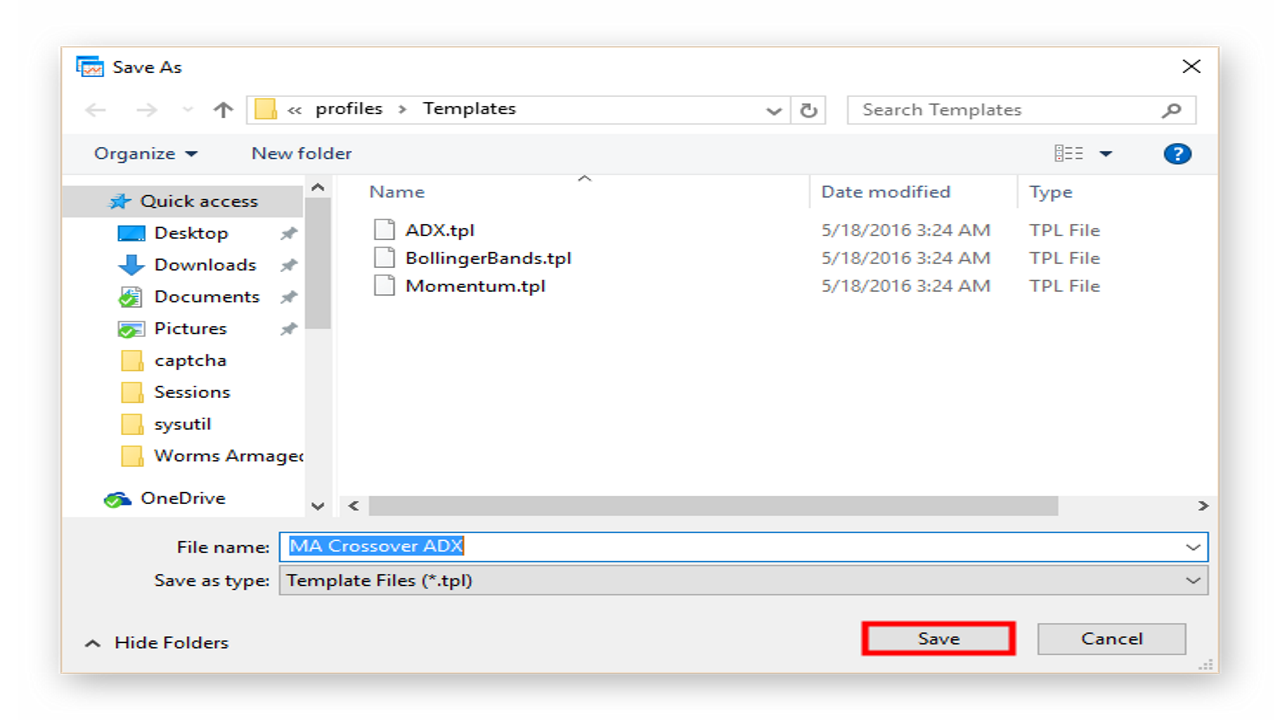
A standard file save window will open. Specify the template name and click "Save".
Testing Multi-Currency Strategies

With the advent of the MT5 tester, traders gained the ability to test strategies that trade on several instruments. It is worth considering that during multi-currency testing, symbol history is taken from the trading platform, so before testing, enable the display of the required instruments in Market Watch, open their charts, and set the monthly timeframe. By scrolling the chart to the left, the terminal will automatically download history from the trading server in the form of minute data until the maximum is reached. Unlike MT4, the predecessor of MT5, the new terminal does not support manual downloading and takes over all the work of downloading and synchronizing historical quotes.
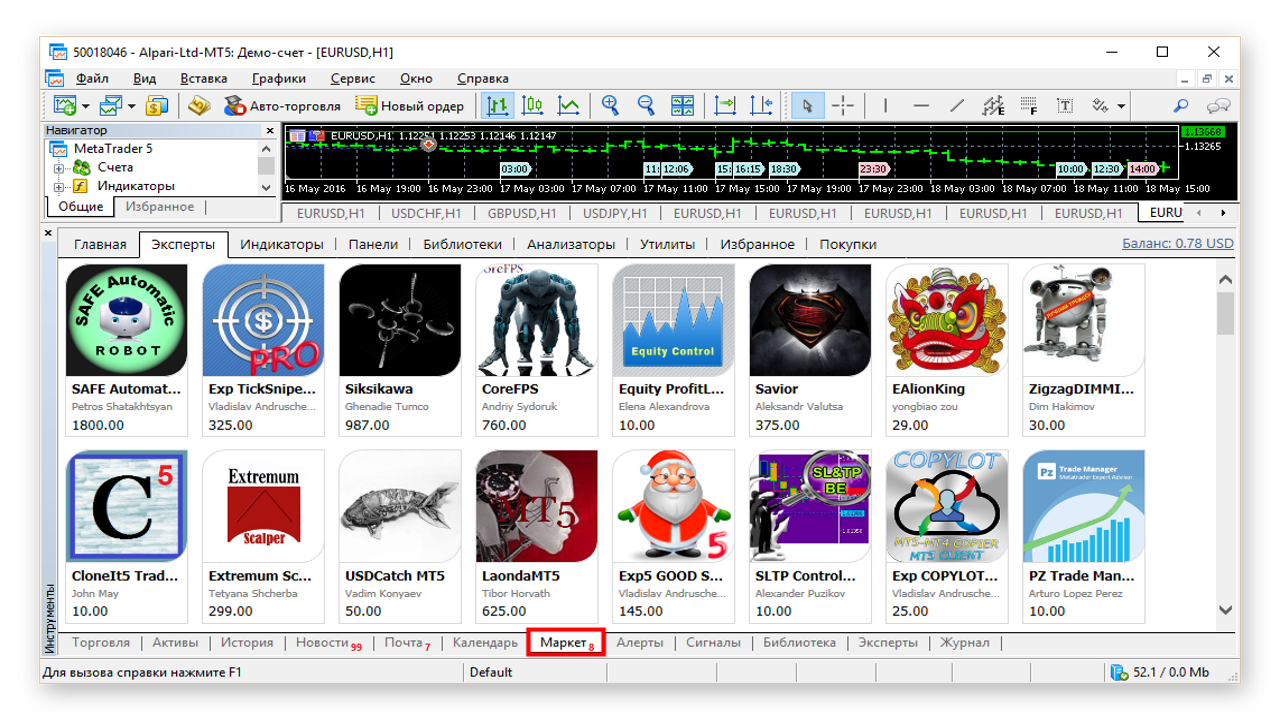
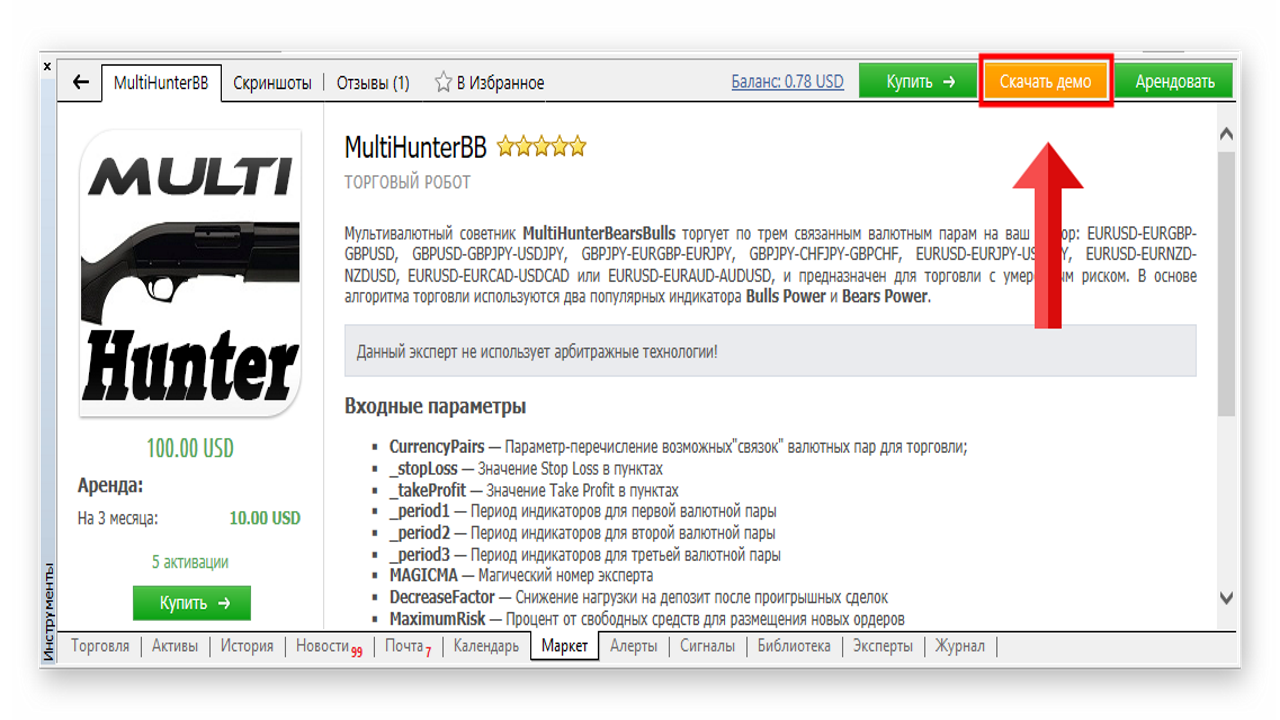
For the test, we will download a multi-currency expert advisor from the MQL5 Market. You can download a demo of the advisor from the store without leaving the terminal. To do this, go to "Tools" - "Market" and select the product you like.
On the expert advisor description page, click "Download Demo".
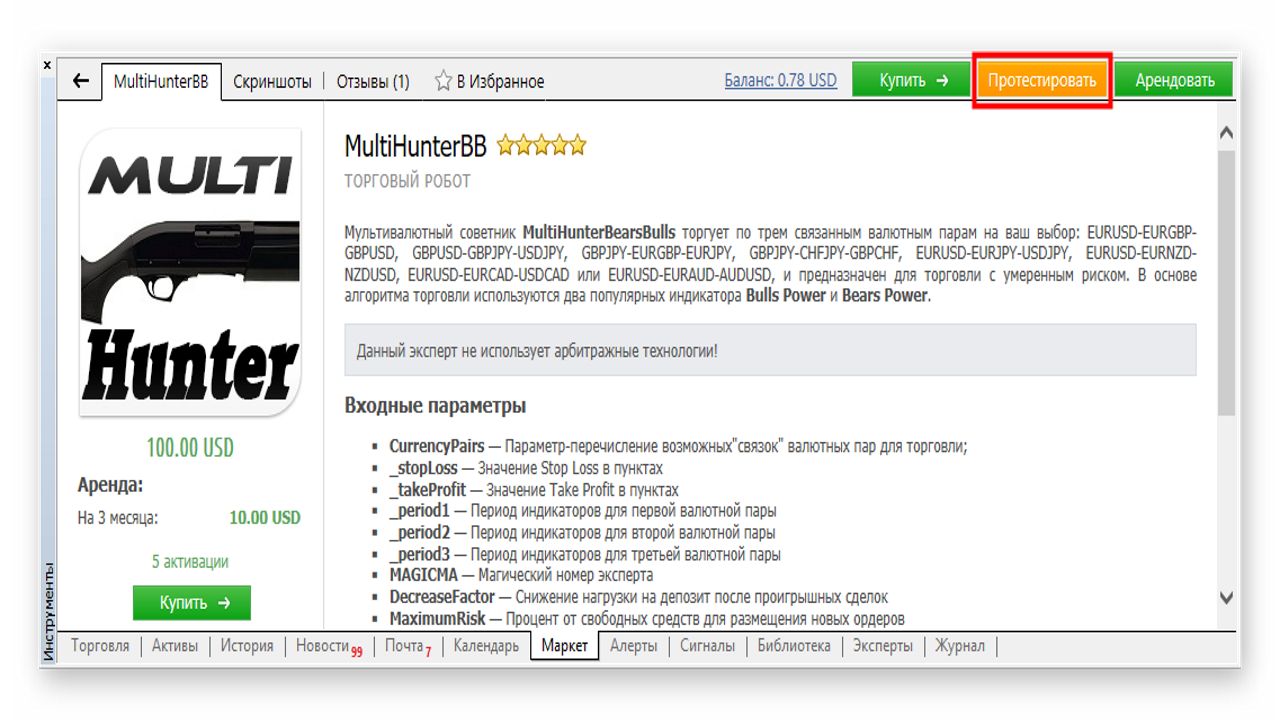
After the expert advisor is downloaded, the "Test" button will appear.
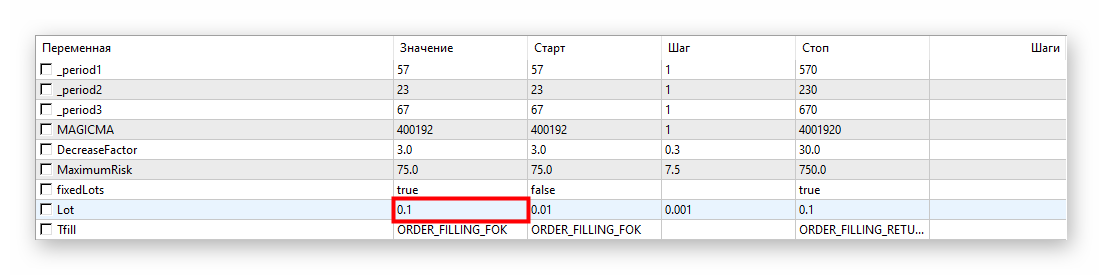
In the tester, in the "Parameters" section, select a lot size of 0.1 so that the number of dollars/euros is approximately equal to the number of points earned.
How to set up the strategy tester for testing on several currency pairs?
No way! All settings for testing on several currency pairs are located inside the expert advisor. That is exactly where they can be turned on and off, if this was originally made available in those settings. The main thing is that we mark these currency pairs in "Market Watch" and load their history, as mentioned earlier. The expert advisor will do everything else itself.
Set the testing interval (in this case, the last year), the timeframe, deposit parameters, select visualization (if you need it), and click "Start".
All instruments that the expert advisor accesses will be shown in Market Watch. The charts display the indicators used and the trade entries.
After the test is completed, the "Graph" tab will show a balance/equity graph for the tested interval. In most cases, the strategy's performance can be judged by its profitability graph. The more stable and "smoother" the graph, the better. There is no need to chase maximum profitability, the lot can always be increased. A good strategy, first of all, should have a high profit-to-risk (drawdown) ratio and a smooth equity curve.
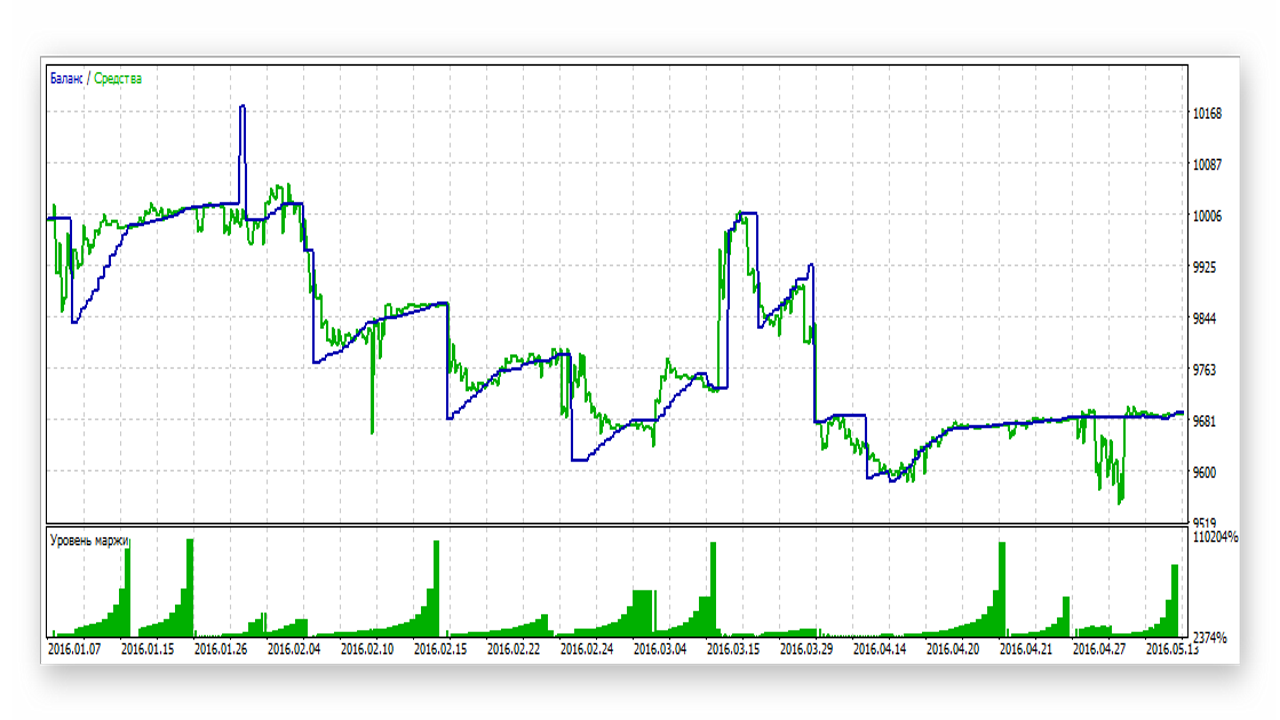
Judging by the profitability graph, this is not an expert advisor but garbage. Incidentally, like most robots in the market.
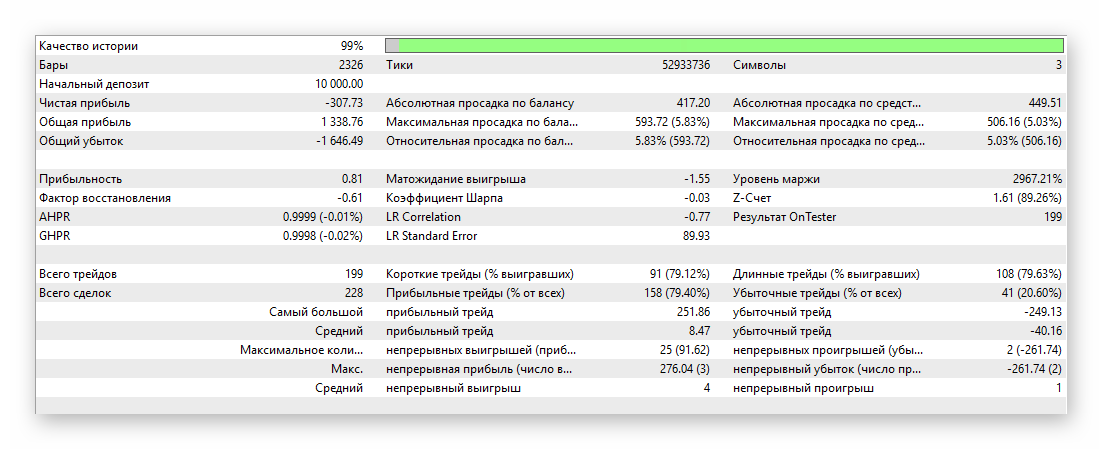
For a more detailed report, go to the "Backtest" tab.
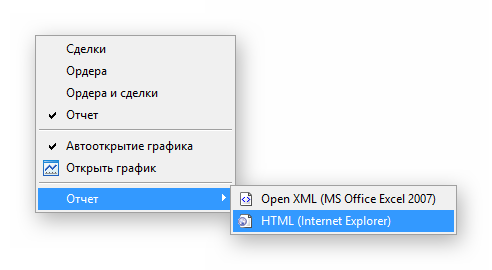
Through the context menu, you can save the report in xml markup format if you are going to study the report through an office software package, or in html for viewing the report through a browser.
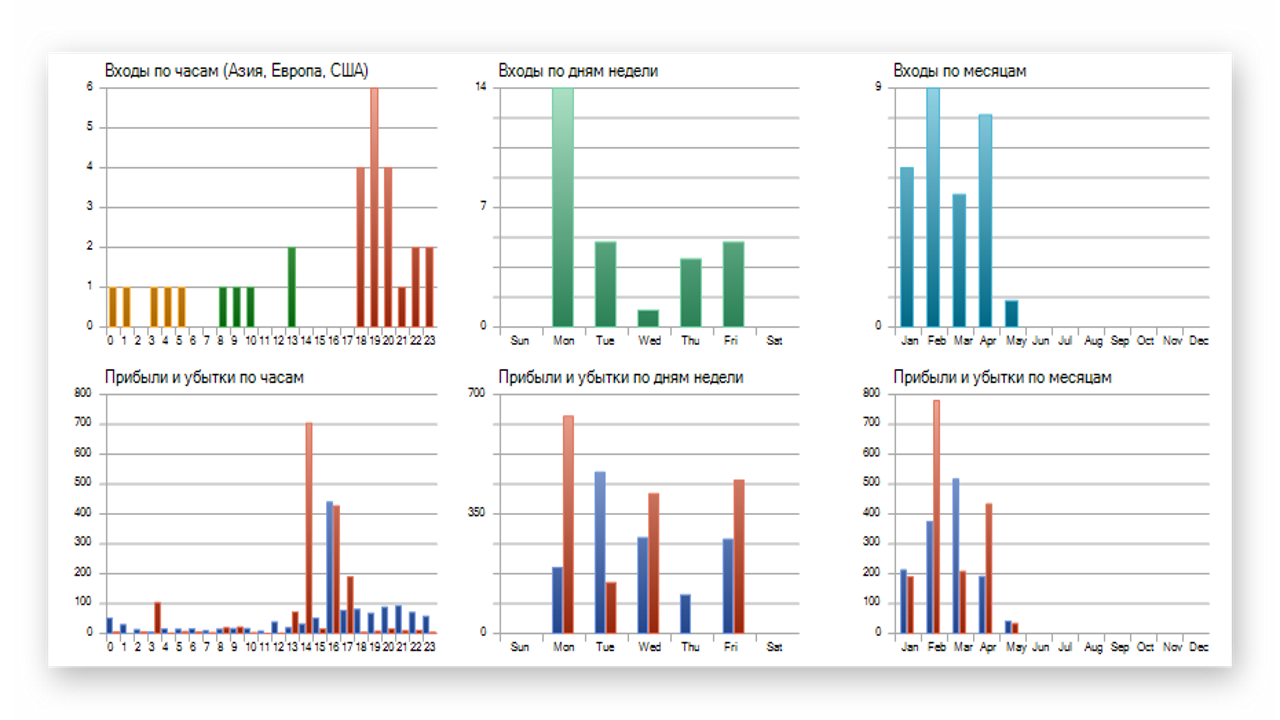
The report displays detailed charts of the distribution of trades over time. Based on the detailed report data, you can select more suitable input parameters for the expert advisor. For example, the charts show that the strategy gets its biggest losses on Monday evening, which means you can limit the expert's operating time so that it does not trade during periods of low profitability.
Conclusion

Despite the fact that the MT5 tester has come a tremendous way in its development and is currently truly one of the most powerful tools of its kind on the market, it still does not take into account many factors that appear only when testing on a live account. The test results should be perceived as a certain guideline, and definitely not as the ultimate truth.
The MT5 tester's main advantages are multi-currency trading, testing on real tick data, and cloud optimization (more on that another time). All of this allows you to quickly check a trading system before putting an expert advisor on a live account.
Respectfully, Alexey Vergunov TradeLikeaPro.ru