
How to Install a Terminal in the Cloud

Hello, ladies and gentlemen, forex traders! Today we will talk about how to create a cloud-based MT4 terminal, or move all terminal files, including settings, charts, expert advisors, and more, into cloud storage.
This is needed so that you can always have access to the terminal from any computer where cloud storage is installed, for example: Yandex Disk, Dropbox or Google Drive.
At the same time, the cloud serves as a data backup. A situation is possible when the VPS server where your expert advisors are running crashes, or any other technical failure occurs that requires a complete server reinstallation. As a result, uncontrolled open positions remain in the market and, on top of that, everything has to be reinstalled from scratch, which can also take quite a lot of time.
As a rule, when trading you have to use several devices, for example, a home computer, a laptop, or a VPS server. I think sooner or later everyone has faced the question of moving a working terminal from one computer to another or to a VPS server. At the same time, all the necessary indicators and expert advisors had to be moved, and the settings needed for trading had to be configured again. When changing any setting parameter, it also had to be changed manually on other devices. And if the terminal is installed in only one place, then until recently the ability to intervene in its trading process from another device remained difficult to accomplish.
With the cloud, you simply open your terminal, log into the account, for example from your home computer, and close all open positions. This way, you always have access to the terminal in its most up-to-date state.
The solution to the problem was proposed by our forum member isnull. Here you can read the original post. Now let us move directly to the steps.
Procedure

So, we have an installed Metatrader 4 terminal. It may be running some expert advisors, indicators, basically anything. For example, let us open an H4 EURUSD chart with a moving average and one marked level. Later, this is how we will determine that this is indeed the same terminal and not some other one.
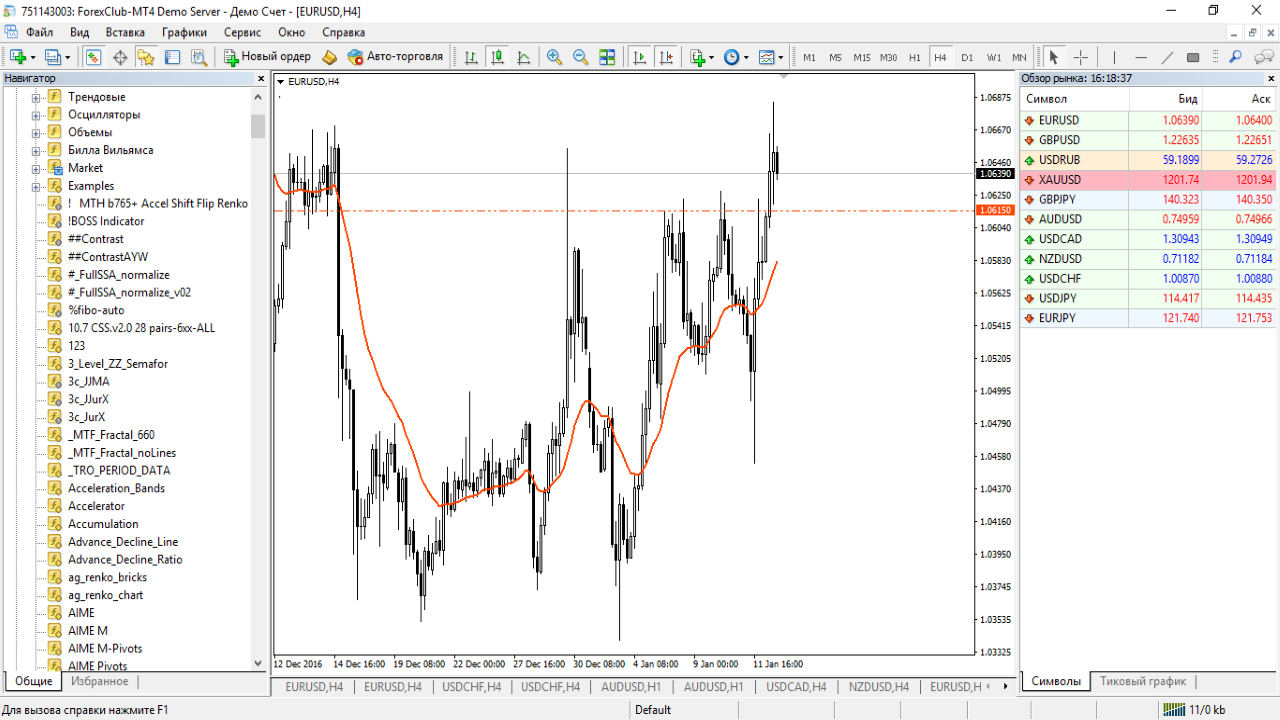
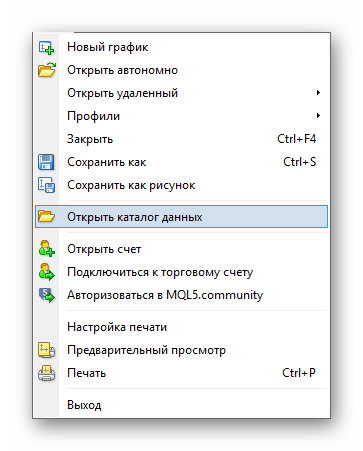
The first thing you need to do is go to the terminal data directory. To do this, go to the File menu and choose Open Data Folder.
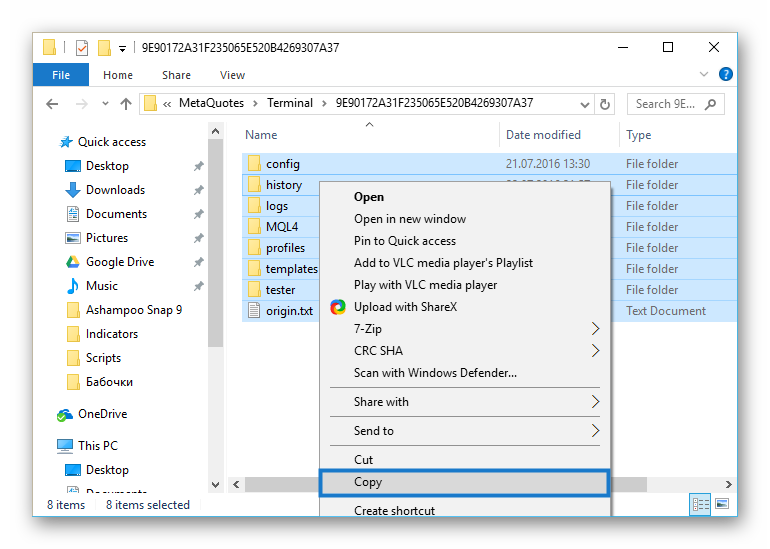
A folder with the terminal files will open. Select all files in the folder with the mouse and click “Copy.” Or choose “Cut” right away, since the files will have to be deleted later anyway.
Next, go to the directory of all programs, to the MetaTrader folder. Usually the terminal folder is located on drive C at “C:Program Files (x86) – MetaTrader 4” (the folder name may differ for different brokers).
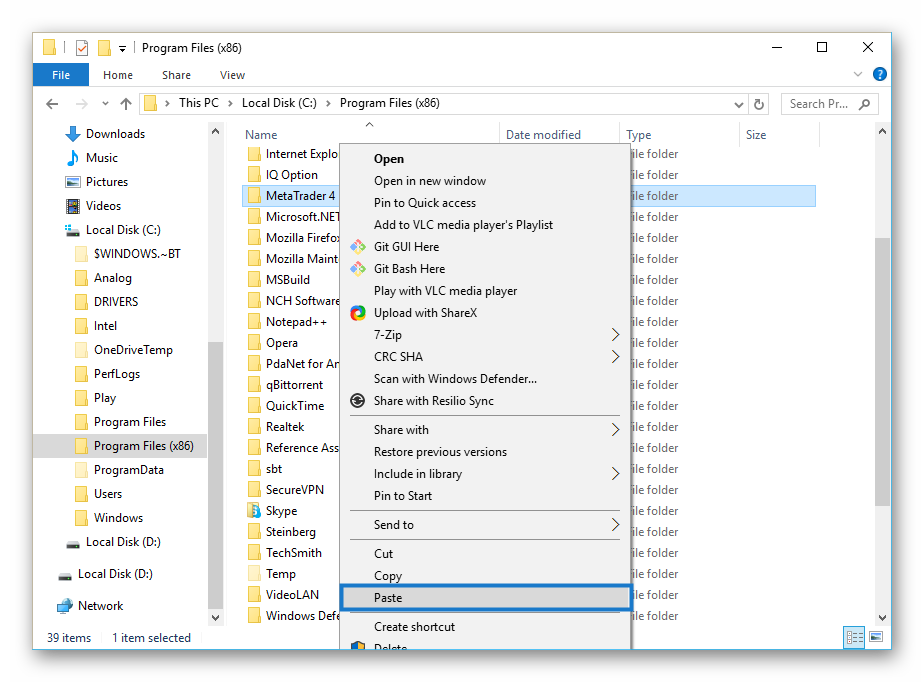
Right-click and choose Paste. If some of the files match, confirm their replacement. The files from the data directory can now be deleted if you have not done so already.
Now, go back to Program Files and copy the terminal folder to move it into cloud storage (you can cut it right away). For the example, let us use Yandex Disk.
Paste the terminal into the storage directory and wait for full synchronization with the server to complete (a green check mark will appear).
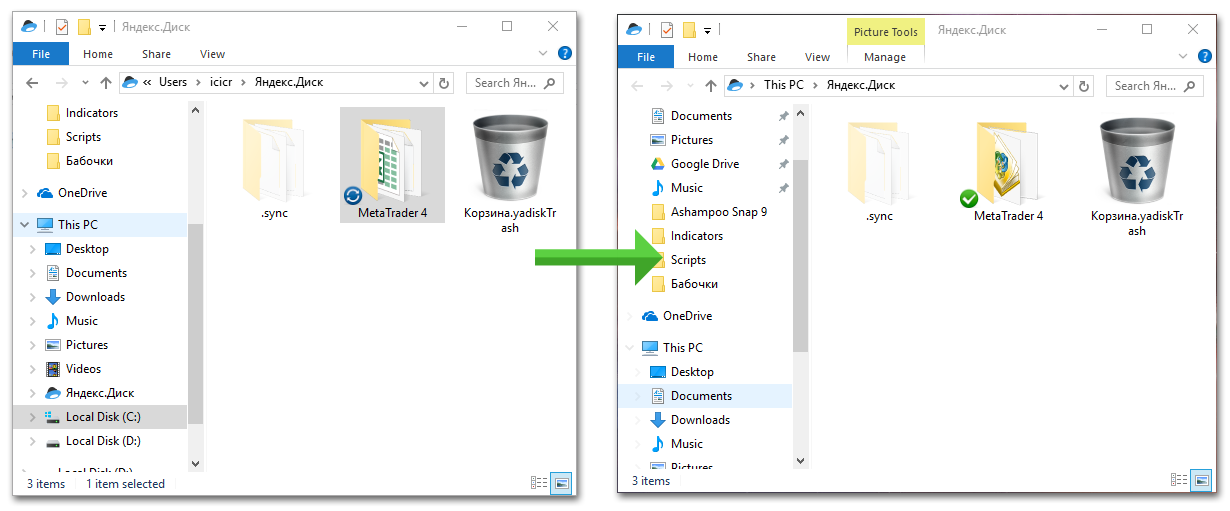
Now you can install Yandex Disk on a VPS or on any other computer and, after logging in, you will get access to the terminal in the form in which it was configured, with all accounts, charts, expert advisors, and everything else.
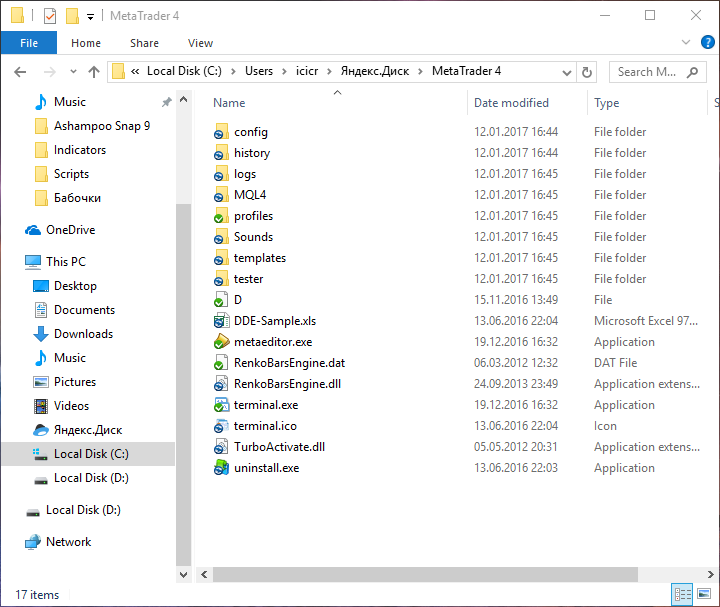
Now open the storage from another computer, go into the terminal folder, and right-click on the file “terminal.exe”. Choose Send to – Desktop (create shortcut).
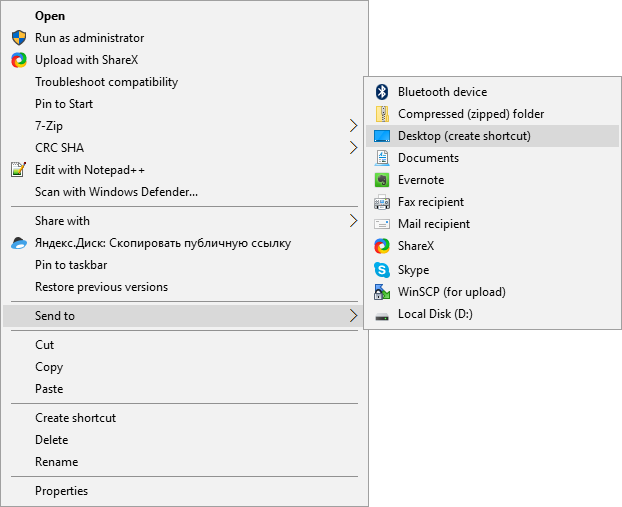
So that the terminal does not create additional directories on the computer, it needs to be switched to portable mode. To do this, go to the shortcut properties: right-click and choose Properties.
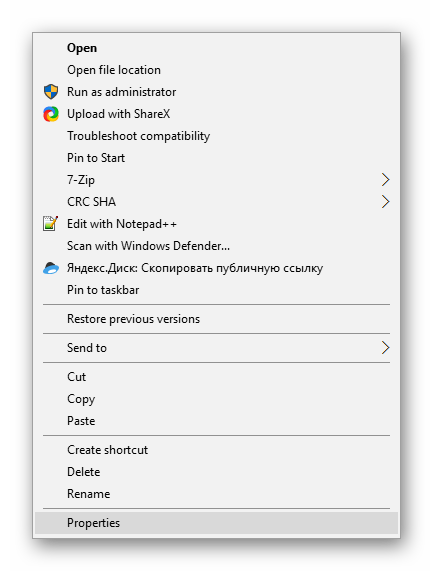
Next, in the “Object” field where the path to the terminal is specified, add the key “/portable” to the end of the line (with a space before it), then click OK.
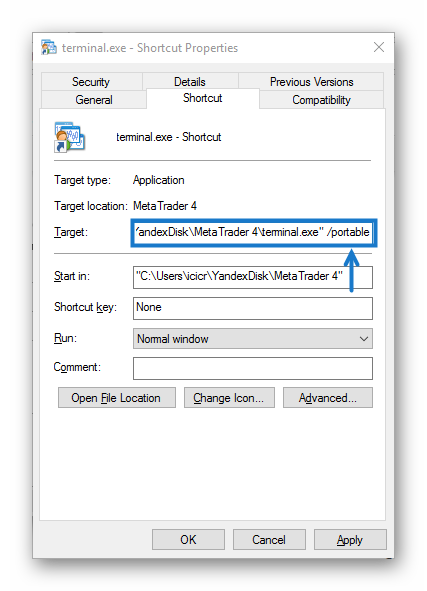
That is, the procedure is similar to installing the terminal on a flash drive. Now, if we launch the terminal via the shortcut, we will see the same trading environment, the previously added MA, and the trading level. Along with this, all indicator, script, and expert advisor files were copied.
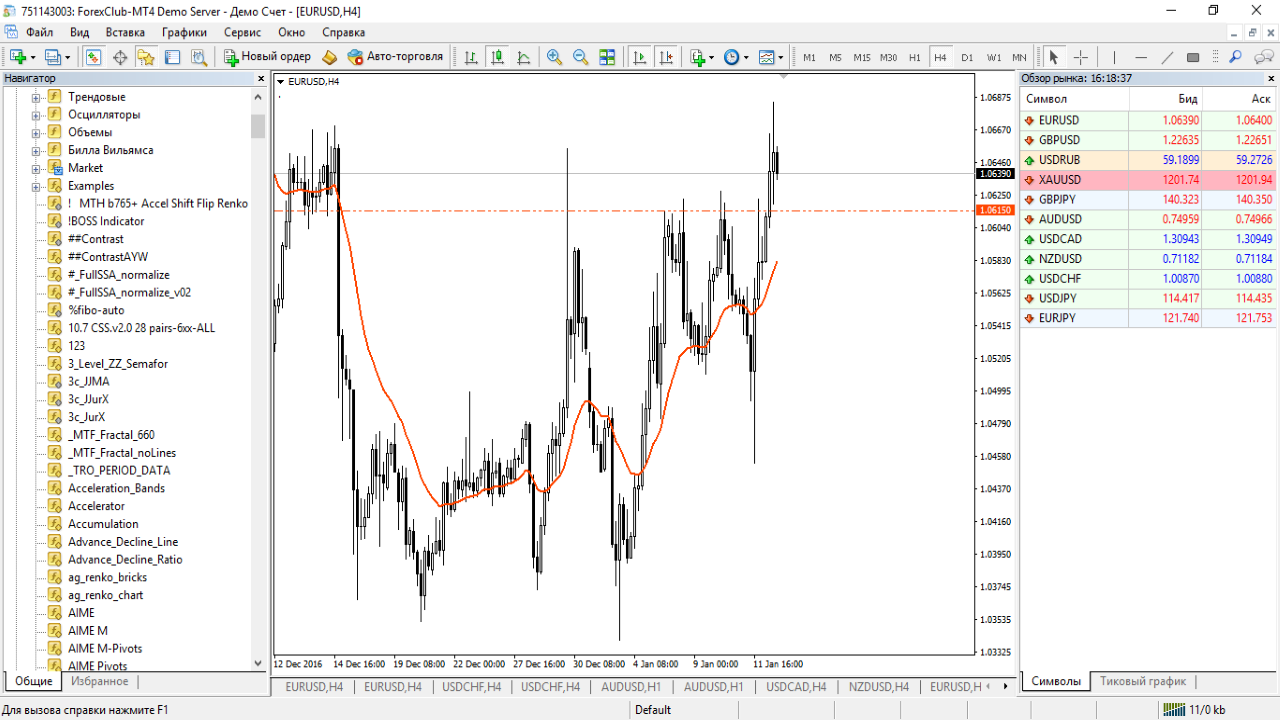
Now, if we go to the data directory, the terminal folder in the cloud will open directly.
In the same way, you can move all your terminals to the cloud. If you have several VPSs, then for convenience you can separate the terminals into individual folders, for example by creating the directories VPS1 and VPS2. This way, you can use one storage for all your terminals, with access to each of them from any VPS or computer.
Conclusion

Overall, this is a very convenient solution that, in the event of force majeure, will save you both time and money. Many people underestimate the importance of backups, which is why any unusual situation becomes a surprise. If a critical failure occurs, you will be able to restore all your work in a very short time without losing open positions or important data.
Respectfully, Pavel Vlasov Tlap.io