
FxBlue Auto Restart - a program for automatically restarting the terminal when the connection is lost
 Anyone who works seriously with forex advisors knows that losing the connection in Metatrader 4 can threaten serious financial losses. Having a good VPS server is not enough, because the terminal can lose its connection to the broker and fail to restore it. Simply because of software flaws.
In such situations, a special utility from FxBlue - Auto Restart for the terminal when the connection is lost will help. Everything is simple: if the connection disappears, the utility will automatically restart MT4 to restore it. And it will send you a notification.
Tasks and functions of the utility

The advisor is intended for automatically restoring the connection in case of a break for the MT4 platform. FX Blue monitors the connection between the MT4 platform and the broker.
When there is no connection, an alert is displayed on the monitor in MT4, and you can additionally enable sending alerts by email. The advisor can also be configured to restart the MT4 program (because of connection interruptions, this intervention is often required).
Note. If the connection with the broker disappears because there is no internet connection at all on the computer, emails will not be able to be sent. Thus, email notification is useful only in cases when only the connection with the broker disappears.
Installation

The utility consists of the following parts:
- An advisor (EA) (.ex4 file) that is launched on a chart in MT4;
- An executable program and DLL that restart the MT4 terminal;
In order to install the advisor into several terminals at once, there is an installer in the form of an EXE file.
1) Run the installer
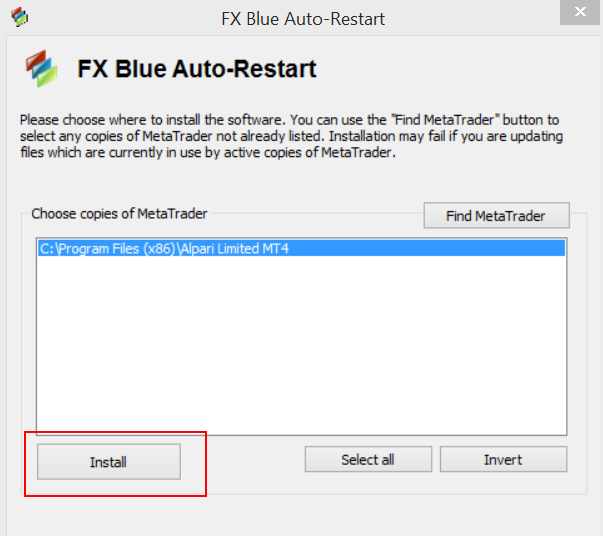
Select the required terminals, click the Install button.
2) A window appears with a notification about successful installation.
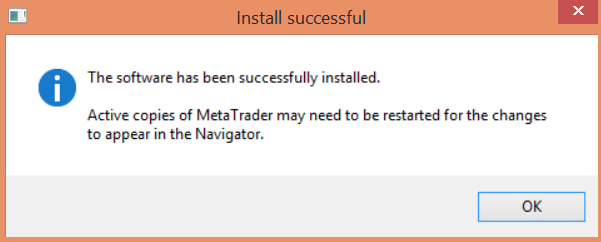
Click Ok. If MT4 was running, restart the terminal(s).
3) Starting connection monitoring
To launch the utility, you need to open a new chart (any currency pair) and drag the Fxblue Auto Restart advisor from the MT4 Navigator window onto the chart, or double-click the EA (when double-clicked, the EA is added to the active chart).
Note. In order for the advisor (EA) to monitor the connection with the broker, you must enable the option "Allow DLL imports"; the program will warn you if this option is not enabled. That is, check all the boxes just as when working with any other advisor:
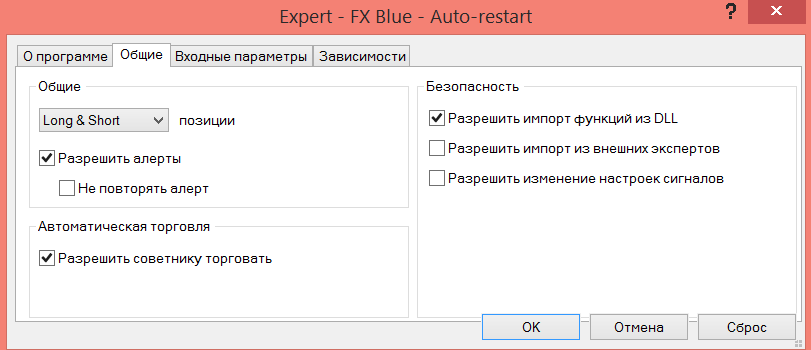
After the EA starts working, it will continue to run constantly until you stop it.
If MT4 shuts down while the EA is running, the advisor will automatically restart the program and itself.
When launched, the advisor will begin monitoring the connection only from the moment the first tick is received from the broker. Thus, if the EA starts launching at a time when the connection has already disappeared, you will not receive a warning message.
EA Settings

Note. The EA parameters cannot be changed in the usual way by right-clicking and selecting Experts->Properties (because the EA works constantly on a continuous basis and does not respond to every market tick). To change the EA properties, you must add it to the chart again.
Notification parameters
The EA has five notification parameters:
- WarnAfterSeconds. The number of seconds to wait before displaying notifications that the connection has been lost. Zero (or a negative number) issues an immediate alert whenever the connection is lost.
- SendEmail. If this parameter is set to “true”, the EA will send an email notification when the connection is lost (and when it is restored).
- RestartMT4 OnProblems. If this parameter is set to “true”, the EA will try to restart MT4 when the connection to the broker is lost.
Broker operating time parameters
Many brokers perform maintenance on their servers while the markets are closed on weekends. In order to avoid displaying unnecessary alerts, you can use the broker operating time parameters and set a period of time when the EA should not monitor the connection status.
All of the following parameters are defined by local time, according to your computer's time, rather than your broker's time:
- BrokerOpensOnDayOfWeek. The day of the week on which the broker starts operating according to local time, where 0 = Sunday and 6 = Saturday. Usually this value is 0 (Sunday) or 1 (Monday).
- BrokerOpensAtHour. The hour of the day at which the broker starts operating (for example, 23 for 11 p.m.).
- BrokerOpensAtMinute. The minutes of the hour when the broker starts operating (usually 00).
- BrokerClosesOnDayOfWeek. The day of the week on which the broker finishes operating according to local time, where 0 = Sunday and 6 = Saturday. Usually this value is 5 (Friday).
- BrokerClosesAtHour. The hour of the day at which the broker finishes operating (for example, 22 for 10 p.m.).
- BrokerClosesAtMinute. The minutes of the hour when the broker finishes operating (usually 00).
When the local time specified in the settings falls within non-working hours, the EA will display the status “”, which means “broker non-working hours – weekend”.
Warning text message parameters
You can control the alert text that will be sent by email using the LostConn_EmailSubject parameters and so on. There are separate groups of settings used when the connection is lost and restored, as well as separate settings for the text sent by email.
You can use the following variables in the text:
| Variable | Description |
| {ACC} | Account number |
| {LOCALTIME} or {TIME} | Your computer time |
| {BROKERTIME} | Your broker time |
| {LOSTTIME} | The time when the connection was lost, according to your computer time |
| {COMPANY} | Your broker |
| {TERMINALPATH} | The location of MT4 on your computer, for example, C:Program FilesMT4 |
Display parameters
While operating, the EA status indicator is displayed in the upper right corner of the chart. You can control the font and color by using the StatusFont, StatusFontSize, and StatusFontColor display parameters.
Additional parameters
There is one “specialized” parameter: WaitSecondsBeforeRestart. If RestartMT4OnProblems is enabled, then it observes a certain number of seconds between detecting a problem (that is, the expiration time of WarnAfterSeconds) and the time of the automatic restart of the MT4 terminal. By default, this value is 60, which gives the MT4 terminal time to send an email notification that the connection is missing before it is restarted.
Notification status
While operating, the utility displays a simple notification about the current connection status in a single line. You can control the font and color of this notification using the display parameters.
Notifications

During the restart, the executable program responsible for restarting MT4 can send a confirmation by email. This is a separate addition to the messages sent by email from MT4 when the connection with the broker is lost/restored.
If you want to receive such additional restart notifications by email, you need to enter your email information into the settings of the executable program. Just run the RestartMT4.exe file (located in the MQL4/Libraries folder in the terminal data directory) and choose your mail server (gmail or yahoo only) and enter your mail details.
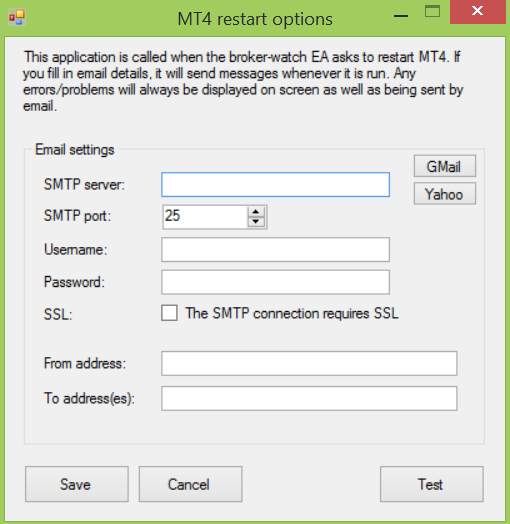
It is strongly recommended to configure your email information in RestartMT4. For RestartMT4, it is theoretically possible that the MT4 terminal will close and not restart. If you specify your email information in RestartMT4, you will be informed about such a situation.
When the connection with the broker is lost and is not restored during the time period defined by the WarnAfterSeconds parameter, the EA displays an alert on the screen and also sends an email notification. After the connection is restored, the corresponding alert will appear on the display (and/or arrive by email).
The EA does not reproduce sound alerts and the like when the connection is lost; this function is handled by Metatrader.
Restart

Usually, to solve the problem of restoring the connection with the broker, an automatic restart of the MT4 terminal is sufficient. Nevertheless, if after restarting MT4 cannot connect to the broker, the experts will not work. In other words, the expert advisor will not be able to take any further actions after the restart because the connection was not resumed. As soon as the connection is restored, manually or on its own, the EA will load again and detect that the connection is present again, after which it will send an alert about the restoration of the connection to email.
Stopping monitoring
You can stop the expert advisor in two ways: by closing the chart on which it is running, or by right-clicking on the chart and selecting Experts Advisors -> Remove.
How to test the utility

You can simulate a connection-related problem in order to check that the software is working correctly by performing the following steps:
- In MT4, click Tools -> Options;
- On the Server tab, check the "Use proxy server" box;
- Click the "Proxy" button and enter 127.0.0.1 as the server;
- Click the connection status icon in the lower right corner of the MT4 window and select another broker server from the pop-up menu.
You can restore the connection again by unchecking the "Use proxy server" box.
Download FxBlue Auto Restart

Forum thread
Respectfully, Pavel Vlasov
TradeLikeaPro.ru
Anyone who works seriously with forex advisors knows that losing the connection in Metatrader 4 can threaten serious financial losses.